Scenario 1: Working from Home — Solo Video Calls

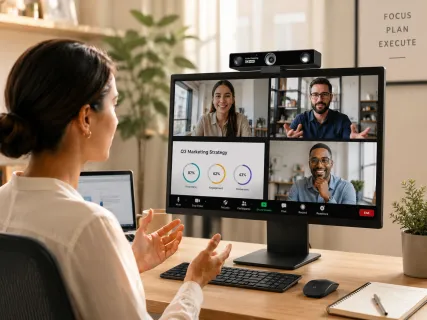
For the solo remote worker sitting at a well-lit desk, the built-in camera in a modern laptop is a reasonable starting point. Recent MacBook Pros and premium Windows laptops have improved their built-in camera quality considerably, with some offering 1080p resolution and basic low-light compensation. If you're using one of these devices, your Zoom calls are probably presentable — not great, but not embarrassing.
The limitations become apparent quickly, though. A built-in camera is fixed at the top of your screen, which means you're always slightly below or off-axis from the lens. The field of view is narrow, the lens is physically small (limiting how much light it can gather), and the microphone array is usually designed to pick up the person closest to the keyboard — that's fine for a solo call, but shows cracks in louder environments.
If you work from home full-time and rely on video calls as a core part of your job, this is the scenario where an entry-level conference webcam makes the most sense. A 1080p standalone webcam with autofocus, a wider lens, and a clip mount gives you better image quality and the flexibility to reposition the camera to a more flattering angle. If you're a Mac user, choosing one of the best webcams for MacBook that explicitly supports macOS plug-and-play will save you driver headaches.
Verdict: Built-in camera is functional for light use. An affordable standalone webcam ($50–$150) is a worthwhile upgrade for daily remote workers.
Scenario 2: Small Meeting Rooms (2–5 People)
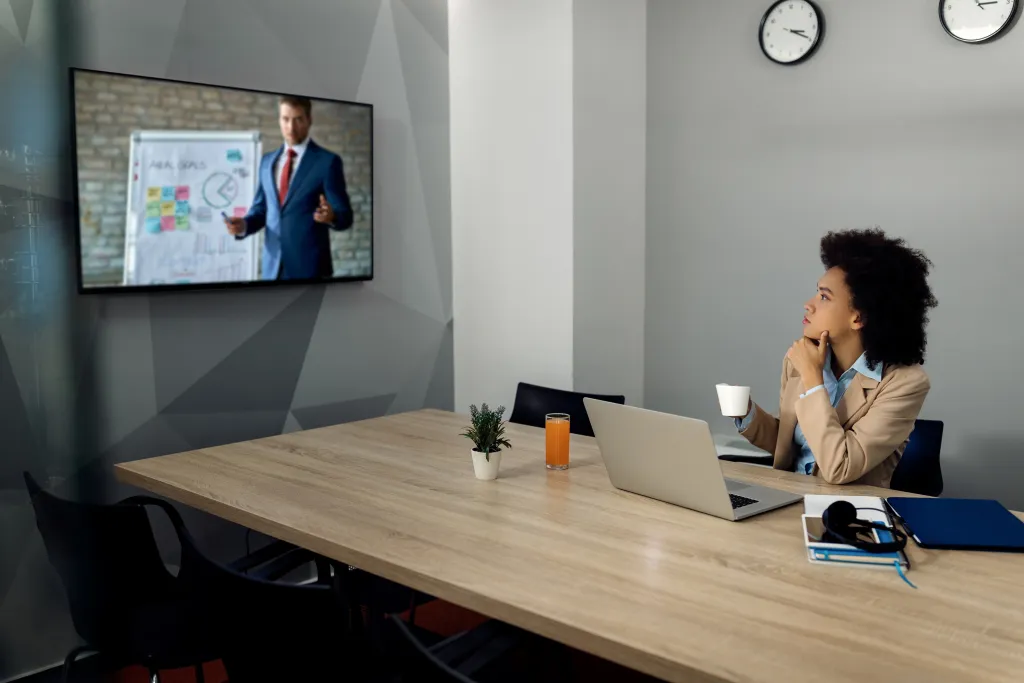
This is where the built-in camera truly breaks down. When multiple people need to appear on screen from a shared room, a laptop's narrow field of view simply cannot fit everyone in the frame — people on the edges get cropped out or have to awkwardly crowd around the screen. The built-in microphone's short pickup range means anyone more than a meter or two away will sound distant or muffled.
What this scenario needs is a purpose-built webcam for conference room use: wide-angle optics, a longer microphone pickup range, and the ability to mount or position the device at the center of the table or above a display.
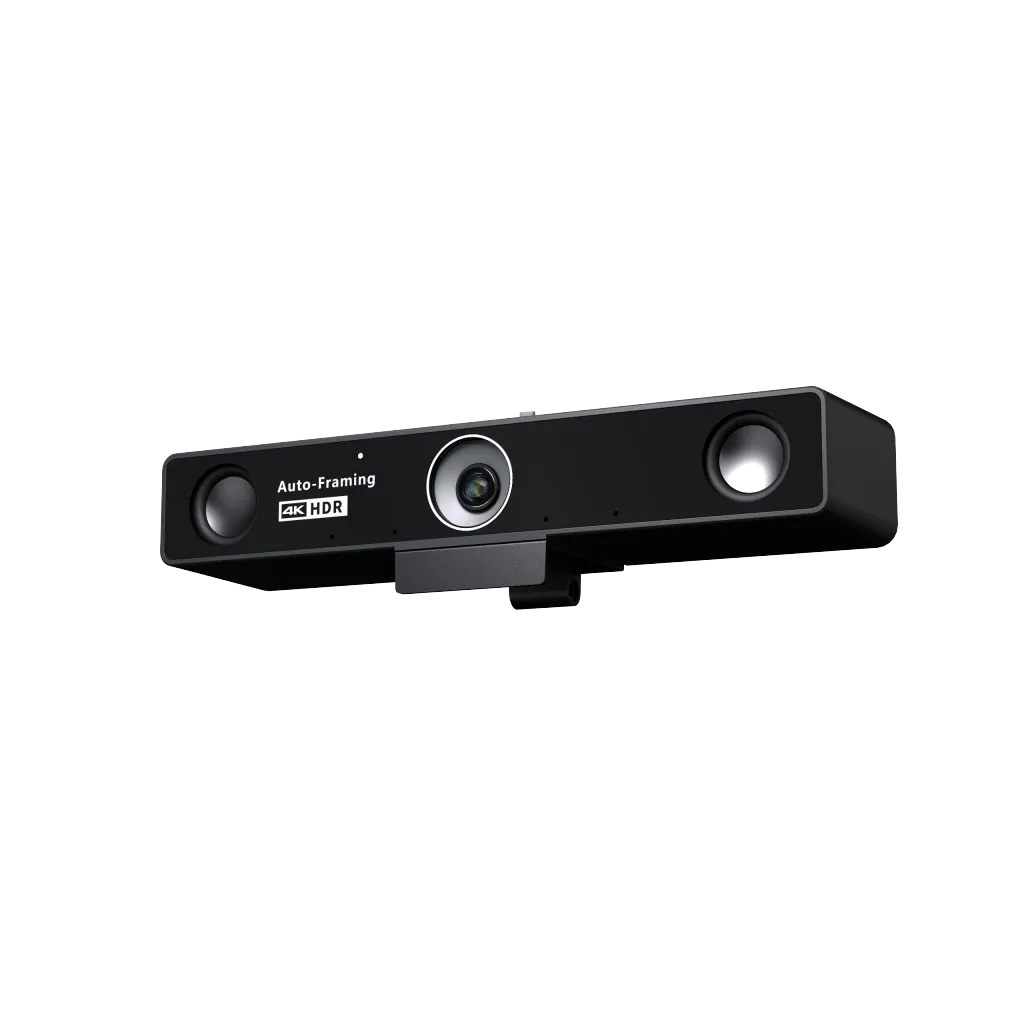
A strong option at this level is the Nearity V30S. It offers 4K resolution via an 8MP CMOS sensor, a 120 degree field of view webcam lens that captures the full width of a small meeting table without distortion, dual MEMS microphones with AI noise cancellation, and an integrated speaker — all in a plug-and-play USB device that works with Zoom, Teams, Google Meet, and most other platforms. It also includes a remote control for adjusting zoom and angle from across the room, and a physical privacy shutter. For small-to-medium rooms that need a simple, effective BYOD solution without complex installation, the V30S is a compelling choice.
That said, it's not the only option worth considering. The Jabra PanaCast 20 is another strong performer in this category, with AI-powered framing and a compact design that makes it easy to carry between rooms. The Logitech MX Brio delivers excellent image quality for individuals or pairs at a slightly lower price point. The right choice depends on how many people typically join from the room and whether you need the device to be portable.
Verdict: Built-in camera is not suitable for group use. A wide-angle conference webcam ($150–$400) is the right investment.
Scenario 3: Large Meeting Rooms and Boardrooms

In a large meeting room or boardroom — think a long table seating eight or more people — neither a laptop's built-in camera nor a basic conference webcam is adequate. The challenge is coverage: a standard webcam, even with a wide field of view, will struggle to include everyone at the table while maintaining enough resolution to clearly show faces.
This is the territory of PTZ (pan-tilt-zoom) cameras and all-in-one video bars. PTZ cameras can physically rotate and zoom to follow different speakers, while all-in-one bars like the Logitech Rally Bar or Poly Studio X integrate camera, audio, and room computing into a single device. These systems typically require IT installation and a larger budget ($500–$3,000+), but they deliver a consistently professional experience that standalone webcams can't match in a large room.
The Jabra PanaCast 50 is worth mentioning here: it uses three cameras to create a 180-degree panoramic view, which is particularly useful for rooms where participants are seated across from each other rather than along one wall. For organizations standardizing on Microsoft Teams Rooms or Zoom Rooms, these all-in-one systems are often the logical choice.
Verdict: Built-in cameras are irrelevant at this scale. PTZ cameras or all-in-one video bars are required for large rooms.
Scenario 4: Hybrid Meetings — Part In-Office, Part Remote

Hybrid meetings — where some participants are physically together in a room while others join remotely — are arguably the hardest scenario for video conferencing hardware to solve well. The core problem is equity: remote participants should have the same ability to see and hear everyone in the room as if they were present themselves. When that doesn't happen, remote participants get sidelined, miss side conversations, and disengage.
A laptop's built-in camera placed on the table is inadequate in almost every hybrid scenario. It picks up whoever is sitting directly in front of the screen and leaves everyone else as a blurry background figure. The built-in microphone fares even worse, often picking up keyboard typing and ambient noise instead of the person speaking from across the table.
For hybrid setups, a best webcam for meetings should include: a wide enough field of view to show the whole room, a capable microphone array with a long enough pickup radius, and ideally AI-powered speaker tracking so the camera automatically emphasizes whoever is talking. Options like the Meeting Owl 5 Pro take a 360-degree approach and combine omnidirectional audio with an AI-driven camera that frames the active speaker. The Nearity V30S, with its 120-degree lens and optional expansion microphone (extending pickup to 8 meters), is a practical choice for medium-sized hybrid rooms that want a straightforward USB plug-and-play setup.
Verdict: Hybrid meetings demand a purpose-built conference webcam with wide-angle optics and strong microphone coverage. Budget $200–$600 for a quality solution.
Scenario 5: Client Presentations, Content Creation, and Online Education
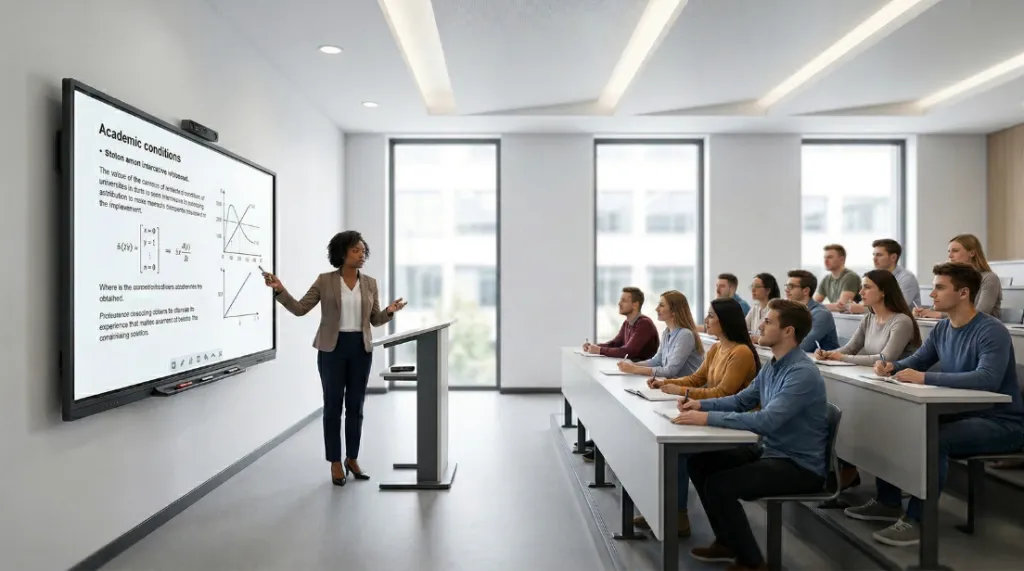
Some video situations aren't just about meeting — they're about impression. Client pitch calls, recorded training videos, webinars, and online courses all benefit from the kind of image quality that a laptop's built-in camera simply cannot deliver. In these contexts, a grainy or poorly lit video signals a lack of investment or professionalism, even if that's not a fair judgment.
For content creators and online educators, the best setup often goes beyond even a standard conference webcam. A high-end webcam like the Logitech Brio 4K or a mirrorless camera fed into a capture card will give you the cinematic shallow depth of field and color accuracy that makes for genuinely compelling video content. These setups require more configuration, but the results speak for themselves.
For those who want a step up from their laptop without going full creator-rig, choosing one of the best webcams for Zoom that supports 4K output and HDR lighting compensation is the right call. The Poly Studio P15 is frequently cited as a standout in this category — it delivers 4K video, built-in AI framing, and a speaker-and-microphone system that handles one-to-three person setups cleanly.
Verdict: If your video has an audience beyond a regular team meeting, invest in a quality webcam or camera system. Image quality is part of your brand.
Quick Decision Guide
Not sure which category you fall into? Here's a quick summary:
- Occasional solo calls, good lighting, modern laptop: Your built-in camera is probably fine for now.
- Daily remote work, one-on-one and small group meetings: An entry-level to mid-range standalone webcam ($50–$200) is worth the upgrade.
- Small meeting room, 2–5 participants: A wide-angle conference webcam like the Nearity V30S or Jabra PanaCast 20 is the right fit ($150–$400).
- Medium hybrid room, 5–10 people: Look for a camera with 120°+ field of view, extended mic pickup, and optional expansion audio. Budget $300–$600.
- Large boardroom or auditorium: PTZ camera or all-in-one video bar. IT installation likely required. Budget $500–$3,000+.
- Client-facing content or online education: High-end 4K webcam or mirrorless camera with capture card. Budget $300–$1,500+.
Final Thoughts
The built-in camera in your laptop is a convenience feature, not a professional tool. For casual calls between colleagues who already know each other, it does the job. But as soon as video quality starts affecting how you're perceived — by clients, by candidates you're interviewing, by students you're teaching, or by teammates who need to feel included — it becomes a liability.
Conference webcams have matured rapidly. Today's mid-range options offer 4K resolution, AI-powered noise cancellation, auto-framing, and wide fields of view at prices that were unthinkable five years ago. The gap between a $200 conference webcam and a $2,000 professional setup has narrowed considerably — which means the right webcam for most people's needs is more accessible than ever.
The best approach is to match your hardware to your actual meeting scenarios. Think about where your most important video calls happen, how many people are typically in the room, and what impression you need to leave. The right conference webcam isn't the most expensive one — it's the one that fits your room, your workflow, and the people on the other side of the screen.
FAQs
- Is the built-in camera in a laptop good enough for video calls?
It depends on how frequently you use it and what kind of calls you're making. For occasional one-on-one calls in a well-lit room, a modern laptop's built-in camera is usually acceptable. However, if you're on video calls daily, meeting with clients, or joining from a shared room with multiple people, the limitations — fixed angle, narrow field of view, small sensor, weak low-light performance — will quickly become a frustration. In those cases, a dedicated conference webcam is a worthwhile upgrade.
- What is the difference between a regular webcam and a conference webcam?
A regular webcam is designed for personal use: one person, one screen, typically a narrow field of view around 65°–78°. A conference webcam is built for shared spaces and group video calls. It typically offers a much wider field of view (90°–120° or more), a stronger microphone array that can pick up voices from across a room, better low-light performance, and features like AI noise cancellation, auto-framing, or speaker tracking. Some conference webcams also include built-in speakers, making them an all-in-one audio-video solution for meeting rooms.
- What field of view (FOV) do I need for a conference room?
For a small meeting room with 2–4 people sitting around a table, a 90°–100° FOV is usually sufficient. For larger rooms or tables where participants sit further apart, a 120-degree field of view webcam is recommended — it captures a wider angle without requiring everyone to crowd into frame. Some all-in-one devices, like the Jabra PanaCast 50, offer up to 180° for rooms where participants face each other from opposite sides of the table.
- Do conference webcams work with Zoom, Microsoft Teams, and Google Meet?
Yes — most conference webcams are plug-and-play USB devices that are recognized automatically by Zoom, Microsoft Teams, Google Meet, Webex, and other major video platforms. Many devices, including the Nearity V30S, are officially certified for Teams and Zoom, which means they've been tested for compatibility and reliable performance. Always check the product's compatibility list if your organization standardizes on a specific platform.
- How many people can a conference webcam cover?
It depends on the device and the room layout. A standard wide-angle conference webcam with a 90°–120° FOV can comfortably cover 2–6 people in a small meeting room. For larger rooms with 6–12 participants, you'll want a device with a wider FOV, extended microphone pickup (6–8 meters), or the option to add expansion microphones. For rooms with more than 12 people, a PTZ camera system or all-in-one video bar is typically required.