A good webcam is not only about video resolution. In real video calls, the way a webcam is mounted can affect your eye contact, framing, desk space, and overall meeting experience. That is why many users now look for a webcam with a built-in stand, instead of buying a separate tripod for webcam or extra mounting accessories.
Whether you work from home, join Zoom meetings every day, teach online, or set up a small conference room, choosing the right webcam stand design can make your setup cleaner and easier to use.
The Hidden Impact: Why a Proper Stand Matters for Professionalism
A bad camera angle affects more than appearance. It changes how people experience your communication.
In professional meetings, people rely on facial expressions, posture, and eye contact to understand tone and confidence. When the camera is positioned too low, your face may appear distorted. When it is too high, you may look disconnected from the conversation. When it is placed off-center, it can seem like you are not looking at the person speaking.
For online teaching, poor angles can make it harder for students to follow the instructor, whiteboard, or desk demonstration. For content creators, the wrong camera height can make videos feel less polished. For small business teams, poor framing can make remote participants feel like they are watching from an awkward corner of the room.
A good webcam with stand solves this by helping you place the camera at the right height, angle, and distance for your specific workspace.
Understanding Your Mounting Options
Navigating the world of camera mounts can be confusing, especially with the sheer variety of workspace configurations in modern home offices and corporate huddle rooms. Let us break down the three primary categories of webcam placement to help you identify the right fit for your daily needs.
The Webcam Mount for Monitor
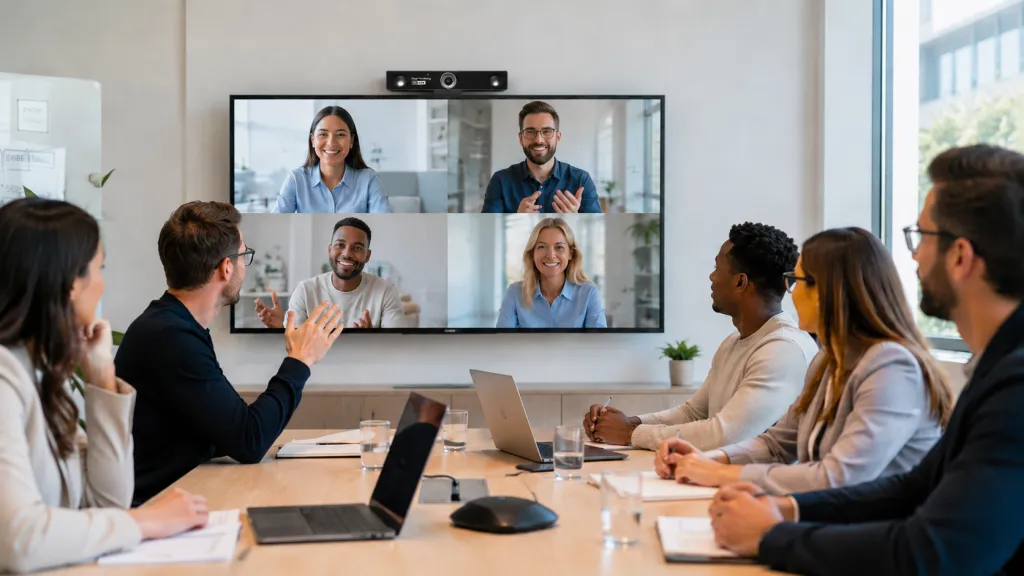
The most traditional and widespread solution is the webcam mount for monitor. This is typically a hinged clip or lip built directly into the base of the webcam itself. It unfolds to grip the top bezel of your computer monitor or laptop screen.
Best for: Huddle Room Meetings and Home Office Setups. In home-based or small-scale conference environments, the webcam mount for monitor is the most efficient choice. It provides immediate eye-level alignment for professional one-on-one calls without encroaching on limited desk space or requiring additional hardware setup. For teams looking for a simple webcam for conference room use, this mounting style can also work well in compact huddle rooms where the display is positioned close to the meeting table.
The Pros:
- Space-Saving: Because the camera rests on top of your existing hardware, it requires zero additional desk real estate. This makes it ideal for compact workspaces.
- Direct Alignment: Placing the camera directly above the screen where you view your colleagues makes it much easier to simulate natural eye contact.
- Simplicity: There is no complex assembly required. You simply unfold the clip, rest it on the bezel, and plug in the device.
The Cons:
- Height Limitations: The camera's height is entirely dependent on your monitor's height. If your monitor sits too low, your camera angle will still be poor.
- Bezel Interference: With modern, ultra-thin bezels, a poorly designed monitor mount can sometimes overlap onto the digital display, covering up browser tabs or menu bars.
- Rigidity: If you need to quickly pivot the camera to show a physical document on your desk or a whiteboard behind you, a monitor clip is often too restrictive.
The Webcam Stand for Desk
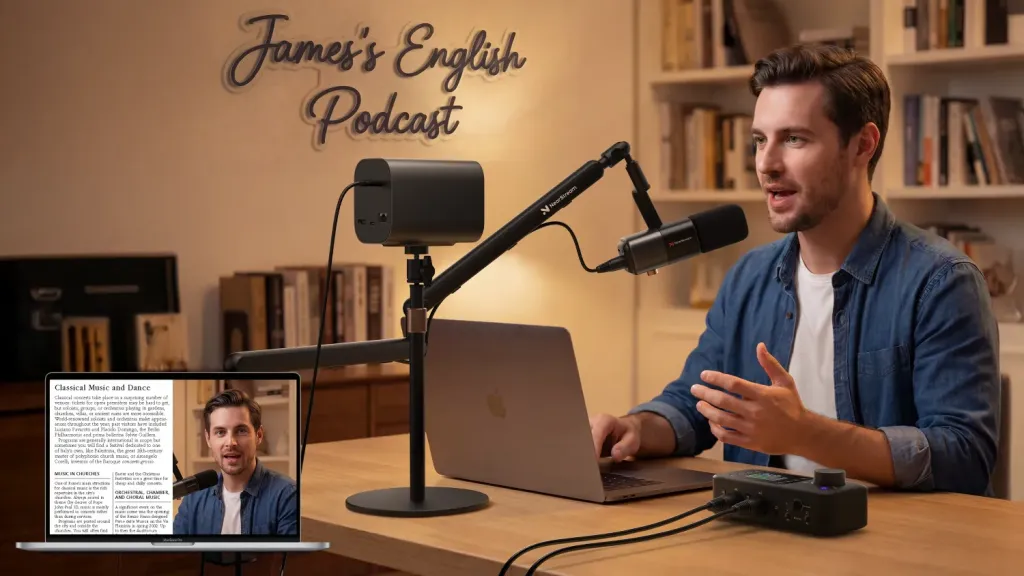
For users who require more maneuverability, a webcam stand for desk is an excellent alternative. These stands generally come in two forms: a weighted tabletop base with an adjustable telescopic pole, or an articulated mechanical arm (similar to a boom mic stand) that clamps to the edge of the desk.
Best for: Content Creators, Live Streamers, and Small Team Meetings. An adjustable arm is preferred for gaming or tutorial recording, allowing you to move the camera out of the way when not in use. For small team brainstorming sessions in a huddle room, a desk stand allows you to position the camera at the end of the table, ensuring AI Auto Framing can capture everyone equally.
The Pros:
- Ultimate Adjustability: Desk stands allow you to position the camera independently of your monitor. You can raise it, lower it, or bring it closer to your face to improve lighting and audio pickup.
- Multi-Screen Friendly: If you use a dual-monitor setup, placing the camera on the bezels can create an awkward, off-center angle. A desk stand can be positioned perfectly between the two screens.
- Versatility: Many content creators prefer desk stands because they can easily angle the camera downward for "top-down" shots of product unboxings or document reviews.
The Cons:
- Desk Clutter: Weighted bases take up physical space on your desktop, which can be frustrating if you have a small working area.
- Vibration: If you are a heavy typist, an articulated arm clamped to your desk may transfer vibrations to the camera, causing a jittery video feed during meetings.
The Tripod for Webcam

When you need to step away from the desk entirely, you need a tripod for webcam usage. These range from small, flexible "octopus" tripods that can wrap around objects, to full-height floor tripods typically used in photography. To utilize these, you must ensure you purchase a webcam for tripod setups—meaning the camera base features a standard 1/4-inch threaded mounting hole.
Best for: Online Teachers, Educators, and High-Production Vlogging. If you frequently stand to use a whiteboard or demonstrate physical objects, a floor tripod frames a wider area of your teaching space. A tabletop tripod can also be quickly angled down for "top-down" desk demonstrations of textbooks or experiments.
The Pros:
- Room-Scale Flexibility: Floor tripods are perfect for small business teams utilizing huddle rooms. You can place the camera at the end of a conference table to capture multiple participants.
- Dynamic Presentations: For online teachers or sales professionals who stand up and use physical whiteboards, a floor tripod allows you to set the perfect wide-angle framing.
- Portability: Tripods fold down easily, making them an excellent tool for professionals who travel or set up temporary streaming stations.
The Cons:
- Footprint: Floor tripods require floor space, creating a potential tripping hazard in tight office environments.
- Setup Time: Unlike a monitor clip that stays permanently in place, setting up a floor tripod and routing the necessary USB cables takes a few extra minutes before a call.
Why You Need a Versatile Webcam with Stand Integration
Rather than buying a standard camera and spending hours hunting for compatible aftermarket mounts, the modern professional should seek an all-in-one ecosystem. Purchasing a premium webcam with stand integration—or one that offers multiple out-of-the-box mounting capabilities—ensures you are never locked into a single workspace configuration.
In a single work week, you might take a one-on-one call from your desk, lead a team brainstorming session from a conference table, and record a video presentation standing up. Your hardware needs to adapt instantly. A camera that features a monitor clip, includes a tabletop stand, and incorporates a 1/4-inch thread gives you total environmental control.
This brings us to one of the most capable solutions currently on the market for professionals who refuse to compromise on audio, video, or mounting flexibility.
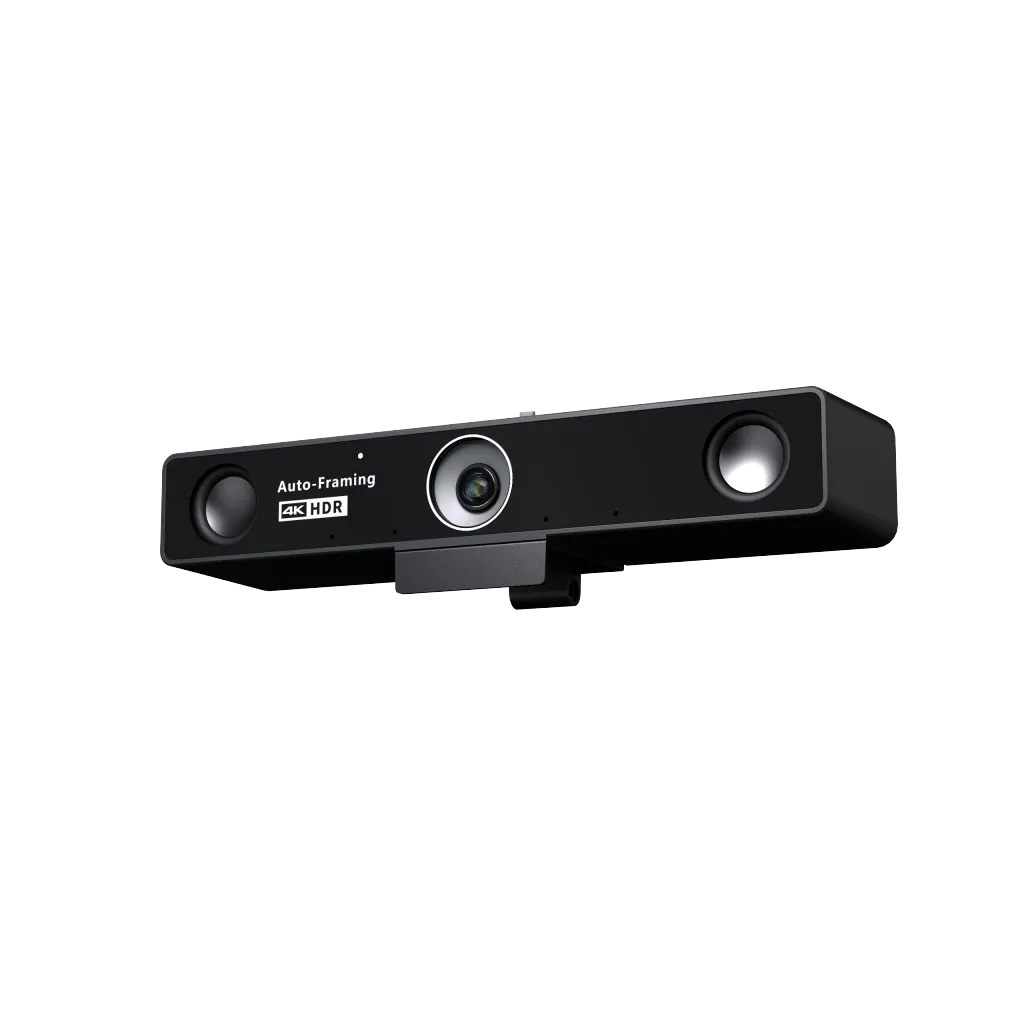
Product Spotlight: Nearity V30S 4K Conference Webcam
If you are looking to upgrade your digital presence and eliminate poor camera angles permanently, the Nearity V30S stands out as a premier choice in 2026. Designed specifically to bridge the gap between individual remote work and small business team collaboration, the V30S addresses every pain point associated with hybrid meetings.
The Core Advantage: Three Versatile Mounting Setups
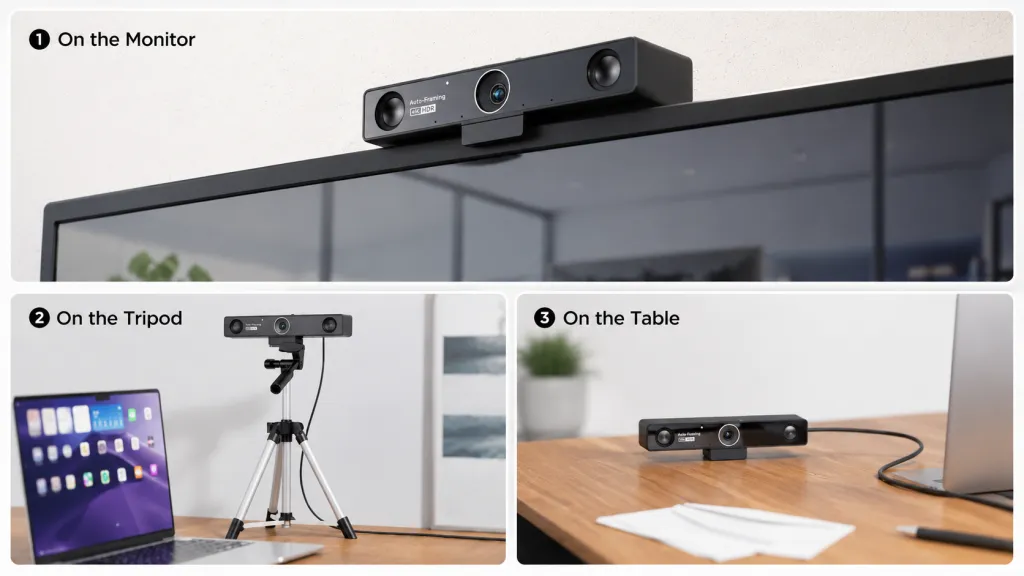
The defining characteristic of the Nearity V30S is its highly adaptable design. It does not force you to rely on a single, rigid setup. Instead, it empowers you to build three distinct mounting configurations right out of the box:
- Setup 1: On the Monitor: Using its secure, adjustable base, the V30S functions flawlessly as a webcam mount for monitor setups. It easily grips onto the top bezel of your laptop or external display, providing an immediate, space-saving angle that helps you maintain direct eye contact.
- Setup 2: On the Table: Most impressively, the V30S comes with an included tabletop tripod, instantly giving you a high-quality webcam stand for desk deployment. Placing it directly on the table allows you to easily reposition the camera between dual monitors, or quickly angle it for document demonstrations without vibrating your main screen.
- Setup 3: On the Tripod: For larger huddle rooms or dynamic standing presentations, the camera base features a standard 1/4" screw thread. This allows you to effortlessly use the device as a webcam for tripod integration, mounting it to any standard floor stand for ultimate room-scale flexibility.
Other Premium Features
Beyond mounting, the Nearity V30S offers a professional, all-in-one meeting experience:
- 4K Visuals & AI Framing: Delivers ultra-HD resolution with an 8MP sensor and AI Auto Framing to keep you perfectly centered.
- 120° Ultra-Wide FOV: The 120-degree field of view ensures that everyone in a small huddle room is visible without distorting the image, making it ideal for group collaborations.
- Pro Audio: Features a noise-canceling dual-mic array (16ft range) and a full-duplex speaker for clear, natural conversations.
- Convenience: Plug-and-play USB setup with a physical privacy cover for instant security.
Best Practices for Setting Up Your Workspace
Once you have selected a high-quality camera like the Nearity V30S, follow this quick checklist to finalize your setup:
- Find True Eye Level: Adjust your monitor clip, desk stand, or tripod so the camera lens is exactly level with your eyes. You should not have to tilt your chin up or down to look into the lens.
- Mind the Distance: Position the camera roughly an arm's length away. This prevents lens distortion (which can make your nose look unusually large) while keeping your head and shoulders comfortably in the frame.
- Light Your Face: Ensure your primary light source (a window or a desk lamp) is located behind the camera, illuminating your face. Never place a bright window directly behind your chair, or you will appear as a dark silhouette.
- Look at the Lens: When making a critical point during a presentation, look directly into the camera lens, not at the video feeds of your colleagues. This simulates direct eye contact.
FAQs
- Can I use the Nearity V30S on a motorized standing desk?
Yes. Because the V30S supports monitor mounting, it will move perfectly in sync with your desk. If you prefer the included tabletop tripod, the V30S's stability ensures it remains secure during height adjustments, though we recommend cable management to avoid snags.
- How does the AI Auto Framing react if I am using a desk stand off-center?
The AI is designed to intelligently crop and center the image based on the detected human forms, not the physical position of the camera base. Even if your webcam stand for desk is placed at an angle, the V30S will digitaly re-center you in the frame for a professional look.
- Will the monitor clip damage my ultra-thin laptop screen?
No. Most professional-grade webcam mounts are designed with protective rubber padding and a tension-balanced hinge. This ensures a firm grip without applying excessive pressure to delicate LCD or OLED panels.
- What should I do if I want to protect my privacy when the camera is not in use?
Privacy is paramount. We recommend three layers of protection: 1. Choose a webcam with a physical privacy cover (built-in or clip-on) to physically block the lens. 2. If your camera is on a desk stand or tripod, simply turn the camera 180 degrees to face the wall when not in use. 3. Always check for a physical LED indicator that shows when the camera is actively pulling power/data.
Conclusion
Stop letting poor camera angles undermine your professional credibility. Relying on a fixed laptop camera is a fast track to miscommunication and visual fatigue. By understanding the distinct advantages of a webcam mount for monitor, a webcam stand for desk, and a tripod for webcam use, you can engineer the perfect digital workspace.
For those who demand excellence and flexibility, investing in a versatile webcam with stand integration is the ultimate solution. Solutions like the Nearity V30S provide the True 4K clarity, AI-driven audio, and multiple mounting options necessary to command any virtual room. Elevate your angle, secure your presence, and make every hybrid meeting in 2026 a resounding success.