Before exploring specific products, it is crucial to understand the technical parameters that define the best webcam for microsoft teams. IT managers and corporate professionals should evaluate webcams based on the following five pillars of performance:
1. Resolution and Frame Rate: 4K is the New Standard
While 1080p (Full HD) was the sweet spot for years, 2026 is the era of 4K UHD. Even if Microsoft Teams compresses video to save bandwidth, a 4K camera captures significantly more data, resulting in a sharper, cleaner image after compression. Furthermore, 4K sensors allow for digital zoom and auto-framing without pixelation or loss of quality. For smooth, natural motion, ensure the webcam supports at least 30 frames per second (fps) at 4K, or 60 fps at 1080p.
2. AI Auto-Framing and Tracking
You shouldn't have to adjust your camera manually every time you shift in your chair or stand up to point at a whiteboard. Premium webcams now feature AI-driven auto-framing that smoothly pans, tilts, and zooms to keep you perfectly centered. This feature is particularly vital for dynamic presenters and small huddle rooms where multiple people need to fit into the frame.
Most home offices and corporate huddle spaces do not have studio-quality lighting. A top-tier webcam must feature a large image sensor (e.g., 1/2-inch or larger) and High Dynamic Range (HDR) technology. These elements work together to balance harsh backlighting from windows and brighten your face in dim environments, preventing you from looking like a shadowy silhouette.
4. Advanced Audio and Noise Suppression
While many professionals use dedicated headsets, the best webcams provide exceptional built-in microphone arrays as a reliable fallback or primary source for small rooms. Look for multi-element microphone arrays equipped with AI deep-learning noise suppression to filter out typing sounds, AC hums, and background chatter.
5. Seamless Plug-and-Play Integration
For IT managers deploying tech across an organization, complex driver installations are a nightmare. The ideal webcam should be universally compatible with Windows and macOS, offering a seamless plug-and-play experience specifically optimized for Microsoft Teams out of the box.
2026 Product Roundup: The Top Picks for Microsoft Teams
We have tested and evaluated the market's leading models to bring you the best options for various business needs. Here are the top webcams for dominating your Teams meetings in 2026.
1. The Best Overall Webcam for Teams: Nearity V30S
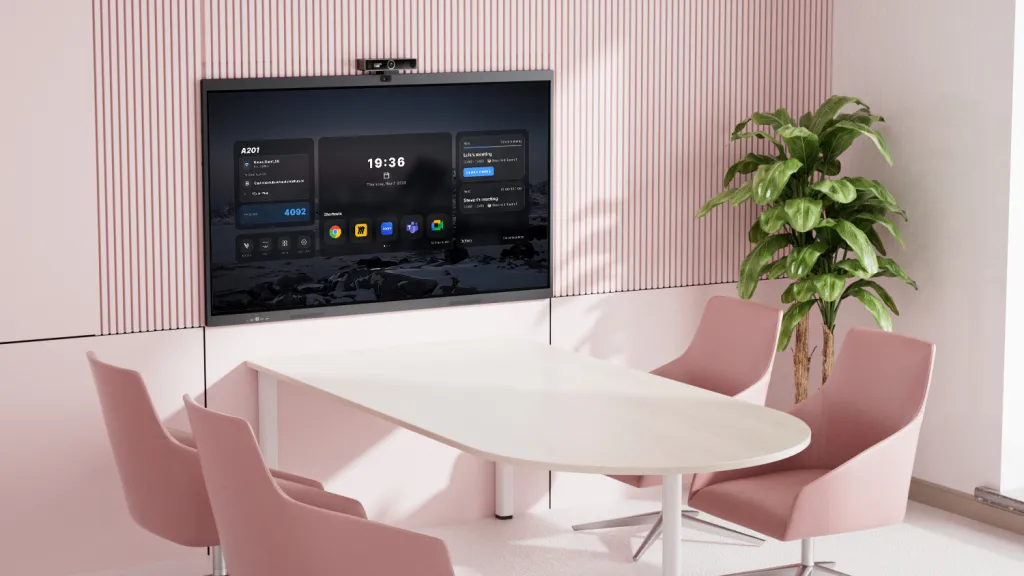
Target Audience: Executives, Small Business Owners, IT Managers, and Huddle Rooms
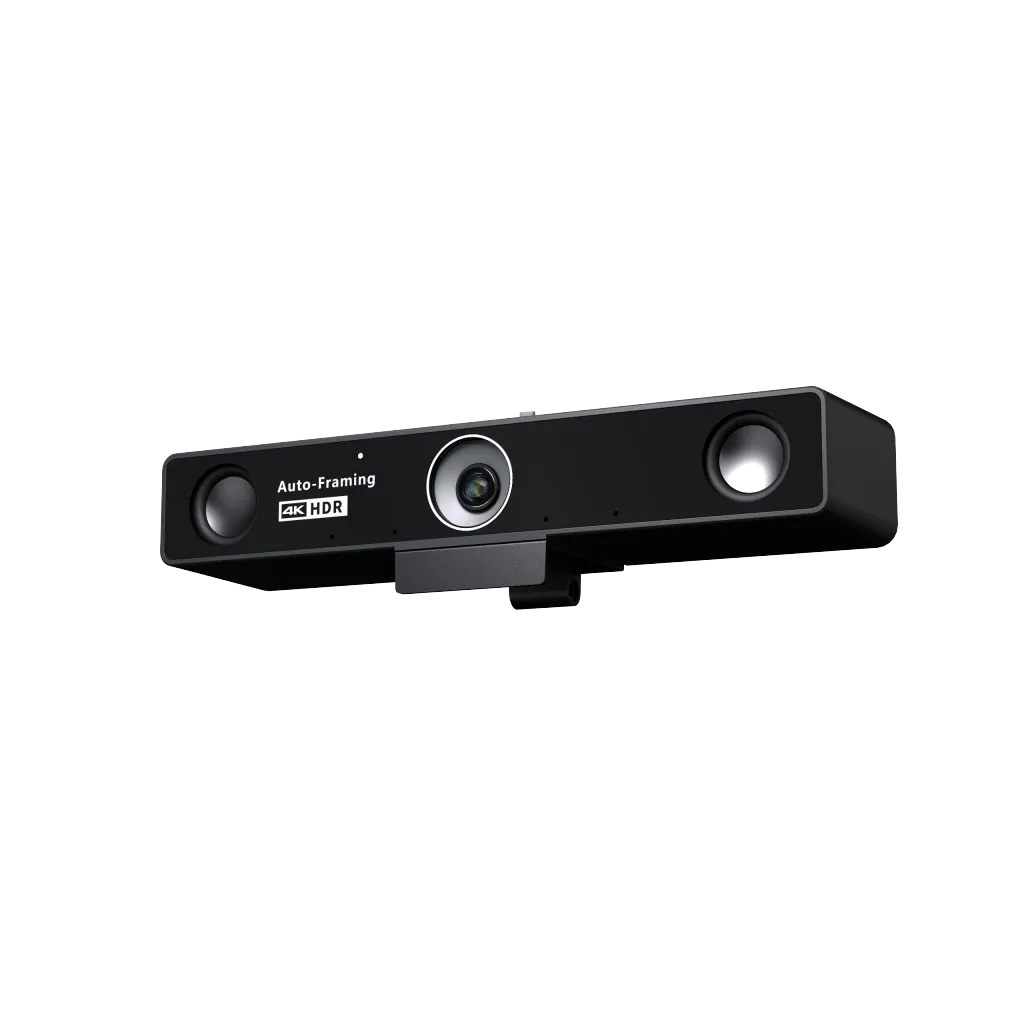
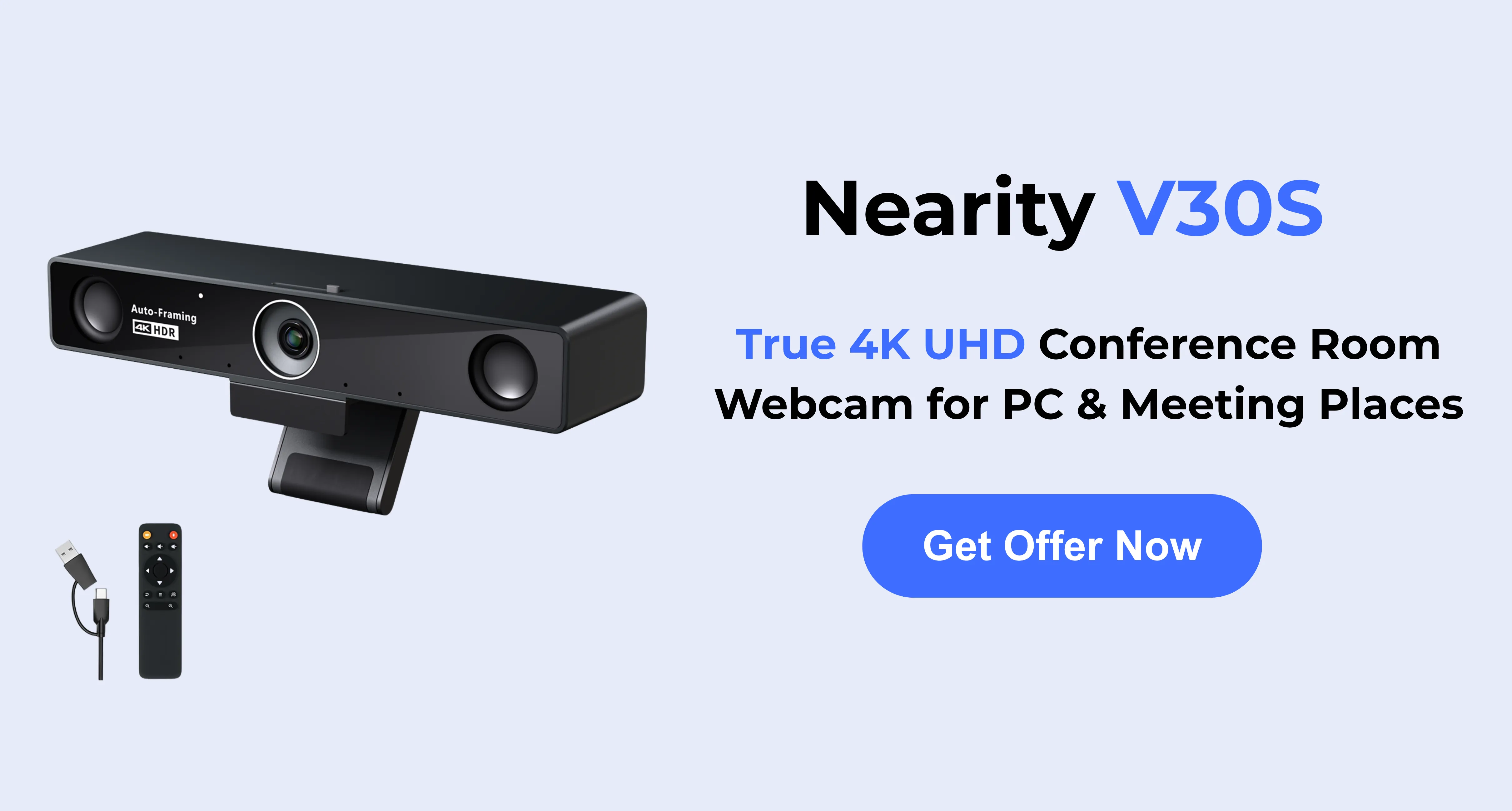
When it comes to delivering a flawless, boardroom-level experience right from your desk, the Nearity V30S stands in a class of its own. Designed with the modern professional in mind, the V30S bridges the gap between individual executive webcam setups and small conference room solutions.
Why it wins for Microsoft Teams: The Nearity V30S delivers exceptional 4K Ultra HD clarity with an 8MP sensor, combined with highly responsive AI auto-framing that keeps individuals or small groups perfectly centered in any meeting scenario.
It also stands out with advanced audio performance, featuring a multi-microphone array and intelligent noise suppression to ensure clear voice pickup while minimizing background distractions. Paired with an ultra-wide, distortion-free field of view, the V30S offers a powerful all-in-one solution for professional Microsoft Teams communication.
Pros:
- Crystal clear 4K UHD video quality with an 8MP sensor.
- Flawless AI auto-framing for individuals and small groups.
- Exceptional background noise suppression and voice pickup.
- Premium, professional design ideal for executive spaces.
- Effortless plug-and-play deployment for IT departments.
Cons:
- Premium feature set comes at a slightly higher price point than entry-level cameras.
2. Best Mid-Range Option for Mass Deployment: Logitech Brio 500
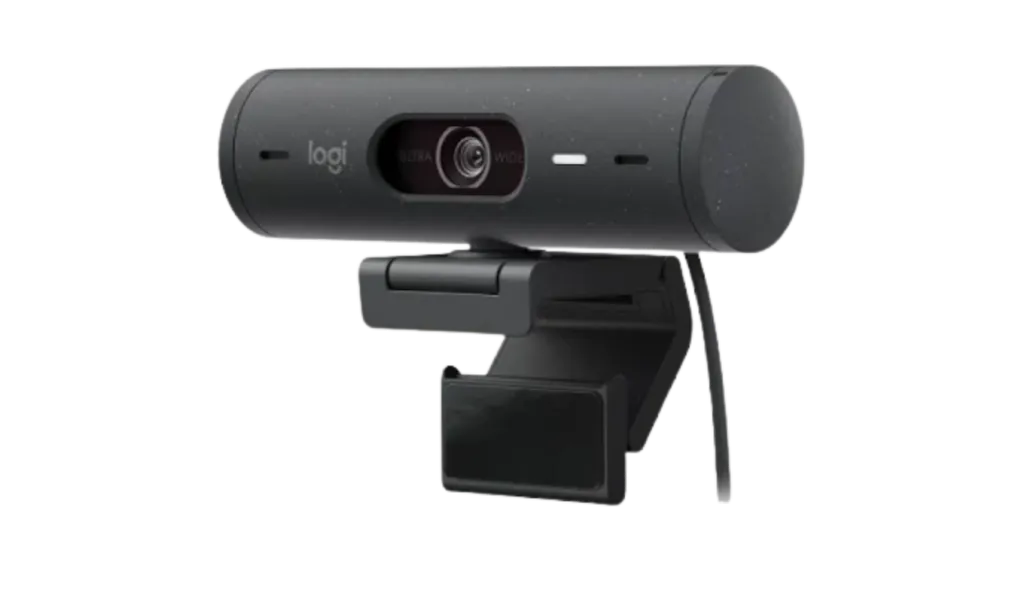
Target Audience: Hybrid Employees, Corporate IT Procurement
For organizations looking to equip hundreds of employees with a reliable, standardized camera, the Logitech Brio 500 is a fantastic 1080p option. It strikes a balance between essential modern features and cost-effectiveness.
Why it fits: The Brio 500 includes "RightLight 4" technology, which automatically adjusts exposure to compensate for poor lighting conditions. It also features a useful "Show Mode" that allows users to tilt the camera down to display physical documents on their desk—a handy tool for collaborative Teams sessions.
Pros:
- Reliable 1080p image quality.
- Built-in physical privacy shutter.
- Innovative Show Mode for desk viewing.
Cons:
- Lacks the 4K sharpness needed for larger screens.
- Auto-framing is less responsive than premium tier models.
3. Best Budget-Friendly Choice: Anker PowerConf C200
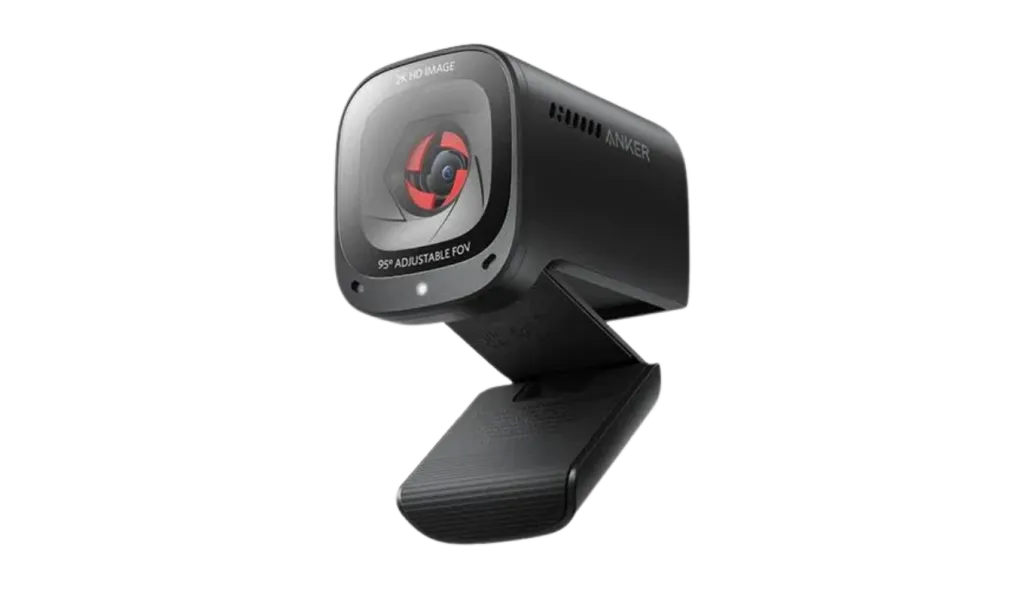
Target Audience: Freelancers, Students, and Budget-Conscious Remote Workers
If you need a fast, affordable upgrade from your laptop camera but aren't ready to invest in enterprise-grade hardware, the Anker PowerConf C200 is an excellent entry-level choice.
Why it fits: This compact webcam delivers 2K resolution, which is a noticeable step up from standard 1080p. It features an adjustable field of view, allowing you to narrow the frame to hide a messy bedroom or widen it to capture more of your environment.
Pros:
- Crisp 2K resolution at an unbeatable price.
- Extremely compact and travel-friendly.
- Adjustable field of view options.
Cons:
- No AI auto-tracking capabilities.
- Struggles in very low-light environments.
4. Best for Presenters and Teachers: Insta360 Link 2
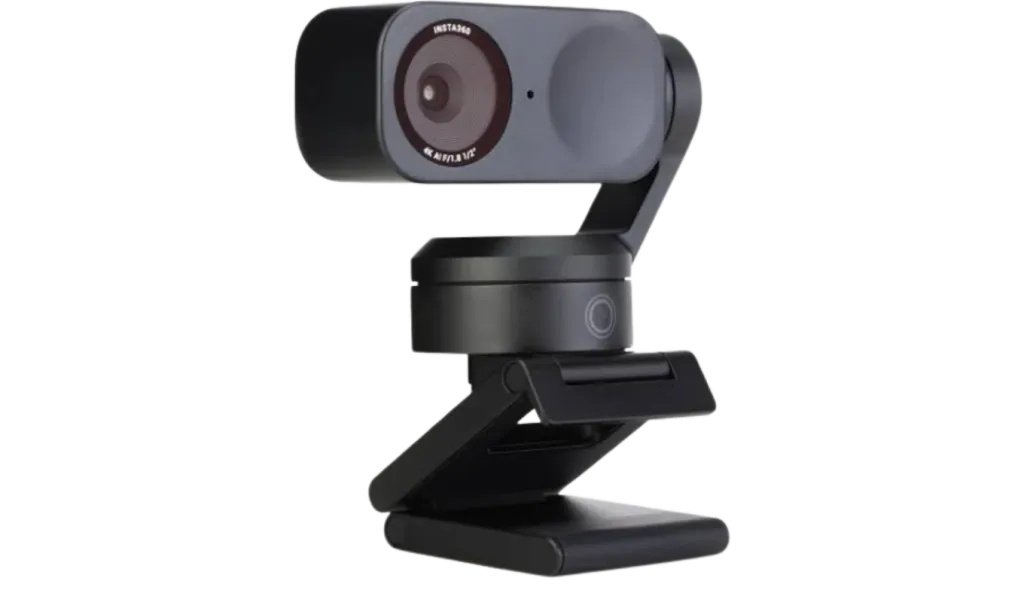
Target Audience: Corporate Trainers, Educators, and Whiteboard Presenters
The Insta360 Link 2 is uniquely designed with a built-in 3-axis mechanical gimbal, making it the top choice for users who move around extensively during their Microsoft Teams meetings.
Why it fits: Rather than relying solely on digital cropping, the Insta360 Link 2 physically rotates and tilts to follow you across the room. It also includes specific whiteboard modes that automatically square off and enhance physical whiteboards for viewers on the other end of the call.
Pros:
- Mechanical gimbal allows for unmatched tracking range.
- Excellent 4K sensor with true-to-life color.
- Specialized whiteboard enhancement mode.
Cons:
- Expensive and potentially overkill for standard desk workers.
- Moving parts may be more prone to wear and tear.
Product Selection Roadmap: Which Webcam Should You Buy?

To help you move from general research to a concrete purchasing decision, we’ve mapped out the best choices based on specific user scenarios.
Scenario A: The Executive Home Office & Huddle Room
- Your Profile: You are a small business owner, department head, or IT manager outfitting executive offices and 2-4 person huddle spaces. Image authority, audio clarity, and wide-angle capabilities are paramount.
- The Verdict: Nearity V30S. This is the ultimate tool for this scenario. The 4K resolution provides executive polish, while the AI tracking and wide field of view perfectly accommodate small groups without needing an expensive, complex room system.
Scenario B: Fleet Deployment for General Staff
- Your Profile: You are an IT Manager tasked with standardizing the home-office setups of 500+ hybrid employees. You need a device that is easy to manage, reliable, and moderately priced.
- The Verdict: Logitech Brio 500. It offers consistent 1080p video, easy software management through Logi Tune, and a sturdy privacy shutter for employee peace of mind.
Scenario C: The Highly Active Presenter
- Your Profile: You host training seminars, educational classes, or design reviews on Microsoft Teams where you frequently stand up, pace, or write on a physical board.
- The Verdict: Insta360 Link 2. The physical gimbal ensures you never step out of frame, and the specialized whiteboard mode is a game-changer for remote learning and collaboration.
Scenario D: The Frugal Remote Worker
- Your Profile: You have a strict budget but desperately need to stop looking like a blurred pixel on your weekly check-ins.
- The Verdict: Anker PowerConf C200. It delivers the essential 2K sharpness you need without the premium features you might not use.
3 Quick Tips to Optimize Your Microsoft Teams Video Setup
Even with the best webcam for teams meetings, your environment plays a major role in your video quality. Once you have your new hardware, follow these three steps:
- Perfect Your Lighting: Never sit with your back to a window. Always position your primary light source (a window or a ring light) directly behind or slightly to the side of your webcam, facing you.
- Ensure Eye Level Placement: Mount your webcam at or slightly above eye level. Looking down at a camera creates an unflattering angle and breaks the illusion of natural eye contact.
- Hardwire Your Connection: A 4K webcam requires bandwidth. If your Teams video is lagging or dropping resolution, switch from Wi-Fi to a hardwired Ethernet connection to ensure a stable, high-quality stream.
Common Mistakes When Buying a Meeting Webcam
Avoid these purchasing errors that lead to disappointing performance or wasted budget.
Buying based on resolution alone. A cheap 4K webcam with a tiny sensor and poor lens produces worse results than a quality 1080p camera. Verify sensor size, aperture, and encoding format alongside the resolution number.
Ignoring microphone coverage. A webcam that looks great on your desk may fail when positioned at the far end of a conference table. Measure your typical meeting space and ensure microphone pickup reaches all participants.
Forgetting about expansion. Your team may move to a larger office. Choosing a webcam that supports expansion microphones and multiple mounting options protects your investment as needs grow.
Overlooking privacy features. Cameras without physical covers or offline indicators create security concerns in corporate environments. The V30S addresses this with a sliding privacy cover and local-only data transmission.
FAQs
1. What resolution do I need for professional Microsoft Teams meetings?
For professional Microsoft Teams meetings, 1080p is the minimum recommended resolution, while 4K provides the best clarity for screen sharing, presentations, and larger conference rooms. A 4K webcam like the Nearity V30S ensures your video remains sharp even when cropped or zoomed during Teams calls.
2. Does Microsoft Teams require a certified webcam to work properly?
No, Microsoft Teams works with virtually all UVC-compliant webcams via plug-and-play USB connectivity. While certified devices exist, most modern 4K conference webams including the Nearity V30S work seamlessly with Teams without additional drivers or software.
3. What is the ideal field of view for a meeting room webcam?
For individual use, a 78° to 90° field of view is ideal. For small to medium conference rooms with multiple participants, a 120° wide-angle lens captures everyone clearly without needing to reposition the camera. The Nearity V30S offers a 120° distortion-free FOV perfect for huddle spaces and meeting rooms.
4. How important is AI noise cancellation for Teams meetings?
AI noise cancellation is essential for professional Teams meetings, especially in shared or noisy environments. It suppresses keyboard clicks, air conditioning, background chatter, and echo. Look for webcams with dual MEMS microphones and full-duplex audio to ensure everyone is heard clearly without talking over each other.
5. Can I use a conference webcam for both home office and meeting rooms?
Yes, versatile conference webcams like the Nearity V30S support multiple mounting options including tripod stands, monitor clips, and floor stands. With USB plug-and-play connectivity, you can move the same webcam between your home office desk and a conference room setup in seconds.
Conclusion
In a business landscape where virtual meetings are the primary venue for collaboration and deal-making, settling for poor video quality is no longer acceptable. Finding the best webcam for meetings is about choosing a device that seamlessly blends superior optics with intelligent software.
For the vast majority of professionals, executives, and hybrid teams looking to secure a competitive edge in 2026, the Nearity V30S is the premier choice. By offering 4K clarity, intelligent AI tracking, and top-tier noise suppression, it transforms standard Microsoft Teams calls into commanding, professional interactions. Invest in your virtual presence today, and make every pixel count.