Best Webcams for MacBook, Mac mini, and iMac in 2026
A comprehensive guide to choosing the perfect external webcam for your specific Mac device to elevate your professional video presence and overcome built-in camera limitations.
MacBook Accessories
4K Webcams
Video Conferencing
Updated: Aug 19, 2026 · 10 minutes read
Global Business, Brought Near.
No Installer, No Hassle, Just Works.
As remote work, hybrid collaboration, and digital content creation continue to shape the professional landscape in 2026, your video presence has become more important than ever. While Apple’s built-in cameras are convenient and sufficient for personal video calls, they are still mainly designed for single-person use. Their limited field of view and image clarity may fall short in more demanding scenarios, such as executive zoom meetings, group discussions, online presentations, or hybrid collaboration. For users who need wider coverage, sharper visuals, and a more professional on-camera experience, upgrading to a dedicated webcam is a smart and necessary investment.
This article looks at webcam selection from the perspective of Mac users. Whether you use a MacBook Air, MacBook Pro, Mac mini, or the latest MacBook Neo, we will break down the common video challenges each type of user may face. From limited camera angles and inconsistent image clarity to compatibility concerns and different meeting scenarios, this guide will help you understand what matters most when choosing a webcam for your Mac. We will also provide practical recommendations to help you find the best solution for personal calls, professional meetings, content creation, and multi-person collaboration.
Key Takeaways
MacBook Users: Benefit most from compact, plug-and-play USB-C webcams that offer flexibility and portability beyond the built-in screen camera.
Mac mini Users: Require stable, high-quality 4K webcams with robust monitor mounts or tripod support to build a complete desktop video setup.
iMac Users: Should focus on premium upgrades that offer advanced features like AI auto-framing, wider field of view, and superior low-light performance.
macOS Compatibility: Always look for UVC (USB Video Class) compliant webcams to ensure true plug-and-play functionality without the need for clunky drivers.
Privacy Matters: Prioritize webcams with physical privacy shutters to complement macOS's built-in software indicator lights.
Why Mac Users Need an External Webcam
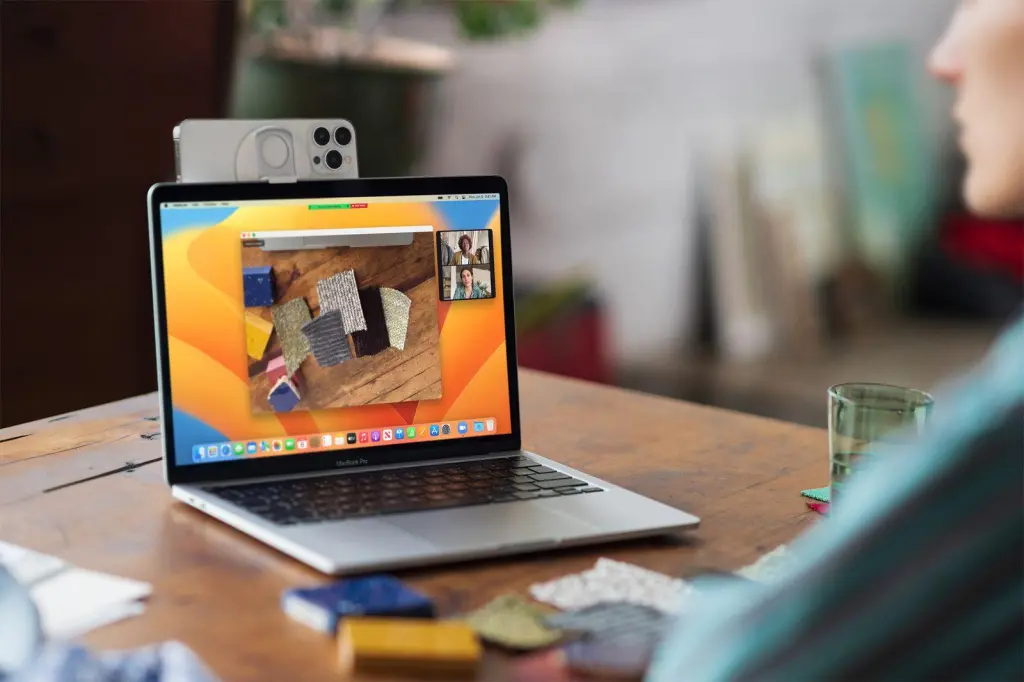
Apple’s ecosystem is renowned for its seamless integration, and features like Continuity Camera—which allows you to use your iPhone as a webcam—are undeniably clever. However, for daily, rigorous professional use, workarounds often introduce battery drain, mounting hurdles, and interruptions when you need to use your phone.
Investing in a dedicated webcam for Mac computer setups provides:
Superior Optics: Larger sensors and glass lenses outperform the tiny modules embedded in thin MacBook bezels.
Stability: A permanent setup avoids the hassle of mounting and unmounting your phone.
Angle Flexibility: You can position an external webcam at eye level without tilting your entire laptop screen.
Professionalism: Higher resolution and better low-light performance ensure you look your best in every meeting.
Best Webcams for MacBook: Key Selection Criteria & Mac Compatibility
When searching for the best webcams for MacBook, compatibility is the first hurdle. macOS handles external peripherals differently than Windows, so look for these specific standards:
True Plug-and-Play Functionality
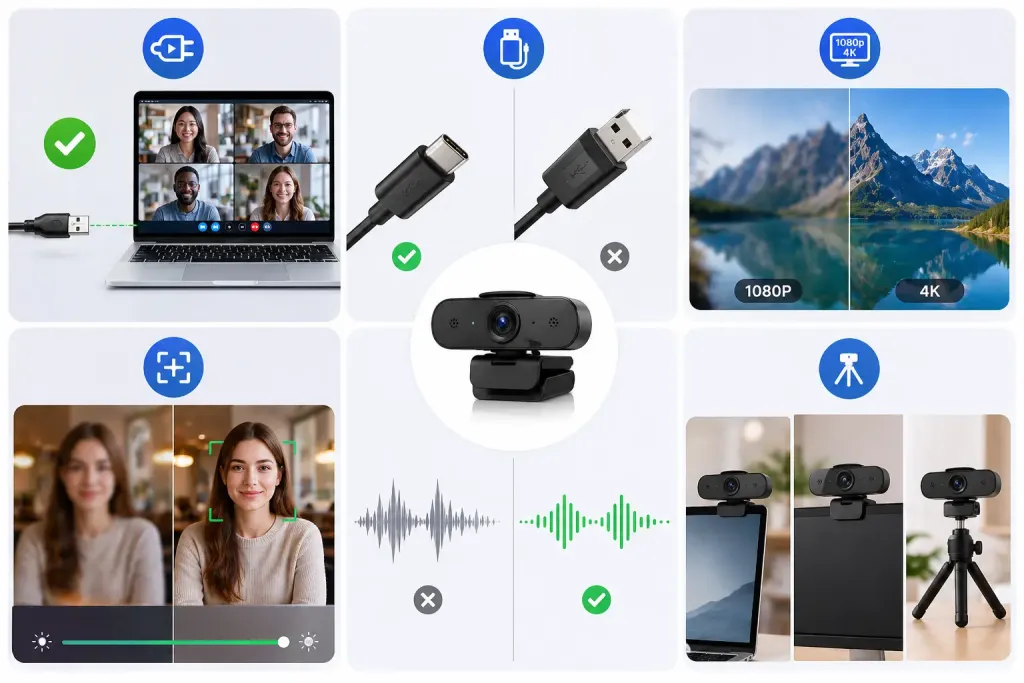
Mac users value simplicity. Ensure the webcam is "UVC compliant" (USB Video Class). This means it will work natively with macOS without requiring clunky third-party drivers that might break during a system update.
Modern Connectivity (USB-C vs. USB-A)
Newer MacBook Air and Pro models exclusively feature USB-C/Thunderbolt ports. A webcam with a native USB-C cable eliminates the need for dongles, maintaining a clean workspace. If you use a Mac mini or an older iMac, a USB-A connection might still be relevant, but USB-C is the future-proof choice.
Resolution: 1080p vs. 4K
For standard office calls, 1080p is sufficient. However, for content creators or those presenting detailed documents, a 4K webcam offers significantly more clarity and allows for digital zooming without losing quality.
Advanced Autofocus & Low-Light Performance
MacBook users often work in varied environments—from bright cafes to dimly lit home offices. Look for webcams with fast autofocus and HDR (High Dynamic Range) capabilities to balance exposure automatically.
High-Fidelity Built-in Microphones
A professional webcam should include a noise-canceling microphone array. This is vital for filtering out background noise like keyboard clicks or cooling fans.
Adjustable Mounting & Stand Design
The webcam should have a versatile clip that fits thin laptop screens and thick desktop monitors, or even a tripod thread for independent placement.
Top Recommendations: Webcams for Every Mac User
Best Webcam for MacBook Neo / MacBook Air / MacBook Pro Users
The Pain Points:
MacBook Neo, MacBook Air, and MacBook Pro users usually already have a built-in camera, so their main issue is not the lack of a webcam. Instead, the pain point is that the built-in camera is fixed to the laptop screen, which limits framing, angle adjustment, and flexibility during video calls.
For students, remote workers, and professionals who move between classrooms, coffee shops, coworking spaces, and home offices, lighting conditions can change frequently. A built-in laptop camera may be convenient, but it may not always deliver the most professional image for online classes, client meetings, interviews, or recorded presentations.
Another key concern is portability. MacBook users often prefer a clean and lightweight setup, so the webcam should not be too bulky or heavy. It should be easy to attach, remove, and carry.
What You Need:
For MacBook Neo, MacBook Air, and MacBook Pro users, the ideal webcam should be compact, lightweight, and macOS-friendly. It should support plug-and-play use, provide a clear upgrade in image quality, and work well with thin laptop screens.
USB-C-friendly connectivity is also important, especially for users who want a simple setup without relying on multiple adapters. A good webcam for MacBook users should improve video quality while still matching the portable nature of the laptop.
Recommendations:
Logitech Brio 100: For MacBook Neo users looking for a more affordable webcam, the Logitech Brio 100 is a practical pick. It delivers clear 1080p video for online classes, casual meetings, and daily video calls without the higher cost of a 4K webcam. Its compact size and plug-and-play setup make it a good match for students, light office users, and anyone who wants a simple, budget-friendly webcam for MacBook Neo.
Logitech MX Brio: The Logitech MX Brio is a premium option for MacBook users who want sharp 4K image quality and strong performance in changing lighting conditions. It is a good fit for business professionals, online interview users, and remote workers who need a polished appearance on video calls.
Insta360 Link 2: The Insta360 Link 2 is suitable for creators, teachers, students, and presenters who want smart framing and more flexible video composition. Its intelligent tracking features make it useful for users who move during presentations, online lessons, or content creation.
Best Webcam for Mac Mini Users
The Pain Points:
Mac mini users have a very different need from MacBook users. A Mac mini setup usually depends on an external monitor, keyboard, mouse, speaker, and camera. That means users need to build their own video conferencing setup from the ground up.
The biggest pain point is that there is no built-in laptop-style camera to rely on. Users need a webcam that can sit securely on an external monitor, work well on a desk stand, or mount to a tripod for a better eye-level angle.
Because Mac mini is commonly used in fixed home offices, business workstations, or professional desktop setups, users usually care more about stability, image quality, reliable connection, and long-term use than portability.
What You Need:
For Mac mini users, the best webcam should be stable, reliable, and easy to integrate with an external monitor setup. A strong monitor clip, tripod compatibility, and flexible positioning are important.
Since Mac mini users may also use separate speakers or microphones, the webcam does not always need to solve every audio problem. However, a webcam with a good built-in microphone is still helpful for users who want a simpler all-in-one setup.
Recommendations
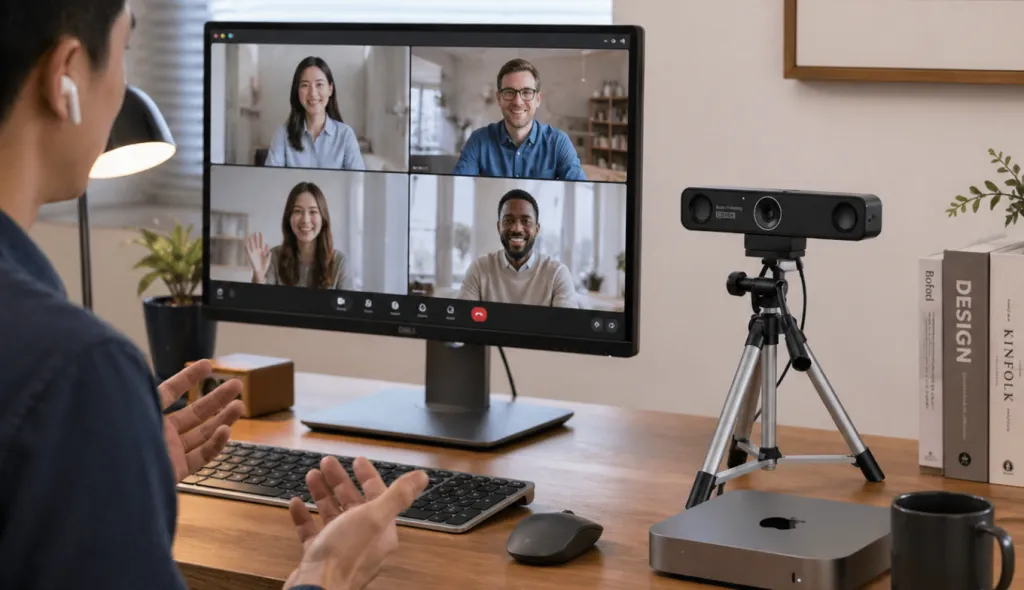
Nearity V30S: The Nearity V30S is a strong choice for Mac mini users who want to turn a basic desktop setup into a professional video conferencing station. Its 4K resolution, wide field of view, and flexible mounting options make it suitable for external monitors, desk setups, and tripod placement. For users who rely on Mac mini for daily meetings, remote work, client communication, or hybrid collaboration, the V30S provides a more complete webcam solution. It can also be paired with the Nearity AM01 external microphone for users who want enhanced audio pickup, making it a practical option for clearer conversations in home offices, small meeting rooms, or professional desktop setups.
Logitech Brio 4K: The Logitech Brio 4K is a reliable desktop webcam for Mac mini users who want a classic 4K option with strong compatibility. It works well for fixed monitor setups and can also be used with a tripod, making it practical for everyday video calls, business meetings, and home office use.
Best Webcam for iMac Users
The Pain Points
iMac users are different from Mac mini users because they already have an all-in-one desktop setup with a built-in camera. Because of that, they may not need an external webcam for basic video calls.
However, the built-in camera is fixed at the top of the iMac display. This can limit camera angle, framing, and creative flexibility. For normal FaceTime calls or casual meetings, the built-in camera may be enough. But for executive presentations, livestreams, product demos, online teaching, content creation, or small group calls from one desk, users may want more control.
For iMac users, the reason to buy an external webcam is not “because there is no camera.” The reason is to upgrade the video experience.
What You Need
For iMac users, an external webcam should offer clear advantages over the built-in camera. That means better image quality, 4K resolution, flexible mounting, tripod support, wider framing, better low-light performance, or AI auto-framing.
A basic low-end 1080p webcam may not be attractive to iMac users because it may not feel like a meaningful upgrade. The product should be positioned as a professional enhancement for users who care about video quality, presentation, and flexible setup.
Recommendations
Dell UltraSharp WB7022: The Dell UltraSharp WB7022 is a premium 4K webcam for iMac users who want a dedicated desktop camera with strong image quality. It is suitable for professionals who want a clean, high-end webcam setup for home offices, business meetings, and content-focused workflows.
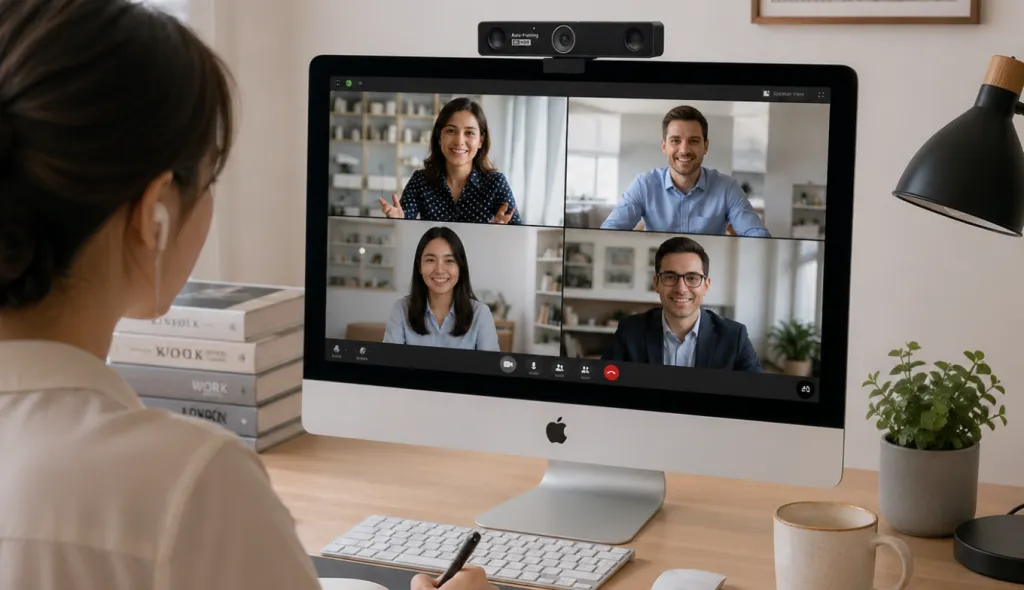
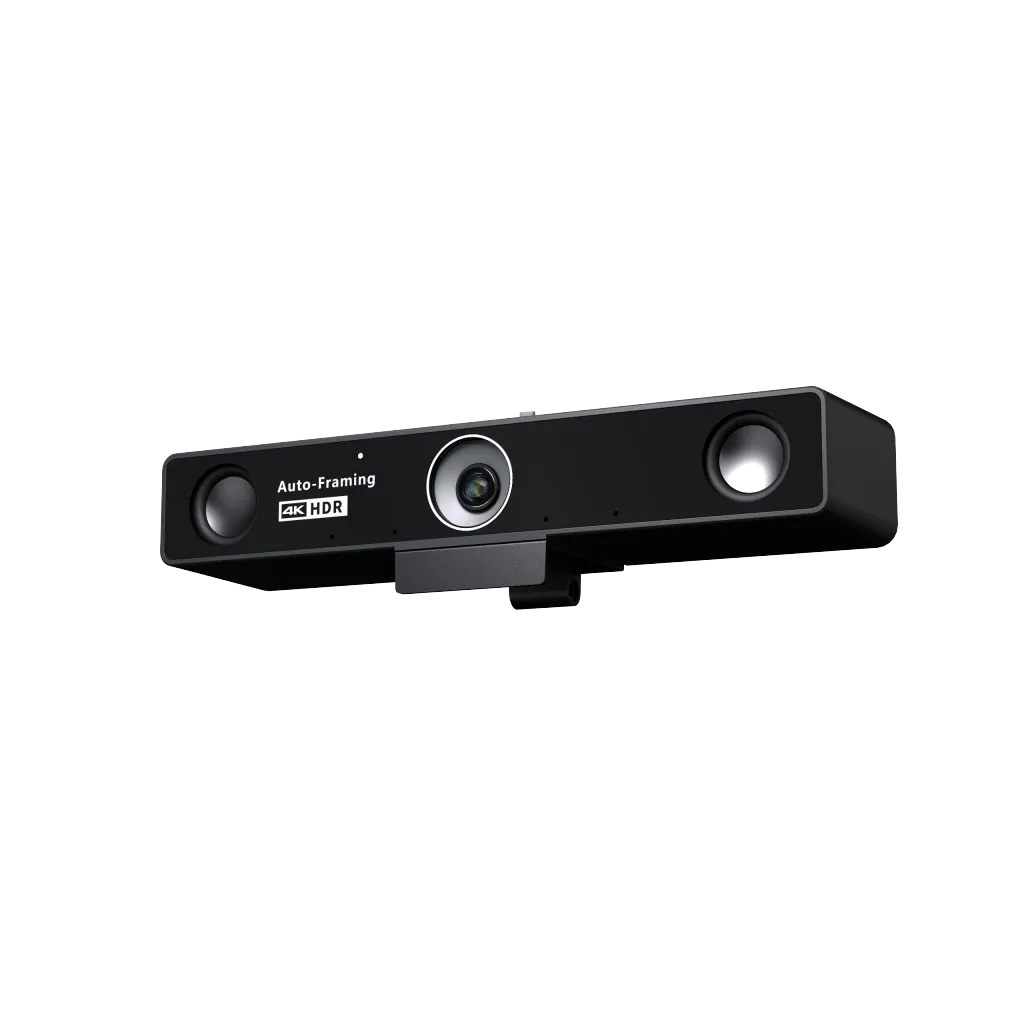
Nearity V30S:It is a strong upgrade for iMac and desktop Mac users who want more flexibility than the built-in camera. With true 4K image quality, flexible mounting options, AI auto-framing, and a physical sliding privacy cover, it delivers a clearer, more secure, and more professional video experience for executive meetings, online teaching, content creation, and small group calls. It also works well as a webcam for conference room setups, especially in small meeting rooms or team collaboration spaces where a wide field of view and clear audio are essential.
Summary: Which Webcam Fits Each Mac User?
Mac Device
Main User Pain Point
What to Recommend
MacBook Neo / Air / Pro
Built-in camera is convenient but fixed; users need better quality, portability, and flexible framing
No built-in camera; users need to build a complete desktop video setup
Stable 4K webcam with monitor mount, tripod support, and reliable macOS compatibility
iMac
Built-in camera exists but lacks flexibility for professional or creative use
4K upgrade webcam with flexible angle, auto-framing, and better desktop presentation quality
How to Set Up a Webcam on MacBook or Mac Mini
Setting up your new camera on macOS is straightforward. Follow these quick steps:
Connect: Plug the USB cable into your Mac (use an adapter if necessary).
Permissions: When prompted, allow the system to access the camera and microphone in System Settings > Privacy & Security.
Application Setup: Open your preferred app (FaceTime, Zoom, Teams, or Google Meet).
Selection: Go to the app's Video Settings and select the external webcam from the dropdown menu.
Adjust: Position the camera at eye level and ensure your primary light source is in front of you, not behind you.
Final Thoughts: Choosing the Best Webcam for Your Mac
The best webcam for Mac depends on your device and daily use. MacBook Neo, Air, and Pro users should look for a compact, affordable, and easy-to-use webcam. Mac mini users need a stable webcam for a complete desktop setup. iMac users should choose a webcam that offers a real upgrade, such as 4K image quality, flexible mounting, AI auto-framing, and a physical privacy cover.
In the end, the right Mac-compatible webcam should make video calls clearer, easier, and more professional.
FAQs
Will an external webcam work with FaceTime on Mac?
Yes, as long as the webcam is UVC compliant, FaceTime will recognize it as a video source.
Do I need to install drivers for a webcam on macOS?
Most modern webcams are plug-and-play. Only specialized enterprise cameras might require software for advanced AI features.
Why does my external webcam look blurry?
Ensure the lens is clean and check if your video conferencing app is limiting the resolution based on your internet speed.
What is the typical field of view (FOV) for a webcam?
Most standard webcams offer a field of view between 65° and 90°. A 65° angle is ideal for a focused, single-person frame, while a wider 90° to 120° angle (like that found in the Nearity V30S) is better for including more of your background or hosting multi-person group calls.
Will using a webcam compromise my privacy?
Privacy is a common concern. To stay safe, choose a webcam with a physical privacy shutter that allows you to block the lens when not in use. Additionally, modern macOS versions include an "orange/green dot" indicator in the menu bar to alert you whenever your microphone or camera is active, providing an extra layer of system-level security.