How to Call Someone on Zoom: A Beginner-Friendly Guide for 2026
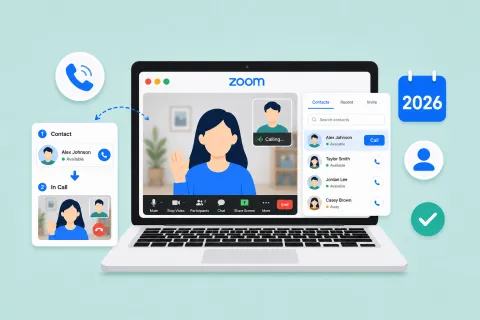
This comprehensive, beginner-friendly guide walks users through the three distinct ways to initiate a call within the Zoom Workplace ecosystem: starting an instant meeting, placing a direct app-to-app contact call, and utilizing Zoom Phone to dial traditional phone numbers.
Zoom Tutorial
Zoom Workplace
How to Use Zoom
Updated: Aug 19, 2026 · 8 minutes read
Global Business, Brought Near.
No Installer, No Hassle, Just Works.
With hybrid work, remote learning, and digital socialization firmly established in our daily routines, knowing how to initiate a call quickly and efficiently is a core digital skill.
While Zoom started as a simple video conferencing tool, the current Zoom Workplace ecosystem offers multiple ways to "call" someone. Whether you need to start an instant video meeting, place a direct call to a synced contact, or use Zoom Phone to dial a traditional landline, this beginner-friendly guide walks you through every method on desktop and mobile.
Key Takeaways
Three Calling Options: Zoom supports Instant Meetings (via invitation links), Direct Contact Calls (app-to-app ringing), and Zoom Phone (outbound dialing to landlines/mobiles).
Account Requirements: Instant meetings and direct contact calls are available on free accounts, whereas dialing traditional 10-digit phone numbers requires a paid Zoom Phone plan.
Seamless Escalation: Zoom Phone allows users to seamlessly elevate a standard voice call into a full video meeting with a single click.
Hardware Matters: Clear communication relies heavily on audio quality; utilizing AI-powered external hardware like the Nearity A20S can eliminate distracting background noise.
The 3 Ways to "Call" Someone on Zoom
Before diving into the step-by-step instructions, it is helpful to understand the three distinct ways to initiate a call within the Zoom Workplace app:
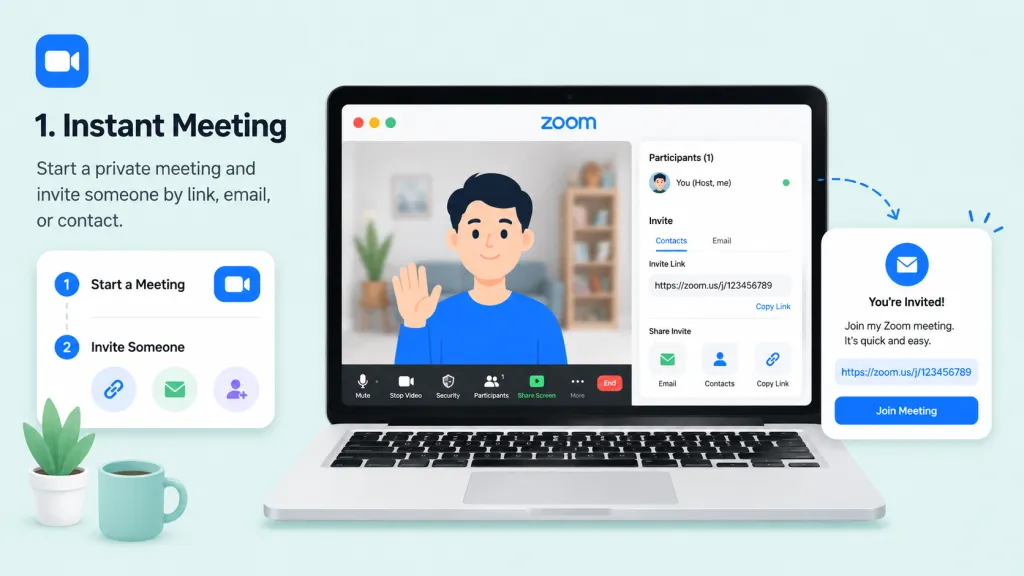
Instant Meeting (Video/Audio): You launch a private virtual meeting room and invite another person using a link, email, or direct contact card. This is the most common free method.
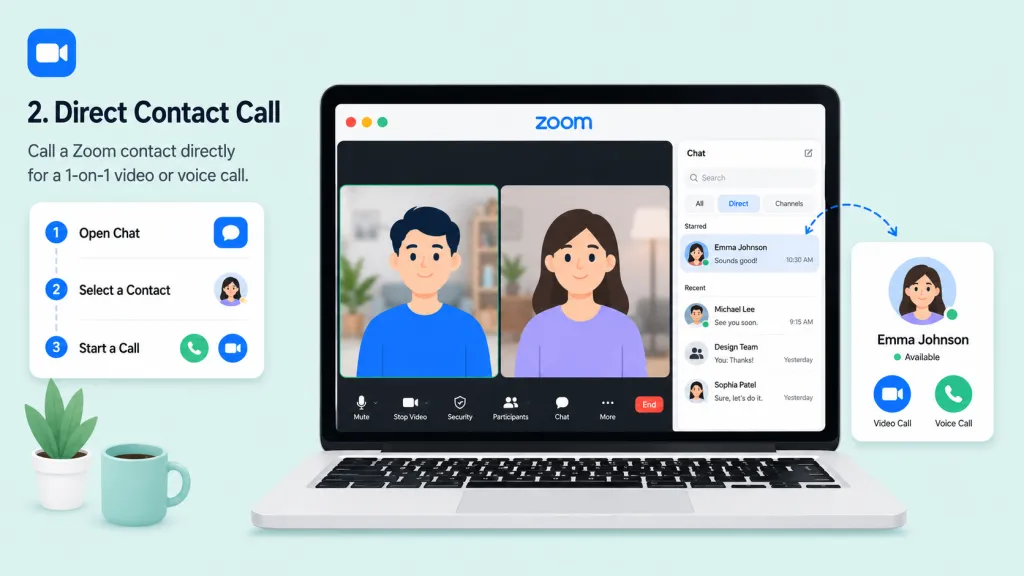
Direct Contact Call (App-to-App): If you and your recipient both have Zoom accounts and are added as contacts, you can call their Zoom app directly for a 1-on-1 video or voice call.
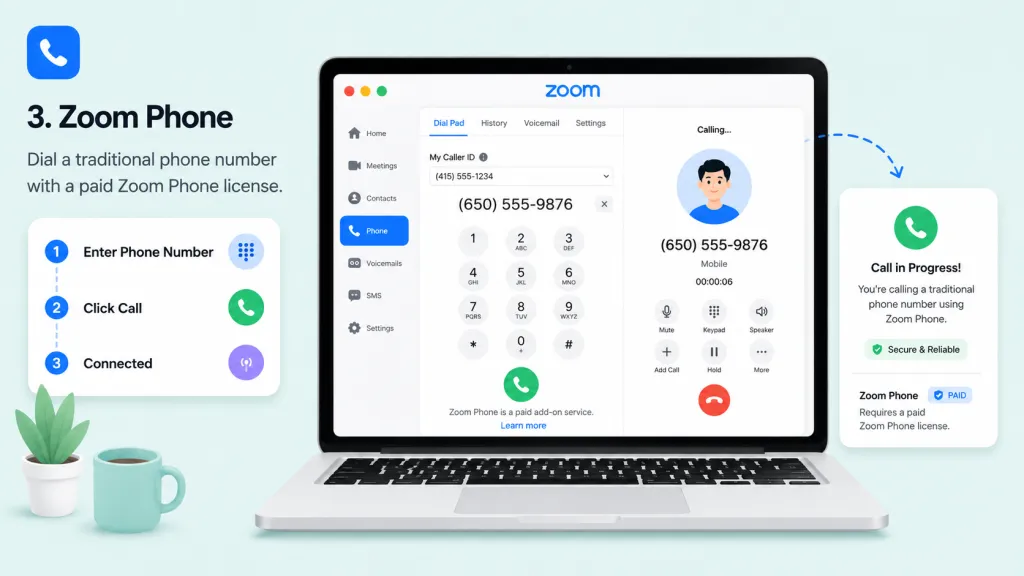
Zoom Phone (PSTN Outbound Call): If you or your organization has a paid Zoom Phone license, you can dial traditional 10-digit mobile or landline phone numbers directly from the dial pad inside Zoom.
Quick Comparison: Which Calling Method Should You Use?
Scenario
Recommended Method
Requirement
Spontaneous video call with someone who has a Zoom link
Instant Meeting (Method 1)
Free Zoom Account
Quick 1-on-1 check-in with a frequent colleague
Direct Contact Call (Method 2)
Free Zoom Account + Added to Contacts
Calling a client’s office landline or personal cell phone
Zoom Phone (Method 3)
Paid Zoom Phone Plan or Workplace Bundle
Method 1: How to Call Someone via an Instant Zoom Meeting
If you want to start a video or audio call immediately and invite someone to join you, starting an Instant Meeting is the easiest way to set up a Zoom meeting.
On Desktop (Windows, macOS, and Web App)
Launch and Sign In: Open the Zoom Workplace desktop application on your computer and log in to your account.
Click "New Meeting": On the home screen, click the orange New Meeting button.
Tip: Click the small downward arrow next to "New Meeting" to choose whether to start the call with your video automatically turned on, or to use your Personal Meeting ID (PMI).
Connect Your Audio: A window will pop up asking you to join audio. Click Join with Computer Audio.
Click on the Participants tab in the meeting toolbar at the bottom of the screen.
At the bottom of the Participants panel on the right, click Invite.
A pop-up window will offer multiple ways to connect:
Contacts Tab: If the person is in your Zoom contact list, type their name, select them, and click Invite. They will receive a desktop notification to join.
Email Tab: Click "Default Email," "Gmail," or "Yahoo Mail" to draft an automated email with the meeting credentials.
Copy Invite Link: Click the Copy Invite Link button at the bottom. You can then paste this link directly into a text message, Slack channel, or personal chat to send to your recipient.
On Mobile (iOS and Android)
Open the Zoom Workplace app on your phone or tablet.
Tap the New Meeting icon (represented by an orange video camera) on the Home tab.
Toggle "Video On" if desired, then tap Start a Meeting.
If prompted, grant Zoom permission to access your camera and microphone, then select Wifi or Cellular Data for your audio connection.
Tap Participants in the bottom menu (if you do not see the menu, tap anywhere on the screen to reveal it).
Copy Invite Link (To paste manually into apps like WhatsApp, Messenger, or Slack)
Method 2: Direct 1-on-1 Contact Calling (App-to-App)
If you regularly communicate with colleagues, classmates, or clients, adding them as a Zoom contact allows you to call them directly without sending invitation links. This rings their Zoom app on both mobile and desktop, mimicking a traditional phone call.
Step 1: Add the Person as a Contact
Before you can make a direct app-to-app call, you must add the recipient:
Open Zoom and navigate to the Chats (formerly DMs) or Contacts tab.
Click the + (plus sign) or Add Contact button.
Enter the recipient’s email address associated with their Zoom account and click Add.
Once they accept your invitation, they will appear in your contacts directory.
Step 2: Place the Call
Once they are added to your directory, initiating a call is simple:
On Desktop:
Go to your Contacts tab in the left-hand navigation sidebar.
Search for or select the contact you wish to call.
Hover your mouse over their name and click the Video icon (Meet with Video) or the Phone/Audio icon (Meet without Video).
Zoom will immediately "ring" the recipient's device. When they accept, your 1-on-1 call will begin.
On Mobile:
Tap the Contacts tab at the bottom of the screen.
Search for the person's name in your directory.
Tap their name to open their contact profile card.
Tap the Video (video call) or Phone (audio call) icon to ring them directly.
Method 3: How to Call a Phone Number Using Zoom Phone
If you need to call a traditional landline or mobile phone number (outside of the Zoom platform), you must use Zoom Phone.
Important Note: Traditional phone dialing is a paid enterprise feature. It requires either a Zoom Workplace bundle that includes Phone (such as Pro Plus or Business Plus) or a standalone Zoom Phone calling add-on plan. A free Zoom account cannot dial regular phone numbers.
How to Use the Zoom Phone Dial Pad
If your account is provisioned with Zoom Phone, follow these steps to place a call:
Access the Phone Tab: Open the Zoom Workplace app and click the Phone tab on the navigation bar.
Select Outbound Caller ID: If you have multiple lines assigned to your account (e.g., a personal direct line and a main company line), click the Caller ID dropdown menu below the dial pad and select the number you wish to display to the recipient.
Dial the Number: * Use the on-screen dial pad or your keyboard to enter the 10-digit phone number.
For International Calls: Enter the appropriate country code first (e.g., + followed by the country code and phone number).
For Extensions: To dial a specific extension, type a hyphen - after the main number followed by the extension (e.g., 1-800-555-0199-156 to dial extension 156).
Click the Phone Button: Click the green Phone icon to place the outbound call.
In-Call Controls and Elevating to a Meeting
While on an active Zoom Phone call, you can access robust in-call features:
Mute/Keypad/Audio: Manage your input and volume.
Hold: Place the caller on hold (they will hear system hold music).
Transfer: Use Warm Transfer (speak to the new party before handing off) or Direct Transfer (send the call immediately).
Meet (Elevate Call): If you are talking to someone on Zoom Phone and want to transition to a full video meeting with screen-sharing capabilities, simply click the Meet button on your in-call controls. This instantly sends them a Zoom Meeting invitation.
Troubleshooting: Why Can't I Call Someone on Zoom?
If you are having trouble making a call, review these common issues and solutions:
"The Phone tab is missing from my Zoom app."
If you do not see the dial pad or Phone tab, your account is likely a free basic tier or your company has not assigned a Zoom Phone license to your email. Contact your organization's IT administrator to verify your provisioning.
"The recipient is not receiving my direct call."
For direct app-to-app calling to work, the recipient must have the Zoom Workplace app open and running (even in the background) on their phone or computer, and they must be logged into the correct account. If they are offline, send them an Instant Meeting invite link via text message or email instead.
"My audio or video isn't working during the call."
Permissions: Ensure your device settings allow the Zoom application to access your webcam and microphone.
Selection: In the meeting window, click the small arrow next to the Mute/Unmute and Start/Stop Video icons to ensure the correct hardware (such as a USB headset or external webcam) is selected.
"I get an error dialing international numbers."
Outbound international calling must be enabled by your account administrator in the Zoom Web Portal. Standard US/Canada Zoom Phone plans require explicit permission configurations to dial numbers outside of North America.
Tips to Optimize Your Zoom Call Quality
While mastering how to initiate or join a call is essential, the overall success of your virtual meeting depends heavily on call quality. Blurry video is distracting, but poor audio can completely derail a presentation or critical business discussion.
To ensure your Zoom calls are always professional, clear, and seamless, follow these best practices:
1. Secure a Stable Internet Connection: Use a wired Ethernet connection when possible, or position yourself close to your Wi-Fi router. Close high-bandwidth background applications (like streaming or gaming downloads) before joining.
2. Optimize Your Environment: Sit in a well-lit area with the primary light source in front of you (avoid backlighting). Minimize ambient background noise from fans, air conditioners, or open windows.
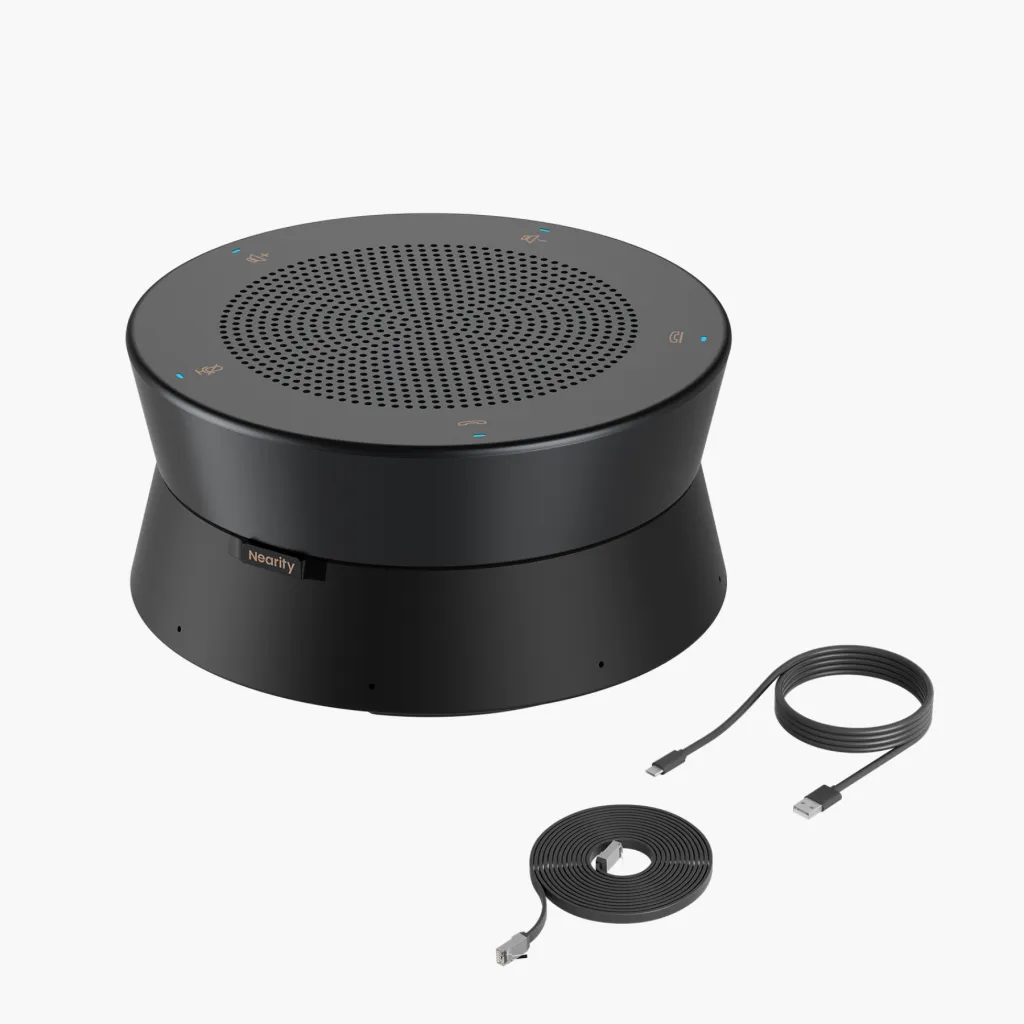
3. Invest in Dedicated Audio Hardware (Recommended: Nearity A20S): Built-in laptop microphones are notorious for picking up background hums and room echoes. Upgrading to a professional, plug-and-play solution like the Nearity A20SConference Speakerphone instantly elevates your call quality:
360° Voice Pickup: An 8-microphone array captures clear, high-fidelity audio up to a 5-meter (16.5-foot) radius.
AI Noise Cancellation: Actively suppresses background clutter like typing, paper rustling, or outdoor traffic.
Full-Double Talk & Auto-Gain: Dynamically balances volumes so both sides can speak simultaneously without cutoffs or echo.
Plug-and-Play Simplicity: Connects instantly via USB-C on Windows, macOS, or Linux with zero software setup required.
FAQs
Can I call someone on Zoom without Zoom Phone?
Yes. You can start a Zoom meeting and invite someone with a link, email, or contact invitation. However, if you want to dial a regular phone number from Zoom, you usually need Zoom Phone or a supported call-out feature.
Can I call someone on Zoom by email?
You cannot “call” an email address like a phone number, but you can send a Zoom meeting invitation by email. The recipient can click the link to join the meeting.
Can I call a Zoom contact directly?
Yes, if the person is in your Zoom chat or contacts, you can start an instant meeting from the chat using the video camera icon. This invites the contact or group to join the meeting.
Can I call someone’s mobile number on Zoom?
Yes, but this generally requires Zoom Phone or an enabled call-out feature. Regular Zoom meetings do not automatically give every user the ability to dial mobile numbers.
Go to Settings > Background & Effects, then choose Blur, a virtual background, or upload your own image. During a meeting, click the arrow next to Stop Video and select Choose Virtual Background.
Conclusion
Whether you are coordinating with colleagues inside your business organization or catching up with family, Zoom Workplace provides flexible tools to connect. For casual or scheduled video meetups, starting an Instant Meeting and sharing the link remains the gold standard. For professional teams, utilizing Direct Contact Calling or Zoom Phone streamlines your workflows, allowing you to move from text to phone call, and finally to a face-to-face video conference in just a single click.