Why Zoom Remains the Go-To Platform for Enterprises and Education
Zoom has established itself as the industry standard for virtual communication, particularly for enterprises that require remote work and educational institutions managing large virtual classrooms. The platform's reliability, scalability, and feature-rich environment make it ideal for:
- Corporate board meetings with 50+ participants
- University lectures requiring breakout rooms and screen sharing
- Training sessions that demand recording and transcription capabilities
- Client presentations needing professional-grade video quality
Understanding how to join a meeting in Zoom efficiently ensures that your organization maintains productivity and professionalism in every virtual interaction.

Method 1: Joining a Zoom Meeting with a Direct Link
The most straightforward way to join a Zoom meeting is through a direct invitation link. Here's how to do it:
Step-by-Step Process
1. Receive the invitation — Meeting organizers typically send links via email, calendar invites, or messaging platforms.
2. Click the link — The link usually appears as https://zoom.us/j/xxxxxxxxxxxx or similar.
3. Open Zoom — If you have the Zoom desktop client installed, the link will automatically launch it. If not, you'll be prompted to download it or join via your web browser.
4. Enter your display name — Use your professional name so other participants can identify you easily.
5. Configure audio and video — Choose whether to join with computer audio, dial in by phone, or keep your camera on or off.
Method 2: How to Join a Meeting on Zoom Using the Desktop Client
If you don't have a direct link handy but know the meeting details, you can join directly through the Zoom application.
For Windows and Mac Users
1. Open the Zoom desktop client — Launch the application from your taskbar, desktop, or applications folder.
2. Click "Join" — This button is prominently displayed on the home screen.
3. Enter the Meeting ID — The organizer provides this 9-11 digit number. It's typically included in the meeting invitation.
4. Enter your display name — Again, use your professional name.
5. Select audio/video preferences — Choose your connection method and camera settings.
6. Click "Join" — You'll enter the meeting room or a waiting room if the host has enabled that feature.
Method 3: How to Join a Meeting in Zoom via Mobile Devices
Mobile access is crucial for professionals on the go and students who may not have immediate access to a computer.
IOS and Android Instructions
1. Download the Zoom app — Available free from the App Store or Google Play Store.
2. Open the app — Sign in if you have an account, or proceed as a guest.
3. Tap "Join a Meeting" — Located on the home screen.
4. Enter the Meeting ID — Input the number provided by your organizer.
5. Enter your name — Ensure it reflects your professional identity.
6. Configure settings — Toggle video and choose your audio connection.
7. Tap "Join" — Connect to the meeting.
Method 4: How to Join a Zoom Meeting Without a Link
One of the most common challenges in enterprise and educational settings is how to join a Zoom meeting without a link. Perhaps the email got buried in your inbox, or you're trying to join a recurring meeting where the link wasn't explicitly shared. Here are several reliable methods:
Using the Meeting ID and Passcode
Every Zoom meeting has a unique Meeting ID. If you know this number (and the passcode, if required), you can join without ever clicking a link:
1. Open the Zoom desktop client or mobile app
2. Click or tap "Join"
3. Enter the Meeting ID (e.g., 123 4567 8901)
4. Enter the passcode if prompted
5. Click "Join"
This method is particularly useful for recurring meetings where the ID remains constant. Many organizations publish Meeting IDs in internal directories or learning management systems for easy access.
Joining via the Zoom Website
If you don't have the desktop client installed:
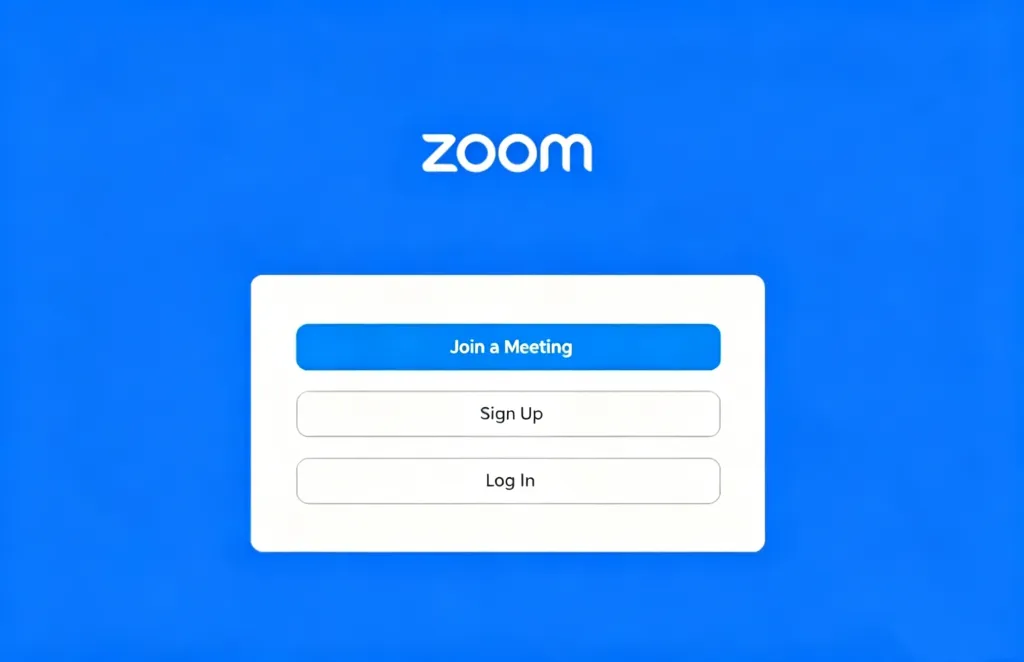
1. Navigate to zoom.us/join in your web browser
2. Click "Join a Meeting"
3. Enter the Meeting ID in the provided field
The browser will attempt to launch the meeting via the web client or prompt you to download the desktop application.
Dialing In by Phone
When internet connectivity is unreliable, Zoom provides phone dial-in options:
1. Find the dial-in number for your country in the meeting invitation (or at zoom.us/zoomconference)
2. Call the number from any phone
3. Enter the Meeting ID when prompted
4. Enter the passcode if required
5. Press # to join
This method ensures that critical meetings aren't missed due to technical issues, a common concern for educational institutions in areas with limited broadband infrastructure.
Method 5: Joining Through Calendar Integrations
Modern enterprises rely heavily on calendar systems like Google Calendar, Outlook, or Microsoft Teams. Zoom integrates with all major platforms:
Outlook and Google Calendar
When a Zoom meeting is scheduled through these integrations, the join link appears directly in the calendar event. Simply:
1. Open your calendar application
2. Locate the meeting event
3. Click the embedded Zoom link
4. The meeting launches automatically
This integration reduces the cognitive load of remembering how to join a meeting on Zoom by embedding the functionality directly into existing workflows.
Optimizing the Meeting Experience with Professional Hardware
While software proficiency is essential, hardware quality significantly impacts meeting outcomes. For enterprises that require remote work and educational institutions conducting hybrid classes, consumer-grade webcams and microphones often fall short.
As a result, the Nearity 360 Alien is engineered specifically for professional group environments. Unlike standard video conferencing equipment, it features:
- 360-degree camera coverage — Captures every participant in the room without awkward camera repositioning
- Advanced Omni microphones — Isolates voices from background noise, critical for large conference rooms or active classrooms
- AI-powered speaker tracking — Possess 3 smart AI mode:discussion, presentation and global mode, adapting flexibly to various scenarios
- Plug-and-play compatibility — Works seamlessly with Zoom, Microsoft Teams, Google Meet, and other platforms

For organizations evaluating their video conferencing infrastructure, professional and smart devices like the Nearity 360 Alien transforms routine meetings into engaging, productive experiences.
Troubleshooting Common Join Issues
Even experienced users occasionally encounter obstacles when joining Zoom meetings. Here are solutions to the most frequent problems:
"Invalid Meeting ID" Error
- Double-check the ID for transcription errors (common when reading from handwritten notes)
- Confirm the meeting is currently in progress — IDs for scheduled future meetings won't work until the host starts the session
- Verify you're using the correct ID if the host has multiple recurring meetings
Audio Connection Problems
- Test your speakers and microphone before joining via Zoom's settings menu
- If using computer audio fails, dial in by phone as a backup
- Check that no other applications are monopolizing your audio devices
Video Not Working
- Ensure no physical privacy shutter is covering your camera
- Check that Zoom has permission to access your camera (especially on Mac and mobile devices)
- Try switching between the desktop client and web browser to isolate software issues
Stuck in the Waiting Room
- The host may not have admitted you yet — send a chat message to notify them
- Verify you're joining at the correct time
- Ensure you're using the name the host expects to see
Security Best Practices for Enterprise and Educational Users
As organizations scale their Zoom usage, security becomes paramount. When teaching employees or students how to join a meeting in Zoom, incorporate these security protocols:
For Meeting Hosts
- Enable waiting rooms — Screen participants before admitting them
- Require passcodes — Even if sharing links, a passcode adds a layer of protection
- Use authenticated profiles — Restrict meetings to signed-in users from your organization
- Lock meetings — Once all expected participants have joined, prevent additional entries
For Participants
- Never share meeting links publicly — Posting on social media or unsecured websites invites "Zoombombing"
- Verify the organizer's identity — Be cautious of unexpected meeting invitations, especially those requesting sensitive information
- Keep software updated — Zoom regularly releases security patches; automatic updates ensure you're protected
Enhancing Engagement in Virtual Meetings
Joining the meeting is just the beginning. For educational institutions and enterprises that require group meetings, maintaining engagement is the real challenge. Consider these strategies:
- Breakout rooms — Divide large groups into smaller discussion circles
- Polling — Gather real-time feedback or assess comprehension
- Whiteboard — Collaborate visually on shared concepts
- Reactions — Allow participants to express agreement or questions without interrupting
Conclusion
Mastering how to join a Zoom meeting — whether through a direct link, Meeting ID, mobile app, or even without a link entirely — ensures that your organization remains connected and productive in any circumstance
Q&A
Q1: How can I join a Zoom meeting if I don't have the invitation link?
You can join a Zoom meeting without a direct link by using the Meeting ID and passcode (if required). Open the Zoom desktop client or mobile app, click "Join," enter the 9-11 digit Meeting ID provided by the organizer, input the passcode when prompted, and click "Join." Alternatively, you can navigate to zoom.us/join in your web browser and enter the Meeting ID there. For situations with unreliable internet, Zoom also offers phone dial-in options using country-specific numbers.
Q2: What should I do if I receive an "Invalid Meeting ID" error when trying to join?
First, carefully double-check the Meeting ID for any transcription errors, as this is the most common cause. Next, confirm that the meeting is currently in progress—scheduled future meetings will not be accessible until the host starts the session. If the host manages multiple recurring meetings, verify that you are using the correct Meeting ID for the specific session you intend to join. If the issue persists, contact the meeting organizer to confirm the details.
Q3: What security best practices should enterprises and educational institutions follow when using Zoom?
For hosts, enable waiting rooms to screen participants before admission, require passcodes for all meetings even when sharing links, restrict access to authenticated users from your organization, and lock meetings once all expected participants have joined. For participants, never share meeting links publicly on social media or unsecured websites to prevent "Zoombombing," verify the organizer's identity before joining unexpected invitations, and keep the Zoom software updated with automatic updates to ensure the latest security patches are applied.
Q4: What professional hardware solutions are recommended for enterprise and educational Zoom meetings?
For organizations requiring high-quality group video conferencing, consumer-grade webcams and microphones often fall short. Professional solutions like the Nearity 360 Alien are engineered specifically for group environments, featuring 360-degree camera coverage to capture all participants, advanced microphones that isolate voices from background noise and wireless dongle compatibility with Zoom, Microsoft Teams, Google Meet, and other major platforms. Such devices transform routine meetings into engaging, productive experiences.