How to Invite Someone to a Zoom Meeting: 5 Easy Ways
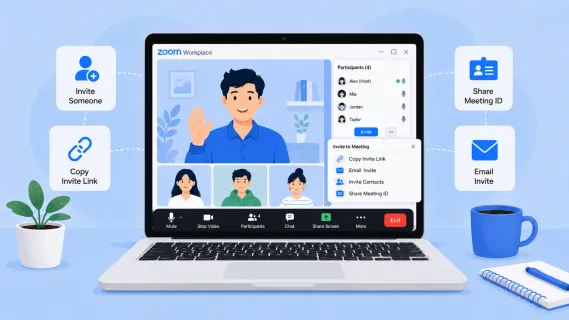
This guide explains how to invite someone to a Zoom meeting through a meeting link, email, calendar invite, mobile app, or live meeting controls.
Zoom meeting
Zoom Invite
hybrid Meeting
Updated: Aug 19, 2026 · 8 minutes read
Global Business, Brought Near.
No Installer, No Hassle, Just Works.
If you are wondering how to invite someone to a Zoom meeting, the simplest answer is this: create or open your Zoom meeting, copy the invitation or meeting link, and send it to your participants by email, calendar invite, chat, or text.
That works for most meetings. But the best method depends on when you are inviting people, where you scheduled the meeting, and whether you are hosting from a laptop, phone, calendar app, or conference room.
This guide walks through the easiest ways to send a Zoom invite, including scheduled meetings, live meetings, Google Calendar, Outlook, mobile devices, and hybrid rooms. It also covers what to include in the invitation so people can actually join without confusion.
Key Takeaways
Copying the Zoom invitation or invite link is the fastest way to invite someone.
Calendar invites are best for work meetings because they include time, reminders, attendees, and meeting details.
A strong Zoom invite should include the meeting link, meeting ID, passcode, time zone, and agenda.
You can invite people before a scheduled meeting or during a live Zoom meeting.
Hybrid meetings also need clear audio, video, display, and room setup so remote participants can join smoothly.
Quick Answer: How to Invite Someone to a Zoom Meeting
To invite someone to a Zoom meeting:
Open Zoom and create a new meeting or select an existing scheduled meeting.
Click or tap the option to copy the invitation, copy invite link, or add the meeting to a calendar.
Send the invitation to participants by email, calendar invite, chat, or text.
Make sure the invite includes the Zoom link, meeting ID, passcode if needed, date, time, and time zone.
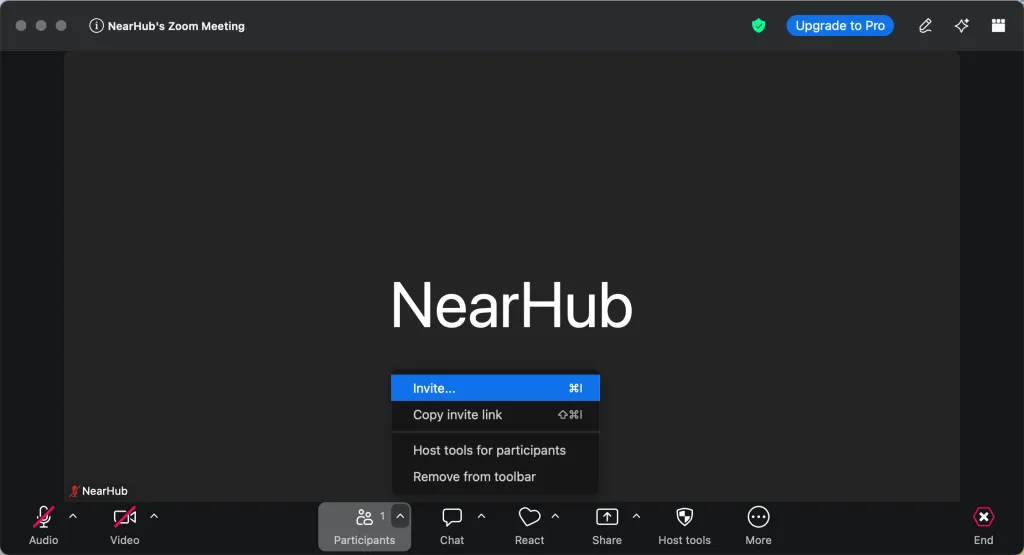
If the meeting has already started, open the Participants panel and use the invite option to copy the link or invite contacts directly.
Method 1: Invite Someone to a Scheduled Zoom Meeting
This is the best option when you are planning a meeting in advance. It gives participants time to add the event to their calendar, check the time zone, and prepare before the call.
On the Zoom Desktop App
Open the Zoom desktop app.
Sign in to your account.
Click Schedule.
Add the meeting topic, date, time, duration, and time zone.
Choose your meeting settings, such as passcode, waiting room, video, and audio.
Save the meeting.
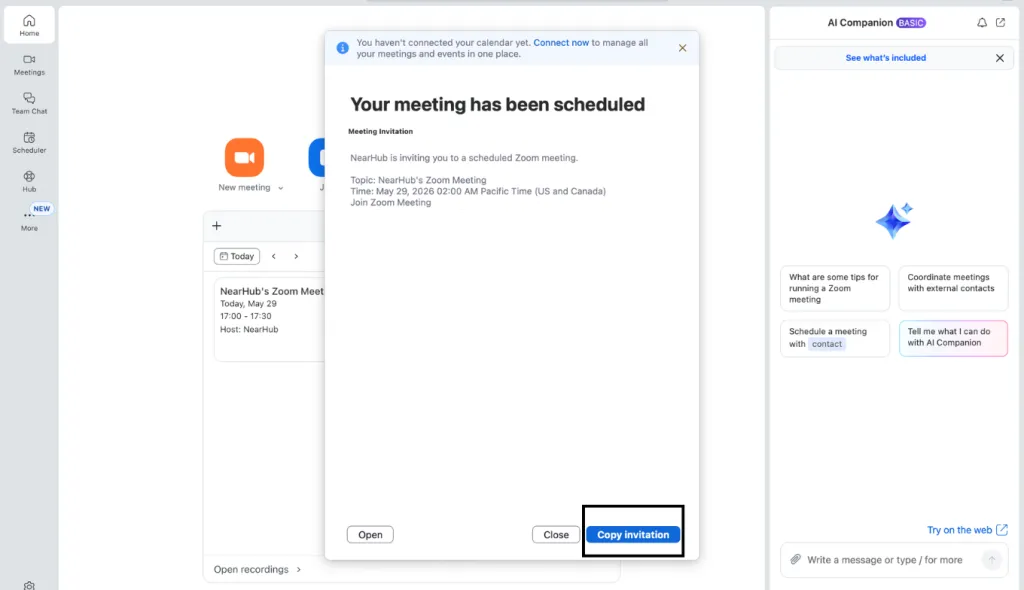
Open the scheduled meeting details.
Copy the invitation or copy the invite link.
Paste it into an email, calendar event, Slack message, Teams chat, or text message.
This is often the cleanest answer to "how do I invite someone to a Zoom meeting?" because it gives you a full invitation with the meeting link, ID, passcode, and dial-in details if available.
What to Send
At minimum, your Zoom invitation should include:
Meeting topic
Date and time
Time zone
Zoom join link
Meeting ID
Passcode, if required
Agenda or short purpose
Any preparation notes
For professional meetings, do not send only a bare Zoom link. Add context so invitees know why they are receiving it and what they should expect.
Method 2: Invite People Through Google Calendar
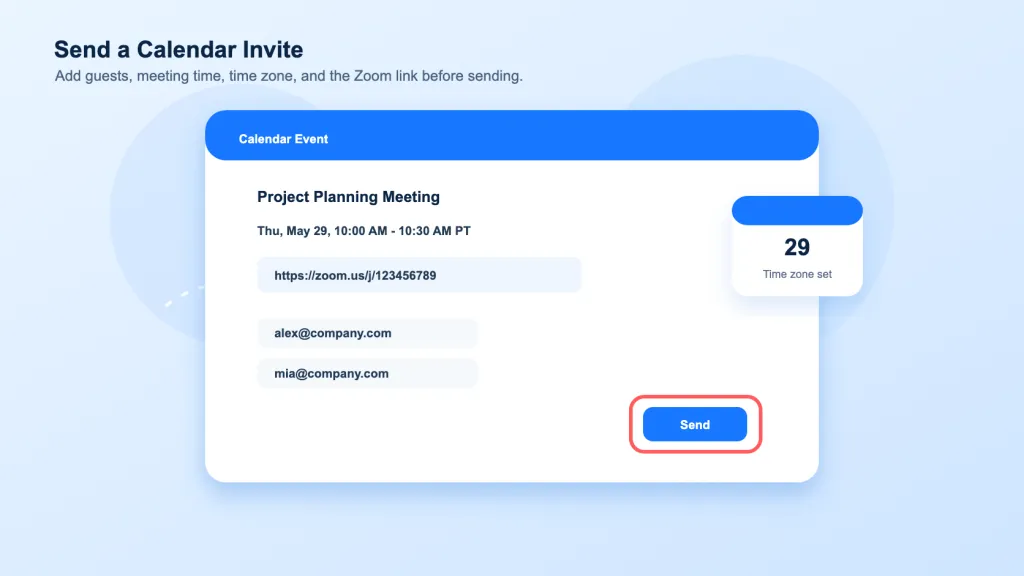
For many US teams, Google Calendar is the easiest way to invite people to a Zoom meeting because the event appears directly on each participant's calendar.
Open Google Calendar.
Create a new event.
Add the meeting title, date, time, and guests.
Add your Zoom meeting link in the location field, description field, or conferencing field if your Zoom integration is enabled.
Add a short agenda in the description.
Click Save.
Send the calendar invitation to guests.
This method is ideal for recurring team meetings, interviews, sales calls, classes, office hours, and client check-ins.
Tip for Calendar Invites
Always check the time zone before sending. A meeting at 10:00 AM Pacific Time is not the same for a participant in New York, Chicago, Denver, or London. Calendar invites usually handle time zone conversion automatically, but only if the event is set up correctly.
Method 3: Invite People Through Outlook
If your workplace uses Microsoft 365, Outlook is usually the best place to send a Zoom invite.
Open Outlook Calendar.
Create a new meeting event.
Add attendees.
Add the meeting date, time, and subject.
Insert the Zoom meeting link or use the Zoom add-in if your organization has enabled it.
Add a short agenda and any preparation notes.
Send the invitation.
For companies that rely on Outlook, this method makes it easier to track attendance, reschedule meetings, and keep the Zoom link connected to the calendar event.
Method 4: Invite Someone During a Live Zoom Meeting
Sometimes you are already in a meeting and need to bring someone else in. In that case, you can invite people from the live meeting controls.
Open the Zoom meeting.
Click Participants.
Select Invite or copy the invite link, depending on your Zoom interface.
Choose a contact, email option, or copy the meeting link.
Send the invite through email, chat, or text.
This is useful when a teammate was left off the invite, a manager needs to join quickly, or a client wants to bring another stakeholder into the conversation.
When to Use This Method
Use a live invite when the meeting is already happening and speed matters more than calendar organization. For future meetings, a scheduled calendar invitation is usually better.
Method 5: Invite People from the Zoom Mobile App
If you are using Zoom on iPhone or Android, you can still invite people quickly.
Open the Zoom mobile app.
Start or schedule a meeting.
Tap Participants if you are already in the meeting.
Tap Invite.
Choose email, message, contacts, or copy invite link.
Send the invitation through your preferred app.
Mobile invites are helpful for quick calls, informal check-ins, and urgent meetings. For formal business meetings, it is still better to schedule the meeting in advance and send a calendar invite.
How to Invite People to a Zoom Meeting in a Hybrid Conference Room
Inviting people is only the first step. If your Zoom meeting includes both remote attendees and people in a physical conference room, the room setup matters just as much as the invitation.
Remote participants need to see faces clearly, hear every voice, and follow shared content without feeling like second-class attendees. That is why many teams pair Zoom with purpose-built meeting room hardware, such as smart boards, AI cameras, microphone arrays, and collaboration displays.
Before inviting a team to a future call, it also helps to understand how to set up a Zoom meeting correctly, from meeting settings to the link you share with attendees. If the conversation needs to become a quick one-on-one, this guide on how to call someone on Zoom explains the faster route.
For hybrid rooms, invitation quality and meeting quality work together. Once people join, hosts should know how to mute a Zoom meeting when background noise appears and how to improve Zoom video quality before important client calls, interviews, or team reviews.
What Should a Zoom Invite Include?
A good Zoom invite removes friction. Participants should not have to search for the link, guess the agenda, or ask which time zone applies.
Use this simple format:
Subject: Project Planning Meeting - Zoom Invite
Hi [Name],
Please join our Zoom meeting on [date] at [time and time zone].
Join Zoom Meeting: [link]
Meeting ID: [ID]
Passcode: [passcode]
Agenda:
Review project timeline
Confirm responsibilities
Discuss next steps
Thanks,[Your Name]
This template works for business meetings, interviews, classes, webinars, training sessions, and remote team check-ins.
Best Practices for Sending Zoom Invitations
Send the Invite Early
For formal meetings, send the Zoom invite at least 24 hours in advance when possible. For interviews, client calls, board meetings, or training sessions, send it earlier and include a reminder.
Use a Calendar Invite for Work Meetings
If you are inviting coworkers, clients, or students, a calendar invite is usually better than a plain message. It gives participants a reminder and keeps the meeting details in one place.
Include the Time Zone
This matters especially for US teams working across Eastern, Central, Mountain, Pacific, Alaska, and Hawaii time zones. A simple "10:00 AM PT / 1:00 PM ET" can prevent missed meetings.
Add a Short Agenda
A Zoom invite with an agenda feels more professional and helps people arrive ready. Even three bullets can improve meeting quality.
Check Security Settings
Before sending the invite, review your passcode, waiting room, and host controls. For public or large meetings, avoid sharing personal meeting links too widely.
Test the Room Before Important Hybrid Meetings
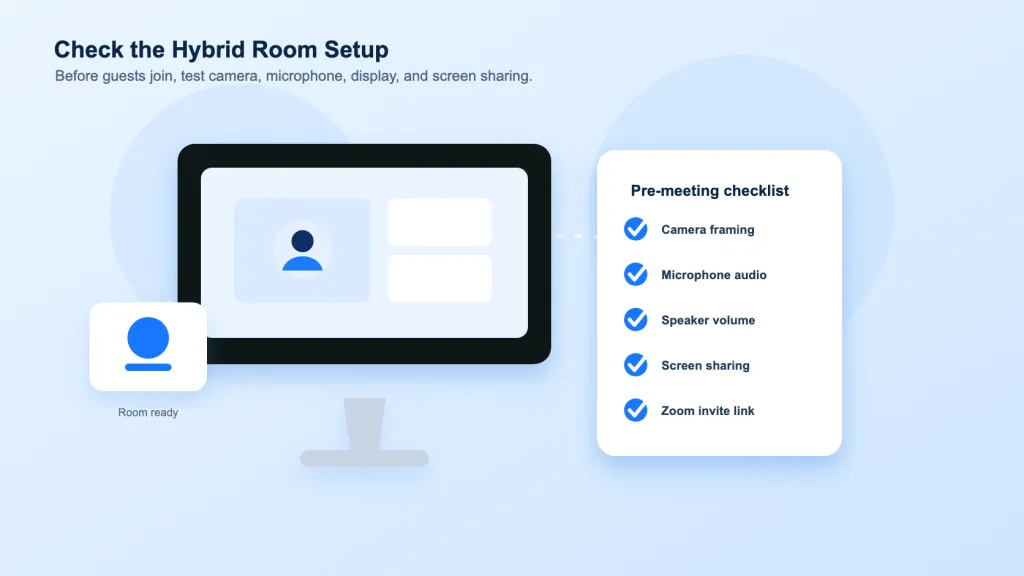
If the meeting is happening in a conference room, test the camera, microphone, speaker, display, and screen sharing before people join.
Common Problems When Inviting People to Zoom Meetings
The Invitee Cannot Find the Zoom Link
Send the link again in a direct message and make sure it is clearly labeled. If you used a calendar invite, ask them to check the event description.
The Passcode Is Missing
Open the Zoom meeting details and copy the full invitation, not just the meeting link. The full invitation usually includes the meeting ID and passcode.
The Time Is Wrong
Check the event time zone in your calendar app. If participants are in different regions, write the time zone in the meeting description.
The Calendar Invite Did Not Send
If you scheduled the meeting in Zoom but did not add guests through a connected calendar, Zoom may create the meeting without automatically emailing attendees. Copy the invitation and send it manually, or create a calendar event and add guests there.
Someone Needs to Join by Phone
Copy the full Zoom invitation so phone dial-in details are included if they are available for your account and meeting settings.
Zoom Invite Checklist
Before you send your next Zoom meeting invite, confirm:
The meeting date and time are correct.
The time zone is clear.
The Zoom link works.
The meeting ID and passcode are included if needed.
The invite has a clear subject line.
The agenda or purpose is included.
Guests were added to the calendar event or message.
Hybrid room equipment is tested for important meetings.
FAQs
1. How do I invite someone to a Zoom meeting?
Create or open the Zoom meeting, copy the invitation or invite link, and send it by email, calendar invite, chat, or text. If the meeting is live, use the Participants panel to invite someone during the call.
2. How do I invite people to a Zoom meeting in advance?
Schedule the meeting in Zoom, Google Calendar, or Outlook. Add the meeting date, time, guests, Zoom link, meeting ID, and passcode. Then send the calendar invitation.
3. Can I invite someone to a Zoom meeting after it starts?
Yes. In the live Zoom meeting, open Participants, choose Invite or copy the invite link, and send it to the person you want to add.
4. How do I invite people to Zoom meeting from my phone?
Open the Zoom mobile app, start or schedule the meeting, tap Participants, tap Invite, and choose email, message, contacts, or copy invite link.
5. Is it better to send a Zoom link or a calendar invite?
For professional meetings, a calendar invite is better because it includes the time, reminder, attendees, and meeting details in one place. A simple Zoom link is fine for quick or informal calls.
6. Why did my Zoom invite not email everyone automatically?
If your calendar is not connected or you only created the meeting inside Zoom, guests may not receive an automatic email. Copy the full invitation and send it manually, or add the Zoom link to a Google Calendar or Outlook event with attendees.
Final Thoughts
Learning how to invite someone to a Zoom meeting is simple once you know where to find the invite link and which method fits your situation. For quick calls, copying the link is enough. For business meetings, interviews, classes, and hybrid team sessions, a complete calendar invite is the more professional choice.
And if your meetings include people in a physical room, remember that the invite only gets people into the call. The right camera, microphone, display, and collaboration setup help everyone stay engaged once the meeting starts.