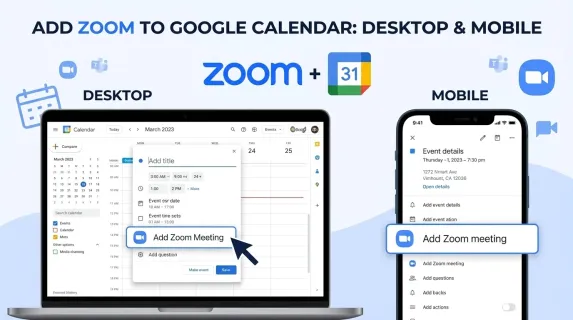
If you are trying to add Zoom to Google Calendar, you are not alone. Millions of remote professionals and hybrid teams rely on this integration to streamline their meeting workflows. Whether you need to schedule a one-on-one video call or set up recurring team standups, connecting Zoom with Google Calendar saves time and eliminates the hassle of manually copying meeting links.
This guide walks you through integrating Zoom with Google Calendar on both desktop and mobile devices. You will learn the exact steps to install the official add-on, how to add Zoom links to Google Calendar events automatically, and what to do when things go wrong. By the end, you will have a reliable system for managing virtual meetings across all your devices.
What You Need Before Getting Started
Before you can connect Zoom to Google Calendar, make sure you have the following ready:
- A Google account with access to Google Calendar
- A Zoom account (Basic free plan is sufficient)
- Desktop: Google Chrome, Firefox, Safari, or Edge browser
- Mobile: Google Calendar app installed on iOS or Android
- Administrative permissions on your Google Workspace account (if applicable)
The Zoom for Google Calendar add-on works with both personal Gmail accounts and Google Workspace accounts. If your organization restricts third-party app installations, you may need to ask your IT administrator to approve the add-on from the Google Workspace Marketplace.
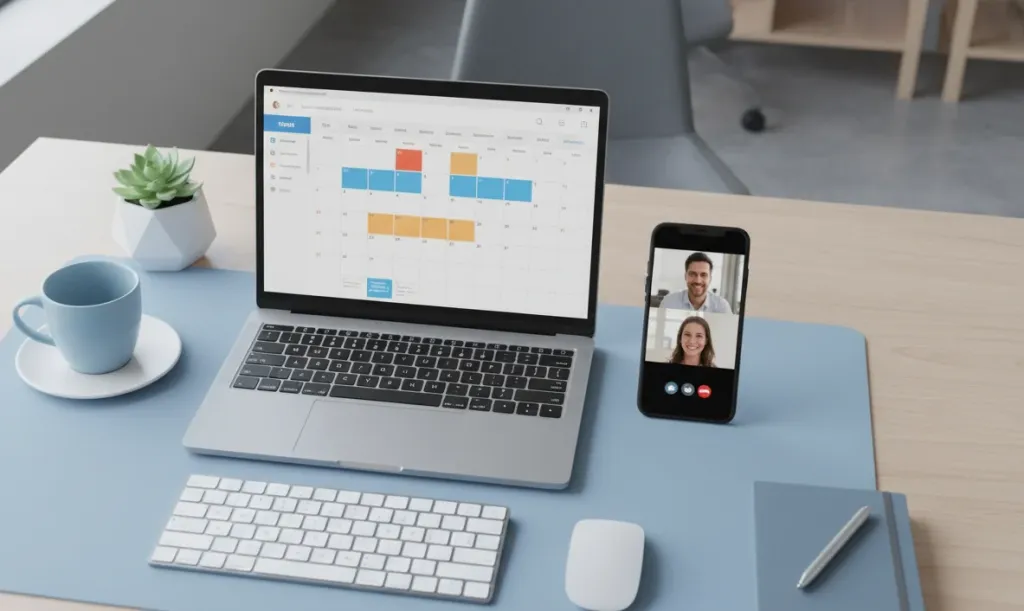
How to Add Zoom to Google Calendar on Desktop
The desktop experience is the most reliable way to add Zoom to Google Calendar. Follow these steps to get the integration working in your web browser.
Step 1: Open Google Calendar in your web browser.
Navigate to calendar.google.com and sign in to the Google account you want to use.
Step 2: Install the Zoom for Google Calendar add-on.
Click the plus (+) button next to Add other calendars in the left sidebar, then select Browse apps in the Marketplace. Search for "Zoom for Google Calendar" and click Install. Grant the requested permissions when prompted.
Step 3: Sign in to your Zoom account.
After installation, click the Zoom icon in the Google Calendar sidebar. Sign in with your Zoom credentials and authorize Google Calendar to access your Zoom account.
Step 4: Create a new event with Zoom automatically added.
Click the Create button to start a new event. Look for the Add Zoom Meeting button in the event details panel. Click it, and Zoom will automatically generate a meeting ID and join link for this event.
Step 5: Save the event.
Fill in the event title, date, time, and guest list as you normally would. When you click Save, Google Calendar will send invitations to all attendees with the Zoom meeting link included.
Once configured, every new event you create will have the option to add a Zoom meeting with a single click. This is the fastest way to add Zoom links to Google Calendar events on desktop.
How to Add Zoom to Google Calendar Mobile App
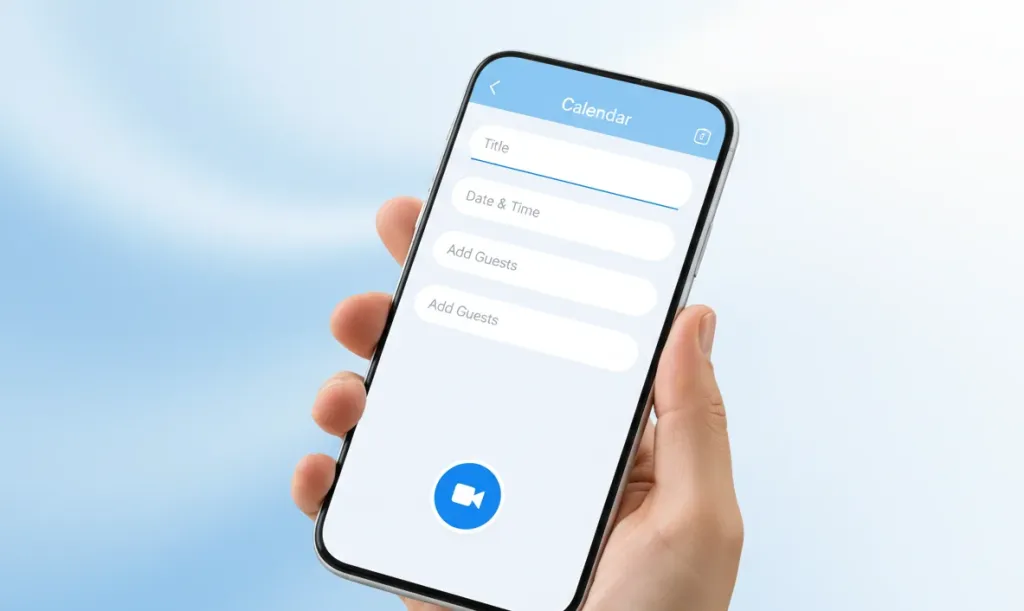
Many users specifically search for how to add Zoom to the Google Calendar mobile app because the process differs significantly from desktop. Here is what you need to know about mobile scheduling.
Current limitation: The Zoom for Google Calendar add-on has limited functionality on mobile devices. While you can view Zoom meeting details in events created on desktop, adding new Zoom meetings directly from the Google Calendar mobile app is not fully supported as of 2026.
Workaround for iPhone and Android
Use this method when you need to schedule a Zoom meeting from your phone:
Step 1: Create the calendar event in the Google Calendar app.
Open the Google Calendar app on your phone. Tap the red plus (+) button and select Event. Enter the title, date, time, and add your guests.
Step 2: Open the Zoom mobile app and schedule a meeting.
Switch to the Zoom app. Tap Schedule and set the same date and time as your calendar event. Toggle on Video and Audio options as needed, then tap Done or Save.
Step 3: Copy the Zoom meeting link.
After scheduling, tap on the meeting in your Zoom app to open the details. Tap and hold the Join URL or Invite Link, then copy it.
Step 4: Paste the link into your Google Calendar event.
Return to the Google Calendar app. Open the event you created earlier and paste the Zoom link into the Location field or the Description field. Tap Save.
This workaround ensures your attendees receive the Zoom link alongside their calendar invitation, even when you are scheduling from your phone.
How to Integrate Zoom with Google Calendar Using the Add-On
The official Zoom for Google Calendar add-on is the most reliable method for Zoom Google Calendar integration. Understanding how it works helps you troubleshoot issues and get the most from the connection.
What the Add-On Does
The add-on connects your Zoom account directly to Google Calendar through the Google Workspace Marketplace. Once authorized, it can:
- Automatically generate a unique Zoom meeting for each calendar event
- Insert the join link, meeting ID, and dial-in numbers into the event description
- Update meeting details when you modify the event time or date
- Remove Zoom meetings when you delete the associated calendar event
- Support recurring meetings with persistent or changing meeting IDs
Installation for Google Workspace Admins
If you manage a team, you can install the add-on organization-wide:
- Open the Google Workspace Marketplace as an admin
- Search for "Zoom for Google Calendar"
- Click Domain Install instead of individual install
- Select the organizational units that need access
- Confirm permissions to complete the rollout
Domain installation ensures every team member can add Zoom meetings to calendar events without individually installing the add-on.
Troubleshooting: Zoom Not Showing in Google Calendar Mobile
The issue of Zoom not showing in Google Calendar mobile is one of the most common complaints from users. Here is how to diagnose and fix it.
The Zoom for Google Calendar add-on was designed primarily for the desktop web experience. Google Calendar mobile apps do not always display third-party add-ons in the event creation interface. This is a platform limitation, not a bug.
Solutions:
- Use the mobile workaround method described in the mobile section above
- Create events on desktop first when possible, then edit details from mobile
- Enable desktop site mode in your mobile browser and use the web version of Google Calendar instead of the app
Problem: Zoom Meetings Not Generating
If clicking Add Zoom Meeting does nothing:
- Refresh your browser and try again
- Check that you are signed into the correct Zoom account in the add-on panel
- Disable browser extensions that might block pop-ups or third-party scripts
- Clear your browser cache and cookies for Google Calendar
Problem: Guests Not Receiving Zoom Links
If invitees get the calendar invitation but no Zoom link appears:
- Verify the Zoom meeting was successfully added before saving the event
- Check that the event is not set to "Private" with restricted sharing settings
- Ask guests to check their spam or junk folders
- Ensure your Zoom account is active and in good standing
Problem: Add-On Installation Blocked by Admin
If you see an error message saying the installation is blocked:
- Contact your Google Workspace administrator
- Ask them to approve the Zoom for Google Calendar add-on in the Admin Console under Apps > Google Workspace Marketplace apps

Best Practices for Managing Zoom Meetings in Google Calendar
Once you know how to connect Zoom to Google Calendar, these practices will keep your workflow efficient and your meetings organized.
Use Consistent Naming Conventions
Include clear, descriptive titles for your calendar events. Instead of "Zoom Meeting," use "Weekly Product Standup - Zoom" so attendees immediately understand the purpose.
Set Recurring Meetings with Persistent IDs
For weekly team meetings or one-on-one checkups, configure your Zoom meeting to use a recurring meeting ID. This way, the join link stays the same for every instance, and regular attendees can bookmark it.
Add Agenda Details in the Description
Use the Google Calendar event description to share the meeting agenda alongside the Zoom link. This keeps everything in one place and reduces the number of emails or messages you need to send.
Enable Waiting Rooms for Security
If you are hosting external meetings, enable the Zoom Waiting Room feature. This prevents uninvited guests from joining even if they obtain the calendar link.
Review and Clean Up Old Meetings
Periodically review your Google Calendar for outdated recurring events. Delete or cancel series that are no longer active to keep your calendar clean and avoid confusion.
Upgrade Your Video Meeting Experience
After you have mastered how to add zoom link to google calendar, the next step is ensuring your video quality matches your scheduling efficiency. A reliable calendar workflow means nothing if your camera produces blurry footage or your audio cuts out during important calls.
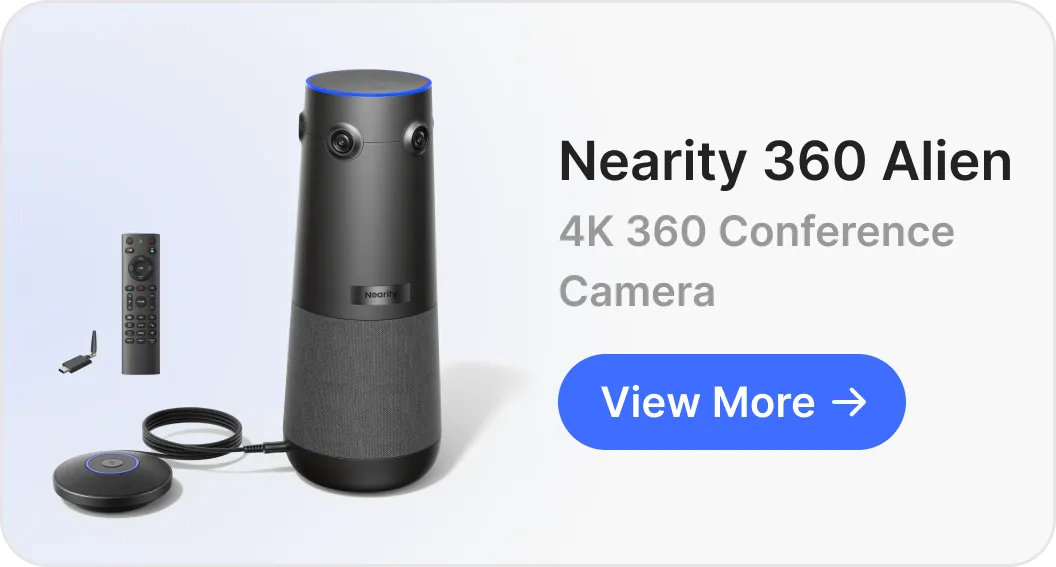
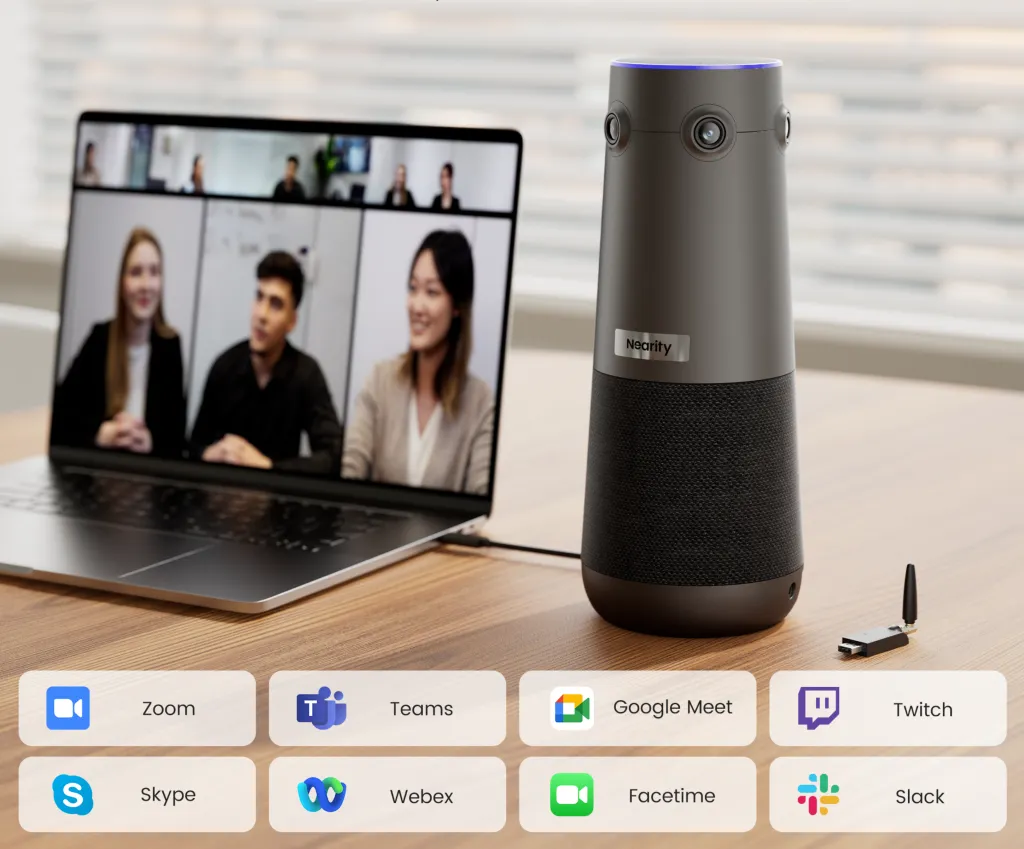
For hybrid teams and professionals who spend hours in video meetings each week, upgrading to a dedicated conference camera makes a noticeable difference. The Nearity 360 Alien is a True 4K conference camera designed for modern meeting rooms and home offices. For guidance on selecting the right camera for your setup, check out our best 4K webcam buying guide. It features a 360-degree panoramic view with automatic speaker tracking, ensuring everyone in the room is visible without manual camera adjustments.
Unlike standard webcams that only capture a narrow field of view, the Nearity 360 Alien uses intelligent framing to follow the conversation naturally. For teams struggling with uneven video quality across remote and in-office participants, this level of hardware optimization eliminates the common frustration of "Can you hear me?" and "We cannot see the whiteboard." If your calendar is full of Zoom meetings, pairing your Google Calendar integration with professional-grade video equipment is a logical next step.
FAQ
Why is Zoom not showing in Google Calendar on my phone?
The Zoom for Google Calendar add-on does not fully support the mobile app. To add a Zoom meeting link on mobile, create the event in the Google Calendar app first, then open the Zoom mobile app, schedule a meeting, and manually paste the join link into the event description field.
How do I automatically add a Zoom link to every Google Calendar event?
Install the Zoom for Google Calendar add-on from the Google Workspace Marketplace, sign in with your Zoom account, and enable the option to automatically add Zoom meeting details to all calendar events you create. This works on desktop and in the web browser version of Google Calendar.
Can I connect Zoom to Google Calendar without the add-on?
Yes. You can manually copy the Zoom meeting link from the Zoom desktop or mobile app and paste it into the location or description field of any Google Calendar event. However, using the official add-on automates this process and saves time.
Is the Zoom Google Calendar integration free?
Yes. The Zoom for Google Calendar add-on is free to install and use. You need a Zoom account (free Basic plan works) and a Google account to connect the two services.
Does the Zoom Google Calendar add-on work on iPhone and Android?
The add-on has limited functionality on mobile devices. You can view Zoom meeting details in calendar events, but creating new Zoom meetings directly from the Google Calendar mobile app is not fully supported. For mobile scheduling, use the workaround method described in this guide.