Microsoft Teams Rooms: Compatible Displays & Hardware Guide
A decision guide to Microsoft Teams Rooms hardware: certified vs compatible devices, Front Row layout rules, interactive displays with Teams Whiteboard, video bars, and alternatives to popular gear.
teams rooms hardware
microsoft teams rooms display
teams room setup
Updated: Aug 20, 2026 · 7 minutes read
Global Business, Brought Near.
No Installer, No Hassle, Just Works.
Here's an expensive surprise that arrives about three months after most Teams Rooms deployments: the hardware works perfectly, and the room still feels broken — remote participants are postage stamps, whiteboarding happens on paper, and the "cheap" certified bar needs a paid Pro license to unlock the features that sold it. Microsoft Teams Rooms hardware is less a shopping decision than a rules-compliance exercise: Microsoft's display, layout, and licensing constraints decide your options before price ever enters the conversation.
This guide walks through certified vs compatible hardware, the Front Row layout and what it demands, how interactive displays work with Teams Whiteboard, where Teams video bars fit, and when alternatives to the usual suspects make sense.
Teams Rooms Certified vs Compatible Hardware
Certified Teams Rooms hardware has passed Microsoft's third-party lab program and appears in the official certified systems and peripherals directory; "compatible" hardware merely works with Teams without that guarantee. The practical difference surfaces on your worst day, not your best one: when a firmware update breaks camera detection before an all-hands, certified gear has a defined support path and Microsoft accountability. Uncertified gear has a forum thread.
Teams Rooms hardware comes in two operating system flavors, and this choice shapes everything downstream:
Dimension
Teams Rooms on Android
Teams Rooms on Windows
Form factor
Appliance bars and touch boards, boot-to-Teams
Modular compute + certified peripherals
Best room fit
Small, standardized rooms; fast fleet rollouts
Medium/large rooms, dual displays, custom AV
Expandability
Limited to the appliance's ports and certification
Add certified mics, cameras, consoles as rooms grow
Management
Teams Admin Center, appliance-style
Teams Admin Center + full Windows/MDM tooling
Advanced layouts
Constrained by appliance design
Full dual-display and integration flexibility
If your fleet is ten identical small rooms, Android appliances win on deployment speed — configure once, ship everywhere. If your rooms vary, need dual displays, or integrate existing audio systems, Windows modular builds absorb that complexity.
Two practical habits matter more than the flavor choice. First, verify against the official certified directory, not the vendor's marketing page — "works with Teams" and "certified for Teams Rooms" are different claims, and only one of them comes with lab testing and a support path. Second, impose firmware discipline whatever you deploy: pilot updates on one room before fleet-wide rollout, because a regression that reaches fifty rooms at once is a very bad Monday. And there's a third path worth knowing: a Windows-based interactive board that runs the full Teams desktop app — not a "Teams Rooms system" in Microsoft's certification taxonomy, but a legitimate teams room solution for organizations that prioritize flexibility over the certified badge. The cross-platform hardware decision guide maps that trade-off across Zoom, Meet, and Webex as well.
Front Row & Room Layout Considerations
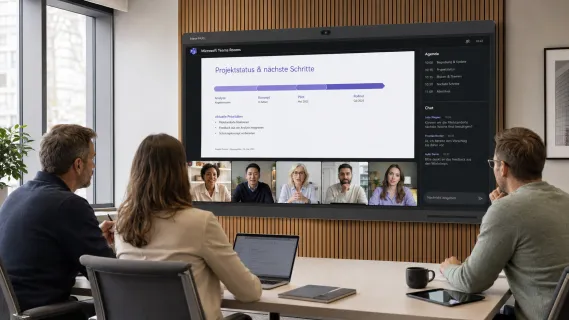
Front Row is Microsoft's Teams Rooms layout that moves the remote-participant gallery to the bottom of the front-of-room display at roughly eye level, with content above it — designed to make remote people feel present rather than projected. It works on standard 16:9 displays and looks best on 21:9 ultra-wide panels, where the gallery, content, and chat share one wide canvas without cramping.
Why does a software layout belong in a hardware guide? Follow the chain three layers down. Front Row exists because remote participants feel excluded in hybrid meetings (layer one). That exclusion happens because traditional layouts shrink remote faces to thumbnail size beside dominant content (layer two). And thumbnails happen because a single 16:9 display has finite pixels, so every element you enlarge steals space from another (layer three) — which is precisely why display size and aspect ratio are Front Row decisions, not afterthoughts. The common misconception is that Front Row is a setting you toggle; in practice, it's a room design you commit to: display real estate, camera at eye level, and seating that faces the gallery.
Microsoft's room planning guidance adds constraints that catch buyers off guard:
Dual-display rooms require a touch console — dual display mode without one isn't supported or certified.
Only one of the two front-of-room displays can be touch-enabled.
Touch boards are certified as standalone devices and cannot drive a second front-of-room display. If your plan is "big touch board plus a second screen," that plan needs revision before purchase.
Consumer TVs used as room displays need HDMI-CEC support to wake automatically — a feature not all TVs have.
There's a legitimate counter-argument, though: you may not need Front Row at all. In presentation-heavy rooms where one person speaks to many — training rooms, all-hands overflow — the gallery-at-eye-level layout optimizes for a meeting type that rarely happens there. Spend the display budget on content legibility instead: bigger pixels for the deck, not bigger faces. Front Row earns its premium in discussion-heavy rooms where remote participants speak as much as in-room ones; audit your meeting recordings before paying for it.
Interactive Displays with Teams Whiteboard
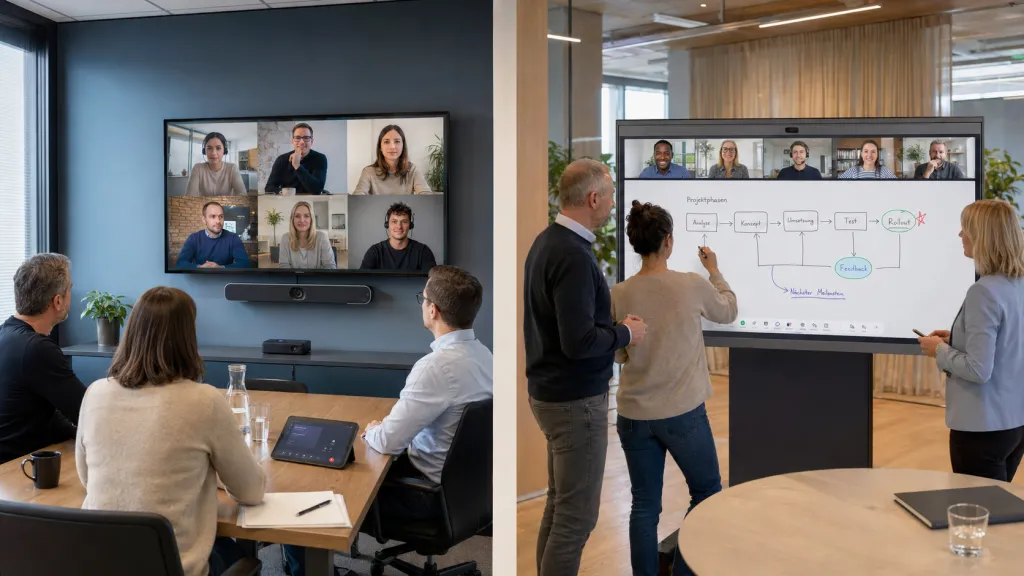
Teams Whiteboard on a non-touch display is a broadcast: one person inks from a laptop, everyone else watches. On an interactive display, the whiteboard becomes a shared physical surface — people walk up, drag sticky notes, sketch architectures — and remote participants see the same canvas live. That behavioral difference is why "teams rooms interactive display" and "teams rooms whiteboard" searches convert so well: the pain is real and recurring.
Your options, in ascending order of integration:
Touch-enabled front-of-room display on a Teams Rooms on Windows system — Microsoft supports it, with the caveat that call controls remain on the touch console; the display handles content interaction only.
Certified touch boards — all-in-one form factor with built-in compute and peripherals; certified standalone, but remember: no second front-of-room display.
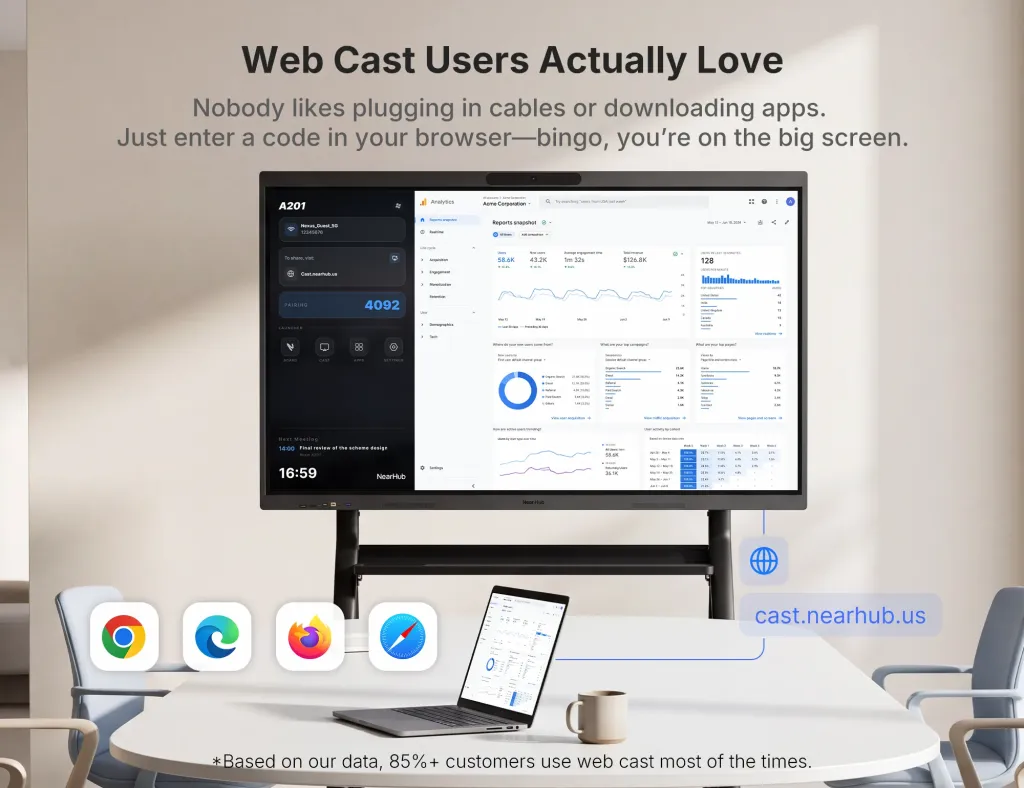
Windows-based interactive boards running the full Teams desktop app — the most flexible interpretation of a teams rooms all in one. A board like the NearHub Board Max, a Windows 11 Pro interactive display with native Teams built in, runs Teams at 1080p with its built-in AI camera (auto-framing and speaker tracking via a 130° field of view), offers an infinite cloud whiteboard that syncs to remote participants' browsers in real time, and annotates directly over any live website in full desktop Chrome. Because it's a true Windows device, the same board runs Zoom, Webex, and Google Meet natively — useful the day a client insists on their platform instead of yours.
One honest caveat before you romanticize touch: whiteboarding culture doesn't come with the hardware. If your teams never whiteboarded before, a touch display alone won't start the habit — pilot one room, appoint one whiteboard-comfortable champion per team, and measure usage for a quarter before fleet-wide rollout. The technology is ready; the behavior change is the actual project.
Teams Video Bars & All-in-One Systems
The Teams video bar — camera, mics, speakers in one soundbar-shaped unit — is the default answer for huddle and small rooms, and often the right one. Appliance bars boot straight into Teams Rooms on Android, join with one touch from a paired console, and give IT a tidy managed endpoint.
Choose a bar when the room is small, the use case is calls-first, and standardization matters more than flexibility. A huddle room teams setup with a quality bar and a 55" display can be deployed in an afternoon and replicated across fifty rooms. Two selection details pay off at this size: a genuinely wide field of view (huddle participants sit close to the lens, so edge distortion and cut-off shoulders are the visible failure), and a mic array honestly rated for the room's length rather than its marketing "up to" figure.
One distinction worth learning before you compare bars: the Teams native app experience versus Teams Rooms. The full Teams desktop app — running on a Windows room PC or a Windows interactive board — exposes every Teams feature as Microsoft ships it, while the appliance-room experience is a curated subset optimized for shared spaces. For most meetings the subset is exactly what you want; for rooms that live in advanced features (breakout management, complex webinar workflows), the desktop-app route avoids discovering a missing capability in front of an audience.
But here's the devil's-advocate case the bar vendors won't make: a bar is the wrong tool the moment the room's job includes creation, not just communication. The bar's camera points from the front; it can't see what you're sketching. The bar has no surface; the whiteboard habit dies or moves to paper. And the bar's appliance OS runs Teams and maybe a guest-join mode for everything else — a limitation you won't feel until the acquisition announcement. If the room must call and whiteboard and present walk-up content, the all-in-one to evaluate is the interactive-board category, not the bar category. Bars optimize the meeting; boards optimize the work.
Alternatives to Popular Teams Hardware
"Teams rooms alternative" searches usually mean one of three things, and each has a different right answer:
Cheaper than the certified default: compatible (uncertified) USB peripherals on a Windows build can cut hardware cost meaningfully — legitimate for non-critical rooms where you accept owning the support burden. Don't do this in the CEO's boardroom.
More flexible than the appliance default: a Windows room build, or a Windows interactive board, escapes the appliance's platform boundary and adds touch. This is the alternative to choose when platform drift is your real risk — the video bar replacement framework covers the migration math in detail.
Simpler than the modular default: consolidate. Every extra component — compute box, console, camera, bar, display — is a failure point and a firmware stream. Rooms with fewer boxes break less and get fixed faster, a truth that matters more at room thirty than at room one.
Whatever you choose, model the license line honestly: Teams Rooms Basic is free but capped at 25 rooms per organization, while Teams Rooms Pro carries a per-room recurring cost and unlocks the advanced features most buyers assumed were included. A hardware comparison that ignores licensing isn't a comparison — it's a down payment on a surprise.
Microsoft Teams Rooms Display: Sizing, Single vs Dual, and the CEC Trap
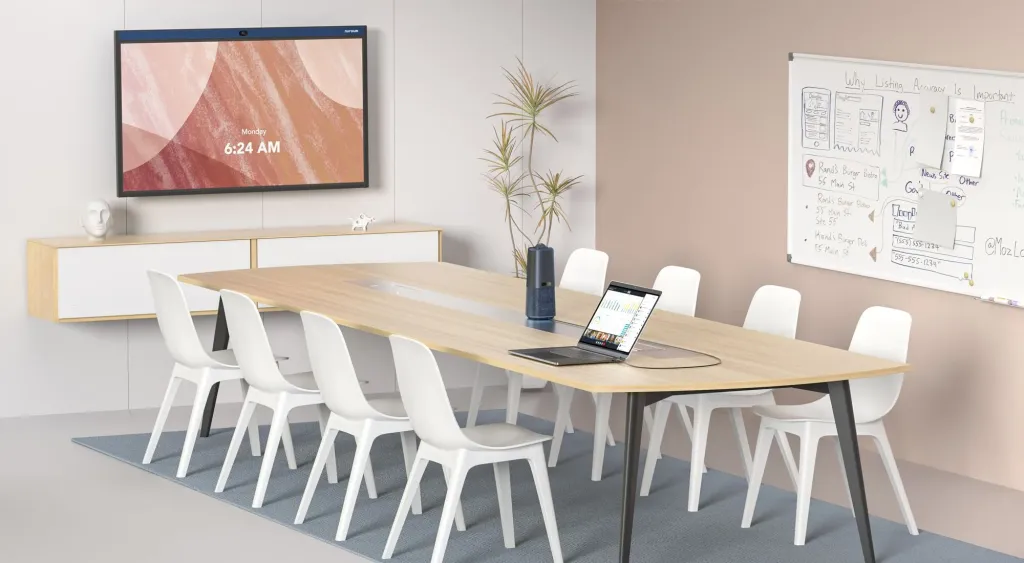
The microsoft teams rooms display decision deserves its own pass, because it's the most visible line item and the most commonly botched. Size for the farthest seat's ability to read shared content — spreadsheets and code review, not just video tiles — and remember that a display which looked enormous on an empty wall shrinks once bodies fill the chairs. As a working heuristic, small rooms land in the 55–65" class, medium rooms at 65–75", and large rooms justify either large-format panels or dual displays.
Single versus dual display is really a question about what the room shows most. If the majority of meetings are content-led — one person presenting to many — a single large display wins, because content gets the full canvas and remote faces live in a modest gallery strip. If the majority are discussion-led — remote participants speaking as much as in-room ones — dual displays earn their cost, dedicating one screen to people at near-life-size and one to content. Microsoft's own planning guidance recommends dual displays for medium and large rooms, and requires a touch console to run them — so budget the console whenever you budget the second panel.
Then there's the trap that generates the most helpdesk tickets: using a consumer TV as the front-of-room display. Consumer panels can work, but the TV must support HDMI-CEC so it wakes automatically when the room system activates — a feature missing on many living-room models. Without it, every meeting starts with someone hunting for the TV remote, and "the Teams room is broken" tickets accumulate for what is actually a $0 specification oversight. Commercial displays and interactive boards handle wake behavior properly by design.
Choosing Your Teams Room Build: A Five-Minute Framework
Pull the last month of bookings for the room you're planning, then answer four questions in order:
Discussion-led or presentation-led? Discussion → prioritize dual displays or Front Row real estate and gallery-friendly camera placement. Presentation → one big legible display, spend the savings on audio.
Whiteboard-heavy or whiteboard-never? Check the room's physical whiteboard walls and flip charts — if they're full, the room needs touch. If they're clean and always have been, don't pay for a habit that doesn't exist.
Standardized fleet or one-off room? Fleet → Android appliances or identical Windows images, one template per room size. One-off executive or multi-purpose room → flexibility outweighs standardization.
Certified-badge requirement or outcome requirement? If procurement or compliance mandates certified systems, your shortlist is the official directory. If the mandate is "meetings must work and rooms must get used," the compatible-and-Windows options open up — including interactive boards that run the full Teams desktop app natively.
Most teams find their shortlist shrinks to two candidates by question three — at which point the deciding factor is usually the license math, not the hardware.
One last word on that math: model five years, not one. The hardware quote is a one-time number; licenses, support contracts, and IT touch-time recur. A build that's 15% cheaper on day one can be the expensive option by year three if it needs more admin hours or unlocks fewer of the features your rooms actually use. Run both columns — capital and recurring — before calling anything a deal.
Teams Room Setup: Notes That Save You a Second Visit
Hardware chosen, the setup itself goes smoothly if you respect three sequencing rules that integrators learn the hard way.
Accounts before ladders. Sign in the room's resource account, assign the Teams Rooms license, and verify the calendar shows real meetings before mounting anything. Permission problems are invisible until you test them, and they're much easier to fix while the display is still on its stand.
Network before hardware. Wired Ethernet with a stable IP for the room system, firewall ports confirmed open, and QoS discussed with the network team if your org manages it. The classic "Teams room randomly drops from calls" ticket is a network story wearing a hardware costume.
Worst-case testing before sign-off. Don't test with two people next to the display at 4 PM on a quiet Friday. Test at the farthest seat, at normal speaking volume, with content shared and the camera's auto-framing active, with a remote participant on the call. Every weakness in a Teams Room hides at the edges — far seat, soft voice, simultaneous sharing — and a room that passes the worst case passes everything.
Frequently Asked Questions
What's the difference between Teams Rooms certified and compatible hardware?
Certified hardware passed Microsoft's lab testing, appears in the official directory, and comes with a guaranteed compatibility and support path — valuable precisely when something breaks at the worst moment. "Compatible" hardware may work perfectly day-to-day but carries no testing guarantee; when a Teams update changes peripheral behavior, you're the integration engineer. Rule of thumb: certified for rooms the business depends on, compatible only where you can tolerate owning the risk.
Do Teams Rooms need a license?
Yes — this is the most common budgeting oversight. Microsoft provides Teams Rooms Basic at no cost, but it's capped at 25 rooms per organization and covers core meeting features. Teams Rooms Pro adds enhanced experiences (including advanced Front Row capabilities and dual-screen intelligence) plus deeper device management. Multiply the Pro license by rooms by years before declaring one hardware option cheaper than another.
Can a touch screen be used as a Teams Rooms front-of-room display?
Yes, within documented limits. Microsoft supports touch-enabled front-of-room displays, but on Teams Rooms on Windows the call controls live on the touch console — the display is for content interaction like whiteboarding. Certified touch boards operate standalone with everything on the board, yet cannot drive a second front-of-room display. Check Microsoft's room planning guidance against your exact room design before ordering.
What size display does a Teams Room need?
Size from the farthest seat backward. Small rooms (4–6 people) typically land in the 55–65" class; medium rooms at 65–75" or dual displays; large rooms justify dual displays or large-format panels. Undersizing is among the most common Teams Rooms mistakes — a screen that looked big on an empty wall becomes unreadable once the room fills. When torn between sizes for a content-heavy room, go larger; nobody has ever complained that shared spreadsheets were too legible.
Can a Windows smart board replace a Teams video bar?
In small and medium rooms, absolutely — with one conscious trade. You gain the full Teams desktop app at 1080p, Teams Whiteboard on a genuine touch canvas, and native support for every other platform when clients don't use Teams. You trade away certified-system status and the appliance management model, taking on standard Windows endpoint management instead. For IT teams already managing Windows devices, that trade is usually trivial; for shops wanting a fully vendor-managed appliance, keep the bar.
Your next step: pull last month's meeting recordings for your target room and count how many were discussion-style versus presentation-style — that ratio, not a spec sheet, should decide between a bar, a modular build, and an interactive board. If the room whiteboards as much as it calls, see how a Windows 11 Pro smart board runs Teams natively alongside every other platform.