How to Improve Zoom Video Quality: A Complete Guide for 2026
A comprehensive guide detailing how to optimize Zoom software settings and select the right professional NearHub hardware to eliminate grainy video streams.
Zoom Video Quality
Video Conferencing Tips
Hybrid Work Setup
Updated: Aug 19, 2026 · 10 minutes read
Global Business, Brought Near.
No Installer, No Hassle, Just Works.
If you've ever joined a Zoom call and wondered why your video looks grainy, washed out, or just plain unprofessional, you're not alone. Poor video quality is one of the most common complaints among remote workers and conference room users alike — and it can quietly undermine your credibility in every meeting you attend.
The good news: you can significantly improve Zoom video quality without an IT degree. This guide walks you through the real causes of bad Zoom video, the software fixes you can apply today, and the hardware upgrade that solves the problem at its root.
Key Takeaways
Manual Activation Required: Zoom caps video resolution by default; users must manually enable the "HD" setting within the desktop client to broadcast high-definition video.
Bandwidth Dependencies: Achieving a crisp 1080p stream demands a stable network connection with minimum upload and download speeds of 3.0 Mbps.
Lighting Eliminates Noise: Proper front-facing environmental lighting prevents digital camera noise and graininess, while backlighting should be avoided.
Physical Hardware Limits: Software and environmental adjustments cannot overcome the small sensors of standard built-in laptop webcams.
Targeted Hardware Solutions: Individual professionals and educators benefit most from the directional Nearity V30S, while corporate boardrooms and roundtables require the 360-degree coverage of the Nearity 360 Alien.
Why Is Your Zoom Video Quality Poor?
Before jumping to fixes, it helps to understand what's actually causing the problem. Bad Zoom video usually comes from one of four sources:
Zoom's default settings are not optimized. Out of the box, Zoom doesn't automatically enable HD video — you have to turn it on manually. Many users never do.
Poor lighting. Your camera can only work with the light it receives. A bright window behind you or dim overhead lighting will make even a decent camera look terrible.
Bandwidth limitations. Zoom compresses video when your internet connection is unstable or slow. Even a brief dip in upload speed can drop your video to 360p in seconds.
A low-quality camera. This is the ceiling most people hit. Software settings and lighting can only compensate so much — if your camera sensor is small and your lens is cheap, the image will always be limited.
Step-by-Step Software Fixes: How to Improve Zoom Video Quality Right Now
Before investing in new equipment, you should always optimize your existing configuration. You can often squeeze noticeable improvements out of your current setup by adjusting a few hidden menus and environmental factors.
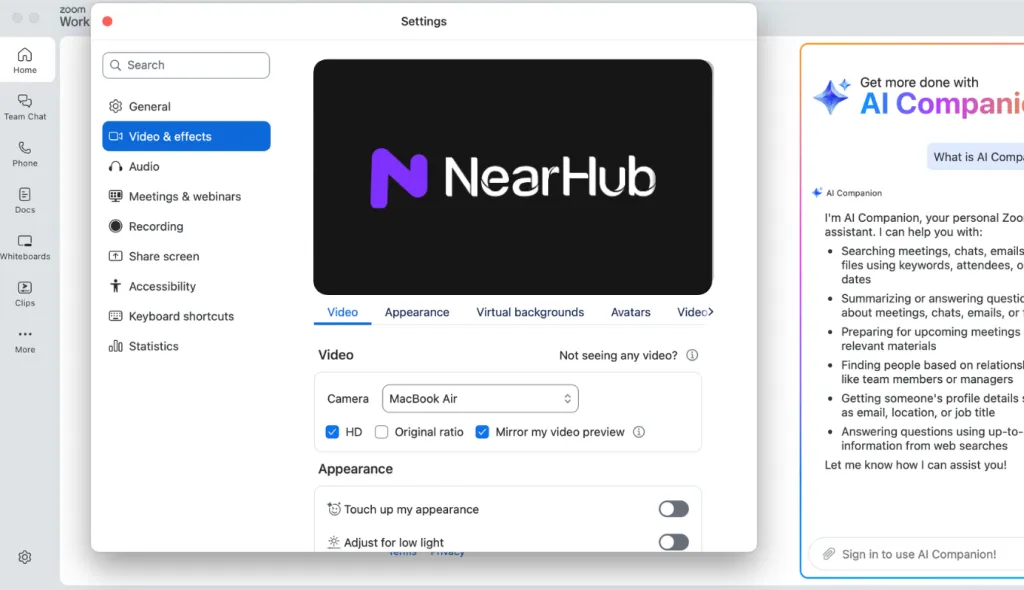
1. Enable Zoom Meeting HD Video Quality Settings
The absolute first step is ensuring that Zoom is actually permitted to broadcast in high definition. By default, Zoom caps your resolution to save system resources.
To enable zoom meeting hd video quality:
Open the Zoom desktop application and click on the Settings gear icon in the top right corner.
Select the Video tab from the left-hand sidebar.
Locate the My Video section.
Check the box next to HD. (Note: Depending on your Zoom account tier, this will enable either 720p or 1080p video streaming).
Check the box for Adjust for low light. Set this to Manual and use the slider to artificially brighten your feed if your room lacks windows.
2. Optimize Your Network and Bandwidth
A crisp HD stream requires a robust data pipeline. For seamless 1080p zoom meeting hd video quality, you need a stable upload and download speed of at least 3.0 Mbps.
Switch to Ethernet: Whenever possible, bypass Wi-Fi and connect your computer directly to your router via a CAT6 Ethernet cable. This eliminates packet drop and latency.
Close Background Applications: Cloud backups, file downloads, active torrents, or open browser tabs streaming media can hog your bandwidth. Close them before your meeting begins.
Position Your Router: If Wi-Fi is your only option, ensure you are in the same room as your router or invest in a mesh network to eliminate dead zones.
3. Master Your Environmental Lighting
Cameras need light to generate an image. When a sensor doesn't receive enough light, it creates digital "noise," resulting in that grainy, pixelated look.
Face the Light: Position your desk so you face a window or a dedicated desk lamp. Light should strike the front of your face evenly.
Avoid Backlighting: Never sit with a bright window directly behind you. This forces the camera's auto-exposure to adjust to the bright exterior, turning you into a dark shadow.
Use a Softbox or Ring Light: If your room is naturally dark, a diffuse ring light placed just above your monitor can mimic natural daylight, smoothing out shadows and significantly sharpening your image.
The Ultimate Upgrade: Choosing the Right Camera for Your Space
To break past hardware limitations and unlock pristine video clarity, you must transition to professional-grade hardware. Depending on whether you are optimizing a personal desk or an entire boardroom, NearHub offers tailored solutions engineered specifically to eliminate poor video and audio quality.
For Personal Desks, Online Teaching, and Corporate Meetings: Nearity V30S
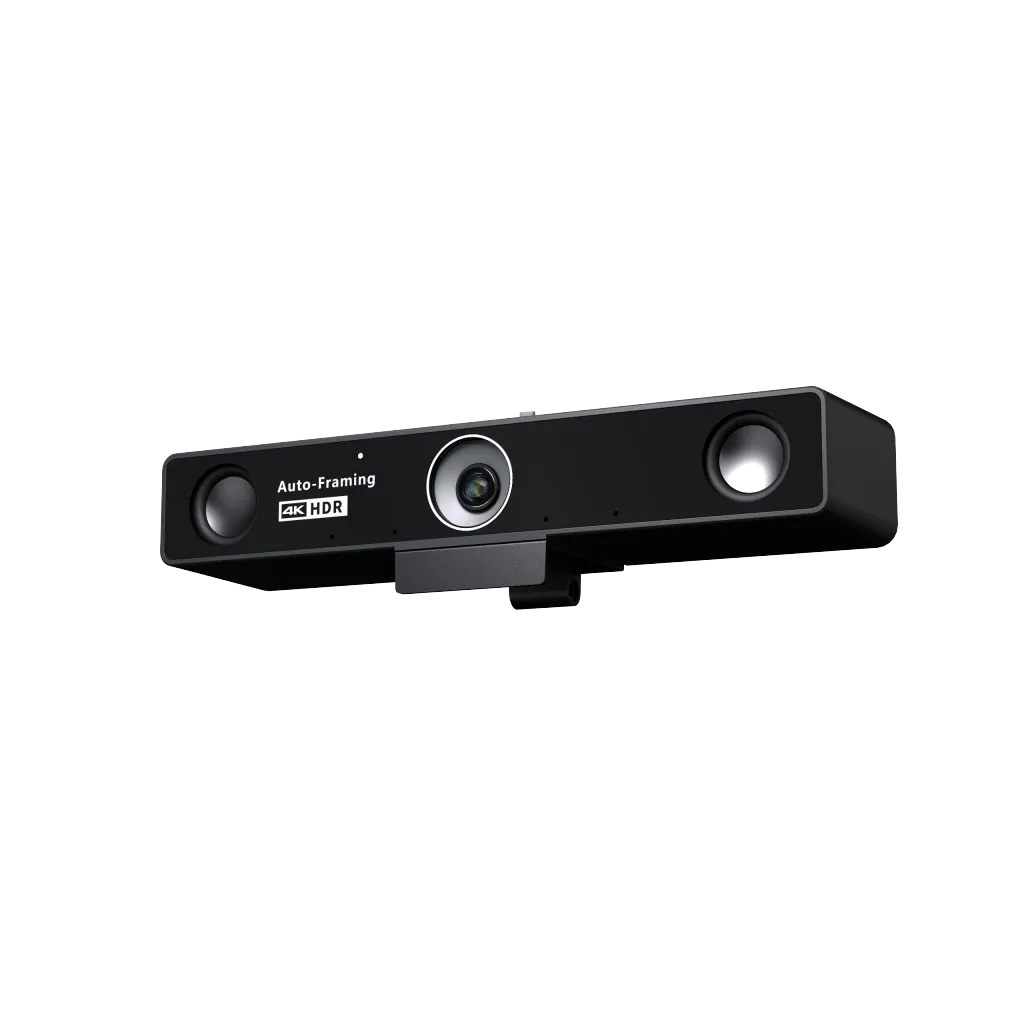
If you are an individual remote worker, an educator conducting online teaching, or a professional participating in standard corporate meetings, the Nearity V30S best webcam for zoom is your ideal upgrade.
Designed for high-impact personal use, the V30S features an ultra-sharp sensor that ensures you never look blurry or washed out. It offers plug-and-play simplicity, advanced auto-focus, and superb low-light performance. It elegantly overcomes the standard laptop camera bottleneck, ensuring you look crisp and professional in every 1on1 check-in or virtual classroom session. Instead of complex daisy-chain configurations, it features a dedicated port for an expansion microphone (the AM01), allowing you to scale your audio capture effortlessly if your personal workspace expands.
For Large Rooms, Seminars, and Roundtables: Nearity 360 Alien
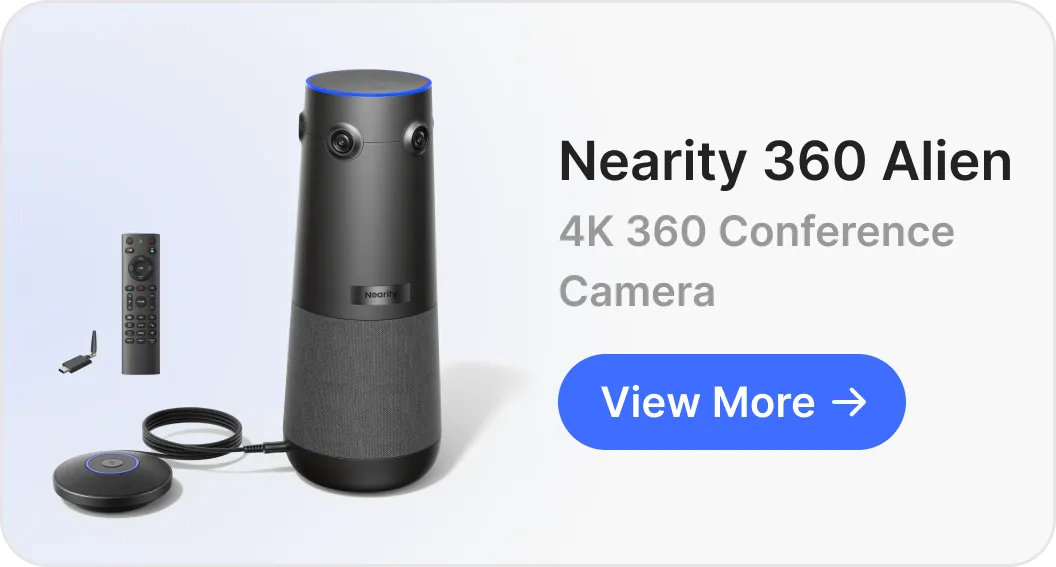
For IT managers and office administrators tasked with outfitting collaborative team spaces, huddle spaces, or expansive corporate environments, the Nearity 360 Alien is the ultimate solution.
The Nearity 360 Alien is a True 4K conference camera designed to effortlessly elevate group interactions. While a webcam like the V30S focuses on a single professional, the 360 Alien is engineered specifically for large-scale meetings, hybrid seminars, and dynamic roundtable discussions where full-room context is vital.
True 4K Ultra-HD Video: Bypasses grainy processing entirely, providing crystal-clear images that allow Zoom to stream at its absolute peak performance.
Complete 360-Degree Coverage: Its panoramic lens ensures that every single person sitting around a large boardroom or roundtable is fully visible without any blind spots.
Intelligent AI Tracking and Framing: The camera uses advanced artificial intelligence to automatically track and zoom in on whoever is speaking, giving remote participants a front-row view of the active speaker during intense seminars.
Studio-Grade Integrated Audio: Features a built-in multi-microphone array and premium speaker system with AI noise cancellation, ensuring full-room audio clarity to match the stunning 4K visuals.
Which Camera Is Right for You?
Nearity V30S
Nearity 360 Alien
Best for
Remote workers, online educators, small meetings
Boardrooms, roundtables, large seminars, hybrid rooms
Resolution
4K UHD @ 30fps
True 4K UHD @ 30fps (quad-lens)
Field of view
120° (single direction)
360° (full room coverage)
Microphone range
5m / 16ft
10m / 33ft (expandable to 16m)
Setup
USB plug-and-play
USB or wireless dongle
Room size
Individual to small group
Medium to large conference rooms
FAQs
How do I enable HD video on Zoom?
Open Zoom, go to Settings → Video, and check the box next to "HD." Note that your camera must support HD output for this setting to have any effect.
Why does my Zoom video look blurry even with HD enabled?
HD mode requires your camera to be capable of HD output and your upload speed to be at least 1.5 Mbps. If either is insufficient, Zoom will fall back to lower resolution. Check your internet speed and consider upgrading your camera hardware.
What resolution does Zoom support?
Zoom supports up to 1080p for individual video and up to 4K for screen sharing, depending on your plan and hardware. For the best zoom meeting HD video quality, you need a camera that natively captures at 1080p or higher.
What's the difference between the Nearity V30S and the Nearity 360 Alien?
The V30S is a single-direction 4K webcam designed for individuals, educators, and small group meetings. The 360 Alien uses four cameras to cover an entire room in 360°, making it the better choice for conference rooms, boardrooms, and large hybrid meetings where participants are seated all around a table.
Is the Nearity 360 Alien compatible with Zoom?
Yes. The Nearity 360 Alien is plug-and-play compatible with Zoom, Microsoft Teams, Google Meet, Webex, Skype, and most other major video conferencing platforms, across Windows, macOS, ChromeOS, and Linux. The Nearity V30S is equally compatible across the same platforms.
Conclusion: Elevate Your Zoom Presence Today
Improving your Zoom video quality starts with software optimization, but achieving true boardroom authority requires the right hardware. By configuring your network, mastering your lighting, and manually enabling HD settings, you can maximize your current setup's potential. However, to permanently break past the physical limitations of standard webcams, upgrading to dedicated, intelligent hardware is the ultimate solution.
Whether you choose the compact, sharp Nearity V30S for personal desks and online teaching, or deploy the powerful Nearity 360 Alien to capture large-scale seminars and roundtables in pristine True 4K, aligning your technology with your workspace ensures you always present your best professional self. Stop settling for pixelated, blurry feeds—invest in flawless collaboration and experience the difference that professional optics can make in your next virtual meeting.