Understanding the Basics: How to Create a Meeting in Zoom
Before diving into specific scenarios, it helps to clarify the core action. The phrase “how to create a meeting in Zoom” generally refers to the act of setting up a new virtual room – either instantly or for a future time – using the Zoom platform. This can be done through the desktop client, the web portal, or the mobile app. At its heart, creating a meeting means defining its date, time, security settings, and participants, then sharing the joining details.
How to Create a Zoom Meeting Using the Desktop Client
If you have the Zoom desktop app installed, this is the quickest way to set up an instant or scheduled meeting.
1. Open the Zoom app and sign in to your account.
2. On the Home tab, you’ll see a prominent orange camera icon labeled “New Meeting”. Click the downward arrow next to it if you want to adjust settings beforehand, or click the button directly to start an instant meeting with your default settings.
3. For a scheduled meeting, click the “Schedule” icon (a calendar). A settings window will appear.
4. Fill in the topic, date, and time. Set the duration, and adjust video and audio options as needed. Pay attention to the Calendar dropdown – you can select Outlook, Google Calendar, or Other Calendars to automatically send an invitation.
5. Under “Meeting Options”, enable “Require meeting password” if you want added security, and decide whether to turn on the waiting room.
6. Click “Save”. The meeting will appear in your “Meetings” tab, and the invitation text is automatically generated.
When someone asks"how to create a meeting on Zoom”, they might be describing this exact flow, especially if they are accustomed to using the desktop client for day-to-day work. The clarity of the interface makes it easy to train new hires, even across language barriers.

How to Create a Zoom Meeting Link
Regardless of how you schedule your meeting, Zoom provides a unique meeting link. However, there are multiple ways to obtain that link, and professional operators should understand the distinction between a PMI (Personal Meeting ID) link and a randomly generated one-off link.
Method 1: Scheduling a meeting and copying the link
- Follow the scheduling steps above. Once saved, open the “Meetings” tab.
- Hover over the desired meeting and click “Copy Invitation.” Paste this anywhere – it includes the full invitation block with the link, meeting ID, and password.
- Alternatively, click the meeting’s name to open its details and copy just the join link from the “Join URL” field.
Method 2: Using your Personal Meeting ID for instant access
- Your PMI is a dedicated virtual room that never changes. From the Home tab, click the “New Meeting” dropdown and tick“Use My Personal Meeting ID (PMI).”
- The link associated with your PMI can be found by going to your Zoom profile or by clicking “Copy Invitation” after starting a meeting.
- While convenient, sharing a PMI link widely can be a security risk because anyone with that link can join any ongoing meeting using your PMI. Reserve it for ad-hoc internal syncs or trusted recurring one-on-ones.
Method 3: Generating a link from the web portal
- Log into zoom.us, navigate to Meetings, and click“Schedule a Meeting.”
- Configure the options and save. On the meeting management page, click“Copy Invitation” to get the full text containing the link.
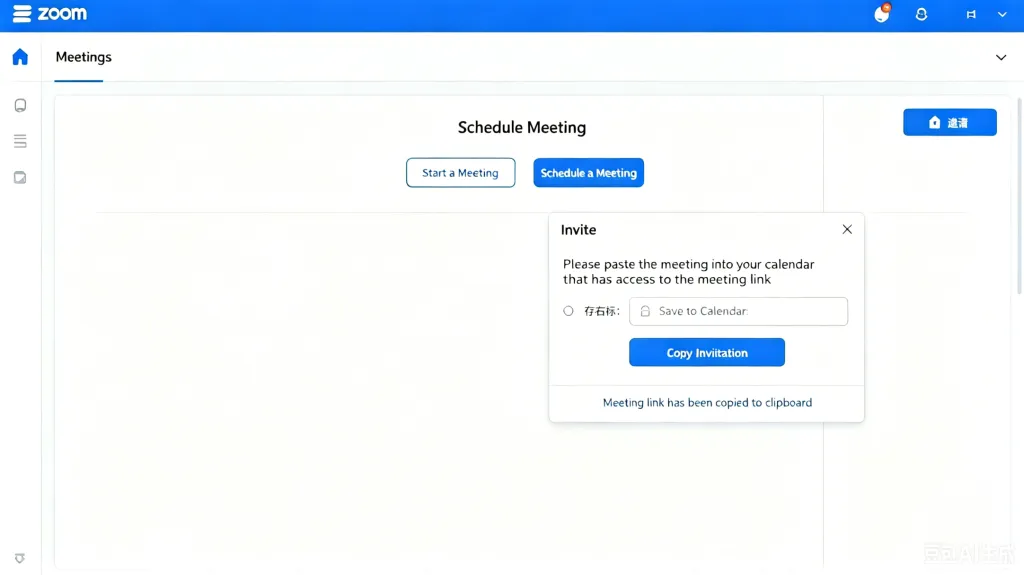
This method is ideal if you are on a device without the Zoom app installed, yet you need to create a meeting link and share it via email or chat.
From a professional standpoint, always prefer a scheduled, one-time meeting link when external clients or sensitive data are involved. The ability to quickly create and distribute a secure link is a hallmark of polished virtual operations.
How to Create a Meeting on Zoom (Mobile and Browser Perspectives)
When people search “how to create a meeting on Zoom”, they may be working from a smartphone or tablet, or they think of “on Zoom” as “on the Zoom website.” Let’s cover the mobile app and the web browser experience separately.
On the Zoom mobile app (iOS or Android):
1. Sign in and tap the“Schedule” tile from the main dashboard.
2. Enter the meeting topic and select a start date and time. Tap the toggle for “Repeat” if you need a recurring meeting .
3. Set meeting security: a passcode is on by default, but you can also enable a waiting room.
4. Tap“Done” in the upper-right corner. The meeting will be saved.
5. To share the link, go to the “Meetings” tab, tap the meeting, and then tap“Invite” or “Copy Invitation.”The link and details will be copied to your clipboard.
On the Zoom web portal:
1.Visit zoom.us/profile and click“Schedule a Meeting”at the top right.
2. You’ll see an interface similar to the desktop client, where you can set all parameters.
3.Save, and then use the copy functions to distribute your meeting link.
The mobile experience is particularly relevant for overseas operation teams who are often on the move, checking in with suppliers or local representatives. Ensuring your team knows “how to create a meeting on Zoom” from their phone avoids delays and keeps communication agile.
How to Create a Recurring Zoom Meeting
1. Begin scheduling a meeting as usual: click“Schedule”.
2. In the schedule window, locate the “Recurrence”or “Recurring meeting” option. Check the box.
3. A set of recurrence settings will appear. You can choose:
Frequency: Daily, Weekly, Monthly, or No Fixed Time. For a standing weekly team meeting, select “Weekly” and then tick the days (e.g., every Monday).
End Date: You can have it repeat indefinitely (until you cancel it) or stop after a certain number of occurrences or on a specific date.
4. Configure other meeting options – use a passcode and enable the waiting room as needed.
5. Save the meeting. The system will generate one fixed Join URL, which remains valid for all occurrences.
6. You’ll find the recurring meeting series in your “Meetings” tab, marked with a circular arrow icon. When you click “Copy Invitation”, the text will include all recurrence details along with the same link.
Upgrade Your Hardware to Improve Meeting Efficiency
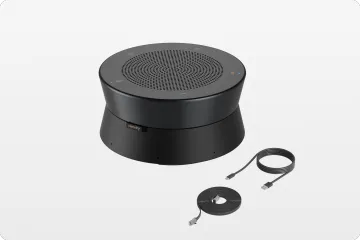
While software mastery is crucial, pairing Zoom with purpose-built hardware elevates the experience. For round-table discussions, Nearity 360 Alien All-in-One Conference Camera:captures a full 360-degree view, ensuring every in-room participant is seen clearly without manual camera adjustments. Its intelligent speaker tracking automatically focuses on active speakers, fostering natural conversation flow.

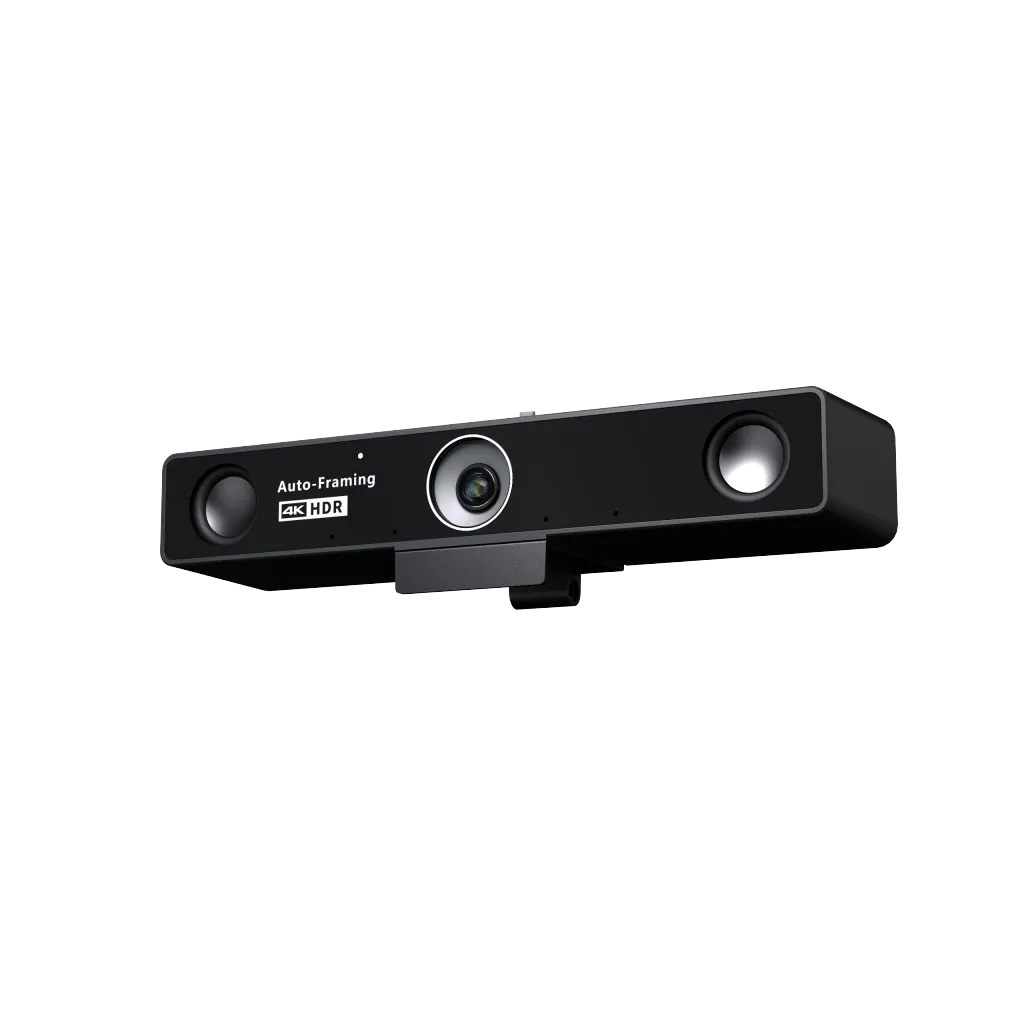
For compact or huddle rooms, Nearity V30S 4K Conference Webcam: delivers wide-angle clarity and integrated audio in a sleek, space-saving design. It offers plug-and-play simplicity with advanced noise reduction, making small-space collaboration feel professional and immersive. Upgrading to such specialized cameras reduces technical distractions and enhances equity between remote and in-person attendees.
Conclusion
Mastering the fundamental workflows of Zoom – whether you need to know how to create a Zoom meeting, how to create a Zoom meeting link, or how to configure a recurring schedule – empowers overseas operations teams to communicate with confidence. The ability to pivot between desktop, mobile, and web portal ensures that no matter where you are or what device you have at hand, you can bring people together in a professional, secure virtual environment.
By adopting a standardized approach to meeting creation and sharing best practices across your organization, you reduce friction for clients and colleagues alike. Keep this guide as a reference, and consider it part of your international operational excellence toolkit. When every meeting runs smoothly from the moment the link is clicked, you build trust that transcends time zones.
FAQs
1. What is the quickest way to create a Zoom meeting on my computer?
Open the Zoom desktop app, sign in, and click the orange “New Meeting” button on the Home tab. For a scheduled meeting, click the “Schedule” calendar icon, fill in the details, and save.
2. How do I create a secure Zoom meeting link for an external client?
Schedule a new meeting (not using your PMI), enable “Require meeting password,” and optionally turn on the waiting room. Then, go to the “Meetings” tab, click “Copy Invitation,” and share the full invitation text, which includes the unique link and passcode.
3. What is the difference between a PMI link and a scheduled meeting link?
A PMI link is your permanent, unchanging virtual room, convenient but less secure if shared widely. A scheduled meeting link is generated for one specific event, enhancing security and preventing unexpected guests from joining an ongoing session.
4. Can I create a Zoom meeting from my phone?
Yes. In the Zoom mobile app, tap the “Schedule” tile, enter the topic, date, and time, set your security options, and tap “Done.” Then go to the “Meetings” tab, tap the meeting, and use “Copy Invitation” to share the link.
5. How do I set up a Zoom meeting that repeats weekly?
Click “Schedule,” check the “Recurring meeting” box, choose “Weekly,” and select the day(s) (e.g., every Monday). Set an end date if needed, configure passcodes, and save. The system creates a single join link valid for all future