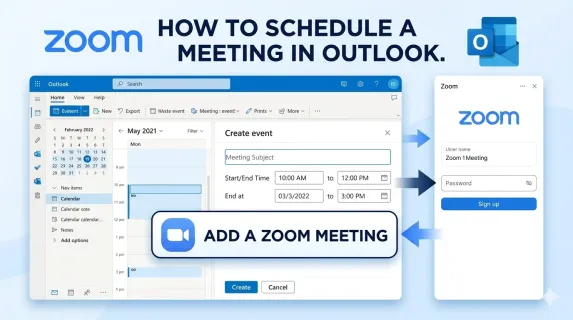
If you are wondering how to schedule a Zoom meeting in Outlook, you are not alone. Business professionals and hybrid teams waste valuable time switching between Zoom and Outlook to manually copy meeting links. The Zoom for Outlook add-in connects both tools directly, letting you create and manage Zoom meetings without ever leaving your calendar.
This guide walks you through installing the add-in and how to create a Zoom meeting in Outlook on any device. You will also learn how to schedule Zoom meetings in Outlook efficiently using Zoom calendar integration settings, troubleshoot common issues, and improve hybrid collaboration with modern meeting room technology.
What You Need Before You Start
Before you begin, confirm the following prerequisites are in place:
- An active Zoom account (Basic, Pro, Business, or Enterprise)
- A Microsoft Outlook account with calendar access
- For the desktop add-in: a Microsoft Exchange account (IMAP accounts are not supported on desktop — use Outlook on the web instead)
- Administrative permissions to install add-ins, or IT approval if your organization restricts them
The Zoom for Outlook add-in works across all modern Outlook clients, including Outlook on the web, Outlook for Windows and Mac, and Outlook mobile for iOS and Android.

How to Install the Zoom for Outlook Add-In
The Zoom Outlook integration starts with installing the add-in. Choose your platform below.
Outlook for the web:
- Go to the Zoom for Outlook page in Microsoft AppSource and click Get It Now.
- Sign in with your Microsoft 365 credentials when prompted.
- The add-in appears immediately in your Outlook calendar.
Outlook desktop (Windows):
- Open Outlook, click the File tab, then select Info > Manage Add-ins.
- In the browser window that opens, search for Zoom for Outlook and click Add.
If you only see an IMAP account under the File tab, use the web installation method instead.
Outlook desktop (Mac):
- Open Outlook, click Outlook > Preferences > Privacy.
- Ensure that Turn on optional connected experiences is checked.
- Click the ellipsis icon in the toolbar, select Customize Toolbar, and add the Zoom icon.
Outlook mobile (iOS and Android):
- Open the Outlook app, tap your profile icon, then the settings icon.
- Tap Add-ins, find Zoom, and tap the + button.
Once installed, the Zoom option appears in your meeting creation toolbar across all devices.
How to Schedule a Zoom Meeting in Outlook (Step by Step)
With the add-in installed, how to schedule a Zoom meeting becomes a seamless part of your calendar workflow. Always set your meeting date and time before adding the Zoom meeting, so it is scheduled for the correct slot.
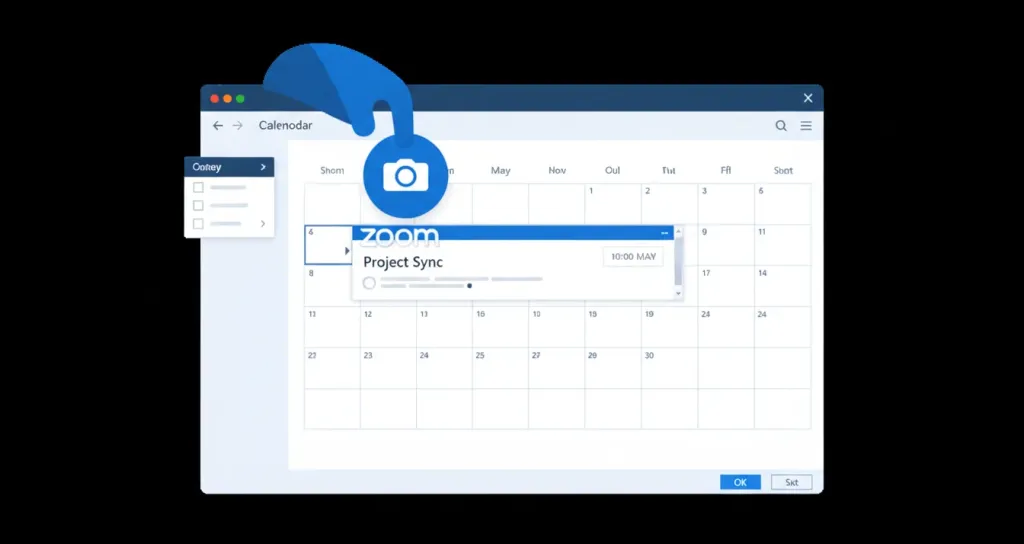
Schedule on Outlook for the web:
- Open your Outlook web calendar and click New Event.
- Enter your meeting details: title, date, time, location, and guest list.
- Click Zoom in the toolbar, then select Add a Zoom Meeting.
- Sign in to your Zoom account if prompted. If already signed in to the Zoom web portal, it authenticates automatically.
- The Zoom meeting details populate from your default settings in the Zoom web portal.
- Complete any remaining details and click Save.
Schedule on Outlook desktop (Windows and Mac):
- Open your Outlook calendar and click New Meeting or New Event.
- Fill in the subject, attendees, date, and time.
- Click the Zoom button in the toolbar (you may need to click the ellipsis), then Add a Zoom Meeting.
- Sign in to your Zoom account if prompted.
- Click Send to distribute the invite or Save for a personal event.
Schedule on Outlook mobile:
- Open the Outlook app, tap the calendar icon, then the + button.
- Enter your title, date, time, and attendees.
- Tap Zoom, then Add a Zoom Meeting.
- Sign in if this is your first time, then tap Save.
If you change the date or time after adding the Zoom meeting, open the Zoom panel in the event and click Update to sync the changes. Otherwise, the Zoom session may be scheduled for the wrong time.
Automatically add Zoom to every meeting: If your team runs recurring meetings, enable this time-saver. In Outlook web, go to Calendar settings > Events and invitations, check Add online meeting to all meetings, and select Zoom. From then on, every new event includes a unique Zoom meeting automatically.
Troubleshooting Common Zoom-Outlook Integration Issues
Here are the most common problems when learning how to create a zoom meeting in Outlook, and how to fix them.

Zoom add-in not appearing in the ribbon
On macOS, the most frequent cause is disabled optional connected experiences. Go to Outlook > Preferences > Privacy and check Turn on optional connected experiences, then restart Outlook.
On Windows Classic Outlook, go to File > Options > Add-ins, set the Manage dropdown to Disabled Items, click Go, select Zoom if it appears, and click Enable.
Clicking Join opens Teams instead of Zoom
This happens when Outlook's default online meeting provider is set to Microsoft Teams. Open your Outlook calendar settings, navigate to Events and invitations, and switch the provider from Teams to Zoom.
Meeting scheduled for the wrong time
Always set the date and time of your Outlook event before clicking Add a Zoom Meeting. If you add Zoom first, it schedules the session using Outlook's default new-event time, which can cause the meeting to expire. Delete the Zoom meeting from the event and re-add it after correcting the time.
Authentication failures
If the add-in cannot connect to your Zoom account, your network may be blocking required Zoom domains. Ask your IT team to whitelist zoom.us and related subdomains.
Optimizing Your Meeting Room for Hybrid Collaboration
Mastering how to schedule a Zoom meeting in Outlook solves the scheduling side of hybrid work. But meeting quality also depends on your physical meeting room setup. The NearHub Max Interactive Smart Whiteboard combines a 4K display with built-in video conferencing, multi-touch annotation, and wireless screen sharing. Participants join Zoom meetings directly from the display, annotate over shared content, and save notes to the cloud.

Frequently Asked Questions
Can I schedule a Zoom meeting on behalf of someone else through Outlook?
Yes, if you have been granted scheduling privilege in their Zoom account. The person must add you as a scheduling privilege user in their Zoom web portal settings. This feature requires the add-in on Windows 10 version 1910+ or Outlook for Mac 2016 version 16.24+.
Will my default Zoom settings apply to meetings scheduled through Outlook?
Yes. Your scheduler settings automatically sync from the Zoom web portal, including default video, audio, waiting room, and passcode preferences. You can override individual settings per meeting from the Zoom panel before saving.
Is the Zoom for Outlook add-in free?
The add-in itself is free to install and works with all Zoom plans including the free Basic tier. Some advanced features like scheduling privilege require a paid Zoom license.
Now that you know how to schedule a Zoom meeting in Outlook, your workflow should feel significantly smoother. The key is installing the modern Zoom for Outlook add-in, setting your meeting times before adding Zoom, and enabling automatic Zoom meetings if you schedule recurring events. For teams looking to elevate the actual meeting experience, investing in modern room technology like an interactive smart whiteboard ensures the time you save on scheduling translates into more productive collaboration sessions.