How to Mute a Zoom Meeting: The Ultimate Guide for Desktop and Mobile
This comprehensive guide provides step-by-step instructions on managing Zoom audio controls for both participants and hosts across desktop and mobile devices, featuring hardware integration and troubleshooting tips.
Zoom Tutorials
Virtual Meeting Etiquette
Zoom Host Controls
Updated: Aug 19, 2026 · 10 minutes read
Global Business, Brought Near.
No Installer, No Hassle, Just Works.
In the modern landscape of remote work, hybrid collaboration, and virtual classrooms, mastering video conferencing etiquette is essential. Among the most critical skills is managing your audio. Knowing how to mute a Zoom meeting—whether you need to silence your own background noise or manage an entire room of participants as a host—ensures meetings remain productive, professional, and free of distracting interruptions.
This comprehensive guide covers everything you need to know about how to mute on Zoom, ranging from quick participant shortcuts to advanced host controls and audio troubleshooting across Windows, macOS, iOS, and Android platforms.
Key Takeaways
Standard Etiquette: Muting your microphone when not speaking prevents unexpected background distractions and maintains professionalism.
Effortless Navigation: Learn quick manual muting methods for Windows, macOS, iOS, and Android platforms.
Power Shortcuts: Utilize keyboard shortcuts (Alt + A for Windows, Cmd + Shift + A for Mac) or the Spacebar for temporary Push-to-Talk functionality.
Host Authority: Hosts and co-hosts can mute individual disruptive participants, mute the entire room at once, or restrict participants from unmuting themselves.
Advanced Isolation: Discover methods to mute Zoom's incoming meeting volume completely without silencing your computer's system audio.
As a meeting participant, keeping your microphone muted when you are not speaking is standard virtual meeting etiquette. It prevents unexpected background noises—such as keyboard typing, barking dogs, or family members—from disrupting the speaker.
Muting Yourself on Desktop (Windows & Mac)
Managing your audio on the Zoom desktop application is incredibly straightforward:
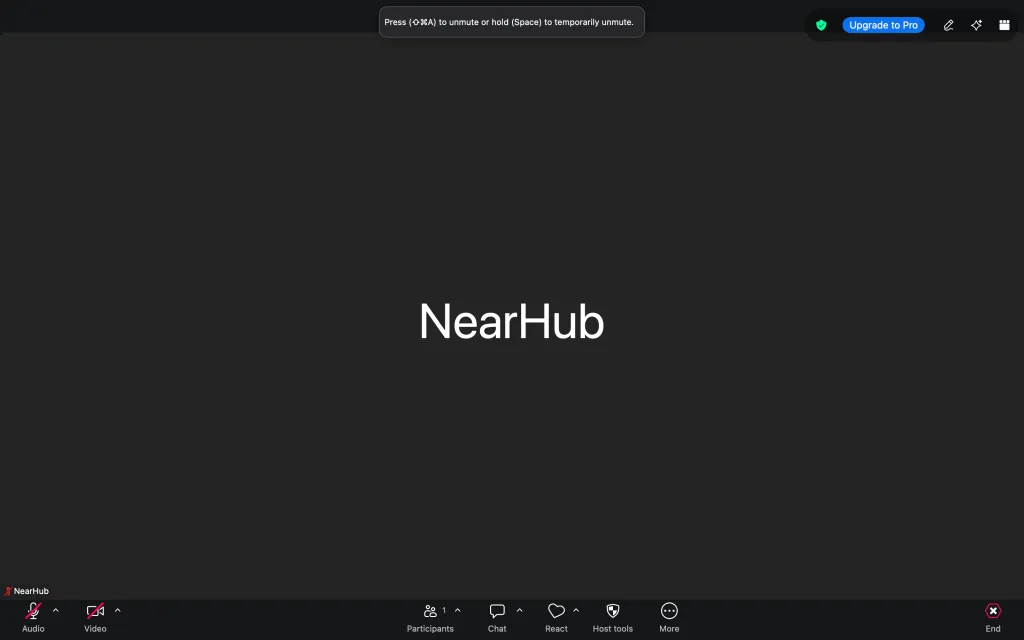
Locate the Meeting Controls: Move your mouse over the Zoom window to reveal the bottom menu bar.
Find the Audio Icon: In the bottom-left corner, look for the microphone icon labeled Mute.
Toggle Your Audio: Click the microphone icon once. The icon will display a red diagonal slash, indicating that your microphone is successfully disabled. Your video tile will also display a small red microphone icon in the bottom-left corner.
To Unmute: Click the same microphone icon (now labeled Unmute) to turn your audio back on.
Muting Yourself on Mobile (iOS & Android)
If you are joining a call on the go using your smartphone or tablet, the process is very similar:
Reveal the Toolbar: Tap anywhere on your screen to bring up the meeting controls toolbar at the bottom.
Tap the Microphone: Locate the Mute icon (microphone) in the bottom-left corner and tap it. The icon will turn red with a slash.
To Unmute: Tap the microphone icon again to let others hear you.
For power users, clicking around with a mouse or tapping a screen can be too slow. Utilizing native keyboard shortcuts is the fastest way to manage your audio during fast-paced discussions.
Desktop Keyboard Shortcuts
If you need to quickly silence your microphone during an emergency or unmute to answer a direct question, use these keyboard combinations:
Operating System
Shortcut to Mute / Unmute Yourself
Shortcut to Mute Everyone Except Host
Windows
Alt + A
Alt + M
macOS
Command + Shift + A
Command + Control + M
Linux
Alt + A
Alt + M
Using Push-to-Talk (Temporary Unmute)
Zoom features a highly convenient "Push-to-Talk" option. This allows you to remain muted throughout the meeting and temporarily unmute yourself only while holding down a key—similar to a walkie-talkie.
How to use it: When you are muted, simply press and hold the Spacebar on your keyboard. A message will appear on your screen indicating that you are temporarily unmuted, and your microphone icon will turn green.
To mute again: Release the Spacebar to instantly return to a muted state.
How to Mute Yourself Automatically Before Joining a Meeting
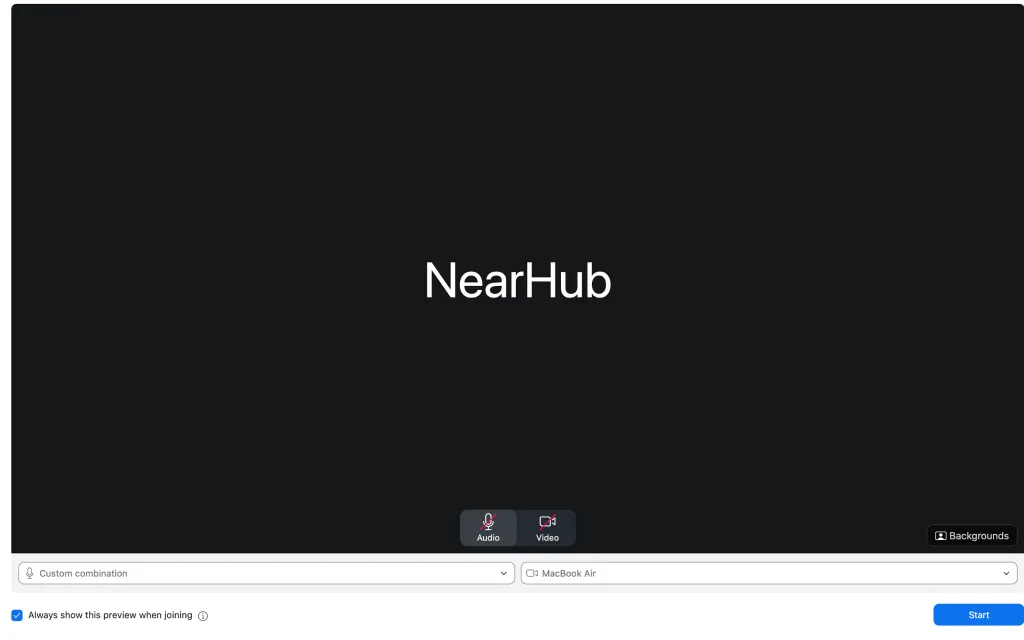
To prevent embarrassing moments where your microphone is live the moment you enter a call, you can configure Zoom to automatically mute your audio upon entry.
On Desktop (Windows & Mac)
Open the Zoom desktop client and click the Settings (gear) icon in the top-right corner.
Click on the Audio tab in the left-hand sidebar.
Scroll down and check the box next to Mute my microphone when joining a meeting.
On Mobile (iOS & Android)
Open the Zoom app and tap the Settings cog in the bottom navigation menu (or under your profile).
Tap Meetings.
Toggle on the option for Always Mute My Microphone.
How to Mute Other Participants (Host & Co-Host Controls)
If you are hosting a webinar, teaching an online class, or managing a large team meeting, background noise from other participants can quickly derail the presentation. As a host or co-host, Zoom grants you full authority over everyone's audio.
How to Mute an Individual Participant
If only one participant is causing a distraction:
Click on the Participants icon in the bottom menu bar to open the side panel.
Scroll or search for the participant's name.
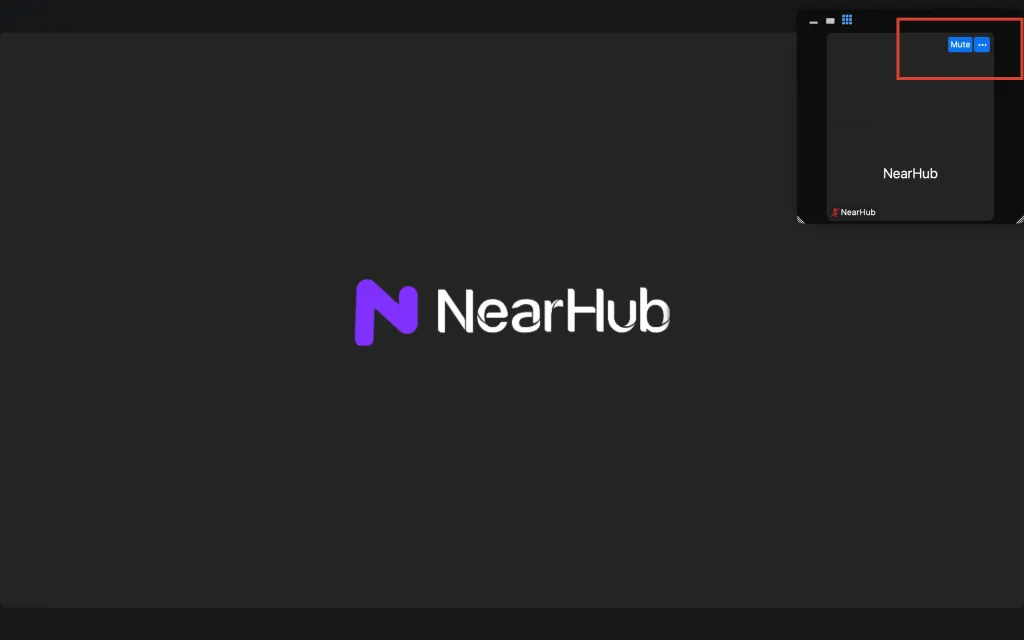
Hover your cursor over their name and click the blue Mute button that appears.
On mobile, tap the Participants tab, tap the specific user's name, and select Mute from the pop-up menu.
How to Mute All Participants at Once
For large presentations or to quickly silence a sudden burst of ambient noise:
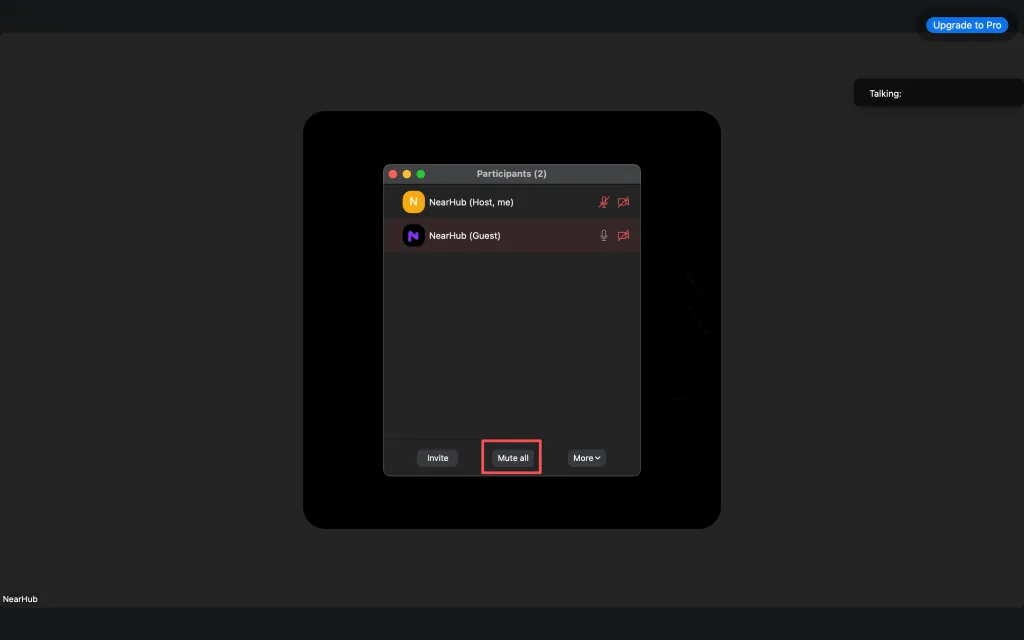
Open the Participants panel from the bottom toolbar.
At the very bottom of the panel, click the Mute All button.
A confirmation window will appear. Click Continue to silence everyone in the call.
Disabling Participant Unmute Permissions
Sometimes, muting everyone is not enough if participants keep unmuting themselves. You can prevent attendees from turning their microphones back on:
In the Participants panel, click the three dots (More) icon in the bottom-right corner.
Uncheck the option Allow Participants to Unmute Themselves.
When you are ready for a Q&A session, open the menu again and re-check this option, or click Ask All to Unmute to send a respectful prompt to all attendees.
How to Mute Zoom Without Muting Your Computer
There are scenarios where you want to keep listening to music, watching a local video, or receiving system alerts on your computer, but you want to completely silence the incoming audio from your Zoom meeting.
Because Zoom's internal volume controls do not feature a "mute output" button, you can achieve this through your operating system's volume mixer:
On Windows
Right-click the Speaker icon in the bottom-right corner of your system tray.
Select Volume Mixer.
Locate the Zoom application in the list of active apps.
Click the speaker icon beneath the Zoom slider to mute only the Zoom application, or drag its volume slider down to zero.
On macOS
Mac operating systems do not natively offer an application-specific volume mixer. To mute Zoom without muting your entire system on a Mac, you can:
Use third-party audio control software (such as BackgroundMusic or SoundControl).
Go to Zoom Settings > Audio, and select a different, unused output device (like a virtual audio cable or disconnected monitor) as the speaker.
Pro-Tip: Hardware-Level Muting with NearHub Devices
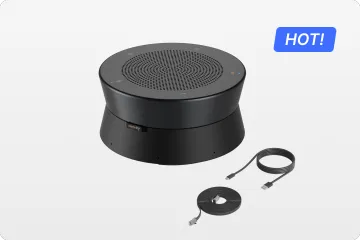
If your conference room or hybrid workspace is equipped with NearHub professional audio-visual hardware to improve your meeting quality, you can bypass software menus altogether. These devices feature dedicated physical controls that synchronize seamlessly with your Zoom system, making muting instantaneous and reliable.
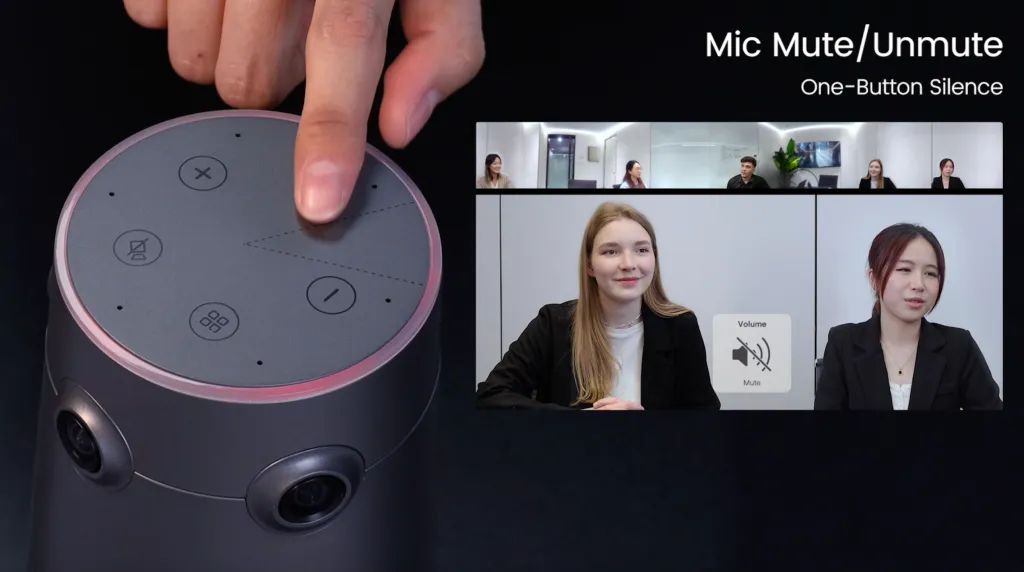
Physical Buttons: Simply press the dedicated mute button located on the top panel of the device. The integrated LED indicator ring will instantly change status (typically turning red), giving everyone in the physical room immediate visual confirmation that the microphones are silent.
Remote Control: If you are sitting further away from the table, you can use the included Nearity remote control to mute and unmute the audio with a single click.
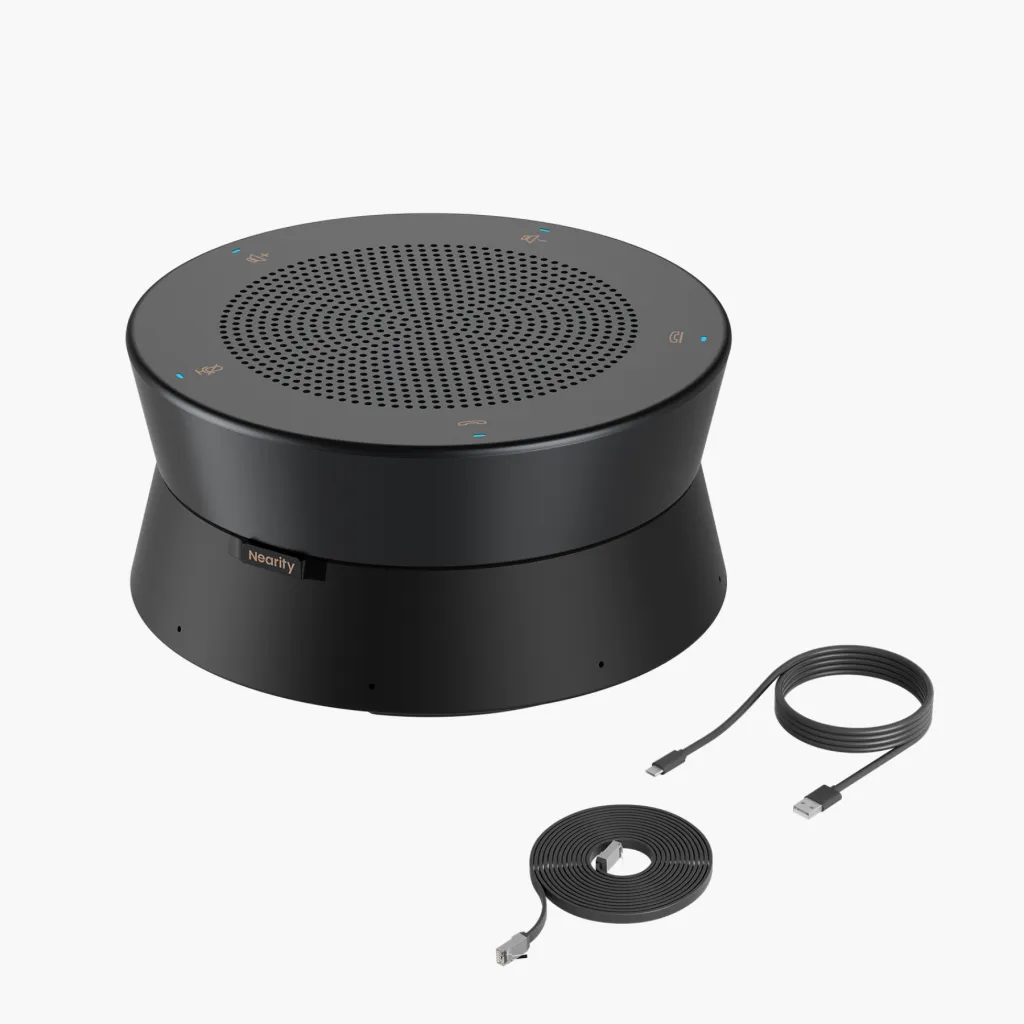
Unified Control Across Units: When multiple A20S devices are linked via Ethernet cables to cover a larger conference table, they function as a single, unified audio network.
Synchronized Muting: Pressing the touch-sensitive mute button on any single speakerphone in the chain will instantly mute all connected devices simultaneously. The LED lights on every cascaded unit will turn red in perfect synchronization, ensuring that side-discussions in any corner of the room remain strictly private.
Troubleshooting Common Zoom Mute and Audio Issues
Even with clear instructions, hardware and software compatibility issues can occasionally disrupt your meeting. Here is how to troubleshoot the most common problems.
Problem: You cannot unmute yourself
Cause 1: The host has restricted unmute permissions. Look at the participant panel or send a message in the chat requesting the host to send an "Ask to Unmute" prompt.
Cause 2: Browser or app permissions are blocked. If you are using Zoom on a web browser, ensure the browser has permission to access your microphone. Click the lock icon in the URL bar to verify permissions.
Problem: The Mute button is greyed out or missing
Cause: Zoom has not detected an active input device.
Solution: Verify that your external microphone or headset is properly plugged into your device. Go to Zoom Settings > Audio and check the "Microphone" dropdown menu to ensure your correct hardware is selected. Use the Test Mic utility to verify input levels.
Problem: Device permissions are blocking Zoom
If your computer or phone operating system restricts microphone access, Zoom will not be able to transmit your audio.
On iOS: Go to Settings > Privacy & Security > Microphone and toggle the switch next to Zoom to ON.
On Android: Go to Settings > Apps > Zoom > Permissions and ensure "Microphone" is set to "Allow only while using the app."
On macOS: Go to System Settings > Privacy & Security > Microphone and ensure the checkbox next to Zoom is ticked.
Conclusion
Mastering how to mute in Zoom is a fundamental component of virtual meeting etiquette. Whether you rely on keyboard shortcuts like Alt + A or configure your settings to automatically join silently, managing your audio controls protects you from embarrassing disruptions and ensures your remote communications remain seamless and professional.
FAQs
Can a participant mute the host?
No. Participants cannot mute the host or co-hosts. Only a host can mute another host, and only through their own Participants panel controls.
Does Zoom notify me when the host mutes me?
Yes. You receive a brief on-screen notification that reads "The host has muted you." Your microphone icon also turns red to confirm the change.
Can I mute myself before a meeting starts?
Yes. In Zoom Settings → Audio, enable "Mute my microphone when joining a meeting." You will join every future meeting muted by default until you manually unmute.
To change volume on Zoom workspace during a meeting, click the small arrow (^) next to the Mute button in the toolbar and select Audio Settings. Drag the Speaker slider to adjust how loud others sound, or the Microphone slider to control your input level. On mobile, use your device's physical volume buttons instead.