Few things are more frustrating during an important virtual meeting than struggling with audio. Whether you cannot hear your colleagues over low speaker output, or your team is complaining that your voice is too quiet, adjusting your audio settings correctly is vital.
This comprehensive guide provides step-by-step instructions on how to change volume on Zoom Workspace during a meeting, covering speaker outputs, microphone inputs, mobile devices, and system-level overrides. We will also troubleshoot the most common audio issues to ensure your virtual communication remains seamless.
The Essentials of Zoom Workplace Audio Controls
Before diving into platform-specific steps, it is helpful to understand how Zoom handles sound. Zoom Workplace splits your audio controls into two distinct tracks:
- Speaker Output Volume: Controls how loudly you hear other participants, screen-share audio, and meeting ringtones.
- Microphone Input Volume: Controls how loudly other participants hear you when you speak.
By default, Zoom Workplace utilizes advanced software-based noise suppression and echo cancellation to regulate audio quality. However, manual control over these volumes is often necessary to compensate for different hardware, varying room dynamics, or individual participant setups.
How to Change Speaker Output Volume During a Meeting (Desktop)
Adjusting the speaker volume is the quickest way to fix a meeting where participants sound like they are whispering or shouting. Follow these steps for both Windows and macOS:
Step 1: Locate the Audio Icon
Move your cursor over the Zoom meeting window to reveal the meeting controls toolbar at the bottom of your screen. In the bottom-left corner, you will see the Mute/Unmute icon (represented by a microphone).
Do not click the microphone icon directly (as this will mute your mic). Instead, click the small up arrow (caret) icon ^ located immediately to the right of the microphone.
Step 3: Select Audio Settings
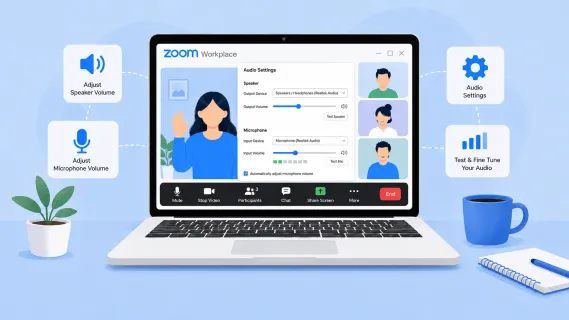
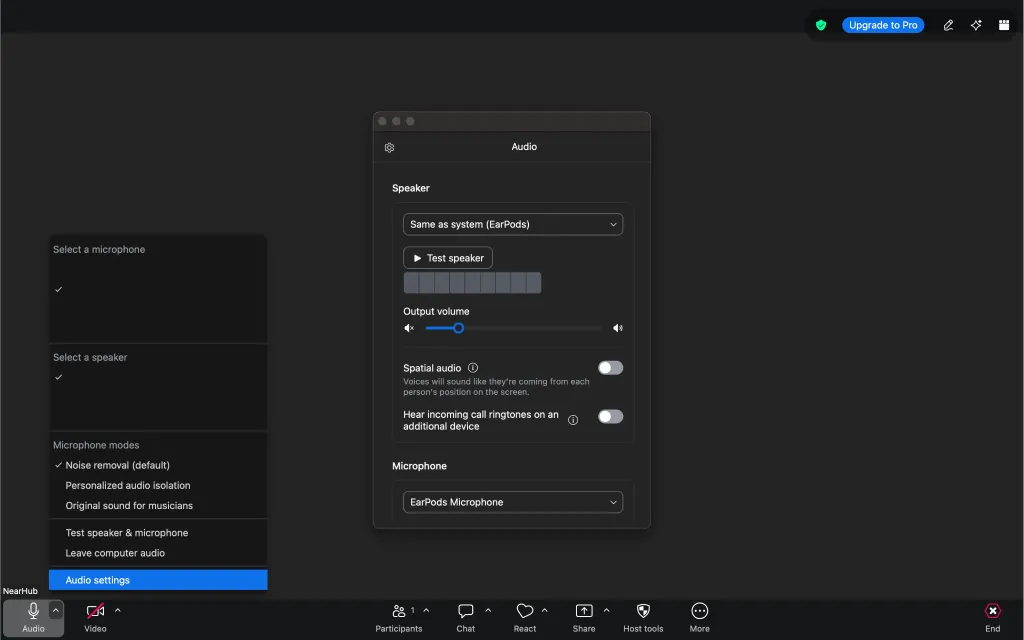
A pop-up context menu will appear showing your current input and output devices. At the bottom of this menu, click Audio Settings.... This opens the dedicated settings panel directly over your meeting window.
Step 4: Adjust the Speaker Volume Slider
Within the Audio tab, locate the Speaker section.
- You will see the Output Volume slider.
- Drag the blue slider knob to the right to increase the volume, or to the left to decrease it.
- To verify the volume, click Test Speaker. Zoom will play a short ringtone. Adjust the slider while the tone plays until you reach a comfortable listening level, then click Stop.
Step 5: Close Settings
Click the X button in the top-right corner of the settings window to close it and instantly return to your active meeting view.
If other meeting participants complain that you are too quiet, or if your microphone is "clipping" (distorting because it is too loud), you need to adjust your input volume.
Step 1: Open Audio Settings
As detailed above, click the up arrow ^ next to the microphone icon in the meeting toolbar and select Audio Settings....
Step 2: Locate the Microphone Section
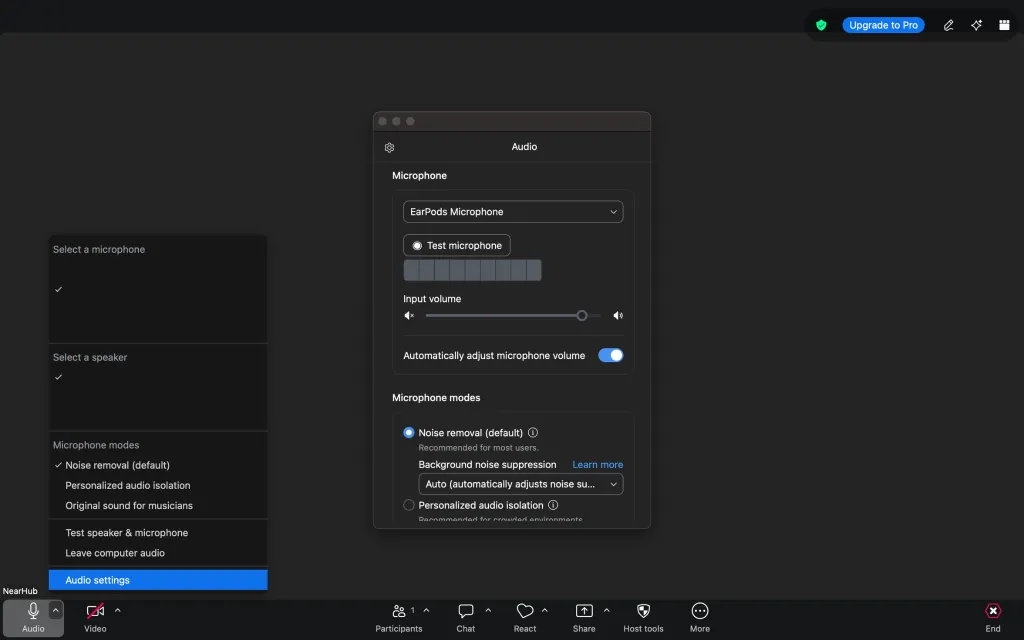
Directly below the Speaker controls in the Audio panel, you will find the Microphone section.
Step 3: Disable "Automatically Adjust Microphone Volume" (If Necessary)
By default, Zoom checks the box next to Automatically adjust microphone volume. While this feature is designed to normalize your voice, it can sometimes make you sound too quiet or create a pumping effect in noisy environments.
- To manually set your volume: Uncheck this box to unlock the slider.
- Speak into your microphone at a normal conversation level. You will see the Input Level green bar bounce to represent your voice's amplitude.
- Drag the Input Volume slider to the right to increase your voice volume or to the left to lower it. Ideally, your normal speaking voice should push the green meter about 60% to 75% of the way across the bar.
- Click Test Mic to record a brief audio sample of your voice. Zoom will play it back to you so you can confirm exactly how you sound to other attendees.
How to Change Zoom Volume on Mobile Devices (iOS & Android)
The Zoom Workplace mobile application handles volume differently than its desktop counterpart. The mobile app does not feature independent, in-app software sliders for volume. Instead, it relies on your physical device hardware and specific toggle settings.
Adjusting Speaker Volume on Mobile:
- Use Physical Buttons: While in a meeting, press the physical Volume Up or Volume Down buttons on the side of your iPhone, iPad, or Android device.
- Toggle Speakerphone Mode: In the top-left corner of the mobile meeting screen, look for the Speaker icon.
- If the icon shows sound waves, your audio is playing through your device's external speakerphone.
- If the icon has an "X" or is styled as an earpiece, the sound is routed to your device's internal ear receiver (like a standard phone call). Tap this icon to toggle back and forth if you are having trouble hearing.
Adjusting Microphone Volume on Mobile:
- iOS and Android manage microphone sensitivity automatically. If your microphone is too quiet on mobile, ensure your physical hand is not covering the device's pinhole microphone (usually located near the charging port or top edge).
- Alternatively, if using Bluetooth earbuds (like AirPods), use your system's Bluetooth settings to ensure the headset is fully connected and selected as both the audio input and output source.
How to Lower Zoom App Volume Independently (Windows App-Specific Control)
Sometimes you want to turn down the volume of your Zoom meeting without affecting the volume of other applications on your computer (such as a browser playing back a video or a system notification).
While macOS and Linux require third-party utility software to achieve individual app volume control, Windows users can do this natively using the system volume mixer.
Step-by-Step for Windows 10 & 11:
- Locate the Speaker icon in the bottom-right corner of your desktop taskbar (near the clock).
- Right-click the Speaker icon and select Open Volume Mixer (or select Sound Settings and scroll down to Volume Mixer on Windows 11).
- Under the Apps section, find Zoom Meetings or Zoom Workplace.
- Drag the volume slider next to Zoom down to your desired level. Your overall system volume will remain at 100%, but the sound coming out of your Zoom meeting will be lowered.
Advanced Audio Settings: Using Zoom's Microphone Modes to Improve Clarity
In 2026, Zoom Workplace features highly advanced microphone modes that alter how your volume is processed and perceived. Adjusting these modes during a meeting can significantly improve how loud and clear you sound:
- Noise Removal (Default): This setting automatically filters out standard background noises (air conditioners, keyboard typing, lawnmowers). If your microphone volume sounds muffled or quiet, it might be due to aggressive noise suppression.
- Personalized Audio Isolation: This premium feature isolates your specific voiceprint from background office babble or crowded coffee shop noises. It ensures your voice remains loud and clear even in loud, collaborative environments.
- Original Sound for Musicians: If you are sharing high-fidelity audio or playing an instrument, standard noise suppression will mistake your music for background noise and mute it. Enabling "Original Sound" disables all automatic suppression, preserving the true, raw volume of your microphone.
To change these settings during a meeting, click the up arrow ^ next to your microphone icon, look under the Microphone Modes list, and select the profile that matches your environment.
NearHub Hardware Tips: Quick Volume & Mute Controls
If you are using professional conference audio hardware from NearHub to power your Zoom Workplace meetings, you can adjust your volume dynamically without navigating any software menus to improve your meeting quality. Use these quick hardware shortcuts:
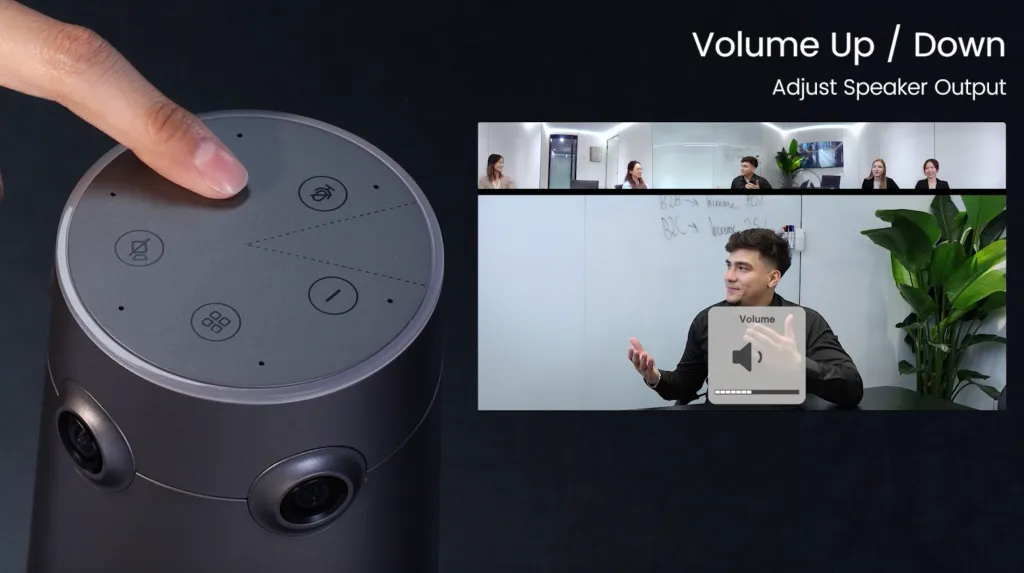
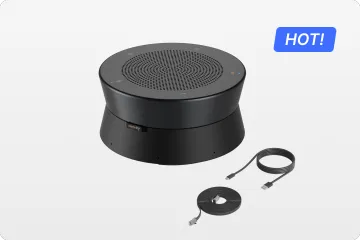
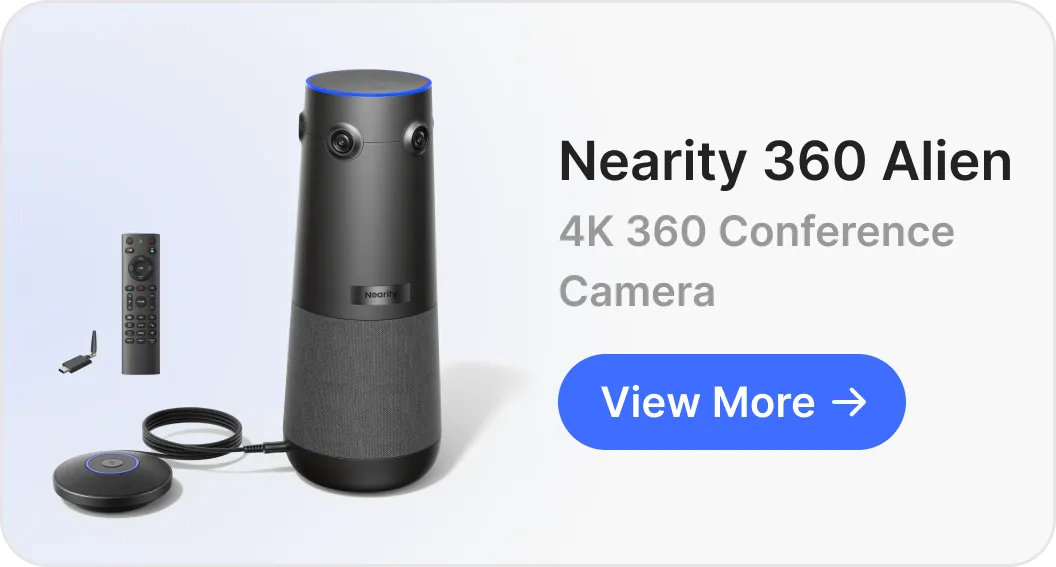
- Nearity 360 Alien & Nearity 120 Max: You can adjust the speaker output volume directly using the device's physical remote control or the capacitive touch buttons located on the top panel of the hardware. Additionally, these models feature a dedicated, one-touch mute button to instantly silence your audio stream with a single tap.
- Nearity A20S (Daisy-Chained/Cascaded): When configuring larger meeting rooms with multiple daisy-chained (cascaded) Nearity A20S conference speakerphones, volume adjustment is entirely unified. Simply click the physical volume buttons on any single speakerphone in the chain; the volume levels will automatically synchronize and adjust across all connected devices simultaneously.
Troubleshooting Common Zoom Audio and Volume Issues
If you have tried adjusting the standard sliders and still cannot hear anything—or cannot be heard—use this troubleshooting matrix to quickly diagnose and fix the problem.
Issue 1: "No Sound" After Joining the Meeting
- The Cause: Many users close the join dialog box without connecting their audio hardware to the Zoom session.
- The Fix: Look at the bottom-left corner of your meeting screen. If you see a headset icon with a green arrow labeled Join Audio, click it. Select Join with Computer Audio. The icon should change to a standard microphone.
Issue 2: Audio is Routed to the Wrong Device (e.g., Bluetooth Headset vs. Laptop Speakers)
- The Cause: Zoom may default to an inactive or disconnected audio device, such as a pair of Bluetooth headphones sitting on your desk.
- The Fix: Click the up arrow
^ next to the microphone icon. Under the Select a Speaker heading, verify which device has a checkmark next to it. Switch the checkmark to your laptop's built-in speakers or your connected USB headset. Do the same under the Select a Microphone heading.
Issue 3: Zoom Volume is Muted in System Settings
- The Cause: You may have accidentally muted Zoom via your operating system, or your hardware buttons are set to mute.
- The Fix: * On Windows: Open the Volume Mixer and verify that the speaker icon under Zoom does not have a red diagonal line through it.
- On Mac: Open System Settings > Sound > Output and check that the "Mute" box is not checked and the output slider is turned up.
Issue 4: Microphone is Too Quiet or Cut Off
- The Cause: This is often caused by an aggressive echo cancellation conflict or incorrect mic positioning.
- The Fix: Go to Audio Settings... and toggle off Automatically adjust microphone volume. Set the slider manually to 80%. Additionally, speak directly into the microphone capsule and ensure your physical mute switch on the headset cable is turned off.
FAQs
- Can I change the volume for one participant only in Zoom Workplace?
Yes. Right-click on a participant's video tile or name in the Participants panel, then select "Adjust Volume." Zoom allows you to raise or lower that individual's audio level independently of all others in the call.
- Does Zoom Workplace have a built-in equalizer or audio enhancement?
As of 2026, Zoom Workplace does not include a graphical EQ. However, it does offer background noise suppression levels (Auto, Low, Medium, High) and supports Zoom Audio Filters on desktop, which can improve vocal clarity.
- Why does my volume work fine in other apps but not in Zoom?
Zoom uses a separate audio engine. Confirm that Zoom's internal Speaker output is set to the correct device in Audio Settings, rather than relying solely on the system default.
- Is there a keyboard shortcut to mute/unmute in Zoom?
Yes. Press Alt + A (Windows) or Command + Shift + A (Mac) to toggle your microphone. To temporarily unmute while holding a key, press and hold Space while muted—release to remute.
- Can I adjust volume on Zoom Web (browser-based)?
Zoom Web uses your browser's audio settings. Adjust volume through your OS system controls or the browser's per-tab volume if supported (e.g., right-clicking the browser tab in Chrome).
Conclusion
Adjusting the volume on Zoom Workplace during an active meeting is a straightforward task once you know where to look. By accessing the Audio Settings via the caret menu next to your microphone, you can quickly optimize both your speaker output and microphone input. Keep system-level volume mixers in mind when you need to isolate Zoom's sound, and don't hesitate to toggle off automatic microphone adjustments if your audio levels fluctuate.
Bookmark this guide so you are always prepared to handle any audio emergency in your next virtual call!