How to Change Background on Zoom: A Complete Guide for Any Device (2026 Update)
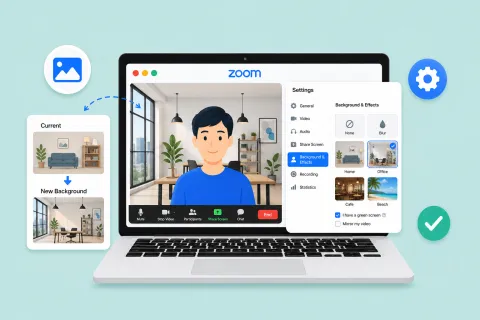
This comprehensive guide provides step-by-step instructions on how to change, blur, or customize your Zoom background across desktop, mobile, and web platforms to enhance privacy and professionalism during virtual meetings.
Zoom tutorials
Virtual background
Work from home privacy
Updated: Aug 19, 2026 · 8 minutes read
Global Business, Brought Near.
No Installer, No Hassle, Just Works.
Want to hide a messy room or maintain your privacy during a video call? Zoom makes it incredibly easy to swap your real-world environment for a clean, virtual backdrop.
This step-by-step tutorial will show you how to change background on zoom on both desktop and mobile devices, whether you are preparing for a meeting or already live on a call.
Key Takeaways
Cross-Platform Versatility: Zoom backgrounds can be changed or blurred before or during a meeting on Windows, macOS, iOS, Android, and web browsers.
Hardware Flexibility: Modern devices use AI-driven smart detection to change backgrounds seamlessly, while older devices may require a physical green screen.
Customization Options: Users can upload personalized high-resolution 16:9 images (.jpg/.png), videos (.mp4/.mov), or use Zoom Workplace's built-in AI tool to generate custom backdrops.
Quick Troubleshooting: Missing options are usually caused by account-level settings in the Zoom Web Portal, while background bleeding can be fixed with better front-facing lighting and wardrobe contrast.
Hardware Fallbacks: If virtual software backgrounds are restricted by corporate IT, privacy can be secured using dedicated conference hardware featuring physical lens shutters and one-click video kill switches.
Why Use a Zoom Virtual Background?
Maintaining visual privacy is essential when working from home or in public spaces. Here are the primary reasons why learning how to change my background on zoom is highly beneficial:
Professionalism: Instantly cover up home clutter, family members, or pets walking past your camera field.
Brand Identity: Corporate teams can utilize standardized, branded backdrops that display company logos, promoting cohesive branding.
Privacy Protection: Keep your personal living spaces completely private from coworkers, clients, and students.
Reduced Distractions: A neutral or blurred background keeps the meeting's visual focus entirely on you, increasing engagement and active listening.
System Requirements for Zoom Virtual Backgrounds
Before diving into the steps of how to change the background on zoom, it is important to verify if your device supports this feature. While Zoom has optimized its software, certain high-quality virtual background features require specific hardware.
Using a Green Screen vs. Smart Detection
With a Green Screen: If your computer has a legacy processor, you will need a physical green screen (or a highly uniform, solid-colored wall) behind you. This allows Zoom’s software to cleanly isolate your silhouette.
Without a Green Screen: Most modern computers (Intel i5/i7, Apple M-series chips, or equivalent AMD processors) possess the computational capacity to detect your body outline automatically. Zoom will cleanly separate you from your background without physical props.
Tip: Always ensure your Zoom Workplace desktop application or mobile app is updated to the latest version to access the newest background capabilities, including AI-driven edge detection and real-time lighting adjustments.
How to Change Your Background on the Zoom Desktop Client
The desktop application (available for Windows and macOS) provides the most feature-rich environment for virtual backgrounds.
Before a Meeting
Setting up your virtual workspace ahead of time is the best way to prevent unexpected technical hurdles. Whether you are about to schedule a Zoom meeting or join an upcoming session, follow these simple steps to configure your background before your call begins:
Open the Zoom Application: Launch the Zoom Workplace desktop client and log in to your account.
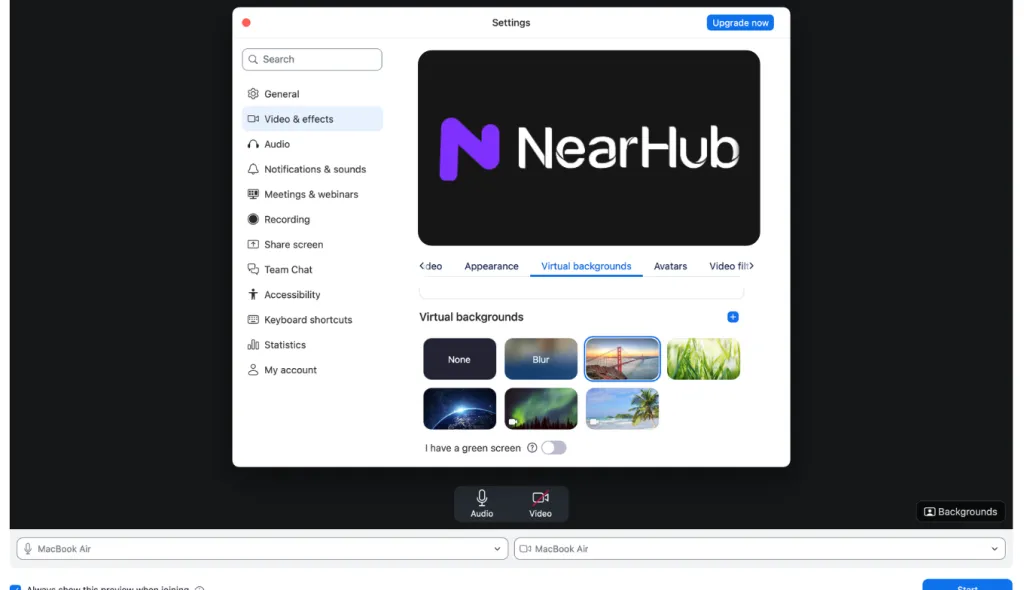
Access Settings: Click on your Profile Picture in the top-right corner, then select Settings (the gear icon) from the drop-down menu.
Navigate to Background & Effects: In the left-hand sidebar of the Settings window, click on Backgrounds & Effects.
Choose Your Virtual Background: Select from the default options:
None: Keeps your real-life environment visible.
Blur: Instantly defocuses everything behind you.
Preset Images/Videos: Select from the default high-resolution visual options.
Enable Green Screen (Optional): If sitting in front of a physical screen, check "I have a green screen." Otherwise, leave it unchecked for automatic edge detection.
During a Meeting
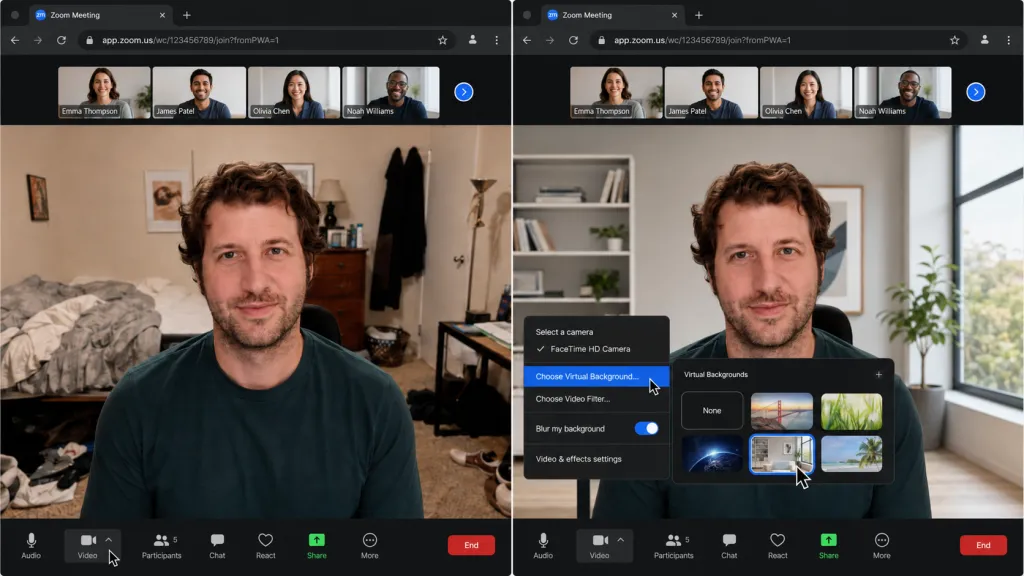
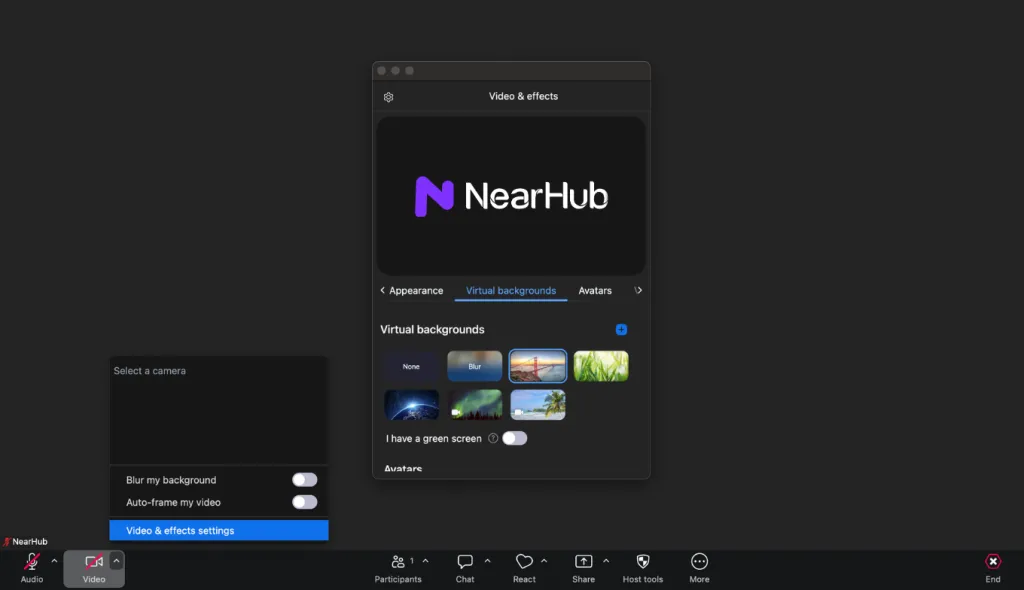
If you join a call and realize your background is messy, you can easily activate or change your virtual background on-the-fly without disrupting the meeting:
Locate the bottom control bar in your active Zoom meeting window.
Find the Start Video / Stop Video camera icon on the far left.
Click the small upward arrow (^) immediately next to the video icon.
From the pop-up menu, select Adjust Background & Effects (or Choose Virtual Background).
Select your desired option (Blur, preset, or custom upload) from the overlay panel.
Close the settings panel. Your video feed will update instantly.
How to Change Your Background on the Zoom Web Portal & Web Client
If you are using Zoom in a web browser instead of downloading the desktop application, you can manage your settings and change your background directly online.
Before a Meeting (Web Portal Configuration)
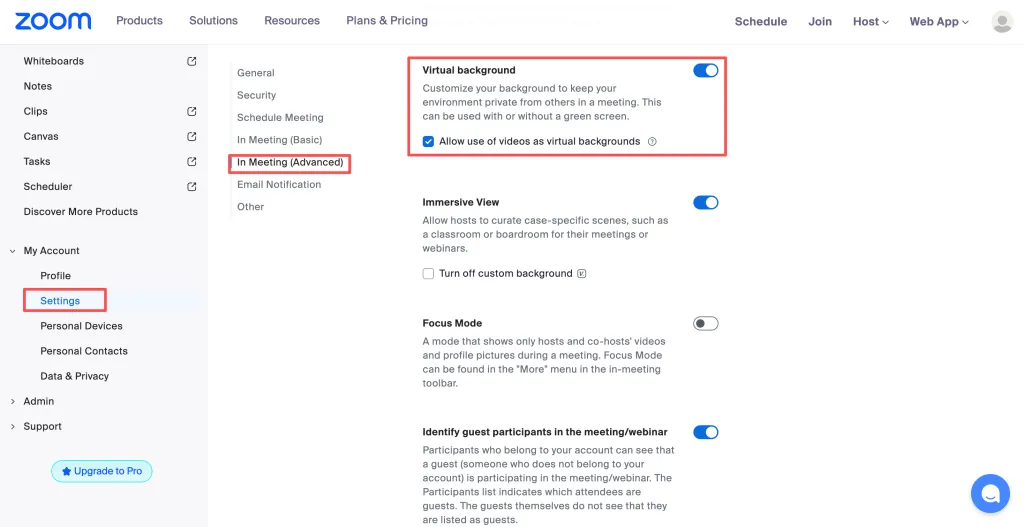
To use virtual backgrounds in browser-based meetings, you must first enable the feature within your account settings on the Zoom Web Portal:
Locate the Virtual background toggle and switch it to Enabled (the toggle will turn blue).
(Optional) Check the box to allow users to upload custom backgrounds.
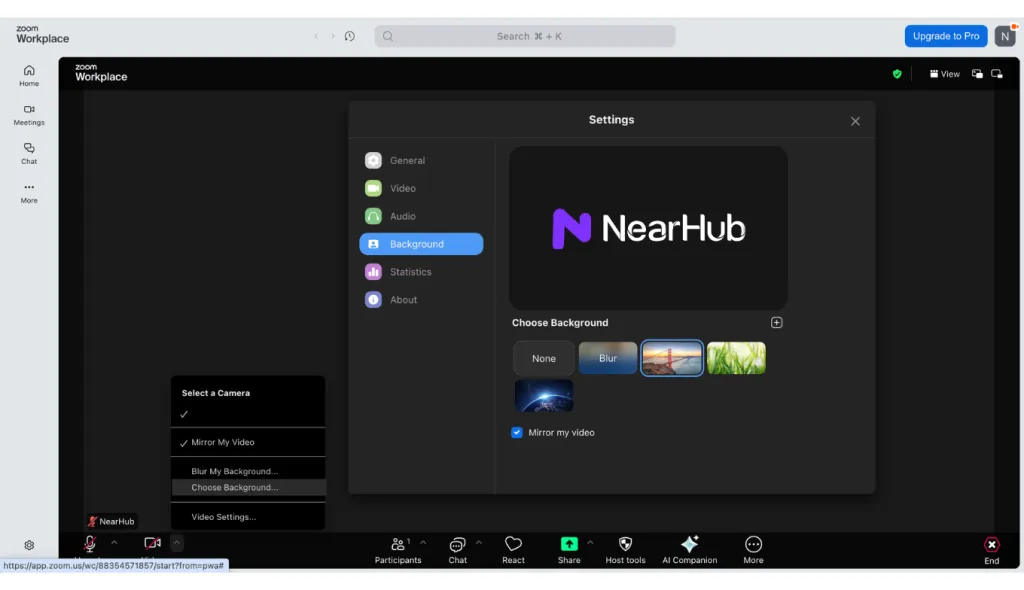
During a Meeting (Web Client Browser Meeting)
When attending a Zoom meeting directly through your web browser (Chrome, Edge, or Safari) without launching the app, you can change your background using these steps:
Join your meeting through the browser link.
In the bottom meeting controls toolbar, click the More button (three dots) or the upward arrow (^) next to the video icon.
Select Settings from the menu.
Click on the Backgrounds option in the settings sidebar.
Select your desired preset, or click the Plus (+) icon to upload a custom image from your files.
Close the settings window to return to the live browser meeting.
How to Change Your Background on the Zoom Mobile App
For professionals and students on the move, Zoom's mobile application allows you to change your background right from your smartphone or tablet.
Before a Meeting (iOS only)
On Apple iOS devices (iPhone and iPad), you can set up your virtual background prior to joining a call:
Open the Zoom app and sign in.
Tap the More button (three horizontal dots) in the bottom-right corner of the screen.
Select Settings, then tap on Meetings.
Scroll down to the Video section and tap Background & Effects.
Select Blur, choose a preloaded image, or tap the Plus (+) icon to upload a photo from your photo library.
During a Meeting (iOS & Android)
Both iPhone and Android users can adjust their backgrounds on-the-fly while active on a call:
While in a live meeting, tap anywhere on the screen to bring up the control overlay.
Tap the More button in the lower-right corner.
Select Background & Effects (or Virtual Background) from the menu.
Choose Blur or tap your preferred preloaded background.
To use your own backdrop, tap the Plus (+) icon and choose an image from your device's photo gallery.
Tap Close to return to your live video feed with the new background applied.
Step-by-Step Guide to Customizing Your Zoom Background
If the default options do not match your style, you can easily personalize your virtual presentation with your own custom images, video clips, or AI-generated backdrops.
Adding Your Own Images or Videos
Custom images can range from sleek minimalist office spaces to professional step-and-repeat layouts featuring your brand logo.
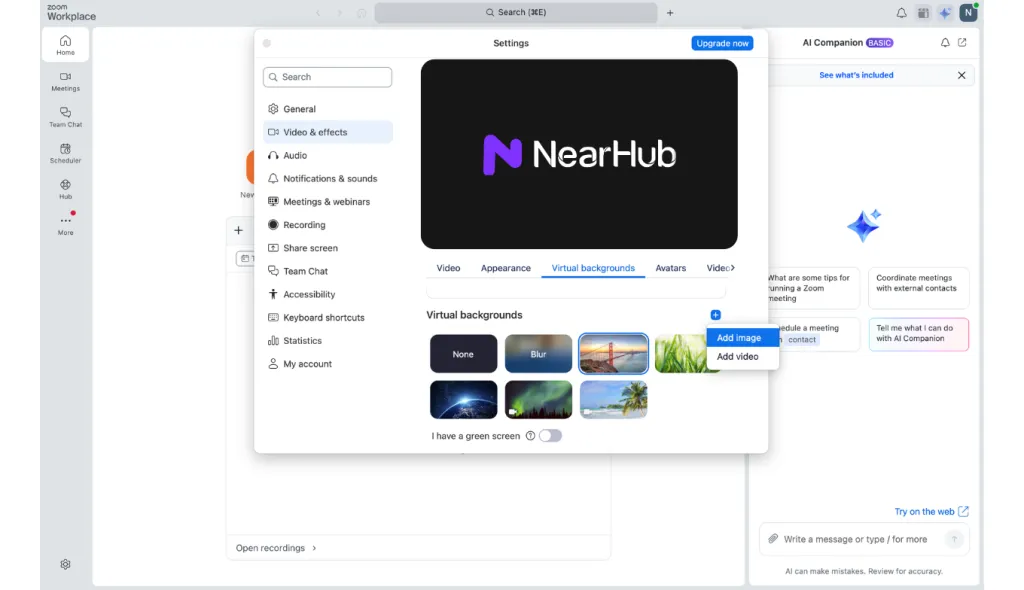
Navigate to Settings > Backgrounds & Effects in the Zoom desktop client.
Locate the small Plus (+) icon on the right-hand side of the virtual background selection panel.
Click Add Image or Add Video.
Browse your local files and select your preferred image or video.
Click Open to add it to your permanent library.
Optimal Asset Specifications:
To prevent cropping, distortion, or black bars, design or source images with the following characteristics:
Aspect Ratio: 16:9 (standard widescreen format).
Resolution: Minimum 1280 x 720 pixels (HD), though 1920 x 1080 pixels (Full HD) is highly recommended.
File Format:.jpg, .jpeg, or .png (24-bit, non-alpha).
Video Formats:.mp4 or .mov with a maximum resolution of 1080p.
Generating Backgrounds Using Built-In AI
For Zoom Workplace accounts that have AI-generated features enabled by their administrator, you can design a custom background using text prompts:
In the Backgrounds & Effects panel, select AI-generated background.
Type a detailed prompt (e.g., "A modern mid-century modern living room with warm lighting and bookshelves").
Choose an artistic style from the options list.
Click Generate to produce a set of unique visual backdrops. Select your favorite to apply it instantly.
Troubleshooting: Why Can’t I Change My Background on Zoom?
It can be highly frustrating when you are preparing for a critical call and the option to change your background is missing or not functioning correctly. Below are the most common issues and how to resolve them.
Problem 1: The "Virtual Background" Tab is Missing entirely
If you do not see the virtual background option in your desktop settings, it is likely disabled at the account level on the Zoom Web Portal. Refer to the "Before a Meeting (Web Portal Configuration)" steps under Section 2 to resolve this. If the option is locked, you must contact your IT administrator to enable it.
Problem 2: My Virtual Background is Blending with my Clothes
If your face is disappearing or the background is projecting onto your shirt, Zoom is struggling to distinguish you from your real-world surroundings.
Solution:
Contrast Your Wardrobe: Avoid wearing clothes that match the color of your actual background wall (e.g., do not wear a green shirt if you are using a green screen, or a white shirt against a white wall).
Uncheck Green Screen: If you are not using a physical backdrop, verify that the "I have a green screen" box in settings is unchecked.
Improve Lighting: Ensure your main light source is in front of you, not behind you. Backlighting turns your camera feed into a silhouette, confusing the separation algorithm.
Problem 3: The Video Background is Lagging or Freezing
If your computer slows down drastically or the video background begins stuttering, your computer's Central Processing Unit (CPU) or Graphics Processing Unit (GPU) is overloaded.
Solution:
Close resource-heavy background applications (like web browsers with dozens of tabs, or heavy editing software) before starting your Zoom call.
Switch from a video background to a static image background.
Use the Blur background feature instead of high-resolution graphic overlays, as it generally requires fewer system resources.
Pro Tips for a Flawless Virtual Background
To ensure your virtual background looks perfectly integrated and professional, implement these production practices:
Practice
Recommendation
Why It Matters
Lighting
Place a soft light source directly in front of your face (a ring light or a window).
Prevents grainy, pixelated edges around your shoulders and hair.
Camera Angle
Position your webcam at eye-level rather than looking up from your desk.
Improves edge tracking and makes eye contact feel natural to participants.
Background Design
Select realistic, neutral, or organized settings (e.g., subtle offices or bookshelves).
Maintains an authentic atmosphere and prevents you from looking overly edited.
Physical Space
Sit at least 2 to 3 feet away from your physical wall.
Helps the camera lens and Zoom's AI identify depth, producing a sharper cutout.
FAQs
Can I change my Zoom background on a Chromebook?
Yes. ChromeOS supports the virtual background feature, but because Chromebooks typically utilize lower-spec processors, you may be restricted to using a physical green screen or limited to the "Blur" effect. Keep your system updated to the latest version of the Web App.
Is the virtual background feature free on Zoom?
Yes. Changing your background is a free feature available to all Zoom users, including basic (free) personal account tiers. Some corporate-level customization features (like administrative pre-approvals or AI-generation) may require a paid Pro, Business, or Enterprise license.
Can I use a GIF as my Zoom background?
No, Zoom does not natively support .gif files for virtual backgrounds. However, you can convert your GIF into a .mp4 or .mov video file and upload it using the "Add Video" option in the background settings.
To blur your background in Zoom, navigate to your settings and select the built-in Blur tool:
Before a meeting: Open the Zoom desktop app, click your Profile Picture > Settings > Backgrounds & Effects, and select Blur from the virtual background options.
During a meeting: Click the upward arrow ($$\wedg$$) next to the Start/Stop Video icon in the bottom control bar, select Adjust Background & Effects (or Choose Virtual Background), and click Blur.
What other ways can we protect our privacy in corporate group meetings if we cannot change our virtual background?
In professional corporate environments, software-based virtual backgrounds may be disabled by company administrators, or group settings may make a virtual background look awkward. In these scenarios, utilizing specialized conference hardware is the most reliable way to protect physical privacy:
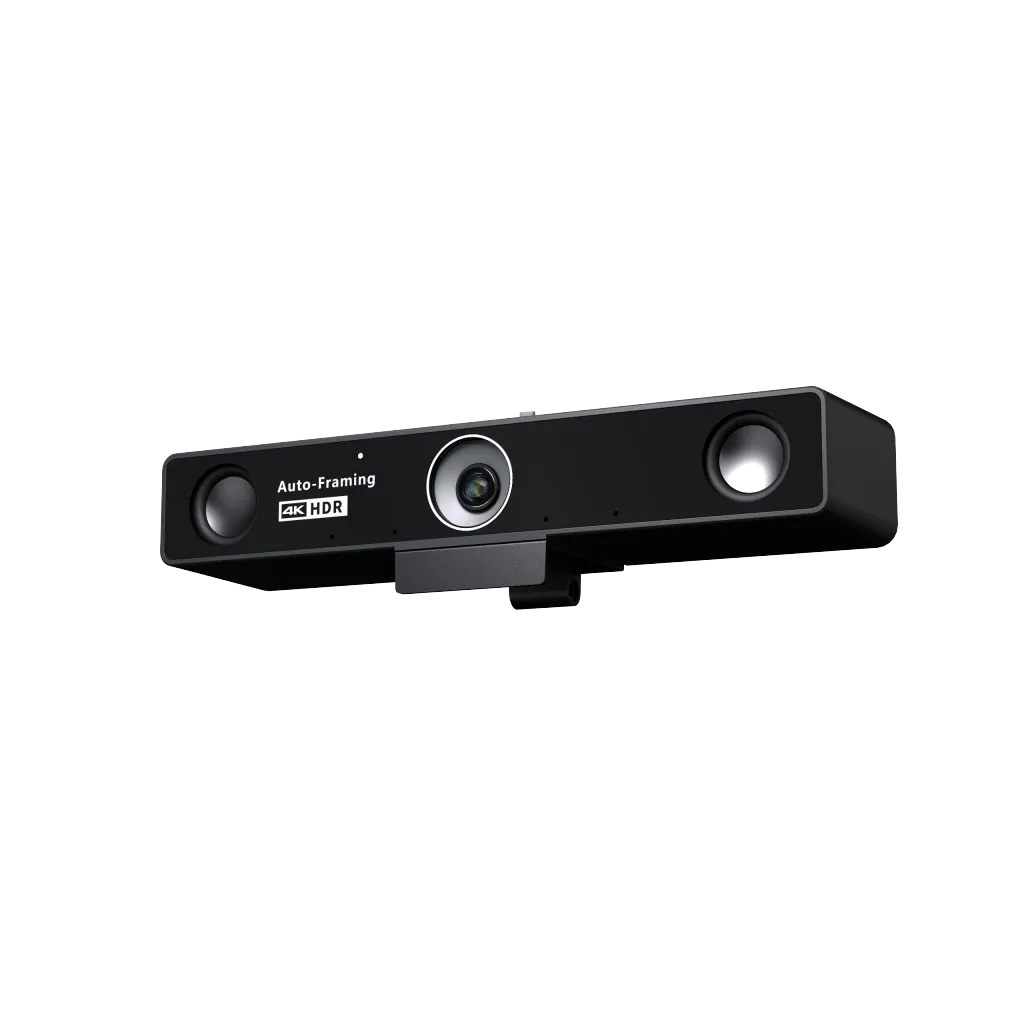
One-Click Controls: Dedicated enterprise conferencing devices, such as the Nearity 360 Alien (C60), are equipped with physical quick-access buttons and a remote control that allow you to turn off the video feed instantly with a single touch.
Physical Privacy Covers: Individual or small-room conference webcams like the Nearity V30S come with a built-in, physical sliding privacy shutter. Simply slide it over the lens with your finger to guarantee complete visual privacy and physical security without needing to adjust any software settings in Zoom.
Conclusion
Understanding how to change background on zoom is a simple yet powerful way to elevate your professional presence during virtual meetings. Whether you prefer a subtle, modern blur, a clean corporate office aesthetic, or a custom-branded graphic, the steps are straightforward and highly adaptable across both desktop and mobile platforms.
By preparing your settings beforehand, ensuring your lighting is balanced, and knowing how to troubleshoot potential setting issues, you can walk into every video meeting with absolute confidence. Keep your Zoom client updated to take advantage of ongoing performance enhancements, and enjoy a private, distraction-free virtual workspace.