How to Blur Background on Zoom: Keep Your Meetings Professional and Private
This comprehensive guide explains how to instantly enable, proactively configure, and troubleshoot Zoom’s background blur feature across multiple devices, while also offering advanced physical and software-based privacy strategies for hybrid meeting spaces.
Zoom Tips
Virtual Background
Video Conferencing
Updated: Aug 19, 2026 · 9 minutes read
Global Business, Brought Near.
No Installer, No Hassle, Just Works.
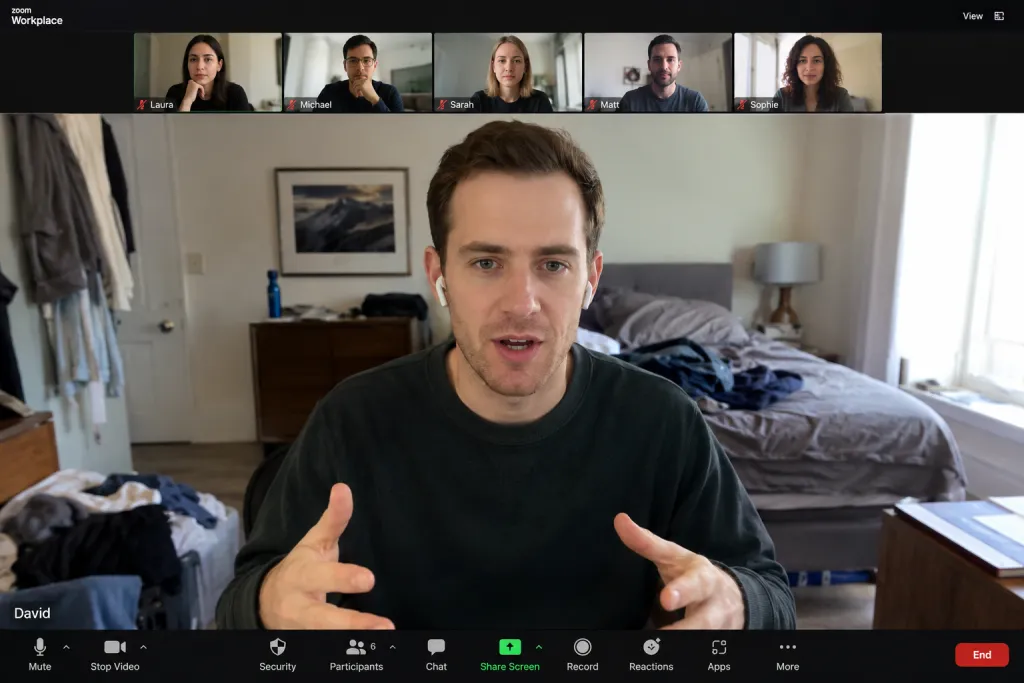
We have all been there: a last-minute video call is about to start, and your workspace is less than pristine. Maybe you are working from a busy local café, sharing a home office with a partner, or trying to join a corporate briefing from a messy bedroom. In these moments, protecting your privacy and maintaining your professional edge becomes a top priority.
Fortunately, you do not need a dedicated home studio or an expensive green screen setup to look polished. Learning how to blur background on Zoom is one of the quickest, most effective ways to instantly elevate your virtual presentation.
This guide offers a fresh, highly practical approach to mastering Zoom’s blur feature. Whether you are looking for an instant fix during a live meeting, setting up your laptop beforehand, or troubleshooting why the feature is not showing up, we have got you covered.
Key Takeaways
Instant Privacy: In an active meeting, you can obscure a messy room in just three clicks on desktops, or via the "Background & Effects" menu on mobile.
System Demands: Zoom's real-time AI edge detection requires substantial processing power; updating to desktop version 5.5.0 or higher is necessary for native blur.
Optimal Setup: High clothing-to-wall contrast, intentional front-facing lighting, and keeping the camera at eye-level dramatically improve edge-detection accuracy.
Hybrid Space Security: For multi-person rooms, software blur isn't enough; teams should deploy physical privacy shutters, beamforming mics, and strict Zoom waiting rooms to secure discussions.
Direct Action: "I'm in a Meeting Right Now—How Do I Blur My Background?"
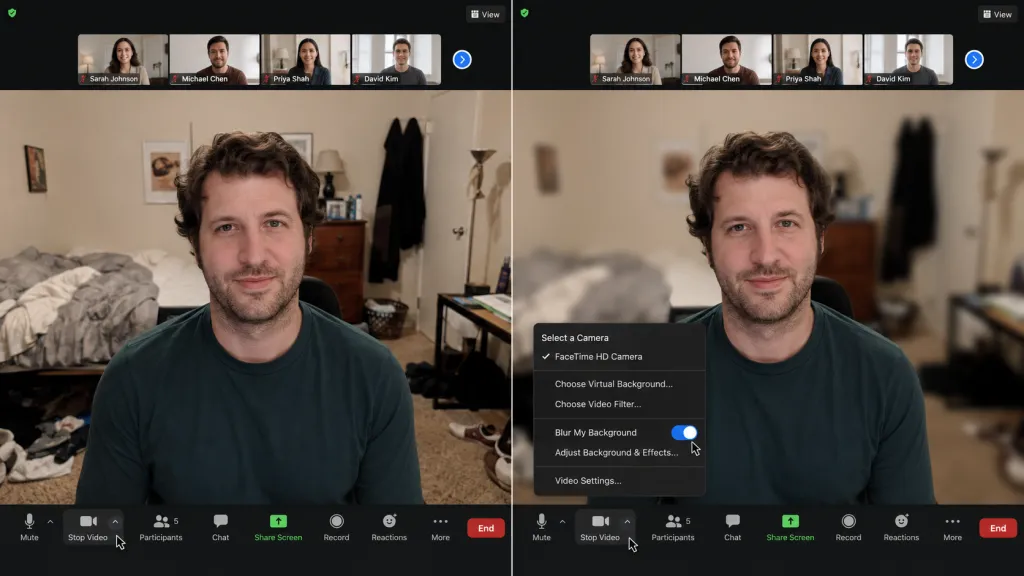
If you are currently inside an active Zoom call and need to obscure a messy background immediately, do not panic. You can enable the blur effect in just three clicks.
The Instant Desktop & Laptop Fix
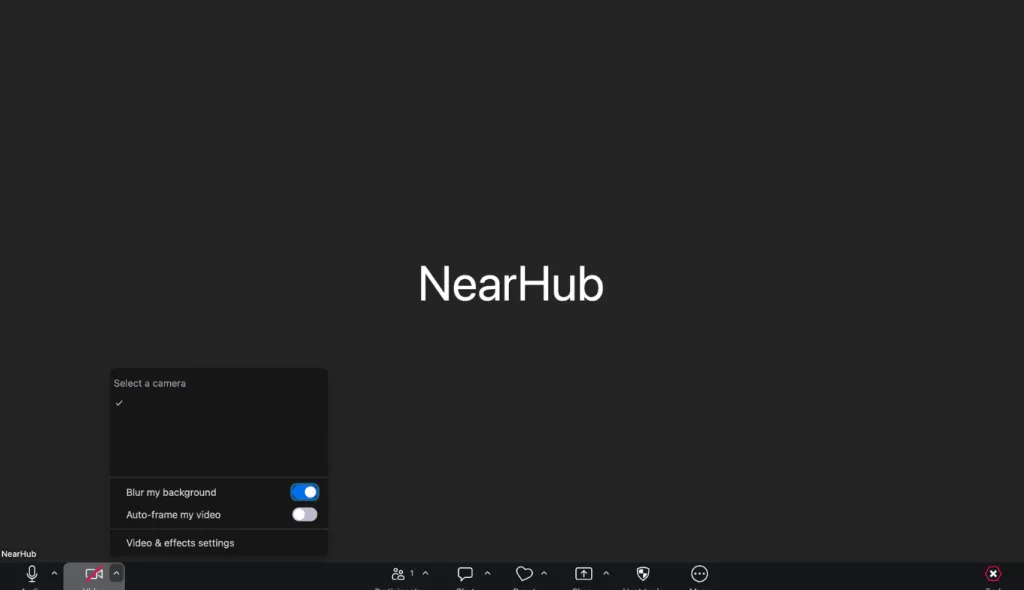
Find the Video Icon: Move your cursor to reveal the meeting control toolbar (typically located at the bottom of your screen).
Click the Arrow: Find the Start Video / Stop Video button, and click the small upward arrow ($$\wedg$$) next to it.
Select Blur: Click Blur My Background from the pop-up menu. Your background will instantly soften, keeping the focus entirely on you.
The Instant Mobile Fix (iOS & Android)
If you are dialing in from a smartphone or tablet:
Tap your screen to bring up the active call controls.
Tap the More icon (three dots ... in the bottom-right corner).
Select Background & Effects and tap the Blur tile.
Proactive Setup: How to Blur Your Zoom Background Before the Call Starts
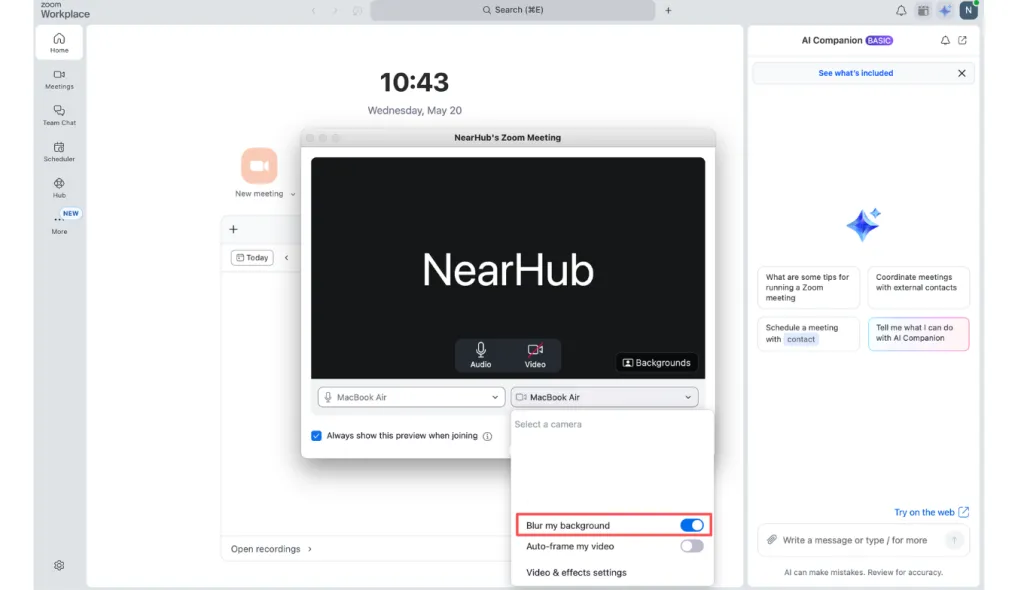
The best way to handle virtual meetings is to prepare in advance. Setting up your blur effect before you join a call ensures you never accidentally broadcast a chaotic room.
How to Blur Zoom Background on Laptop or Desktop (Windows & Mac)
Configuring your settings beforehand takes less than a minute. Follow these steps:
Open the Zoom Client: Launch the Zoom app on your computer and make sure you are logged in.
Go to Settings: Click on your profile avatar in the top-right corner and select Settings (the gear icon).
Select Backgrounds & Effects: In the left-hand navigation pane, click on Backgrounds & Effects (on older versions of Zoom, this might be labeled Virtual Backgrounds).
Choose the Blur Tile: Under the Virtual Backgrounds tab, click on the Blur option.
Preview Your Stream: Look at the built-in video preview window to ensure the edge detection looks natural. Once you are satisfied, close the settings window—your preferences are automatically saved for all future calls.
Deep Dive: How to Configure Background Blur via the Web Portal
For business professionals, online educators, and enterprise administrators, managing virtual effects across different systems is crucial. Sometimes, the desktop client restricts certain choices. Adjusting your settings through the Zoom Web Portal ensures global compatibility.
Setting Up Global Permissions
If you want to ensure that learning how to blur your background on Zoom is seamless for yourself or your entire team, check the account settings online:
Log in to the Zoom Web Portal via your preferred web browser.
Navigate to the Settings tab on the left.
Choose the Meeting tab at the top of the interface and scroll down to the In Meeting (Advanced) section.
Locate the Virtual Background toggle. Ensure it is switched to On (Blue).
Check the box to Allow use of videos as virtual backgrounds and make sure the option for custom uploaded backgrounds is active.
Note for Admins: If you are managing an organization, click the Lock icon next to this feature to prevent individual team members from disabling it.
Troubleshooting: Why Can’t I Blur My Background?
It is incredibly frustrating when you want to know how to blur my background on zoom, but the option is greyed out, missing, or causing your video feed to lag. Below are the three most common technical roadblocks and exactly how to bypass them.
The "System Requirements Not Met" Error
Because Zoom uses high-performance machine learning to isolate your silhouette from your surroundings in real-time, it requires substantial processing power. If your computer is running an older processor, Zoom might restrict the native "smart" blur feature.
The Check: Go to Settings > Backgrounds & Effects and see if there is an error message about hardware requirements.
The Solution: If you are using an older laptop, check the box labeled "I have a green screen." While this means you will need a physical monochrome backdrop to get a clean key, it offloads a massive amount of processing power from your CPU, allowing the software to function without crashing.
The Missing "Blur" Tile
If you open your virtual background settings and the "Blur" card is simply not there, you are likely running an outdated version of the Zoom application.
The Solution:
Click your profile picture in the Zoom app.
Click Check for Updates.
Install the latest version of the app and restart your device. Native background blur requires Zoom Desktop Client version $5.5.0$ or higher.
Browser-Based Limitations
If you joined a meeting by clicking a direct link in a web browser (like Google Chrome, Safari, or Microsoft Edge) instead of launching the native app, you are using the web client. Web clients do not have direct access to your computer’s hardware acceleration.
The Solution: To ensure you have access to every advanced video effect, always download and run the official Zoom Desktop Client rather than joining through a browser tab.
Optimizing the Look: How to Get a Seamless Blur Effect
Even with state-of-the-art software, the edge-detection algorithm can sometimes glitch, making your hair look fuzzy or causing your hands to clip out of view. To achieve a perfectly natural depth-of-field effect, follow this quick checklist:
Master Your Contrast
The AI relies on color differences to separate you from your room. If you are wearing a grey shirt and sitting against a grey wall, the system will struggle to draw a clean boundary around your body. Wear clothes that contrast sharply with your background.
Prioritize Front-Facing Lighting
Avoid sitting directly in front of bright windows or strong light sources. When you are backlit, your camera sensor struggles with exposure, making you look like a dark silhouette. Instead, position your primary light source (a desk lamp, ring light, or window) directly in front of your face.
Maintain Eye-Level Camera Placement
A camera tilted upward from your desk can capture awkward angles of your ceiling and shoulders, which makes spatial calculations difficult for the software. Position your laptop on a stand or stack of books so that the camera sits directly at eye level, perpendicular to your face.
Feature / Detail
Target Standard
Why It Matters
Webcam Resolution
$720p$ minimum ($1080p$ recommended)
Clearer images provide sharper edge data to the blur algorithm.
Frame Rate ($FPS$)
$30\text{ fps}$
Prevents lagging or visual stuttering when you move around.
Aspect Ratio
$16:9$ (Widescreen)
Ensures your video fits standard conference layouts cleanly.
Privacy Protection Tips for Multi-Person Meetings: Going Beyond Background Blur
While learning how to blur background on Zoom is ideal for individual users joining from a laptop, multi-person conference settings and hybrid collaborative environments present distinct privacy challenges. In a shared meeting room, relying solely on a software-based background blur is often insufficient. Multiple participants moving in the background, passersby behind glass doors, and cross-talk can easily disrupt meeting confidentiality. Furthermore, organizations in these settings do not just rely on a standard laptop; they deploy dedicated hybrid meeting equipment to capture the entire room.
To protect sensitive discussions and avoid unintended data breaches in larger team configurations, a mix of physical hardware features and strict software practices is required.
Leverage Specialized Hardware with Dedicated Privacy Controls
To secure multi-person settings, selecting professional video conferencing hardware with native physical privacy controls provides a highly reliable layer of defense:
Nearity 360 Alien All-in-One Conference Camera: This enterprise-grade, 360 smart camera is equipped with five high-sensitivity touch buttons directly on top of the device. In a hybrid setting, instead of navigating software menus on a connected laptop to mute or stop video, users can simply press these buttons to instantly mute microphones or shut off the camera feed with a single tap.
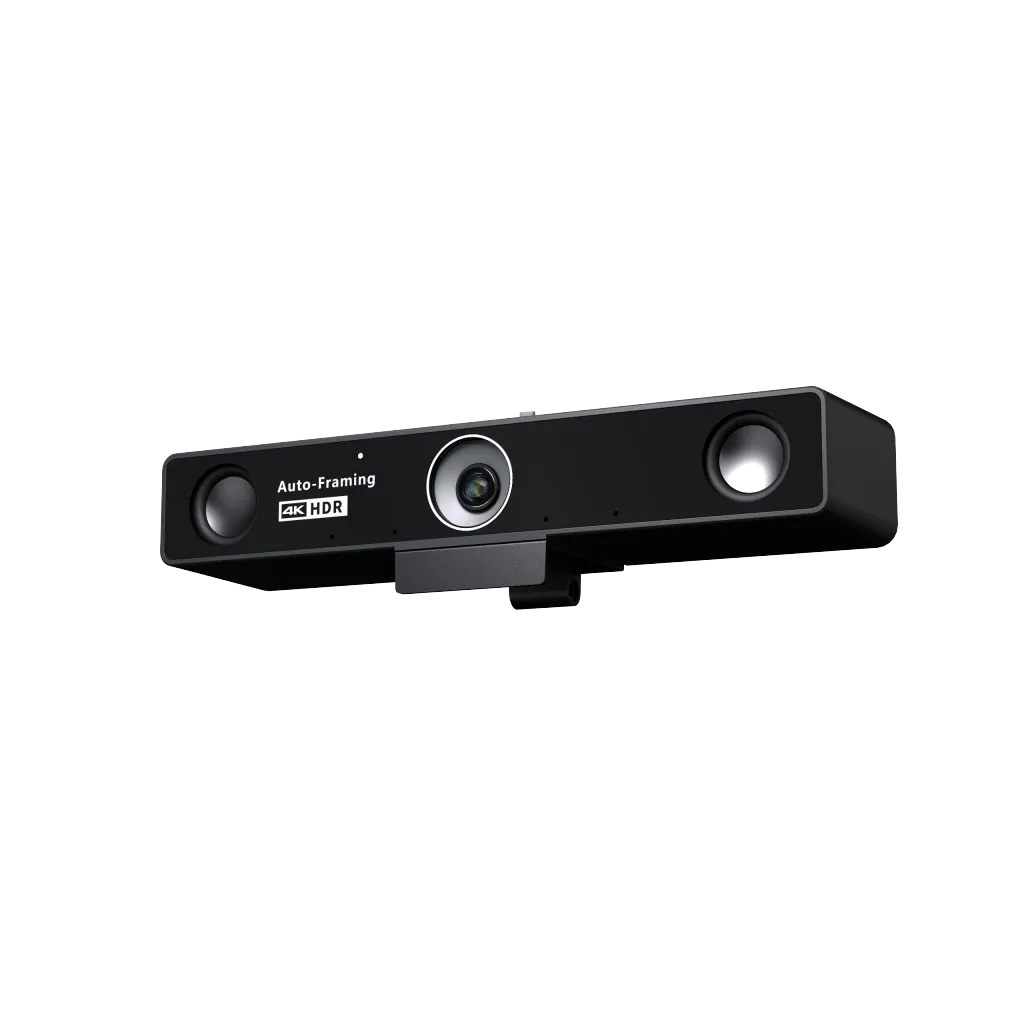
Nearity V30S 4K Conference Webcam: Perfect for smaller huddle rooms and desks, this professional webcam for zoom meeting is designed with an integrated physical privacy shutter. Users can slide the built-in mechanical cover over the lens with a quick swipe of a fingertip, completely blocking the optical path and guaranteeing absolute visual privacy even if the Zoom software continues running.
Implement Physical and Acoustic Privacy Safeguards
Visual privacy is only half the battle; protecting what is heard is just as vital. Hybrid teams can adopt several strategies to control what information escapes the physical room:
Define Acoustic Exclusion Zones: Utilize microphones with directional beamforming technology or AI-powered noise reduction. These systems (like Nearity’s ProperClean tech) actively isolate voices within the immediate meeting zone while filtering out external hallway chatter, typing, or side conversations.
Establish Camera Viewing Boundaries: Position the conference camera away from high-traffic glass walls or busy office backgrounds. If the room has windows, adjust the physical layout or use custom exclusion configurations to ensure external activity is not broadcasted.
Deploy Key Zoom Software Security Measures
In addition to hardware, organizers should always configure the Zoom meeting environment to prevent unauthorized entry and maintain strict confidentiality:
Lock the Meeting: Once all scheduled participants are present, lock the meeting via the host's Security tab to prevent uninvited attendees from joining late.
Enable Waiting Rooms: Always use the Waiting Room feature to manually screen and admit participants, ensuring only verified attendees can join the virtual space.
Control Screen Sharing Permissions: Set host controls to restrict screen-sharing capabilities exclusively to the presenter, preventing accidental broadcasts of sensitive desktop files.
FAQs
1. Can I adjust how blurry my background is?
By default, Zoom applies a pre-configured, optimized blur radius. If you want to customize the intensity of the blur, you will need to utilize virtual camera software like OBS Studio, Logi Tune, or Elgato Camera Hub as your primary video source within Zoom.
2. Does blurring my background use more battery life on my laptop?
Yes. Because real-time image processing requires constant GPU and CPU calculation, enabling any virtual background or blur effect will drain your laptop battery faster than a standard, unfiltered video feed. If you are on a long call and running low on power, it is best to plug in your charger.
3. Is learning how to blur out background on zoom free?
Yes, this feature is completely free for all users on all compatible platforms, including free basic personal accounts.
If you want to edit your name before a meeting starts:
Open the Zoom Workplace desktop client and click your Profile Picture in the top-right corner.
Select My Profile—this will take you to your Zoom web portal.
Click Edit next to your name to change how it displays to others. Alternatively, if you are joining a meeting via link, a prompt will appear asking you to type your display name before you click Join. Type your preferred name here to change it for that specific call.
If you are a participant and want to speak or ask a question without interrupting the flow of the meeting, use the "Raise Hand" tool:
Locate the control bar at the bottom of your active meeting window.
Click the Reactions button (the smiley face icon).
Click Raise Hand. A hand icon will appear next to your video feed and your name in the participant list, alerting the host. Once your question is addressed, go back to the Reactions menu and click Lower Hand.
You can easily schedule Zoom calls inside Outlook using the Zoom for Outlook add-in:
Open Outlook and navigate to your Calendar.
Create a New Event or New Meeting.
In the toolbar ribbon at the top of the event window, look for the Zoom icon and click Add a Zoom Meeting. (If you do not see it, go to the Outlook Add-ins store, search for "Zoom for Outlook", and install it).
Log into your Zoom account when prompted. The Zoom meeting details, including the meeting link and passcode, will automatically populate into the body of your Outlook invitation.
Summary
Learning how to blur background on zoom is a simple, highly effective way to protect your privacy and project a distraction-free, professional image. By implementing the quick setups, adopting hardware-level physical controls, and utilizing the troubleshooting steps highlighted in this guide, you can confidently turn on your camera in any environment—knowing your focus remains entirely on your work.