How to Raise Hand on Zoom: A Beginner’s Guide(2026 Update)
This comprehensive guide explains how to use the Zoom "Raise Hand" feature across various platforms to signal presenters and participate effectively in digital meetings.
Zoom Tutorials
Video Conferencing
Remote Work Tips
Updated: Aug 19, 2026 · 10 minutes read
Global Business, Brought Near.
No Installer, No Hassle, Just Works.
If you are new to Zoom, joining a meeting can feel a little confusing at first. You may want to ask a question, respond to the host, or let others know you would like to speak — but you may not want to interrupt the meeting directly.
That is exactly what the Raise Hand feature is for. In Zoom meetings and webinars, raising your hand lets the host, co-host, or presenter know that you need attention or would like to speak. The feature is available on the Zoom desktop app, mobile app, web client, and even when joining by phone.
Key Takeaways
Desktop Shortcuts: Use Alt + Y (Windows) or Option + Y (macOS) to quickly toggle your hand status.
Mobile Access: On iOS and Android, the feature is tucked under the More (...) menu.
Chronological Order: Zoom automatically sorts the participant list by who raised their hand first, helping hosts manage queues.
Troubleshooting: If the button is missing, it’s likely due to host restrictions, being the host yourself, or an outdated app version.
Etiquette: Always lower your hand manually after your question is addressed to keep the moderator's queue clean.
Quick Answer: How to Raise Hand on Zoom
To raise your hand on Zoom:
Join a Zoom meeting or webinar.
Find the meeting controls at the bottom of the screen.
Click or tap Reactions.
Select Raise Hand.
When you are done, click or tap Lower Hand.
On Windows, you can also press Alt + Y. On Mac, you can press Option + Y to raise or lower your hand.
What Does Raise Hand Mean on Zoom?
The Raise Hand feature is a non-verbal way to communicate during a Zoom meeting. Instead of speaking over others, you can raise your hand to show that you have a question, need help, or want to contribute to the discussion.
This is especially useful in:
Online classes
Webinars
Team meetings
Training sessions
Large group meetings
Remote presentations
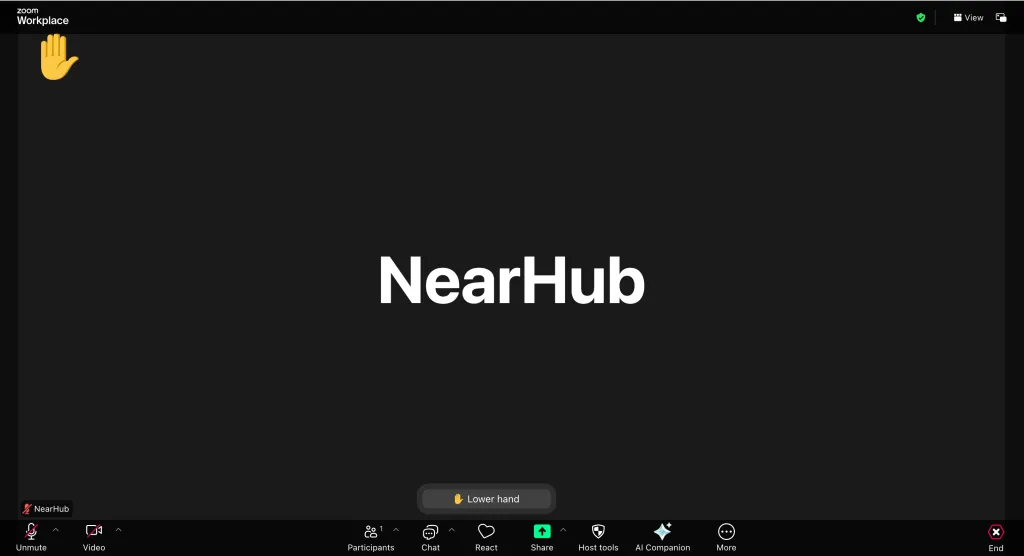
When you raise your hand, the host will receive a notification. Your raised hand may also appear beside your name in the participant list. Raising your hand does not automatically unmute your microphone. If the host allows you to speak, you may still need to unmute yourself manually.
How to Raise Hand on Zoom (Windows & macOS)
For desktop users, the interface is designed for quick access. Follow these steps to signal the host:
Join the Meeting: Ensure you are in the active meeting window.
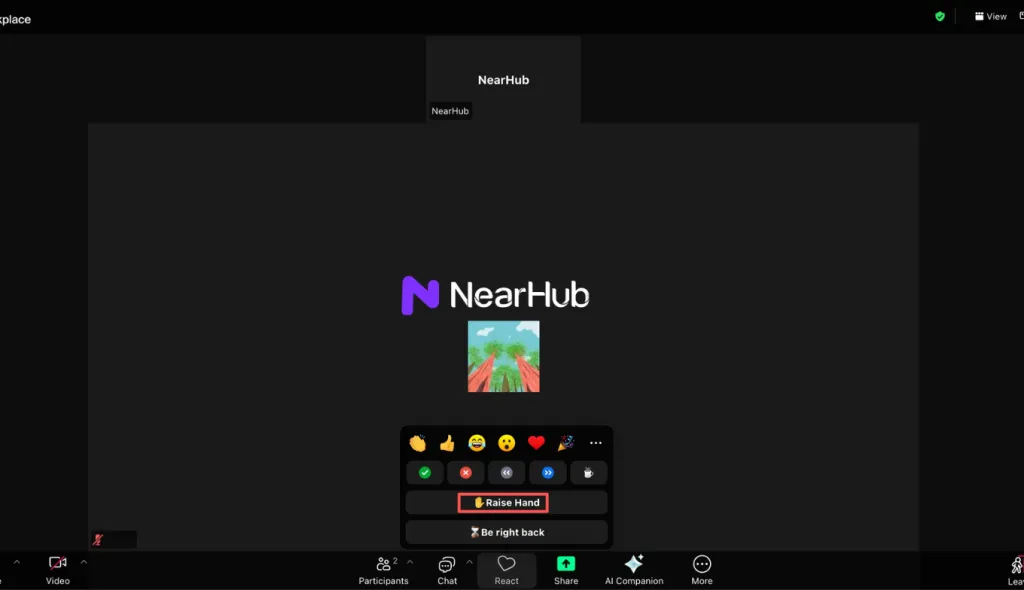
Locate the Toolbar: Move your mouse to the bottom of the Zoom window to reveal the control bar.
Click on Reactions: Look for the "Reactions" icon (a smiley face with a plus sign).
Select Raise Hand: A pop-up menu will appear. At the bottom of this menu, click the wide button labeled Raise Hand.
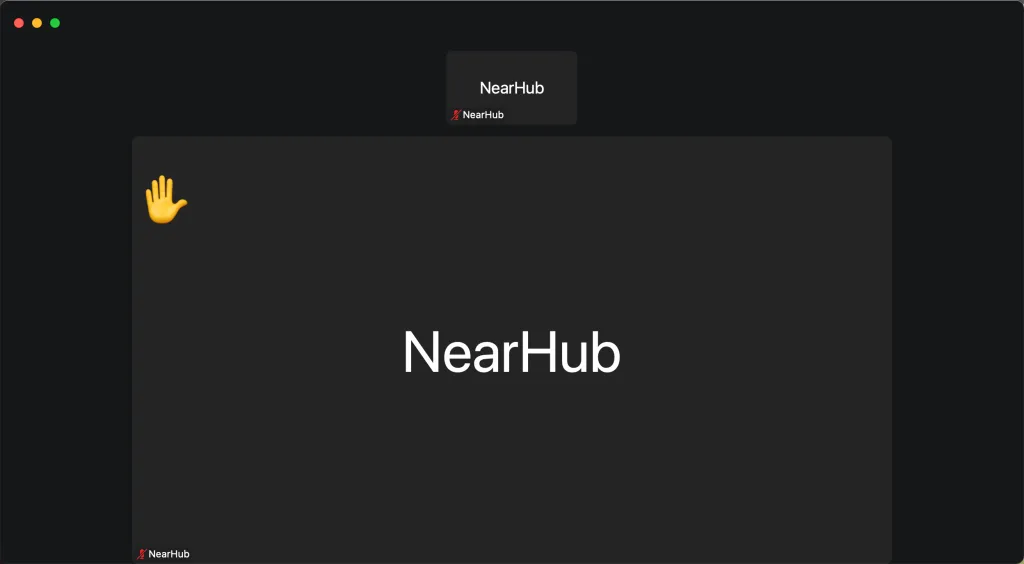
Once clicked, a yellow hand icon will appear in the top-left corner of your video feed, and the host will receive a notification.
Pro Tip: Using Keyboard Shortcuts
If you prefer using your keyboard, you can bypass the menus entirely:
Windows: Press Alt + Y to raise or lower your hand.
macOS: Press Option + Y to raise or lower your hand.
How to Raise Your Hand on Zoom (iOS & Android)
If you are joining a call from a smartphone or tablet, the interface is slightly condensed to save screen real estate. Here is how to raise hands on Zoom via mobile:
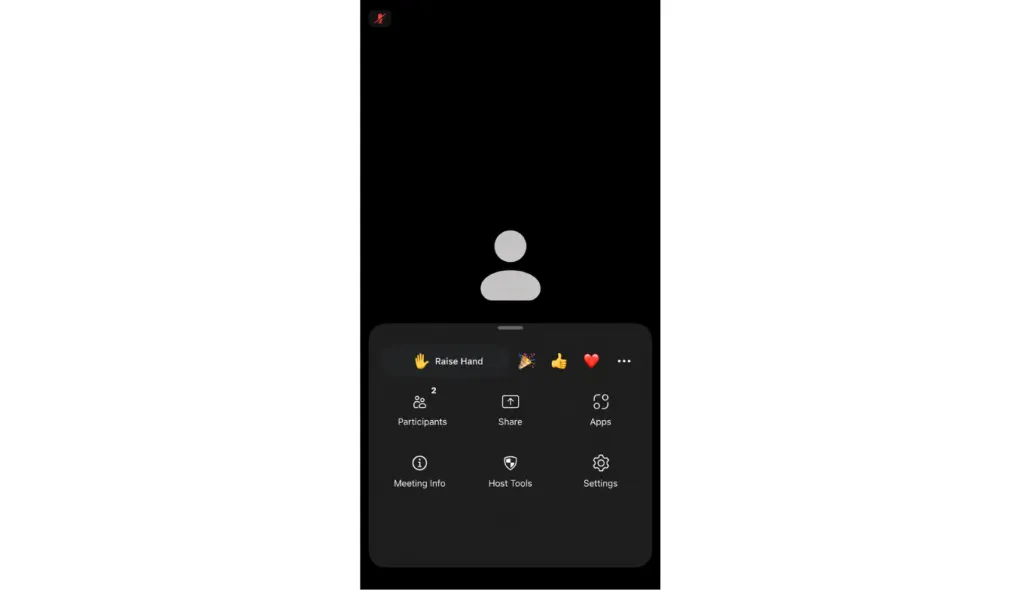
Tap the Screen: During the meeting, tap anywhere on your screen to bring up the control overlay.
Select More: Tap the three dots icon labeled "More" in the bottom-right corner.
Tap Raise Hand: You will see the Raise Hand option in the menu that slides up from the bottom.
On mobile devices, the hand icon will stay visible until you or the host lowers it. To hide the menu after raising your hand, simply tap the background of the meeting.
How to Raise My Hand on Zoom (Web Browser)
Sometimes, you may join a Zoom meeting via a web browser (like Chrome or Safari) without downloading the official app. The process is virtually identical to the desktop version:
Find the Reactions button on the bottom toolbar.
Click Raise Hand within the reaction panel.
Note: If your browser window is small, the "Reactions" button might be hidden under a "More" menu. Ensure your window is maximized for the best experience.
How to Lower Your Hand After Speaking
It is a common "Zoom faux pas" to leave your hand raised long after your question has been answered. To lower your hand:
On Desktop: Click the Reactions button again and select Lower Hand, or use the keyboard shortcuts (Alt + Y / Option + Y).
On Mobile: Tap More and select Lower Hand.
Host Action: Keep in mind that the host or co-host has the authority to lower your hand for you once they have acknowledged your request.
Why Can’t I See the Raise Hand Option?
If you are struggling with how to raise my hand on Zoom because the button is missing, consider these common troubleshooting steps:
The Host Has Disabled Non-Verbal Feedback
In some highly controlled webinars, the host may disable the ability for participants to use reactions or raise their hands. If you don't see the button, check the chat or listen to the host’s instructions on how they prefer to take questions.
You are the Host
If you are the host of the meeting, you cannot "raise your hand" to yourself. The option will not appear in your own Reactions menu because you already have the floor.
Outdated Zoom Version
Zoom frequently updates its software to improve security and UI. If your "Reactions" button is missing, you may be running an old version of the client. Close Zoom and check for updates in the settings menu.
Full-Screen Mode Issues
Sometimes, the bottom toolbar hides automatically in full-screen mode. Press the Esc key or hover your mouse at the bottom of the window to bring the controls back into view.
Best Practices for Meeting Etiquette
Knowing how to raise hand on Zoom is only half the battle; knowing when to use it is just as important.
Be Patient: In large meetings, the host may have a long queue. Wait for them to call your name before unmuting.
Lower Promptly: As soon as you begin speaking or your question is addressed, lower your hand to keep the host's queue accurate.
Combine with Chat: If you have a specific technical question, consider typing it in the chat while your hand is raised so the host can prepare an answer.
Summary Table: Quick Reference
Device
Action
Shortcut
Windows PC
Reactions > Raise Hand
Alt + Y
Mac/MacBook
Reactions > Raise Hand
Option + Y
iPhone/Android
More (...) > Raise Hand
N/A
iPad/Tablet
More (...) > Raise Hand
N/A
Web Browser
Reactions > Raise Hand
N/A
Final Thoughts
Participating in digital meetings doesn't have to be complicated. By mastering how to raise your hand on Zoom, you ensure that your voice is heard without disrupting the flow of the conversation. Whether you are using the desktop application, a mobile device, or a simple web browser, the "Raise Hand" tool is your best friend for professional, organized communication.
Next time you join a call, try a "test raise" during the initial setup to ensure you are comfortable with the location of the button. Happy zooming!
FAQs
Does the host see who raised their hand first?
Yes. Zoom automatically sorts the participant list chronologically based on who clicked the "Raise Hand" button first. This allows the moderator to address questions in the order they were received.
Can the host lower my hand for me?
Absolutely. Hosts and co-hosts have the ability to lower any participant's hand. This is typically done after your question has been answered to keep the queue clean.
Can I change the color of the hand icon?
The "Raise Hand" icon is a standard yellow by default, but you can change your general reaction skin tone in the Zoom desktop client by going to Settings > General and selecting your preferred "Reaction Skin Tone."
How can I improve Zoom meetings for a group in one room?
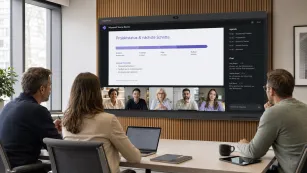
To improve group Zoom meetings, make sure everyone can be clearly seen and heard. A laptop camera usually cannot cover the whole room, especially in roundtable discussions.
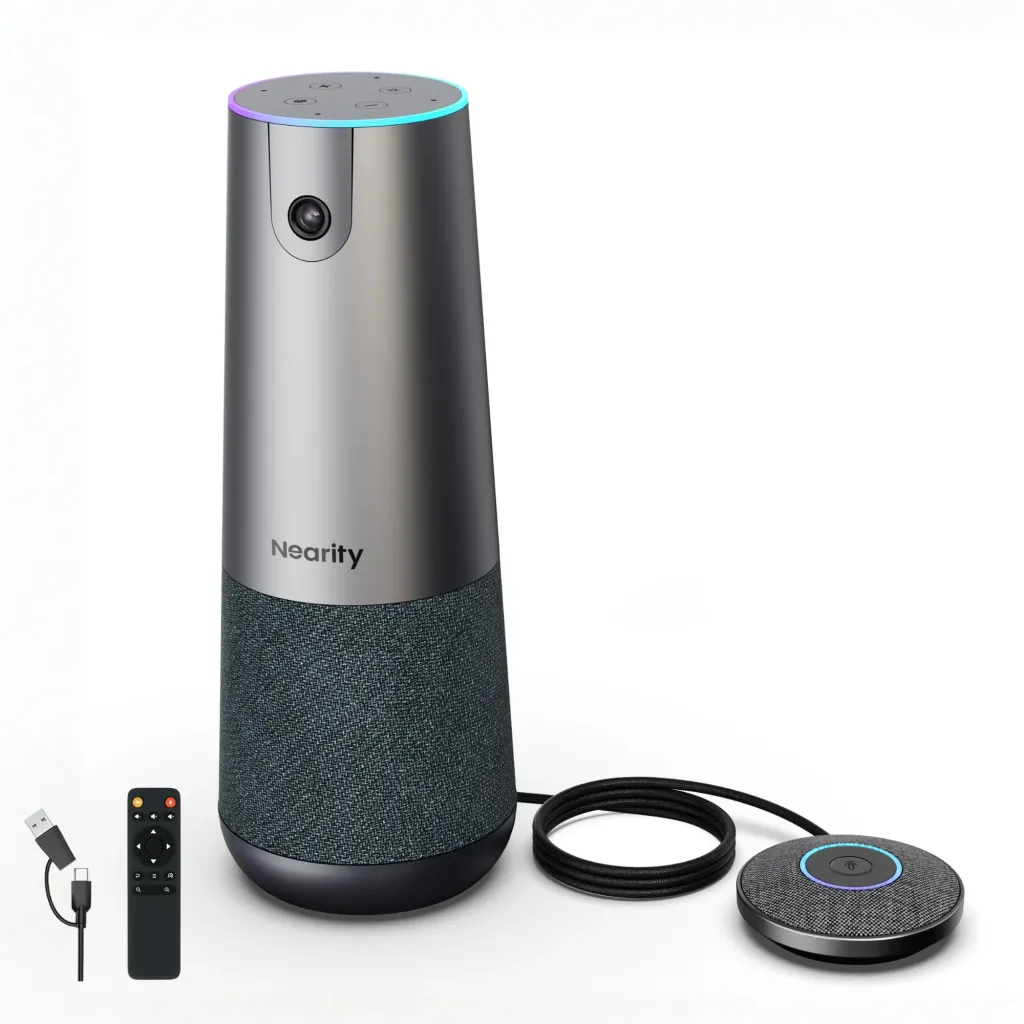
For full-room meetings, the Nearity 360 Alien is a good option. It provides a 360° panoramic view, AI video modes, and built-in microphones, helping remote participants see the whole room and follow the conversation more naturally.
Do I need an external camera for Zoom meetings?
For one-on-one Zoom calls, a laptop camera is usually enough. But for small or medium meeting rooms, an external camera can provide better video coverage and a more professional meeting experience.