How to Send a Zoom Invite: Desktop, Mobile & Outlook Guide for 2026
Learn how to send a Zoom invite on PC, mobile, and Outlook with step-by-step instructions, fix common invitation issues and streamline your meeting workflow in 2026.
zoom meeting invitation guide
schedule zoom meeting
Updated: Aug 19, 2026 · 9 minutes read
Global Business, Brought Near.
No Installer, No Hassle, Just Works.
Learning how to send a Zoom invite efficiently is essential for remote professionals, office administrators, and hybrid teams who depend on virtual meetings daily. Whether you are scheduling a client presentation from your office PC, sending a quick standup link from your phone, or figuring out how to send a zoom invitation in outlook for your executive team, the method you choose directly impacts attendance and meeting punctuality.
In this guide, you will learn exactly how to send a Zoom invitation from the desktop app, mobile app, and Microsoft Outlook. We will cover how to invite someone to a Zoom meeting before it starts and during a live session, explain the fastest workflows for each platform, and show you how to troubleshoot the most common invitation problems that derail scheduled calls.
What You Need Before Sending Zoom Invites
Before diving into the workflows, confirm you have the prerequisites in place:
A Zoom account (Basic, Pro, Business, or Enterprise)
Zoom desktop or mobile app updated to the current version
For Outlook integration: Microsoft Outlook and the Zoom for Outlook add-in.
For calendar sync: Enable calendar and contacts integration in Zoom settings (supports Google Calendar, Office 365, Exchange, and Zoom Calendar).
With calendar integration active, the Zoom desktop app displays a Calendar tab. Without it, you see a Meetings tab. Both allow scheduling, but the Calendar tab syncs directly with your existing calendar events.
How to Send a Zoom Invite From the Desktop App
The Zoom desktop app offers the most complete set of invitation options for sending invites before a meeting starts or during an active session.
Scheduling a Meeting and Sending Invites on PC or Mac
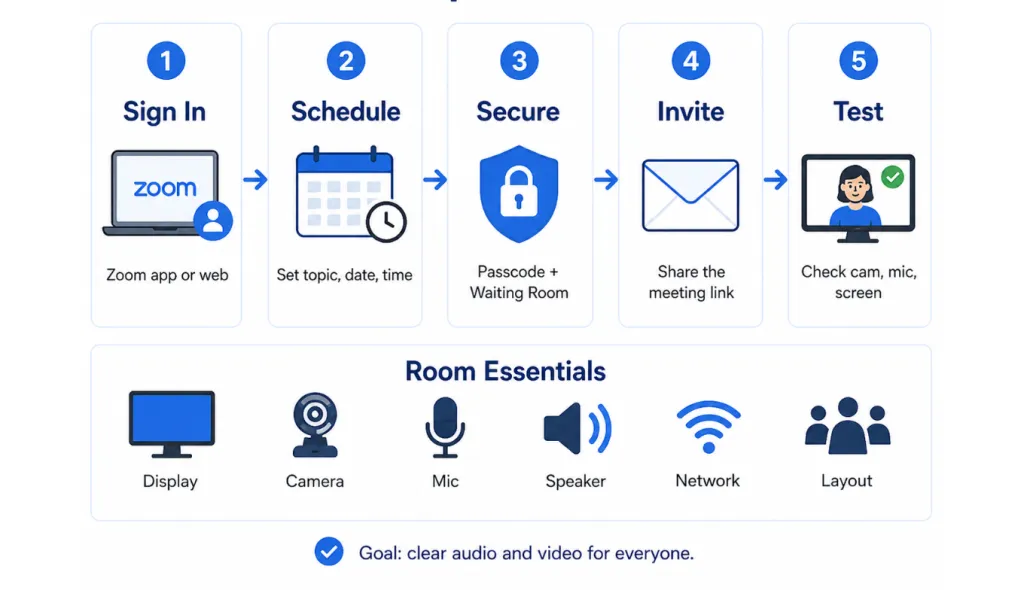
Open the Zoom desktop app and sign in. Click the Home tab at the top of the app window. If you do not see the Home tab, click the More tab, then select Home.
Click the Schedule button. This opens the New Event window. If you have calendar integration enabled, you can also click the Calendar tab, select a time slot, and click Create Event.
Enter your meeting details. Add a topic or title, select the date and time, and set the duration. Choose your preferred meeting ID (automatically generated or your Personal Meeting ID) and configure security settings such as passcodes or waiting rooms.
Add attendees. In the attendee field, type the name, email address, or phone number of each participant. You can also skip this step and add invitees after scheduling.
Configure additional options. Click Settings or Advanced to enable or disable video for hosts and participants, select audio connection options, and choose recording preferences.
Save the meeting. Click Save. If you have calendar integration enabled, Zoom prompts you to add the event to your connected calendar. Select your preferred calendar and confirm.
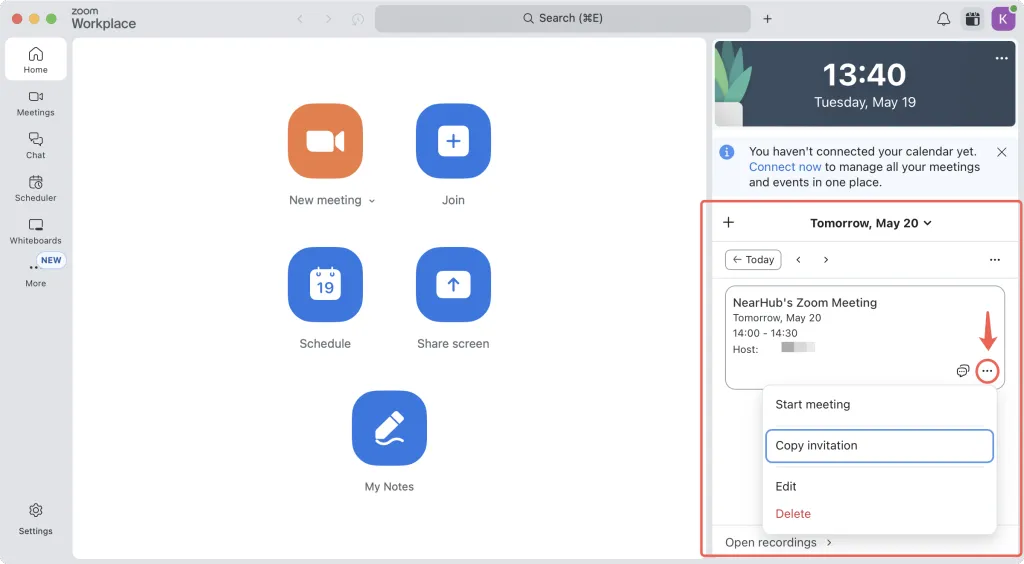
Send the invitation. After saving, your meeting appears in the Home, Meetings, or Calendar tab. Click the ellipses icon on the meeting card, then select Copy invitation. Paste this into an email, Slack message, or any communication channel. Alternatively, if you added the meeting to a calendar with attendees, they will receive the invitation automatically.
Inviting Someone to a Meeting in Progress
If your meeting is already live and you need additional participants:
Click Participants in the meeting toolbar, then click Invite.
Choose your method: Contacts (from your directory), Email (pre-filled in your default mail app), Copy invite link, or Copy invitation (full details with dial-in numbers).
Send through your chosen channel.
How to Send a Zoom Invite From Mobile
The Zoom mobile app works for sending invites on the go. The core steps are consistent across iOS and Android.
Scheduling and Inviting on iPhone or Android
Open the Zoom app and sign in. Tap the Schedule button on the main screen, or navigate to Meetings and tap the plus icon.
Fill in the meeting details. Enter a topic, set the start date and time, choose the duration, and select your time zone. Enable or disable video for the host and participants, and choose whether attendees connect via internet audio or dial-in.
Tap Schedule or Save. The meeting is added to your Meetings list.
Send the invite. Tap the scheduled meeting to open its details. Tap Add invitees or Copy invitation. You can send the invite directly through email, messaging apps, or by pasting the copied invitation into any app.
Adding Invitees During a Live Mobile Meeting
During an active meeting, tap Participants, then Invite.
Select Email, Copy link, or Contacts, then complete the invitation.
How to Send a Zoom Invite in Outlook
For business users, Outlook remains the dominant email and calendar platform, and integrating Zoom with Outlook eliminates redundant steps between scheduling and inviting. When you know how to send a Zoom invite in Outlook correctly, your meeting link, dial-in details, and calendar event arrive in a single, professional invitation. This Zoom Outlook scheduling guide walks through how to streamline the process for smoother meeting coordination and fewer scheduling errors.
Using the Zoom for Outlook Add-In
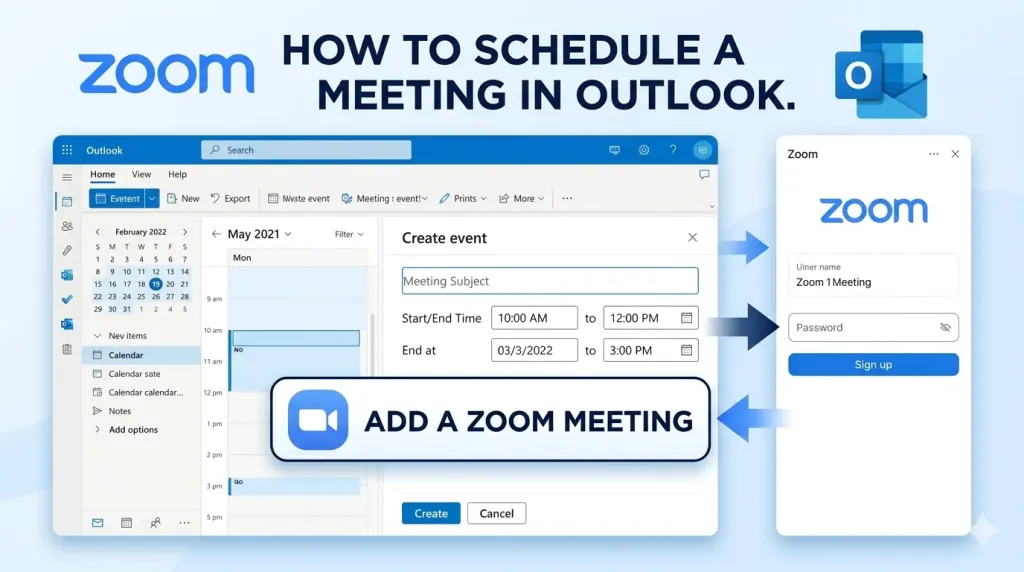
Install the Zoom for Outlook add-in. In Outlook, go to Home > Get Add-ins, search for "Zoom for Outlook," and install it. Authorize the connection to your Zoom account the first time you use it.
Schedule a Zoom meeting from Outlook. Open your Outlook calendar and click New Meeting or New Appointment. In the meeting ribbon, click the Zoom icon and select Add a Zoom Meeting. Zoom automatically populates the meeting details with a unique join link, meeting ID, and dial-in information.
Add your attendees. Enter email addresses in the To field as you normally would for any Outlook calendar invite. Add a subject line, agenda, and any attachments.
Send the invitation. Click Send. Your attendees receive a standard Outlook calendar invitation that includes all Zoom meeting details in the body. When they accept, decline, or tentatively accept, you receive the response in Outlook just like any other calendar event.
Manually Adding Zoom Details to an Outlook Invite
If you do not have the add-in, schedule the meeting in Zoom, click Copy invitation from the meeting card, then paste the full invitation into a new Outlook calendar event. Add your attendees and send. This method adds one extra step but produces the same professional result.
Outlook Integration Tips for Executive Assistants and Admins
If you schedule meetings on behalf of someone else, the host must add your email under Settings > Meeting > Other in their Zoom account. Once configured, the Zoom for Outlook add-in lets you select the host's name when creating the meeting, so invitations originate from their account while you manage logistics.
Comparing Invitation Methods: Which One Should You Use?
Choose the fastest workflow for your situation:
Scenario
Best Method
Why It Works
Weekly team standup with a fixed group
Calendar integration (Google Calendar or Outlook)
Attendees receive recurring invites automatically; RSVPs sync to your calendar
External client meeting
Copy invitation + paste into personalized email
Gives you control over tone and context; looks more professional
Last-minute meeting while traveling
Zoom mobile app + copy link
Fastest method from a phone; works over cellular data
HR interview or onboarding call
Outlook add-in with a calendar event
Combines professionalism with scheduling automation; responses tracked in Outlook
Large webinar or all-hands
Zoom web portal registration
Requires attendee registration; captures names and emails before entry
Ad-hoc addition during a live meeting
In-meeting Invite button
Instant; no need to leave the call or open another app
Common Mistakes When Sending Zoom Invites
Even experienced Zoom users make invitation errors that delay meetings or confuse attendees. Avoid these pitfalls:
Forgetting to include the passcode. If your meeting requires a passcode, ensure it appears in the invitation. When you copy the full invitation rather than just the link, all security details are included automatically.
Using your Personal Meeting ID for sensitive meetings. Your PMI is a permanent room. Anyone with the link can enter whenever you host a meeting there. For confidential calls, use automatically generated meeting IDs.
Sending the link without context. A raw Zoom link in a text message can look suspicious and may be ignored. Always include the meeting topic, time, and a brief agenda.
Not testing the calendar sync before the meeting. If your Outlook or Google Calendar integration is new, verify that a test invite delivers correctly and that the time zone displays accurately for all attendees.
Troubleshooting Zoom Invitation Problems
When invitations fail to reach attendees or contain wrong information, use these solutions to resolve the issue quickly.
Invites Landing in Spam Folders
If attendees report not receiving your invites, the email likely went to spam. Ask participants to add zoom.us to their safe sender list, or send the invitation from your own email client rather than through Zoom directly. Always follow up with a personal message containing the join link.
Incorrect Time Zones in Calendar Invites
Double-check that your Zoom profile time zone matches your current location. For Outlook users, confirm that both Zoom and Outlook calendars use the same time zone. When inviting international attendees, include the meeting time in multiple time zones in the agenda field.
Outlook Add-In Not Appearing
Restart Outlook and check the ribbon menu. In Outlook desktop, go to File > Manage Add-ins and confirm the Zoom add-in is active. For Outlook on the web, check Settings > Mail > Customize actions > Toolbar.
Copied Invitation Contains Outdated Details
Zoom does not update copied text automatically. Verify the meeting ID, passcode, and time before resending. Copy the invitation fresh from the Home, Calendar, or Meetings tab each time.
Cannot Add Attendees After Scheduling
If the attendee field appears grayed out, your calendar integration may be disconnected. Go to Zoom Settings > Calendar and Contacts, disconnect and reconnect your calendar service, then try again.
Elevating Your Meeting Experience with the Right Hardware
Once your invitation workflow is optimized, consider how your meeting room technology affects call quality. For hybrid workspaces, display and collaboration tools directly impact engagement.
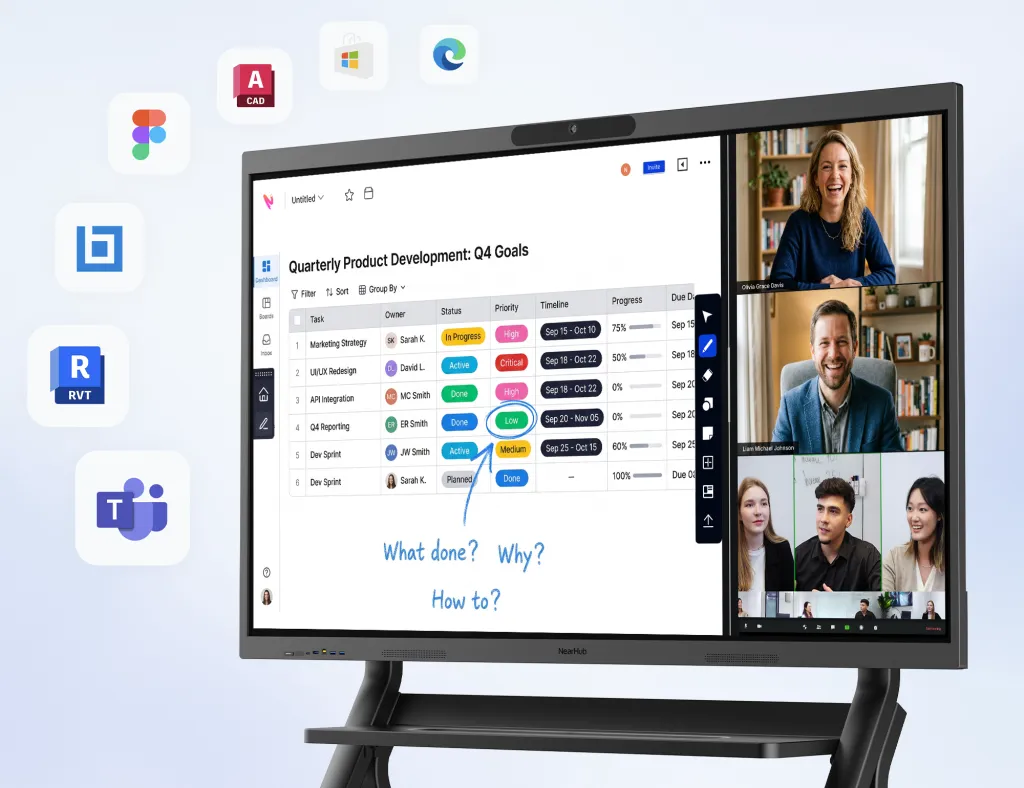
The NearHub Board Max is a 4K interactive smart whiteboard built for hybrid meetings. It combines a large-format touchscreen with built-in video conferencing integration, letting teams present, annotate, and collaborate during Zoom calls. Unlike standard displays that need separate cameras and tablets, the Board Max serves as an all-in-one hub with wireless screen sharing and multi-user touch support.
For executive assistants, HR teams, and IT administrators, hardware that integrates with your scheduling workflow reduces friction. The NearHub Board Max works alongside your existing Zoom setup without extra software.
FAQs
How do I send a Zoom invite to someone without a Zoom account?
You can send a Zoom invite to anyone, even if they do not have a Zoom account. Simply copy the meeting invitation or invite link from the Zoom desktop app, mobile app, or web portal and send it via email, text message, or chat. Recipients click the link to join through their browser without needing to sign up.
Can I send a Zoom invite through Outlook?
Yes. Install the Zoom for Outlook add-in, then schedule a new Zoom meeting directly from your Outlook calendar. When you add attendees to the calendar event, the Zoom join link, meeting ID, and dial-in details are included automatically in the invitation email. You can also copy the invitation from the Zoom app and paste it into an Outlook meeting request manually.
Why are my Zoom invites going to spam folders?
Zoom invites often land in spam because email filters flag automated meeting links. To fix this, ask your attendees to add zoom.us to their safe sender list. You can also send the invite from your own email client instead of through Zoom directly, or follow up with a personal message containing the join link separately from the automated invitation.
How do I invite people to a Zoom meeting that is already in progress?
During an active meeting, click the Participants button in your host toolbar, then click Invite at the bottom of the panel. From there, you can invite by Contacts, Email (using your default email app, Gmail, or Yahoo), or by copying the invite link or full invitation text to paste elsewhere. You can also invite by phone if your account includes audio conferencing.
What is the easiest way to invite multiple people to a scheduled Zoom meeting?
The easiest way is to use calendar integration. When you schedule a Zoom meeting through the desktop app with calendar and contacts integration enabled (Google Calendar, Office 365, or Exchange), simply add attendees to the calendar event. Zoom automatically includes the join link and meeting details in the calendar invitation. Alternatively, copy the full meeting invitation from the Meetings or Calendar tab and paste it into a group email.
Conclusion
Now that you know how to send a Zoom invitation across every major platform, choose one method and test it with your next scheduled meeting. If you primarily use Outlook, install the Zoom add-in and send your first integrated calendar invite this week. If you manage meetings on the go, practice copying and sharing invites from the mobile app. For teams that want a faster, more reliable workflow, enable calendar integration in your Zoom settings so invitations, RSVPs, and reminders sync automatically.
The most productive meeting starts on time with everyone present. Mastering how to invite someone to a Zoom meeting efficiently removes friction from your daily schedule and ensures your calls begin with full attendance, not apologies for missed links.