Best Webcam with Auto Framing in 2026: Top Picks for Video Calls, Teams & Zoom Meetings
This guide compares the best webcams with auto framing for solo professionals, hybrid teams, huddle rooms, active presenters, and secure business travel.
Zoom Webcam
Hybrid Work
Video Conferencing
Updated: May 22, 2026 · 10 minutes read
Global Business, Brought Near.
No Installer, No Hassle, Just Works.
Video meetings are no longer limited to one person sitting still in front of a laptop. In 2026, small businesses, hybrid teams, training rooms, and client-facing professionals need cameras that can adapt as people move, speak, present, or join from different positions in the room.
That is why many teams are now looking for the best webcam with auto framing. Unlike a basic webcam, an auto framing webcam uses AI or intelligent image processing to keep people properly positioned in the frame. For solo users, it can keep the speaker centered. For small meeting rooms, it can help include multiple participants without constant manual adjustment.
This guide compares several strong options for Zoom, Microsoft Teams, Google Meet, training sessions, executive calls, and hybrid meetings. The goal is not to list every webcam available, but to help you quickly understand which model fits your real meeting scenario.
Key Takeaways
Enhanced Engagement: Auto framing uses AI to keep speakers centered and automatically adjust for groups, making remote meetings feel more natural.
Top for Groups: The Nearity V30S is the premier choice for huddle rooms due to its 120° field of view and AI noise suppression.
Top for Executives: The Logitech MX Brio excels in home offices with its high-end build and "Show Mode" for physical document sharing.
Top for Presenters: The OBSBOT Tiny 3 and Insta360 Link 2 Pro use mechanical gimbals to physically track moving speakers.
Security Focused: The Jabra PanaCast 20 offers Edge AI processing, ensuring all tracking data stays on the device for maximum privacy.
4K Advantage: High-resolution 4K sensors are essential for maintaining image clarity when the camera digitally zooms or crops to frame participants.
Why Auto Framing Matters for Video Calls
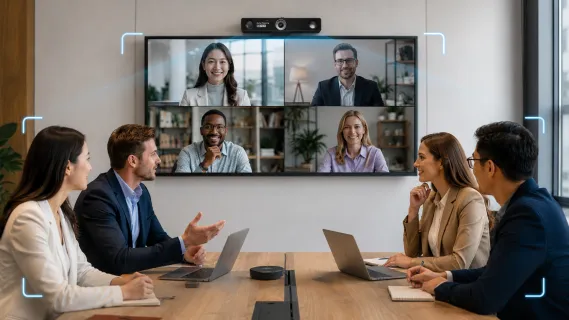
Video calls often look simple on the surface, but real meetings are rarely static. People move in and out of their seats, lean forward to speak, turn to check notes, or shift positions during longer discussions. In a small meeting room, multiple participants may sit at different angles around the table, making it difficult for a standard webcam to keep everyone properly visible.
This is where an auto framing webcam becomes useful. Instead of forcing users to manually adjust the camera before every call, auto framing helps keep the main speaker or meeting participants centered in the frame. For Zoom meetings, Teams meetings, and hybrid meetings, this can make the conversation feel more natural for remote attendees.
Auto framing is especially helpful in four common situations:
Someone moves away from the center of the frame: The camera can adjust the composition so the speaker remains visible.
Multiple people join from one room: The webcam can help include more participants without everyone squeezing into the same spot.
Different people speak during the meeting: Auto framing can make the meeting view feel more responsive and less static.
The camera angle is not perfectly set: In shared offices, huddle rooms, or temporary meeting spaces, auto framing reduces the need for constant repositioning.
For small businesses and hybrid teams, this matters because video quality is not only about resolution. A 4K webcam can still feel awkward if people are cut off, placed too far to one side, or hard to follow during the conversation. The best webcam with auto framing helps create a more balanced meeting view, allowing remote participants to follow facial expressions, body language, and group interaction more clearly.
How We Selected These Auto Framing Webcams
The recommendations below are based on practical business use cases rather than specs alone. We considered:
Suitability for small businesses, IT managers, office managers, and hybrid teams
Some webcams are better for individual workstations. Others make more sense for small meeting rooms, training spaces, or mobile presenters. The right choice depends on how your team actually meets.
Quick Picks: At a Glance
Best for Huddle & Mid-Sized Rooms: Nearity V30S
Best for Executive Home Offices: Logitech MX Brio
Best for Active Presenters: OBSBOT Tiny 3
Best Premium Option for Solo Professionals: Insta360 Link 2 Pro
Best for Secure, Enterprise Travel: Jabra PanaCast 20
Top Picks: The Best Webcams with Auto Framing in 2026
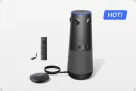
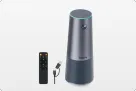
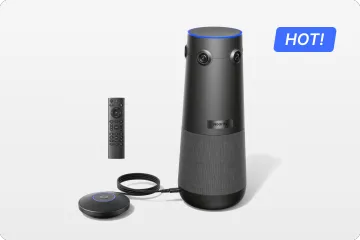
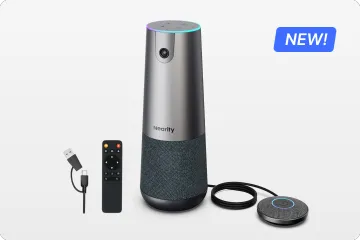
1. Nearity V30S: Best All-in-One for Huddle and Mid-Sized Rooms
The Pain Point: Squeezing a remote team into a huddle room usually means half the participants are cut out of the frame. Combine that with background office chatter, loud HVAC hums, and the hassle of manually turning a camera to point at whoever is speaking, and remote clients quickly lose focus on the presentation.
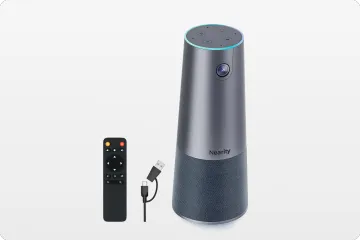
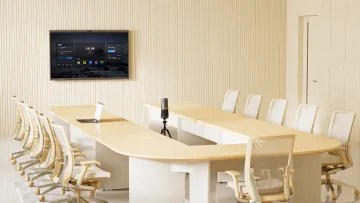
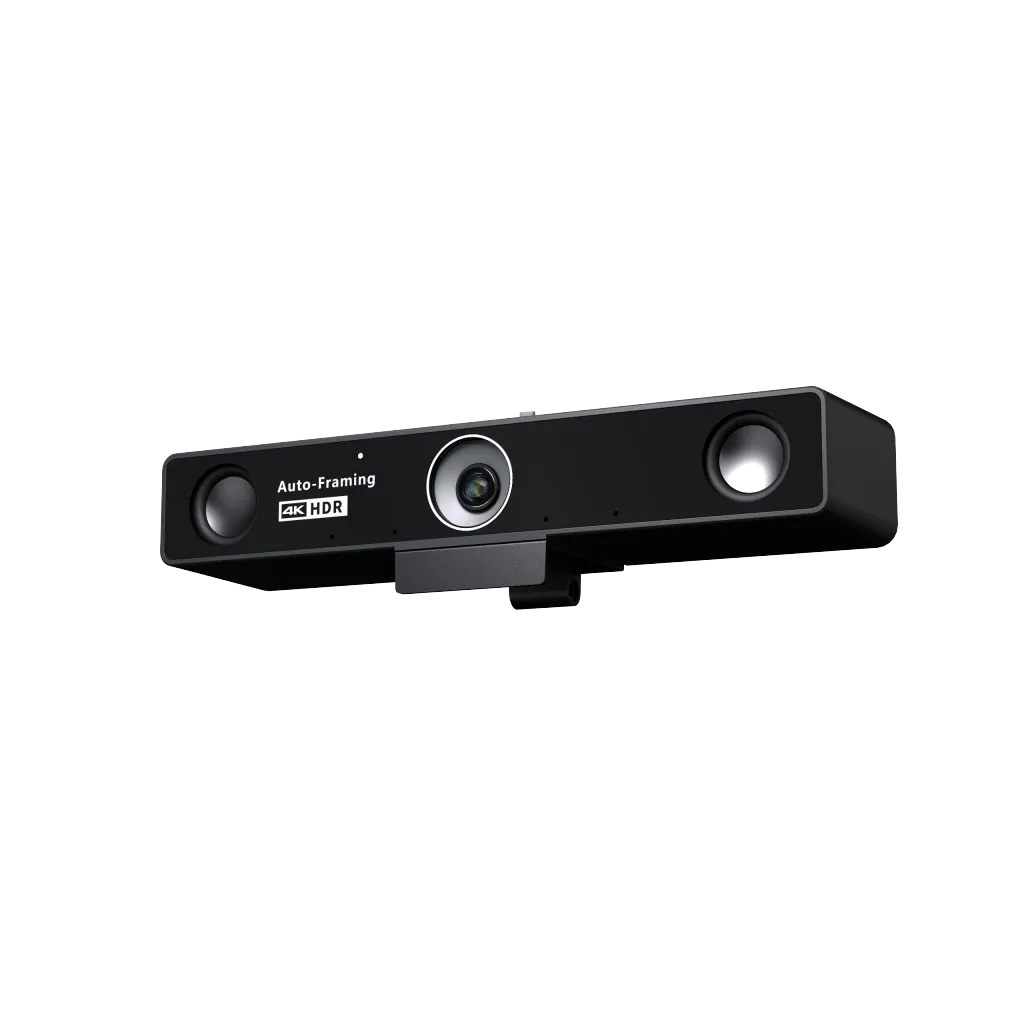
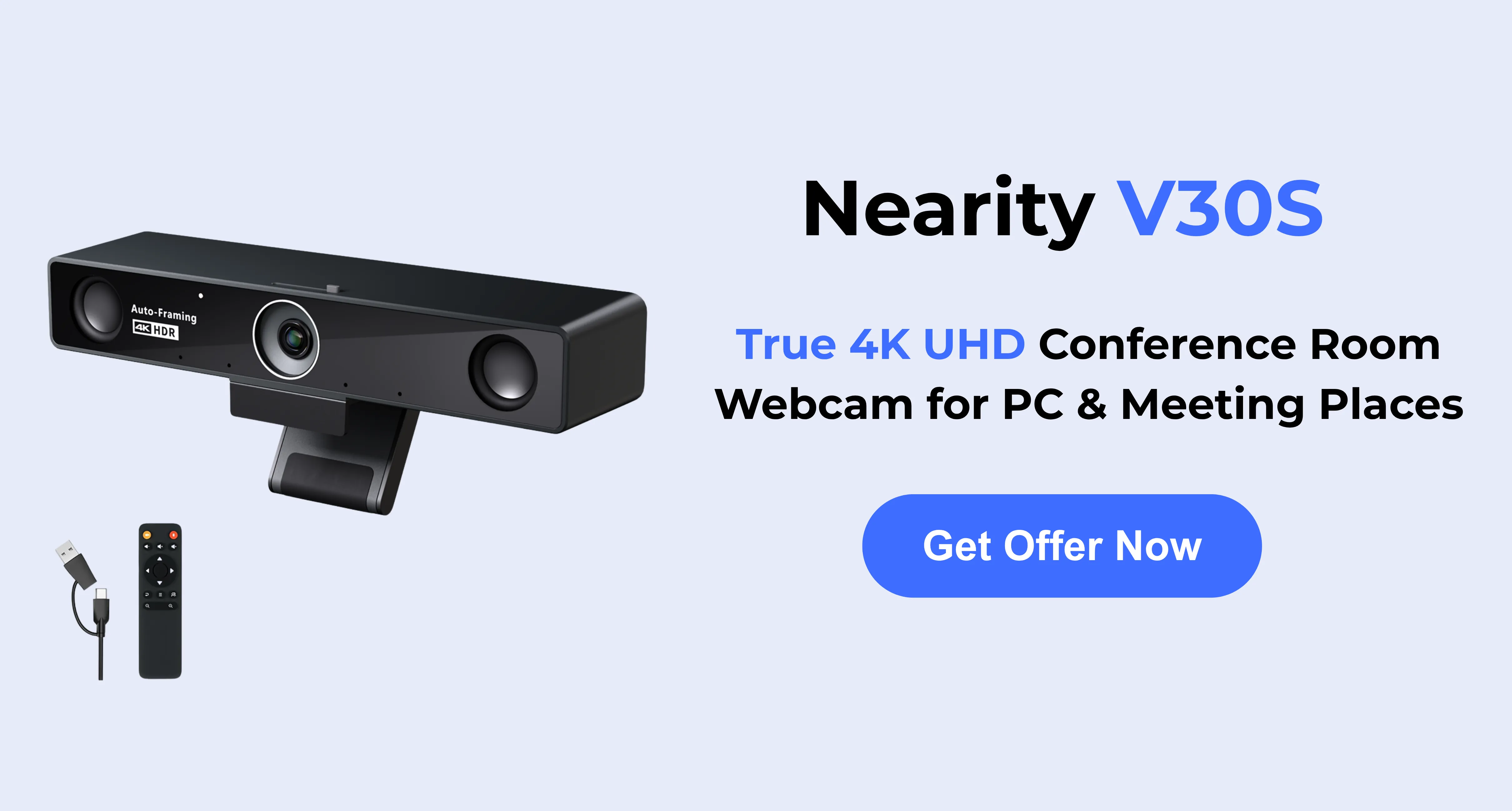
The Solution: The Nearity V30S is purpose-built to solve the chaotic hybrid meeting dilemma. Instead of a narrow personal lens, it utilizes a massive 120-degree distortion-free field of view that easily captures everyone sitting around the conference table. You never have to touch the camera once the meeting starts; the built-in AI seamlessly detects people and smoothly adjusts the frame to center participants as they join the conversation, stand up, or move around the room. Furthermore, to combat poor room acoustics, its ProperClean™ AI noise suppression actively filters out distracting ambient sounds—like street traffic or keyboard typing—capturing crisp dialogue within a 16-foot radius.
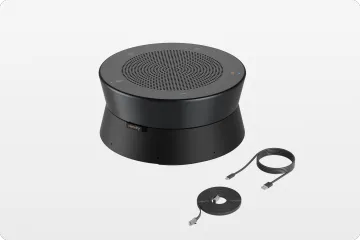
Key Strengths: Expansive 120° FOV, superior AI noise-canceling dual mics, dedicated remote control included, scalable via an external plug-and-play mic expansion for larger rooms.
Possible Limitations: The robust, all-in-one design creates a slightly larger footprint than a standard clip-on personal webcam, making it less ideal for tossing in a laptop bag but perfect for permanent room deployment.
Best For: IT managers, small business owners, and remote team leaders looking for a hassle-free, enterprise-grade webcam for conference room solution for collaborative group meetings.
2. Logitech MX Brio: Best for Executive Home Offices
The Pain Point: Executives working from home often struggle with staying perfectly positioned during long, high-stakes calls. Additionally, sharing physical documents, architectural blueprints, or notebook sketches usually involves awkwardly holding papers up to the lens, looking clumsy and unprofessional.
The Solution: Housed in a premium aluminum chassis, the Logitech MX Brio is tailored for the high-end home office. It utilizes Logitech’s proprietary RightSight auto-framing, meaning as you shift at your desk or adjust your posture, the camera intelligently crops and zooms to keep you gently centered without aggressive, distracting movements. To solve the document-sharing issue, it offers a highly innovative "Show Mode." You simply tilt the physical camera downward, and it automatically flips the image to perfectly display physical documents resting directly on your desk to the rest of the meeting.
Key Strengths: Durable premium build, integrated privacy shutter, innovative Show Mode for physical desk presentations, excellent low-light correction.
Possible Limitations: To unlock its full suite of features and fine-tune the framing, users must install the Logi Options+ software. The auto-framing is optimized strictly for single users rather than groups.
Best For: Solo executives, consultants, and designers who conduct client calls from a dedicated home office and need a sleek way to present physical materials.
3. OBSBOT Tiny 3: Best for Active Presenters and Educators
The Pain Point: Corporate trainers and dynamic presenters are often chained to their desks during virtual meetings. If you stand up to use a physical whiteboard or pace the room to maintain energy, a standard static webcam will instantly leave you out of frame, completely ruining the viewer's experience.
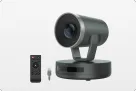
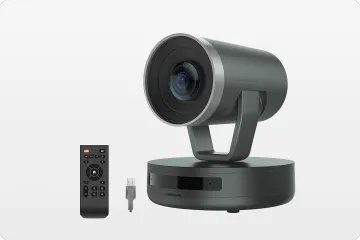
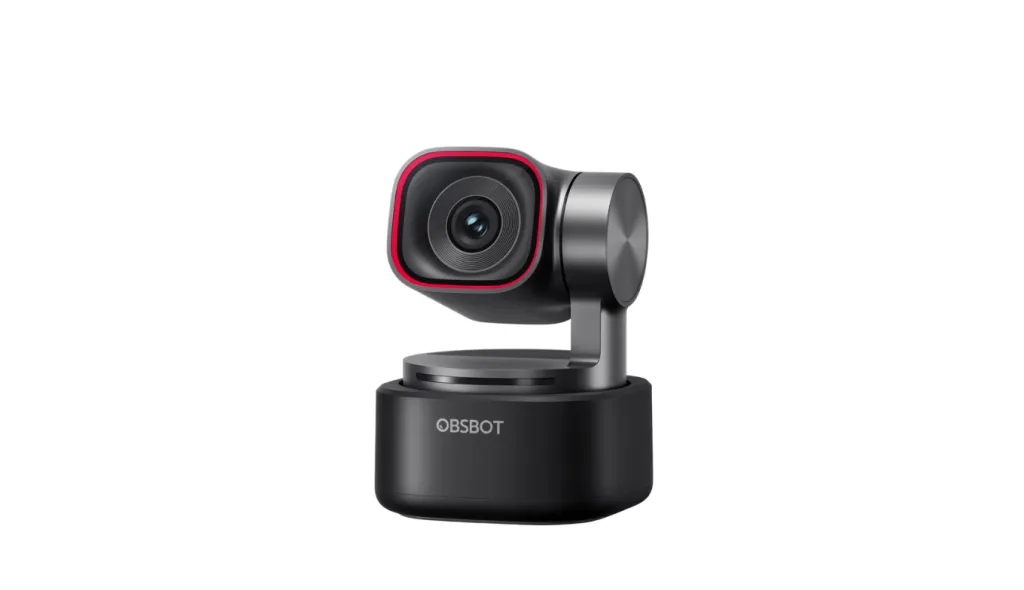
The Solution: The OBSBOT Tiny 3 eliminates the need to stay seated by utilizing a mechanical 2-axis PTZ (Pan-Tilt-Zoom) gimbal. Instead of just digitally zooming in, the physical camera lens silently rotates on its base to physically follow you around the room in real-time. It also solves the issue of constantly running back to your computer to adjust settings: by simply raising your hand, you can command the camera to lock onto your face, zoom in, or zoom out, completely hands-free.
Key Strengths: True mechanical tracking that physically follows the subject, highly responsive gesture and voice controls, ultra-smooth movement.
Possible Limitations: The mechanical gimbal creates a bulkier vertical profile that can sit awkwardly on ultra-thin laptop screens. The moving parts also require careful handling.
Best For: Corporate trainers, educators, and dynamic presenters who need a camera that acts as an automated, robotic personal videographer during active sessions.
4. Insta360 Link 2 Pro: Best Premium Option for Solo Professionals
The Pain Point: Many webcams suffer from "focus hunting"—blurring your face every time you lean in, gesture, or hold a product up to the lens. Furthermore, when remote workers try to write on a whiteboard, remote viewers are usually left squinting at washed-out, illegible scribbles.
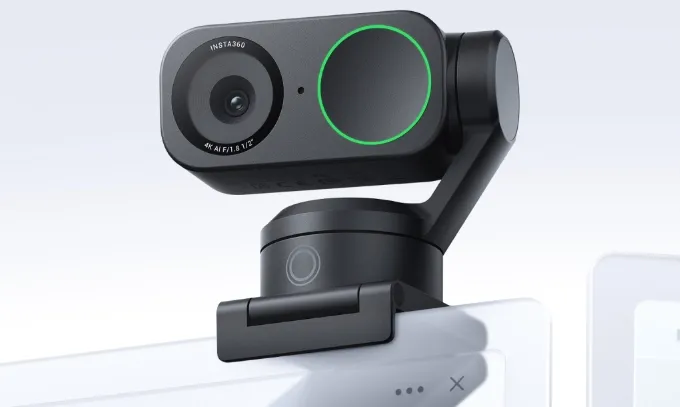
The Solution: The Insta360 Link 2 Pro brings high-end DSLR technology into the corporate space. It utilizes Phase Detection Auto Focus (PDAF), meaning your face remains razor-sharp instantly, regardless of sudden movements. Like the OBSBOT, it sits on a mechanical gimbal to track you perfectly, but in a notably more compact design. It completely eliminates the whiteboard problem with a dedicated AI Whiteboard Mode, which automatically finds your whiteboard, crops the frame, and visually enhances the marker strokes so remote viewers can read everything perfectly.
Possible Limitations: The premium price tag can be prohibitive for bulk corporate deployment. The onboard microphones, while good, are meant for solo setups, not room coverage.
Best For: Content creators, niche professionals, and high-level remote workers who demand flawless focus speeds and top-tier optics.
5. Jabra PanaCast 20: Best for Secure, Enterprise Travel
The Pain Point: Traveling professionals deal with unpredictable lighting and constantly changing hotel room backgrounds. More critically, IT managers worry about the severe security risks of cloud-based AI processing when executives discuss highly sensitive corporate data or legal documents on the road.
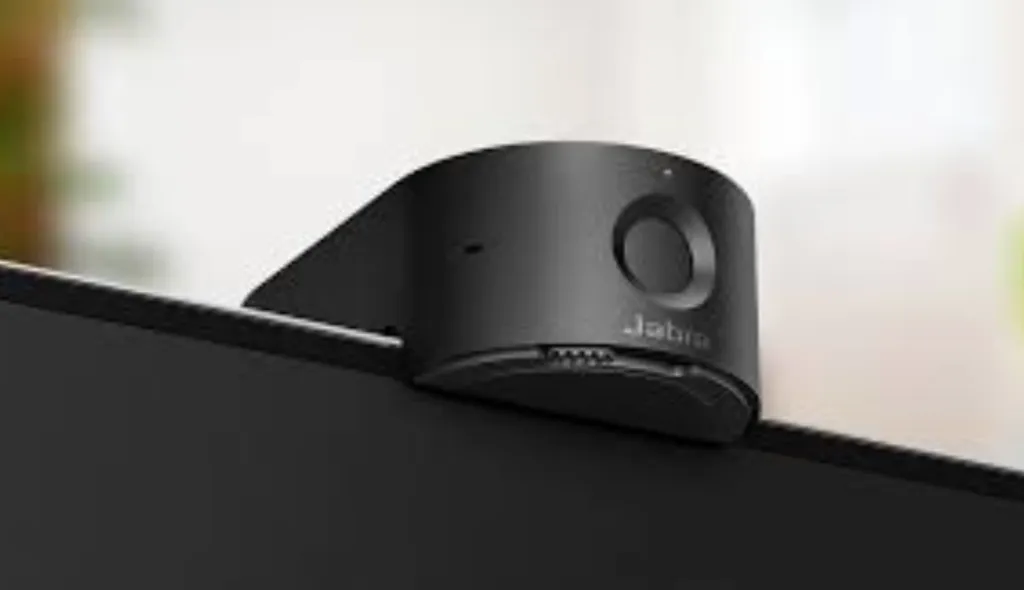
The Solution: The Jabra PanaCast 20 is an ultra-portable, sleek 4K webcam engineered specifically with enterprise security in mind. It solves the security dilemma through Edge AI processing. All intelligent zooming, lighting adjustments, and participant tracking are processed directly on the camera's internal chipset. No biometric data or video feeds are ever sent to a cloud server to process the auto-framing. Paired with its rugged metal design, it easily slides into a briefcase to ensure secure, perfectly lit video from any location.
Key Strengths: Ultra-portable and durable metal design, highly secure Edge AI processing (no cloud data), intelligent zoom.
Possible Limitations: The dense metal chassis acts as a heatsink and can run noticeably warm during extended use. It lacks the wide FOV needed for multi-person use.
Best For: Traveling executives, legal professionals, and IT managers requiring strict compliance and data security for their fleet of remote workers.
Feature Comparison Table
Webcam Model
Best Use Case
Resolution / FOV
Auto-Framing Type
Built-in Audio Quality
Nearity V30S
Meeting Rooms & Hybrid Teams
4K / 120°
AI Digital Framing
Excellent (Dual MEMS, AI Noise reduction)
Logitech MX Brio
Executive Home Office
4K / 90°
RightSight (Digital)
Good (Dual Beamforming)
OBSBOT Tiny 3
Active Presentations
4K / 82.4°
Mechanical PTZ Tracking
Good (Omnidirectional)
Insta360 Link 2 Pro
Premium Solo Tracking
4K / 83.9°
Mechanical Gimbal
Moderate
Jabra PanaCast 20
Secure Travel
4K / 90°
Edge AI Intelligent Zoom
Moderate
Auto Framing Webcam vs Standard Webcam
Understanding the fundamental differences between a traditional webcam and a modern AI-powered auto framing device is essential for determining your upgrade path. While standard webcams have improved in resolution, they remain "dumb" hardware that requires manual intervention. In contrast, auto framing webcams act as an intelligent producer for your video calls.
Feature
Standard Webcam
Auto Framing Webcam (AI-Powered)
User Positioning
Fixed. If you move, you go out of frame.
Dynamic. Follows you or crops the image to keep you centered.
Group Meetings
Wide-angle only. People at the edges look distant.
Intelligent. Zooms in to focus on the active speakers.
Manual Adjustments
Required. You must physically tilt/turn the camera.
None. Handled automatically by onboard AI.
Professionalism
Static and often poorly composed.
Cinematic. Feels like a professionally directed broadcast.
Meeting Equity
Remote users feel like "flies on the wall."
Remote users feel "at the table" with focused views.
Summary: Selecting the Best Solution for Your Workflow
Choosing an auto-framing webcam in 2026 depends on your specific professional environment. Here is a quick breakdown to help you decide:
For Hybrid Teams & Huddle Rooms: The Nearity V30S is the gold standard for group collaboration. It eliminates "cut-off" participants with its 120° ultra-wide FOV and solves room audio issues with integrated AI noise suppression.
For Executive Solo Offices: The Logitech MX Brio offers the most polished single-user experience, featuring a premium build and a unique "Show Mode" for desk-based presentations.
For Active Presenters: If you stand or move frequently, the OBSBOT Tiny 3 or Insta360 Link 2 Pro provide superior mechanical tracking and gesture controls to keep you in focus without touching a mouse.
For High-Security Travel: The Jabra PanaCast 20 is the best choice for traveling professionals who need enterprise-grade security and Edge AI processing that stays on the device.
Conclusion
Upgrading to the best webcam with auto framing is one of the highest-ROI investments a modern professional or business can make. It immediately elevates meeting equity, ensuring that whether you are dialing in from a bustling small business office, a quiet home study, or a hotel room, your presence is commanding, clear, and professional.
By matching the right hardware to your specific hybrid scenario—whether leaning into the expansive room coverage and superior audio of the Nearity V30S or opting for the agile tracking of a dedicated PTZ camera—you pave the way for smoother, more impactful digital collaboration in 2026 and beyond.
FAQs
How does AI auto-framing actually work?
AI auto-framing uses facial recognition and body-tracking algorithms to detect participants in the camera's view. Depending on the model, it either digitally crops the 4K sensor image (like the Nearity V30S) or physically moves the camera lens using a gimbal (like the OBSBOT Tiny 3) to keep you centered as you move.
Do I need a 4K webcam if my meeting software only supports 1080p?
Absolutely. Even if Zoom caps your stream at 1080p, a 4K sensor provides the "extra room" needed for digital auto-framing. When the camera zooms in to frame your face, it can do so without losing detail, resulting in a much sharper image than a standard 1080p camera could provide.
Can auto-framing be turned off?
Yes. Most cameras include a physical remote, a toggle in their companion software, or a physical gesture that allows you to lock the frame if you prefer a static shot for a specific meeting.
Does auto-framing pose a privacy risk?
This is a common concern. However, most professional auto-framing cameras use Edge AI. This means all the image analysis happens locally on the camera's internal processor; your video data is not sent to a cloud server to calculate the framing. To ensure maximum privacy, look for webcams with a physical privacy shutter or a "sleep mode" where the camera lens physically tilts away or hides when not in use.