- View products

Windows OS (2nd Gen)
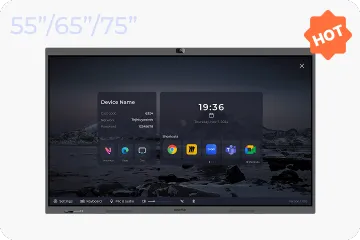
NearHub Board Max
Windows OS
NearHub Board S Pro
For Huddle Rooms
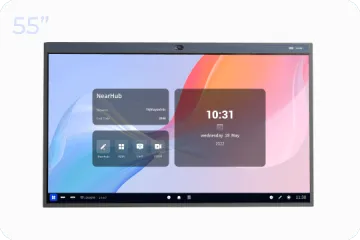
NearHub Board S55
For Medium Rooms
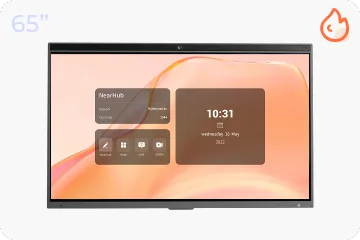
NearHub Board S65
For Large Rooms
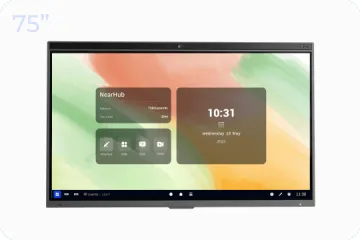
NearHub Board S75
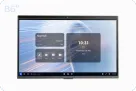
For Broad Rooms
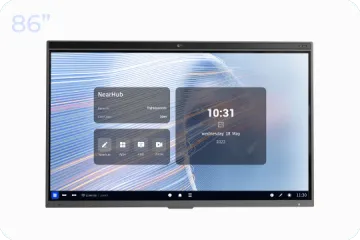
NearHub Board S86
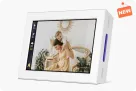
Smart Digital Photo Frame with Air Quality Monitor
NearHub Frames 10
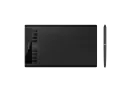
USB Drawing Tablet
NearHub MaigcPad ST1160
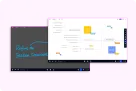
Real-time Online Whiteboard
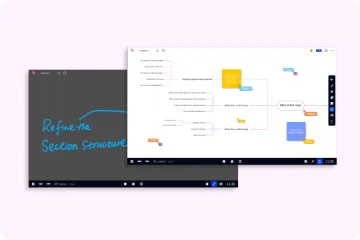
NearHub Canvas
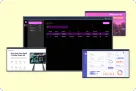
Digital Signage and Batch Management
NearRooms
- View products

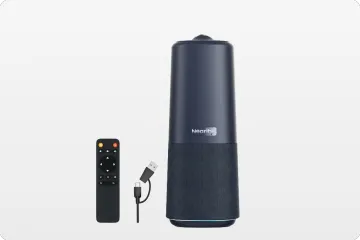
True 4K 360° All-in-1 Camera for Hybrid Meetings
Nearity 360 Alien

True 4K 120° All-in-1 Camera for Team Collaboration
Nearity 120 Max

Professional Audio&Pioneering Daisy-Chain
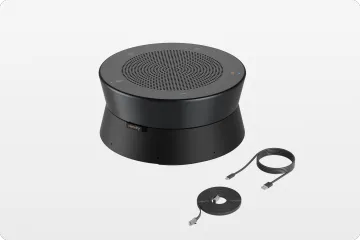
Nearity A20S
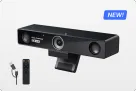
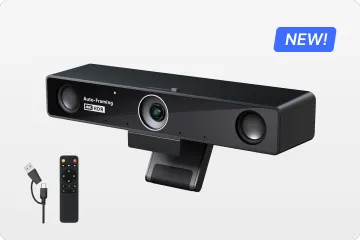
4K UHD 120° Webcam for Hybrid Meeting
Nearity V30S
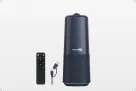
360° All-in-one Camera for Pro Group Chat
Nearity 360 Basic
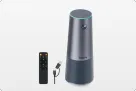
All-in-one Camera for Group Meeting
Nearity C45
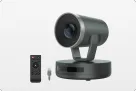
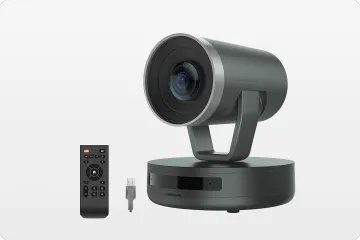
Powerful PTZ Camera with 10x Hybrid Zoom
Nearity V410
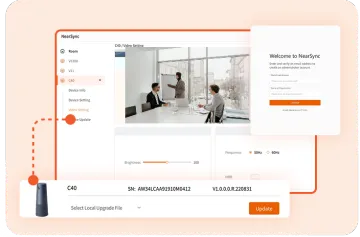
Firmware Updater and Device Controller
NearSync
- View products
- Meeting Room
- Meeting Scenario
- Whiteboard
If you’re not sure how to install the stand, here is the installation introduction for you.
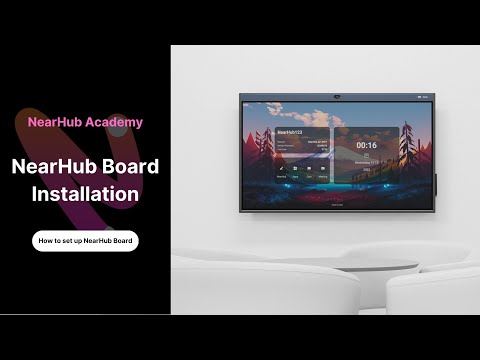
Video Guidance: NearHub Board Installation:
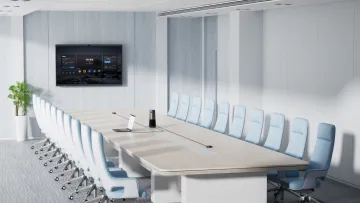
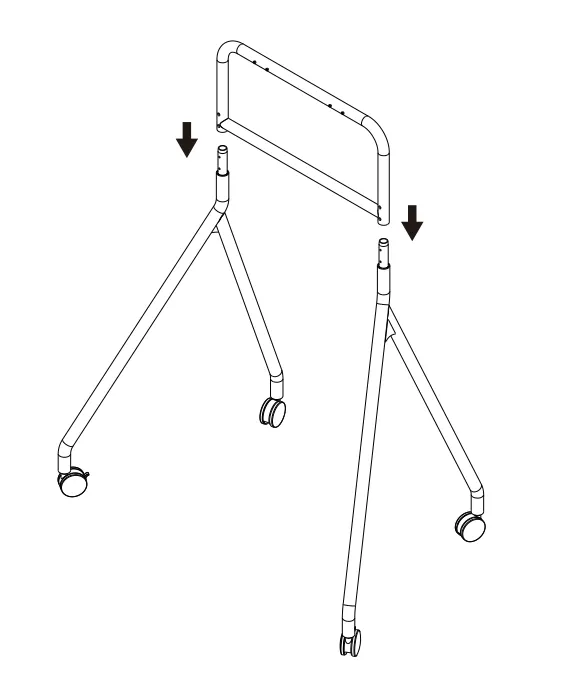
① Have two people hold each leg racks and slip in the upper rack on top.
Note:
- Ensure the screw clearance holes face the front.
- There are two (2) screw holes on the left leg rack and three (3) on the right.
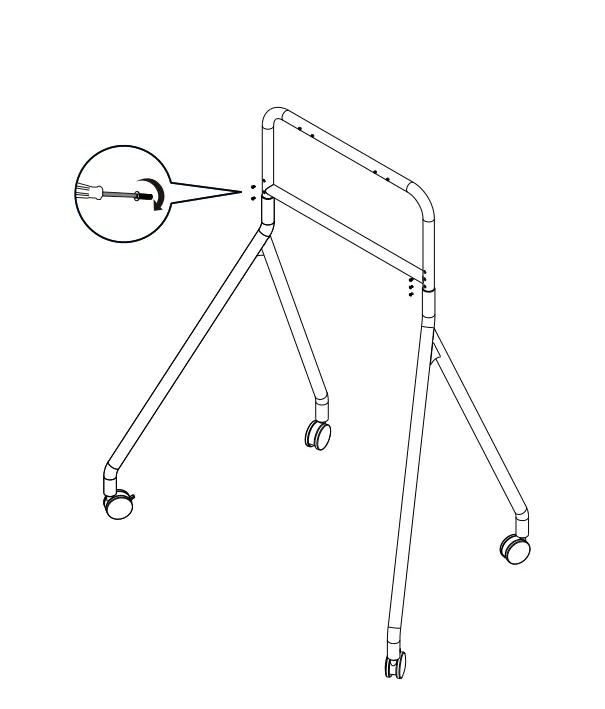
② Rotate the left and the right leg racks until the screw holes are fully visible. Do not fully tighten the screws until all screws are moderately tightened.
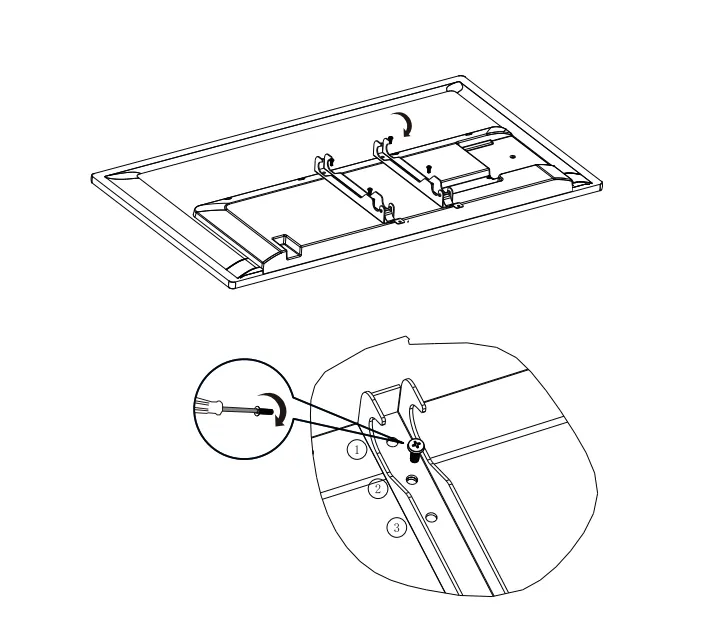
③ Lay the screen on a floor cushion, and attach the wall-mount bracket to the machine.
Note:
- Tighten the upper screw and then the lower screw.
- There are adapter holes for the wall-mount bracket to adjust the height of the screen. It is recommended to use the second hole for a 55-inch screen and the first hole for a 65-inch screen.
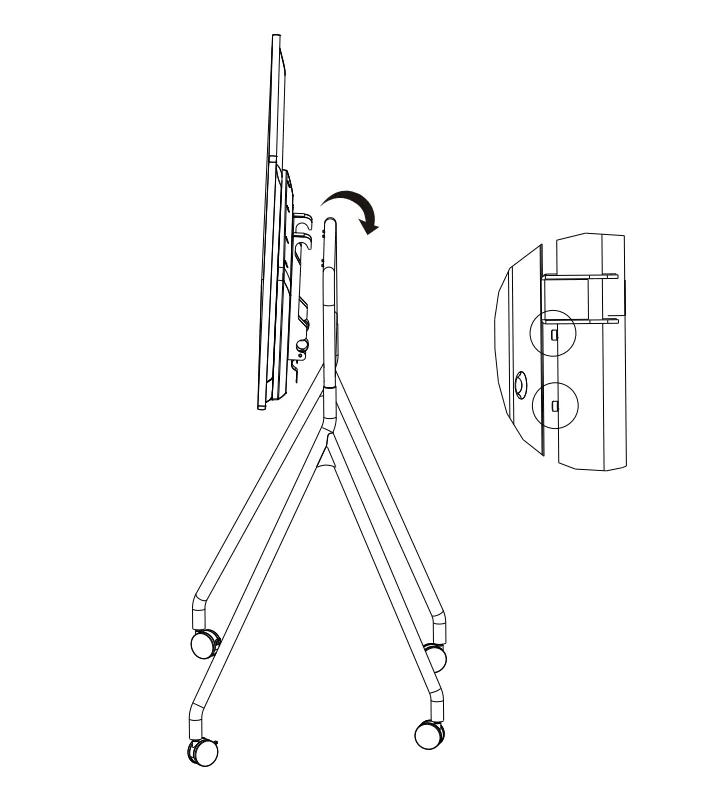
④ Mount the screen to the middle of the stand.
Note:
- The screen must be mounted onto the front side of the stand, i.e, the side where there are screws on top.
- The screws on top of the stand can serve as a placement marker. Observing from both sides: Two (2) screws are visible for a 55-inch screen, and one (1) screw is visible for a 65-inch screen.
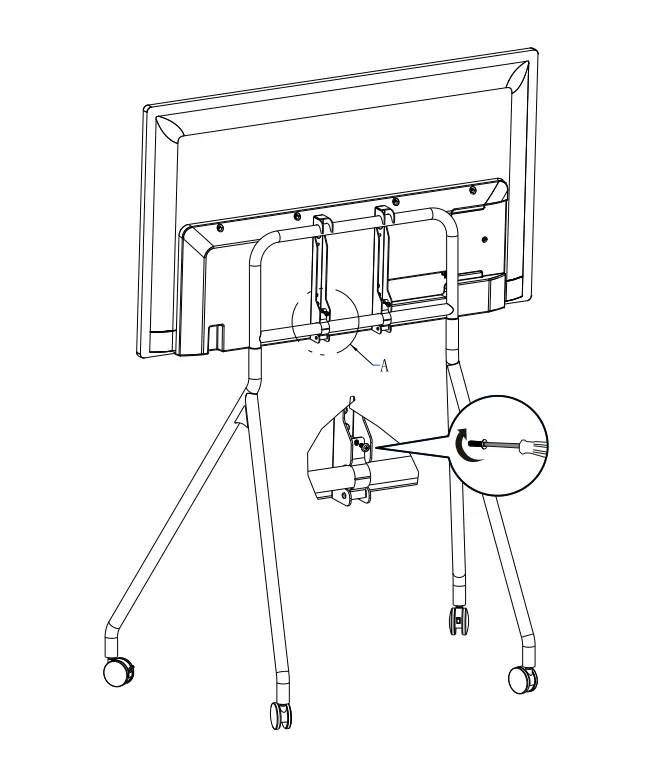
⑤ Rotate the hook at the bottom of the wall-mount bracket in a clockwise decision, and fully tighten the screws.
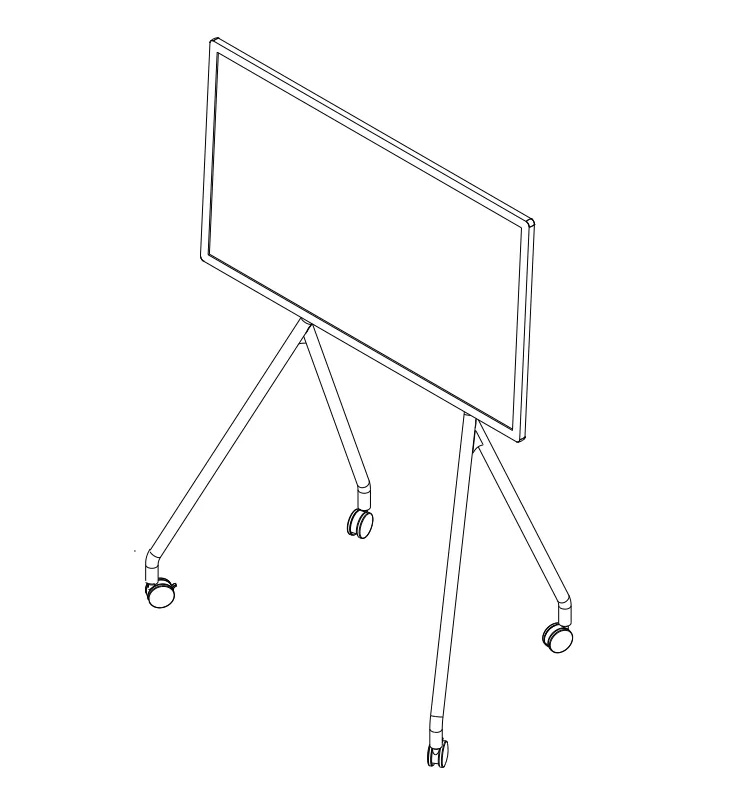
⑥ Complete installation.
Note:
Please inspect and tighten all screws regularly if the machine is frequently moved.
If you meet any problems in the process or have any further questions, please submit a support ticket here. Our support team will respond as soon as possible.