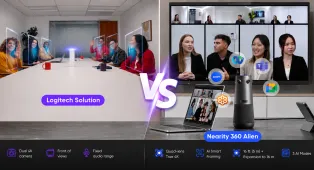
In today’s business landscape, the hybrid work model is no longer a temporary perk—it is an established operational standard. Whether you are pitching to a high-value client, conducting a cross-functional department sync, or hosting an all-hands training session, the quality of your virtual meetings directly reflects your brand’s professionalism.
Yet, we have all experienced the friction of modern virtual collaboration: the dreaded "Can everyone hear me?", awkward camera angles, distracting background noise, and the feeling of isolation experienced by remote participants looking into a cavernous, poorly-lit physical boardroom.
To help your organization eliminate these friction points, we have compiled the ultimate list of video conferencing tips and best practices. These practical strategies will help business owners, office managers, and IT decision-makers elevate meeting engagement, ensure crystal-clear communication, and select the right technology to bridge the gap between physical and digital workspaces.
Part 1: Perfecting Your Personal Video and Lighting Setup

Before diving into complex meeting room logistics, let’s start with individual setups. Whether your team is working from home or in private office pods, how they present themselves on camera sets the tone for the entire meeting.
Optimize Your Lighting (Face the Light)
The golden rule of video conferencing is to always have your primary light source in front of you, not behind you. Backlighting turns you into a mysterious silhouette, making it difficult for others to read your facial expressions and establish a personal connection.
- Actionable tip: Position your desk facing a window. If natural light isn’t an option, invest in a cost-effective LED ring light or desktop key light positioned slightly above eye level behind your monitor.
Elevate Your Camera to Eye Level
Looking down into a laptop camera creates an unflattering angle and forces you to look down at your colleagues, which can subconsciously feel disengaging or dominant.
- Actionable tip: Raise your laptop or external webcam using a laptop stand, a stack of books, or an adjustable monitor arm. Your camera should align directly with your hairline or eyes to mimic natural, face-to-face eye contact.
Choose a Professional, Clutter-Free Background
A messy background is a major distraction. It shifts the focus away from your presentation and onto your personal environment.
- Actionable tip: If you cannot guarantee a clean, professional physical background, utilize high-quality virtual background features or a subtle background blur. Avoid overly flashy or distracting animated backgrounds unless they directly align with a casual team-building theme.
Part 2: Prioritizing Audio Quality (The Silent Killer of Productivity)
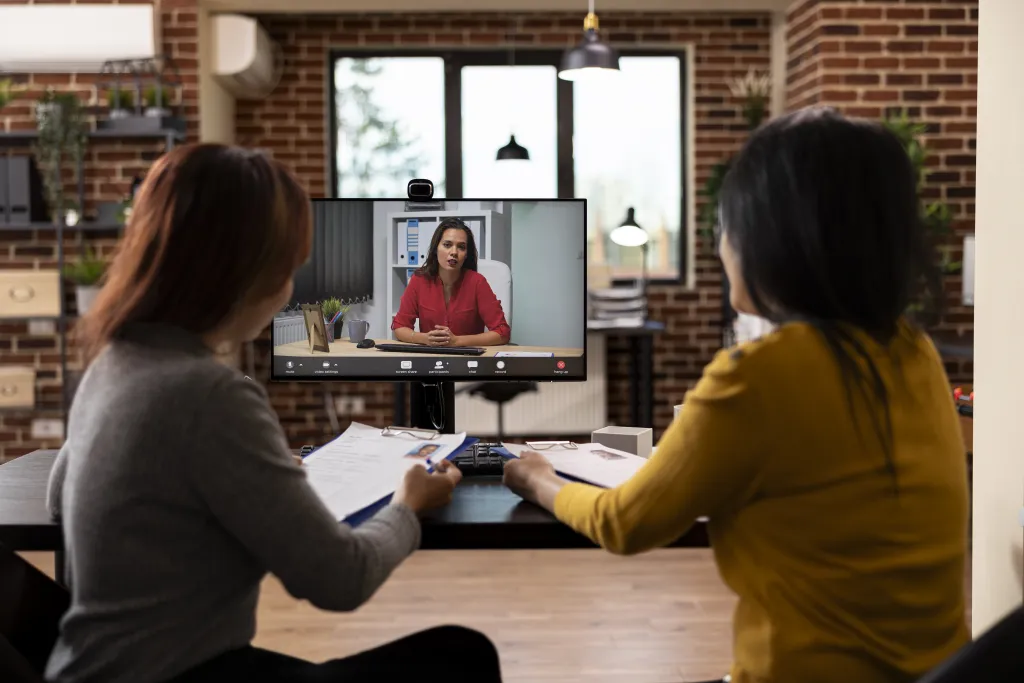
While poor video is annoying, bad audio can completely ruin a meeting. If participants cannot hear you clearly—or if they are constantly bombarded by echo and background noise—cognitive fatigue sets in, and decision-making stalls. Apply these essential tips for video conferencing audio management:
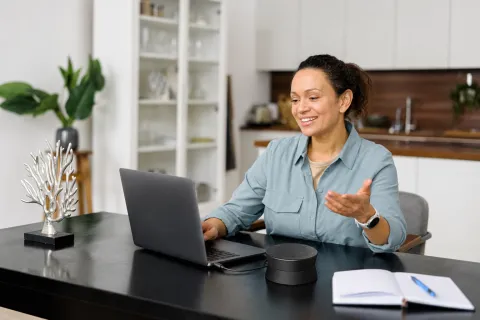
Invest in a Dedicated External Microphone
Built-in laptop microphones are notorious for picking up internal fan noise, keyboard clicks, and room reflections. They make you sound distant, like you are speaking from inside a hallway.
Master the "Mute Discipline"
Ambient sounds—such as dogs barking, sirens, air conditioning units, or aggressive typing—quickly accumulate when multiple participants leave their microphones unmuted.
- Actionable tip: Establish a firm meeting culture of remaining on mute when not actively speaking. Teach your team keyboard shortcuts (like holding the Spacebar to temporarily unmute on Zoom and Teams) to make transitions seamless.
Minimize Room Echo and Reverb
Hard surfaces like hardwood floors, glass walls, and bare drywall reflect sound waves, creating a hollow echo that degrades audio clarity.
- Actionable tip: If working from a home office or small huddle space, introduce soft materials to absorb sound. Rugs, heavy curtains, bookshelves, and acoustic wall panels can dramatically improve audio quality without requiring expensive structural changes.
Part 3: Meeting Etiquette and Engagement Best Practices
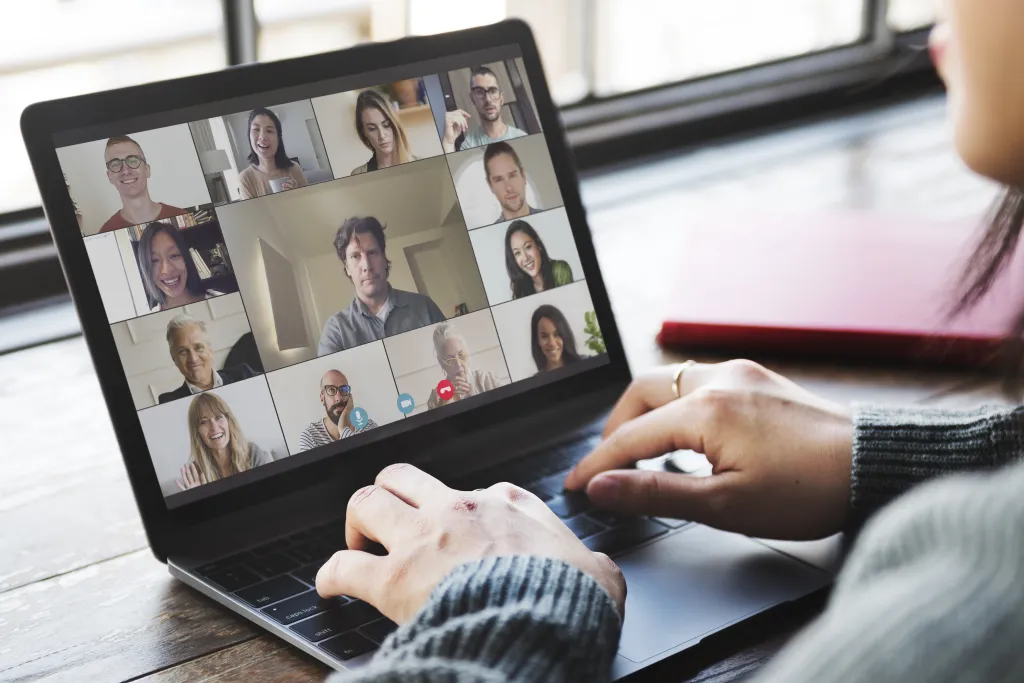
Even with perfect hardware, a meeting can fail if the human element is ignored. Keeping hybrid teams engaged requires deliberate facilitation and structured etiquette.
Look at the Camera, Not the Screen
When you are speaking, it is natural to look at the faces of your colleagues on your screen. However, to those on the receiving end, it looks like you are looking down or away.
- Actionable tip: To simulate true eye contact, look directly at your webcam when delivering key points. Drag your video conferencing window as close to the top of your screen (near the camera) as possible to minimize the gap between looking at the screen and looking at the lens.
Establish a Clear Agenda in Advance
Nothing kills engagement faster than a meeting that could have been an email. Sending a brief, structured agenda at least 24 hours in advance prepares participants and keeps the discussion on track.
- Actionable tip: Allocate specific time slots to agenda items and designate a timekeeper. If a tangent arises, politely table it for a follow-up discussion to respect everyone's calendar.
Use Interactive Facilitation Techniques
In hybrid environments, remote workers often feel left out of conversations happening in the physical office.
- Actionable tip: Meeting hosts should actively pull remote attendees into the conversation. Instead of asking a general "Does anyone have questions?", try targeted prompts like, "Let's hear from Sarah on the remote team first, and then we'll jump to the conference room." Use built-in platform features like polls, digital whiteboards, and chat sidebars to keep everyone involved.
Part 4: Solving the Hybrid Room Equity Problem with Modern Tech
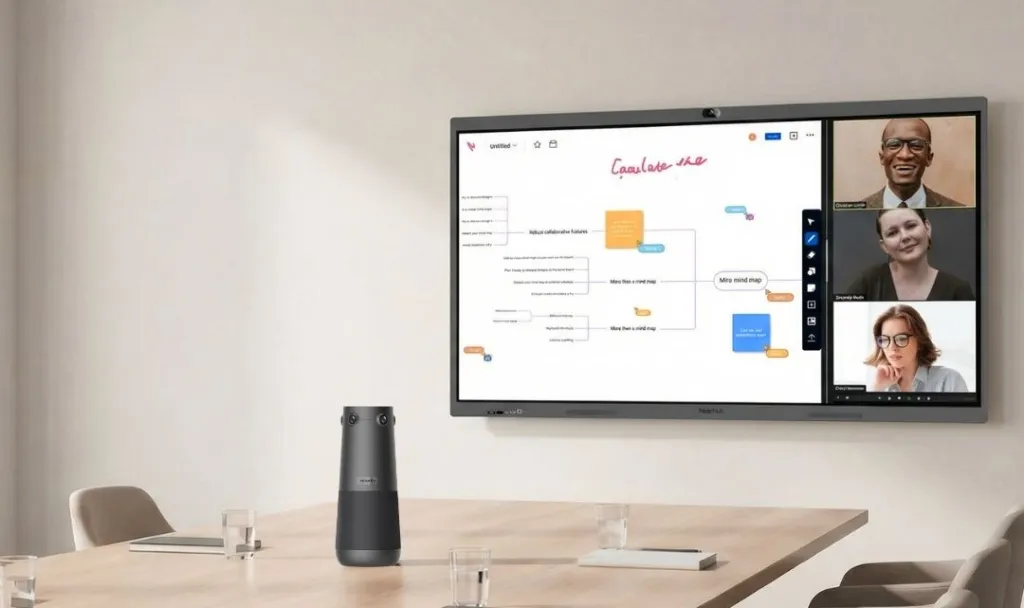
As organizations transition to permanent hybrid models, a new challenge has emerged: Meeting Equity.
In traditional conference rooms, a single camera sits at the far end of a long table. Remote participants view the room through a "bowling alley" perspective, struggling to see who is speaking or read body language. Meanwhile, those in the room often forget about the remote attendees altogether.
To bridge this gap, businesses must upgrade their physical meeting spaces with intelligent, inclusive technology. This is where high-quality hardware makes a massive difference.
Upgrade to a 360-Degree Camera Solution
Instead of forcing everyone to crowd around one end of a table to be seen on camera, center-of-table cameras capture everyone equally.
For mid-to-large conference rooms, implementing a dedicated device like the Nearity 360 Alien completely changes the dynamic. This premium True 4K conference camera sits comfortably in the center of your meeting table, capturing a complete 360-degree view of the room.
- Equal Visibility: Remote workers no longer feel like passive observers looking through a window. Instead, they get an immersive, high-definition view of every person in the room.
- Smart Tracking: The device utilizes advanced AI-powered speaker tracking to automatically zoom in on and frame the active speaker, preserving crucial non-verbal cues and facial expressions.

Implement Advanced Noise-Cancellation and Audio Pickup
In a physical conference room, side conversations, paper rustling, and HVAC hums are common. If your microphone setup isn't designed to filter these out, the remote audience will suffer.
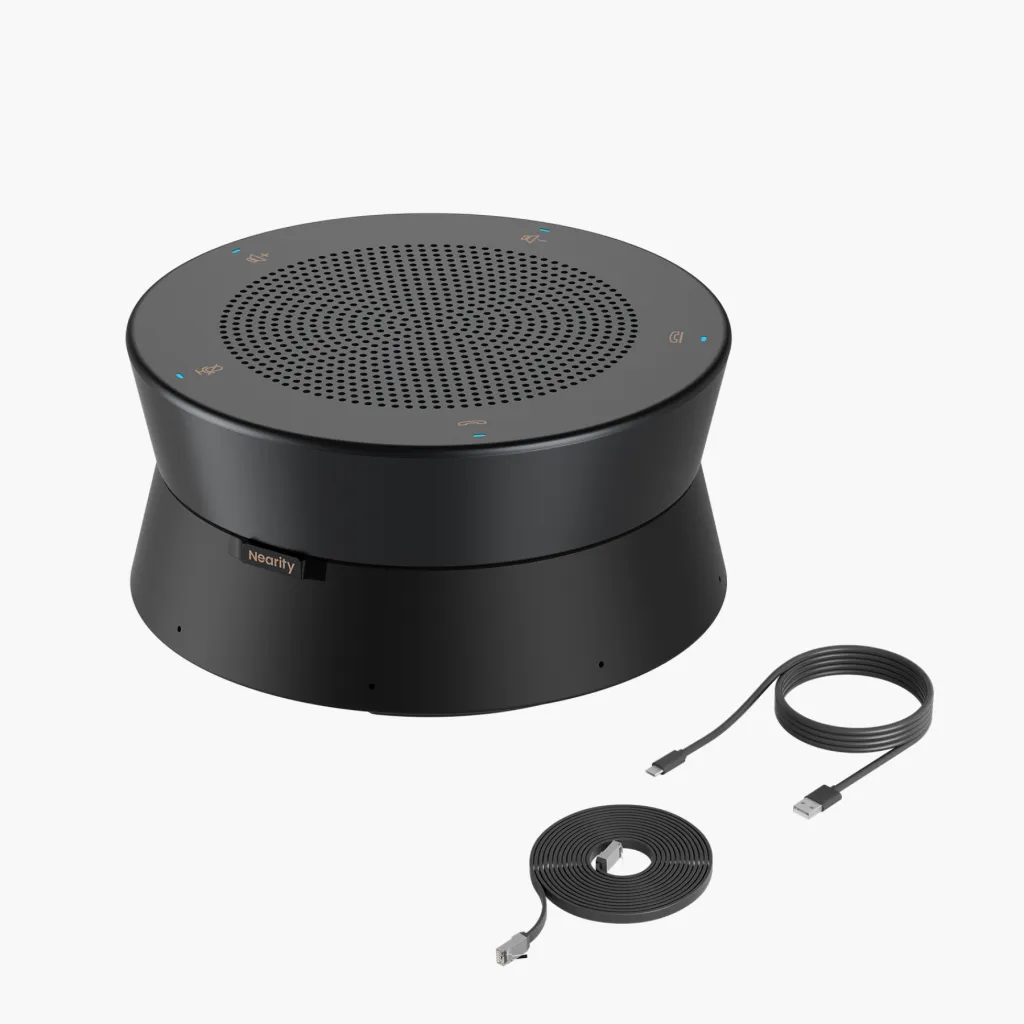
- Actionable tip: Look for solutions that feature integrated array microphones with AI noise suppression. The Nearity 360 Alien features a built-in 8-microphone array that can pick up clear audio from several feet away while using deep-learning noise reduction algorithms to block out distracting background hums. This ensures that every voice in the room is heard clearly, without the need for multiple clunky wires running across the table.
Part 5: Managing Network and Software Settings
Even the best video conferencing tips and state-of-the-art equipment won't save you if your internet connection drops or your software freezes. Use these technical checkpoints to keep your meetings running smoothly:
Protect Your Bandwidth
Video streams consume significant upload and download bandwidth. If your network is congested, you’ll experience pixelation, lagging, and dropped calls.
- Actionable tip: If you are presenting or hosting an important call from home, ask family members or roommates to pause high-bandwidth activities like 4K streaming or online gaming. In the office, ensure your IT department has configured Quality of Service (QoS) settings on your router to prioritize video conferencing traffic.
Hardwire When Possible
While modern Wi-Fi is incredibly convenient, it is inherently prone to signal interference, packet loss, and latency spikes caused by physical barriers and other wireless devices.
- Actionable tip: For mission-critical meetings, connect your computer directly to your router using an Ethernet cable. A wired connection guarantees maximum stability and lower latency.
Keep Your Software and Drivers Updated
Video conferencing platforms like Zoom, Microsoft Teams, and Google Meet constantly roll out updates that patch security vulnerabilities, optimize system resources, and introduce new features.
- Actionable tip: Set your video apps to update automatically, or make it a habit to check for updates every Monday morning. Additionally, ensure your external hardware—such as your camera and microphone firmware—is kept up to date for maximum compatibility.
Do a "dry run" 10 Minutes Before
The worst time to realize your camera driver needs a reboot or your headset battery is dead is exactly when the meeting starts.
- Actionable tip: Log on to your meeting platform 5 to 10 minutes early. Use the "Test Audio and Video" feature to preview your camera framing, check your microphone levels, and confirm that your speakers are routing output to the correct device.
Elevating Your Organizations Hybrid Meeting Strategy
Implementing these video conferencing tips does not require a massive IT budget or hours of technical training. By making minor adjustments to lighting, focusing on robust etiquette, maintaining clear audio, and ensuring your physical conference rooms are equipped with inclusive technology like the Nearity 360 Alien, you can design a seamless, professional meeting experience that drives productivity and strengthens team collaboration.
Take a look at your team's current meeting dynamics. Identify just two or three areas of improvement from this guide to focus on this week—whether it’s elevating laptop cameras or upgrading your shared conference room tech—and watch your hybrid meeting culture transform.
FAQs
What are the single most important tips for video conferencing success?
The most critical factor is ensuring clear, uninterrupted communication. This means prioritizing reliable, noise-free audio above all else. Always use a dedicated external microphone or headset, practice muting yourself when not speaking, and look directly at your webcam (rather than your screen) to maintain a professional, personal connection with your audience.
Why is "meeting equity" so important for hybrid teams?
Meeting equity ensures that remote and in-office participants can collaborate on equal terms. In traditional setups, remote workers often feel left out because they cannot see facial expressions or hear conversations clearly. Implementing modern center-of-table technology, like the Nearity 360 Alien, bridges this divide by giving remote participants a clear, 360-degree, eye-level view of everyone in the conference room.
How do I stop my audio from echoing during virtual meetings?
Echo occurs when your microphone picks up sound from your computer's speakers. To prevent this, either wear headphones, lower your speaker volume, or transition your team to hardware that features built-in acoustic echo cancellation and AI-driven deep-noise suppression.
Is a 360° camera useful for video conferencing?
Yes. A 360° camera is useful when multiple people sit around a table or speak from different positions in the room. It helps remote participants follow the conversation and see more attendees clearly.