
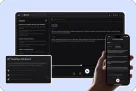



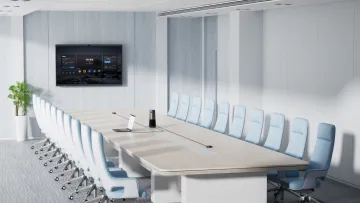
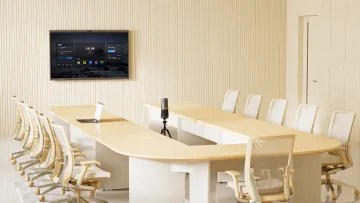
Setting up a Zoom conference is simple when you only need to invite a few people to an online meeting. But setting up a reliable Zoom conference room is different.
A good Zoom setup needs more than a meeting link. It needs the right camera angle, clear microphone pickup, stable speakers, simple screen sharing, secure meeting settings, and a room layout that helps remote participants feel included.
This guide walks you through both parts: how to schedule a Zoom meeting and how to build a Zoom conference room setup that works for real hybrid meetings.
Key Takeaways
- Learn how to schedule, secure, invite, and test a Zoom meeting before the call starts.
- Understand the difference between a basic Zoom meeting setup and a full Zoom room setup.
- Choose the right display, camera, microphone, speaker, and network setup for your meeting room.
- Match your Zoom setup to different spaces, including huddle rooms, medium rooms, roundtable rooms, and U-shaped rooms.
- Fix common Zoom room problems such as poor audio, camera framing issues, echo, and screen sharing errors.
Quick Answer: How to Set Up a Zoom Conference
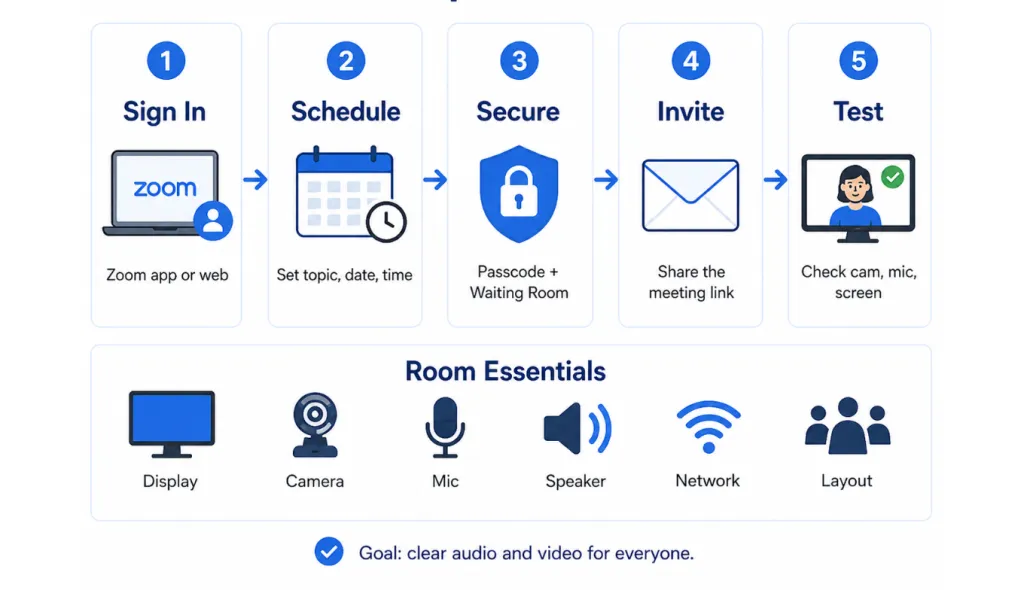
To set up a Zoom conference, sign in to Zoom, schedule a meeting, add security settings, invite attendees, and test your audio, video, and screen sharing before the call.
For a conference room setup, you also need to prepare the right hardware, including a display, camera, microphone, speaker, stable network, and a room layout that allows remote participants to see and hear everyone clearly.
Step 1: Sign In to Zoom
Sign in through the Zoom Workplace app or Zoom web portal. Before scheduling, make sure your app is updated, your time zone is correct, and your camera, microphone, and speaker are recognized by Zoom.
Step 2: Schedule the Meeting
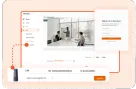
Click Schedule, add the meeting topic, date, time, duration, invitees, and meeting options such as video, audio, Waiting Room, and passcode. Then save the meeting and share the invitation.
Use a clear meeting name, such as “Client Onboarding Call” or “Weekly Product Sync,” instead of a generic “Zoom Meeting.”
Step 3: Set Security Controls
Enable a passcode and Waiting Room, mute participants upon entry for larger meetings, and limit screen sharing when needed. For external meetings, use a generated meeting ID instead of your Personal Meeting ID.
Step 4: Invite Attendees
Share the Zoom link through calendar, email, or team chat. Before sending, check the time zone, meeting link, agenda, and attendee list.
Step 5: Test Before the Call
Test your camera, microphone, speaker, screen sharing, internet connection, lighting, and display before the meeting starts. For conference rooms, ask a remote participant to confirm whether they can clearly see and hear everyone in the room.
Zoom Meeting Setup vs. Zoom Room Setup: What’s the Difference?
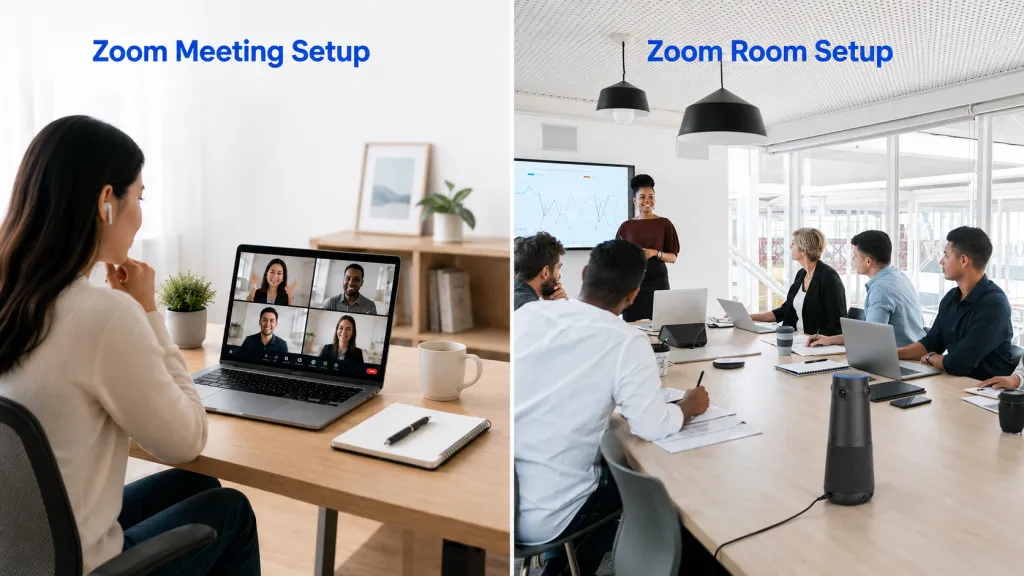
Many people use “Zoom meeting setup” and “Zoom room setup” as if they mean the same thing, but they are different.
A Zoom meeting setup usually means creating and managing an online meeting. It includes scheduling the meeting, inviting participants, enabling security settings, and starting the call.
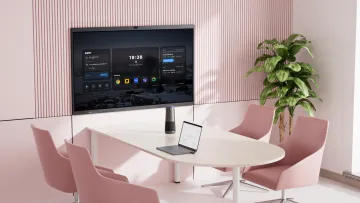
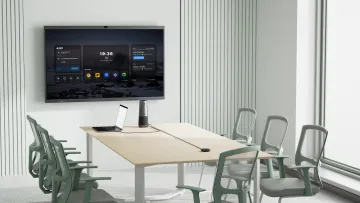
A Zoom room setup refers to the physical meeting space prepared for Zoom calls. It includes the display, camera, microphones, speakers, room computer or controller, calendar integration, network connection, and seating layout.
If everyone joins from their own laptop, a standard Zoom meeting setup is usually enough. But if several people are sitting in the same room and remote attendees need to follow the conversation clearly, a dedicated Zoom conference room setup is the better choice.
Zoom Conference Room Setup Checklist
A reliable Zoom conference room setup depends on five key elements: display, camera, microphone, speaker, and network. Each part affects how clearly remote participants can see, hear, and follow the meeting.
1. Display
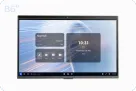
Use a screen that is easy to see from every seat. For small rooms, one display is usually enough. For larger rooms, dual displays can show both remote participants and shared content.
2. Camera
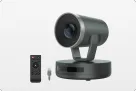
Choose the camera based on room size and seating style. A laptop camera works for one person, but group meetings usually need a wide-angle or 360° conference camera to capture everyone clearly.
3. Microphone and Speaker
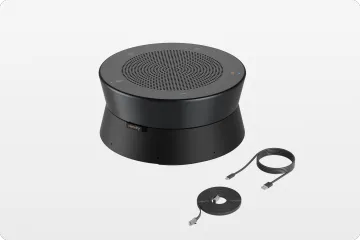
Audio quality is critical. A good setup should capture voices evenly, reduce echo and noise, and provide clear speaker output. For medium or large rooms, built-in laptop microphones are usually not enough, so a dedicated conference speakerphone or an all-in-one conference camera can help deliver clearer audio for everyone in the meeting.
4. Network and Power
Use wired Ethernet when possible. If using Wi-Fi, make sure the signal is stable. Also prepare enough power outlets and keep cables organized.
5. Room Layout
Keep the table within the camera’s view and avoid strong backlighting. For roundtable or U-shaped rooms, a 360° camera or expansion microphones can help remote participants follow the conversation more easily.
Best Zoom Setup by Room Size
Different rooms need different Zoom setups. The right equipment depends on the number of people, the room size, and the seating style.
| Room Type | Best Setup |
| Home office | Laptop camera or 4K webcam with headset or USB microphone |
| Huddle room | Wide-angle camera with speakerphone or all-in-one camera |
| Medium conference room | Dedicated conference camera with microphone array and full-duplex speaker |
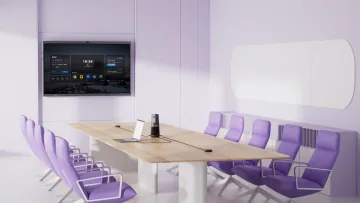
| Roundtable room | 360° conference camera for full-room visibility |
| Large or U-shaped room | 360° camera or multi-camera setup with expansion microphones |
For a home office, the focus is personal image quality and voice clarity. For a huddle room, the main challenge is fitting everyone into the frame without making the room look distorted. For medium and large rooms, the setup needs to solve both video coverage and audio pickup across the table.
Recommended Setup for Hybrid Teams
Different meeting scenarios need different Zoom setups. The right choice depends on meeting size, room layout, and how much interaction is needed.
Small Team Calls
Best for quick internal meetings, team syncs, and small group discussions.
Recommended setup:
- Wide-angle camera
- Speakerphone
- Small display
- Calendar invite with Zoom link
The goal is to start quickly and keep the conversation natural.
Client Presentations
Best for sales calls, client reviews, onboarding, and formal business meetings.
Recommended setup:
- High-resolution camera
- Clear microphone pickup
- Stable screen sharing
- Good lighting
- Waiting Room, passcode, and host controls
The goal is to create a more professional meeting experience and avoid interruptions.
Training, Workshops, and Roundtable Meetings
Best for larger rooms, group discussions, workshops, and presenter-led sessions.
Recommended setup:
- 360° camera or speaker-tracking camera
- Expansion microphones when needed
- Large display
- Stable network connection
The goal is to help remote participants clearly see who is speaking and follow the discussion more easily.
Hardware Options: Laptop Setup vs. All-in-One Conference Camera
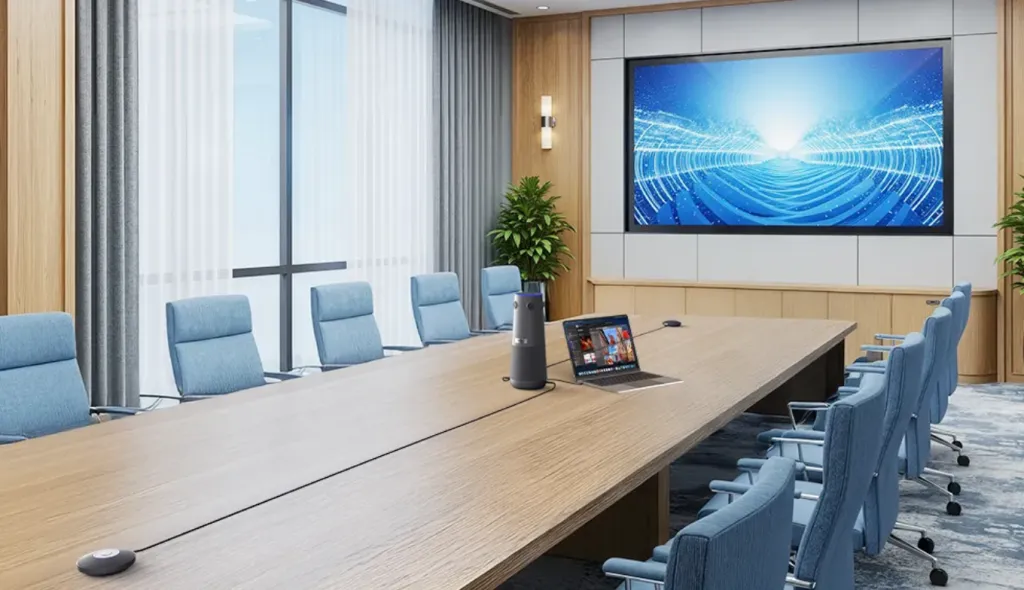
Not every Zoom meeting needs dedicated hardware. For one-person calls or quick internal meetings, a laptop setup may be enough. It is simple, free, and easy to start.
However, laptop-only setups are not ideal for meeting rooms. The camera angle is often too narrow, the microphone pickup is weak, and the speaker volume may not be strong enough for a group. This can make the meeting feel unprofessional, especially during client calls or executive discussions.
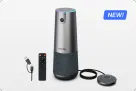
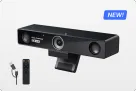
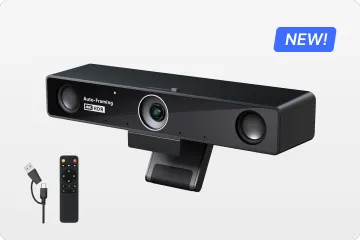
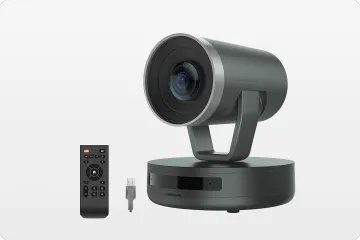
An external webcam for conference room and speakerphone can improve small-room meetings, but this setup still requires multiple devices and cables. For rooms used regularly, an all-in-one conference camera is often a cleaner option because it combines camera, microphone, and speaker in one device.
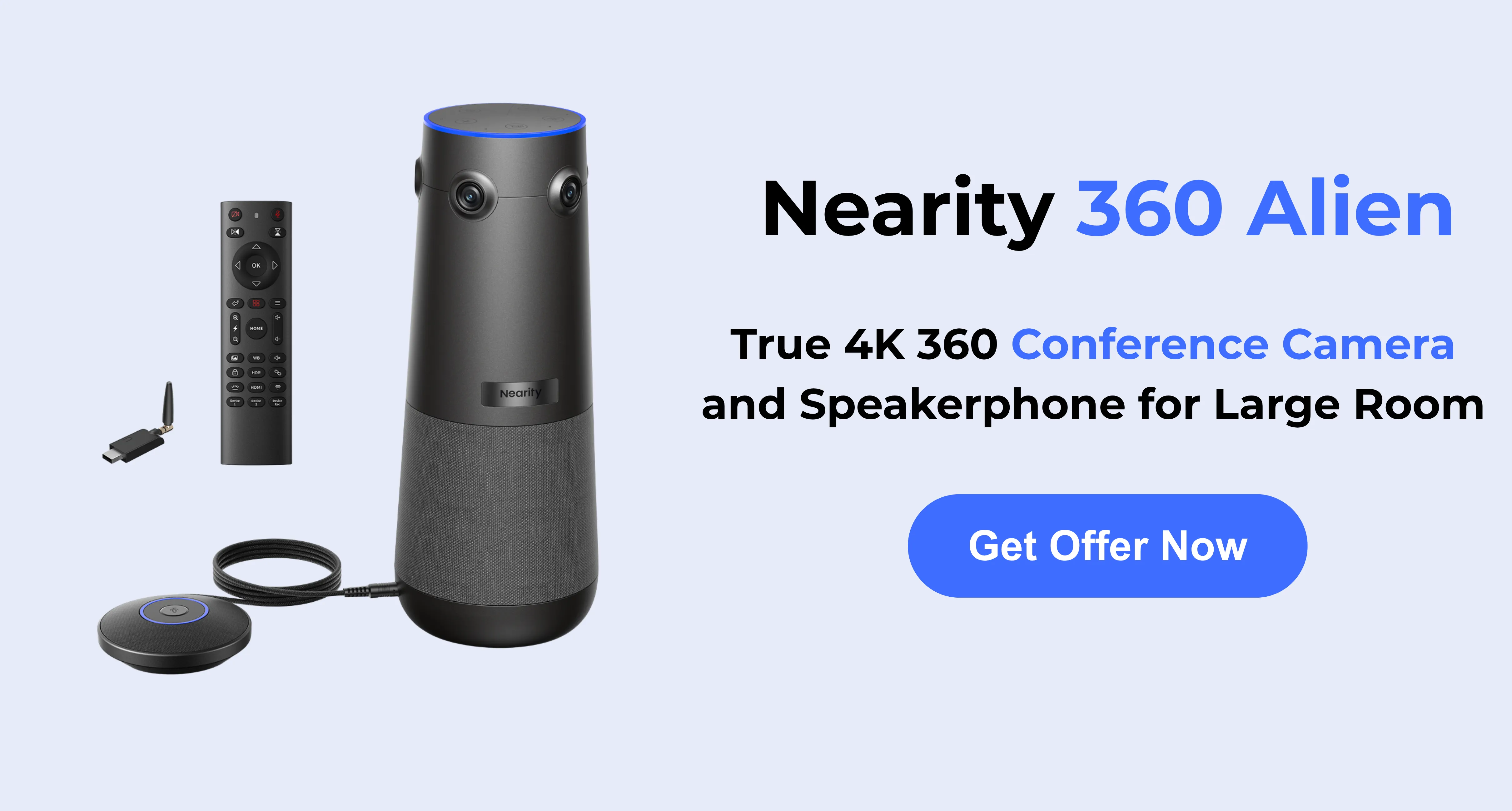
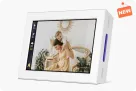
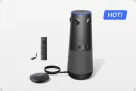
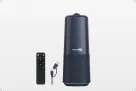
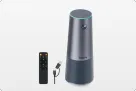
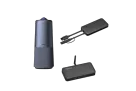
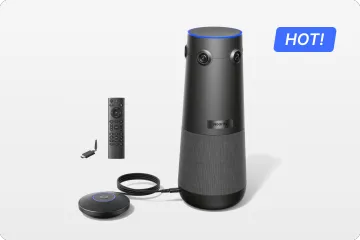
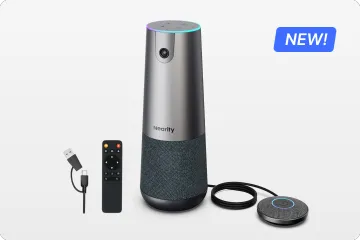
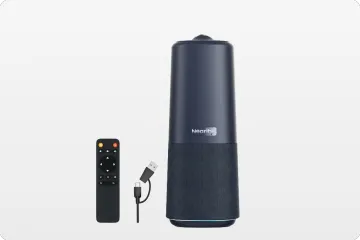
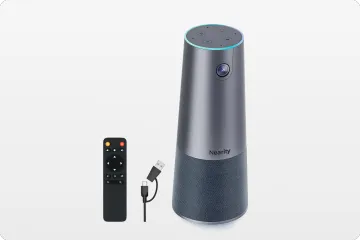
For example, Nearity 360 Alien is designed for hybrid meeting rooms with 4K 360° video, six noise-cancelling microphones, full-duplex speaker output, AI speaker tracking, and plug-and-play USB or wireless connection. It is especially useful for roundtable meetings, training rooms, client discussions, and larger collaborative spaces.

Common Zoom Setup Problems and How to Fix Them
Even with a good Zoom conference room setup, small issues can still happen. Most problems come from the wrong device settings, poor camera placement, weak audio pickup, or unstable connections.
Remote Participants Cannot Hear Clearly
Check whether Zoom is using the correct microphone. If the room is large, a laptop microphone may not capture everyone well. Use a dedicated speakerphone, microphone array, or all-in-one conference camera for better voice pickup.
The Camera Does Not Capture Everyone
If some people are cut out of the frame, the camera may be too narrow or placed in the wrong position. For group meetings, use a wide-angle camera. For roundtable rooms, a 360° camera can provide better coverage.
Echo or Feedback Happens
Echo usually happens when multiple laptops in the same room join with audio turned on. Keep only one room audio system active, mute extra devices, and use equipment with echo cancellation.
Screen Sharing Does Not Work
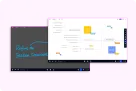
Check whether the correct screen or window is selected. Also make sure the display cable is connected and “share sound” is enabled when playing videos. Testing screen sharing before the meeting can prevent delays.
FAQ
1. How do I schedule a Zoom meeting?
Sign in to Zoom, click Schedule, enter the meeting topic, date, time, and invitees, choose your meeting settings, and save the meeting. You can schedule from the Zoom desktop app, web portal, mobile app, or calendar integration.
2. Do I need a Zoom Room for a conference room?
Not always. A standard Zoom meeting with good hardware may be enough for small rooms. A Zoom Room setup is better for shared conference rooms that need one-touch join, calendar integration, dedicated displays, and a consistent meeting experience.
3. What equipment do I need for a Zoom conference room?
A basic Zoom conference room setup usually needs a display, camera, microphone, speaker, room computer or device, stable internet connection, and a screen sharing method. Larger rooms may also need expansion microphones, dual displays, or a 360° conference camera.
4. Why is my Zoom room audio bad?
Zoom room audio is usually poor because the wrong microphone is selected, the microphone is too far from the speaker, multiple devices are causing echo, or the room is too large for the audio device. A dedicated speakerphone, microphone array, or all-in-one conference camera can improve pickup.
5. What is the best camera setup for a Zoom conference room?
For one person, a webcam is usually enough. For small rooms, use a wide-angle conference camera. For medium rooms, use an all-in-one conference camera with strong audio pickup. For roundtable, large, or U-shaped rooms, a 360° camera or multi-camera setup is often better.
Final Thoughts: Build a Zoom Setup That Starts on Time
A strong Zoom conference setup should make scheduling easy, make the room simple to use, and make remote participants feel present. The meeting link, calendar invite, security settings, and host controls should be ready before the meeting starts. The room should also be easy enough for non-technical users to operate without searching for adapters or changing settings every time.
For occasional one-person calls, a laptop may be enough. For real hybrid meetings, a dedicated conference room setup is worth the upgrade. If your team wants a simpler Zoom room setup with fewer cables, clearer audio, and better room coverage, an all-in-one conference camera such as Nearity 360 Alien can be a practical solution.