Touchscreen vs. Smart Board: Which Should You Buy?
Compare touchscreen and smart board setups for classrooms and meeting rooms.
touchscreen vs smart board
smart board with built-in computer
Updated: Nov 27, 2026 · 5 minutes read
Global Business, Brought Near.
No Installer, No Hassle, Just Works.
Key Takeaways
Touchscreens include large displays and devices with or without built-in computers.
Keeping an existing computer and meeting equipment can make a separate touchscreen the better purchase.
An all-in-one smart board lets people open files and write directly on the board without first connecting a laptop.
Compare installation, software, support, and required meeting equipment in both proposals.
If your room already has a computer that runs your applications, plus the camera and audio equipment you need, adding a touchscreen lets people tap and write directly on screen while keeping that equipment. If you want different people to walk into a room, open documents, write together, and bring remote participants into the discussion, an all-in-one smart board deserves a closer look.
The touchscreen vs. smart board decision comes down to how people open files, write on screen, and join meetings. Both can provide a large interactive surface. The difference is what runs the applications, which equipment you need around the screen, and how easily people complete their work.
The Real Difference Is Where the Computer Lives
A touchscreen is a display that accepts touch input. It can be small or large. Some touchscreens connect to a separate computer; others have a computer built in.
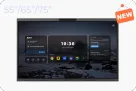
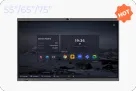
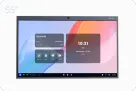
A smart board turns a large touch display into a shared place to teach, explain, and develop ideas. People can write on a digital whiteboard, mark up learning materials or documents, and share content for a group to discuss. An all-in-one board has its own computer, so people can work directly on it without connecting a laptop. Our guide to what a smart board is explains these everyday uses in more detail.
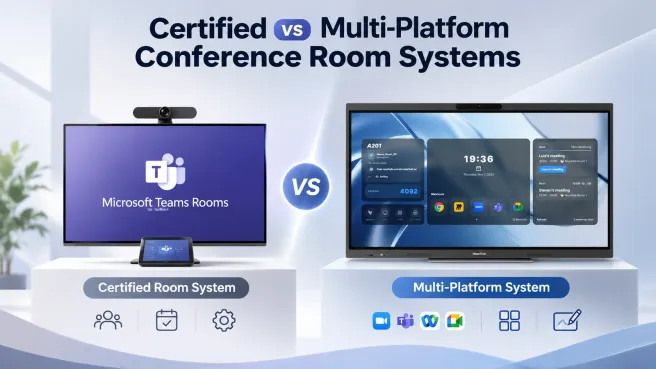
Here, we compare a touchscreen connected to a separate computer with an all-in-one smart board that has its own computer and tools for writing and sharing content.
Buying question
Touchscreen with a separate computer
All-in-one smart board
What runs the applications?
Your laptop or a computer installed in the room
The board’s own computer runs the apps installed on it
Does someone need to bring a computer?
Yes, unless the display is connected to a room PC
No laptop is needed to use the board’s whiteboard, browser, or apps installed on its own computer
How do people write and save?
Open a writing app on the connected computer and save there
Open the board’s whiteboard or another installed writing app and save or export from that app
What handles video meetings?
Connect the computer to the room’s camera, microphones, and speakers
Board Max has these built in; other boards may need separate meeting equipment
How are upgrades handled?
Replace the computer, display, or camera separately
Ask whether the computer can be upgraded separately and how repairs are handled
Before comparing prices, list which apps and meeting equipment each proposal includes. For sensing methods such as infrared and capacitive touch, read how touchscreens work.
Choose a Touchscreen When You Already Have the Right Computer
Keep the Software and Files You Already Use
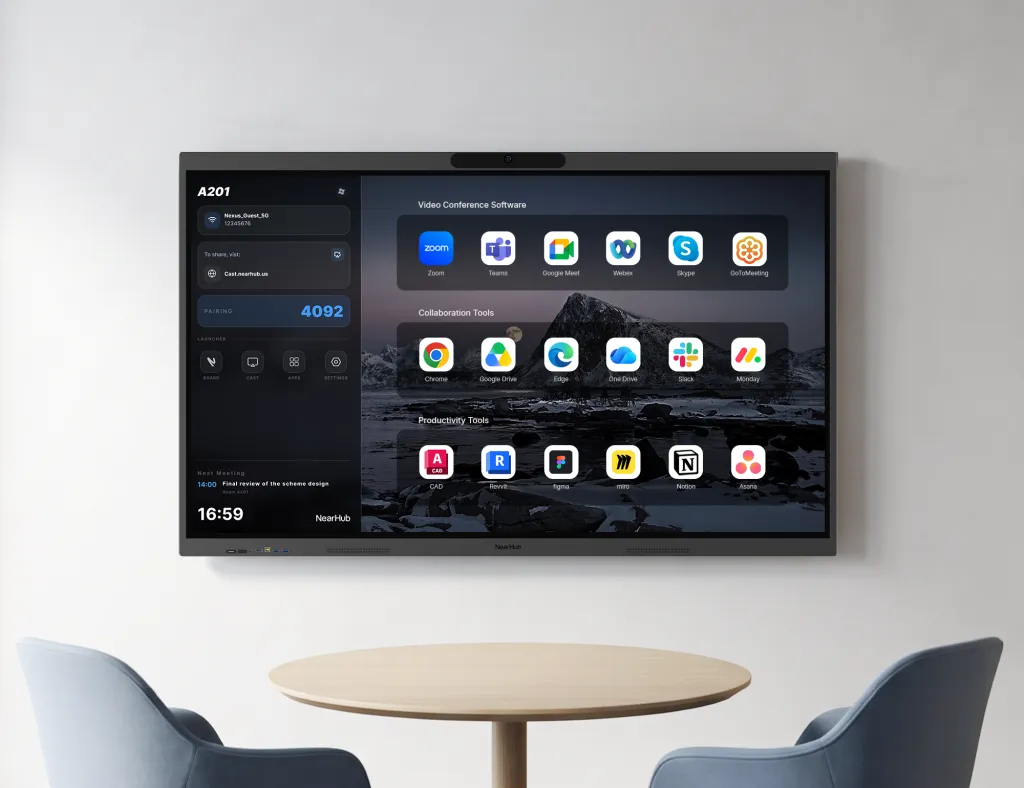
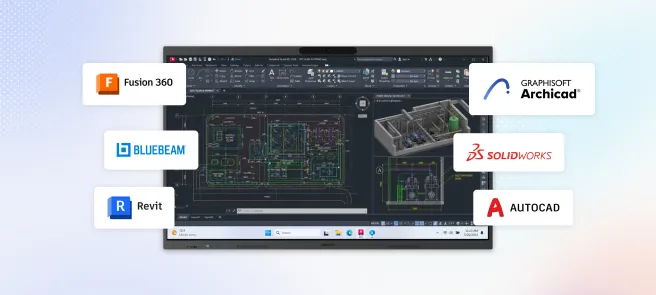
If teachers prepare lessons on their school laptops, a classroom touchscreen lets them connect and pick up where they left off on the slide. The same goes for a project team reviewing drawings on a PC that already has its design software installed. Some Windows-based smart boards, including the NearHub Board Max, can also run familiar desktop apps such as PowerPoint directly.
When trying the touchscreen with your own computer, use a file you work with every week. Circling a sentence on a worksheet feels natural with a pen. Editing a spreadsheet formula may still be quicker with a keyboard and mouse.
Reuse Your Existing Room Equipment
If the room’s computer runs your applications reliably and its camera, microphones, and speakers already work well, you may only need to replace the display with a large touchscreen.
This approach also lets IT keep the same computers and meeting equipment across rooms. Connect both the picture and touch input to the computer: HDMI normally carries video and audio, while a separate USB cable carries touch input. A USB-C connection can combine these functions when the display, computer port, and cable support them.
Replace Components Separately
Separate equipment lets you replace one device at a time. You can upgrade the PC or camera while keeping the display, or replace the screen while keeping the computer and its installed applications.
The trade-off is the work of keeping those devices connected and working together. IT must manage cables, software updates, drivers, and meeting equipment. Include that work when comparing the price of a display with an all-in-one board.
Choose an All-in-One Smart Board When the Room Needs to Be Ready to Work
Make Shared Sessions Less Dependent on One Person’s Laptop
An all-in-one board has its own computer. Once the room’s apps and accounts are set up, people can open them on the board instead of first connecting a laptop and finding the right adapter.
Most important trait is probably the ease of use. This is for non Tech savvy individuals.
The request involved PDF plans, maps, and documents stored through SharePoint and OneDrive. This was a procurement requirement, rather than a product review, but it captures the practical goal: let the team reach its work without a complicated setup.
Open Documents, Write Together, and Keep the Work
With a computer inside the board, people can open a document, add notes on screen, or switch to a shared whiteboard without moving to a laptop.
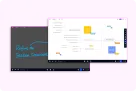
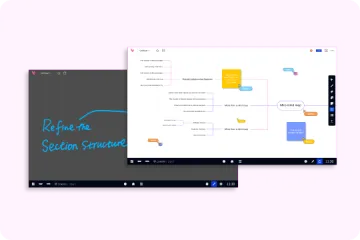
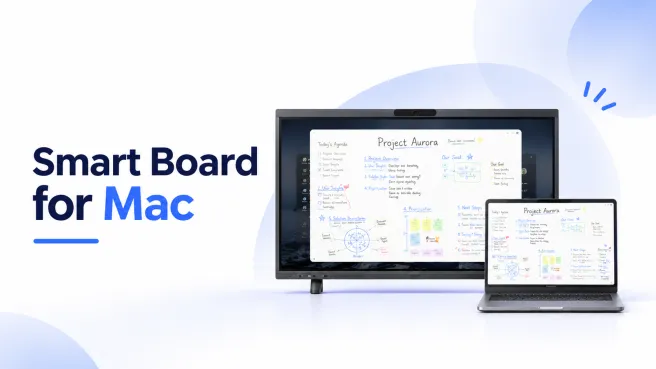
With NearHub Board Max, a project team can open a PDF in a Windows PDF reader, show a presentation, or review a browser page directly on the board. Annotation tools let people place feedback beside the material they are discussing, while NearHub Canvas provides an infinite whiteboard for sketching and planning together, with cloud saving when signed in.
Decide what the session should produce: an annotated copy, an exported whiteboard, or changes saved within the original application. Those outcomes are different. Before using the room, decide where users open files and where they save the notes so the next person can find them.
Bring Remote Participants into the Same Session
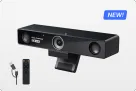
A touchscreen by itself does not capture people’s faces or voices. A room with remote participants also needs a camera, microphones, and speakers.
On Board Max, a trainer can open a presentation, run a full desktop Teams or Zoom session, and move into shared whiteboarding on the same device. Built-in camera, microphones, and speakers provide the room’s video and audio, reducing the separate equipment to assemble. You still need to connect the board to your network, sign in, and provide any required app licenses.
Which Setup Costs Less Once the Room Is Finished?
Price two systems that can complete the same session. A display-only quote leaves out the computer and any camera, microphones, or speakers you still need.
Include:
Display and the computer that will run your apps.
Mount or stand, installation, and cabling.
Camera, microphones, and speakers needed for remote sessions.
Software, setup, training, and support.
Ongoing updates and replacement costs.
Keeping your existing equipment may make a separate touchscreen cheaper. If the room already has the computer, camera, and audio equipment you need, you may only have to buy and install the display.
For an empty room, add up every device you would otherwise need to buy. For example, Board Max brings the computer and meeting camera, microphones, and speakers into the board, so those devices do not have to be purchased and connected separately. A wall-mount bracket is included; a mobile stand is optional. Compare the complete setup, including installation and application licenses.
Separate devices can be replaced individually, but IT must keep them working together. An all-in-one board puts several functions in one unit, so a board repair could also interrupt writing and video meetings. Include repair arrangements and software updates in either budget.
Touchscreen or Smart Board: Which Fits Your Classroom or Meeting Room?
An Individual Workstation
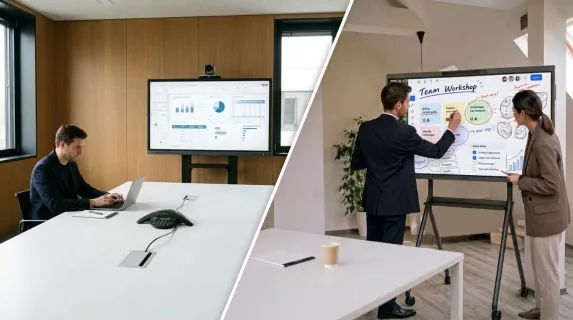
Start with a touchscreen and your existing computer for personal tasks such as signing documents or adding notes to a file. If a mouse already handles the work comfortably, a full collaboration board may offer little additional value.
A Classroom with Teacher Laptops and Established AV
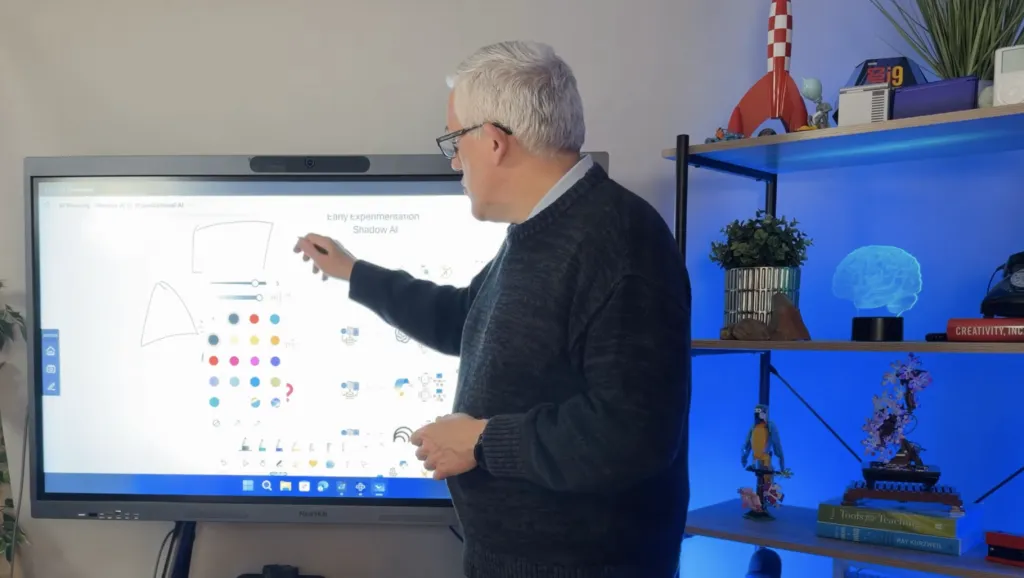
Keep a working laptop-and-display approach when teachers are comfortable with it. Consider an all-in-one board when you want teachers to open lessons directly on the board and invite students to write or move objects on screen. Board Max gives the class a 4K writing surface in 55", 65", or 75" sizes, with multi-touch input for shared activities. Choose a size students can read from the back row and a mounting height they can reach; the classroom buying guide explores that decision. See how a SAIT instructor uses NearHub for interactive teaching, bringing Microsoft Whiteboard, live annotation, and remote discussion into his lessons.
A Project Room Reviewing PDFs and Maps
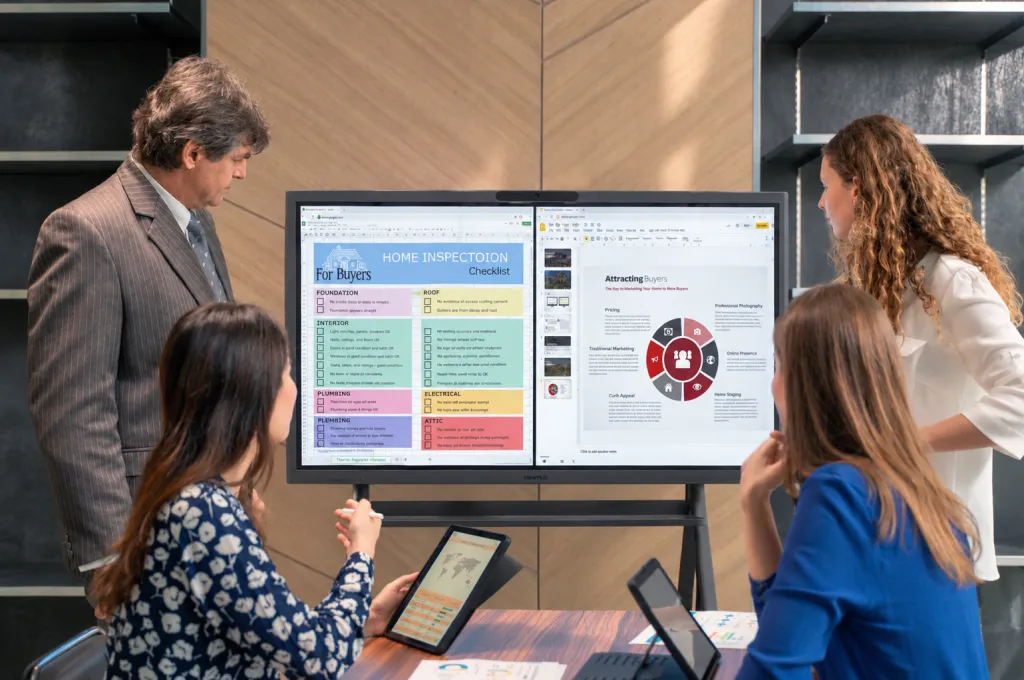
Consider an all-in-one Windows board when colleagues gather around drawings and add notes together. On Board Max, they can open drawings or PDFs in their Windows applications, mark up details, and use Canvas to sketch the next steps. Its 40-point touch can detect several fingers or pen tips at once during group annotation; the number of people who can write comfortably also depends on the app and screen space. If project software and files already run on a dedicated workstation, connecting a touchscreen to that computer may avoid reinstalling and configuring those applications.
A Hybrid Training or Meeting Room Built from Scratch
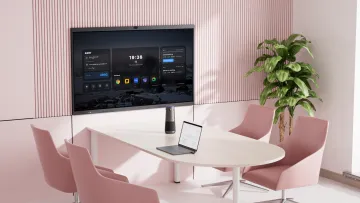
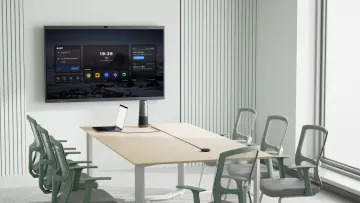
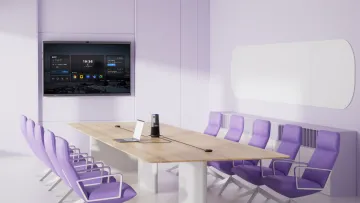
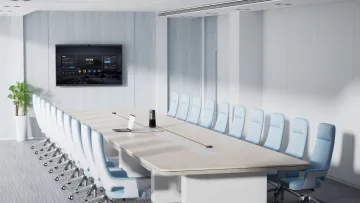
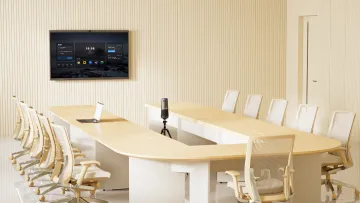
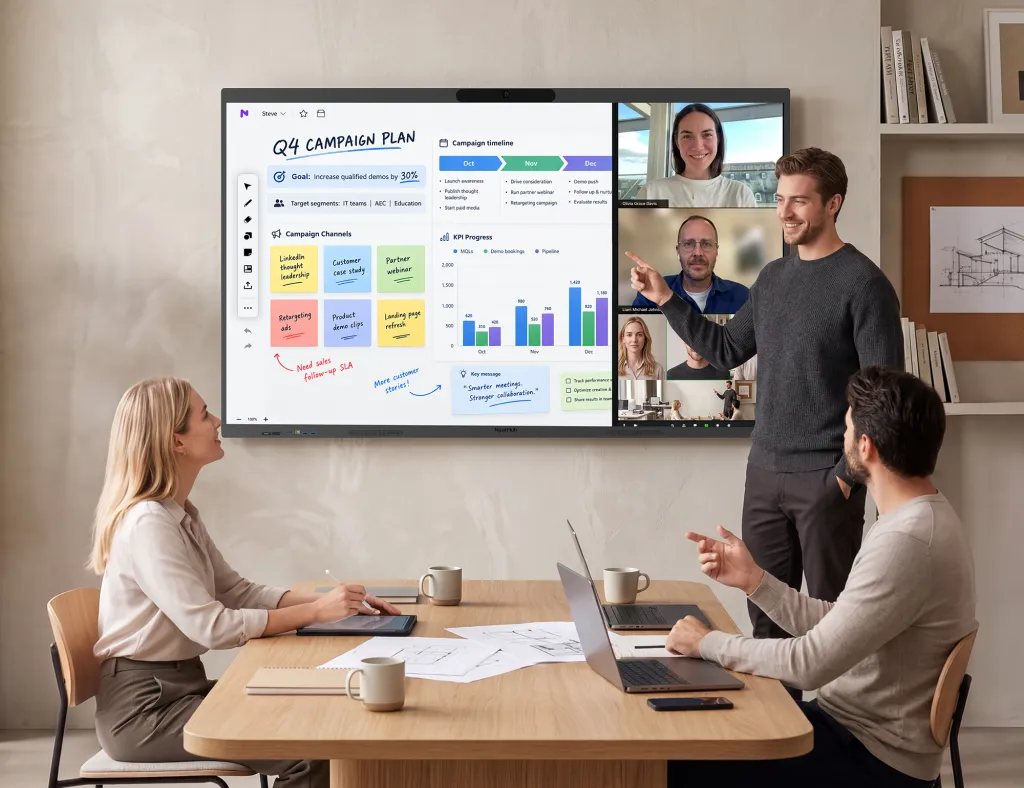
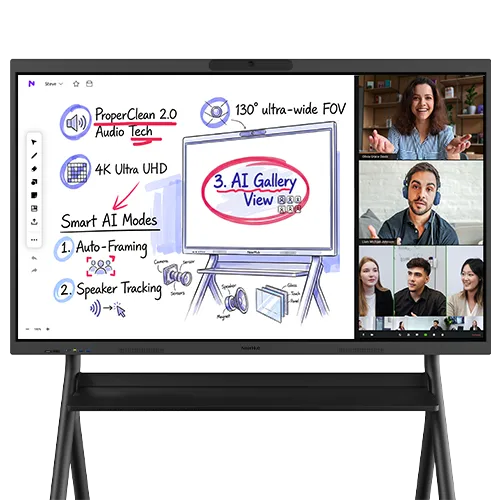
Choose equipment that lets people in the room and online see, hear, and work together. Around a meeting table, Board Max’s wide-angle 4K AI camera frames the group, while AI Gallery View shows in-room participants in individual tiles. Eight microphones with pickup up to 8 meters help capture contributions from different seats, and built-in speakers play the remote discussion. For a real example, see how Advisor 360 uses Board Max for client meetings, reviewing plans on screen and including remote clients through Microsoft Teams.
For rooms used only to watch slides or video, a non-touch display may be sufficient.
Before You Buy, Complete One Real Session
Ask a typical user to open an actual file, annotate it, save the result to an approved location, and start a video call if needed. Finish by signing out and handing the room to someone else. Notice where users need help or reach for another device.
Use that session to decide which setup your team can operate with less help. To try opening files, writing, and holding a video meeting on one Windows board, book a Board Max demonstration using your applications and files.
Frequently Asked Questions
Is a smart board the same as a touchscreen?
A modern smart board is a touchscreen designed for teaching or collaboration. Touchscreen is the broader term and includes many sizes and configurations. Check whether the price includes a computer, writing software, and the camera and audio equipment your room needs.
Can a touchscreen work without a computer?
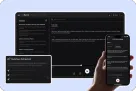
A display without its own computer needs a connected laptop, room PC, or media player. A touchscreen with a built-in computer can run the apps installed on it. NearHub Board Max has a Windows 11 Pro computer inside, so teams can open documents, use the browser, and run meeting apps directly on the board.
Can a touchscreen run whiteboard software?
Yes. Install whiteboard software on the connected computer, or use a board that already includes it. Check that the app lets your team write, share, and save in the way you need; a touch-sensitive screen alone does not provide those tools.
Is an all-in-one smart board always cheaper than a separate setup?
No. If you already own a suitable PC, camera, microphones, and speakers, adding a touchscreen may cost less. If you need to buy all of those for a new room, an all-in-one board may offer better value. Include installation, software, and support in both prices.