Smart Board Basics: What It Is, How It Works, and Key Features
Learn what a smart board is, how it works, its key features, benefits, and common use cases.
all-in-one smart board
smart board user-friendly
Updated: Aug 19, 2026 · 12 minutes read
Global Business, Brought Near.
No Installer, No Hassle, Just Works.
What Is a Smart Board?
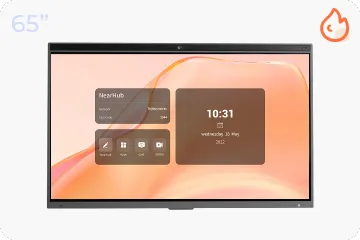
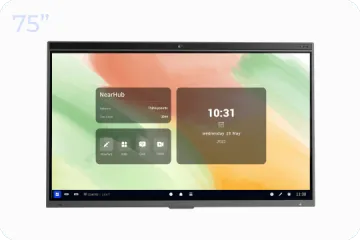
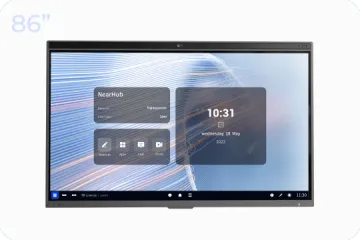
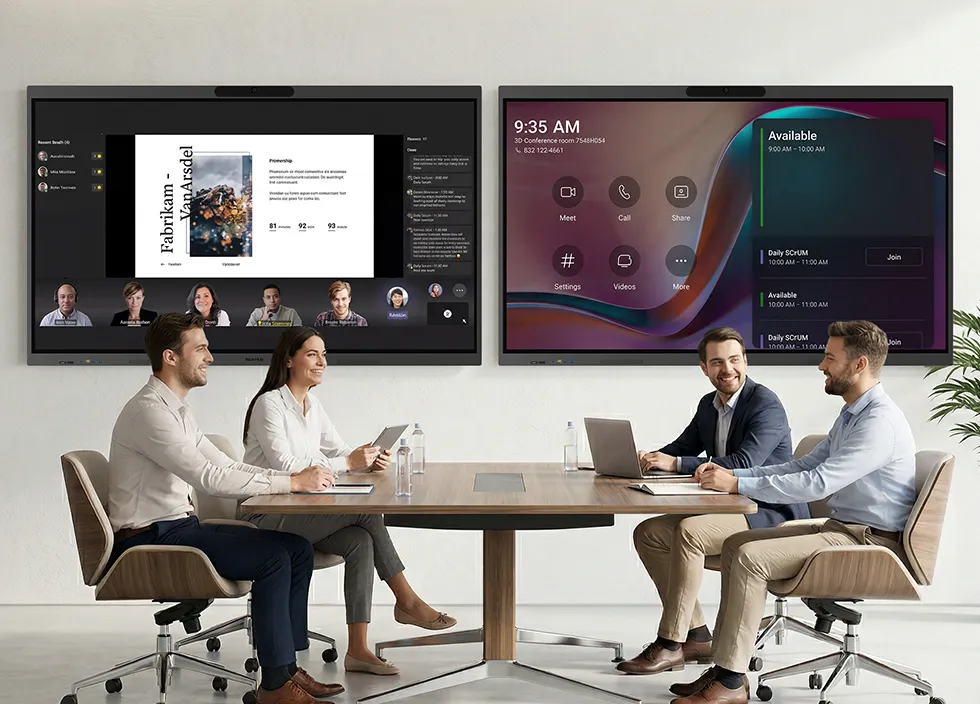
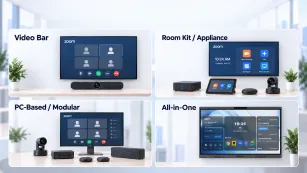
A smart board is an interactive touchscreen display that combines a whiteboard, presentation screen, computer, and collaboration platform into a single device.
Today’s smart boards have evolved far beyond simple interactive whiteboards. Many models include built-in operating systems, wireless screen sharing, cameras, microphones, and collaboration software, allowing teams and educators to work more efficiently without additional equipment.
How Does a Smart Board Work?
A smart board combines several technologies inside one display to create an interactive workspace.
Touchscreen Technology
The screen detects finger or stylus input and converts it into digital actions. Users can write, draw, move objects, annotate documents, and interact directly with content on the display.
Built-In Computing
Most smart boards include either a Windows, Android, or Chrome-based operating system. This allows users to run applications directly on the board without connecting an external computer.
Wireless Connectivity
Smart boards can connect to laptops, tablets, and smartphones through wireless casting technologies such as AirPlay, Miracast, Google Cast, or browser-based screen sharing.
Collaboration Software
Built-in whiteboarding applications allow teams and students to brainstorm, annotate, and share ideas in real time.
While smart boards vary by brand and model, most modern systems include four key components.
1. Interactive Touchscreen Display
The display serves as the central workspace where users can:
Write and draw naturally
Annotate presentations
Manipulate content with touch gestures
Collaborate with multiple users simultaneously
Many modern boards support up to 20, 40, or even more simultaneous touch points.
2. Digital Whiteboard Software
Whiteboard software transforms the display into a collaborative canvas.
Common capabilities include:
Infinite canvas workspaces
Sticky notes
Shape and drawing tools
Templates for brainstorming and planning
Cloud synchronization
Exporting notes as PDF or image files
This allows teams to capture ideas instantly and continue working on them long after the meeting ends.
3. Wireless Screen Sharing
Modern smart boards eliminate the need for complex cable setups.
Users can share content from:
Windows laptops
MacBooks
Chromebooks
iPhones
Android devices
Tablets
Wireless casting makes presentations faster and reduces the need for adapters and additional hardware.
4. Built-In Video Conferencing Hardware
One of the biggest differences between modern smart boards and older interactive whiteboards is integrated conferencing technology.
Many smart boards now include:
Built-in cameras
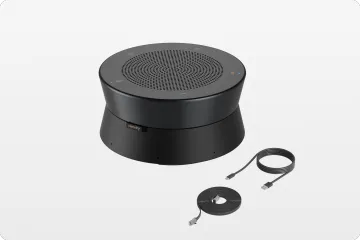
Microphone arrays
Integrated speakers
AI framing features
Speaker tracking capabilities
This allows users to launch Zoom, Microsoft Teams, Google Meet, or Webex meetings directly from the board.
8 Key Smart Board Features
When evaluating a smart board, these are the features most organizations look for.
Interactive Writing Write naturally using a finger or stylus.
Multi-User Collaboration Multiple users can interact with the board simultaneously.
Digital Whiteboarding Create diagrams, notes, and brainstorming sessions that can be saved and shared instantly.
Wireless Screen Sharing Present content from virtually any device without cables.
Video Conferencing Integration Join meetings directly from the display using popular conferencing platforms.
Cloud Collaboration Access and share files through Google Drive, OneDrive, Dropbox, and other cloud platforms.
App Support Run productivity tools, collaboration software, web browsers, and communication applications directly on the board.
File Annotation Annotate PDFs, presentations, spreadsheets, images, and websites in real time.
What We See Organizations Using Smart Boards For
Based on our experience working with businesses, schools, and hybrid teams, the most common use cases include:
Brainstorming sessions
Team planning meetings
Interactive classroom teaching
Employee training
Design reviews
Hybrid collaboration
Client presentations
In many cases, organizations adopt smart boards not only to display information but to create a more engaging and collaborative environment.
Types of Smart Boards: Windows vs. Android vs. Chrome OS
Not all smart boards operate the same way. Most systems fall into three categories.
Windows-Based Smart Boards
Windows-based boards provide desktop-level software compatibility.
Common use cases include:
Business meetings
Engineering teams
Design reviews
Advanced training environments
Advantages:
Full Microsoft Office support
Professional software compatibility
Strong peripheral support
Flexible deployment options
Android-Based Smart Boards
Android systems focus on simplicity and ease of use.
Common use cases include:
Classrooms
Training rooms
General collaboration
Advantages:
Easy to learn
Fast startup
Lower hardware requirements
Chrome-Based Smart Boards
Chrome-based systems are designed around cloud-first workflows.
Common use cases include:
Schools using Google Workspace
Organizations relying heavily on web applications
Advantages:
Simple management
Strong Google ecosystem integration
Browser-based productivity
For organizations running hybrid meetings, built-in conferencing features help eliminate separate webcams, microphones, and speaker systems while simplifying room setup.
Smart Board System Comparison Table
System Type
Windows-Based
Android-Based
Chrome-Based
User Experience
Feels like a full PC. Familiar if you use Windows at work.
Simple, app-driven interface. Easy to learn.
Web-first interface. Runs mostly in the cloud.
Software Support
Full support for Microsoft Office, Zoom, Teams, and any Windows apps.
Limited to Android apps from Google Play.
Runs Chrome browser and web apps (Docs, Slides, etc.). No native apps.
Best For
Advanced users, power users, corporate teams.
Teachers, K–12 schools, creative brainstorming.
Cloud-native teams, education users using Google Workspace.
Performance
High performance, handles multitasking and heavy apps well.
Lightweight and fast, but not built for heavy apps.
Fast in-browser experience; not ideal for offline tasks.
App Examples
PowerPoint, Excel, OneNote, Microsoft Whiteboard, Zoom.
Miro, Google Jamboard, Android whiteboard tools.
Google Docs, Google Meet, Slides, Jamboard.
Offline Use
Full offline capability.
Most apps work offline.
Limited—requires internet for most functions.
Cost Range
Higher due to license and hardware.
Mid-range pricing.
Budget-friendly or bundled with education devices.
Where Are Smart Boards Used?
Education
Teachers use smart boards to deliver lessons, annotate content, conduct interactive activities, and encourage classroom participation.
Conference Rooms
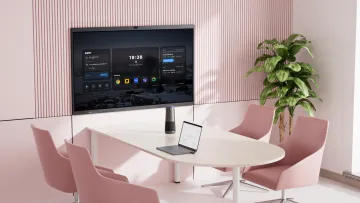
Organizations use smart boards for presentations, brainstorming sessions, project planning, and hybrid meetings.
Consider whether your organization primarily uses Windows, Android, or Google Workspace tools.
Collaboration Features
Look for whiteboarding, annotation, and cloud-sharing capabilities.
Video Conferencing Requirements
Verify support for your preferred meeting platform.
Budget
Evaluate both the initial purchase price and any ongoing software or support costs.
Frequently Asked Questions
What is a smart board used for?
Smart boards are used for teaching, presentations, meetings, training sessions, brainstorming, and collaborative work.
How does a smart board work?
A smart board combines touchscreen technology, software, wireless connectivity, and computing capabilities to allow users to interact with digital content.
What are the most important smart board features?
Common features include digital whiteboarding, touchscreen interaction, wireless screen sharing, cloud collaboration, built-in conferencing tools, and app support.
Do smart boards need a computer?
Many smart boards include built-in operating systems and can operate independently without an external computer.
Can smart boards be used for video conferencing?
Yes. Many modern smart boards include cameras, microphones, speakers, and support for Zoom, Microsoft Teams, Google Meet, and Webex.
How much does a smart board cost?
Most smart boards cost between $2,000 and $10,000, depending on size, hardware, and collaboration features.
Conclusion
A smart board is much more than a digital whiteboard. It combines presentation, collaboration, conferencing, and computing capabilities into a single platform.
Whether you're teaching a class, leading a meeting, or managing a hybrid team, understanding how smart boards work and which features matter most can help you choose the right solution for your environment.