Zoom New AI Whiteboard Features Explained: A Teacher's Guide for 2026
Zoom's March 2026 AI whiteboard updates bring auto-generated diagrams, smart sticky notes, and instant summaries to classrooms.
Zoom
AI whiteboard
education
Updated: Aug 19, 2026 · 5 minutes read
Global Business, Brought Near.
No Installer, No Hassle, Just Works.
If you have heard that Zoom rolled out new AI whiteboard tools in March 2026 and you are wondering what they actually mean for your classroom, you are in the right place. This guide breaks down Zoom new AI whiteboard features explained in plain English — no tech jargon, no hype. Just what they do, how they work, and how real teachers can use them.
Key Takeaways
Zoom’s March 2026 update embeds AI directly into the whiteboard canvas—not as a separate app.
New features: prompt-to-diagram, one-click sticky-note cleanup, lasso-to-summarize, meeting-to-whiteboard conversion, and photo-to-digital editing.
Practical uses: instant fraction diagrams, organized brainstorming, discussion recaps, and digitizing old anchor charts.
No tech expertise needed—plain-English prompts work. Real-time student collaboration is supported.
What’s New in Zoom’s March 2026 AI Whiteboard Update?
Zoom has been building out its whiteboard tool for a few years, but the Zoom updates March 2026 represent a meaningful leap. The standout change is that AI is now woven directly into the whiteboard canvas — not as a separate app you have to open, but as a built-in assistant that helps you create, organize, and summarize content as you teach.
Here is what is actually new:
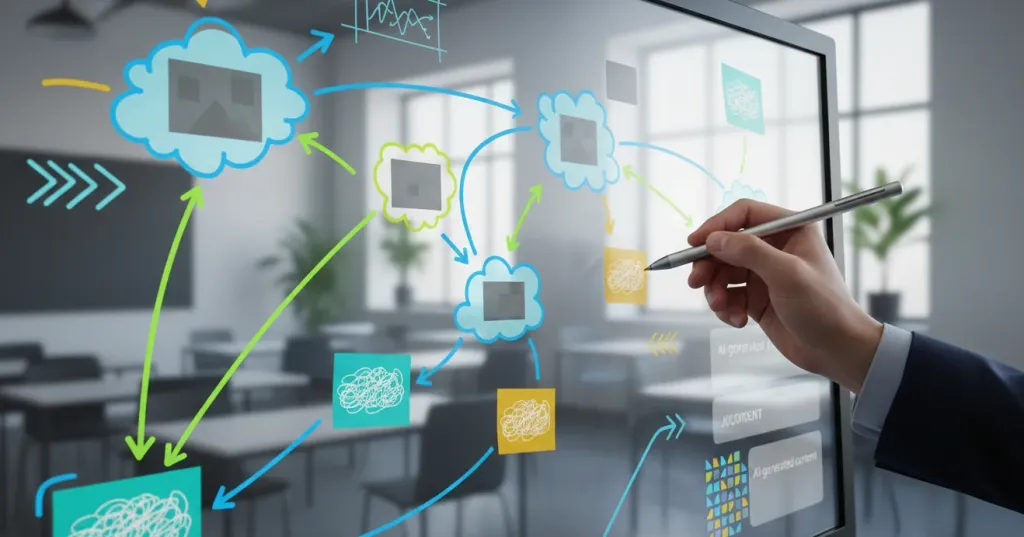
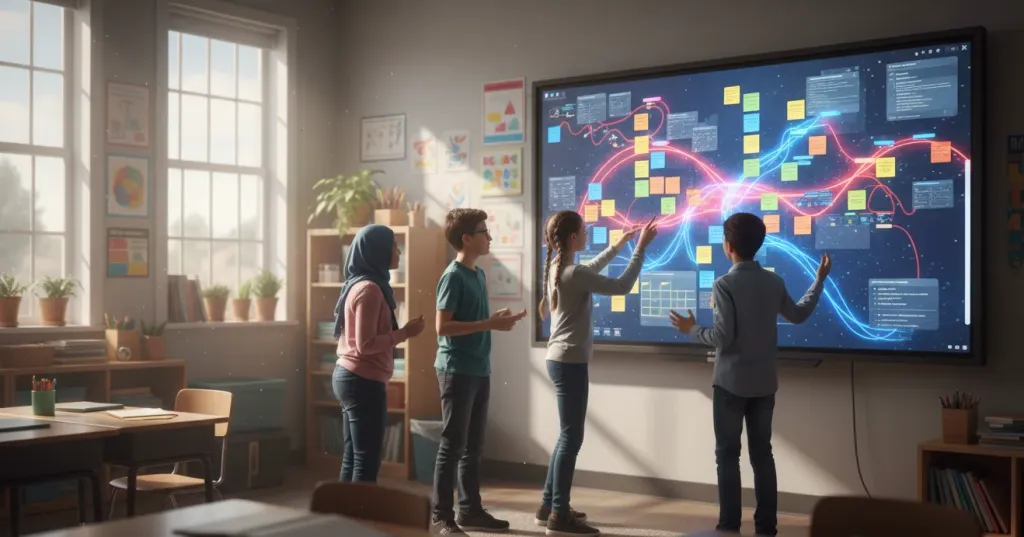
AI content generation. You can type a simple prompt like "diagram of the water cycle for third graders" and the Zoom AI whiteboard builds a visual diagram on your canvas in seconds. It also creates flowcharts, mind maps, tables, text blocks, and clusters of sticky notes.
One-click cleanup. After a brainstorming session with students, your board is covered in scattered sticky notes. One tap lets AI organize them by color, theme, or category — automatically.
Lasso-to-summarize. Draw a circle around any area of the board and AI generates a summary, extracts action items, or creates follow-up questions. No more typing out notes by hand after class.
Meeting notes to visuals. If your class discussion was recorded, AI can pull out key topics, decisions, and ideas from the transcript and lay them out as a structured whiteboard.
Photo-to-digital conversion. Snap a picture of a physical whiteboard or a hand-drawn sketch, and AI converts it into clean, editable digital objects you can move and modify.
How to Use These Features in Your Classroom
The best way to understand a Zoom AI whiteboard is to picture it in action. Here are some practical scenarios that teachers have found genuinely useful.
Visual Math Lessons
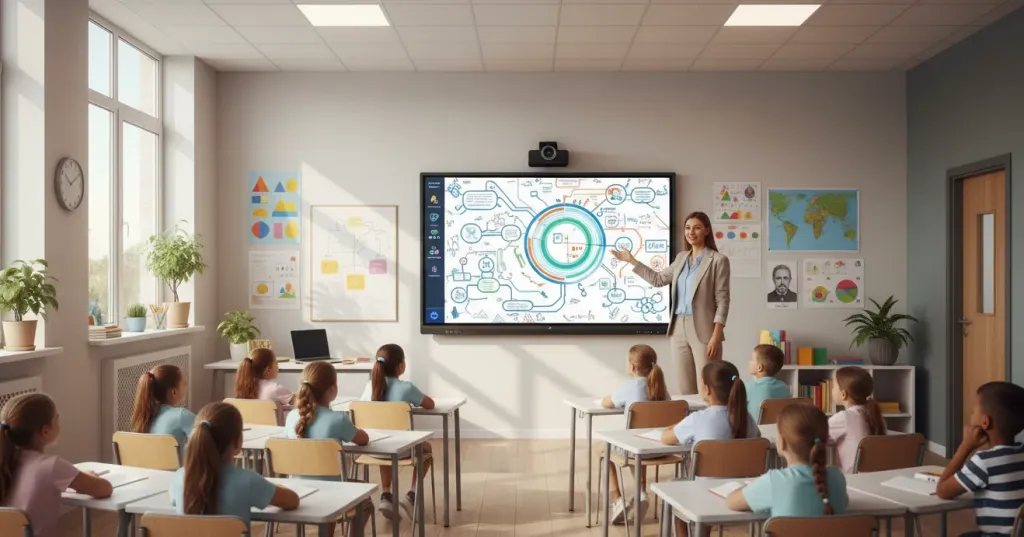
Imagine you are teaching fractions to fourth graders. Instead of drawing pie charts by hand or searching for images online, you type "show me fraction diagrams for one-half, one-third, and one-fourth" and AI generates clean visuals instantly. You can drag them around, annotate with a stylus, and even ask AI to create a comparison table showing equivalent fractions.
Collaborative Brainstorming
During a science unit on weather, you ask the class to share everything they know about thunderstorms. Students add sticky notes from their devices. The board fills up fast — some notes are facts, some are questions, some are misconceptions. With one click, AI organizes the notes into categories: "Facts," "Questions," and "Myths to investigate." The class can see patterns immediately.
Discussion Summaries
After a lively Socratic seminar on a novel, you lasso the entire discussion area and ask AI to summarize the key arguments and highlight unresolved questions. You now have a concise recap to share with students who were absent — or to use as a starting point for next week's class.
Converting Old Materials
You have years of handwritten anchor charts and whiteboard sketches that work great pedagogically but look messy in photos. The new AI image conversion feature takes a snapshot of your physical chart and turns it into crisp, digital shapes and text that you can edit, resize, and share with colleagues.
Why Screen Size Matters for Whole‑Group Instruction
Here is the honest truth about using any digital whiteboard tool in a physical classroom: a 13-inch laptop screen is not designed for whole-group instruction. When twenty-five students are trying to see a diagram from the back row, squinting at a monitor does not cut it. Using a mouse to drag elements feels clunky when you are used to teaching with your hands.
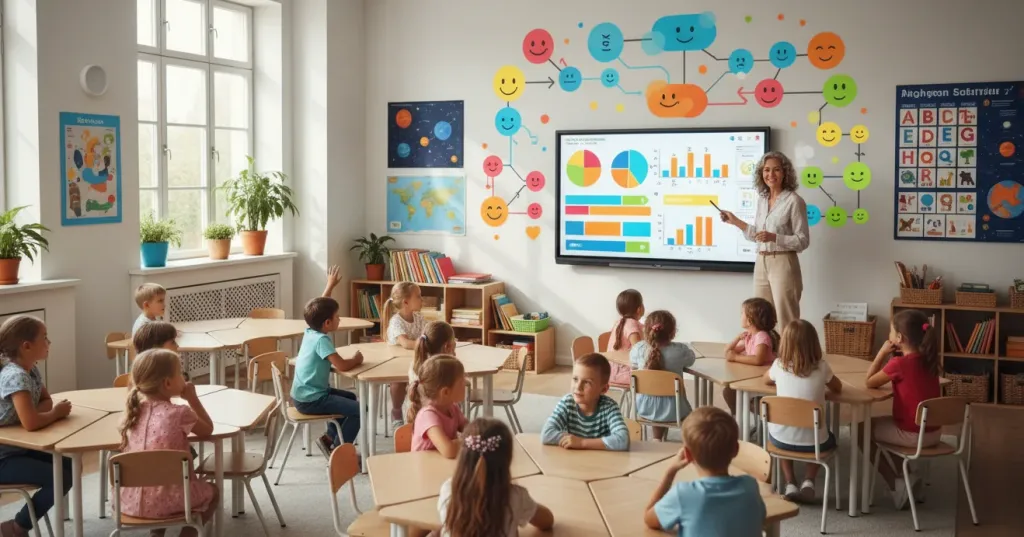
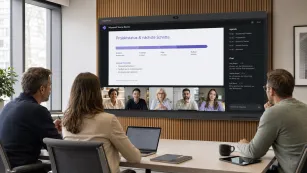
This is where a large interactive whiteboard for schools makes the software feel natural. A 55-inch touchscreen display mounted at the front of the room brings Zoom's AI whiteboard to life in a way that students can actually see and interact with. Teachers can walk up, use a finger or stylus to move AI-generated elements, and teach the way they always have — just with far more powerful content at their fingertips.
Think of it this way: Zoom provides the brains (the AI that generates and organizes your content), and a large interactive board provides the stage (the visible, touch-friendly surface where teaching happens). One complements the other.
What You Need to Get Started
To use Zoom's AI whiteboard features in your classroom, here is the practical checklist:
A Zoom account with AI Companion enabled (available on eligible paid Workplace plans — check with your school's IT admin)
A webcam with microphone if you want to capture class discussions for AI transcription and conversion to whiteboards
If your school already uses Zoom for meetings, there is a good chance your admin can turn on the whiteboard AI features without any additional software installation.
Frequently Asked Questions
1. What are Zoom's new AI whiteboard features for teachers?
Zoom’s March 2026 update adds AI‑powered content generation (diagrams, flowcharts, sticky notes, and mind maps from simple text prompts), one‑click cleanup to organise messy boards, a lasso‑to‑summarise tool that captures insights from any area, automatic conversion of meeting transcripts into structured whiteboards, and photo‑to‑digital conversion that turns snapshots of physical boards into editable objects. All features are designed to be intuitive — no technical expertise is required.
2. What hardware works best with Zoom AI whiteboards in classrooms?
While Zoom AI whiteboard runs on any computer, a large interactive touchscreen makes a real difference for whole‑group instruction. It allows teachers to use a stylus or finger to manipulate AI‑generated content naturally, so students can see and interact with the material from anywhere in the room. A dedicated interactive display, such as those designed for schools, turns the software into a true classroom teaching tool.
3. Is Zoom AI whiteboard free for educators?
Basic whiteboarding is available on free Zoom accounts, but the AI generation features — including AI Companion content creation, smart organisation, and meeting‑to‑whiteboard conversion — require eligible paid Zoom Workplace plans (Pro, Business, or Enterprise). Schools with Zoom education licenses should check with their IT administrator to confirm which AI features are included in their specific plan.
4. How does Zoom handle student data privacy when using AI features?
Zoom states that AI Companion does not use customer content (audio, video, chat, whiteboard data, etc.) to train its AI models. Your classroom content remains within your school’s Zoom account and is not shared externally. As always, we recommend reviewing your district’s data privacy policy and Zoom’s education‑specific compliance documentation for full details.
Wrapping Up
Zoom's March 2026 AI whiteboard update gives teachers genuinely useful tools: instant visual generation, automatic organization of student ideas, smart summaries, and the ability to turn photos of physical boards into clean digital content. These are not futuristic promises — they are practical features that save time and make lessons more visually engaging right now.
For educators looking to bring these capabilities into daily instruction, pairing Zoom's software with a large interactive touchscreen creates a classroom setup where AI feels like a natural teaching assistant — not another piece of technology fighting for your attention. The software handles the heavy lifting of content creation and organization, while the hardware ensures every student can see and interact with the results.