Best Smart Boards for Construction: Top 5 Brands Compared
Compare five smart board brands for construction offices.
smart board for construction office
interactive display for construction
Updated: Nov 19, 2026 · 8 minutes read
Global Business, Brought Near.
No Installer, No Hassle, Just Works.
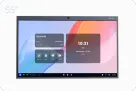
For teams comparing the best smart boards for construction , NearHub Board Max is worth prioritizing when the goal is an indoor project-review station with Windows and integrated meeting equipment. It combines the functions of a separate PC, touchscreen, webcam, and speakerphone, reducing the equipment and AV connections needed for drawing discussions and remote project meetings. With an optional mobile stand, the same setup can serve different suitable office work areas. Vibe is the canvas-led collaboration option, ViewSonic is the configurable display range, BenQ is the Android-first option with computer expansion, and SMART is the ecosystem-led choice.
This guide compares five brands for construction-office plan discussions, project coordination, and hybrid meetings. It is not a ranking of rugged jobsite equipment, and a smart board should not be treated as a replacement for a dedicated workstation or an approved drawing-management process.
How the Best Smart Boards for Construction Compare
The ranking considers how each configuration supports drawing reviews, project software, and hybrid meetings in a construction office. Manufacturer specifications and construction-related user discussions inform the comparison; the products have not been tested side by side.
We prioritized five practical considerations:
Construction-software workflow: whether the board itself runs Windows desktop applications, or relies on an external computer or optional OPS PC.
Drawing review and collaboration: whether the display supports touch interaction, shared annotation, and a clear handoff to the approved project record.
Meeting-room readiness: whether a camera, microphone array, and speakers are integrated or need to be purchased and configured separately.
Configuration clarity: whether the operating system, computer module, and AV accessories are included in the selected model or are optional.
Deployment fit: whether the product is a sensible candidate for an indoor office or project room. We do not assume that a meeting-room display is suitable for exposed jobsites or horizontal plan tables.
Best Smart Boards for Construction at a Glance
Rank
Brand/product line
Best for
Main consideration
1
NearHub Board Max
One integrated Windows meeting and project-review station that can move around the office
Confirm the software workload and the mobile-stand configuration
2
Vibe Board S1 / S1 Pro
Teams that want Vibe Canvas and a choice of Chrome-based or Windows-based hardware
S1 and S1 Pro have different operating systems; camera and microphone accessories need to be included in the room plan
3
ViewSonic ViewBoard
Organizations comparing a broad interactive-display range and flexible room configurations
OS, OPS computer, camera, and microphone options vary by model
4
BenQ Board
Teams that want an interactive display with model-specific Android features and optional Windows expansion
Do not assume a Windows OPS PC or every AV accessory is included
5
SMART Board T Pro
Organizations already evaluating SMART interactive-display workflows and compatible computer options
Confirm the exact OPS/external-PC configuration and the software workflow required
These are conditional recommendations, not claims that every model in a brand’s range has the same features. Check the exact model, region, bundle, and current availability before comparing quotations.
1. NearHub Board Max: Best for a Ready-to-Use, Mobile Project Room
Construction teams do not just need a large screen. They need a place to open project information, discuss drawings, bring in remote colleagues, and move on to the next task without spending the first part of every meeting connecting equipment.
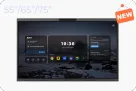
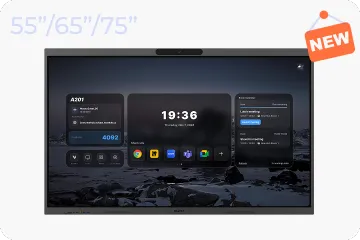
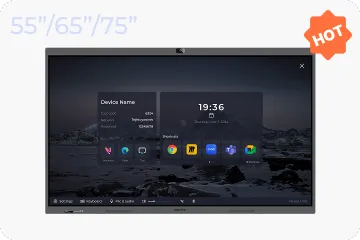
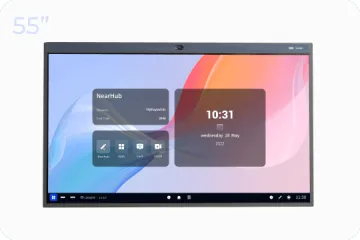
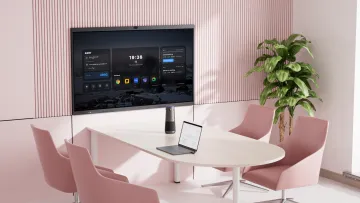
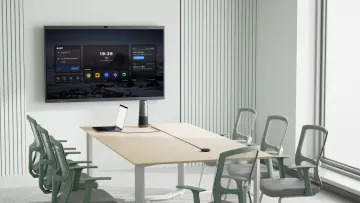
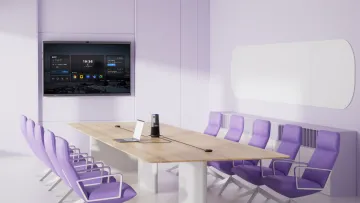
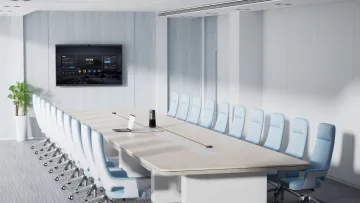
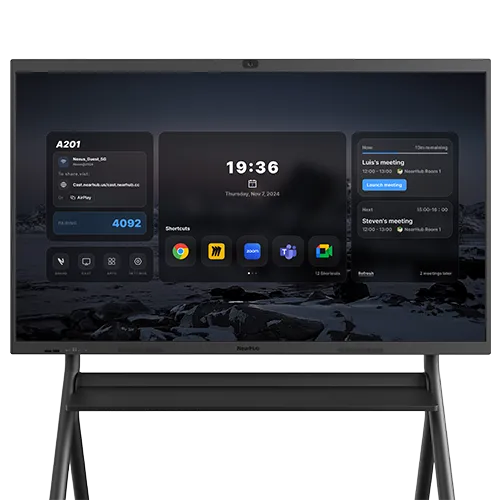
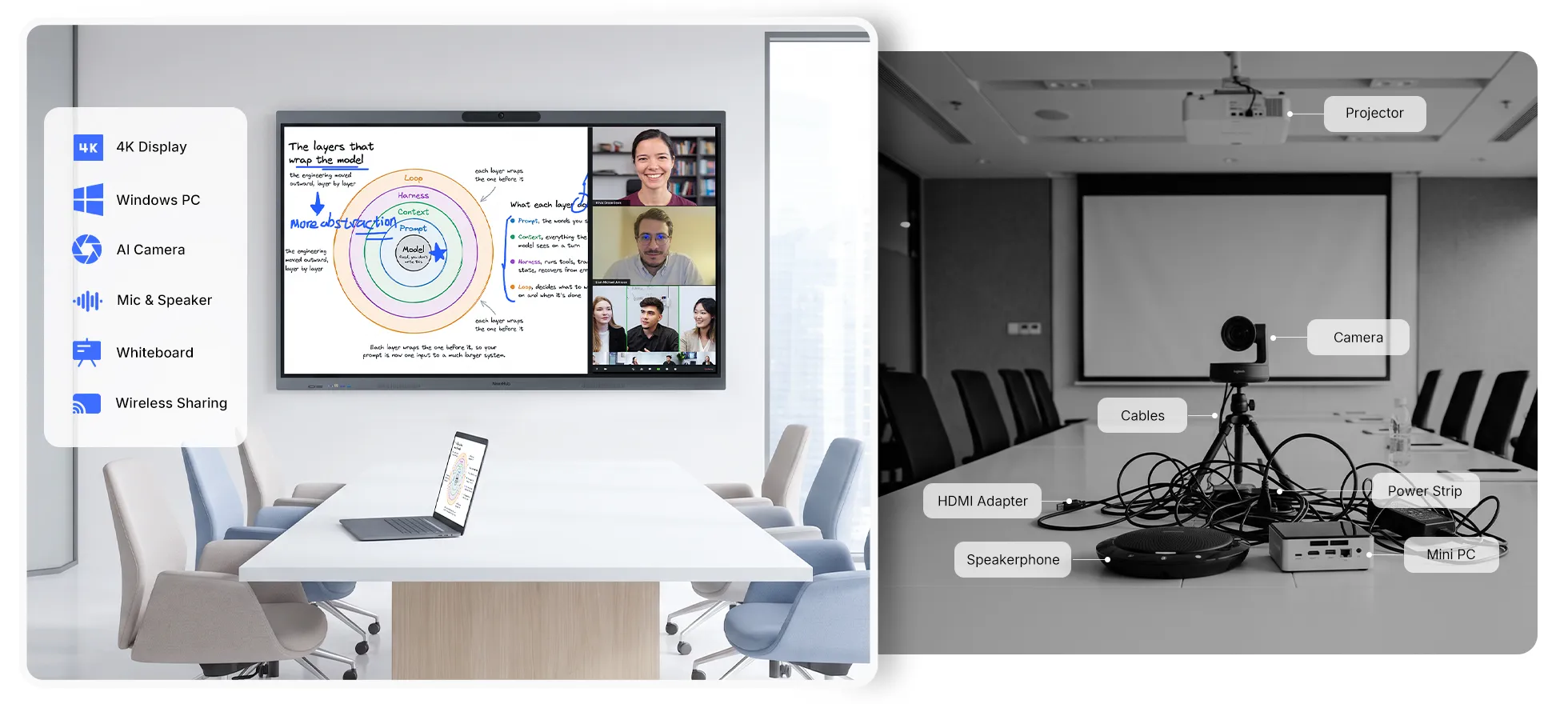
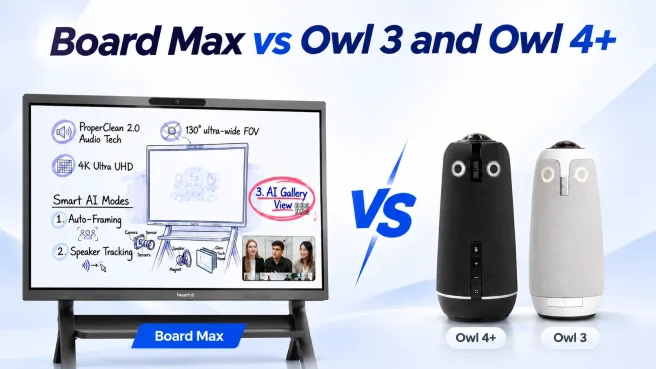
That is where NearHub Board Max has a distinct advantage. It brings the Windows computer, 4K interactive display, camera, microphone array, and speakers together in one all-in-one device. Instead of building a meeting setup from a separate PC, touchscreen, webcam, speakerphone, and a tangle of cables, the team starts with one integrated system.
Less equipment to install. Less to connect before a meeting.
For an indoor construction office, the all-in-one design can simplify the room itself. Fewer separate AV devices to source, mount, connect, power, and troubleshoot. The board’s camera, microphones, and speakers are already part of the device, so teams do not need to plan a separate camera-and-speakerphone installation just to get a basic hybrid meeting running.
This is especially useful in project rooms that are used by different people throughout the day. After the initial setup—power, network, accounts, software, and licenses—the team can turn on the board and start from the configured Windows environment. The practical benefit is a more straightforward, plug-and-play meeting experience.
One board can follow the work around the office
Construction discussions do not always happen in one permanent meeting room. A project manager may need to review a drawing with the site team, walk through a schedule with a subcontractor, and then present an update to an owner or design partner.
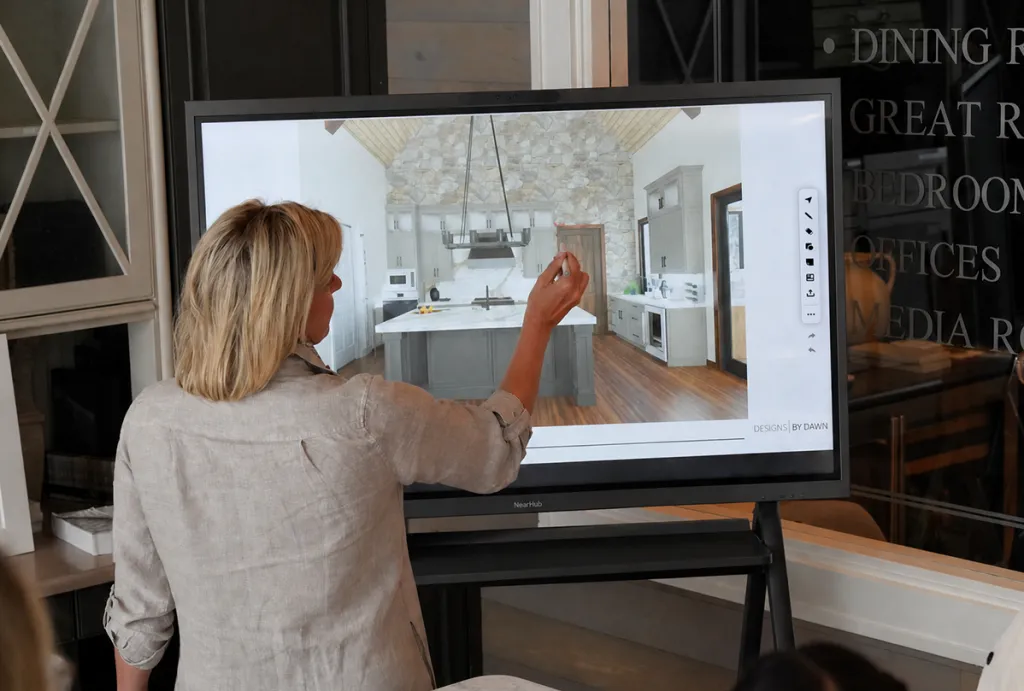
Paired with a mobile stand, NearHub Board Max can move between suitable indoor work areas instead of being fixed to one wall. The same integrated screen, computer, camera, and audio setup can serve a project-planning area, a drawing-review space, or a client presentation area. This gives teams more flexibility to change where they collaborate without rebuilding the AV setup each time.
The stand and its compatibility should be confirmed in the purchase configuration. Plan the route, door clearances, floor conditions, power access, and network coverage before moving the board. This is office mobility, not a claim that the display is designed for rough handling or exposed construction-site conditions.
A Windows workspace for construction applications
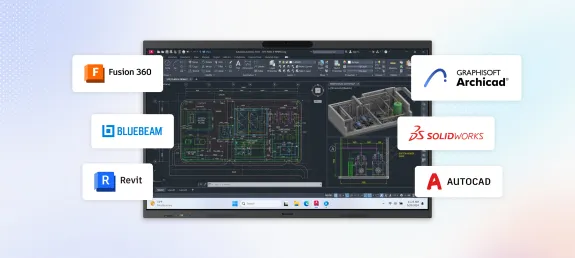
Board Max runs Windows 11 Pro and is configured with an Intel Core i5-1235U processor, 16GB RAM, and 256GB storage. It can therefore be evaluated for Windows desktop applications such as Bluebeam Revu, Autodesk Revit, and AutoCAD, subject to each application’s version, license, and system requirements.
That matters when a team wants to open project software directly on the board rather than always connecting a separate laptop. But Windows compatibility is not the same as workstation-class performance. The listed processor, memory, and storage should not be presented as equivalent to a dedicated high-performance CAD or BIM workstation. Large Revit models, complex 3D views, and demanding project files need to be tested directly. If the workload exceeds the board’s practical capacity, use it as the interactive meeting display for a more powerful workstation.
Keep remote participants in the conversation
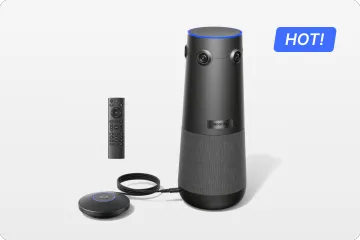
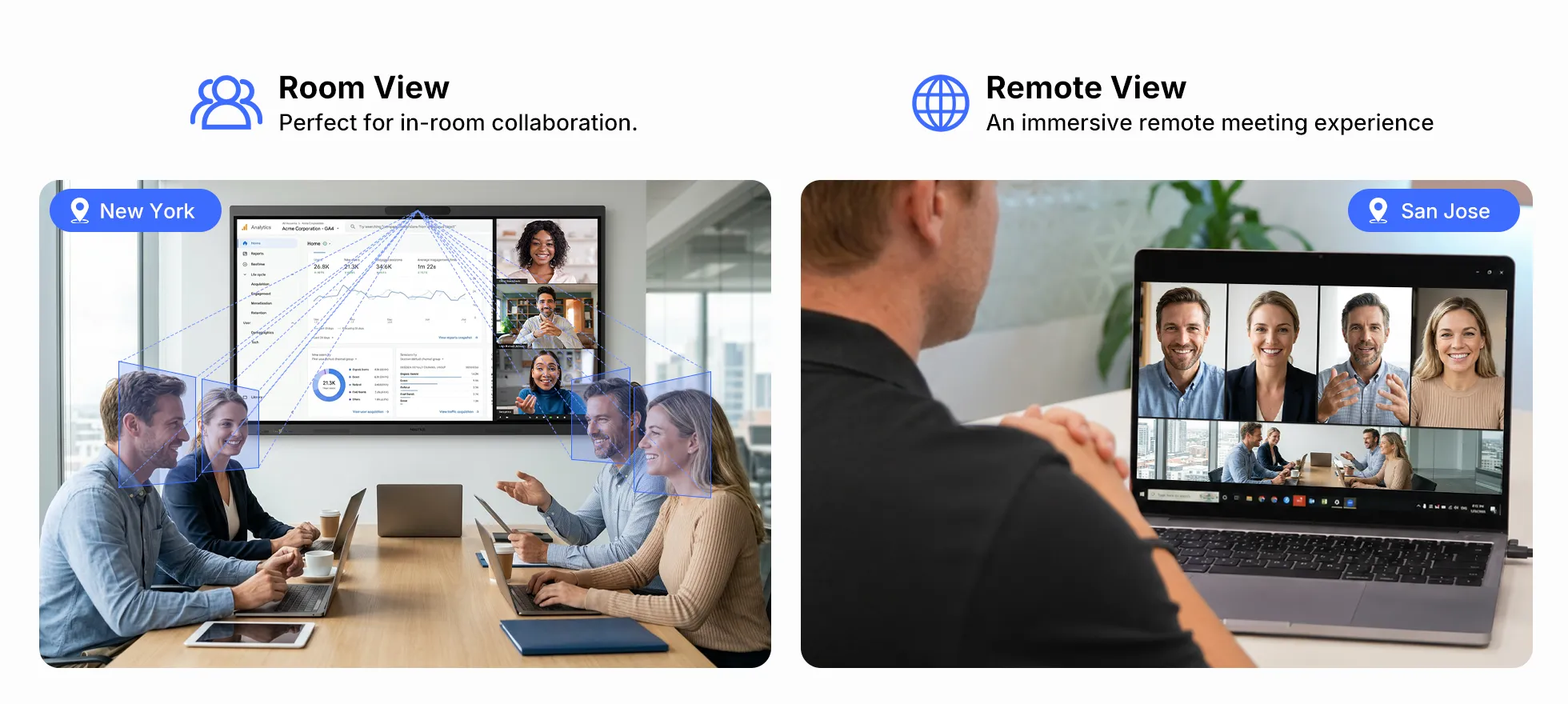
Board Max includes a 4K camera and an eight-element microphone array, alongside integrated speakers. Its AI Gallery View can separate in-room participants into individual frames for remote attendees, helping people in the room remain visible during a hybrid discussion.
AI Gallery View is a participant-view feature; it does not replace sharing the drawing or application itself. Share the document or application directly through the meeting software so remote reviewers can read details and follow the discussion.
Why it stands out for construction:
Board Max is less about adding another screen to the room and more about consolidating the meeting setup. The combination of an integrated Windows computer and built-in AV reduces the number of separate devices teams need to deploy, while a mobile-stand configuration lets the same setup serve different indoor work areas.
NearHub Board Max is worth prioritizing when:
you want one integrated Windows-based station for project discussions and hybrid meetings, and your actual software, drawing files, and installation requirements pass a hands-on acceptance test.
2. Vibe Board S1 / S1 Pro: Best for Teams Built Around a Shared Canvas
Vibe’s strongest point of difference is its canvas-led collaboration experience. It is a natural candidate for teams that want to brainstorm, map out project ideas, collect meeting notes, and work together on a shared visual space. That is a different starting point from buying an all-in-one Windows meeting system.
Where Vibe makes sense
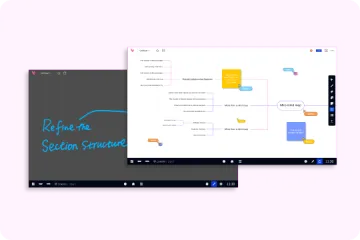
For a team whose day-to-day work centers on visual collaboration, Vibe Canvas can be the main attraction. A project group can use a shared space to lay out ideas, organize discussion points, and capture what needs follow-up. This may suit early planning meetings or collaborative workshops where the goal is to develop and communicate ideas rather than operate a specialist desktop application.
The S1 and S1 Pro are not interchangeable
If users need Windows desktop versions of construction applications, the S1 Pro is the model to investigate. The Chrome-based S1 may still suit browser-first work and Canvas-centered sessions, but it should not be described as equivalent to a Windows board.
Even with the S1 Pro, verify the required application version, file complexity, touch behavior, and performance. Also confirm which camera and microphone accessories are included in the selected US bundle. The complete room setup may require separate AV components.
Keep canvas notes separate from controlled drawings
A shared canvas can help a team explain a design issue or capture a decision, but it does not automatically become an approved drawing revision. Before buying, decide how a markup or action item moves from the canvas into the project’s document-management process—and who is responsible for that handoff.
Vibe is a stronger fit when:
the team values a shared canvas as the center of its collaboration workflow, and the chosen S1 or S1 Pro configuration matches its software and meeting-room requirements.
3. ViewSonic ViewBoard: Best for Buyers Who Want to Configure a Display Around Their Room
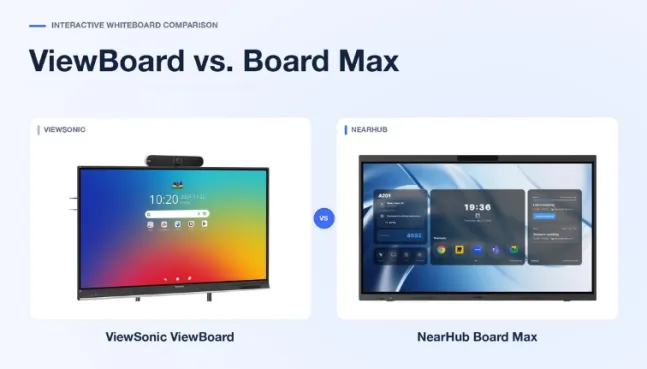
ViewSonic is the broad-line option in this comparison. Rather than one fixed product configuration, its ViewBoard range gives buyers multiple display models and room configurations to evaluate.
That flexibility can be useful for organizations that already have an IT standard, an existing conferencing system, or a preferred Windows computer. It also means the ViewBoard name alone does not tell you what the finished system includes.
Think of it as a configurable room platform
The central buying decision is which display to pair with which computer and meeting equipment. Depending on the model, the embedded operating environment and support for an optional Windows OPS PC can differ. Camera, microphone, and speaker arrangements should be checked against the specific SKU.
If the board needs to run Bluebeam Revu, Revit, or AutoCAD locally, ask whether the chosen model includes a Windows computer, supports a compatible OPS PC, or requires an external computer. An OPS slot is an expansion path, not proof that a Windows PC is included.
Make the specification sheet match the room
ViewSonic may be a good fit when the buyer wants to specify screen size, computer module, mounting, and AV equipment as a coordinated room design. But compare complete configurations—not a ViewBoard panel against another brand’s all-in-one bundle. Include the computer, licenses, camera, microphones, speakers, installation, and support in the quote.
ViewSonic is worth considering when:
your organization prefers a configurable display platform and has the IT resources to select and integrate the right computer and AV components.
4. BenQ Board: Best for Teams Considering an Android-First Interactive Display
BenQ is a relevant option when the team wants an interactive display with a capable built-in smart platform and the option to expand the computer configuration. The practical question is whether the board’s native environment is enough for the way the construction team works, or whether it needs a separate Windows computer.
For example, BenQ’s CP5505 specificationslist an Android 15-based configuration, a 4K interactive display, USB-C connectivity, an OPS slot, and integrated audio features. This is a model-specific example, not a specification that should be applied to every BenQ Board.
Start with the applications your team actually uses
An Android-first board may be suitable for browser-based project tools, content sharing, and interactive meeting activities. If the team expects to run desktop versions of Bluebeam Revu, Revit, or AutoCAD directly on the display, confirm the availability and cost of a compatible Windows OPS PC or plan to connect an external workstation.
Do not treat the OPS slot as an included computer. Ask the supplier to list the exact PC module, Windows edition, memory, storage, and licenses in the quotation.
Check whether the bundle is complete
BenQ’s appeal may be its combination of interactive-display features and expansion options, but the finished meeting room depends on the selected package. Confirm whether the required camera, microphone, and other conferencing accessories are included or separately sourced. Then test the drawing workflow from opening a file through saving and retrieving the markup.
BenQ may be a better fit when:
the built-in Android environment suits most of the work, or a clearly specified Windows OPS configuration can provide the desktop applications the team needs.
5. SMART Board T Pro: Best for Organizations Already Invested in SMART Workflows
SMART Board T Pro is the ecosystem-led option in this list. It is most relevant to organizations that already use SMART interactive displays or software and want to extend a familiar touch-and-collaboration approach into a project room.
The key distinction is that the display should not automatically be treated as a complete Windows workstation. The SMART Board T Pro specifications describe the display and compatible computer options; Windows desktop applications depend on the selected compatible SMART OPS PC or an external computer.
Familiar software can matter more than a long feature list
If the organization already has a defined SMART workflow, continuity may be more valuable than switching to a new collaboration environment. Before purchasing, identify whether the team expects to use SMART Ink, SMART Meeting Pro, or another application, and verify how that software behaves with the intended computer and operating system.
For a construction team, the demonstration should go beyond writing on the screen. Open a project drawing, annotate it, save the output, and confirm where the file goes. Establish whether the result is a separate meeting artifact or part of the controlled drawing record.
Specify the computer and room equipment separately
If Windows applications must run locally, confirm the exact compatible OPS PC, Windows edition, and hardware configuration. Also verify whether a camera is included and whether the microphone and speaker arrangement covers the intended room. Do not assume every computer or conferencing accessory is part of the display package.
SMART Board T Pro is worth considering when:
an existing SMART environment is a meaningful buying consideration and the organization can specify the computer, software, and AV configuration needed for construction meetings.
What Should Construction Teams Look for in a Smart Board?
The best construction smart board is not necessarily the one with the longest feature list. Start with the task and work backward to the hardware.
Construction-office task
What to evaluate
Review and mark up drawings together
Touch behavior in the actual application, readable detail, and where the markup is saved
Document source, permissions, revision identification, and update responsibility
Discuss drawings with remote stakeholders
Direct screen sharing, remote readability, meeting audio, and participant permissions
Show a project map or status dashboard
Data source, refresh process, sign-in behavior, and whether touch is needed
Move between project rooms
Stand or mount, door clearances, power, network coverage, and manufacturer handling instructions
Work around a horizontal digital plan table
Explicit approval for that mounting orientation, support structure, ventilation, and working height
A smart board is not automatically a digital plan table
Confirm the mounting arrangement before assuming a meeting board can replace a plan table. A display intended for vertical use should not be laid flat without explicit manufacturer approval and a suitable support system.
For a team comparing a ready-made board with a DIY review station, the hardware setup is part of the buying decision:
We came up with getting large touchscreen monitor and then a laptop or something to keep with it.
Why an all-in-one board is useful: this buyer was already planning to pair a display with a computer. NearHub Board Max combines those two components and adds built-in meeting audio and video. For an upright office review station, that means fewer separate devices to assemble—the practical reason its integrated design matters in this ranking. If people must gather around a horizontal surface, ask vendors about supported orientation, mounting hardware, ventilation, working height, and service access. If the requirement is a vertical group review, compare the boards above with a touchscreen-and-computer configuration.
The most important construction feature may be the update process
A new screen cannot make an outdated drawing current. Before purchasing, name the person or process responsible for the information that appears on it.
Access to current plans depends on more than the screen. A commenter describing construction job boxes with computers and monitors explained:
You need a person making those updates that are then pushed to the computer.
What this means for the purchase: prioritize a board that fits the team’s existing document-access workflow. NearHub’s built-in Windows computer is useful when that workflow depends on compatible Windows applications: the team can access project information on the board without adding a separate PC. A designated person still needs to publish and verify drawing updates.
For each proposed setup, identify:
The approved source for drawings and revisions.
Who publishes updates and how viewers identify the current issue.
Where meeting markups are saved and who reviews them.
How the team recognizes cached or offline information.
Who maintains the device, accounts, and application updates.
A screen annotation may explain an issue without changing the source drawing. Treat it as a useful discussion record unless your verified document process establishes otherwise.
How to Evaluate a Smart Board Before Buying
A useful demonstration should end with a retrievable result. Give every vendor the same representative drawing set and ask them to complete this sequence:
Find the current drawing. Sign in through the intended account and identify the revision and publication status.
Read an actual detail. Check the smallest relevant note from the farthest planned seat, then zoom and navigate without losing the sheet reference.
Open the required software. Use the actual application version and representative project file, not a generic demo file.
Make the required markup. Determine whether it edits the source document, adds an application annotation, or creates a separate overlay.
Retrieve the result elsewhere. Save to the agreed location and open it from another authorized account or device.
Include a remote reviewer. Share the drawing directly, check readability, and test whether the remote person can contribute in the required way.
Check failure and handover. Test a lost connection, identify any cached copy, sign out, and confirm that the next user cannot access the previous user’s project account.
These are proposed purchasing tests, not results from testing the five brands. Record the application version, file, connection method, computer configuration, and accessories so the demonstration can become part of the purchase requirements.
Keep the quotation consistent across brands: display, Windows PC or OPS module where needed, stand or mount, installation, camera and microphones, software licenses, support, and replacement arrangements. A panel-only price cannot answer which complete setup fits the budget.
When a Conventional Display or Physical Whiteboard Is Enough
Skip the interactive board when touch does not contribute to the job. A status display operated from a computer may not need touch at all. A small builder may first need a workable project-board layout.
Before choosing a brand, identify what the team will actually do on the screen. One small home-builder’s project manager described the starting point:
In my shop we have a 4' x 8' white board that's largely unused. How would you set it up to give everyone a decent overview of what's going on?
The buying lesson: a larger or digital board needs a defined job. NearHub’s integrated meeting equipment becomes useful when that job includes discussing project information with remote colleagues or switching between drawings and other Windows-based material. For a simple local status board, a clearer layout may be enough. Establishing columns, owners, and an update routine may solve the immediate problem. Move to a digital board when you can name the additional task it enables, such as remote participation, reusable drawing discussions, or saved visual explanations.
What is the best smart board for a construction office?
For an indoor construction office that wants Windows applications and integrated meeting hardware, NearHub Board Max is worth prioritizing. Its all-in-one configuration reduces the separate equipment needed for a board-hosted meeting. Vibe is worth evaluating when its Canvas workflow is a priority, while ViewSonic, BenQ, and SMART offer model-specific display and computer configurations. Select the final setup using your actual drawing, software, account, and installation requirements.
Can a construction smart board run Bluebeam Revu, Revit, or AutoCAD?
A board needs a compatible Windows computer configuration to run Windows desktop applications locally. NearHub Board Max and Vibe Board S1 Pro run Windows 11 Pro. ViewSonic, BenQ, and SMART configurations may require a compatible optional OPS PC or an external computer, depending on the model. Windows compatibility does not guarantee workstation-level performance. Ask the supplier to demonstrate the required application version and representative project files.
Is a smart board suitable for a construction jobsite or outdoors?
Do not assume so. For a job trailer or exposed installation, verify operating temperature, dust exposure, condensation, mounting, power, network access, and service requirements against the chosen model’s documentation. This article compares indoor office and meeting-room candidates; it does not establish outdoor or rugged-jobsite suitability for any listed model.
Can a smart board keep construction drawings up to date?
Only a defined document-management process can establish which drawing is current. The board can display information from that process, but it does not automatically publish approved revisions or reconcile copies. Verify revision visibility, permissions, update ownership, and offline behavior. Keep meeting notes and proposed changes distinct from formally issued drawings.
Is a Windows or Android smart board a better fit for construction?
The better fit depends on the applications the team needs to run. Windows is relevant when users need desktop applications such as Bluebeam Revu, Revit, or AutoCAD locally. An Android- or Chrome-based display may be sufficient for browser-based tools, content sharing, and interactive collaboration. In either case, test the actual workflow and include any required computer module and AV accessories in the quote.
Bring Your Next Drawing Review to the Demonstration
If your requirement is a Windows-based office board with integrated meeting audio and video, start with a NearHub Board Max workflow demo . Bring a representative drawing set, the required application, and your saving and sharing rules. Ask the vendor to finish the review and retrieve the result from another device. That demonstration is a stronger basis for choosing a construction smart board than a feature count.