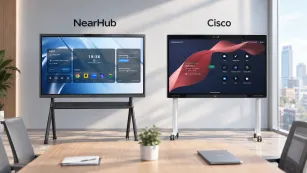
Vibe Board vs NearHub: Why Your OS Choice Determines 3-Year Usability
A head-to-head comparison of the Vibe Board S1 and NearHub Board Max, covering operating systems, built-in A/V, app ecosystems, and total cost of ownership for hybrid teams.
interactive whiteboard
smart board
video conferencing
Updated: Aug 21, 2026 · 10 minutes read
Global Business, Brought Near.
No Installer, No Hassle, Just Works.
NearHub Board Max wins for Windows-dependent teams needing built-in A/V and enterprise IT management, while Vibe Board S1 suits Google-centric environments prioritizing cloud whiteboarding.
Key Takeaways
Choose NearHub Board Max when your workflow depends on Windows apps, enterprise security, or plug and play video conferencing.
Choose Vibe Board S1 when your team lives in Google Workspace and you already own external cameras and microphones.
Last Tuesday, the marketing team wheeled their new interactive whiteboard into the conference room for the quarterly review. It was the Vibe Board S1—sleek, lightweight, and ready to impress the remote executives on the call. But when the director asked them to launch the firm's proprietary Windows app to pull up the Q2 forecast, the team hit a wall. ChromeOS limitation. The app simply would not install. With executives waiting on the line and no built-in camera or microphone to even start the video call properly, the team had to scramble for laptops. The meeting started twenty minutes late, the board sat dark for the entire presentation, and the $3,000+ purchase became a very expensive wall decoration.
That failure was not a setup error. It was an operating-system mismatch. The choice between ChromeOS and Windows on an interactive whiteboard is not just an OS preference—it is a flexibility vs simplicity trade-off that determines whether your board is still usable three years from now. Teams that bet on the wrong ecosystem discover too late that app compatibility, video call quality, and IT policy enforcement were decided at the point of purchase, not at the point of need.
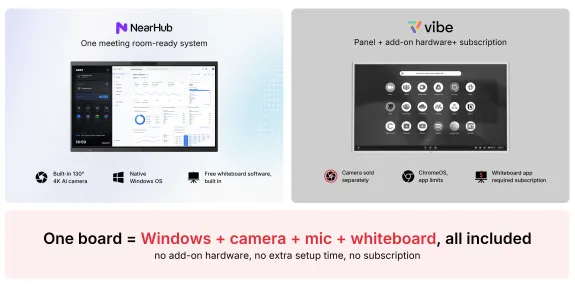
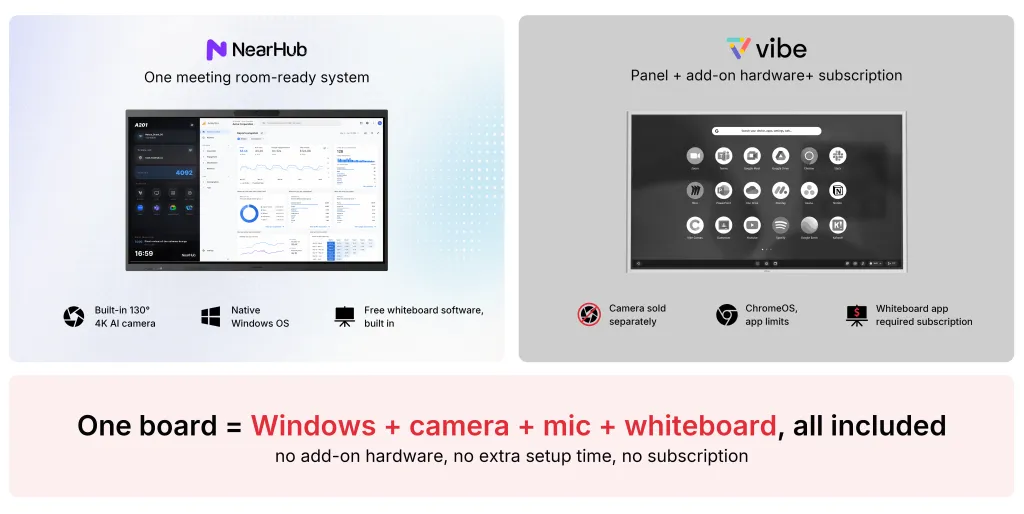
AI camera 130° FOV, 8-mic array with AI noise reduction
Optional external add-on ($199 extra)
NearHub
Touch Points
40-point multi-touch, 5ms response
10-point infrared touch
NearHub
App Ecosystem
1000+ apps, full Windows desktop apps
250+ apps, Chrome Store + Vibe App Store
NearHub
Wireless Casting
AirPlay, Web Cast, Tail Cast, App Cast, HDMI Cast
Wi-Fi 6 / Bluetooth 5.2 casting
NearHub
IT Management
Microsoft Intune, SSO via Okta / Azure AD
Limited enterprise MDM
NearHub
Price (55")
Starts at $3,499
Starts at $3,699
NearHub(lower entry)
Bottom line: If you need Windows app compatibility, built-in A/V, and enterprise IT control, the NearHub Board Max is the stronger choice. If your entire workflow lives in a browser and you want the lowest possible upfront spend, the Vibe Board S1 is viable—but you must budget for add-ons and subscription cost.
This verdict is conditional, not absolute. A solo freelancer who lives in Google Docs and already owns a webcam will have a very different experience than a 200-person firm running Tableau and AutoCAD. The rest of this article breaks those conditions down so you can match the board to your reality rather than to a marketing headline.
Suitable for / Not Suitable for
Choose NearHub Board Max if…
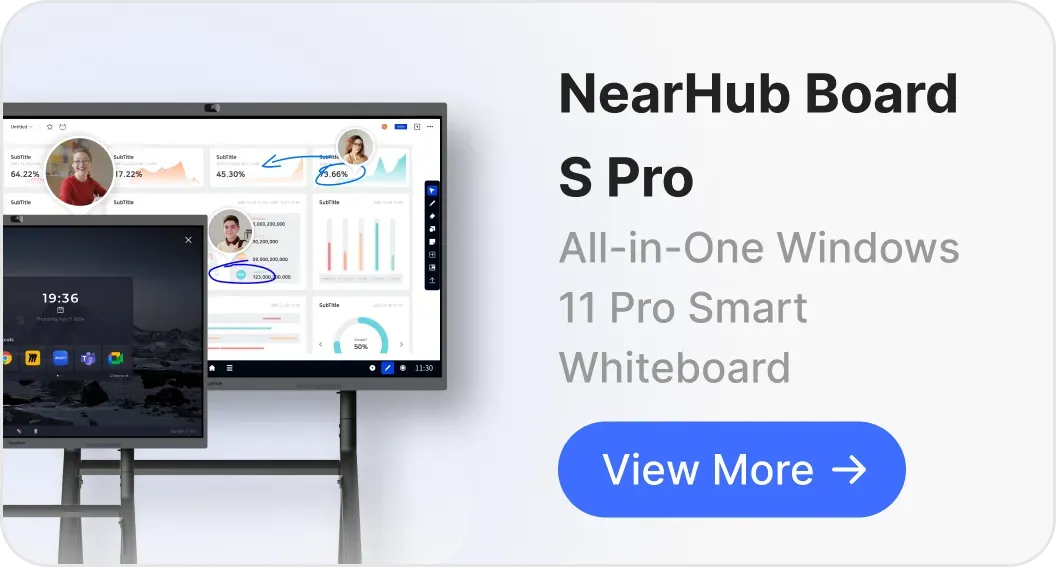
Your organization depends on Windows desktop apps, proprietary .exe software, or Microsoft Office advanced features. Because the board runs Windows 11 Pro, you can install the same software your laptops run. That means no ChromeOS limitation blocking your workflow.
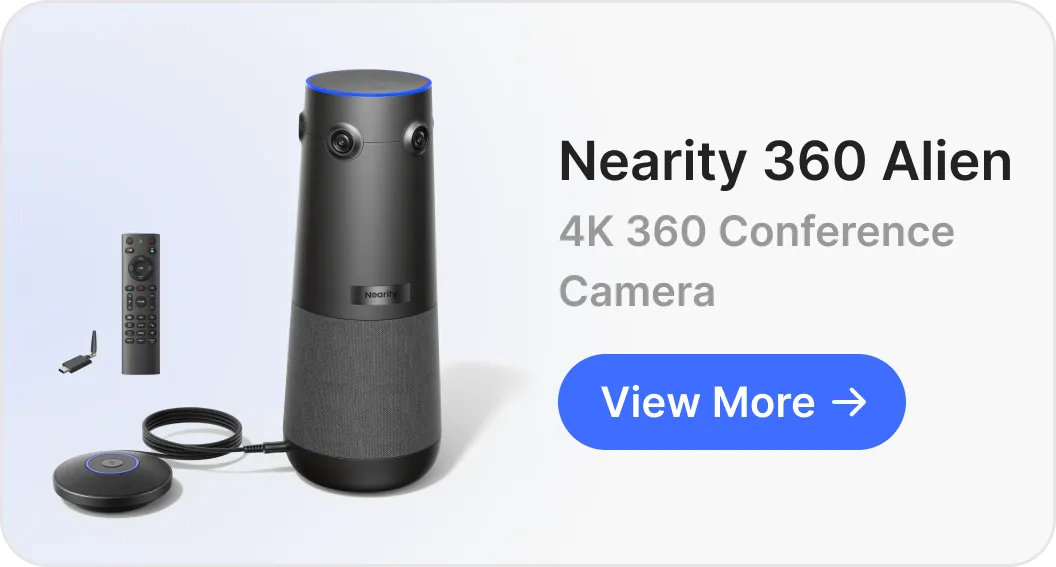
You want plug and play video conferencing without hunting for external USB cameras or speakerphones. The built-in AI camera and 8-microphone array mean the board is a conference room the moment you turn it on.
Your IT team requires Microsoft Intune, Azure AD SSO, or Okta integration for device compliance. The NearHub Board Max enrolls into existing Windows endpoint management just like any other PC.
You need 40-point multi-touch for multi-user collaboration in design reviews or whiteboarding sessions. More touch points means more people interacting at once without dropped inputs.
You plan to use the board in multiple rooms and need a portable stand with lockable wheels included. Mobility is bundled, not an upsell.
You refuse to pay a recurring subscription to unlock core whiteboarding or management features. The purchase price includes the full capability stack.
You need four screen-size options (55", 65", 75") to match different room dimensions. One product family can standardize every space from huddle to boardroom.
Choose Vibe Board S1 if…
Your team is entirely cloud-native, living in Google Workspace, Figma web, and browser-based tools. In this world, a Windows app is irrelevant because everything runs in Chrome.
You already own a high-quality external camera and microphone and do not mind a $199 add-on. If your Logitech Rally Bar is already mounted, the missing built-in camera on Vibe is not a loss.
You prefer a simplified interface with fewer settings and no Windows licensing overhead. ChromeOS boots fast, updates silently, and presents a clean shelf of icons.
You value the Vibe Canvas cloud whiteboarding experience above all other software requirements. For teams that prioritize infinite canvas collaboration, Vibe's native app is polished.
You want a 55-inch display and do not need larger sizes for bigger rooms. The product line is simpler because there are fewer variants to choose from.
Do NOT choose NearHub Board Max if…
Every device in your building runs ChromeOS and your IT policy forbids Windows endpoints. A single Windows board becomes an unmanaged island.
You only need a giant browser for occasional web whiteboarding and have no use for Windows app support. You would be paying for an operating system your team never launches.
Do NOT choose Vibe Board S1 if…
You run Windows-only CRM, CAD, or data-visualization software in meetings. The ChromeOS limitation here is absolute; there is no workaround.
You need built-in camera, microphone, and speaker tracking for daily hybrid meetings. Adding external A/V after purchase raises price and cable clutter.
Your security policy requires full-disk encryption via BitLocker and Intune conditional access. VibeOS cannot enroll into Microsoft endpoint protection.
You expect 1000+ apps including full desktop creative or engineering tools. The 250+ app library is web and Android only.
Per-Scenario Winner
Scenario
Winner
Why
Small huddle room (4–6 people)
NearHub Board Max
The built-in AI camera with 130° ultra-wide FOV and 8-microphone array eliminates the need for external A/V hardware. In a small room, one all-in-one device is cleaner than a board plus a $199 camera kit plus separate speakers. You wheel it in, plug it in, and join the call.
Mixed-platform team (Windows, Mac, Chromebook)
NearHub Board Max
With Windows 11 Pro, the board runs the same apps your Windows users depend on, while AirPlay and Web Cast support Mac and Chromebook users. Vibe Board S1 cannot run Windows apps, creating a gap for the Windows half of your team. A mixed room needs a board that bridges every OS, not one that matches only the Google side.
Full Windows desktop app support is non-negotiable here. The Vibe Board S1 runs VibeOS based on Chrome OS and does NOT support Windows OPS modules, so native Windows software is impossible to install. When your meeting depends on launching a Windows app, NearHub is the only board that participates.
Small huddle rooms reward simplicity. The fewer boxes, cables, and remote controls in the room, the faster meetings start. NearHub Board Max consolidates display, touch, camera, microphone, and speaker into one device on one power cable. The 8-microphone array picks up voices from up to 8 meters away, and the AI noise reduction filters out keyboard clatter and HVAC hum. Vibe Board S1 forces you to integrate external A/V, which means another power brick, another USB cable, and another device to troubleshoot when the call fails.
Mixed-platform teams are common in creative agencies, universities, and enterprises that acquired Macs for design and Windows machines for finance. The NearHub Board Max handles this diversity through its multi-protocol wireless casting. AirPlay covers macOS and iOS, while Web Cast and App Cast cover Windows and Chromebook without forcing users to install proprietary sender software. Vibe's casting is more limited because it relies on Chrome OS native protocols, which can frustrate Windows users who expect Miracast or dedicated app casting.
Windows-dependent workflows are the most dangerous trap for Vibe buyers. Many organizations assume their software has a web version, only to discover that the web client lacks the data connectors, macro support, or rendering engine the team relies on. A Windows app that took three years to customize cannot be replaced by a browser tab overnight. NearHub Board Max sidesteps this risk entirely because it is a Windows PC with a touchscreen. For teams running AutoCAD, SolidWorks, PowerBI Desktop, or custom internal tools, this is the only spec that matters.
Budget-conscious startups should look at total cost of ownership, not just invoice price. The Vibe Board S1's lower sticker is appealing when cash is tight. But the $399 stand and $199 camera kit are not optional for a functional meeting room; they are necessities deferred. Add the subscription cost of Vibe Pro at roughly $20 per month, and the three-year spend approaches $4,700. The NearHub Board Max starts at $3,499 with stand and A/V included and no mandatory subscription. Over a standard depreciation cycle, NearHub is often the better financial decision even though the Day-1 credit card charge is higher.
Operating System: Windows 11 Pro on the NearHub Board Max means the device behaves exactly like a large Windows PC, running .exe installers, Group Policy, and BitLocker encryption. VibeOS based on Chrome OS means fast boot times and automatic updates, but it cannot run legacy Windows software. This parameter actually affects whether your existing software license inventory and deployment scripts work out of the box or require a complete workflow rebuild.
Processor: Both boards use Intel Core i5 chips, but the 12th Gen processor in the NearHub Board Max offers newer architecture with improved efficiency cores for multitasking. The 4-core i5 in the Vibe Board S1 is adequate for web browsing and video playback. This parameter actually affects how many browser tabs, video streams, and whiteboard layers you can run simultaneously before the interface stutters during a client presentation.
RAM: 16GB on NearHub vs 8GB on Vibe. This parameter actually affects your ability to keep large PowerBI dashboards, multiple video feeds, and annotation layers open in memory without forcing apps to reload and lose context when you switch tasks.
Storage: 256GB vs 128GB. This parameter actually affects how many offline files, recorded meetings, and installed applications you can keep on the device before needing external storage or cloud sync, which matters in low-bandwidth environments.
Display: Both offer 4K UHD, but NearHub provides four size options while Vibe currently focuses on 55". This parameter actually affects visibility in large conference rooms and whether the board can serve as a digital signage display when not in meetings. A 55-inch screen is perfect for a huddle room but underwhelming in a 20-person boardroom.
Touch Technology: Capacitive multi-touch on NearHub delivers a smartphone-like response; infrared touch on Vibe relies on bezel-mounted sensors. This parameter actually affects drawing precision near the edges and whether the screen feels glass-smooth or slightly recessed beneath a bezel layer.
Touch Points: 40-point vs 10-point. This parameter actually affects how many students or collaborators can write or pinch-to-zoom at the same time before the board stops recognizing new fingers. In a classroom of thirty children, 10 points fills up quickly.
Response Time: 5ms on NearHub. This parameter actually affects the lag between stylus contact and ink appearance, which determines whether fast handwriting feels natural or delayed. A slow response time makes users write larger and slower to compensate.
Built-in Camera / Microphone: NearHub includes both; Vibe requires external add-ons. This parameter actually affects your total hardware footprint, cable clutter, and whether the board is ready for a video call the moment you wheel it into a room. A board without a built-in camera is just a TV for the first ten minutes of every meeting.
Camera Features: Panoramic, auto-framing, and speaker tracking on NearHub automatically adjust the view to follow active speakers. This parameter actually affects how professional your hybrid meetings look without a dedicated AV operator manually zooming and panning.
Wireless Casting: NearHub supports five distinct protocols including AirPlay and HDMI Cast; Vibe relies on standard Chrome OS casting. This parameter actually affects which laptops can share screens instantly and whether guests on corporate networks need to install software first. The more protocols supported, the fewer help-desk tickets about "I can't connect."
App Ecosystem: 1000+ Windows apps vs 250+ Chrome/web apps. This parameter actually affects whether you can install your company's CRM, BI, or design tools directly on the board or must switch to a laptop mid-meeting. App ecosystem size is the difference between a standalone workstation and a secondary display.
Video Conferencing: Native platform support on NearHub means certified Zoom Rooms and Teams Rooms experiences. This parameter actually affects meeting join reliability, calendar integration, and whether your IT team can remotely manage the conferencing client. Web-based conferencing on Vibe works, but lacks the certified integrations that IT trusts.
IT Management: Microsoft Intune and Azure AD SSO on NearHub allow policies, patches, and conditional access rules to flow from existing infrastructure. This parameter actually affects whether your security team can enforce the same compliance standards on the whiteboard that they enforce on every other endpoint. A board outside your MDM is a shadow IT device.
Stand: NearHub includes a portable stand with four lockable wheels; Vibe charges $399 extra. This parameter actually affects your Day-1 mobility and whether the board can be rolled between huddle rooms without additional purchase orders. Mobility is often an afterthought that becomes a Monday-morning crisis when the board cannot move.
Switching Cost and Migration Risk
If you already own a Vibe Board S1 and are considering the NearHub Board Max—or vice versa—the switch is not as simple as unplugging one screen and plugging in another. The operating system divergence creates tangible migration friction that can cost more in labor than the hardware itself.
Software reinstallation and licensing. Every application that ran on VibeOS must be re-evaluated for Windows 11 Pro compatibility. Conversely, Windows .exe tools cannot migrate to a Vibe board at all. If your team uses a proprietary Windows app for client demos, that workflow dies the moment you move to Vibe. You will need to repurchase licenses for Windows versions of cloud apps, reconfigure registry settings, and retest printer and scanner integrations. For enterprise software with per-seat licensing, the cost of new licenses can dwarf the hardware invoice.
Content migration. Whiteboards, annotations, and meeting notes stored in Vibe Canvas must be exported manually or recreated on the new platform. NearHub does not natively read Vibe's cloud format, so expect a weekend of IT time to archive old boards or screenshot them for historical reference. If your organization has two years of brainstorming sessions saved as Vibe boards, losing the ability to edit them is a real knowledge-management casualty.
Subscription cancellation. Vibe Pro subscription cost at roughly $20 per month must be timed correctly to avoid double-paying during the transition. If you cancel before exporting premium whiteboards, you may lose access to advanced layers or templates. Worse, if your team relies on Vibe Canvas real-time collaboration, you must migrate users to a new whiteboarding tool like Microsoft Whiteboard or Miro, which means new accounts, new sharing permissions, and new URLs embedded in meeting notes.
Cable and peripheral changes. While both boards use standard HDMI and USB-C for input, the A/V ecosystem shifts dramatically. External cameras and microphones purchased for the Vibe Board S1 may become redundant because the NearHub Board Max includes superior built-in equivalents. That $199 camera kit becomes e-waste or a spare webcam. Conversely, if you move from NearHub to Vibe, you suddenly need to purchase external A/V that you never needed before, which means researching compatibility, ordering hardware, and running new cables through conduit.
Team retraining. Users accustomed to Chrome OS gestures, the shelf, and Chrome Store installs must learn Windows 11 navigation, the Start menu, and Microsoft Store or direct download installations. For non-technical staff, this retraining can cost hours of productivity per person and generate help-desk tickets for weeks. The reverse migration—Windows to ChromeOS—is usually easier because ChromeOS is simpler, but power users lose access to desktop shortcuts, macro tools, and file-system depth they relied on.
SSO and MDM reconfiguration. If your IT team configured Okta or Azure AD conditional access for the NearHub Board Max, those policies do not port to Vibe's management console. Rebuilding enrollment profiles, Wi-Fi certificates, and guest-network policies is a multi-hour project. If the board is part of a regulated environment, re-auditing the new device for compliance adds weeks to the deployment timeline.
Stand and mounting compatibility. The portable stand with lockable wheels included with NearHub may not match Vibe's VESA pattern or vice versa. If you purchased Vibe's $399 stand, it may not accommodate the NearHub Board Max's weight or port layout, forcing a new stand purchase. Wall mounts are similarly risky; a 75-inch NearHub weighs more than a 55-inch Vibe, and studs that held the smaller board may not safely hold the larger one without reinforcement.
When to Explicitly NOT Choose NearHub Board Max
We recommend the NearHub Board Max for the majority of enterprise and hybrid-work environments, but there are two clear cases where the Vibe Board S1 is the better purchase. We are naming them explicitly because the wrong choice here is expensive and embarrassing.
Case 1: Google Workspace-native schools with Chromebook fleets. If every student and teacher in your district uses a Chromebook, Google Accounts, and Google Classroom, the Vibe Board S1 fits the existing ecosystem more naturally. ChromeOS syncs bookmarks, extensions, and policies across Chromebooks and the Vibe board. Introducing a Windows 11 Pro device creates an administrative island that your Google-focused IT team must manage separately. In this scenario, the ChromeOS limitation becomes a feature, not a bug, because it extends the uniformity you already enforce. Teachers do not need to learn Windows update schedules, BitLocker recovery keys, or Blue Screens of Death. Students cast from their Chromebooks using the same protocol they use at home. The board becomes a big Chromebook, and that is exactly what a Google school wants.
Case 2: Minimalist whiteboarding-only spaces with existing A/V. If you run a design studio or agile war room that only needs a giant touchscreen for Miro, Figma web, and Vibe Canvas—and you already own a high-end Poly or Logitech Meetup camera system—the Vibe Board S1 reduces redundancy. You do not need NearHub's built-in AI camera or 8-microphone array because your external A/V rig is superior. You do not need Windows app support because every tool you use runs in a browser. In this specific scenario, paying for NearHub's all-in-one flexibility is paying for capabilities you will never switch on. The money you save can go toward a second Vibe board for another war room, which delivers more collaboration surface area than one over-spec'd NearHub.
No. The Vibe Board S1 runs VibeOS based on Chrome OS, which cannot install or run native Windows desktop applications. It supports web apps, Android apps from the Chrome Store, and apps from the Vibe App Store, but proprietary .exe or Windows-only enterprise software will not run. If your team depends on a Windows app for daily work, this is a hard stop. There is no emulation layer, no Windows OPS module support, and no workaround that will make AutoCAD or your internal CRM launch on this device.
Does NearHub Board Max require a monthly subscription?
No. NearHub Board Max runs Windows 11 Pro and does not lock core features behind a recurring subscription. Video conferencing, wireless casting, whiteboarding, and IT management features are included in the purchase price. The only ongoing cost is your choice of third-party conferencing software such as Zoom Rooms or Microsoft Teams Rooms, which carry their own licensing independent of the hardware. Unlike competitors who gate advanced whiteboarding or cloud storage behind a paywall, NearHub delivers the full capability stack on Day One.
Which board has a built-in camera and microphone?
Only the NearHub Board Max ships with a built-in AI camera and microphone array. The Vibe Board S1 offers camera and microphone hardware as optional external add-ons for an additional $199. In practice, this means NearHub is ready for video calls immediately after Wi-Fi setup, while Vibe requires extra hardware, cables, and USB ports before your first hybrid meeting. A built-in camera is not a luxury for hybrid teams; it is the difference between a board that hosts meetings and a board that watches them happen on a laptop next to it.
Is the Vibe Board S1 or NearHub Board Max better for Microsoft Teams?
NearHub Board Max is better for Microsoft Teams because it runs Windows 11 Pro and offers native support for Microsoft Teams Rooms, plus SSO via Azure AD. The Vibe Board S1 can run Teams via the web browser or Android app, but lacks native Teams Rooms integration, calendar-based join, and the full Windows desktop feature parity that power users expect. If your organization standardizes on Microsoft Teams Rooms licensing and expects one-touch join from the conference room calendar, NearHub is the only board in this comparison that qualifies.