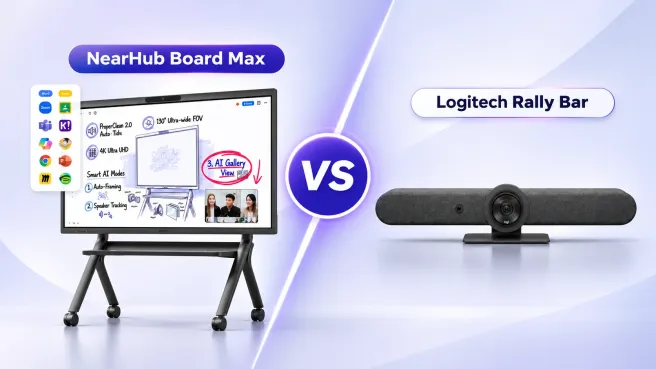
ViewSonic ViewBoard Alternative: NearHub Board Max for Offices
Choose between ViewBoard and NearHub Board Max by comparing office applications, meeting hardware, guest sharing, IT policies, and complete room costs.
ViewSonic ViewBoard alternative
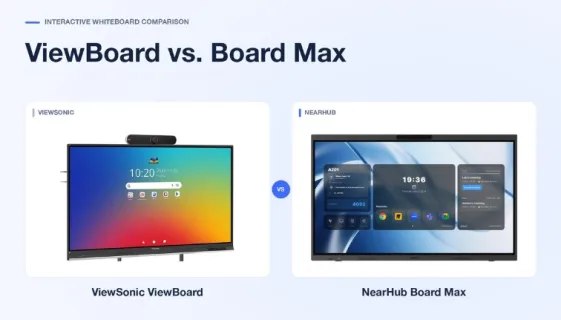
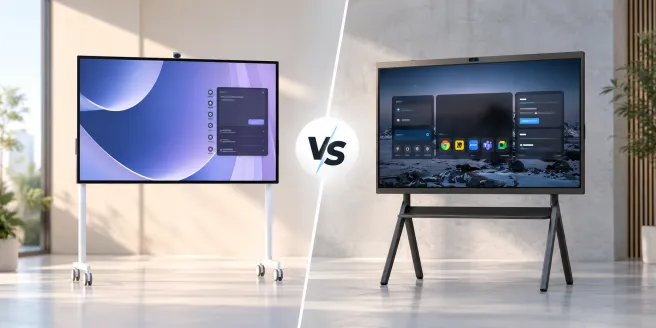
ViewSonic ViewBoard vs NearHub Board Max
ViewSonic smart board
Updated: Nov 13, 2026 · 8 minutes read
Global Business, Brought Near.
No Installer, No Hassle, Just Works.
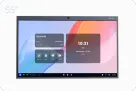
NearHub Board Max is a strong ViewSonic ViewBoard alternative when your office needs built-in Windows computing, a camera, and microphones. ViewBoard can fit teams already using its Android applications or reusing suitable room equipment. Choose based on the work your team needs to complete, then compare the full configuration and cost.
Key takeaways
Start with NearHub Board Max when a new office room needs Windows desktop applications and integrated camera and microphone hardware.
Consider ViewBoard when its built-in workflow fits, or suitable computing and AV equipment can be reused.
Compare equivalent 65-inch room packages, including the computing, accessories, installation, and licenses actually required.
The central choice is where the work happens: on a built-in Windows computer, in ViewBoard’s Android applications, or on a separate PC connected to the display. Compare that workflow first, then the camera, microphone, and sharing setup around it.
The table below uses 65-inch configurations of NearHub Board Max, ViewBoard IFP6551, and IFP6550 Gen 5. Each model has its own capabilities; the ViewBoard name alone does not tell you what a package includes.
Decision factor
NearHub Board Max
ViewBoard IFP6551
ViewBoard IFP6550 Gen 5
Built-in computing
Windows 11 Pro
Android EDLA; verify the supplied version
Android; confirm version for the quoted unit
Windows desktop work
Runs on the board’s built-in computer
Specify a compatible computing configuration if required
Optional slot-in PC capability is documented
Meeting hardware
Built-in 4K AI camera and eight-element microphone array
Eight-element beamforming microphone array; camera pairing offered separately on the product page
Confirm camera and microphone equipment in the proposed package
Sharing software
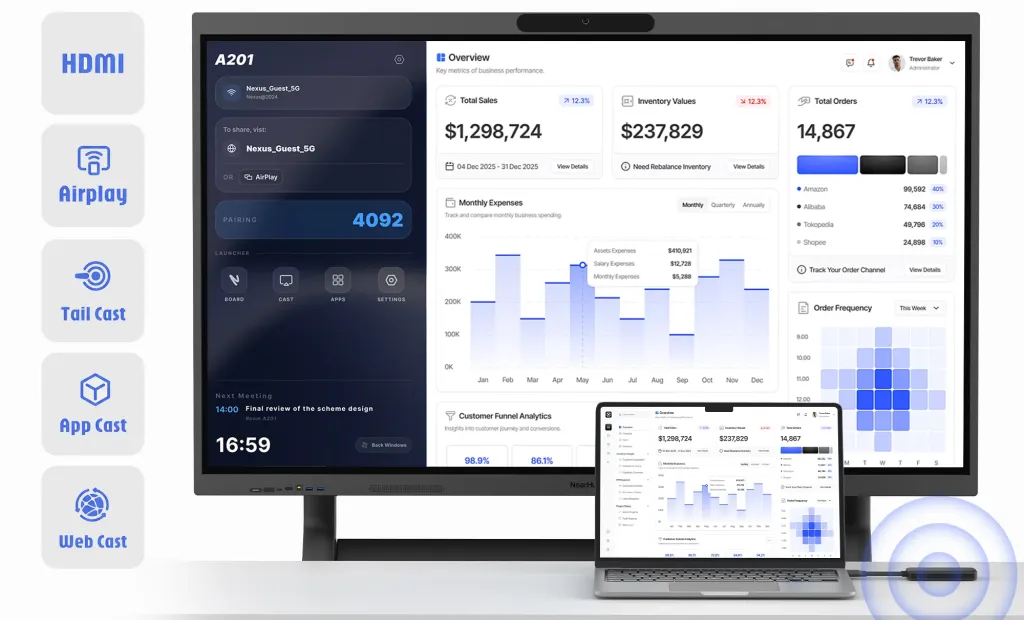
Multiple paths, including AirPlay and NearHub Tail
AirSync and myViewBoard listed
ViewBoard Cast and myViewBoard listed
Compare equivalent 65-inch configurations
Can ViewSonic ViewBoard Run Windows Desktop Applications?
A presentation can turn into a working session quickly. Someone asks to change a forecast, edit a slide, or open the application used in training. At that point, the important question is where the application runs. Showing a laptop screen on the board and running the application on the board are different workflows.
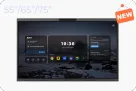
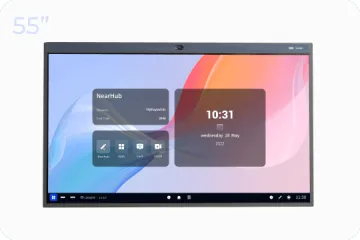
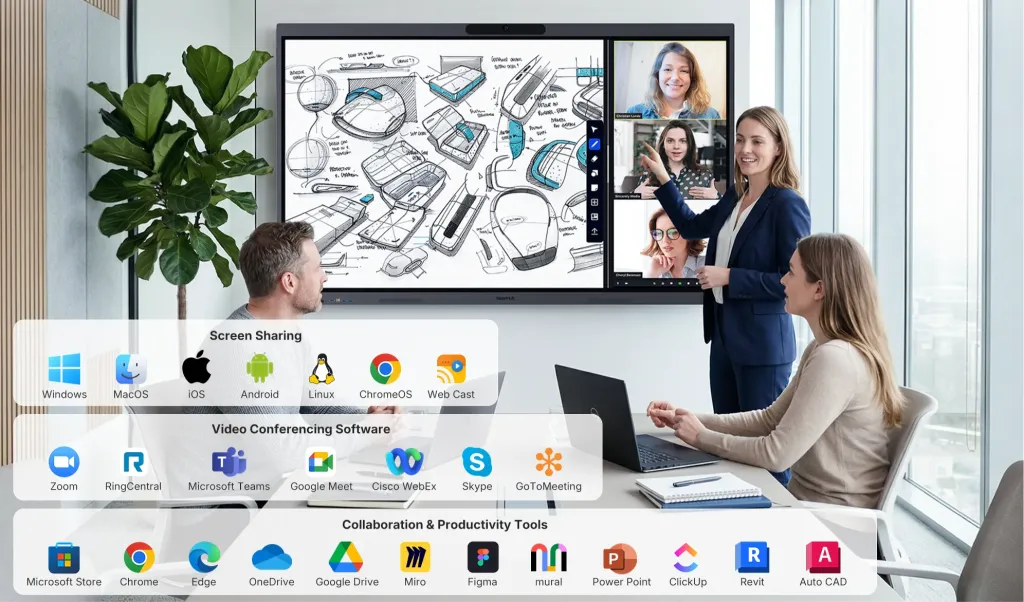
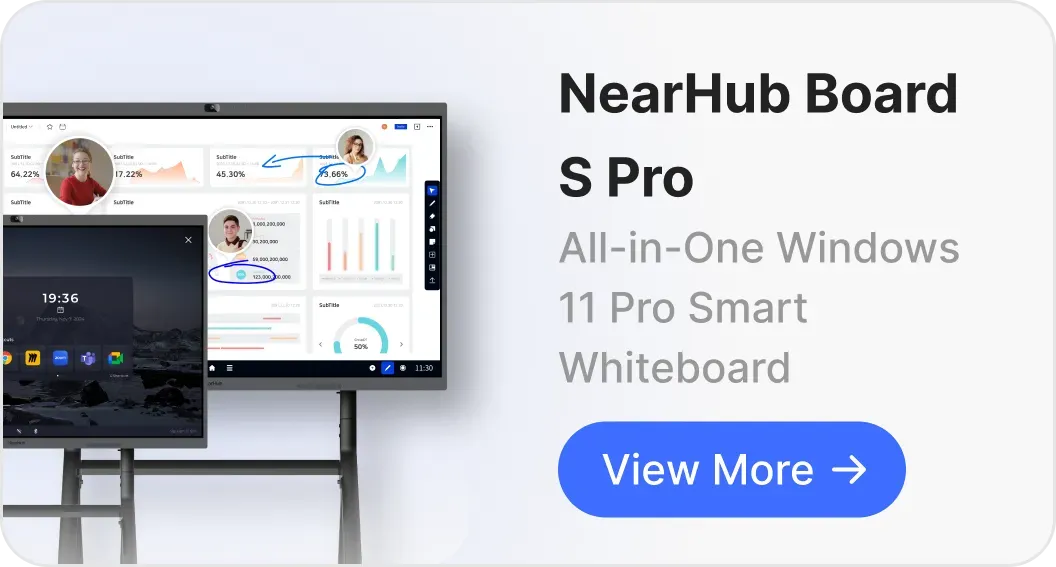
Board Max includes Windows 11 Pro, an Intel Core i5 processor, 16GB RAM, and a 256GB SSD. In that finance meeting, a compatible desktop workbook can run on the room’s computer. The team can revise it at the board without making one attendee’s laptop the permanent host. Full desktop Teams and Zoom clients can also run in that Windows environment.
ViewBoard can support the same kind of Windows-based work with an appropriate computer. IFP6550 Gen 5 documents optional slot-in PC capability; for IFP6551, specify the compatible module or external PC in the quote. The trade-off is configuration: Board Max supplies Windows computing as part of the board, while the ViewBoard setup may need another component. An office with a suitable PC already in place may prefer that flexibility.
For training built around supported Google applications and myViewBoard, IFP6551 deserves consideration on its own terms. Its documented Android EDLA platform and Google Play access may fit the instructor’s existing workflow. Adding Windows only makes sense if it provides functionality the training actually requires.
Bring the difficult file to the demo
Use a real workbook, slide deck, or training application. Edit it, play embedded media, switch applications, save the result, and reopen it on another device. Ask which computer and application performed each step. A successful sample presentation does not establish compatibility with your own material.
The choice becomes clearer once the application path is explicit. If Android or browser tools complete the work, there may be no reason to add Windows. If the team needs compatible desktop software and a room that operates independently of personal laptops, NearHub Board Max provides that starting point. Specialist applications still need a requirements check.
ViewBoard vs. NearHub Board Max for Hybrid Meetings
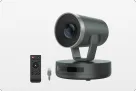
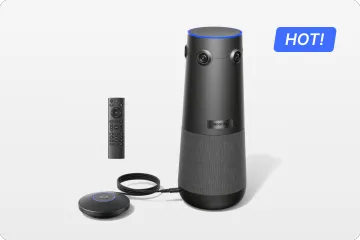
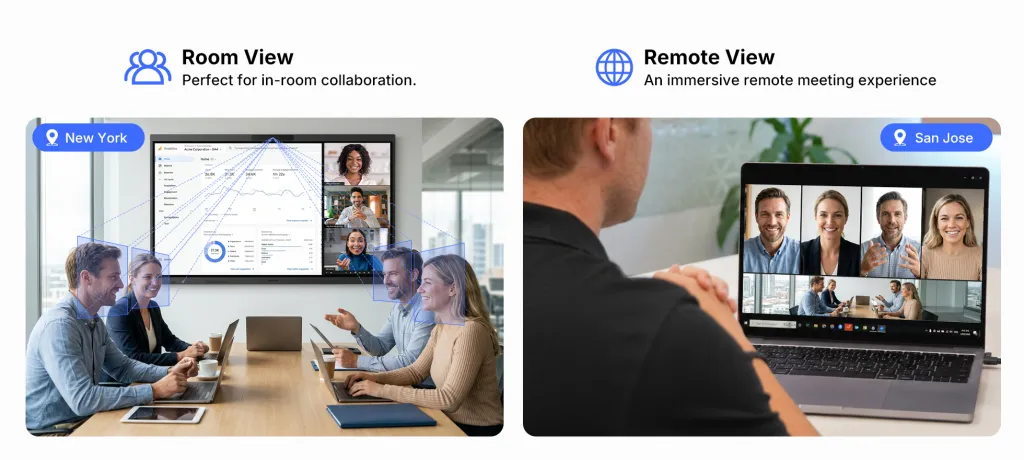
A clear presentation is only part of a hybrid meeting. Remote colleagues also need to follow who is speaking and hear people away from the screen. The useful comparison is the complete camera and microphone setup. Board Max combines a built-in 4K AI camera with an eight-element microphone array. IFP6551 already includes an eight-element beamforming microphone array, and ViewSonic describes pairing it with a VB-CAM-201 camera.
With IFP6550 Gen 5, ask the supplier to identify the camera and microphone components in the proposed room package. Accessories pictured or listed alongside a display are not necessarily included in its price.
Integrated camera: fewer placement choices
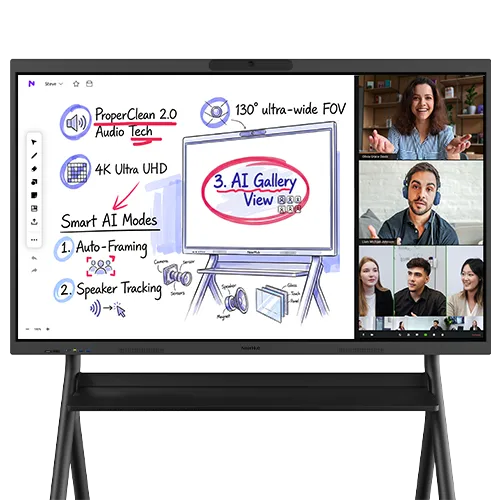
Board Max’s camera supports panoramic view, auto-framing, speaker tracking, and AI Gallery View. Its stated 130° field of view is relevant to seating coverage, but the demonstration should show people at the near, far, and side seats—and someone standing at the board.
Separate camera: more configuration choices
A ViewBoard paired with a suitable camera may allow more freedom over camera placement. That can matter when the best position for the screen differs from the best position for faces. Confirm the camera, mounting, connections, and software behavior as one setup.
NearHub Board Max’s AI Gallery View composes individual in-room faces into separate frames within the camera image. This is useful when a wide room shot makes each face small for remote attendees. Check the result from a remote participant’s device; do not assume it creates separate native participant tiles in every meeting platform.
Audio deserves the same attention. Board Max lists pickup up to 8 meters, but a distance specification cannot predict speech clarity in a reflective room. On either system, have a remote listener assess normal speech from different seats, a presenter facing the display, and participants taking turns. Test the complete configuration before deciding whether additional audio equipment is needed.
Wireless Screen Sharing for Guests: ViewBoard vs. NearHub
A visitor should not have to install a company’s preferred app just to present a few slides. For rooms used by employees, clients, and outside trainers, the useful question is how each person can connect with the device they bring.
These options address different situations. A visiting presenter may use Webcast, an Apple user may prefer AirPlay, and a room equipped with NearHub Tail can offer a physical connection routine. HDMI provides an alternative when wireless sharing does not suit the device or environment. Confirm the required accessories and supported device configuration when arranging the room.
ViewBoard’s sharing workflow depends on the model and software: the IFP6550 Gen 5 lists ViewBoard Cast, while the IFP6551 lists AirSync. For a team already familiar with those tools, continuing with the supported workflow may be practical. For a room that regularly hosts visitors, compare the steps an unfamiliar user must take.
That first connection deserves attention. One April 2026 vCastSender reviewer asked how to find the connection-code page. The useful takeaway is simple: include an unprepared guest device in the demonstration and let its owner connect without coaching. Historical reports of mirroring problems after updates also make it sensible to repeat that test after software changes; they do not establish current ViewBoard hardware or AirSync problems.
Need
What to demonstrate on either configuration
Presentation
Share the intended screen or application, including audio where required.
Touchback
Control the source computer from the display through the proposed connection.
Annotation
Show whether marks are temporary overlays, exported images, or edits saved into the source.
Joint editing
Let an authorized remote colleague edit the same document or canvas.
Showing content is only the first capability
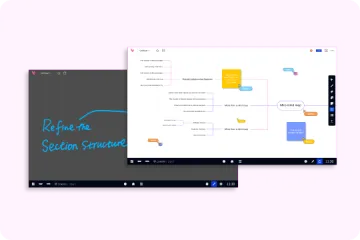
Once content appears, check what happens next. Screen sharing, touchback, annotation, and collaborative editing are separate capabilities. Showing a laptop screen does not automatically let someone control it from the board, save annotations into the original file, or invite remote colleagues to edit it.
For visitor-heavy offices, Board Max’s practical appeal is the choice of browser, AirPlay, dongle, app, and wired connections. Select the route that fits your users, then demonstrate presenter switching, audio, and any required touch or annotation behavior through that specific connection.
Smart Board Management for Business: Accounts, Files, and Updates
The room needs to be ready for the next team, not only the person who set it up. Both product families offer management options. IFP6550 Gen 5 documents myViewBoard Manager; IFP6551 lists ViewSonic Manager, Google Workspace Enterprise Management, and Microsoft Intune. Board Max’s documentation lists Intune, Active Directory, Group Policy, and identity integrations.
For an IT team already administering Windows endpoints, Windows-based NearHub Board Max provides a familiar environment to evaluate. A ViewBoard may fit an established ViewSonic or Google management workflow. In either case, verify the enrollment method, supported controls, and required licenses. A product listing does not prove that every policy is available in every configuration.
Shared-room access is a useful deciding test. Open a company file with the intended account, finish the meeting, sign out, and start as the next user. Check what remains accessible. On Board Max, include the Windows session and application accounts. On ViewBoard, include the Android profile and any separate computer session.
Before deployment, assign responsibility for application installation, update timing, account access, and restoring the room after a problem. If the ViewBoard setup includes a separate PC, both environments need an owner. Built-in Windows on Board Max still requires normal endpoint administration.
ViewBoard vs. NearHub Board Max: Total Meeting Room Cost
Compare the cost of the finished room. A ViewBoard price for the display alone may leave out the Windows computer or camera your workflow requires. Board Max includes those components, but that does not make it the cheaper choice in every room. Match screen size, applications, and meeting functions before comparing the totals.
Use the same quote checklist
Display and computing: exact model, generation, size, installed OS, and any required computer.
Meeting equipment: included camera and microphones, plus any additions the room test identifies.
Installation: mount or stand, cables, labor, delivery, taxes, and commissioning.
Software and support: application licenses, management services, warranty scope, and the party handling service.
Board Max is attractive when the alternative configuration must add Windows computing and meeting hardware that it already integrates. That is a configuration advantage; the final quotes must establish whether it also saves money.
ViewBoard can make sense when a suitable computer, camera, or mounting system is already available. Price the reuse plan honestly: confirm compatibility and installation work, but do not charge the project again for equipment it can retain. Conversely, do not omit a required computer simply because it is absent from the display’s advertised price.
Repair arrangements also affect the decision. Separate equipment may be replaceable independently, subject to compatibility; an integrated board reduces separate hardware selections. Ask each supplier how a failed component is diagnosed and what happens to the room during service. Neither design establishes lower downtime by itself.
For broader budgeting, see how much a smart board costs. Obtain dated, equivalent US quotes before choosing a price winner.
Is NearHub Board Max the Right ViewSonic ViewBoard Alternative?
For a new Windows-based office room, Board Max is our preferred starting point. Its built-in computer and meeting hardware address a clear requirement: running compatible desktop applications and a video meeting from the board itself. Bring ViewBoard into the same comparison with the computing and AV configuration needed to complete that work.
If your team already uses myViewBoard, supported Google applications, or reusable room equipment, a matching ViewBoard configuration remains a credible choice. Replacing a familiar setup is worthwhile when it fixes a specific requirement, not merely because the alternative has a different operating system.
Choose Board Max when…
Your room needs compatible Windows desktop applications, its own meeting computer, and integrated audio and video. Evaluate one configured board against the complete ViewBoard package required to do the same work.
Choose ViewBoard when…
Your organization already uses myViewBoard or Google-centered workflows, or has a suitable computer and AV system to reuse. Confirm the exact display, software, and included accessories.
1. Complete the actual work
Open your file, edit it, join a meeting, and save a usable result. Identify which computer and application handles each action.
2. Include the visitor and remote colleague
Connect an unprepared guest device. Check room audio, camera framing, shared content, and any required remote editing.
3. Hand over the room
Disconnect, sign out, and start as the next user. Keep the working configuration with the quote and repeat affected tests after changes.
Evaluate Board Max with your own workflow
If built-in Windows and integrated meeting hardware match your requirements, bring your files, devices, and a remote participant to a NearHub Board Max demonstration. Use the same acceptance meeting for the ViewBoard quote so the choice rests on work your team can actually complete.
Frequently asked questions
Should we replace a working ViewBoard just to get Windows?
Not automatically. First identify the task your current setup cannot complete. A supported external computer or compatible slot-in module may meet that need. Board Max becomes more relevant when you also want to change the room workflow or add integrated meeting hardware.
Can existing whiteboard files move between platforms?
Test a representative export before choosing. Check whether handwriting, editable objects, attachments, and permissions survive in the form you need. A readable PDF or image is not equivalent to an editable whiteboard session, and complete file compatibility should not be assumed.
Does a higher touch-point count mean better collaboration?
Not by itself. The application, active writers, palm rejection, and usable screen area matter. Board Max lists 40-point touch and up to eight simultaneous writers; IFP6551 lists touch limits that vary by channel. Demonstrate the actual activity rather than choosing by the larger number.
Can one successful demo validate every office?
No. Reuse the evaluation method, but verify representative room layouts, networks, account policies, and devices before a wider rollout. Record the approved configuration so later installations can be checked against it.