Classroom Smart Board Cost: When Is It Worth More Than a Projector?
Compare classroom smart board costs with projectors by room setup and education stage.
classroom smart board cost
smart board vs projector
Updated: Nov 11, 2026 · 8 minutes read
Global Business, Brought Near.
No Installer, No Hassle, Just Works.
Classroom smart board cost is best judged against the setup your lessons actually need. Keep a working projector when slides and video are readable and direct board interaction is occasional. For a new room with daily writing and annotation, compare complete interactive workflows: include the projector’s input tools and software, and the display’s computing and installation. For hybrid teaching, include the camera, microphones, sharing software, and any additional AV each option needs.For a large lecture room, prioritize a readable image from the last row; projection may be better value than a smaller touchscreen.
The lowest equipment price is only the starting point. Use the classroom scenarios below, then the guidance by education stage, to decide which capabilities belong in your quote and whether an interactive display’s additional cost is justified.
Classroom Smart Board vs. Projector: Which Setup Costs Less?
Start with the scenario closest to your classroom. In each case, compare the new equipment and installation needed to complete the lesson, then include ongoing software and support costs.
1. A working projector classroom: compare incremental costs
Keep the existing system when learners can read the content and the instructor mainly presents slides or video. The screen, mounting, cabling, and computer are already available, so a replacement plan should compare new spending from today onward.
Inspect the actual source of the problem. If the image is readable but the instructor wants to mark up slides, a compatible pen-input device or software workflow might address the need without replacing the room display. If the picture is too small or washed out under normal lighting, identify whether changes to the screen, projector, or room are practical before pricing a touchscreen alternative.
Past spending is a sunk cost. Reusable equipment, however, has real practical value because it can reduce the purchases required now. Do not charge the retained-projector option for an entirely new screen and mount unless they need replacement.
2. A new classroom used for daily annotation: price both complete workflows
A new room offers a fairer comparison because neither option can assume free infrastructure. Quote a projector system with the input tools required for annotation alongside an interactive display with the right software and installation.
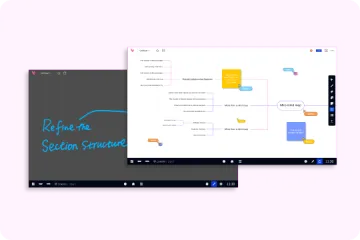
For a math lesson, test writing, erasing, moving between pages, and saving the worked solution. For science or technical training, test labels and diagrams at the size students will actually see. The relevant question is whether the instructor can complete these steps reliably, not which device has the longest feature list.
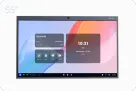
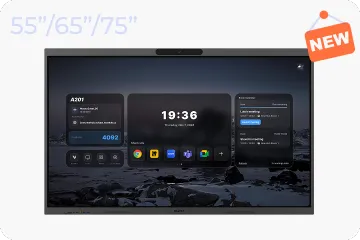
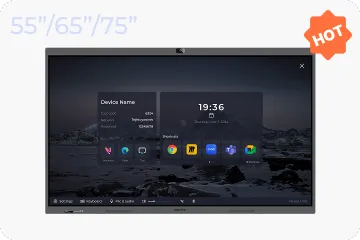
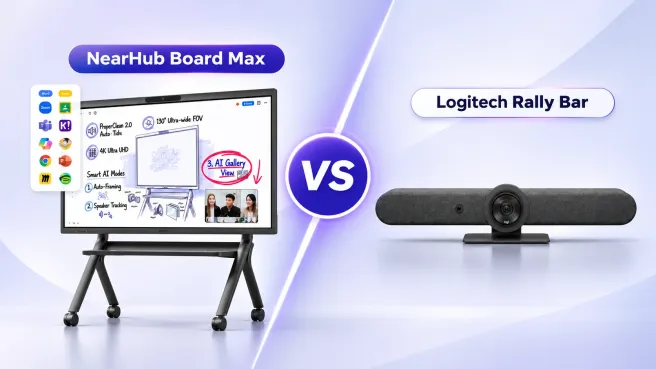
NearHub Board Max is one option when the room needs Windows desktop applications as well as direct touch. Its product documentation lists Windows 11 Pro, a 4K UHD touchscreen, 40-point touch, and up to eight simultaneous writers. That combination can support a shared writing activity, but application behavior and the physical space around the board still determine how many learners can participate comfortably. Verify the intended teaching software during the demonstration.
Board Max includes Windows 11 Pro, so a classroom choosing it for compatible Windows desktop applications does not need to add a separate Windows OPS module for that purpose. This is a concrete item to check in competing quotes: a lower-priced panel may have a different operating system or require additional computing for the same applications. Keep application licenses separate from the hardware comparison.
For bringing lesson content from other devices, the supplied product information lists Webcast, AirPlay, Bozee, and NearHub Tail sharing options. Match the sharing method to the school's laptops, tablets, and permitted network. Have the instructor connect an actual school device during the demonstration; a list of sharing methods alone does not establish that every device can connect under the same conditions. For the workflow differences, see the screen-sharing and annotation guide.
3. A hybrid classroom or corporate training room: include the remote learner
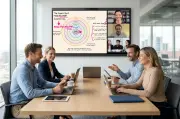
A hybrid room needs a budget for what remote participants see, hear, and can contribute. A projector alone covers the in-room image; a touchscreen alone does not establish the full remote teaching workflow either.
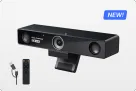
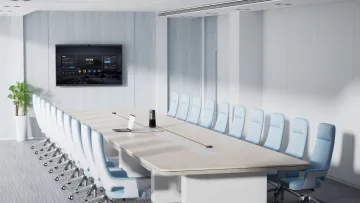
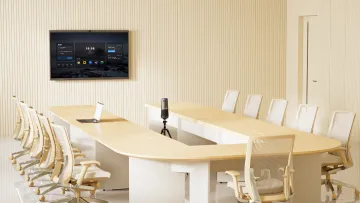
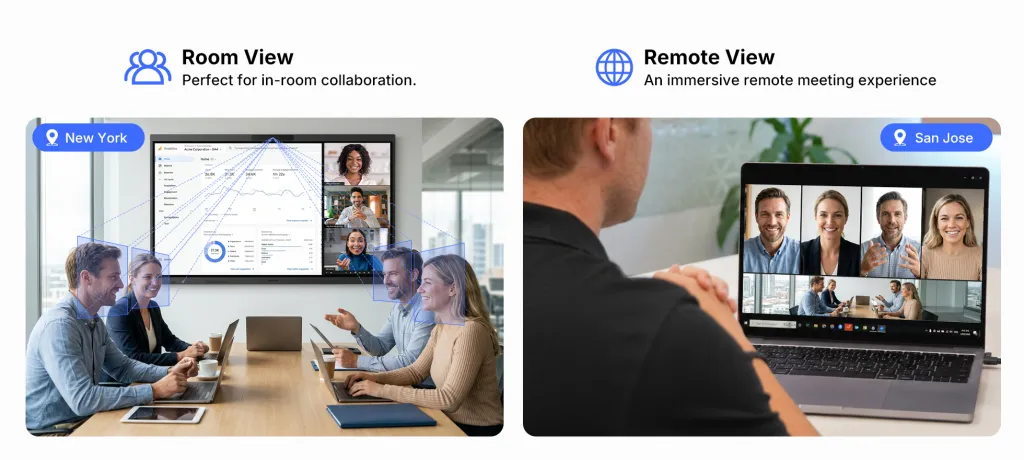
NearHub Board Max's documented built-in AV includes a 4KAI camera with a 130-degree field of view and an eight-element microphone array with pickup listed up to 8 meters. Its AI Gallery View presents individual in-room participants in separate frames. These are useful capabilities to evaluate when discussing group participation, but the published field of view and pickup distance do not guarantee clear results from every seat.
Test the lecturer facing the screen, a learner speaking from the back, and a discussion between people on opposite sides of the room. Listen from the remote device. If intelligibility or framing is inadequate, include the additional AV equipment in the quote rather than assuming the integrated hardware replaces it.
Board Max supports full desktop Teams and Zoom clients. It is not a Microsoft Teams Rooms or Zoom Rooms certified device. Confirm account requirements, licenses, and the actual join-and-share process; desktop client support does not establish certified-room controls or features.
4. A large lecture room: prioritize readable image size
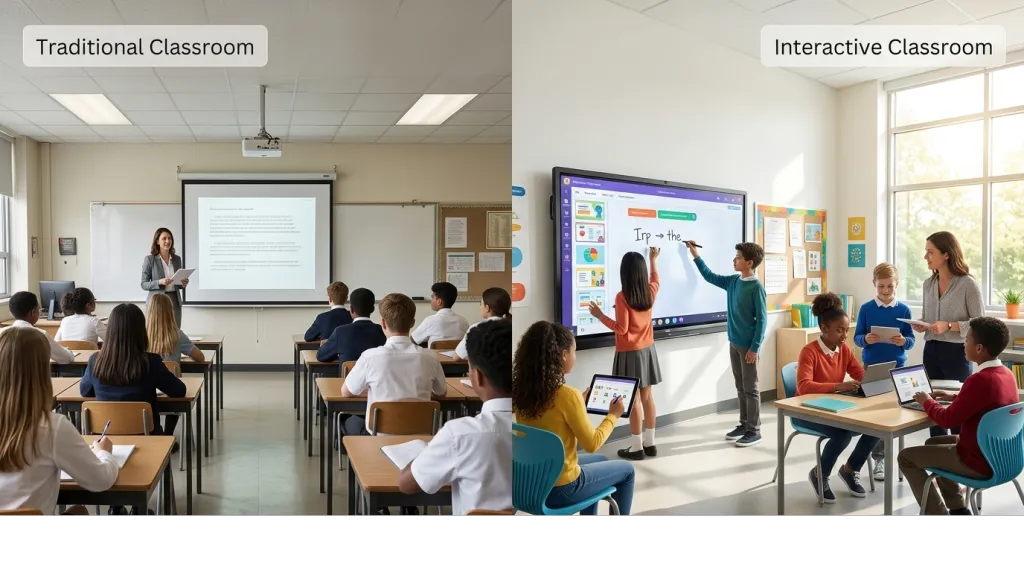
A projector may remain the better fit when the audience needs a much larger image and interaction at the front is occasional. Replacing a large projected image with a smaller touchscreen can reduce readability even if the new panel has a higher pixel resolution.
Start at the last row with a real slide, spreadsheet, or diagram. Check the smallest information learners must read. A touchscreen's 4K specification cannot compensate for text that is physically too small at that distance.
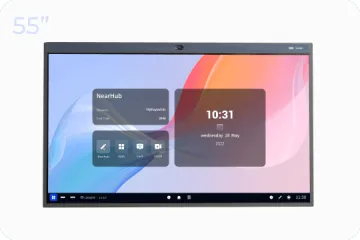
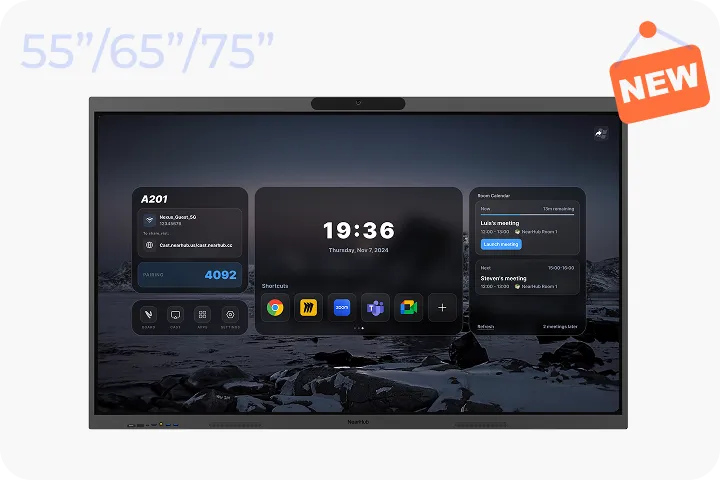
NearHub Board Max is available in 55-, 65-, and 75-inch sizes. If those sizes cannot meet the room's readability requirements, choose a larger suitable display system or projection solution. The ability to touch the screen is valuable only when the audience can also follow the lesson.
Smart Board or Projector: What Fits Each Education Stage?
Choose around the lesson and room, rather than the students’ age alone. A small seminar and a large lecture at the same institution can need different systems. These recommendations are practical selection criteria, not claims that one display technology improves learning outcomes.
Elementary school: prioritize reachable writing and a clear group view
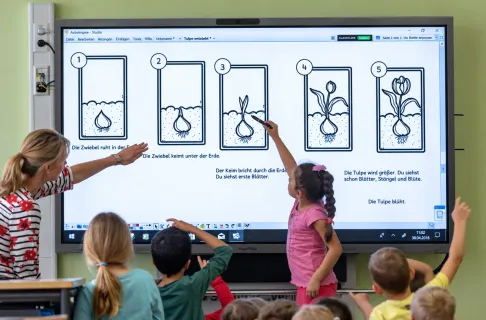
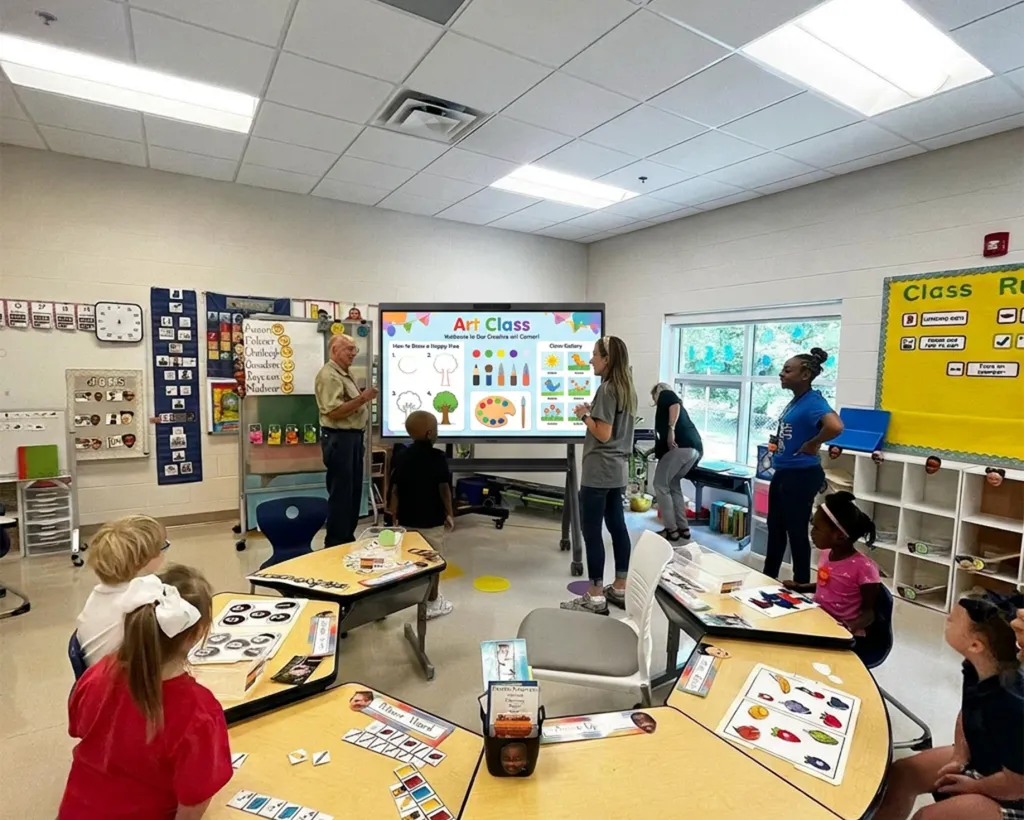
An interactive display is worth considering when pupils regularly move objects, label pictures, or write answers at the board. Check the installed writing height with the intended users: a screen can be easy for the teacher to reach while putting key controls beyond a child’s reach. Plan standing space, supervised turns, and a mount or stand approved for the installation.
Keep or choose projection when most lessons involve shared viewing and the existing image is clear. Before replacing it for occasional pupil input, test whether a teacher-controlled pen-input device meets that need. With either option, check that seated pupils can see around the person at the front.
Middle school: match the system to worked problems and group contributions
Consider an interactive display when lessons repeatedly involve marking up texts, drawing science diagrams, or comparing students’ solutions. During a demonstration, write, erase, switch materials, and reopen saved work using the school’s actual applications. For group activities, test whether several learners have enough space to contribute; the advertised touch-point count alone does not answer that question.
Projection remains a reasonable choice for presentation-led lessons or rooms where a larger image matters more than direct touch. Where students contribute from laptops or tablets, verify the sharing workflow and network permissions before treating a touchscreen as necessary.
High school: test detailed content and required subject software
Choose the setup that keeps equations, graphs, document annotations, and technical diagrams readable from the back. An interactive display can suit frequent worked examples, provided the subject applications handle touch, pen input, saving, and reopening as expected. If a course needs a Windows desktop application, check the computing included in the proposal as well as the application’s own requirements and license.
For long or deep classrooms, projection may better meet image-size requirements. Test a real lesson slide with its smallest essential labels instead of comparing resolution figures alone. For specialized software demonstrations, confirm the complete device-to-display connection rather than assuming wireless sharing preserves every function.
University: separate seminar rooms from lecture halls
A touchscreen is a strong candidate for a small seminar, tutorial, or lab discussion where participants work through documents and diagrams together. For a large lecture hall, readable projected content may matter more than touch at the front. An instructor can also annotate from a compatible input device while presenting to a larger screen.
For recorded or hybrid sessions, test both the shared teaching content and the remote view of the room. A camera pointed at a board is not the same as sharing readable digital content. Budget for the capture, audio, conferencing, and account workflow the course actually requires.
Adult, community, and professional education: start with participation and room reuse
Consider an interactive display for practical workshops with frequent annotation, shared planning, or remote participants. A familiar application and a simple instructor handover can matter more than extra touch features. Ask a visiting instructor to connect, present, save work, and sign out using the intended process.
For occasional evening talks or presentation-led classes, a working projector may be the lower-cost starting point. In multipurpose rooms, check storage, mounting or stand suitability, cable routing, and who restores the setup after each session. Add integrated AV only where the teaching format calls for it.
Interactive Display vs. Projector: What Should Each Quote Include?
Use the scenario above to define the minimum system before comparing totals. A conventional projector shows an image; an interactive projector system can add pen or touch input with the appropriate hardware and software. Include those components when comparing it with a touchscreen.
For hybrid teaching, separate three capabilities: screen sharing lets remote learners view content; annotation adds marks over a document or image; collaborative editing lets authorized participants change the same workspace. Touch hardware alone does not give remote users editing access. Confirm the application, accounts, permissions, and licenses required for the lesson.
For current equipment-price context, use the smart board price guide. Then compare the installed proposals for your actual room using the same scope and ownership period.
How Much Does a Classroom Smart Board Cost to Install and Maintain?
Compare initial purchases and ongoing costs over the same period. A three-year worksheet provides a practical starting point; use a longer period if that matches the school's replacement plan.
Cost item
Projector setup
Interactive display setup
Main equipment
Projector suited to the required image
Touch display in the required size
Installation and mounting
Screen or suitable surface, mount, cabling, labor
Wall assessment or suitable stand, power/data, labor
Computing and interaction
Computer and required annotation input
Included compute or additional computer/OPS; required applications
Audio, video, and sharing
Required equipment and connectivity
Included capabilities plus any necessary additions
Ask whether delivery includes placement, whether the wall or ceiling needs work, and who configures the network and applications. An included bracket does not mean mounting labor is included. A mobile stand must match the display’s weight and mounting pattern.
Mark included and reused items explicitly. Do not treat an unquoted item as free, and include costs common to both proposals consistently.
Check software and management costs
Ask what is included in the hardware purchase and what renews separately. Whiteboard tools, cloud storage, remote collaboration, conferencing, and device management may have different terms. An operating system or built-in application does not establish that every service is included.
For several classrooms, include enrollment, updates, user access, and support procedures in the deployment plan. Board Max’s supplied documentation lists Microsoft Intune, Okta or Azure AD SSO, Active Directory, and Group Policy support. Ask IT to confirm the required licenses and supported configuration; these capabilities are not necessarily configured at purchase. Test whether an instructor can open a lesson, save work, and sign out before the next person enters. The commercial interactive display guide covers broader deployment considerations.
Account for the actual maintenance model
Separate lamp-based projectors from laser models. Use the specific lamp schedule and replacement price for an existing lamp-based device; do not add lamp replacements to a lamp-free laser proposal. A rated light-source life is not a guarantee of maintenance-free operation for the entire unit.
Interactive displays still need cleaning, software updates, account administration, mounting checks, and repair support. Integration can reduce separate connections, but a main-unit fault may interrupt several functions at once. A modular setup can have more components to manage while allowing some parts to be replaced independently.
Ask who handles diagnosis, onsite service, freight, and temporary replacement. Those terms matter when a heavily scheduled classroom cannot wait for a repair.
Calculate the difference, then decide what it buys
Three-year cash cost = equipment + installation + accessories + licenses + support + maintenance + electricity + planned repair allowances over three years.
For electricity, use average operating kW × hours per year × three years × the applicable electricity rate. Compare equivalent usage conditions; maximum rated power on one device and economy-mode consumption on another are different inputs.
Subtract one proposal's total from the other. If the interactive display still costs more, identify the teaching capability that justifies the premium. It may be direct writing, required desktop software, or integrated AV. A purchase can be worthwhile without being the cheaper option.
Keep staff-time benefits separate from cash savings. Observe lesson setup and handover during a pilot rather than assigning assumed minutes saved to the proposal.
How to Choose a Smart Board or Projector for Your Classroom
Use a real lesson and normal room conditions to verify the proposal. Ask the supplier to demonstrate these tasks:
Read the content from difficult seats. Check small labels, diagrams, and spreadsheet cells from the back and sides.
Complete a lesson sequence. Open materials, write, erase, change pages, play video, save notes, and reopen them.
Test group and remote participation. Verify simultaneous writing, remote audio, camera framing, and editing permissions where required.
Connect school devices. Switch presenters and test reconnection on the permitted network.
Hand over to another instructor. Sign out and check that files and accounts are no longer accessible to the next user.
Confirm the repair plan. Identify the support contact, covered work, turnaround terms, and teaching alternative during downtime.
For a classroom that needs Windows applications, touch, and integrated AV, request a NearHub Board Max demonstration with your own teaching materials. Use the results to finalize the screen size, installation, software, and support items in the quote.
How much is a smart board for a classroom after installation?
There is no single installed price across classrooms. Size, computing, mounting, delivery, labor, and software determine the proposal. Request an itemized quote for the room and distinguish included equipment from additional purchases. For a comparison with projection, ask both suppliers to meet the same teaching and readability requirements.
Is a classroom projector cheaper than a smart board?
It can be, particularly when a suitable screen, mounting, and computer are already available and lessons mainly involve presenting content. For interactive teaching, include the projector's input tools and software as well as the display's installation and applications. Compare ongoing costs before deciding whether either initial price represents better value.
Do classroom smart boards require a subscription?
Terms vary by hardware package and application. Ask separately about whiteboarding, storage, collaboration, conferencing, and management services. A hardware purchase without a mandatory subscription does not make every third-party application or cloud feature free. Put the required license periods and renewals in the proposal.
Should a school replace a projector that still works?
Only when the new setup solves a teaching or support requirement that justifies its cost. Check whether the existing system provides readable content and whether adding an input tool, connection, or audio device would meet the need. Replacement becomes more compelling when several essential gaps remain or the existing system cannot meet the room's requirements.
Is a 55-inch smart board large enough for a classroom?
It may suit a small group working nearby, but room depth and content determine suitability. Test the smallest essential information from the farthest seat. If learners cannot read it, quote a larger suitable screen or projected image before making the cost comparison.