Interactive Flat Panel Display for Business, Classrooms and Enterprise
Compare interactive flat panel displays for business, classrooms and enterprise use.
commercial interactive display
enterprise interactive display
Updated: Oct 20, 2026 · 8 minutes read
Global Business, Brought Near.
No Installer, No Hassle, Just Works.
Key Takeaways
Choose an interactive flat panel by workflow and room requirements, not screen size alone.
Android-based panels suit whiteboarding, casting and supported meeting apps; Windows 11 Pro is better when full desktop software and enterprise management are required.
A commercial interactive display can replace several room devices when it includes touch, wireless sharing, camera, microphones and speakers.
Enterprise deployments should evaluate security, fleet management, identity integration, support and total cost before comparing list prices.
An interactive flat panel display is a large touchscreen that combines a high-resolution display with computing, annotation, whiteboarding, wireless presentation and collaboration tools. Unlike a regular monitor or television, it is designed for people to work together on the screen.
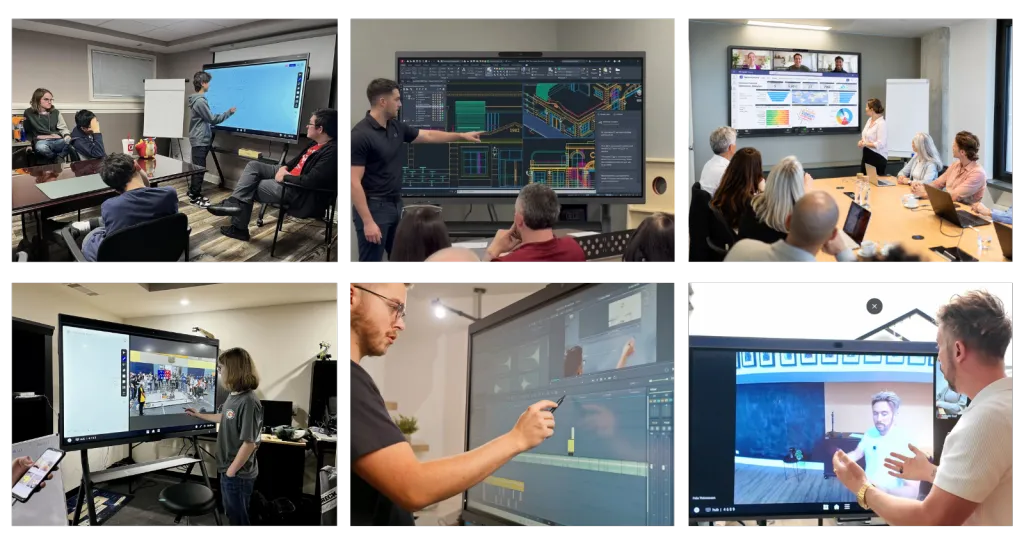
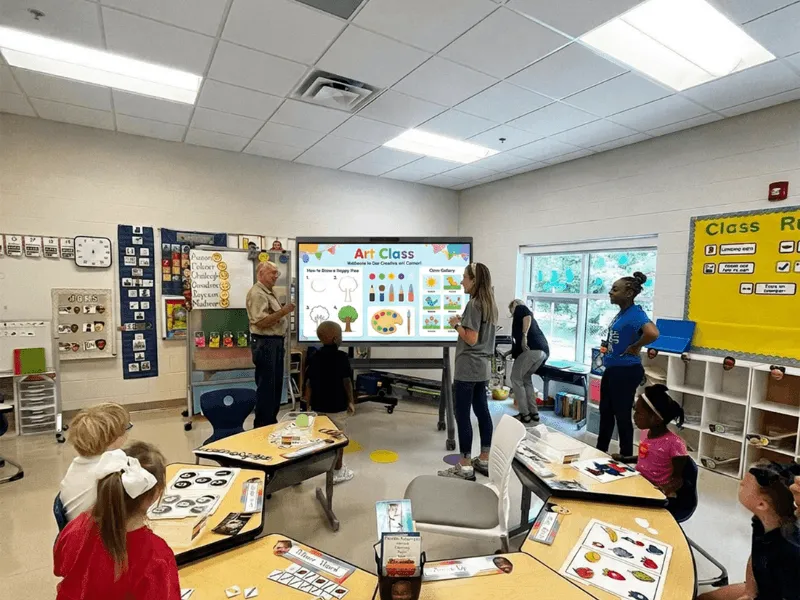
Businesses use interactive flat panels in conference rooms, training rooms, boardrooms and client spaces. Schools use them for lesson delivery, annotation and hybrid learning. Enterprise teams deploy them across offices to standardize meetings, presentations and collaborative work.
The best display depends on what people need to do after they turn it on. A room used mainly for wireless presentations may need a simple Android-based system. A room that must run Microsoft 365, desktop Teams, AutoCAD or enterprise browser extensions may need Windows 11 Pro. A hybrid meeting room may require a built-in camera, microphone array and speakers in addition to the display and touch layer.
This guide explains what to compare when choosing an interactive flat panel display for business, classrooms and enterprise environments.
What Is an Interactive Flat Panel Display?
An interactive flat panel display, often called an IFP or IFPD, is a commercial touchscreen panel with a built-in operating system or computer platform. It typically includes:
4K UHD resolution
Infrared or other multi-touch technology
Digital whiteboarding and annotation
Wireless screen sharing
HDMI, USB and network connectivity
Built-in speakers
Optional or integrated camera and microphones
Applications for meetings, presentations and collaboration
The terms smart board, interactive display and interactive flat panel are often used for similar products. The important differences are inside the panel: operating system, software compatibility, touch response, audio and video hardware, security, management features and support.
A regular commercial display can show content. An interactive flat panel lets people present, write, edit, discuss, and save work directly on the screen.
Commercial Interactive Display: Where It Fits
A commercial interactive display is designed for repeated use in shared spaces. It should support more than one presentation and more than one user. Common business applications include:
Conference rooms
Teams can share documents, annotate presentations, and join video calls from one room device. A built-in camera and microphone array can reduce the number of separate devices on the table.
Training rooms
Trainers can present slides, mark up documents and invite participants to contribute. Wireless casting is useful when several presenters use different laptops.
Client and boardrooms
A guest should be able to share content quickly without searching for adapters or installing unfamiliar software. A visible HDMI or USB-C fallback is still useful for important meetings.
Design and project review
Large touchscreens make plans, diagrams, CAD files and workflows easier to review as a group. Annotation tools allow the team to record decisions while the original content remains available.
Open offices and collaboration spaces
The panel can support stand-up meetings, brainstorming, dashboards and digital signage when no meeting is in progress.
A commercial interactive display should be evaluated as part of the room workflow. The right product is not necessarily the one with the most applications. It is the one that removes the most friction from the work people do every day.
Enterprise Interactive Display: What IT Teams Should Evaluate
An enterprise interactive display must work at scale. One board in a small office can be configured manually. A fleet of displays across multiple locations needs repeatable deployment, security controls and a clear support process.
Operating system and application control
Confirm which applications run natively and how they are updated. Android-based systems can be effective for whiteboarding, casting and supported meeting applications. Windows 11 Pro is better suited to full desktop applications, enterprise browser extensions and PC-based workflows.
Identity and device management
Enterprise buyers should ask whether the display can fit existing identity and management processes. Depending on the product, relevant requirements may include:
Microsoft Intune
Azure AD or Microsoft Entra ID
Okta or SSO
Remote configuration
Application permissions
Firmware and security updates
Device inventory and monitoring
Network and content security
The display may handle confidential documents, meeting content or customer information. Check:
Network segmentation and VLAN support
Authentication for wireless presentation
User and administrator permissions
Encryption in transit
Session clearing after a meeting
Data retention and cloud storage policies
Secure update procedures
Deployment and support
A lower list price does not always mean a lower deployment cost. Enterprise projects should include mounting, delivery, installation, training, replacement accessories, extended warranty and support response times.
Interactive Flat Panel for Business: Android or Windows?
For a room that mainly presents, whiteboards and joins supported meetings, Android may be sufficient. For a room that must function as a Windows workstation on the wall, Windows 11 Pro is the safer choice.
Interactive Flat Panel for Classrooms and Training Rooms
Education and training buyers should consider the people standing and sitting around the panel, not only the teacher or presenter.
Important features include:
Anti-glare glass
Comfortable writing height
Fast pen response
Multi-user touch
Simple lesson or presentation sharing
Annotation over documents and websites
Camera and microphone support for remote learners
Easy cleaning and durable construction
Exportable notes and session records
A 65-inch or 75-inch display may fit a standard classroom or training room, while an 86-inch panel may be better for a larger space. The correct size depends on viewing distance, text size, wall space and seating layout.
How Much Does an Interactive Flat Panel Cost?
Interactive flat panel pricing varies by size, operating system, touch technology, camera and microphone package, software and support. The visible display price is only one part of the project.
Budget for:
Display and built-in computer platform
Wall mount or mobile stand
Camera and microphones if not integrated
Wireless presentation accessories
Installation and cable routing
Extended warranty
Training and support
Device-management or software licenses
Replacement pens and accessories
For a broader breakdown of product, installation and lifetime costs, see the smart board price guide.
NearHub product families currently provide three different starting points:
Product family
Platform
Listed starting price*
Typical fit
NearHub S Series
Android-based NearHubOS
From $2,599
Whiteboarding, casting and everyday collaboration
NearHub S Pro
Windows 11 Pro
From $3,299
Business collaboration and Windows workflows
NearHub Board Max
Windows 11 Pro
From $3,499
Enterprise hybrid meetings and desktop applications
*Prices can vary by size, configuration, promotion and delivery region. Confirm the exact model and current quote before budgeting.
NearHub Interactive Flat Panel Models
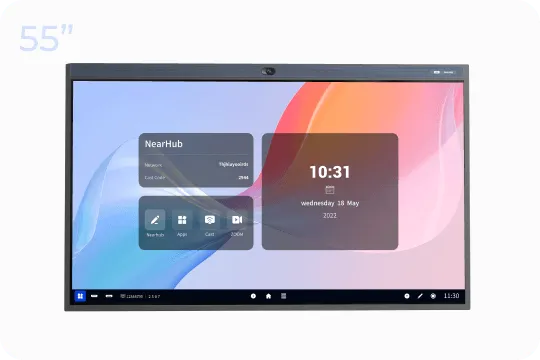
NearHub S Series
The S Series is designed for teams that want an Android-based collaboration environment. It combines interactive whiteboarding, wireless casting, a 4K AI camera and a 24-microphone array. It is a practical fit for classrooms, training rooms and meeting spaces where simple shared operation is more important than full desktop software.
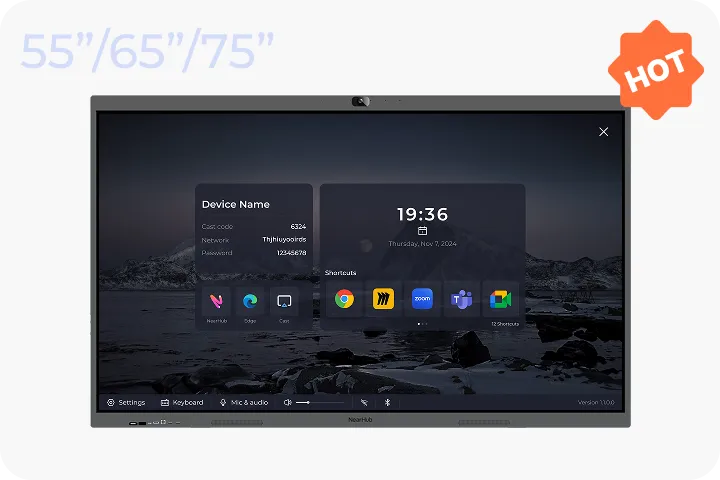
NearHub S Pro
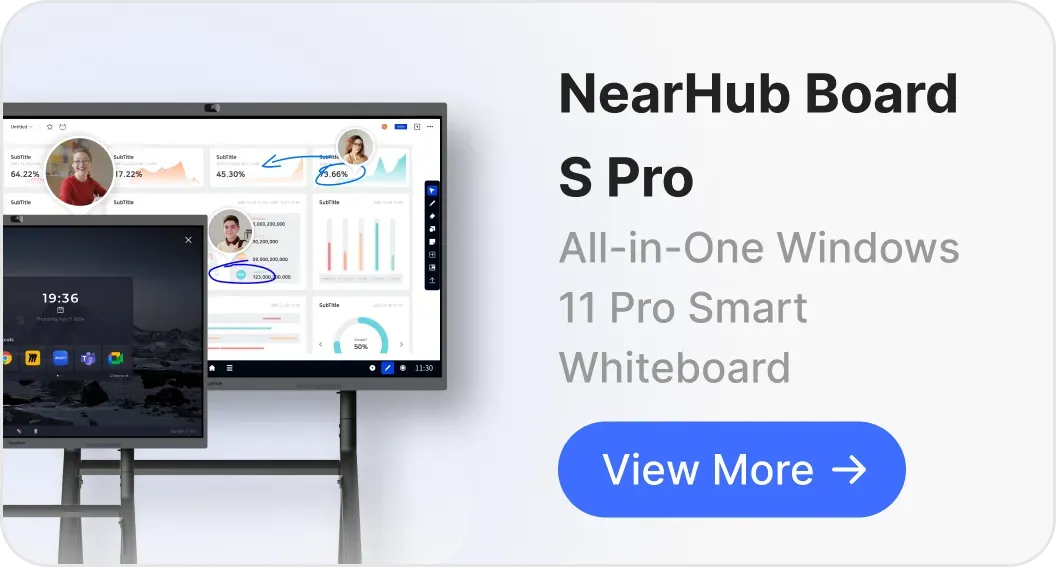
The S Pro is a Windows 11 Pro interactive smart whiteboard for team collaboration. It is designed for organizations that need Windows applications, built-in meeting hardware, wireless sharing and a shared touch surface.
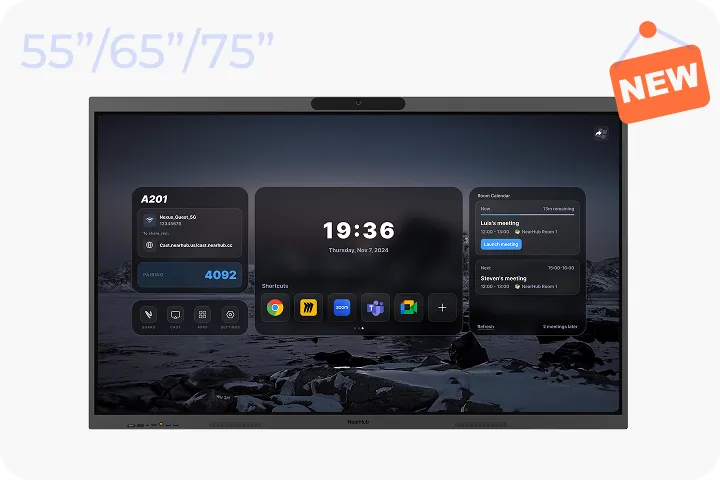
NearHub Board Max
Board Max is built for enterprise-grade hybrid meetings and PC-centric workflows. It combines Windows 11 Pro, a 4K AI camera, an 8-microphone array, touch, whiteboarding and wireless presentation features in one board.
Commercial Interactive Display vs. Regular Display
A regular display may be sufficient when the only requirement is showing a presentation. A commercial interactive display becomes more valuable when people need to work on the screen.
Capability
Regular display
Interactive flat panel
Show presentations
Yes
Yes
Touch and pen input
Usually no
Yes
Digital whiteboarding
External software required
Built in or supported
Wireless presentation
External device often required
Built in or integrated
Annotation
Limited
Designed for it
Camera and microphones
Usually separate
May be integrated
Multi-user collaboration
Limited
Designed for it
Enterprise management
Depends on connected device
Depends on platform and model
The total cost of a regular display can rise when a room needs a separate computer, camera, microphone, receiver and whiteboard software. Compare the complete room rather than one component.
How to Choose the Right Interactive Flat Panel
Choosing an interactive flat panel is easier when you compare the room task first and the product specification second. A panel used to display slides for ten minutes a day has different requirements from a board used for six hours of teaching, daily hybrid meetings or enterprise software workflows.
Use the following decision path.
Step 1: Decide whether you need an interactive panel at all
A regular commercial monitor or TV may be enough when one person controls the content from a laptop and the room does not need shared writing. An interactive flat panel becomes the better fit when people need to touch the screen, annotate documents, write together or start meetings without assembling several separate devices.
Device
What it does well
What it usually lacks
Regular monitor
Shows a computer image with predictable color and low complexity
Touch, built-in whiteboarding and shared annotation
Smart TV
Displays streaming content and basic apps at a consumer-friendly price
Commercial device management, precise writing and meeting-room workflows
Projector
Creates a large image when wall size matters and ambient light is controlled
Instant-on brightness, touch interaction and consistent visibility
Interactive flat panel
Combines a large 4K touchscreen, computing, annotation and collaboration
Higher upfront cost and heavier installation
A projector can still make sense for a very large audience or a room that already has a suitable projection system. For most meeting rooms and training spaces, however, a direct-view panel avoids lamp or projector maintenance, shadows cast by presenters and washed-out images caused by ambient light.
Step 2: Match the screen size to viewing distance
Choose the size from the back row forward. If participants must read spreadsheet cells, small labels or detailed diagrams, a screen that looks large from the front may still be too small for the back of the room.
As a starting point:
55 inches: huddle rooms and small offices
65 inches: small to medium meeting rooms and classrooms
75 inches: medium conference rooms, training rooms and classrooms
86 inches: larger classrooms, boardrooms and spaces with longer viewing distances
These are planning ranges, not universal rules. Check the wall width, seating layout, viewing angle, mounting height and delivery route before ordering. A 75-inch panel can be a strong fit for a medium room, but an 86-inch panel may be easier to read in a deeper classroom. Compare 4K resolution, brightness and anti-glare glass in the actual room: open a typical slide or spreadsheet and check legibility from the farthest seat and the side seats, especially with daylight on the screen.
Step 3: Choose the operating system from the applications you run
The operating system controls whether the panel behaves like a shared appliance or a Windows computer on the wall.
Choose an Android-based interactive flat panel when the room mainly needs:
Digital whiteboarding
Wireless screen sharing
Browser access
Supported video meeting apps
Simple shared operation
A lower-complexity room interface
Choose a Windows 11 Pro interactive flat panel when users need:
Full Microsoft 365 desktop applications
Desktop Teams or Zoom clients
Adobe, AutoCAD, Revit or other Windows software
Enterprise browser extensions
Windows identity and device-management workflows
The same file and application experience as a laptop
NearHub’s product pages show the practical difference: the S Series uses an Android-based NearHubOS platform, while S Pro and Board Max use Windows 11 Pro. The choice should follow the applications the room must run every week, not the number of apps shown in a product catalogue.
Step 4: Decide whether the panel must replace meeting-room hardware
If the panel will support hybrid meetings, compare the complete audio and video system rather than the screen alone. Verify:
Camera resolution and field of view
Auto-framing and speaker tracking
Microphone pickup distance
Echo cancellation and noise reduction
Speaker output for the room
Teams, Zoom, Google Meet and Webex support
Whether the camera and microphones can be used by another connected computer
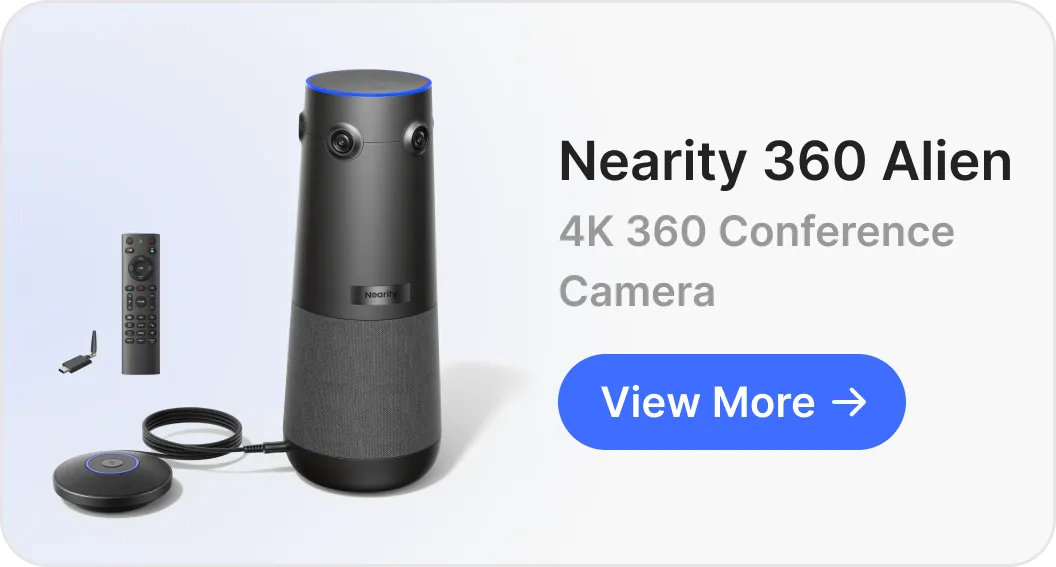
For example, NearHub describes the S Series with a 4K AI camera and 24-microphone array. S Pro and Board Max are described with Windows 11 Pro, a 4K AI camera and an 8-microphone array. These specifications serve different room workflows; the relevant question is whether the system captures the people and voices in your room without requiring a second camera, speakerphone or meeting PC.
Step 5: Test the touch layer instead of reading only the touch-point count
A high touch-point number does not guarantee a good writing experience. During a product test, check:
Whether ink appears immediately under the pen
Whether the panel recognizes a palm and a pen correctly
Whether two or more people can write without missed strokes
Whether writing remains accurate at the edges
Whether users can annotate PDFs, web pages and presentations
Whether notes can be exported in a usable format
For technical comparison, ask for touch latency in milliseconds, the number of simultaneous touch points and the minimum touch object size. NearHub Board Max lists up to 40 simultaneous touch points and a touch response of up to 6 ms on its technical specification page. Treat such figures as a starting point and test the actual pen, glass surface and software combination.
Step 6: Confirm how guests will share content
A panel can advertise wireless sharing and still create friction if every guest needs an account or a proprietary application. Confirm support for:
AirPlay for Apple devices
Miracast or Windows sharing
Browser-based casting for guests
A companion app for Windows, macOS, Android and iOS
A wireless dongle for plug-and-play presentations
HDMI or USB-C as a direct fallback
Room PINs and host controls
The most reliable meeting-room design usually supports wireless sharing for normal presentations and keeps a visible wired input for video-heavy or high-stakes content.
Step 7: Calculate the complete room cost
Compare the installed room, not only the panel price. Add:
Wall mount or mobile stand
Camera and microphone if they are not integrated
Wireless presentation accessories
Installation and cable routing
Extended warranty and support
Replacement pens
Device-management or software licenses
Training and onboarding
An inexpensive display can become more expensive after adding a computer, camera, microphone and receiver. An all-in-one panel can provide better value when it replaces those devices and reduces setup time.
A practical decision example
Choose a commercial interactive display with an Android-based system when a training room needs whiteboarding, casting and supported video calls with simple operation.
Choose an enterprise interactive display with Windows 11 Pro when the room must run full desktop applications, use Windows management tools and support PC-style workflows.
Choose a larger 75-inch or 86-inch model when people at the back need to read detailed content. Choose a camera-and-microphone-equipped model when the same room hosts regular hybrid meetings. If the room only shows presentations, a regular display may be sufficient and can cost less.
Frequently Asked Questions
What is an interactive flat panel display?
An interactive flat panel display is a large touchscreen with a built-in operating system or computer platform. It supports presentation, annotation, digital whiteboarding, wireless sharing and collaborative work.
What is a commercial interactive display used for?
Commercial interactive displays are used in conference rooms, training rooms, classrooms, boardrooms, design reviews and client presentation spaces. They allow groups to view, write on and discuss content together.
What makes an enterprise interactive display different?
An enterprise interactive display must support more than daily collaboration. It should also meet requirements for security, centralized management, software compatibility, identity, deployment, support and long-term maintenance.
Does an interactive flat panel need an external PC?
Some Android-based panels can handle whiteboarding, casting and supported meeting applications without an external PC. Windows 11 Pro panels can run full desktop applications directly. Always verify the applications and performance required by the room.
How much does an interactive flat panel cost?
Prices vary by size, operating system, touch technology, audio and video hardware, accessories and support. NearHub product families currently start at different price points, from the Android-based S Series to the Windows-based Board Max. Confirm the exact size and configuration before purchasing.
Is an interactive flat panel suitable for classrooms?
Yes. Interactive flat panels can support lesson delivery, annotation, digital whiteboarding, student participation and hybrid learning. Choose the size, touch performance, brightness and software based on the classroom layout and teaching workflow.
What is the difference between an interactive flat panel and a smart board?
The terms often refer to the same broad category of large touchscreen collaboration hardware. Interactive flat panel is the more technical and procurement-oriented term, while smart board is a more familiar product and search term.
Final Recommendation
Choose an interactive flat panel display based on the work your room must support. A commercial interactive display should make presenting, writing, meeting and sharing easier. An enterprise interactive display should also fit security, management, identity and support requirements.
For simple whiteboarding and casting, an Android-based panel may provide the right balance of usability and cost. For full desktop applications and Windows-oriented IT workflows, Windows 11 Pro is usually the stronger choice. In either case, compare touch performance, wireless presentation, camera and microphone quality, room size, installation and total cost.