75 Inch Smart Board: How to Choose the Right Interactive Display for Classrooms and Offices
A practical 75 inch smart board buying guide covering price, 4K display quality, touch, operating systems, AI camera and room planning for education and business.
75 inch interactive flat panel
75 inch smart board for office
Updated: Oct 13, 2026 · 8 minutes read
Global Business, Brought Near.
No Installer, No Hassle, Just Works.
A 75 inch smart board is usually the best balance between shared visibility and manageable installation for medium classrooms, training rooms and conference rooms.
Key Takeaways
Choose 75 inches when a group needs to read, write and view video together without moving to an 86 inch installation.
Treat smart board price as a total-room question: display, camera, microphone, mounting, stand, accessories and support can change the real budget.
Select Android for simple whiteboarding, casting and meetings; choose Windows 11 Pro when the board must run full desktop applications and fit an existing IT environment.
A 4K panel, low-latency touch, anti-glare glass and a usable microphone array matter more in daily work than a long list of unused apps.
A 75 inch smart board sits in the middle of the size range that most schools, training teams and offices compare first. It is large enough for a group to read a presentation, annotate a document and follow a video call together, while still fitting many standard walls without the installation footprint of an 86 inch panel.
The difficult part is not finding a screen that measures 75 inches. It is choosing the right 75 inch interactive display for the way your room actually works. A panel that is excellent for handwriting in a classroom may be a poor fit for a Windows-based conference room. A low advertised price can also become a higher project cost after you add a camera, microphone, mobile stand, mounting and support.
This guide explains what to compare, how to think about smart board 75 inch price, and when a 75 inch interactive flat panel is the right investment for a classroom or office.
Why 75 Inches Works in So Many Rooms
Screen size is a shared-experience decision. A single user can work on a laptop or a smaller monitor, but a classroom, workshop or meeting room needs people at the sides and back to see the same content at the same time.
A 75 inch panel gives a group more writing and viewing area than a 65 inch model without requiring the wall width, transport planning and budget of a larger 86 inch display. It is often a practical fit for:
Medium classrooms and seminar rooms
Corporate training rooms
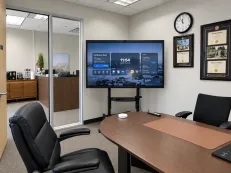
Conference rooms and boardrooms
Design review and project rooms
Hybrid workshops with remote participants
Offices that use the screen for meetings and digital signage
Room layout still matters more than the number on the product page. Before ordering, measure the wall, viewing distance, doorways, lift or stair access, power location and the position of tables. A screen that fits the wall but sits behind a light source or is mounted too high will not feel like a good purchase.
For a more detailed comparison of room dimensions, viewing distance and screen sizes, see our guide to choose the right whiteboard size.
What to Look for in a 75 Inch Smart Board
1. 4K resolution and readable text
For a 75 inch smart board, 4K UHD resolution means 3,840 × 2,160 pixels. That resolution gives presentations, spreadsheets, diagrams and shared documents enough detail for a group to work on one canvas.
Look beyond resolution. Anti-glare glass helps in rooms with overhead lighting, while wide viewing angles help people seated away from the centre. If the board will display small text, ask for a real demonstration from the back and side of the room instead of judging image quality from a product photo.
2. Touch response and writing feel
A digital whiteboard only becomes useful when writing feels natural. Compare:
Touch latency when a pen moves quickly
Number of simultaneous touch points
Palm rejection and pen recognition
Accuracy near the edges and corners
Whether users can annotate over PDFs, web pages and presentations
How easily a session can be saved, exported and shared
For teaching, low latency and reliable palm rejection reduce interruptions. For business, multi-touch and annotation over live documents make reviews and planning sessions more productive.
3. Operating system: Android or Windows 11 Pro
The operating system is one of the biggest differences between models that look similar from the front.
An Android-based 75 inch smart board is usually a good match for teams that need built-in whiteboarding, wireless casting, supported video-conferencing apps and a straightforward shared interface. NearHub’s S Series, for example, combines an Android-based system with whiteboarding, casting, a built-in camera and a 24-element microphone array.
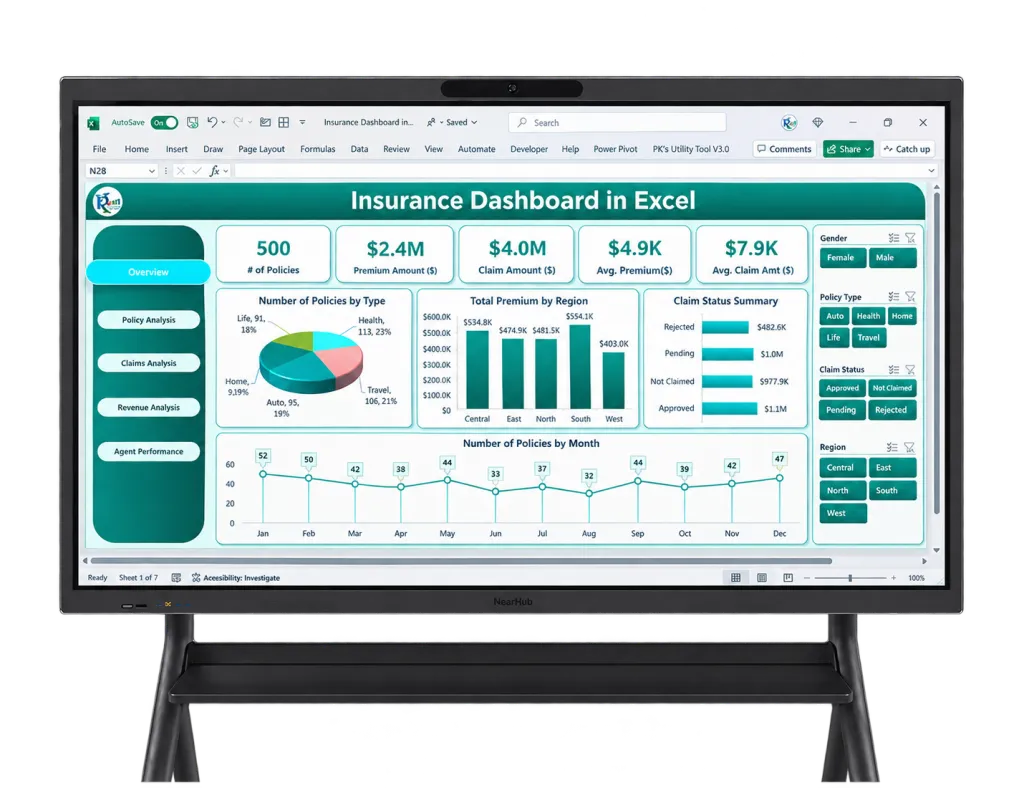
A Windows 11 Pro panel is a better fit when the board must run full desktop applications. Users can open Microsoft 365, browser extensions, design tools, CRM software or other Windows programs without changing to a mobile version. Windows can also fit an organisation’s existing identity and device-management processes.
Do not choose an operating system from the app count alone. Ask which applications your team uses every week, how updates are controlled, whether accounts can be managed centrally and what happens when a guest needs to present.
4. Camera, microphone and speakers
If the board will support hybrid meetings, built-in audio and video can remove a surprising amount of setup friction. Check the details rather than accepting “AI camera” as a complete specification:
Camera resolution and field of view
Auto-framing or speaker tracking behaviour
Microphone pickup distance
Echo cancellation and noise reduction
Speaker volume for the room
Compatibility with Teams, Zoom, Google Meet or Webex
Whether the camera and microphone can be selected by another computer over USB
NearHub Board Max and S Pro pages describe Windows 11 Pro systems with a 4K AI camera and an 8-microphone array. The S Series uses an Android-based system with a 4K AI camera and 24 microphones. These configurations serve different workflows, so the right comparison is not simply “more microphones.” It is whether the device makes your actual meeting easier to start and manage.
5. Screen sharing and connectivity
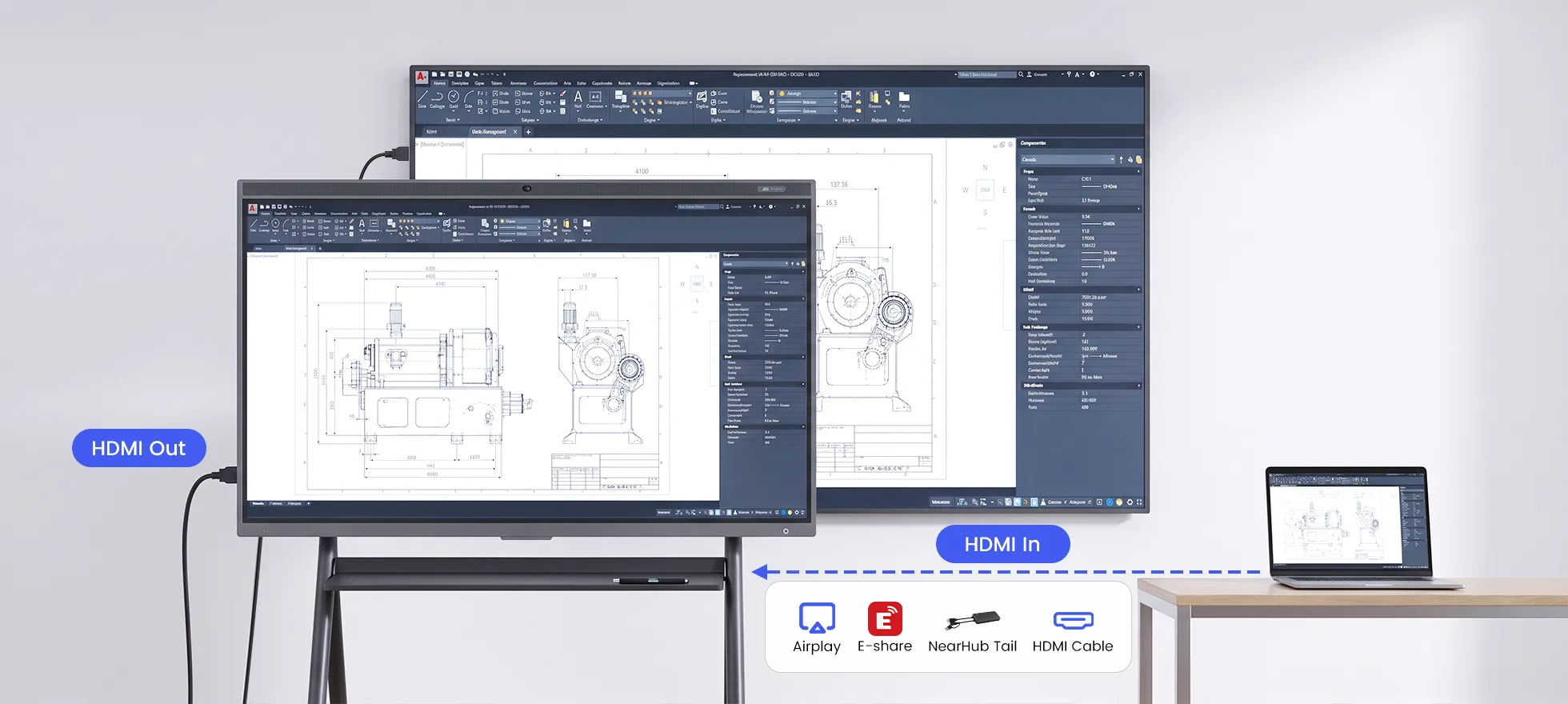
A 75 inch interactive flat panel should make guest presentation simple. Useful options include browser-based casting, AirPlay, a companion app, HDMI and a plug-and-play wireless dongle.
Check whether a guest must install software, whether the board and laptop need to be on the same network, whether touch-back control is supported and whether a wired fallback exists when wireless conditions are poor. These details matter in classrooms with visiting instructors and offices where clients bring their own laptops.
6. Software, security and fleet management
For one board in a small office, simple setup may be the priority. For dozens of boards across campuses or offices, administration becomes just as important as the display.
Ask about user accounts, remote updates, kiosk or signage modes, app permissions, network security and device-management integrations. An easy-to-use board that's hard to secure can create work for IT later.
75 Inch Smart Board Price: What You Are Really Paying For
The phrase smart board 75 inch price can describe very different products. A display-only touchscreen, an Android collaboration board and a Windows all-in-one meeting board may all be listed as 75 inch panels, but they do not have the same capabilities or total cost.
For a broader breakdown of smart board costs by size, operating system, hardware, and installation requirements, see our smart board price guide.
NearHub’s publicly listed product families provide a useful reference point:
Product family
System
Built-in collaboration hardware
75-inch price
NearHub S Series
Android-based NearHubOS
4K Camera · Auto-Framing & Tracking, 24-microphone array, whiteboarding and casting
$4,699
NearHub S Pro
Windows 11 Pro
4K Camera · Auto-Framing & Tracking, 8-microphone array, Windows apps and collaboration tools
$6,999
NearHub Board Max
Windows 11 Pro
4K Camera · AI Gallery View 8-microphone array, enhanced enterprise and hybrid-meeting workflow
$7,199
The purchase price is only one line in the project. Add the cost of:
Wall mounting or a lockable mobile stand
Wireless presentation accessories
Installation and cable routing
Extended warranty or support
Replacement pens and other consumables
A separate camera or microphone if the panel does not include them
Any required software or room-management licenses
A cheaper panel can still be the right choice if your room already has reliable conference hardware. An all-in-one board can be better value when it replaces a display, camera, microphone and small meeting-room PC in one installation.
Classroom vs. Office: How the Priorities Change
Choosing a 75 inch smart board for a classroom
Classrooms usually benefit from fast writing, anti-glare glass, a simple interface and tools that let teachers import, annotate and export lesson material. Consider whether students can contribute from their seats, whether remote learners can see the board clearly and whether the board can be cleaned and used repeatedly throughout the day.
If video calls are occasional, do not pay for enterprise meeting features that teachers will never use. If the classroom is also a distance-learning studio, built-in framing, microphone pickup and one-tap meeting access become more valuable.
Choosing a 75 inch smart board for an office
Office buyers should evaluate the board as part of a workflow. Can a presenter walk in and share from a laptop without an IT ticket? Can a team open a spreadsheet, annotate a proposal and save the result? Can IT manage the device alongside the existing fleet?
For a meeting room that depends on Windows applications, a Windows 11 Pro model can avoid the limitations of mobile apps. For a room focused on whiteboarding, casting and platform-flexible video calls, an Android-based model may provide a simpler experience at a lower starting price.
Installation Planning for a 75 Inch Interactive Display
A good installation protects the user experience and the hardware. Plan for:
Mounting height: the centre of the writing area should be comfortable for both standing presenters and seated participants.
Wall strength: confirm the wall and mount can support the panel’s weight.
Viewing angles: avoid windows or strong lights directly opposite the screen.
Power and network: provide accessible power, wired network where needed and cable management.
Accessibility: leave enough clearance for wheelchair users and avoid placing the board behind furniture.
Delivery route: measure elevators, corridors, doorways and turning points before the delivery date.
Room audio: test the built-in microphone from the farthest seat, not only from the front of the room.
Final Recommendation
A 75 inch smart board is a strong default for medium-sized classrooms, training rooms and offices that need one shared surface for presenting, writing and meeting. The best model is determined by the workflow behind the screen.
Choose an Android-based panel when ease of whiteboarding, casting and everyday meetings matters most. Choose Windows 11 Pro when the board must run full desktop software and align with a Windows-managed organisation. In both cases, insist on 4K resolution, comfortable touch response, useful built-in audio and video, straightforward screen sharing and a clear total-room quote.
For a current configuration comparison, review the NearHub S Series, NearHub S Pro and NearHub Board Max product pages. Then confirm the 75 inch variant, delivery, accessories and support terms before placing an order.
Frequently Asked Questions
Is a 75 inch smart board large enough for a classroom?
For many medium classrooms, training rooms and seminar rooms, 75 inches provides a useful balance of shared visibility and manageable wall space. Check viewing distance, seating layout and the size of text used in lessons before choosing the final size.
How much does a 75 inch smart board cost?
A 75 inch smart board price depends on the operating system, camera and microphone package, touch technology, software, stand and support. NearHub product families currently show starting prices from $2,599 for the S Series, $3,299 for S Pro and $3,499 for Board Max. Confirm the 75 inch variant and current promotion before ordering.
What is the difference between a 75 inch interactive display and an interactive flat panel?
In most buying conversations, 75 inch interactive display and 75 inch interactive flat panel describe the same type of large touchscreen device. The useful comparison is the built-in system, touch layer, collaboration software, connectivity and room features.
Should I choose Android or Windows for a 75 inch smart board?
Choose Android when the main jobs are whiteboarding, casting, supported video calls and simple shared use. Choose Windows 11 Pro when users need full desktop applications, enterprise identity or device management, and the same software experience as a Windows PC.
Does a 75 inch smart board need an external camera and microphone?
Not always. Some all-in-one models include a camera, microphone array and speakers. Verify the camera field of view, microphone pickup, echo cancellation and the conferencing apps supported before assuming the built-in hardware will cover your room.