Smart Board with Screen Sharing: Mirroring, Casting, and Collaboration
Find a smart board with screen-sharing capabilities that fits your team's needs.
smart board screen sharing
Updated: Oct 23, 2026 · 8 minutes read
Global Business, Brought Near.
No Installer, No Hassle, Just Works.
Choose a smart board around the conversations your team needs to have. Check how people connect, interact, and save their notes.
Key Takeaways
Bring your own files, devices, and a remote colleague to a demo so you can judge the meeting experience you will actually use.
Miro and NearHub Canvas can retain marks made with their own tools; temporary marks over an ordinary webpage are not saved back into it.
Check annotation and touchback separately because showing a computer screen does not automatically enable control from the board.
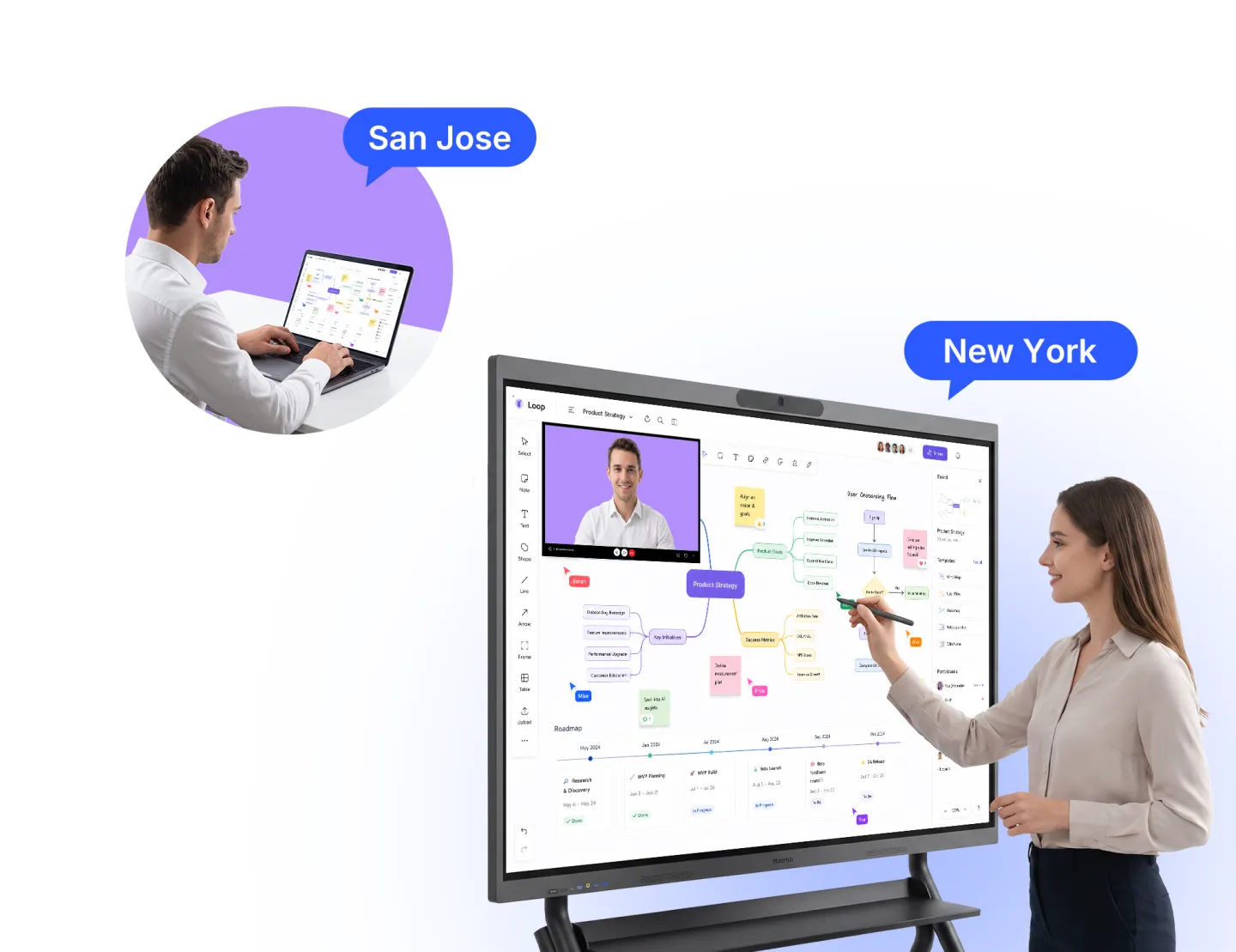
NearHub Canvas lets invited colleagues with editing access write and draw together from the room and supported remote devices; ordinary casting does not make content collaboratively editable.
A smart board with screen sharing lets people bring content from their own devices onto a shared display. For a presentation, that may be all you need. For document review, training sessions, or hybrid workshops, you may also need to annotate, switch presenters, or draw together from different locations.
The right choice depends on how people will use the board. Start with what you need to share, then look at what the team needs to do with it.
Screen Sharing vs. Screen Mirroring vs. Casting: Key Differences
Screen mirroring usually reproduces your device's screen on another display. Screen sharing is a broader term that can include a desktop, application window, or browser tab. Casting describes sending content to a receiving display, but its meaning varies between products.
Term
Typical use
What to check
Screen mirroring
Showing your device screen as you move between apps
Whether private windows and notifications will be visible
Casting
Sending media, a tab, or a screen through a supported connection
What content the method supports and whether audio is included
Screen sharing
Presenting selected content to a room or online meeting
Who can see the content and whether they can interact with it
Choose the sharing scope around the presentation. Showing more of your device is useful for some tasks and unnecessary for others.
Share the Desktop When You Need to Switch Applications
A full desktop works well for software demonstrations or reports that use several applications. The audience can follow each step without waiting for you to select a new window.
The trade-off is visibility. Messages, desktop files, and unrelated windows may appear. Close private material and silence notifications before you begin.
Share a Window or Tab When the Discussion Has One Focus
For a proposal review, one window may be enough. The team sees the document while your other work stays outside the shared view. Check which options your browser, operating system, and sharing tool provide.
Video also needs a separate check. Play a short clip with speech and movement. Confirm where the sound plays and whether it stays in sync. A 4K board does not mean every wireless connection delivers a 4K image.
Once everyone can see the content, the next question is what they can do with it.
What Can You Do on the Smart Board with Screen Sharing?
A shared presentation may need only a clear picture. A working session usually involves more interaction. Annotation, computer control, and shared drawing each solve a different problem.
Annotate to Explain a Point
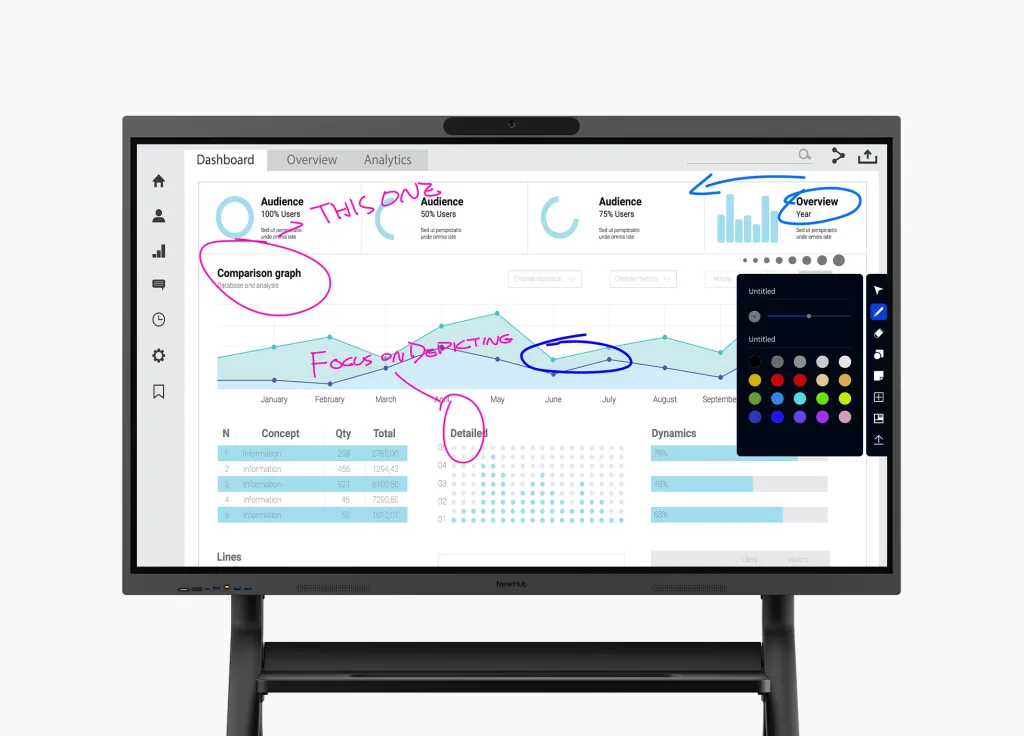
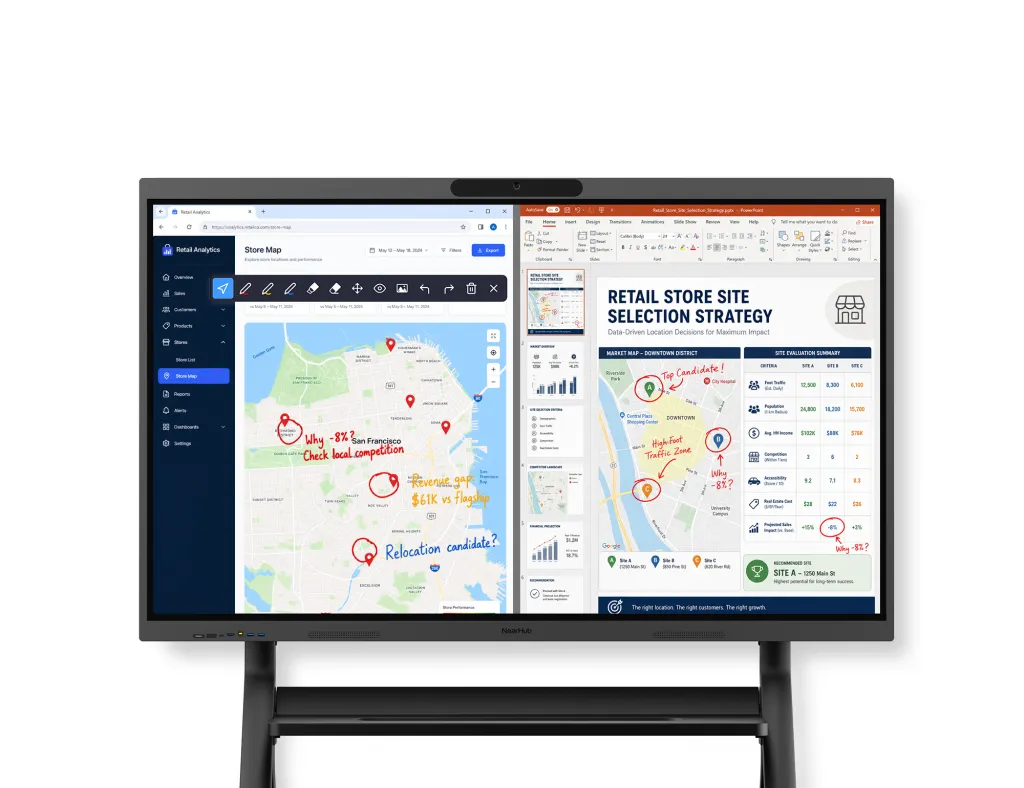
Writing over a shared image is useful during a review. You can circle a figure, highlight a deadline, or sketch an alternative while everyone follows the discussion.
Those marks do not necessarily change the original file. A line drawn over a spreadsheet image is different from editing the spreadsheet itself.
Use Touchback to Operate the Computer
Touchback lets you control a connected computer from the board where supported. This can include scrolling a document or selecting a cell.
Support depends on the device and connection method. Ask about the exact setup you plan to use. Being able to display a laptop screen does not automatically mean you can operate that laptop from the board.
Save Notes in the Application Where You Create Them
Whether annotations can be saved depends on where you write.
In Miro, marks made with the application's drawing tools belong to the Miro board and can be retained through its saving features. NearHub Canvas also supports saving work created on its canvas. Application permissions and settings still apply.
Temporary marks over an ordinary webpage are different. They are not saved back into the website or retained there as editable notes. If the team needs to keep the discussion, use an application with its own saving tools.
The distinction is the tool, not whether a browser is open. Miro running in a browser can save work through Miro. Temporary annotation over a separate webpage does not give that page the same capability.
Real-Time Remote Collaboration with NearHub Canvas
Sharing a screen lets remote colleagues see a presentation. A shared canvas lets them contribute directly.
With NearHub Canvas, people at the NearHub Board and invited remote participants can write and draw on the same canvas in real time. Remote colleagues join from a computer or supported mobile device, with editing access. The work can be saved and revisited after the session.
For example, someone at the board can draw a project process while a remote colleague adds a missing connection. Both contributions appear on the shared canvas. The team can discuss and develop the diagram together without passing every change through one presenter.
NearHub's ColorTokens customer story describes this use in practice: teams use Canvas for notes and brainstorming with colleagues joining from different locations.
Keep screen sharing and Canvas collaboration separate when planning the meeting. Casting a browser page or presentation does not automatically make it editable by remote participants. For content outside Canvas, check what the video meeting transmits, including any marks added locally.
Choosing Screen Sharing Features for Meetings, Classrooms, and Training
The same board may be used by employees, visitors, and remote participants. The connection should fit the people using it.
Internal Meetings
Regular teams benefit from a setup that works consistently with their usual devices. They may start with a shared report, then move to a canvas to plan next steps. Device switching, annotation, and access to saved work matter more than having every available casting method.
Visitors may not have permission to install an app or join your staff network. Decide which connection they can use before they arrive. A browser option, prepared dongle, or accessible cable can help, depending on the room's network and device requirements.
Classrooms and Training
A lesson may move between slides, a live demonstration, and a participant's work. Check how the board handles that sequence. If several people need to present or share at once, confirm the model's specific capabilities rather than assuming all screen sharing supports multiple users.
What to Test Before Buying a Smart Board with Screen Sharing
Use your own devices and files during a demonstration. Ask a colleague to connect, present, add notes in the intended application, and hand over to someone else.
Test
Why it matters
Connect the devices your team uses
Compatibility can differ between Windows, Mac, tablets, and phones
Try a visitor's connection
Installation rights and guest network rules can affect access
Show small text and play a video
Slides alone do not reveal every picture or audio issue
Try annotation and touchback separately
They are different capabilities with different requirements
Save and reopen notes
Confirms that the chosen application retains the work you need
Invite a remote colleague to Canvas
Checks access and shared drawing before a real workshop
Switch presenters and stop sharing
Shows how easily people can take turns and end a session
Connect a cable
Confirms the wired backup is usable
If you also need to choose between an integrated display and an external receiver, our wireless presentation system comparison covers the connection options in more detail.
Screen Sharing on NearHub Smart Boards
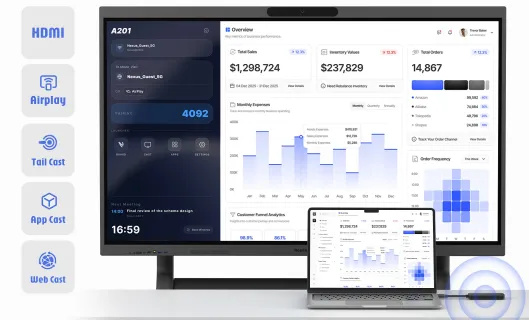
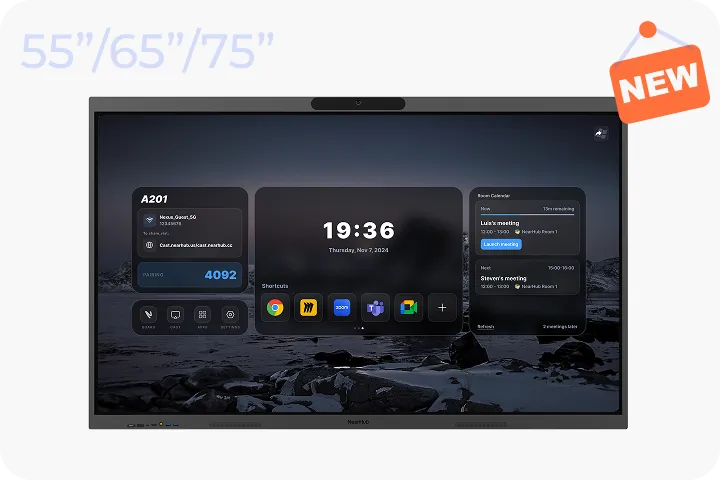
NearHub provides several ways to connect. The best option depends on the presenting device, network access, and whether software installation is practical. Availability and setup vary by board series and software version.
Webcast for Browser Sharing
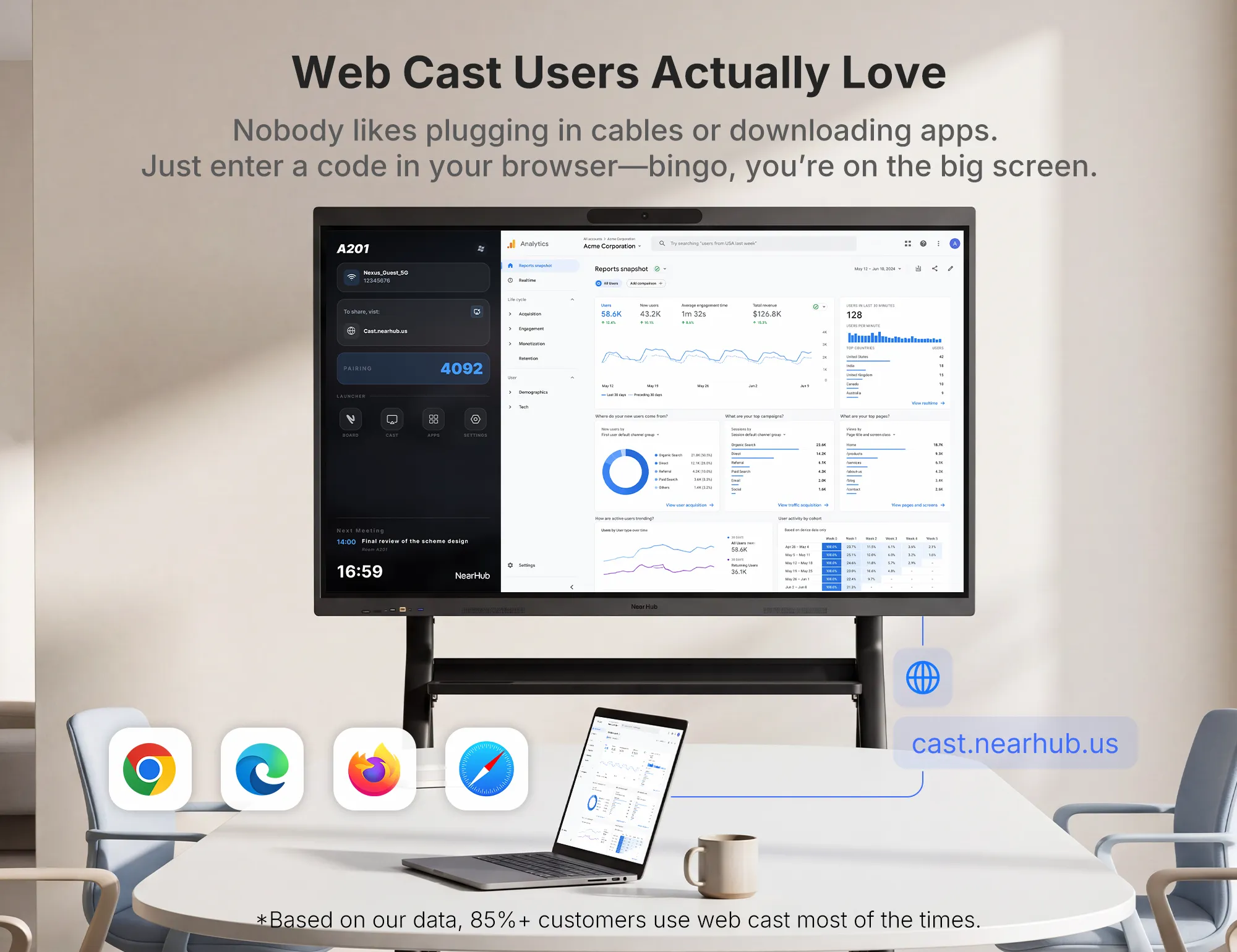
On NearHub Board Max and NearHub Board S Pro, Webcast supports choosing an entire screen, application window, or browser tab without installing a casting app. The documented setup requires the presenting device and board to use the same Wi-Fi network. See the Webcast instructions for the connection and sharing steps.
AirPlay for Apple Devices
An iPhone, iPad, or Mac can connect through Screen Mirroring. The AirPlay tutorial explains selecting the board and entering a code when prompted. Both devices should be on the same network.
NearHub Tail for Laptop Presentations
Tail offers a hardware connection option. Pair it with the board first, then connect it to the laptop using the appropriate connectors. The Tail setup tutorial covers pairing and the Mac and Windows connection choices.
App Cast and HDMI
Regular presenters who can install casting software can use the App Cast tutorial. Its documented setup uses the same network for the computer and board.
For a wired connection, NearHub S Series users can follow the HDMI casting instructions. Follow the guidance for your specific model, especially when computer control is required.
These methods bring content to the display. NearHub Canvas adds shared drawing and saved work when the session needs active contributions from people in the room and elsewhere. Explore NearHub Board Max and test both with your own meeting materials.
Frequently Asked Questions
Is screen sharing the same as screen mirroring?
Screen mirroring usually shows a live copy of a device's screen. Screen sharing is broader and can include a desktop, application window, or selected content. The terms overlap, so check the available sharing options rather than relying on the name.
Can I share a laptop screen without installing an app?
Yes, with a supported method. NearHub Webcast on Board Max and S Pro uses a browser without a casting app installation. Its documented setup requires the laptop and board to use the same Wi-Fi network. Other options depend on your hardware and room setup.
Can annotations on a smart board be saved?
Saving depends on where you write. Miro and NearHub Canvas can retain work created with their own drawing tools through the application's saving features. Temporary marks over an ordinary webpage are not saved back into that page. Use an application with saving tools for notes you need to keep.
Can remote participants draw on the same canvas as people at the board?
Yes. NearHub Canvas allows people at the board and invited remote participants with editing access to write and draw on the same canvas in real time from supported devices. Ordinary screen sharing does not automatically make the shared content collaboratively editable.
Do the board and presenting device need the same Wi-Fi network?
That depends on the connection method. NearHub's Webcast, AirPlay, and App Cast instructions require the same network. Other approaches may use a direct wireless link. Check the requirements for your selected board and method, particularly for guest devices.
The best smart board with screen sharing fits the work your room needs to support. For presentations, check connection speed, picture, and sound. For collaborative sessions, also check interaction, remote contributions, and how the work is saved. A demonstration using your own files is the clearest way to judge those differences.