Wireless Presentation Systems: Why Convenience Often Comes With Hidden Costs
Wireless screen sharing promises cable-free meetings, but introduces latency, security, and compatibility trade-offs most vendors don't discuss.
wireless presentation system
wireless screen sharing device
wireless presentation display
Updated: Aug 19, 2026 · 8 minutes read
Global Business, Brought Near.
No Installer, No Hassle, Just Works.
Half-second lag per slide transition during a quarterly pitch — that's when wireless presentation stops being convenient and starts costing credibility. Wireless presentation systems eliminate cable fumbling but introduce latency, security gaps, and compatibility trade-offs that vendors rarely discuss upfront. The three main approaches — protocol-based casting (AirPlay, Miracast), dedicated hardware receivers, and browser-based web casting — each solve different problems and create different headaches.
Understanding when wireless shines, when it struggles, and how to architect around its limitations separates productive meeting rooms from ones that generate IT tickets.
How Wireless Presentation Actually Works
Before evaluating solutions, it helps to understand what happens when you click "share screen" wirelessly. The process isn't magic — it's a chain of encoding, transmission, and decoding steps, each introducing potential failure points.
The Transmission Chain
Encoding: Your laptop captures the screen content, compresses it using a video codec (typically H.264 or H.265), and packetizes it for network transmission. This encoding step consumes CPU resources and adds 20-60ms of latency.
Transmission: The encoded stream travels across your Wi-Fi network or a direct peer-to-peer connection to the receiver. Network congestion, interference from neighboring access points, and distance from the router all affect this step. Poor network conditions cause dropped frames, quality reduction, or connection loss.
Decoding: The receiver (either a hardware appliance or the display's built-in processor) decodes the video stream and renders it on screen. This adds another 30-80ms of latency.
Total latency: 60-250ms depending on the technology, network quality, and content complexity. For context, 100ms is the threshold where humans start perceiving delay in interactive tasks.
Why Latency Matters More for Some Content Than Others
Content Type
Typical Latency Impact
User Perception
Static slides and documents
Imperceptible
No impact
Web browsing and scrolling
Minor
Slight lag on rapid movements
Video playback
Noticeable
Audio-visual desync
Software demos with mouse precision
Frustrating
Cursor trails, missed clicks
Interactive applications
Unusable
Game-like input lag
This is why blanket statements like "wireless is fine for everything" are misleading. Wireless works beautifully for 70% of meeting content. The other 30% — video playback, software demonstrations, anything requiring precise visual feedback — suffers enough to justify keeping a wired option available.
The Three Wireless Approaches: A Truthful Comparison
All wireless presentation systems fall into one of three categories. Each solves different problems and introduces different trade-offs.
Protocol-Based Casting: Native Device Mirroring
How it works: Uses built-in operating system protocols — AirPlay for Apple devices, Miracast for Windows, Google Cast for Chromebooks. No additional software or hardware required on the sending device.
The strengths: Zero setup for compatible devices. Guests with iPhones or MacBooks can share instantly using AirPlay. Windows users mirror through native Miracast support. The experience feels seamless because it uses capabilities already built into the device.
The hidden limitations: Protocol-based casting depends heavily on network configuration. Many enterprise Wi-Fi networks block the multicast traffic that Miracast and AirPlay require. Cross-platform compatibility is inconsistent — AirPlay doesn't work from Windows; Miracast doesn't work from Mac. IT administrators often disable these protocols for security reasons, leaving users with no wireless option despite the capability technically existing on their devices.
Best for: Organizations with standardized device ecosystems (primarily Apple or primarily Windows), smaller teams without strict IT lockdowns, and environments where network policies allow multicast traffic.
Dedicated Wireless Receivers: Enterprise Hardware
How it works: A hardware appliance connects to the display via HDMI and to the network via Ethernet. Users share by pressing a physical button (USB dongle) or launching an app that connects to the appliance.
The strengths: Consistent performance independent of Wi-Fi quality (when hardwired), centralized management dashboards for IT, stronger security with encrypted transmission and network isolation, support for multiple simultaneous presenters.
The hidden limitations: Cost is significant — $1,000-$3,000 per room for enterprise systems like Barco ClickShare or Mersive Solstice. Guests must use provided USB buttons or install apps, creating friction. Some systems require dedicated network infrastructure (separate VLANs, dedicated access points). The "it just works" marketing applies only after significant IT setup.
Best for: Large enterprises with dedicated AV/IT staff, organizations where security compliance requires encrypted and managed wireless transmission, and rooms where multiple simultaneous presenters are common.
Browser-Based Web Casting: The Universal Approach
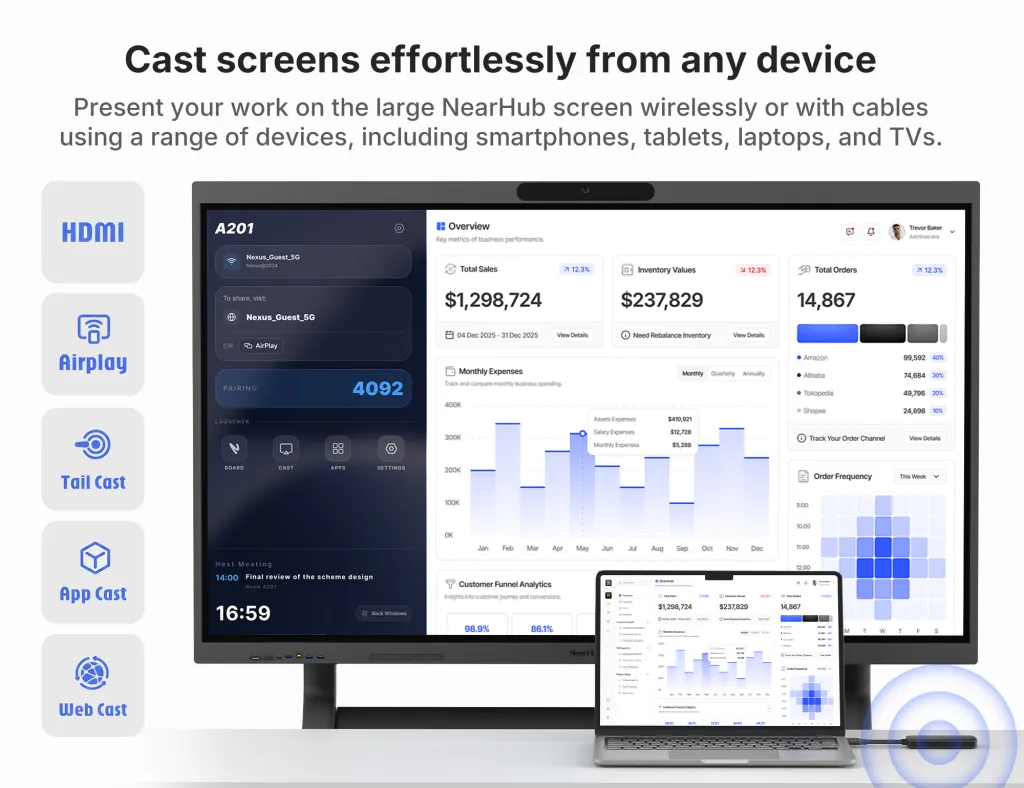
How it works: Users open a web browser, navigate to a URL (often with a room-specific code), and share their screen through WebRTC technology. No apps, no dongles, no cables.
The strengths: Universal compatibility — works from any device with a modern browser (Windows, Mac, Linux, Chromebook, even mobile devices). Zero installation means guests can present without IT assistance or security approvals. No proprietary hardware required if the display has built-in browser support.
The hidden limitations: Performance depends on the browser's WebRTC implementation and available bandwidth. Some enterprise browsers restrict WebRTC for security. The experience varies more across devices than dedicated hardware solutions.
Best for: Organizations with frequent guest presenters, BYOD environments with diverse device types, and situations where minimizing IT support burden matters more than achieving the absolute lowest latency.
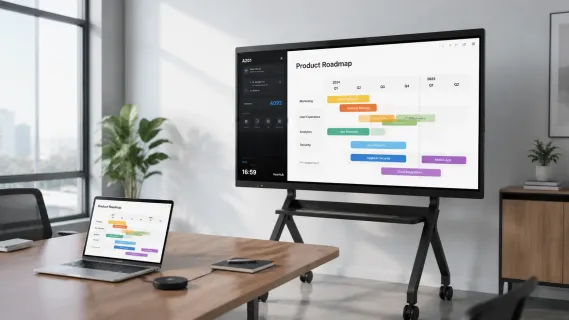
NearHub Board Max implements browser-based wireless casting that allows guests to share screens instantly without downloading apps or finding adapters. Combined with its ability to annotate directly over live shared content, this addresses the most common wireless presentation pain point: guests who can't participate because they don't have the right cable or app.
The Security Reality Most Buyers Ignore
Wireless presentation transmits your screen content across the air. In most office buildings, that transmission stays within your network. But the security implications vary dramatically by approach.
Enterprise Security Features to Require
Encryption in transit: AES-128 or AES-256 encryption prevents captured wireless traffic from being decoded. Verify this is enabled — not all systems encrypt by default.
Network isolation: Guest devices connecting for screen sharing should land on an isolated VLAN with no access to corporate resources. This prevents a compromised guest laptop from becoming an entry point to your network.
Authentication: Require PIN codes, room-specific tokens, or SSO authentication before allowing screen sharing. Open systems where anyone nearby can cast create both security risks and "display hijacking" disruptions.
No data retention: The wireless system should not store, log, or cache shared content. Screen sharing is transient — treating it like data at rest creates compliance problems.
The Protocol Security Gap
Native AirPlay and Miracast were designed for home networks, not enterprise environments. They often lack the encryption, authentication, and network isolation that security-conscious organizations require. Many IT departments block these protocols entirely, which is why "it works at home but not at the office" is such a common wireless presentation complaint.
For setting up a hybrid meeting room that handles both internal and guest presentations securely, verify your wireless solution meets your organization's security policies before deploying it organization-wide.
Interactive Meeting Screens: When Wireless Meets Touch
Wireless presentation becomes more powerful when combined with interactive displays. Instead of passively viewing shared content, participants can annotate, highlight, and manipulate it in real time.
The Annotation Workflow
A presenter shares a slide deck wirelessly. During the discussion, a participant walks to the display and circles a key data point, adding a handwritten note. The annotation layer captures the ink separately from the underlying content, so the original document remains unmodified while the collaborative markup persists.
This workflow transforms meetings from broadcast sessions (one person presents, others listen) into working sessions (everyone contributes directly on the content). The technology enabling it requires three components:
Wireless casting that supports low enough latency for interactive use
Touch or pen input on the display with responsive, low-latency ink
Software that separates annotation layers from content layers
Not all wireless presentation systems support this well. Systems with high latency make annotation feel disconnected from the pen — you write, wait, then see the ink appear. The disconnect is subtle but destroys the natural feel that makes interactive displays valuable.
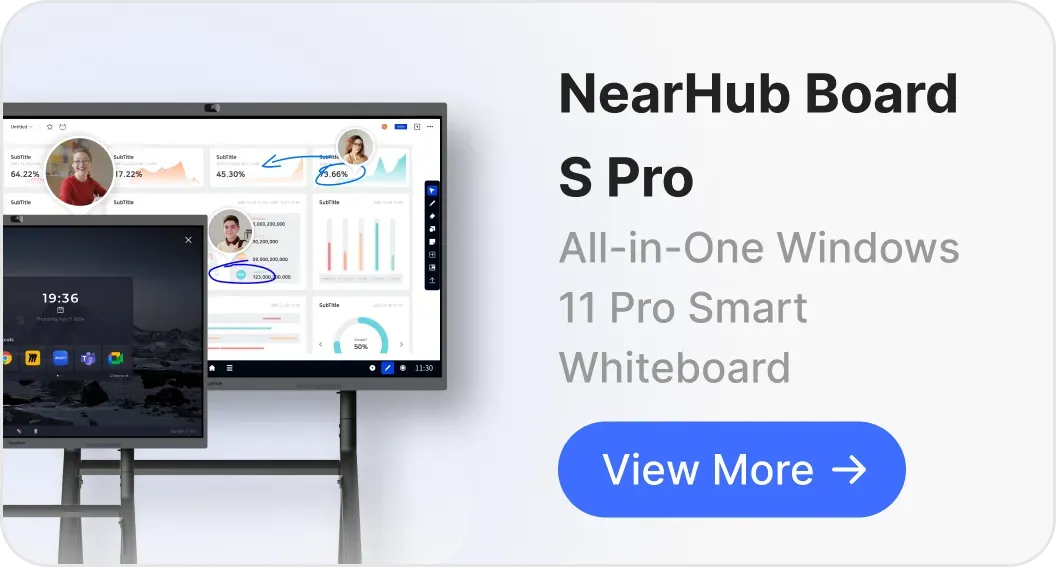
NearHub Board Max addresses this with a web-native casting engine that maps incoming streams to an independent canvas overlay, enabling digital ink directly over live content with approximately 6ms latency — fast enough that writing feels immediate rather than delayed.
The Wired-vs-Wireless Decision Framework
After helping hundreds of organizations deploy meeting room technology, a clear pattern emerges. The decision isn't "wireless or wired" — it's "wireless primary with wired fallback, or wired primary with wireless convenience."
Maximum reliability is essential (executive boardrooms, critical client presentations)
Network infrastructure is insufficient for reliable wireless (older buildings, congested Wi-Fi)
The Hybrid Approach (Recommended)
The most reliable meeting rooms offer both. Wireless casting handles 80% of presentations effortlessly. A visible HDMI or USB-C cable handles the 20% where latency, security, or reliability matters more than convenience. This dual-path approach prevents the scenario where the backup plan was inaccessible when the primary failed.
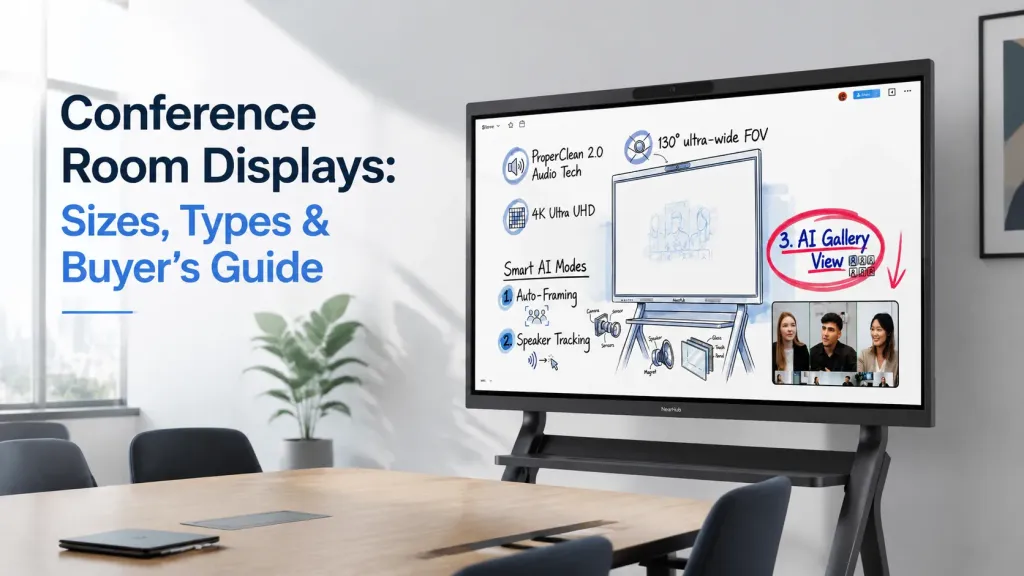
For choosing the right conference room display to pair with your wireless system, consider whether touch interaction would enhance your team's collaborative workflow and whether the display's built-in wireless capabilities match your security requirements.
When Wireless Presentation Creates More Problems Than It Solves
Honest assessment requires acknowledging scenarios where wireless is the wrong choice:
Software demonstrations: Presenting live software with precise mouse movements and rapid UI interactions amplifies wireless latency. The cursor trails behind the actual movement. Click targets become harder to hit. The demo feels unprofessional.
Video-heavy presentations: The 60-250ms wireless delay doesn't affect the presenter, but it desynchronizes audio from video. If audio plays through room speakers while video buffers on the display, the lip-sync mismatch becomes distracting.
High-stakes client meetings: When a failed screen share would damage credibility, the 5-second reliability advantage of a physical cable matters. "Let me try the cable" is a faster recovery than "let me restart the wireless connection."
Rooms with poor network infrastructure: Wireless presentation is only as good as the network it runs on. In buildings with congested 2.4GHz bands, insufficient access point density, or old networking equipment, wireless becomes a source of frustration rather than convenience.
The Bottom Line: Choosing Your Wireless Strategy
The wireless presentation market offers genuine convenience, but no solution is universal. The key is matching the technology to your actual usage patterns rather than aspirational ones.
For most organizations, browser-based wireless casting hits the sweet spot — universal compatibility without hardware costs, manageable latency for typical meeting content, and guest-friendly simplicity. Supplement it with a visible HDMI fallback for the latency-sensitive minority of presentations, and you have a room that handles both everyday convenience and edge-case reliability.
The question isn't whether to go wireless. It's whether you've honestly assessed what your users present, what your network can support, and what your security policies require — then chosen accordingly.
Is wireless presentation slower than using an HDMI cable?
Yes, wireless presentation inherently adds latency because it must encode, transmit, and decode the video signal. HDMI is a direct electrical connection with effectively zero delay. Wireless systems range from 60ms (optimized enterprise hardware on good networks) to 250ms (consumer protocols on congested Wi-Fi). For static slides and documents, this delay is imperceptible — the content appears to load instantly. For video playback, the delay creates audio-visual desync where lips move before the corresponding audio arrives. For interactive software demonstrations, the lag makes precise cursor control frustrating. The practical solution most organizations adopt: wireless as the default for convenience, with a wired HDMI or USB-C input available as a zero-latency fallback for latency-sensitive content.
Are wireless presentation systems secure for confidential meetings?
Enterprise-grade wireless presentation systems implement AES encryption (128-bit or 256-bit), network isolation through VLANs, and authentication requirements before casting begins. However, not all wireless solutions offer these protections. Consumer protocols like basic Miracast often transmit unencrypted, making screen content visible to anyone with a packet capture tool on the same network. Before deploying wireless presentation for confidential meetings, verify four security features: encryption in transit (AES), network isolation (guest VLAN), authentication (PIN or SSO), and no data retention (content is not cached or logged). If your organization handles regulated data (healthcare, financial services, government), involve your security team in the wireless presentation evaluation — they may have policies that restrict or require specific wireless configurations.
Can guests present wirelessly without installing apps?
Browser-based wireless casting allows guests to share screens by opening any modern web browser, navigating to a URL, and entering a room-specific code. No app downloads, no security approvals, no cable hunting. This approach works across Windows, Mac, Linux, Chromebook, and mobile devices — anything with a web browser. Protocol-based casting (AirPlay, Miracast, Google Cast) also requires no app installation since it uses the device's built-in screen mirroring, but may require network access or configuration that IT departments restrict. Dedicated hardware receivers (like USB button systems) require guests to use provided physical buttons or install proprietary apps, creating the most friction for external visitors. For organizations that frequently host client presentations, vendor demos, or partner meetings, browser-based casting provides the smoothest guest experience.
Why does my wireless presentation lag when sharing video?
Video content is the hardest material for wireless presentation systems to handle well. The system must capture rapidly changing frames, encode them as compressed video, transmit across the network, and decode for display — all in real time. For static slides, only changed regions need transmission, keeping bandwidth low. For video, every frame changes substantially, maxing out the encoding pipeline and network bandwidth. The result is dropped frames (choppy playback), quality reduction (blurry video to save bandwidth), or increased buffering (longer latency to maintain smoothness). Audio typically travels on a separate, lower-bandwidth path and arrives faster than video, creating the lip-sync mismatch. If your presentations include video content — customer testimonials, product demos, training clips — test wireless performance with actual video files before deploying. Most organizations find that keeping a wired HDMI connection available specifically for video segments prevents the awkwardness of desynced playback.
Should I go completely wireless or keep HDMI cables as backup?
Keep HDMI as a backup. Even the best wireless systems — enterprise hardware on optimized networks — experience occasional failures from firmware bugs, network congestion, device compatibility edge cases, or user error. A physical HDMI or USB-C cable provides a zero-latency, zero-configuration recovery path that takes 5 seconds to switch to. The most reliable meeting rooms position wireless casting as the primary path for its convenience, but keep a visible, accessible wired input as the "break glass in case of emergency" option. The only organizations that should consider going fully wireless are those with dedicated AV staff on-site who can troubleshoot in real time, or environments where physical cables are genuinely impossible (some glass-walled architectural designs). For everyone else, the dual-path approach eliminates the worst-case scenario: a presenter who can't share their screen and has no alternative.