Teams Rooms Alternative: Do You Need Microsoft Teams Rooms or Just Desktop Teams?
Compare Microsoft Teams Rooms and desktop Teams by room accounts, calendars, meeting controls, management, setup, and everyday flexibility.
teams rooms alternative
Microsoft Teams Rooms vs desktop Teams
desktop Microsoft Teams for meeting rooms
Updated: Oct 30, 2026 · 8 minutes read
Global Business, Brought Near.
No Installer, No Hassle, Just Works.
>-
Key Takeaways
Choose Teams Rooms when several shared rooms need room accounts, calendars, one-touch joining, and centralized management.
Desktop Teams can be enough for one small, fixed-team room when users are comfortable signing in and joining meetings manually.
If you are looking for a teams rooms alternative, the most useful question is not whether a device can open Microsoft Teams. It is whether you need a dedicated meeting room system or simply the desktop Teams app on a Windows device.
Both options can support Teams meetings, but they are built around different workflows. Microsoft Teams Rooms is usually the better fit for managed, standardized meeting rooms. Desktop Teams may be enough for smaller, flexible, or user-managed spaces.
The right choice depends on three practical issues: who uses the room, how people start meetings, and how much room-specific management your business needs. A fixed project team that opens its own files and joins calls manually has different requirements from a company running twenty shared conference rooms across several offices.
This guide compares those experiences so you can choose based on everyday use rather than assuming every meeting space needs the same system.
What Is Microsoft Teams Rooms?
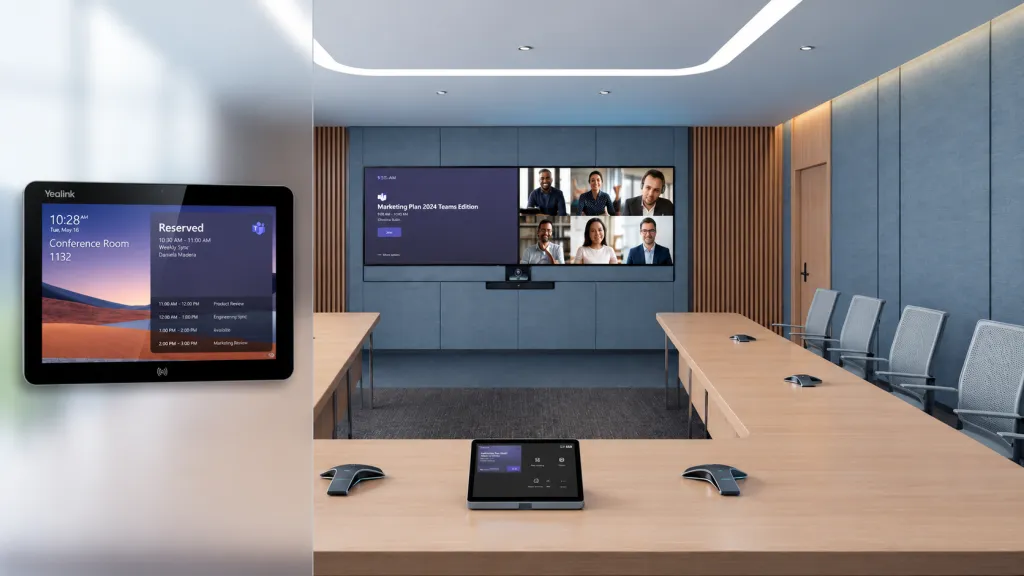
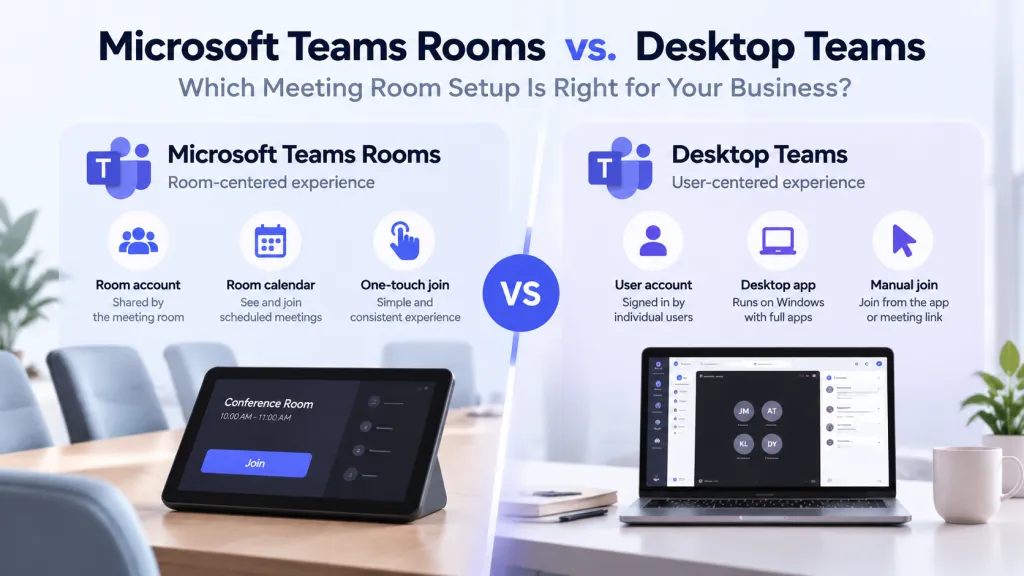
Microsoft Teams Rooms is a dedicated meeting room system, not just the regular Teams app installed on a larger screen. It normally uses a room or resource account, which gives the shared space its own identity instead of relying on an employee's personal account.
Depending on the platform, license, certified hardware, and configuration, a Teams Rooms deployment can bring together:
A room calendar showing scheduled meetings and availability.
One-touch joining from a room console or touch interface.
Purpose-built controls for cameras, microphones, speakers, and content sharing.
A dedicated Teams Rooms display and other certified room components.
Centralized monitoring, updates, and device management for IT teams.
The practical benefit is repeatability. An employee can walk into a shared room, see the next scheduled meeting, and join without signing in to a personal Windows account. The room behaves like shared company infrastructure rather than somebody's computer.
This is also why Teams Rooms is not simply a hardware purchase. Room accounts, licensing, calendar processing, supported devices, and management policies all contribute to the final experience. A teams rooms all in one product may reduce the number of separate components, but it does not make every deployment identical.
If you need more detail about certified components and room configurations, see this Teams Rooms hardware guide. For this article, the key point is simpler: Teams Rooms is designed to make meeting rooms consistent and easy to operate at scale.
What Is Desktop Microsoft Teams?
Desktop Microsoft Teams is the regular Teams application running on a Windows computer or Windows device. A user normally signs in with a work account, opens the app, and joins or starts a meeting much as they would at a desk.
The app supports meetings, screen sharing, chat, files, and collaboration, subject to the user's account and organizational settings. It can also sit alongside other Windows software, allowing someone to move from a call to a presentation, browser, spreadsheet, or project tool.
Using desktop Microsoft Teams for meeting rooms is therefore a different deployment model from Teams Rooms. The meeting is centered on the signed-in user and the Windows device, rather than on a dedicated room account and room console.
For example, an employee might enter a small project room, sign in to Teams on a Windows device, open the calendar, and select the meeting. They can then share a PowerPoint file and switch to another application for a discussion. That process can work well, but it involves more user-driven steps than tapping a scheduled meeting on a dedicated room controller.
Desktop Teams does not automatically turn an ordinary Windows device into a Teams Rooms system. Room calendars, one-touch joining, dedicated controls, and room management depend on the deployment model and supporting configuration, not on the Teams name alone.
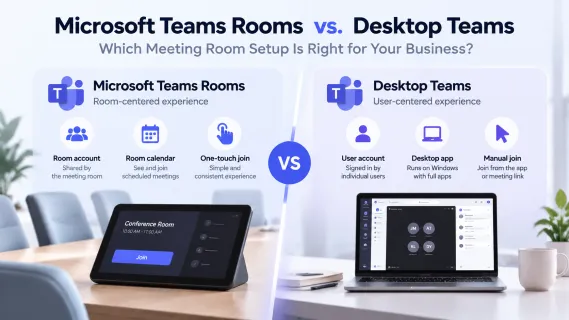
Microsoft Teams Rooms vs Desktop Teams: Key Differences
The clearest way to evaluate Microsoft Teams Rooms vs desktop Teams is to compare what happens before, during, and after a typical meeting.
Decision factor
Microsoft Teams Rooms
Desktop Teams on a Windows device
Main purpose
Operate a dedicated, shared meeting room
Run user-led Teams meetings and other desktop work
Account type
Normally a room or resource account
Normally the user's work account
Calendar integration
Room-centered calendar can show availability and scheduled meetings
Usually centered on the signed-in user's calendar; separate room planning may be needed
One-touch meeting joining
A core part of many configured Teams Rooms experiences
Users typically open Teams and select or start the meeting manually
Room controls
Purpose-built room console or touch controls, depending on hardware
Standard Teams and Windows controls; any separate peripherals need their own arrangement
Device management
Designed for centralized room monitoring, updates, and administration
Managed as a Windows endpoint, with more local or general device administration
Deployment complexity
More planning for accounts, licensing, certified hardware, and configuration
Often simpler for a small pilot, though audio, video, security, and accounts still need planning
Best usage pattern
Shared rooms, multiple rooms, and standardized experiences across offices
Fixed teams, small rooms, multipurpose spaces, and user-managed meetings
Flexibility
Optimized for a consistent room workflow
Easier to switch among Teams, files, browsers, and other Windows applications
Typical costs and IT involvement
Usually greater room-specific licensing, deployment, and administration involvement
Can reduce initial room-system complexity, but is not necessarily free or maintenance-free
NearHub Board Max support
Not supported
Supports the Microsoft Teams desktop app on Windows
Specific Teams Rooms capabilities depend on the platform, certified hardware, licensing, and configuration. Likewise, a Windows device does not automatically gain dedicated room features just because it has a large display or runs Teams.
The distinction matters when comparing teams rooms hardware with a Windows-based alternative. One option is designed around the room as a managed resource; the other is designed around a user operating a computer in that room.
When Do You Actually Need Microsoft Teams Rooms?
You are most likely to need Microsoft Teams Rooms when the quality of the room workflow matters as much as the ability to make a call.
Consider a company with several shared conference rooms. Sales, finance, and project teams may use the same space throughout the day. If every meeting depends on someone signing in to a personal account, finding the invitation, and arranging the controls, small delays can become a recurring problem. A dedicated system gives those rooms a more predictable operating model.
Teams Rooms is usually worth serious consideration when:
Your company manages several meeting rooms. Standardized equipment and processes can make rooms easier to support.
Different employees and visitors use the same space. A room-centered experience reduces reliance on personal accounts.
The room needs its own calendar and account. People can check availability and schedule the space as a shared resource.
Users expect one-touch joining. Scheduled meetings can appear on the room interface for a simpler start.
IT needs centralized oversight. Monitoring, updates, and device administration become more important as the room count grows.
You want the same setup across offices. Employees do not need to learn a different process in every location.
These requirements often appear together. A single executive room used by one person may not justify the same teams rooms setup as a floor of shared conference rooms. The deciding factor is not room size alone; it is the amount of coordination, support, and consistency the organization needs.
In other words, businesses select Teams Rooms mainly for room management, standardization, and ease of use—not simply because it can make a Teams call. Desktop Teams can do that too.
When Is Desktop Teams Enough as a Teams Rooms Alternative?
Desktop Teams may be enough when the people using the space are comfortable managing their own meetings and do not need dedicated room features.
This often fits a small office, project room, training area, sales room, or executive workspace. The same employees may use the room regularly, know how the equipment works, and need to do more than host video calls.
Desktop Teams is a sensible option when:
A small, fixed team uses the space most of the time.
Users are comfortable signing in and joining meetings manually.
The room is also used for presentations, document reviews, training, or project work.
People need to open websites, files, and Windows applications during discussions.
A dedicated room calendar and controller are not essential.
The organization wants a simple pilot or a lower-complexity starting point.
For example, a five-person project team might meet twice a week to review a spreadsheet, discuss a design, and call a remote colleague. They can sign in, join the meeting, and switch between familiar applications without needing a room resource account. In that situation, a dedicated room system may add management steps without solving a real problem.
A Windows meeting room setup can also suit multipurpose spaces. Instead of treating the display only as meeting room equipment, the team can use it as a shared Windows workspace that supports video meetings alongside other tasks.
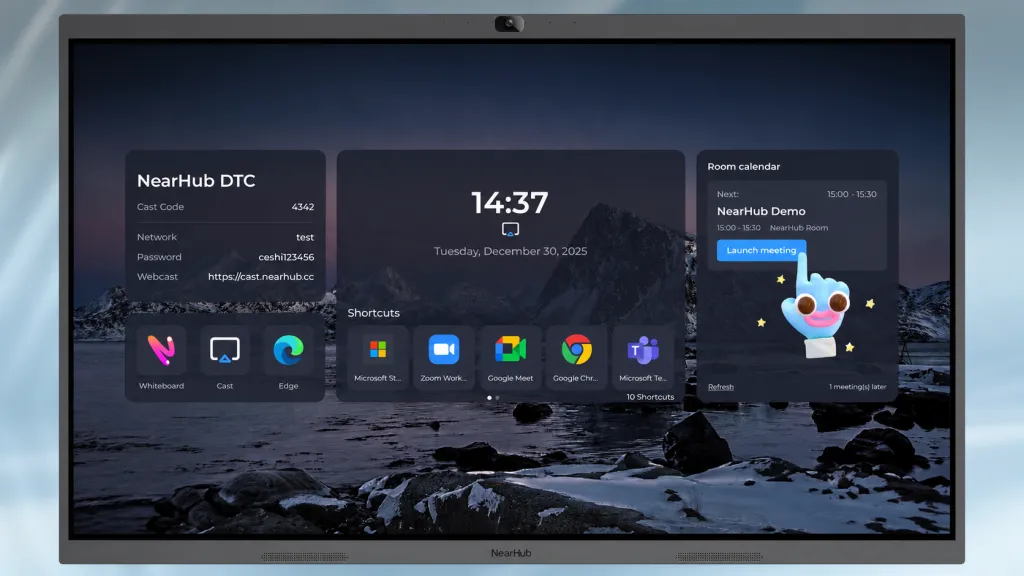
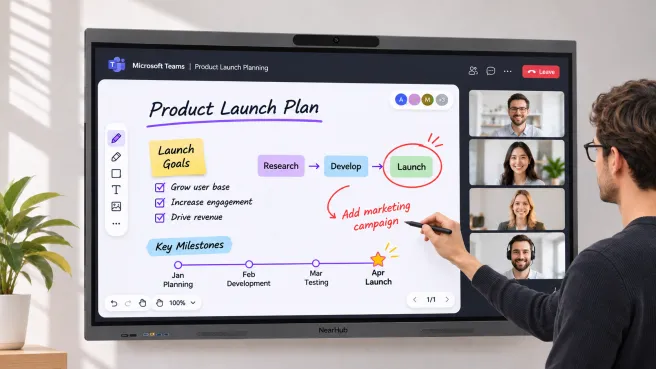
Some teams want the flexibility of running desktop Teams and other Windows applications on a large shared screen. In this case, a Windows interactive display may be worth considering. NearHub Board Max is one example. Running Windows 11 Pro, it supports the Microsoft Teams desktop app, allowing users to join meetings, share content, present documents, and switch between compatible Windows applications. It also supports in-room collaboration alongside video meetings.
Although NearHub Board Max does not support Microsoft Teams Rooms, it offers additional features for meeting room use. Its built-in Room Calendar syncs with Microsoft or Google Calendar, allowing users to view scheduled meetings and join them with a single tap. It also supports Windows Kiosk Mode, which lets administrators restrict device access to designated applications, helping maintain a controlled and consistent experience in shared spaces. These features add meeting room convenience without making Board Max a dedicated Teams Rooms system.
What You Give Up When You Choose Desktop Teams
Desktop Teams can work well in meeting rooms, but it involves trade-offs. Being clear about them helps prevent a simple pilot from becoming a frustrating shared-room experience.
First, there are usually more manual actions. Someone may need to sign in, open Teams, find the invitation, select the right audio and video devices, and then join. A fixed team may accept these steps easily; a room used by different employees every hour may not.
Second, there is less room-specific automation. A user's calendar is not the same as a dedicated room calendar, and opening a meeting from a personal account is different from tapping a scheduled meeting on a room console.
Third, theteams meeting hardware still needs planning. Cameras, microphones, speakers, displays, cables, and any separate controls must work together in the actual space. Desktop Teams does not remove the need to test audio pickup, camera coverage, or content sharing.
Finally, Windows devices require local or endpoint management. Account security, updates, user access, and support procedures still matter. If the company later expands from one room to many, it may need a more standardized management approach.
None of these limitations means desktop Teams is a poor meeting room option. They simply mean it provides a user-managed computer experience rather than a dedicated room-system experience.
What You Gain with Desktop Teams
The main advantage of desktop Teams is flexibility. The room can support a video call in the morning, a presentation after lunch, and a document review or training session later in the day without changing the basic workflow.
The experience is also familiar. Employees who already use Teams at their desks can apply the same habits to meetings, chat, files, and screen sharing. For a small team, this can reduce training and make the first deployment easier to understand.
Windows adds another practical benefit: the meeting device can run other compatible applications. A team can discuss a proposal, open the relevant spreadsheet, check a web dashboard, and return to the call. That is useful in multipurpose rooms where collaboration extends beyond video conferencing.
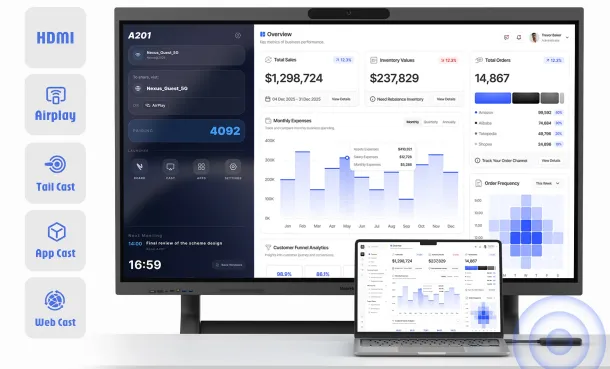
Content sharing can be arranged around the room's needs as well. If you are comparing wired, wireless, and in-app options, this smart board screen sharing guide provides additional context. The important decision is whether the sharing method supports the team's real workflow, not merely whether it looks convenient in a demonstration.
Desktop Teams can also provide more freedom when selecting displays and compatible peripherals. A suitable Windows device may combine computing and display functions, while another room may use separate components. For some small teams, this flexibility lowers deployment complexity and creates an easier starting point.
Microsoft Teams Rooms or Desktop Teams? A Practical Decision Guide
Use the following table as a starting point. It focuses on the workflow you need rather than on a particular device category.
Situation
Recommended option
Multiple rooms and centralized IT management
Microsoft Teams Rooms
Room calendar and one-touch joining required
Microsoft Teams Rooms
Different employees regularly share the same room
Microsoft Teams Rooms may be a better fit
Small room used by a fixed team
Desktop Teams may be enough
Users need to run Windows applications
Desktop Teams on a Windows device
Flexible content sharing and collaboration needed
Desktop Teams on a suitable Windows device
Standardized deployment across offices
Microsoft Teams Rooms
Simple pilot or low-complexity setup
Desktop Teams
Before choosing, walk through one normal meeting and answer five questions:
Who signs in: the room or an individual user?
How will people see the room's availability and scheduled meetings?
How many steps should it take to join?
Who will manage updates, accounts, and connected devices?
Will the room be used only for meetings, or also for Windows-based work?
These are general recommendations, not absolute rules. A small shared room may still benefit from Teams Rooms if one-touch joining is essential, while a larger fixed-team workspace may work well with desktop Teams. The final choice depends on meeting workflows, hardware, licensing, and management requirements.
Frequently Asked Questions
Can desktop Teams replace Microsoft Teams Rooms?
Desktop Teams can cover many everyday meeting needs, including calls, screen sharing, chat, and document collaboration. However, it does not provide the complete dedicated room experience offered by Teams Rooms, such as a room-centered account, integrated room calendar, and purpose-built meeting controls.
Can NearHub Board Max run Microsoft Teams?
Yes. NearHub Board Max supports running the Microsoft Teams desktop app on Windows. It also features Room Calendar for viewing and joining scheduled meetings with one tap, Kiosk Mode for restricting device access, and Webcast for browser-based wireless screen sharing. However, NearHub Board Max currently does not support Microsoft Teams Rooms.
Do I need a Teams Rooms license to use desktop Teams?
Desktop Teams and Teams Rooms use different licensing arrangements. A dedicated Teams Rooms license is generally not required merely to run the desktop app, but users still need an appropriate Teams account or license for their intended use. Available features and organizational requirements may vary.
Is desktop Teams better for a small meeting room?
Desktop Teams may be sufficient for a small meeting room if the team is comfortable signing in and joining manually. It is less suitable when the space needs a dedicated room calendar, one-touch joining, or standardized controls for many different users.
Which option is better for a company with many meeting rooms?
Teams Rooms is often more suitable for a company with many meeting rooms because standardized operation becomes more important as the room count grows. Room calendars, one-touch joining, and centralized management can create a more consistent experience and simplify support.
Can I start with desktop Teams and move to Teams Rooms later?
Yes, an organization can begin with desktop Teams and adopt Teams Rooms later. The transition may require different certified hardware, room accounts, licensing, and configuration, so it is sensible to treat the first setup as a pilot rather than assuming every component will carry over.
Conclusion: Choose the Meeting Experience Your Business Actually Needs
Choose Microsoft Teams Rooms when your priorities are standardized room operation, dedicated calendars, one-touch joining, and centralized management. It is especially relevant for shared rooms, multiple locations, and organizations that want every employee to have a consistent meeting experience.
Choose desktop Teams when flexibility, Windows applications, user-managed meetings, and a simpler setup matter more. It can be a practical teams rooms alternative for a fixed team or multipurpose space that does not need dedicated room-system features.
Before choosing hardware, review one week of real meeting activity. Note who uses each room, how meetings are booked and started, which applications people need, and what IT must manage. Then pay for the room features your business will actually use—not for a dedicated system simply because every room is expected to have one.