Google Meet Hardware: How to Choose Displays, Room Kits, and Meet-Ready Devices
A practical guide to Google Meet hardware for meeting rooms — what components a Meet room actually needs, how to choose displays and room kits by room size, what 'Meet-ready' really means, and how to verify device compatibility before you buy.
google meet hardware
google meet display
google meet room kit
Updated: Oct 23, 2026 · 8 minutes read
Global Business, Brought Near.
No Installer, No Hassle, Just Works.
A Google Meet room needs a display, camera, audio, compute, and control hardware matched to room size and IT policy. Room kits bundle these into a tested system, while displays and peripherals can also be assembled around a certified compute device. 'Meet-ready' marketing language is not proof of certification — always verify specific models against Google's current hardware documentation.
Key Takeaways
Every Google Meet room combines five hardware layers — display, camera, audio, compute, and control — and the display alone never runs the meeting.
A Google Meet room kit replaces separate camera, audio, and compute purchases with one validated system, which usually cuts deployment time for teams without dedicated AV staff.
Touch capability on a display says nothing about Google Meet support; compatibility lives in the compute device and peripherals, not the panel.
Room size drives the spec: small rooms fail on camera framing, large rooms fail on microphone coverage — budget accordingly.
Before purchasing, confirm each model against Google's current supported-hardware documentation, because compatibility lists change over time.
Google Meet Room Hardware Guide: Displays, Room Kits, and Meet-Ready Devices
Choosing Google Meet hardware for a meeting room is really three decisions at once: which screen fits the room, what runs the meeting platform, and how camera and audio cover the people in it. Get any one of these wrong and the room underperforms — remote participants can't hear, the far wall can't read shared content, or the "compatible" display turns out to need a compute device nobody budgeted for.
This guide walks through what a Google Meet room actually consists of, how to choose a display and a room kit for different room sizes, what "Meet-ready" claims do and don't mean, and how to verify compatibility before you sign a purchase order.
What Hardware Does a Google Meet Room Need?
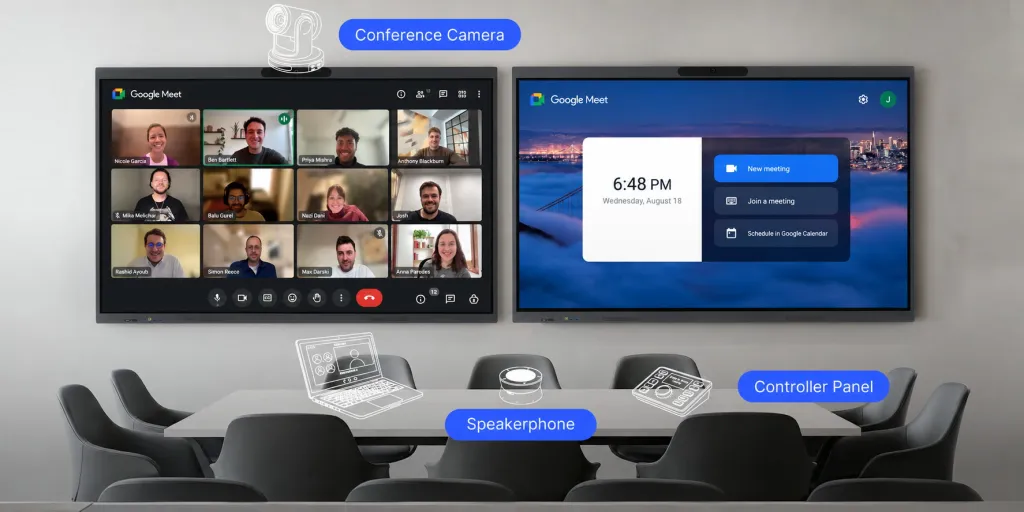
A working Google Meet room is a system of five hardware layers, and the display is only one of them:
Display. The screen that shows remote participants and shared content. One panel is typical; rooms that frequently run hybrid meetings often benefit from two — one for faces, one for content.
Camera. Positioned at or near display height so remote participants get a natural view of the table. Field of view matters more than resolution in small rooms; framing and speaker tracking matter more in large ones.
Audio. Microphones with pickup range matched to the deepest seat, plus speakers loud enough for the room. Acoustic echo cancellation is what separates meeting-grade audio from a speakerphone.
Compute. Something has to actually run Google Meet — a dedicated room compute device, a built-in operating system on an all-in-one device, or a participant's laptop in a BYOD setup.
Control. A touch controller, wall panel, or the room device's own interface for joining scheduled calls, adjusting volume, and managing the meeting without a keyboard.
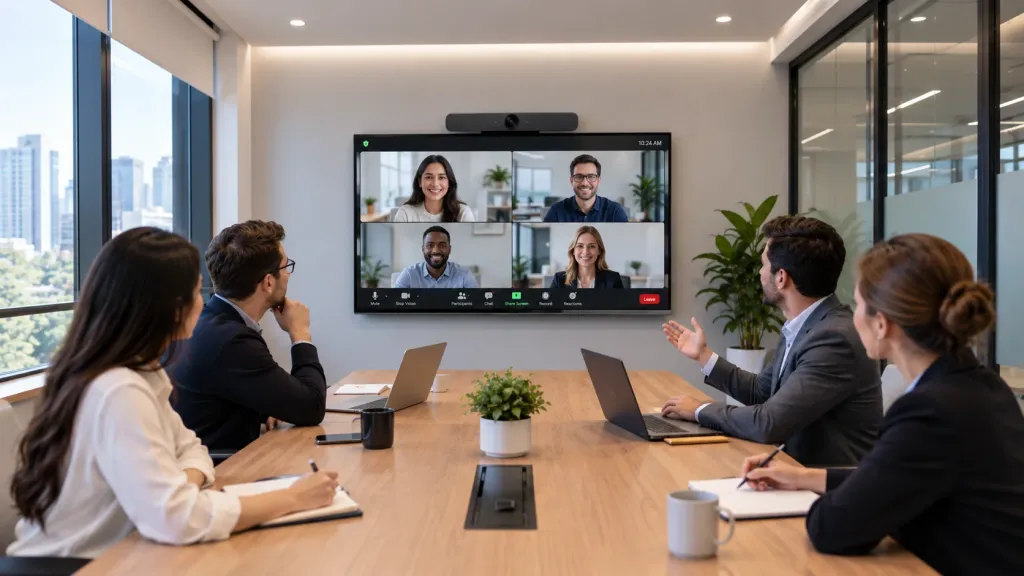
The most useful distinction to internalize is the difference between a display that can join a meeting and a room system that runs one. A large screen connected to a laptop can show Google Meet today with zero planning. A dedicated room kit, by contrast, combines compute, camera, audio, and control into a managed system that anyone can start with one tap. Both are legitimate architectures; they solve different problems at different budgets and management overhead.
Google Meet Displays: Choosing the Right Screen for the Room
When people search for a Google Meet display, they're usually asking one of two things: "what screen should I put in my Meet room?" or "is this display compatible with Google Meet?" The first is a room-design question. The second is a compatibility question — and it's mostly not about the display at all (more on that below).
For room design, five factors drive the choice:
Room depth and viewing distance. The farthest seat must be able to read shared text comfortably. Deep rooms need larger panels or dual displays; shallow huddle spaces can be overwhelmed by an oversized screen.
Headcount and layout. A wide table may justify a wider viewing angle or a second display so nobody reads content at an extreme angle.
Remote participant visibility. If the room hosts hybrid meetings daily, plan screen real estate for video tiles, not just content. A single screen that shrinks remote faces to thumbnails every time someone shares a slide quietly degrades the meeting.
Single vs. dual screens. Dual displays — one for video, one for content — are a common pattern in medium and large Meet rooms. Confirm your room system and licensing actually support dual-screen output before designing around it.
Camera placement. The camera should sit at or just above eye level near the display's centerline. If the room layout forces the camera far off-axis, remote participants spend the meeting looking at profiles.
Touch vs. non-touch is the other big fork. A touch-enabled display lets people whiteboard, annotate shared content, and control the room from the panel. A standard commercial display is simpler and cheaper, and it's the right call for presentation-heavy rooms.
For general display sizing math, panel types, brightness, and mounting considerations that apply regardless of platform, our meeting room displays guide covers the fundamentals. This article stays focused on the Google Meet-specific layer.
Google Meet Room Kits: All-in-One vs. Modular Systems
A Google Meet room kit is a bundled, tested combination of the compute unit, camera, microphone/speaker, and touch controller designed to work together as a Meet room system. The appeal isn't any single component — it's that the interoperability questions have largely been answered before the box arrives.
You'll encounter two broad architectures:
All-in-one systems integrate compute, camera, microphones, and speakers into a single appliance, often a video bar mounted at the display. Cabling is minimal, installation is fast, and there's one device to manage. The trade-off is fixed capability: if the camera's field of view or the microphone's pickup range doesn't fit your room, you can't upgrade just that part.
Modular systems separate compute, camera, and audio into discrete components. You gain the ability to size each element to the room — a wider camera here, ceiling or table microphones there — and to replace components as they age. You also take on more cabling, more mounting decisions, and more compatibility verification.
A practical way to think about it by room size:
Small rooms (2–6 people). An all-in-one bar or compact kit is usually the most cost-effective path. Prioritize a wide field-of-view camera — small rooms sit close to the screen, and a narrow camera crops out half the table.
Medium rooms (6–12 people). Either architecture works. Prioritize microphone coverage and consider dual displays. This is the size where integrated audio often starts to strain, so check pickup range specs against your actual room depth.
Large rooms (12+ people). Modular systems earn their complexity here. Large rooms typically need multiple microphone elements or ceiling arrays, a camera with real optical zoom or multi-camera framing, and often dual displays. All-in-one bars rarely cover these spaces well.
Whatever the architecture, weigh the operational questions: How is cabling routed and serviced? Can a failed component be swapped without replacing the kit? Does the vendor's management tooling fit how your IT team already administers devices? And what does the upgrade path look like in three to five years? The cheapest kit to buy isn't always the cheapest kit to own.
What Does "Google Meet-Ready" Mean?
Search for a Google Meet ready display and you'll find the phrase applied loosely — sometimes to displays with a built-in camera, sometimes to anything with an HDMI port, sometimes to genuinely supported room hardware. "Meet-ready" is not a formal certification tier you can rely on. It's marketing language, and it can mean any of three very different things:
"Can display a meeting." Any screen with an input can do this. Meaningful, but trivial.
"Can run Google Meet through an app or browser." This depends on the device's operating system, browser support, and whether Google actually supports Meet in that environment — not on the panel.
"Is part of Google's supported hardware ecosystem for Meet rooms." This is the claim that matters for a managed deployment, and the only way to confirm it is against Google's own current documentation for the specific model.
So before purchasing, verify four things for each candidate device: the exact model number (product families often contain both supported and unsupported variants); how Meet is delivered on the device (native room system, supported app, or browser session); the operating system and compute requirements, including how updates are handled; and peripheral compatibility for the camera, audio, and controller you plan to pair with it.
One adjacent concept worth a sentence: you may see Google EDLA certification mentioned on Android-based interactive displays. EDLA is about licensing Google Mobile Services on large Android screens — it governs app access, security updates, and device management, not whether a device is a supported Google Meet room system. Our EDLA certification guide explains that program in detail; just don't treat it as a proxy for Meet hardware support.
Interactive Displays and Google Meet
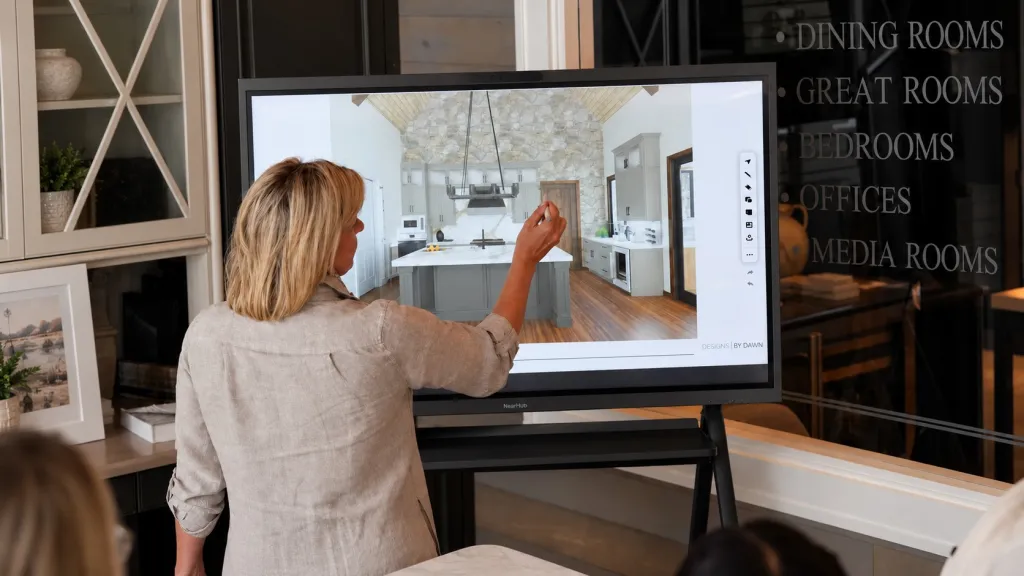
Interactive displays add a layer to the meeting room that a passive screen can't: people can walk up and write, annotate shared documents, or run a whiteboarding session while remote participants watch. In a Google Meet context, that opens a few plausible workflows — whiteboarding during a hybrid brainstorm, annotating a shared document in a design review, or using touch to navigate content while presenting.
Keep three things separate when evaluating these scenarios:
The display's interactive features — touch response, pen support, on-board whiteboard software. These live entirely on the device and work with or without Meet.
Google Meet's own features — what the platform supports for content sharing, companion mode, or whiteboarding integration. These are software questions with their own edition and configuration requirements.
Compatibility between the two — whether a given workflow actually functions on a given device depends on the device's OS and browser environment, the Meet version, and your organization's Google Workspace configuration. A feature that works in a desktop browser may not exist in an embedded environment, and vice versa.
The practical advice: if interactive collaboration inside Meet calls is a requirement, test the exact workflow on the exact hardware before a fleet purchase — a single demo unit answers more questions than any spec sheet. For broader context on how interactive panels fit into meeting rooms generally, our conference room displays buyer's guide covers the category, and our smart board for conference room overview looks at collaboration use cases.
Where NearHub Board Max May Fit
One example of the hardware category discussed above is the NearHub Board Max, a Windows-based interactive display and collaboration board. Because it runs a full desktop operating system, it approaches meeting platforms the way a PC does — through desktop applications or a full browser — rather than through a locked-down embedded environment, and its touch and whiteboarding layer is designed for rooms where in-person and remote collaboration overlap.
If you're building or refreshing Meet rooms and want touch collaboration in the same footprint, it can be worth including in an evaluation shortlist. With its full Windows 11 Pro system, built-in Intel Core i5 processor, 16GB RAM, and 256GB storage, the NearHub Board Max lets you run Google Meet directly on the board without a separate PC. Its built-in 4K AI camera, 8-microphone array with up to 8 m pickup range, integrated speakers, and interactive touchscreen bring video conferencing and in-room collaboration together in one device. Before deployment, verify that your organization's Google Workspace settings, browser configuration, and IT security requirements are met.
Google Meet Room Setup Checklist
Before a room goes live, run through this deployment checklist:
Room profile. Document capacity, table shape, seat positions, and the farthest viewing distance — these drive display size, camera FOV, and microphone count.
Display placement. Centerline visible from every seat, mounted at a height that works for seated viewers, clear of glare sources.
Camera coverage. Test framing from the room's actual seating, not an empty room. Confirm the widest participant and the nearest one are both in frame.
Audio coverage. Walk the room during a test call. Hard surfaces, HVAC noise, and deep tables are the usual failure points — treat acoustics as part of the hardware budget.
Compute and platform. Confirm the room device runs Google Meet in a supported configuration and is enrolled in your management tooling before installation day.
Network and power. Wired Ethernet where possible, sufficient bandwidth headroom, and outlets or cable channels where the equipment actually sits.
Cabling. Route, label, and document every cable. The fastest way to make a room unmaintainable is an undocumented wall cavity.
Calendar and room resources. Set up the room as a bookable resource so Meet calls appear on the room's join interface — this is an admin task, not a hardware one.
Test protocol. Run an end-to-end call with remote participants: join flow, content sharing, audio in both directions, camera framing, and a whiteboard session if the room has touch.
Ownership. Assign who monitors device health, applies updates, and fields failure reports. A room without an owner degrades silently.
There is no single correct configuration — a huddle room and a boardroom should pass different versions of this list.
Google Meet Hardware by Room Size
Room type
Problem to solve first
Typical hardware combination
Verify before purchase
Small / huddle (2–6)
Camera framing at close range; simplicity for walk-up use
All-in-one bar or compact kit; single 43"–65" display; integrated audio
Camera field of view; whether the kit supports your management tools; Meet support for the exact model
Medium (6–12)
Microphone pickup to the back seats; content + faces on screen
Kit or modular system; 65"–86" display or dual screens; table or expansion mics
Mic pickup range vs. room depth; dual-display support; peripheral compatibility list
Large / boardroom (12+)
Even audio coverage; remote visibility of a long table
Modular system; 86"+ or dual displays; ceiling or multiple table mics; camera with zoom/framing
Acoustics plan; multi-mic support of the chosen system; controller and cabling plan; vendor support terms
These are starting points for specification conversations, not rules — room geometry and acoustics routinely override headcount.
Frequently Asked Questions
What hardware is needed for a Google Meet room?
A functional Google Meet room needs five things: a display sized to the room, a camera that frames all seats, microphones and speakers that cover the space, a compute device running Google Meet, and usually a touch controller for joining calls. A room kit bundles these; BYOD setups assemble them separately around a supported compute device.
Can any display be used for Google Meet?
Almost any HDMI display can show a meeting, but that is not the same as supporting one. The room experience depends on the compute device, camera, and audio — not the panel. A consumer TV works for a quick huddle test, yet commercial panels offer anti-glare coatings, longer duty ratings, and warranties that cover daily office use.
What is a Google Meet room kit?
A Google Meet room kit is a bundled set of room hardware — typically a compute unit, camera, microphone and speaker system, and a touch controller — designed and tested to work together as a Meet room system. Kits trade some flexibility for faster, more predictable deployment and a single support path.
Is an interactive display the same as a Google Meet-ready device?
No. "Interactive" describes touch input; "Meet-ready" is informal marketing language that may mean anything from "can show a browser tab" to "part of a supported room system." Touch, whiteboarding, and Meet compatibility are three separate questions. Verify how each specific model actually connects to and runs Google Meet before buying.
How do I check whether a display or room kit works with Google Meet?
Start with Google's current hardware documentation for Meet room systems and supported peripherals, then confirm the exact model number — not just the product family — with the vendor. Ask how the device runs Meet, what operating system it uses, which peripherals are supported, and how updates are handled, since support status can change.