Conference Room Displays: A Size-and-Type Framework for Buyers Who Hate Guessing
Use this room-based framework to choose the right conference room display size, type, and features for your actual meeting space.
conference room display
meeting room monitor
Updated: Aug 19, 2026 · 8 minutes read
Global Business, Brought Near.
No Installer, No Hassle, Just Works.
Seven minutes searching for a dongle — that's the real cost of choosing a conference room display without thinking through the connection ecosystem. The right conference room display isn't just a screen; it's a decision framework that matches display type, size, and features to your room's actual use case, seating capacity, and content workflow.
This article gives you that framework — room-based, not marketing-spec-based. No more guessing whether you need 65 inches or 75. No more wondering if touch interaction is worth the premium. Just clear criteria tied to how your teams actually work.
The Display Sizing Framework That Actually Works
The 4:6:8 rule used by AV professionals is the most reliable sizing method. For analytical content like spreadsheets and CAD files, multiply screen height by 4 — the farthest viewer should sit within that distance. For typical presentations and documents, use 6x. For video and large imagery, 8x works.
In practice, this means:
Huddle rooms (4-8 foot viewing distance): 43" to 55"
Small conference rooms (8-12 foot viewing): 55" to 65"
Medium conference rooms (12-16 foot viewing): 65" to 75"
Large boardrooms (16-24 foot viewing): 75" to 86"
Auditoriums (24+ foot viewing): 86"+ or video wall
Why Bigger Usually Wins the Trade-off
The temptation to save money by sizing down is strong. Resist it. The incremental cost between a 65" and 75" commercial display is typically 15-25%. The productivity cost of participants squinting at unreadable content for two years is far higher. When a room sits between sizes, the larger option almost always delivers better long-term value.
The exception is huddle rooms. In spaces under 150 square feet, an oversized display creates a vertigo effect — participants sit so close they can't see the full screen without turning their heads. For these huddle rooms, 55" is the practical maximum.
Interactive Display vs. Standard Monitor: The Honest Comparison
This is the decision that generates the most buyer's remorse. Organizations routinely buy interactive displays that never get touched, or standard monitors for rooms where teams desperately need to whiteboard. Here's a framework that prevents both mistakes.
When an Interactive Display Earns Its Price
Interactive flat panel displays add 40-80% to the cost of a comparable standard commercial monitor. That premium is justified only when touch capability changes how work happens. Specifically:
Whiteboarding and brainstorming happen in the room at least weekly
Document annotation is part of your review workflow — marking up designs, contracts, or plans directly on screen
Collaborative manipulation of content matters — multiple people interacting with data visualizations, maps, or creative work
Remote participants need to see whiteboard content in real time, not just the back of someone's head as they write on a physical whiteboard
When a Standard Commercial Display Is the Smarter Buy
A standard (non-touch) commercial monitor is the better choice when:
The room is primarily for one-way presentations — one person shows content to a listening audience
Video conferencing is the dominant use case, with content shared from laptops
Digital signage or information display is the primary function
Budget constraints mean choosing between a larger standard display and a smaller interactive one — the larger standard panel usually delivers better outcomes
The Hidden Cost Dimension: Operating System Lock-In
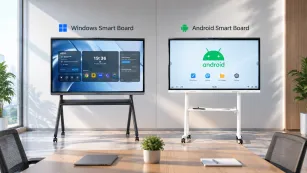
Not all interactive displays offer the same software freedom. Android-based panels typically restrict users to mobile browsers and a limited app store. If your organization relies on web-based SaaS tools, complex dashboards, or specific desktop applications, this restriction becomes a daily frustration.
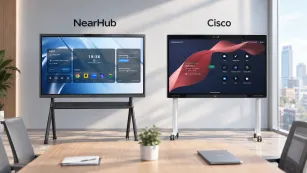
Windows-based interactive displays — like the NearHub Board Max running Windows 11 Pro — provide full desktop browser compatibility and can run any Windows application natively. For teams using enterprise web apps, this distinction matters more than touch response time or stylus pressure sensitivity. NearHub Board Max features a 4K interactive display with zero lamination technology, supporting smooth touch and pen input while running the full Windows ecosystem your teams already know.
Display Types by Room: A Decision Matrix
Different room types demand different display characteristics. Here's a room-by-room breakdown:
Huddle Rooms: Simplicity Above All
Huddle rooms (2-4 people, impromptu meetings) favor simplicity over features. The ideal display is easy to connect to, bright enough for close viewing, and doesn't require training to use.
Avoid: Complex video walls, oversized panels, systems requiring IT support to start a meeting
Small-to-Medium Conference Rooms: The Versatility Zone
These are the workhorse rooms — 5-12 people, mixed use, the backbone of most office meeting activity. They need displays that handle presentations, video calls, and occasional collaborative work without specialization in any one area.
Size: 55" to 75"
Type: Interactive flat panel (recommended) or high-quality commercial display
Key features: 4K resolution for multi-window layouts, built-in or easily connected camera/mic, wireless + wired connectivity
The non-intuitive dimension: Check the warranty terms for continuous operation. Many "commercial" displays only cover 12-16 hours daily. If your office runs extended hours, verify the panel is rated for true 24/7 operation or the warranty will be void.
Large Boardrooms: Presence and Clarity
Boardrooms serve a dual function: effective meetings and impression management. The display must be large enough for everyone to see clearly while projecting a professional, modern image to clients and executives.
Size: 75" to 86" or dual displays
Type: Premium interactive or large-format commercial
Key features: High brightness for rooms with natural light, professional appearance, reliable performance under pressure
Dual display consideration: Some boardrooms use two displays — one for video conference participants, one for shared content. This setup prevents the common problem of content shrinking to accommodate video tiles. If your boardroom frequently hosts hybrid meetings with remote attendees, dual 65" displays may outperform a single 86" panel.
Training and All-Hands Rooms: Visibility at Distance
Training rooms and town hall spaces need displays visible from 20+ feet. Single panels rarely suffice.
Size: Video wall or projection alternative
Type: Modular LED wall or tiled LCD
Key features: Extreme brightness, wide viewing angles, content management system
Reality check: These installations require professional AV design. Don't attempt DIY video walls for training spaces — the bezel alignment, color calibration, and content distribution complexity demand specialist expertise.
Key Technical Specifications That Actually Matter
Marketing materials highlight dozens of specs. Most don't affect real-world meeting quality. Here are the ones that do:
Brightness and Anti-Glare
Office lighting is the enemy of display visibility. Overhead fluorescents, LED panels, and windows create reflections that wash out content. A glossy consumer TV in a well-lit conference room forces participants to squint through their own reflections.
Minimum brightness: 300 cd/m² for controlled lighting, 400+ cd/m² for bright rooms with windows.
Anti-glare coating: Non-negotiable for rooms with any natural light. Matte or semi-matte finishes scatter reflections instead of mirroring them.
NearHub Board Max delivers 350 cd/m² brightness with a fully laminated anti-glare panel, making it suitable for standard office environments with typical overhead lighting.
Resolution: When 4K Matters and When It Doesn't
4K (3840×2160) is valuable when:
Content includes fine detail (CAD, design files, data-dense spreadsheets)
Multiple windows are displayed simultaneously
The display is 75" or larger (1080p pixels become visible at typical viewing distances)
1080p suffices when:
Primary content is slides and video calls
Display size is 65" or smaller
Budget constraints require trade-offs (spend the savings on audio quality instead)
Touch Technology: Infrared vs. Capacitive vs. EMR
Interactive displays use different touch technologies:
Technology
How It Works
Pros
Cons
Infrared (IR)
Grid of IR beams across the surface
Supports any input (finger, glove, stylus), scalable to large sizes
Less precise for fine writing, can drift over time
Capacitive
Electrical field detection like smartphones
Most responsive, supports multi-touch gestures, excellent for mobile-like interaction
Typically more expensive, limited to smaller sizes
EMR
Electromagnetic resonance with active stylus
Best writing precision, pressure sensitivity, palm rejection
Requires specific stylus, finger touch may not work
For business meeting rooms, infrared offers the best balance of versatility and cost. It allows natural finger touch for navigation and basic annotation while supporting stylus input for more precise writing.
Mounting and Installation: The Overlooked Factor
How the display is mounted affects both usability and room aesthetics:
Wall mounting is the standard for most rooms. It saves floor space, positions the display at optimal viewing height, and creates a clean look. Ensure the wall can support the weight — a 75" display can exceed 100 pounds without the mount.
Mobile stands offer flexibility for multi-purpose rooms. A display on a rolling cart can move between collaboration areas, training spaces, and impromptu meeting spots. The trade-off is stability and cable management.
Height matters more than most realize. The center of the display should sit at seated eye level — approximately 42-48 inches from the floor. Too high and neck strain sets in during long meetings. Too low and the display gets blocked by seated participants.
When the Standard Advice Doesn't Apply
The frameworks above work for 80% of meeting rooms. But there are exceptions worth acknowledging:
Creative and design studios may prioritize color accuracy (sRGB/Adobe RGB coverage) over brightness. A display that looks great for presentations may render design work inaccurately.
Healthcare and financial services face security and compliance requirements that limit connectivity options. Wireless casting may be restricted, requiring wired-only connections with encryption.
Multi-purpose event spaces need displays that reconfigure quickly. Here, mobile solutions and wireless everything trump fixed installations.
Rooms with glass walls suffer from reflections on two sides. Standard anti-glare may not suffice — specialized optical bonding or higher brightness panels may be necessary.
How do I calculate the right display size for my conference room?
The most reliable method is the 4:6:8 rule used by AV professionals. For rooms that primarily show analytical content like spreadsheets and data, multiply the display's screen height by 4 — the farthest viewer should sit within that distance. For typical presentation content like slides and documents, use a 6x multiplier. For video and large imagery, 8x works. To apply this practically, measure from the display mounting location to the farthest seat. For a typical mixed-content conference room, divide that distance by 6 to get your minimum screen height, then convert to diagonal. When in doubt between two sizes, choose the larger — the incremental cost is small compared to years of squinting.
Should I choose an interactive display or a standard commercial monitor?
The deciding factor is how your teams actually work in the room. Track the meetings for two weeks. If more than 30% of sessions would benefit from writing, drawing, annotating, or manipulating content directly on screen, an interactive display is justified. If the room is primarily used for one person presenting slides to a passive audience, a standard commercial monitor delivers better value. One common mistake: buying interactive displays for executive boardrooms that rarely see collaborative work, while leaving training rooms — where teams constantly whiteboard — with standard TVs. Match the technology to the workflow, not the room's prestige level.
Is 4K resolution necessary for conference room displays?
4K becomes valuable in three specific scenarios: when the room shares detailed visual content like CAD drawings or design mockups where pixel-level clarity matters; when the display is 75 inches or larger (at typical viewing distances, 1080p pixels become visible on big screens); and when the display is used for multi-window layouts showing multiple applications side by side. For standard presentations and video calls on displays under 65 inches, 1080p is visually indistinguishable from 4K at normal viewing distances. If budget is constrained, prioritize audio quality and brightness over resolution — they'll improve meeting quality more than extra pixels.
Why shouldn't I just use a consumer TV in my conference room?
Consumer TVs are engineered for a completely different use case: 3-5 hours of evening entertainment in dimly lit living rooms. Conference room displays face 8+ hours of daily operation in bright office environments. Consumer panels lack anti-glare coatings, creating mirror-like reflections from windows and overhead lights. They're not rated for continuous operation, leading to premature failure and voided warranties in commercial settings. Consumer smart TVs frequently display promotional overlays, auto-update notifications, and data-collection agreements that interrupt professional meetings. Finally, commercial displays offer standardized VESA mounting, longer warranties covering commercial use, and professional input/output configurations. The price savings of a consumer TV evaporate quickly when it fails after 18 months of office duty.
What brightness level do I need for a conference room display?
Brightness requirements depend entirely on your room's lighting environment. For rooms with controlled artificial lighting and no windows, 300-350 cd/m² (nits) provides comfortable visibility. For rooms with moderate natural light or bright overhead LED fixtures, aim for 400-500 cd/m² to prevent content from washing out. The most challenging environments are glass-walled conference rooms with natural light on multiple sides — these may require 500+ cd/m² or specialized optical treatments. When evaluating displays, test them in your actual room lighting conditions, not a dim showrooom. Content that's crisp and vibrant in a darkened demo space can become invisible under fluorescent office lights.