Hybrid Meeting Room Setup: The Equipment Reality IT Managers Actually Face
Here's what IT managers actually deal with — from platform compatibility headaches to audio troubleshooting.
hybrid meeting setup
zoom room equipment
teams room setup
Updated: Aug 19, 2026 · 8 minutes read
Global Business, Brought Near.
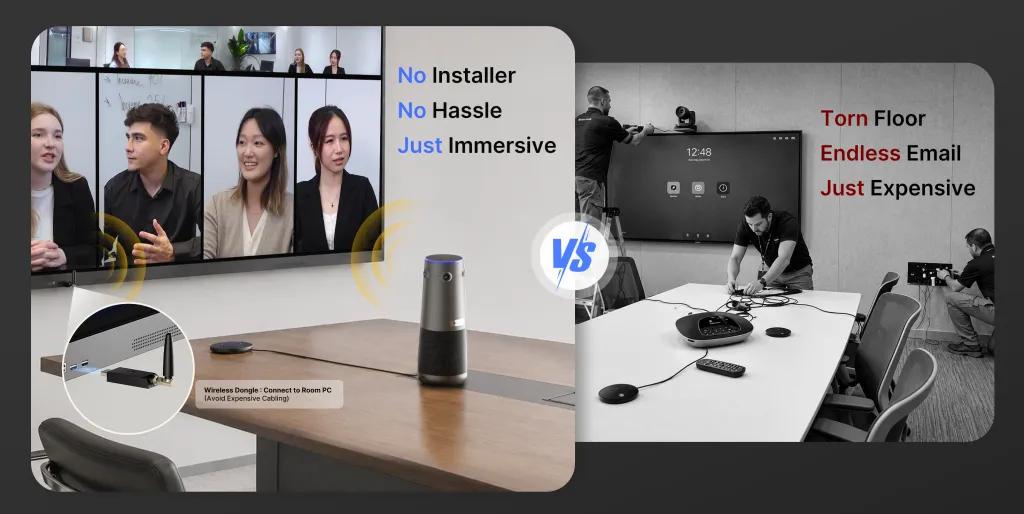
No Installer, No Hassle, Just Works.
The 6:47 AM Slack message from the CEO saying the boardroom "isn't working again" — 23 minutes before an investor call — is the reality of hybrid meeting room setup that no vendor brochure mentions. Setting up a hybrid meeting room that actually works means choosing equipment that handles audio pickup across the full table, cameras that frame everyone clearly, and platform compatibility for whatever video conferencing app your guests bring.
This guide is written for the IT manager who has inherited three "broken" conference rooms, a shoestring budget, and a mandate to "make hybrid work." No aspirational architecture diagrams. Just practical equipment decisions based on what actually fails, what actually matters, and what you can skip to save budget for the things that count.
The Audio-First Principle: Why Microphones Beat Cameras
If you remember nothing else from this guide, remember this: clear audio is the highest-impact upgrade you can make to any meeting room. People adapt to mediocre video. They cannot adapt to unintelligible audio. When remote participants can't hear, they stop engaging. The meeting degrades. Time is wasted.
The mechanism behind this is cognitive load. Listening to echoing, distant, or noise-filled speech requires active mental processing. That processing power gets diverted from actually thinking about the meeting content. A participant struggling to understand what's being said has no cognitive capacity left to contribute ideas.
Understanding Acoustic Echo Cancellation (AEC)
Echo is the most common audio problem in hybrid meetings. It happens when the microphone picks up sound from the room's speakers and feeds it back to remote participants, creating a distracting loop. AEC is the technology that prevents this by digitally subtracting the speaker output from the microphone input.
Not all AEC implementations work equally well. Basic AEC handles simple scenarios but struggles in rooms with hard reflective surfaces (glass walls, concrete floors, uncovered tables). Professional conference systems use hardware-level digital signal processing (DSP) with advanced algorithms that adapt to room acoustics in real time.
Microphone Coverage by Room Size
Room Size
Capacity
Microphone Approach
Why
Huddle room
2-4 people
Built-in video bar mics
Sufficient for close-range pickup
Small conference
4-8 people
Video bar with expansion mic
Far-end seats get buried without extension
Medium conference
8-12 people
Beamforming ceiling array or table mics
Speaker distance exceeds video bar range
Large boardroom
12+ people
Distributed ceiling mics + DSP
Full table coverage with intelligent mixing
The key insight: microphone pickup range doesn't scale linearly with room size. Doubling the table length quadruples the acoustic challenges because sound follows an inverse-square law — every doubling of the distance from the mic cuts the sound level to one-quarter. This is why medium and large rooms require fundamentally different microphone architectures, not just "louder" versions of huddle-room setups.
Video Bars and All-in-One Systems: Simplifying the Stack
A video bar combines camera, microphone, and speakers into a single appliance mounted below or above the display. The value proposition is straightforward: one device, one cable, one vendor to call when something breaks. For IT teams managing multiple rooms, this consolidation dramatically reduces support complexity.
What a Video Bar Actually Does
At its core, a video bar solves three problems simultaneously:
Camera framing: Wide-angle lenses capture the entire room, while intelligent framing (auto-framing, speaker tracking, or gallery view) ensures active participants are visible without manual camera adjustment.
Audio pickup: Integrated microphone arrays use beamforming to focus on human voices while rejecting background noise. The best systems can isolate individual speakers in a group conversation.
Audio playback: Built-in speakers deliver sound tuned for speech clarity rather than music. They eliminate the need for separate speaker systems and the associated cabling.
When Video Bars Fall Short
Video bars are not universal solutions. They have specific limitations that matter:
Large rooms: A video bar in a 20-person boardroom leaves far-end participants as tiny figures. Distributed microphones and dedicated cameras become necessary.
Complex room shapes: L-shaped rooms, rooms with partitions, or rooms with participants on multiple sides challenge the single-point design of video bars.
Advanced camera needs: If you need optical zoom, presenter tracking across a stage, or multiple camera angles, a video bar's fixed wide-angle lens won't suffice.
For most huddle rooms and small-to-medium conference rooms, video bars represent the right balance of capability and simplicity. For choosing the right display to pair with your video bar, consider room size, viewing distance, and whether touch interaction would benefit your team's workflow.
Platform Compatibility: The Multi-Platform Reality
Here's a fact that doesn't appear in single-platform marketing materials: 89% of organizations use multiple video conferencing platforms. Your company might standardize on Microsoft Teams, but your clients join via Zoom, your investors prefer Webex, and that one department refuses to leave Google Meet.
Building a separate room for each platform is absurd. The better approach is designing rooms that work across platforms through one of three strategies:
Strategy 1: Native Multi-Platform Support
Some all-in-one meeting room systems run full operating systems (like Windows 11 Pro) and can install native apps for Zoom, Teams, Google Meet, and others simultaneously. Users simply launch the app they need. This is the most seamless experience but requires a system with sufficient compute power and a full desktop OS.
In a BYOD workflow, the room provides the display, camera, microphone, and speakers as USB peripherals. The meeting host connects their laptop via a single cable (or wirelessly) and runs whatever platform they want. The room's equipment becomes platform-agnostic infrastructure.
The trade-off: each meeting starts with a brief connection step. The benefit: universal compatibility without platform lock-in.
Strategy 3: Platform-Certified Room Systems with Guest Join
Dedicated Teams Rooms or Zoom Rooms hardware offers the most polished single-platform experience. Modern systems increasingly support "Direct Guest Join" — the ability to join meetings on other platforms from the room's native interface. This bridges the multi-platform gap without sacrificing the optimized single-platform workflow.
The practical recommendation: For organizations heavily invested in one platform (say, 80%+ Teams usage), certified room systems with guest join offer the best experience. For organizations with genuinely mixed usage, native multi-platform support or BYOD provides more flexibility.
The Huddle Room: Where Simplicity Wins
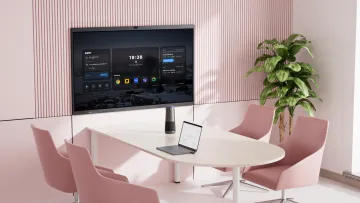
Huddle rooms (2-4 people, impromptu meetings, no booking required) have different equipment needs than formal conference rooms. The goal is zero-friction starts — walk in, connect, meet. Any complexity kills the purpose.
Essential Huddle Room Equipment
Display: 55" commercial panel or interactive display
Video bar: All-in-one camera/mic/speaker appliance
Connectivity: Wireless casting + one HDMI cable as fallback
Control: Touch controller or simple button interface for joining meetings
Power: Outlets accessible from the table (BYOD means laptops need charging)
What Huddle Rooms Don't Need
Ceiling microphones (overkill for 2-4 people)
Multiple displays (one good panel suffices)
Complex control systems (simpler is better)
Dedicated compute (the user's laptop is the brain)
The entire huddle room stack should cost $2,000-$4,000. Spending more usually indicates overspecification, not better outcomes.
Medium Conference Rooms: The Balanced Approach
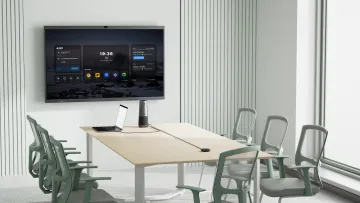
Medium rooms (5-12 people) are where equipment choices get interesting. A video bar alone may not provide sufficient microphone coverage. The room likely serves multiple use cases — formal presentations, collaborative working sessions, client calls, and team standups.
Equipment Stack for Medium Rooms
Display: 65" to 75" interactive or commercial display
Camera: Video bar with intelligent framing, or dedicated PTZ camera for rooms requiring presenter tracking
Audio: Video bar audio for small groups, expansion microphone for full-table coverage
Compute: Built-in (all-in-one system) or external mini-PC for platform flexibility
Control: Touch panel for consistent meeting join experience
The critical upgrade from huddle rooms is microphone range. In a 12-person room, the person at the far end of a long table sits 8-10 feet from a wall-mounted video bar. Without expansion microphones or beamforming arrays, their voice will be quiet, distant, and occasionally dropped.
Large Boardrooms: Professional AV Territory
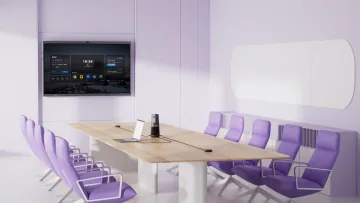
Large boardrooms (12+ people) cross the threshold where consumer-grade and prosumer equipment stops working reliably. These rooms need professional AV design.
Why Boardrooms Are Different
Distance: A 20-foot table creates acoustic challenges no video bar can handle
Reliability: Executive meetings cannot start with "let me try reconnecting"
Aesthetics: Visible cables and consumer equipment undermine the professional impression
Boardroom Equipment Architecture
Displays: Dual 75"-86" panels or video wall (one for content, one for video participants)
Cameras: Multiple PTZ cameras with preset positions, or advanced intelligent cameras with presenter tracking
Audio: Distributed ceiling microphone array with dedicated DSP for echo cancellation and noise processing. Separate speaker zones for even coverage.
Control: Professional touch panel with custom programming for one-touch meeting start
Integration: Room scheduling, occupancy sensors, lighting control tied to meeting status
Budget for large boardrooms starts at $15,000 and can exceed $50,000 for fully integrated systems. The cost of a failed executive meeting — rescheduled decisions, delayed deals, lost credibility — justifies this investment when the room is genuinely business-critical.
Deployment Checklist: Before Go-Live
Before declaring a hybrid meeting room "ready," verify these items:
Audio quality test: Have someone sit in every seat and speak. Remote participants on a test call should report clear, consistent volume from all positions. No echo. No background noise.
Camera framing check: Walk around the room during a test call. Does the camera capture everyone? Does intelligent framing work? Are there blind spots?
Platform compatibility verification: Test join flows for every platform the organization uses. Verify screen sharing works. Confirm remote participants can see shared content clearly.
Guest usability: Ask someone who's never used the room to start a meeting. Can they do it without help? If not, the setup is too complex.
Network stress test: Run a meeting with maximum expected participants while others stream content. Does quality degrade? If yes, the network infrastructure needs attention before the room goes live.
Related Guides
Best Hybrid Classroom Setup for Schools and Universities —Learn how to build a hybrid classroom setup with multicamera teaching, interactive whiteboards, classroom audio, and remote learning tools for both in-person and online students.
What's the most common mistake when setting up a hybrid meeting room?
Prioritizing video over audio. This mistake is so pervasive because camera specs are easier to market — resolution, field of view, tracking features make for compelling comparison charts. Audio quality is harder to quantify on a spec sheet but matters more in practice. When remote participants strain to hear, they disengage within minutes. The meeting loses energy and decisions get delayed. The fix is simple: allocate at least 40% of your equipment budget to audio components — microphones with sufficient pickup range, speakers that deliver clear speech, and echo cancellation that actually works in your room's acoustic environment. Test audio from every seat, not just the head of the table, before calling the room complete.
Do I need separate rooms for Zoom and Teams?
Absolutely not — and building platform-specific rooms is one of the fastest ways to waste AV budget. Modern hybrid meeting equipment supports multiple platforms through several approaches. Some systems, like NearHub Board Max running Windows 11 Pro, install native apps for Zoom, Teams, and Google Meet simultaneously — users simply launch the app their meeting requires. Other rooms use BYOD workflows where the host's laptop connects to the room's display, camera, and speakers, making the infrastructure platform-agnostic. A third approach uses certified room systems with Direct Guest Join capability. The key is choosing one of these strategies upfront rather than discovering the multi-platform problem after you've deployed five Teams-only rooms that can't host Zoom client calls.
How much should I budget for a hybrid meeting room setup?
Budget ranges scale with room size and complexity, but here are realistic 2026 figures for quality setups: huddle rooms (2-4 people) run $2,000-$4,000 for a video bar and 55" display. Small-to-medium conference rooms (5-12 people) typically cost $4,000-$8,000 for an all-in-one interactive system with quality audio. Large boardrooms (12+ people) start at $15,000 and can exceed $50,000 with distributed audio, multiple cameras, and professional integration. The most expensive mistake isn't spending too much — it's spending on the wrong things. A $6,000 room with balanced audio, video, and wireless casting outperforms a $12,000 room that blew the budget on an oversized display while neglecting microphone coverage.
Can I use a consumer webcam and microphone for a hybrid meeting room?
Consumer webcams work for personal desks and tiny huddle rooms where 2-3 people sit within arm's reach of the camera. Beyond that, they fail for predictable reasons. Consumer webcams lack the wide-angle optics to capture a full table. Their microphones can't isolate voices across distance and background noise. They have no echo cancellation, creating feedback loops that make meetings unbearable. And they lack intelligent framing, requiring manual adjustment whenever someone new speaks. Professional conference equipment costs more upfront but delivers ROI through fewer support tickets, better meeting outcomes, and longer lifespan. For any room that hosts paying clients, executive decisions, or team collaboration that matters, consumer gear sends the wrong message and delivers the wrong experience.
What is BYOD and why does it matter for hybrid meeting rooms?
BYOD (Bring Your Own Device) means meeting participants use their own laptops to drive the meeting through the room's peripherals — display, camera, microphones, and speakers. It matters because the multi-platform reality of modern business makes dedicated platform rooms impractical. Your organization might standardize on Teams, but your client's boardroom runs Zoom, your design agency uses Google Meet, and that European partner insists on Webex. BYOD ensures any meeting can happen in any room without hardware changes. The participant simply connects their laptop — via cable or wireless casting — and runs their preferred platform. For IT managers, BYOD simplifies standardization: instead of maintaining different room configurations for different platforms, you maintain one platform-agnostic infrastructure that works for everyone.