Best Hybrid Classroom Setup for Schools and Universities (2026)
Learn how to build a hybrid classroom setup in 2026 with multicamera teaching, interactive whiteboards, classroom audio, and remote learning tools for both in-person and online students.
hybrid class
hybrid classroom
hybrid class meaning
Updated: Aug 19, 2026 · 8 minutes read
Global Business, Brought Near.
No Installer, No Hassle, Just Works.
Searching for the best hybrid classroom setup in 2026?
Modern hybrid learning environments require more than a laptop and webcam. Teachers now need interactive whiteboards, multicamera classroom systems, clear audio coverage, and flexible video conferencing tools that work equally well for in-person and remote students.
This guide explains how to build a professional hybrid classroom setup step by step, including:
classroom camera placement
multicamera teaching layouts
interactive smart boards
classroom microphone systems
Zoom and Microsoft Teams configuration
hybrid learning best practices
We’ll also show how the NearHub Board can function as the central hub for modern hybrid teaching environments.
What Makes a Good Hybrid Classroom Setup?
A successful hybrid classroom is not simply a livestreamed classroom.
The goal is to create an environment where both in-person and remote students can:
see clearly
hear clearly
participate equally
collaborate naturally
The best hybrid classroom technology setups focus on three key areas:
1. Visual Equity
Remote students should be able to see:
the teacher
classroom discussions
whiteboard annotations
presentation content
student interactions
Single-camera classrooms often fail here because they cannot capture every important classroom angle effectively.
2. Clear Classroom Audio
Poor audio quickly ruins hybrid learning.
Students can tolerate average video quality, but unclear voices make participation difficult.
A good classroom audio setup should allow remote students to hear:
the teacher
classroom discussions
student questions
demonstrations
without echo or background noise.
3. Equal Participation
Hybrid learning works best when remote students feel included rather than passive observers.
That means using:
interactive whiteboards
collaborative software
shared digital workspaces
classroom cameras
real-time annotation tools
to support participation from every student.
Essential Equipment for a Hybrid Classroom
A modern hybrid classroom typically includes:
Equipment
Purpose
Interactive smart board
Teaching, annotation, collaboration
Classroom camera system
Capture the instructor and students
Teacher microphone
Clear instructor audio
Student microphones
Classroom discussion pickup
Speakers
Remote participant audio
Video conferencing software
Zoom, Teams, Google Meet
Wireless presentation tools
Screen sharing and collaboration
Lecture recording tools
Class playback and asynchronous learning
The exact setup depends on:
room size
teaching style
class size
budget
subject matter
Single-Camera vs Multicamera Hybrid Classroom Setup
One of the biggest decisions schools face is whether to use a single-camera or multicamera classroom system.
Setup Type
Pros
Cons
Single-camera classroom
Simple and affordable
Limited visibility and engagement
Multicamera classroom
Better student experience and classroom coverage
Higher setup complexity
When Single-Camera Classrooms Work Best
Single-camera setups work well for:
small classrooms
tutoring sessions
lecture-heavy instruction
limited budgets
However, they often struggle during:
classroom discussions
demonstrations
group activities
whiteboard teaching
because remote students cannot clearly see every interaction.
Why Multicamera Classrooms Are Better for Hybrid Learning
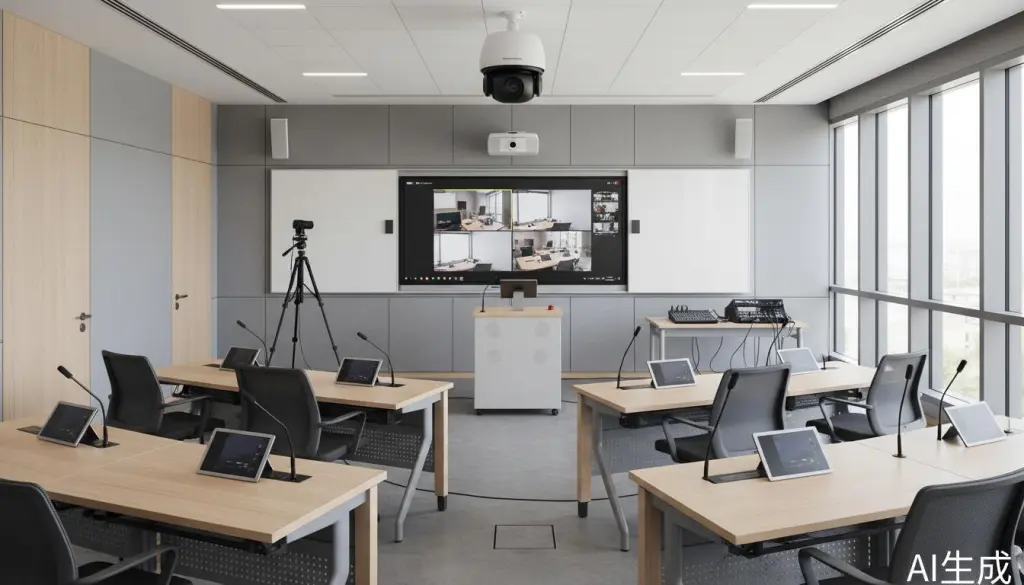
Multicamera classroom setups provide multiple teaching perspectives simultaneously.
This allows remote students to see:
the instructor
classroom discussions
whiteboard work
demonstrations
student participation
without sacrificing visibility.
Multicamera systems work especially well for:
universities
STEM classrooms
collaborative learning
hybrid workshops
lecture capture
large classrooms
Choosing the Best Smart Board for Hybrid Teaching
Interactive smart boards are now central to modern hybrid classrooms. If you're still evaluating hardware options, this guide to choosing the best whiteboards for classroom use breaks down key factors like surface quality, interactivity, and long-term value to help you make the right decision.
The best smart board for hybrid teaching should support:
real-time annotation
low-latency writing
wireless screen sharing
cloud collaboration
video conferencing
classroom recording
app flexibility
This is where systems like NearHub Board Maxfit naturally into hybrid teaching environments.
Planning Your Hybrid Classroom Layout
Before installing equipment, evaluate your classroom carefully.
Classroom Size
Larger rooms may require:
wider cameras
additional microphones
secondary displays
improved speaker coverage
Choosing the right display dimensions is equally important in larger learning spaces. This guide to choosing the best whiteboard size explains how classroom size, viewing distance, and seating layout affect visibility and collaboration effectiveness.
Lighting Conditions
Natural lighting improves in-person learning but can create camera issues.
Avoid placing instructors directly in front of bright windows.
If needed, add LED lighting panels to improve video quality.
Teaching Style
Your teaching workflow affects camera placement.
For example:
Teaching Style
Recommended Setup
Lecture-based
Front-facing instructor camera
Whiteboard-heavy
Smart board + content camera
Discussion-focused
Instructor + student cameras
Demonstration-based
Multicamera + document camera
Budget Considerations
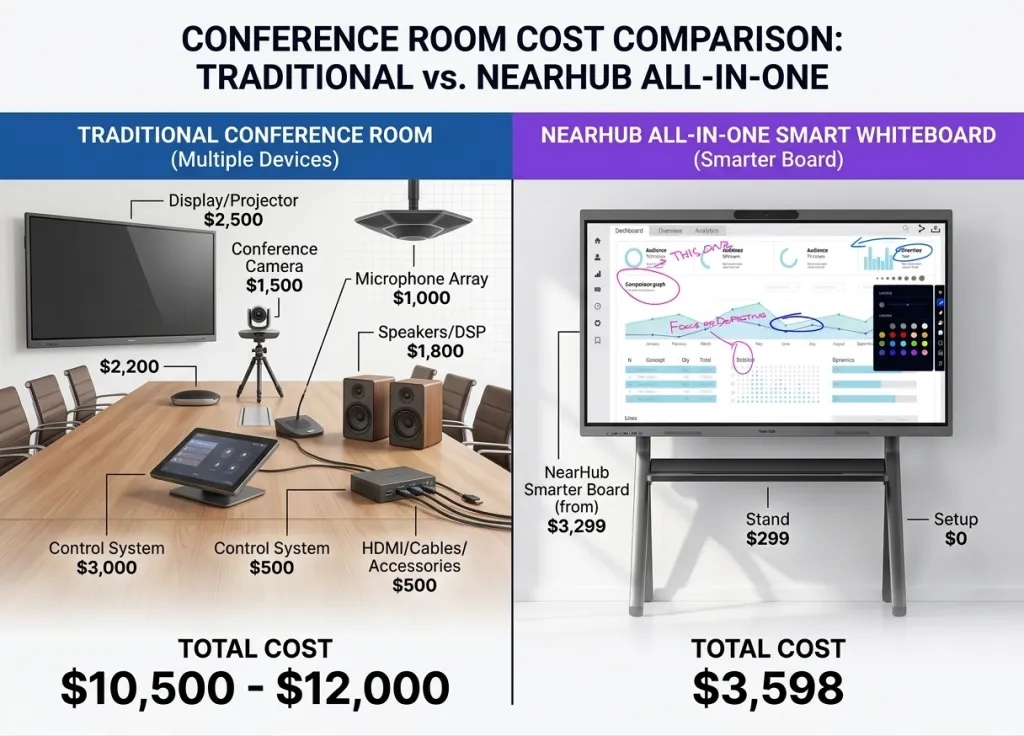
Hybrid classroom technology solutions span a wide price range. Here's a realistic breakdown for a quality multicam setup centered around the NearHub Board Max:
Component
Budget Option
Mid-Range
Professional
Interactive Display
NearHub Board Max
NearHub Board Max
NearHub Board Max + Secondary Display
Secondary Camera
$150 USB Webcam
$400 PTZ Camera
$800+ Professional PTZ
Audio Enhancement
Built-in Only
$300 Ceiling Mics
$800+ Professional Array
Lighting
Existing
$200 LED Panels
$500+ Professional Kit
Mounting/Accessories
$100 Basic
$300 Adjustable
$600+ Professional
Total (excl. Board)
$250-450
$1,000-1,500
$2,500+
Most educators find that the mid-range option provides excellent results without breaking the budget. The NearHub Board Max's built-in camera and audio handle primary duties, while a quality secondary camera and perhaps some lighting improvements complete the setup.
Step-by-Step Hybrid Classroom Setup Guide
Step 1: Position the Smart Board
Place the interactive display where:
all students can see clearly
the teacher remains visible
remote students get a direct classroom view
The instructor should ideally stand 8–12 feet from the integrated camera during lessons.
Step 2: Install Secondary Cameras
Position secondary cameras to capture:
student discussions
classroom interactions
demonstrations
Test every angle before class begins.
Avoid views blocked by desks, lighting, or classroom furniture.
Step 3: Configure Classroom Audio
Audio quality matters more than video quality during hybrid learning.
For best results:
reduce echo
position microphones centrally
test student voice pickup
enable noise suppression
Large classrooms may benefit from:
ceiling microphones
wireless instructor microphones
external speaker systems
Step 4: Optimize Classroom Lighting
Good lighting dramatically improves video quality.
Recommended practices:
avoid strong backlighting
use daylight-balanced lighting
evenly illuminate the instructor
reduce harsh shadows
Step 5: Configure Video Conferencing Software
Most schools use:
Zoom
Microsoft Teams
Google Meet
Configure:
camera switching
microphone settings
speaker output
screen sharing
recording settings
before live teaching begins.
Best Practices for Hybrid Teaching
Technology alone does not create an engaging hybrid classroom.
Good instructional workflows matter equally.
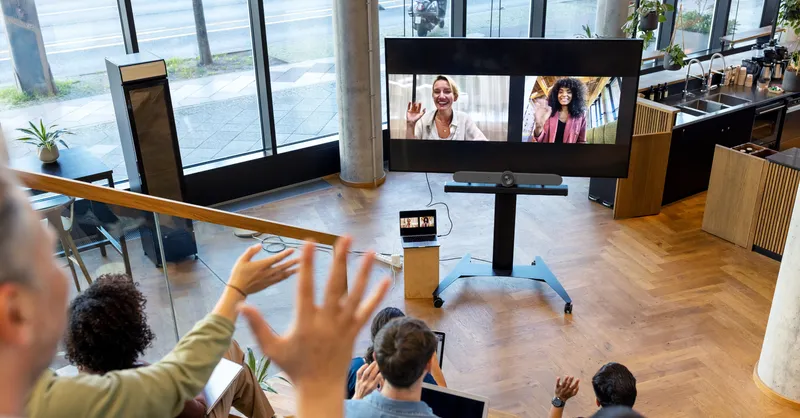
Keep Remote Students Visible
Always keep remote participants visible on the classroom display when possible.
This helps teachers:
monitor engagement
respond naturally
maintain inclusion
during lessons.
Repeat Classroom Questions
Remote students may not hear in-person discussions clearly.
When a student asks a question in class:
repeat it
summarize it
or restate key points
before answering.
Use Shared Digital Workspaces
Collaborative tools improve engagement for both groups.
Examples include:
digital whiteboards
Google Docs
collaborative annotation
shared slides
classroom polls
Design Activities for Both Groups
Strong hybrid lessons include both:
remote learners
in-person students
in the same workflow whenever possible.
Avoid creating two completely separate classroom experiences. Incorporating interactive activities such as these Google Classroom games can help keep both remote and in-person students equally engaged and participating together.
FAQ: NearHub Board Max for Remote Collaboration
What makes NearHub Board Max different from other digital whiteboards?
NearHub Board Max runs on Windows 11 Pro, providing full compatibility with desktop applications like Microsoft Office, Adobe Creative Suite, and native Zoom Rooms. Its AI Gallery View camera with 130° ultra-wide field of view ensures remote participants have equal presence in hybrid meetings, unlike Android-based alternatives with limited app support.
How does the AI Gallery View improve remote team collaboration?
The AI Gallery View uses intelligent framing to display each remote participant individually with equal prominence, creating a face-to-face experience. This eliminates the "observer effect" where remote team members feel disconnected, boosting engagement and decision-making efficiency by up to 40%.
Can NearHub Board Max integrate with existing video conferencing setups?
Yes, the S Max offers full compatibility with professional A/V hardware from Logitech, Polycom, Yealink, and more. It supports native Zoom Rooms, Microsoft Teams, Google Meet, and Webex, making it easy to integrate into existing conference room environments without replacing your entire setup.
What is the whiteboarding experience like on NearHub Board Max?
The S Max features 40-point multi-touch with a 5ms response time, providing a natural pen-on-paper feel. The infinite canvas allows real-time collaboration from any device, with automatic cloud saving, interactive comments, stickers, and annotations. Multiple users can write simultaneously for dynamic brainstorming sessions.
Is NearHub Board Max suitable for enterprise IT management?
Absolutely. The S Max supports Microsoft Intune for centralized device management, allowing IT teams to configure networks, enroll devices, manage updates remotely, and control app access. It also integrates with SSO solutions like Okta and Microsoft Azure AD for unified identity protection.
Conclusion: Transforming Remote Collaboration
The NearHub Board Max represents a significant leap forward in remote team collaboration technology. By combining the familiarity and power of Windows 11 Pro with AI-enhanced video conferencing and intuitive digital whiteboarding, it addresses the core challenges that have plagued distributed teams for years.
The key to successful implementation isn't just the hardware—it's how you integrate it into your team's workflow. Start with the setup recommendations in this guide, implement the remote teamwork strategies that fit your organization, and continuously refine your approach based on what works best for your team.
For teams ready to move beyond the limitations of laptop-based video calls and mobile-app whiteboarding, the NearHub Board Max offers a comprehensive solution that brings the energy and engagement of in-person collaboration to remote work environments.
To learn more about the NearHub Board Max or schedule a demo for your organization, visit the official product page.