Meeting Room Displays: The One Mistake That Wastes More Budget Than Buying Wrong
The most expensive meeting room mistake isn't picking the wrong display — it's misunderstanding how display technology, room dynamics, and user behavior interact.
meeting room display
conference room display
meeting room technology
Updated: Aug 19, 2026 · 8 minutes read
Global Business, Brought Near.
No Installer, No Hassle, Just Works.
The most expensive mistake in meeting room technology has nothing to do with picking the wrong brand. It happens long before anyone researches a product. Most organizations fail because they treat a meeting room upgrade as a display purchase, when it's actually a human behavior design problem — the technology must reduce friction for how people actually share information and make decisions together.
IT managers routinely spec impressive 4K panels, only to find six months later that teams still huddle around a single laptop. The display sits dark. The budget feels wasted. The real issue wasn't resolution or brightness — it was that nobody designed the workflow around how people actually meet.
Why Meeting Room Technology Fails Without Workflow Design
A meeting room display is not a television that happens to sit in an office. Its purpose is to lower the friction of sharing information and making decisions together. When that friction stays high — cables that don't fit, apps that won't cast, audio that echoes — people route around the technology rather than through it.
The underlying principle is simple: technology adoption follows the path of least resistance. If it's easier to crowd around a laptop than to use the room's dedicated display, the laptop wins every time. This is why choosing the right conference room display involves far more than screen size and resolution. It requires understanding who uses the room, what they bring with them, and what they're trying to accomplish.
The Three Layers of Meeting Room Design
Every successful meeting room operates across three layers:
The Physical Layer — Screen size, mounting height, viewing angles, and room acoustics. Get this wrong and even the best technology underperforms.
The Connection Layer — How devices connect to the display. Cables, wireless casting, built-in computing. This is where most friction lives.
The Collaboration Layer — How people interact with content and each other. Whiteboarding, annotation, screen sharing, remote participation. This determines whether the room enables true collaboration or just broadcasts slides.
Most buying guides focus entirely on the physical layer. They'll tell you to measure viewing distance and pick 4K resolution. But if the connection layer requires a proprietary app that guests can't install, or if the collaboration layer doesn't support remote team members, the room fails its core purpose.
Types of Meeting Room Displays: Beyond the Spec Sheet
The display market fragments into four categories, each solving a different set of user problems. Understanding which category matches your room's actual use case prevents the most common purchasing error: buying an interactive display for a room that only needs presentation, or a basic monitor for a room where teams need to whiteboard.
Standard Commercial Displays
These are non-touch, high-brightness panels built for 16+ hour daily operation. Think of them as upgraded televisions with anti-glare coating, commercial warranties, and robust mounting systems. They're ideal for presentation-focused rooms where the primary need is showing content from a connected laptop.
Best for: Rooms where one person presents and others listen. Executive offices, training rooms with instructor-led content, digital signage applications.
Limitation: No touch interaction. Teams can't annotate, whiteboard, or manipulate content directly on screen.
Interactive Flat Panel Displays
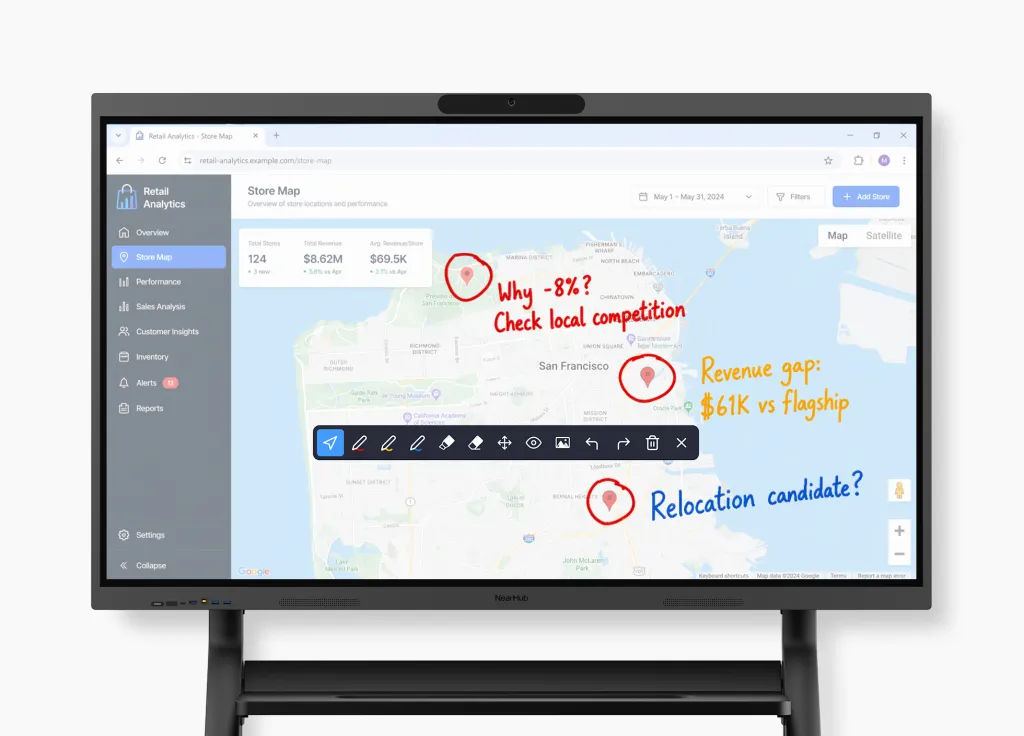
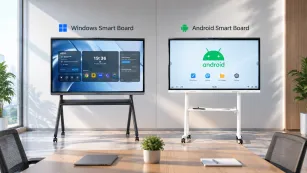
Interactive panels add touch capability to the commercial display foundation. Users can write, draw, annotate documents, and manipulate content with fingers or stylus. Most run an embedded operating system (Windows, Android, or proprietary) that enables standalone apps and browser access.
Best for: Brainstorming rooms, design reviews, collaborative working sessions, and hybrid meetings where remote participants need to see whiteboard content.
The hidden trade-off: Not all interactive displays are created equal. Android-based panels often restrict users to mobile browsers that break complex web apps. Windows-based panels offer full desktop compatibility but may carry higher costs. For teams that rely on web-based SaaS tools, the underlying OS matters more than the touch response time.
All-in-One Video Conferencing Systems
These integrate the display, camera, microphone, speakers, and compute into a single appliance. The value proposition is simplicity: one purchase, one installation, one vendor for support. For IT managers overseeing dozens of rooms, this consolidation eliminates compatibility headaches and reduces support tickets.
Best for: Standardized rollouts across multiple rooms, organizations without dedicated AV staff, huddle rooms where simplicity trumps flexibility.
The honest limitation: All-in-one systems excel at video conferencing but may constrain other workflows. If your team needs to run specialized software or connect multiple source devices, check whether the system's compute layer supports those use cases or locks you into the vendor's app ecosystem.
Video Walls and Large-Format LED
For large boardrooms, auditoriums, and experience centers, single panels don't provide a sufficient viewing area. Video walls (tiled LCD or LED panels) create massive canvases visible from 30+ feet. They're commanding but complex — requiring specialized installation, content management systems, and ongoing calibration.
Best for: Large venues, command centers, retail experiences, and situations where visual impact matters as much as functionality.
The reality check: Video walls are overkill for standard meeting rooms. The installation cost, complexity, and maintenance overhead only make sense when the viewing distance genuinely demands it.
How to Choose the Right Meeting Room Display Size
Display sizing follows a straightforward logic that most buyers overcomplicate. The goal is to ensure every participant can read shared content comfortably from their seat. Here's a practical framework:
Room Type
Capacity
Display Size
Viewing Distance
Key Consideration
Huddle Room
2-4 people
43" - 55"
4-8 feet
Simplicity over size
Small Conference
5-8 people
55" - 65"
8-12 feet
Touch accessibility
Medium Conference
8-12 people
65" - 75"
12-16 feet
Anti-glare essential
Large Boardroom
12-20 people
75" - 86"
16-24 feet
Dual displays or a single large
Auditorium
20+ people
86"+ or video wall
24+ feet
Professional AV design needed
The common mistake is going too small. A 55-inch display in a 12-person conference room forces participants in the back row to squint at spreadsheet cells. When in doubt, size up — the incremental cost of a larger panel is small compared to the productivity loss of unreadable content.
Resolution matters less than size for typical meeting content. 4K is valuable for detailed design work and multi-window layouts, but 1080p suffices for presentations and video calls. What matters more is brightness — office lighting often overwhelms consumer-grade panels. Look for 350 cd/m² minimum for well-lit rooms.
Hybrid Meeting Setup: The Real Challenges
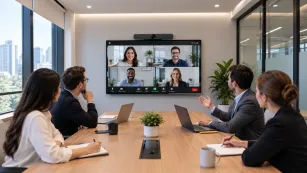
The shift to hybrid work changed meeting room requirements fundamentally. It's no longer enough to show content to people in the room. The display and connected systems must create equal participation for remote attendees — a much harder problem.
Why Audio Quality Trumps Video
Among hybrid meeting equipment decisions, audio deserves disproportionate attention. People tolerate grainy video. They cannot tolerate unintelligible audio. When remote participants strain to hear, they disengage within minutes. Meeting quality degrades even when the video is crystal clear.
The reason traces to cognitive load. Interpreting muffled or echoing speech requires active mental effort. That effort competes with the attention needed to follow the actual discussion. Good audio — specifically microphones with acoustic echo cancellation (AEC) and noise suppression — eliminates this friction.
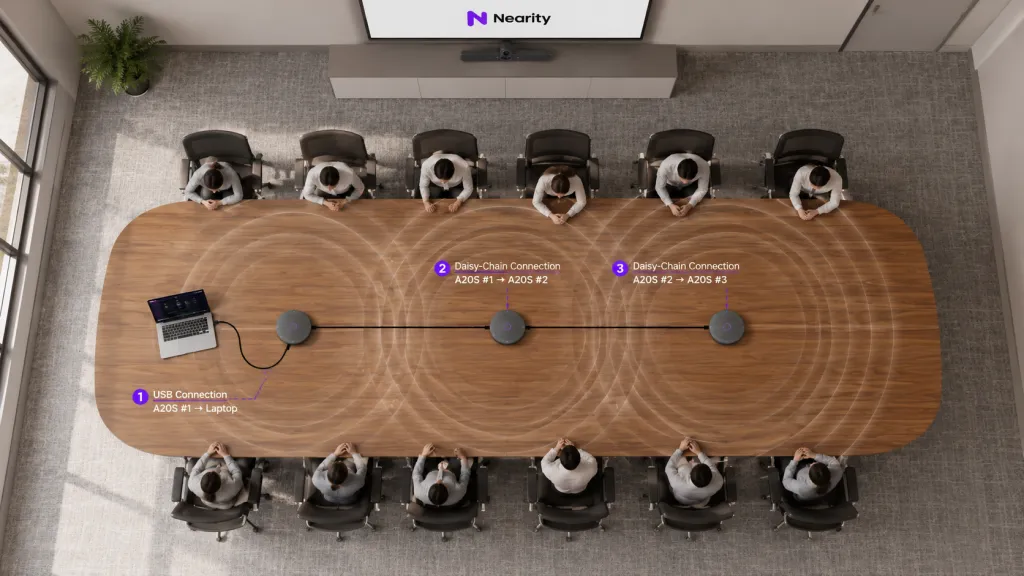
For rooms seating 6+ people, built-in display microphones rarely suffice. The distance from far-end seats creates uneven pickup. Echo from hard surfaces compounds the problem. This is why dedicated conference systems with beamforming microphone arrays and digital signal processing (DSP) deliver measurably better meeting outcomes.
The Camera Positioning Problem
Where you place the camera relative to the display determines whether hybrid meetings feel natural or alien. When the camera sits above or below the screen, remote participants see the side of speakers' faces while in-room participants look at the display. The eye contact mismatch creates a persistent sense of disconnection.
The solution is aligning the camera with the display's center, so speakers naturally face both the in-room audience and the remote participants simultaneously. All-in-one systems solve this by integrating the camera into the display bezel. For modular setups, mounting the camera at the top center of the display — not on a separate tripod across the room — significantly improves engagement.
Platform Compatibility: The Hidden Complexity
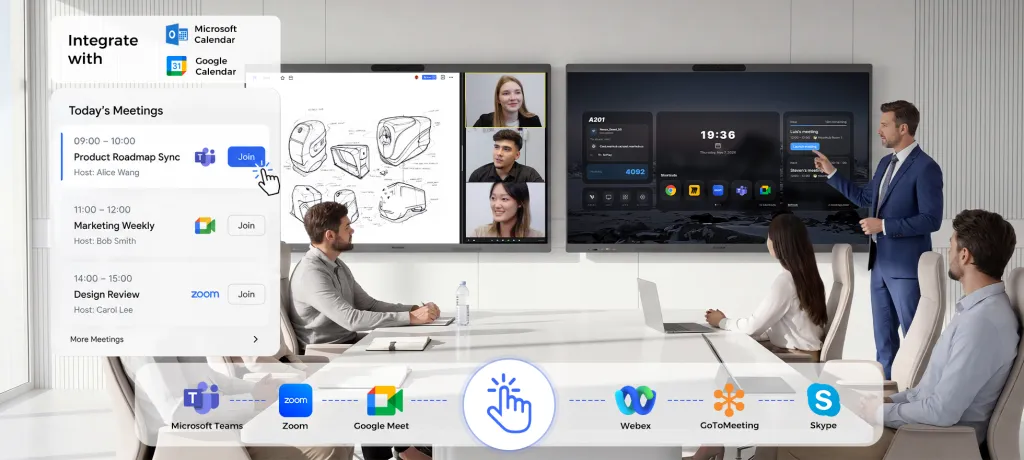
Most organizations use multiple video conferencing platforms. Your primary stack might be Microsoft Teams, but clients join via Zoom, and some teams prefer Google Meet. Building separate rooms for each platform is impractical. The better approach is to choose equipment that supports multiple platforms natively or through BYOD (Bring Your Own Device) workflows.
Setting up a hybrid meeting room requires thinking through which platforms your users actually need, not just the corporate standard. Equipment that certifies for one platform but blocks others creates the same user friction you're trying to eliminate.
Wireless Presentation Systems: Cutting the Cable
The moment a meeting presenter starts fumbling for the right adapter — HDMI, USB-C, DisplayPort, mini-DisplayPort — meeting energy drops. Wireless presentation systems eliminate this friction by letting anyone share their screen without cables.
But wireless introduces its own set of trade-offs that buyers rarely consider until after installation.
The Three Wireless Approaches
Protocol-Based Casting (Miracast, AirPlay, Google Cast) uses the device's native screen mirroring. No app installation required for guests. The limitation is inconsistent performance across different networks and limited support for multi-presenter scenarios.
Dedicated Wireless Receivers (enterprise systems like Barco ClickShare or Mersive Solstice) provide hardware appliances that connect to the display and manage casting centrally. They offer better security, management dashboards, and consistent performance — but at significantly higher cost and with proprietary ecosystems.
Browser-Based Web Casting enables screen sharing through any modern web browser. Guests navigate to a URL, enter a code, and share instantly — no downloads, no apps, no cables. This approach eliminates compatibility concerns entirely but requires robust network infrastructure and low-latency encoding.
Wireless presentation adds latency compared to wired HDMI. For static slides and documents, 100-200ms is imperceptible. For video playback, software demonstrations, or anything requiring precise timing, the delay becomes noticeable. Most organizations solve this by offering both wireless for convenience and a wired HDMI fallback for latency-sensitive content.
Smart Meeting Rooms: When Displays Get Intelligent
"Smart meeting room" has become marketing jargon, but the underlying concept has substance. A truly smart room integrates displays, sensors, and software to automate the mechanics of meetings — scheduling, joining, content sharing, and follow-up.
The practical manifestations include:
Auto-start: The display detects the scheduled meeting and prepares the correct video conference link before anyone enters
Occupancy awareness: Motion sensors distinguish between a booked but empty room and an active meeting, feeding utilization analytics to facilities teams
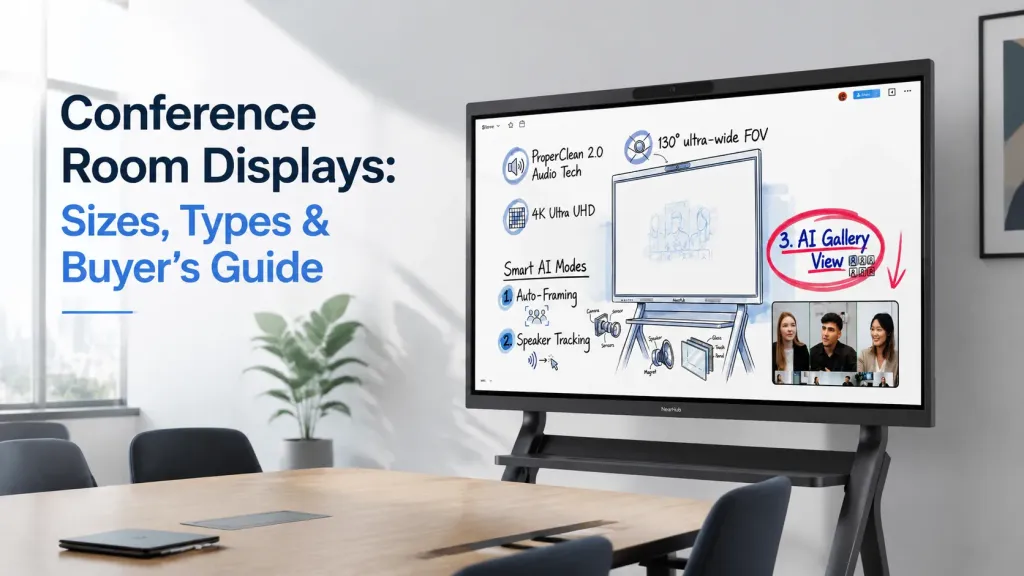
Intelligent framing: Cameras automatically adjust to show all participants or track the active speaker
Content-aware collaboration: The system recognizes what type of content is being shared and suggests relevant tools — whiteboarding for brainstorming, annotation for document review
These capabilities sound futuristic, but the technology is available today in integrated systems. The question isn't whether smart features work — it's whether your organization's meeting patterns justify the premium over simpler, more reliable setups.
When to Upgrade Your Meeting Room Technology
Meeting room technology doesn't age gracefully. A five-year-old display may still power on, but it likely lacks the connectivity, security, and collaboration features that modern workflows demand. Here are the signals that an upgrade is overdue:
Connection failures are routine: If your IT team spends more than a few hours per week troubleshooting meeting room AV, the system has become a liability rather than an asset.
Remote participants are second-class: When hybrid meeting attendees routinely can't see the whiteboard, hear side conversations, or share their screen, the room is failing its core purpose.
The room sits unused: If employees consistently book smaller, simpler rooms over the "premium" conference room, the technology is creating friction rather than removing it.
Security concerns emerge: Older wireless presentation systems may lack modern encryption. Consumer-grade smart TVs with outdated firmware create network vulnerabilities.
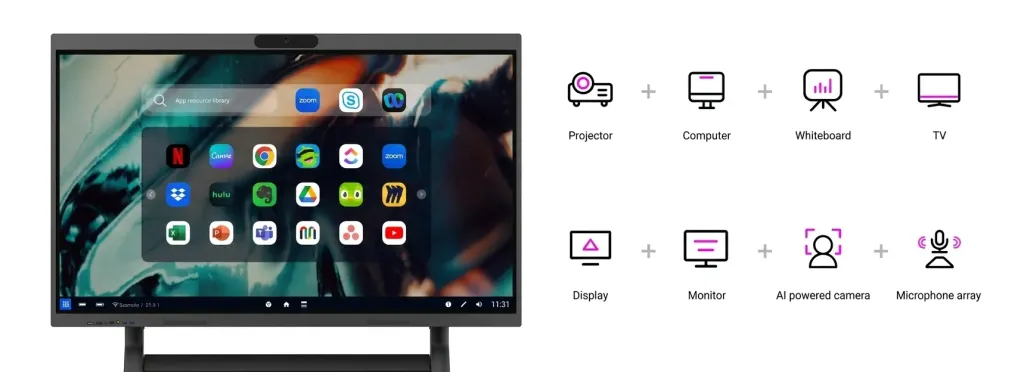
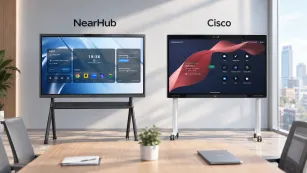
For organizations facing these symptoms, NearHub Board Max offers an all-in-one approach that integrates a 4K interactive display with a built-in AI camera, an 8-microphone array with echo cancellation, and wireless casting without app downloads. Running full Windows 11 Pro, it supports any video conferencing platform and runs desktop-grade applications natively — avoiding the mobile browser limitations common in Android-based panels.
Room size and seating capacity determine the right display size. For huddle rooms with 2-4 people, a 43" to 55" display works well with viewing distances of 4-8 feet. Small-to-medium conference rooms seating 5-12 people typically need 65" to 75" displays viewed from 8-16 feet. Large boardrooms with 12+ participants require 75" to 86" panels or dual-display setups. The key metric is whether someone in the back row can read standard presentation text without straining. When uncertain, sizing up is almost always the better choice — the cost difference between a 65" and 75" panel is minor compared to the productivity impact of unreadable content.
Is an interactive display worth the extra cost over a standard TV?
The value of an interactive display depends entirely on how the room is used. If your teams regularly brainstorm, annotate documents, conduct design reviews, or whiteboard together, touch capability transforms meeting dynamics. For presentation-only rooms where one person shows slides to a passive audience, a standard commercial display delivers better value. The break-even calculation isn't about price — it's about utilization. An interactive display that enables daily collaborative sessions delivers higher ROI than a cheaper panel that sits dark because teams prefer working at their desks. Consider running a two-week observation: count how many meetings would have benefited from on-screen interaction. If the answer is most of them, the interactive premium is justified.
Why does audio quality matter more than video in hybrid meetings?
People have fundamentally different tolerance thresholds for audio and video problems. Grainy video is annoying but manageable — participants can still follow the conversation. Unintelligible audio makes participation impossible. When remote attendees can't hear clearly, they stop engaging, stop contributing ideas, and mentally check out. Research across AV communities consistently shows that audio quality is the strongest predictor of meeting satisfaction. This is why professional conference systems invest heavily in microphone arrays, acoustic echo cancellation (AEC), and noise suppression rather than just camera resolution. For most organizations, upgrading microphones and audio processing delivers more meeting quality improvement than upgrading cameras.
What's the difference between a consumer TV and a commercial meeting room display?
Commercial displays are engineered for fundamentally different operating conditions than consumer TVs. They're built to run 16-24 hours daily with robust heat dissipation and power management. They include anti-glare or matte coatings essential for office lighting environments where windows and overhead fixtures create reflections. Commercial warranties typically cover 3 years of continuous operation, versus consumer warranties that exclude commercial use. Mounting systems are standardized (VESA) and designed for secure wall or cart installation. Consumer TVs also frequently display promotional content, auto-update dialogs, or data-collection notices that have no place in professional meetings. The price premium of commercial panels pays for itself in reliability, warranty coverage, and professional presentation.