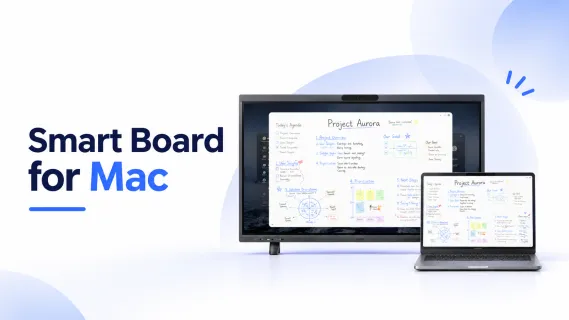
Smart Board for Macbook: A Mac Office Compatibility & Buying Guide
Choose a smart board for a Mac office by checking screen sharing, touch control, meeting devices, and collaboration workflows.
interactive display for Mac
Mac compatible smart board
Updated: Nov 17, 2026 · 8 minutes read
Global Business, Brought Near.
No Installer, No Hassle, Just Works.
Choosing a smart board for a Mac office involves more than checking whether it supports screen mirroring. You should confirm how employees can share Mac content, whether they can control Mac apps from the touchscreen, and whether the board's meeting tools and AV devices work independently.
Most interactive displays can show content from a Mac through a supported connection. Touch control and access to built-in cameras or microphones are separate capabilities that need their own verification.
This guide explains what to check before buying and where NearHub Board Max fits into a Mac-based office.
Smart Board for Mac: Compatibility at a Glance
Requirement
What to verify
NearHub Board Max
Mac screen sharing
Can a MacBook share its screen over the office network or a cable?
Supports AirPlay, browser-based Webcast, NearHub Tail, and HDMI sharing options. Confirm the method for the intended network and setup.
Presenting Mac apps
Can users display Keynote, Office files, browser content, and other apps?
Mac content can be presented through a supported sharing or wired connection.
Touch control of Mac
Can users operate macOS apps directly from the board?
Direct touch control of a connected Mac has not been verified.
Mac multi-touch gestures
Do gestures such as pinch-to-zoom work?
Requires configuration-specific verification; board touch specifications do not prove Mac gesture support.
Room meetings
Can the board run meetings without a MacBook connected?
Runs desktop versions of Zoom and Microsoft Teams on built-in Windows 11 Pro.
Camera and microphone access
Can a connected Mac use the board's built-in AV devices?
External use by a connected Mac has not been confirmed.
Whiteboarding
Can people write and collaborate on the board?
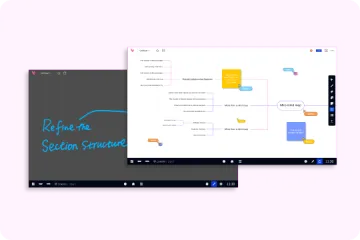
Supports touch and collaborative writing in compatible board applications. Saving and remote editing depend on the application.
The important distinction: screen sharing, touch control of macOS, and using the board's camera or microphone from a Mac are different requirements. Successful mirroring does not prove the others.
What Does Your Mac Office Need the Board to Do?
Define the room's main workflow before comparing products. Presenting slides, controlling Mac software from the display, and hosting a hybrid meeting require different capabilities.
Office task
Capability to verify
Present slides or demonstrate software
Supported video connection, readable text, and audio when needed
Operate a Mac app from the board
Verified touch-return support for the exact Mac, connection, and application
Annotate a presentation
Annotation tool and a way to save or export the result
Host a hybrid meeting
Meeting host, camera, microphone, speakers, and content-sharing path
Collaborate with remote attendees
Application-level sharing, editing permissions, and saved access
How Can a Mac Connect to an Interactive Display?
A connection method determines how content reaches the board; it does not automatically provide touch control.
AirPlay and Wireless Sharing
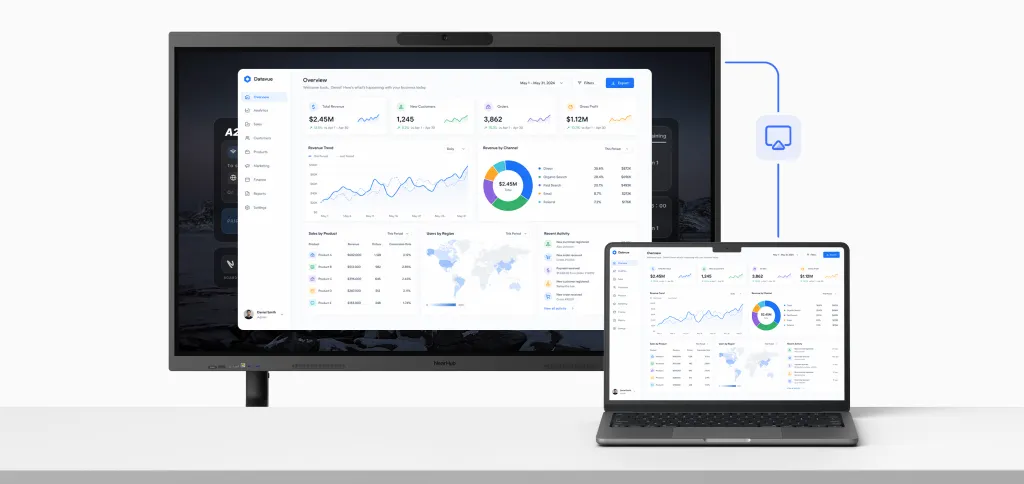
If a display supports AirPlay, test it with the MacBook and the office network employees will actually use. Confirm that the receiver appears, any access code works, text is readable, and video plays with sound.
Network discovery and access rules can affect whether employee and guest devices connect. Ask IT to review the proposed method rather than weakening network controls to make the display discoverable.
A USB-C connector alone does not guarantee one-cable video, audio, touch data, peripheral access, and laptop charging. Ask the supplier which functions the specific display input supports, which Mac models and macOS versions are covered, and whether drivers or permissions are required.
For HDMI, confirm how touch and USB peripherals connect separately. Include any required adapters, cables, and docks in the room quote, then test that exact setup.
Keep a wired fallback if wireless sharing is the primary method. During the demo, disconnect wireless sharing, switch to the backup, and resume the same presentation.
Can You Control Mac Apps with a Smart Board?
Do not assume screen mirroring gives you touchscreen control of the Mac. A display's advertised touch-point count does not establish that touch input, pen behavior, or multi-touch gestures will work with a connected Mac.
If direct Mac control is essential, ask the supplier to demonstrate the team's actual application and tasks:
Select menus and small controls.
Scroll documents and move between pages.
Drag objects and use the required zoom gestures.
Write or sketch with the intended annotation tool.
Recheck alignment after switching inputs or reconnecting.
Confirm whether the interaction uses the board's own software, a Mac application, or an additional driver. For design reviews, distinguish marking up a shared image from editing objects inside the original Mac application; they are not the same workflow.
How Should a Mac Office Handle Zoom and Microsoft Teams?
Choose which device will host the meeting.
Mac-hosted meeting: Check whether the intended camera, microphone, and speakers appear in the meeting app on the Mac. Do not assume the board's built-in AV devices are available to an external laptop; request a demonstrated, documented connection path.
Board-hosted meeting: Run the meeting on the board and choose how Mac content will be shared into the session. Have a remote colleague confirm what they can see and hear.
Avoid two active room audio paths. If the Mac joins only to share content, check its microphone and speaker settings to prevent echo or duplicated audio.
Where NearHub Board Max Fits in a Mac-Based Office
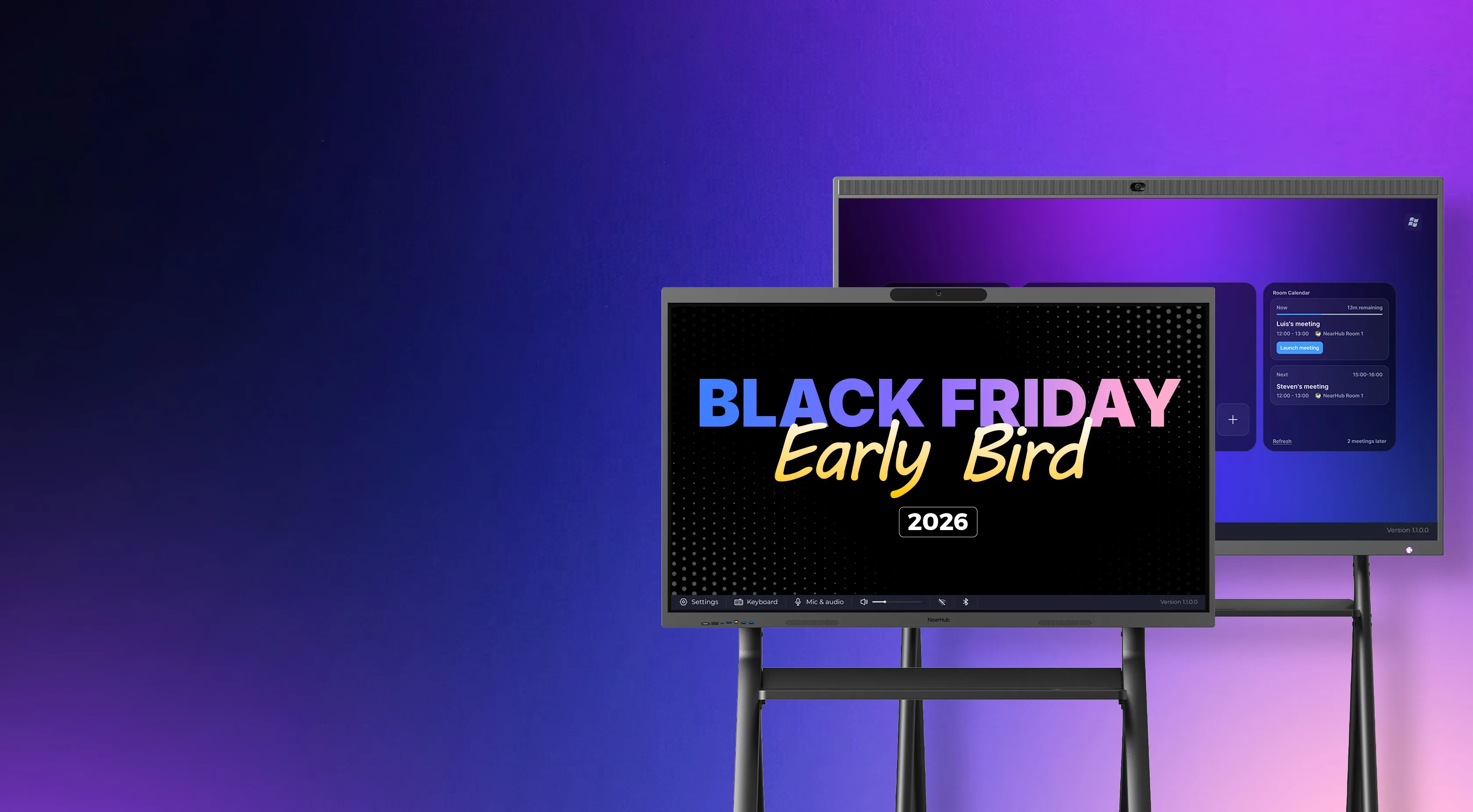
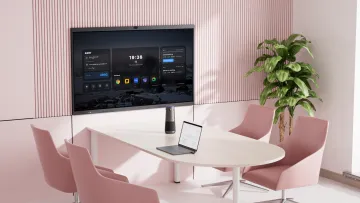
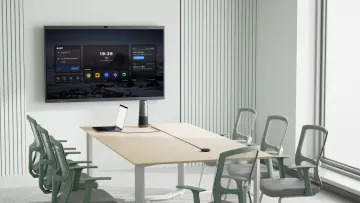
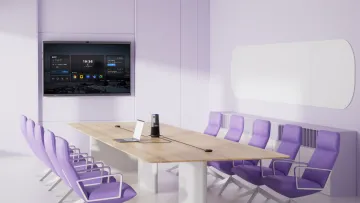
NearHub Board Max is a Windows-based interactive display that can work alongside Macs in a mixed-OS office. It does not replace macOS or turn a connected MacBook into a touchscreen computer. Its value is providing the room with its own meeting and collaboration environment while employees continue using their Macs.
Share Mac Content
Mac users can present content through supported options including AirPlay, browser-based Webcast,NearHub Tail, and HDMI. This can support presentations, documents, browser content, and other applications displayed from a Mac.
Choose the method according to the office network and room setup. The availability of screen sharing does not establish touch return to macOS or access to the board's built-in AV devices from the Mac.
Run Meetings on the Board
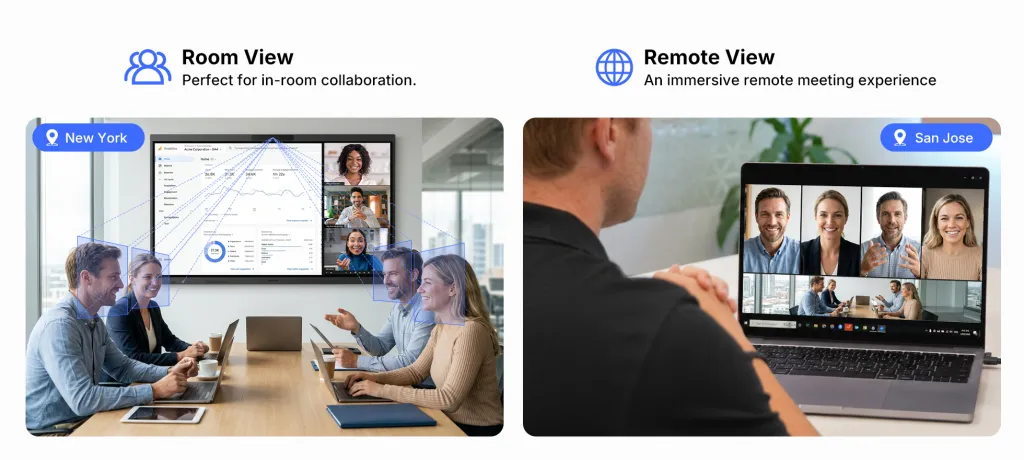
Board Max runs Windows 11 Pro and supports desktop versions of Zoom and Microsoft Teams. Employees can therefore use their MacBooks for individual work while the board hosts a room meeting independently.
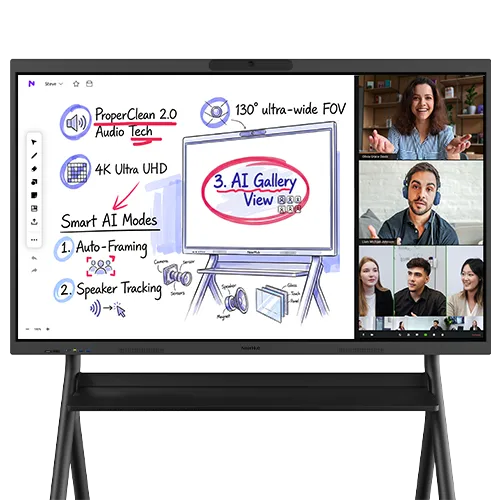
The board includes a 4K camera, AI Gallery View, and an eight-element microphone array. These are part of the board's own meeting setup; do not assume they can be used as external peripherals by a connected Mac.
Collaborate on the Touchscreen
Board Max has a 4K touchscreen with 40-point touch and supports up to eight simultaneous writers. Teams can use compatible board applications for brainstorming, annotation, and group collaboration without connecting every participant's laptop.
These touch capabilities apply to supported applications on the board. They do not establish direct touchscreen control of macOS applications running on a connected MacBook.
Best fit: Mac offices that want an independent meeting computer, a collaborative touchscreen, and a way to present content from employees' Macs. If direct touch control of a particular Mac application is essential, require a successful demonstration of that exact configuration before purchase.
Recommended Setups for Mac Offices
Main requirement
What to look for
Present MacBook content
Reliable AirPlay or wired display support
Control Mac software from the board
Verified touch-return support for the exact Mac, app, and connection
Run frequent Zoom or Teams meetings
Independent meeting computer and clearly defined room AV devices
Collaborate through group writing
Multi-touch support and suitable built-in whiteboarding applications
Support mixed Mac and Windows work
Independent room computing plus a tested Mac content-sharing path
Mac Compatibility Checklist: Test Before Buying
Use an employee's MacBook, a real work file, the intended meeting app, and a remote colleague. Record the Mac model, macOS version, board model, connection method, and required software so the result can be reproduced.
Test
Evidence to collect
Connect on the intended network
Employee or guest can share with the permissions they will actually have
Present a real file and video
Text is readable, and the intended audience hears the audio
Control the Mac from the board, if required
Essential selection, drag, scroll, and zoom actions work in the target app
Run a hybrid meeting
The meeting host detects the intended AV devices; a remote colleague confirms the result
Annotate and share
Remote viewers can see the required annotations
Save and reopen
The required output remains accessible and editable as expected
Switch presenters and recover
A second presenter connects and the wired fallback works
End the session
Sharing stops and the next user cannot access the previous user's private material
Resolve any failed essential requirement before approving the purchase. More touch points or a larger screen will not compensate for an unsupported connection or software workflow.
Frequently Asked Questions
Can a smart board work with a MacBook?
Yes, if the board supports a connection method compatible with the Mac and the intended task. Screen presentation is different from touch control, meeting AV access, and saving annotations. Test each required function with the actual Mac model and macOS version.
Does AirPlay let me control my Mac from the smart board?
Do not assume so. AirPlay screen mirroring sends the Mac's display to the board; touch control requires a separate, supported touch-return method. If that has not been verified, control the presentation from the Mac or use an application running on the board.
Should a Mac office choose a Windows smart board?
It can be a good fit when the room needs its own meeting and collaboration computer while employees continue using Macs. NearHub Board Max, for example, runs Windows 11 Pro and supports desktop Zoom and Teams. Verify the required Mac sharing method and any touch or peripheral requirements before buying.
Can remote attendees edit what is shown on the board?
Only if the selected application and permissions allow it. Mirroring or video sharing provides a view, not automatic editing access. Test a remote contribution and confirm that the work can be reopened afterward.
Choose a Setup That Matches Your Mac Workflow
Keep the Mac as the host when employees need their own Mac applications. Consider a board-hosted workflow when the room needs independent meeting and collaboration tools. In either case, verify screen sharing, touch behavior, meeting devices, and saved output separately.
To evaluate NearHub Board Max , request a demonstration using your Mac model, macOS version, meeting platform, network restrictions, and a real work task. Ask the demonstrator to complete the workflow from connection through saving and sign-out.