Microsoft Teams Rooms Interactive Display: How to Choose a Touchscreen for Meetings and Whiteboarding
Learn how to choose an interactive touchscreen for Microsoft Teams meetings, presentations, whiteboarding, annotation, and remote collaboration without confusing Teams desktop with Teams Rooms.
teams rooms interactive display
microsoft teams touchscreen display
teams whiteboard interactive display
Updated: Oct 28, 2026 · 8 minutes read
Global Business, Brought Near.
No Installer, No Hassle, Just Works.
The best touchscreen for a Teams meeting space depends on the work done there. Choose certified Teams Rooms hardware when a dedicated managed room system is required; consider a Windows interactive display for Teams desktop, flexible applications, and hands-on collaboration. Test real whiteboarding, annotation, audio, video, and sharing workflows before buying.
Key Takeaways
If a room only shows presentations, 1 non-touch display may be enough; add touch when brainstorming and annotation are recurring tasks.
Do not equate Teams desktop with Teams Rooms: dedicated room deployments require checks across 4 areas—hardware, software, licensing, and management.
Test at least 3 real workflows—joining a call, sharing content, and saving whiteboard notes—before purchasing displays for multiple rooms.
A conference room can handle a Microsoft Teams call and still make collaboration awkward. A regular TV, laptop, webcam, and speakerphone may show a presentation well, yet slow the group down when someone wants to sketch an idea or mark up a design. That often prompts the search for a teams rooms interactive display: not just a bigger screen, but a better way to work together.
An interactive touchscreen can combine presentations, video meetings, and whiteboarding. The right choice still depends on the Teams software, touch capabilities, and how remote colleagues will participate.
Two approaches matter. Dedicated Microsoft Teams Rooms installations have specific hardware, software, licensing, and deployment requirements. A Windows interactive display can instead run Teams desktop; installing that application does not make it a Teams Rooms system.
This guide compares the options through everyday meetings, brainstorming, annotation, and follow-up work. It will help you choose around your actual workflow rather than touch alone.
What Is a Microsoft Teams Rooms Interactive Display?
The phrase can describe several different products, so start with the role the screen plays in the room.
Display type
Main purpose
Touch interaction
Whiteboarding
Typical meeting use
Additional equipment
Regular meeting-room display
Show video and shared content
No
Requires another device
Presentations and video calls
Computer, camera, and audio equipment
Touchscreen display
Show content and accept touch input
Yes
Depends on connected software
Presentations with direct interaction
Usually a computer and meeting peripherals
Interactive flat panel display (IFP)
Combine viewing and collaboration
Yes
Built in or supported by its platform
Meetings, annotation, and group work
Varies; some integrate computing and AV equipment
A regular display is often enough when one person presents and everyone else watches. A touchscreen adds direct input, but it still needs compatible software to become a useful collaboration surface. An IFP goes further by combining a large touch surface with a computing platform and collaboration tools. This interactive flat panel display guide covers that broader product category in more detail.
These differences matter because seeing a document, writing on it locally, and editing it remotely are separate capabilities. An interactive display for Microsoft Teams Rooms may be a touch-enabled front-of-room screen in a supported installation or a certified touch board.
How Does a Touchscreen Work in Microsoft Teams Rooms?
Three display and control roles are easy to confuse.
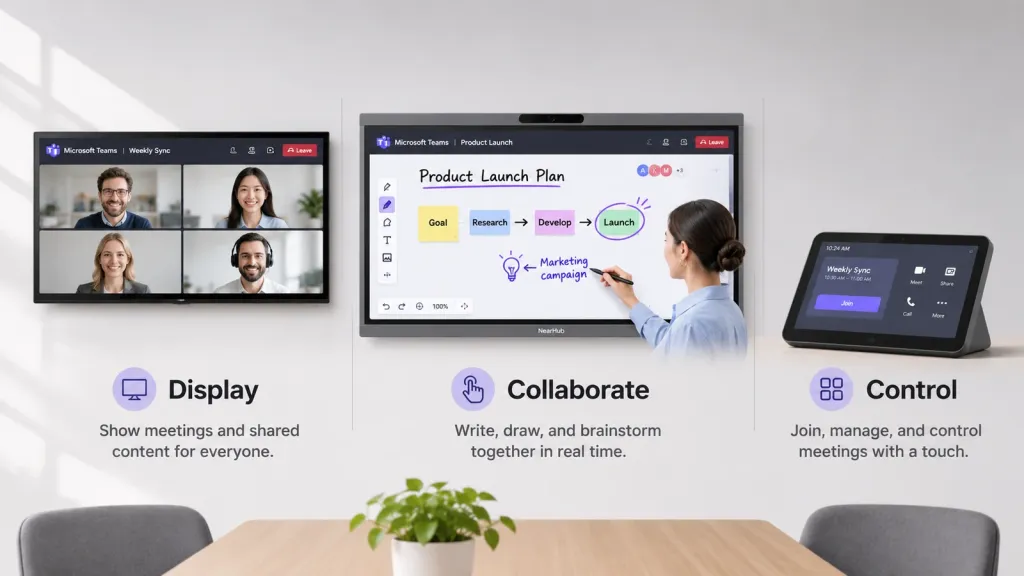
Front-of-Room Display
This screen shows remote participants, presentations, and other shared content. It can be a standard non-touch display. In some supported configurations, it can also accept touch input for content interaction.
Interactive Collaboration Display
This screen lets people draw, move objects, and brainstorm when suitable software and connections are in place. It may be part of a dedicated room system, or it may be a Windows interactive display running desktop applications. The collaboration experience depends on the complete setup, not just the panel.
Teams Rooms Touch Console
A touch console is a dedicated meeting-control interface in supported Teams Rooms installations. It is used for actions such as joining and managing meetings. It is not simply another name for a large Teams Rooms touch display at the front of the room, and the two roles are not interchangeable.
A dedicated Teams Rooms deployment makes sense when an organization needs a standardized room experience, supported hardware, room accounts, and the appropriate licensing and management model. It is also the route to evaluate when procurement requires certified equipment or specific Teams Rooms layouts and features.
By contrast, a Windows-based interactive display running Teams desktop may suit a smaller organization that wants access to familiar desktop applications, flexible presentation tools, and walk-up whiteboarding. Users should be comfortable with the desktop meeting workflow, and IT should manage the board as a Windows endpoint. This approach can be sufficient for many everyday meetings, but it is not a universal substitute for a dedicated Teams Rooms installation.
How Can Teams Users Collaborate on an Interactive Whiteboard?
An interactive display becomes especially useful when Teams participants need to brainstorm, draw, or edit ideas together. The experience depends on the application, permissions, sharing method, and device support.
Hybrid Brainstorming — Let Everyone Contribute Ideas
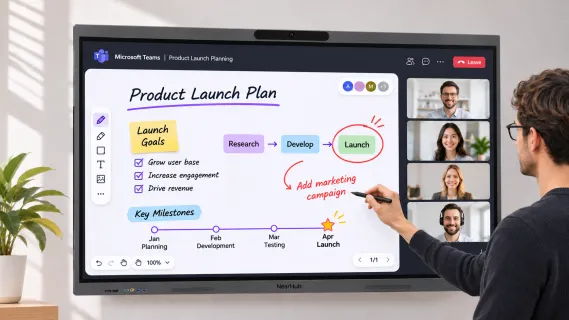
Imagine six employees in a conference room and three colleagues joining remotely through Microsoft Teams. The group is planning a product launch. With a regular TV, one person might control the whiteboard from a laptop while everyone else calls out suggestions. Each new idea has to go through the person holding the mouse, slowing down the discussion.
With an interactive touchscreen, the process becomes more natural. One team member writes the launch goals on the screen, while another builds a customer journey map using sticky notes, diagrams, and connecting arrows. Meanwhile, a remote colleague notices a missing step in the marketing plan and adds it directly to the shared whiteboard. Everyone can see how the plan develops in real time, making it easier to discuss changes and reach decisions together.
Microsoft Whiteboard supports this type of collaboration when properly configured. The team can share a whiteboard during a Teams meeting, allowing people in the room to write directly on the touchscreen while remote colleagues contribute from their own devices. Instead of simply watching the discussion, remote participants can actively shape the ideas being developed.
Keep in mind that touchscreen hardware alone doesn't enable remote collaboration. The whiteboard application, sharing settings, and participant permissions must support joint editing, especially when external guests are involved. With the right setup, an interactive display helps bring in-room and remote participants into the same brainstorming process.
Project Review — Annotate Presentations and Shared Content
During a Teams project review, a design team is examining a new product interface. The manager notices that a button is positioned too close to the edge of the screen. Instead of explaining the issue verbally or switching between applications, they circle the button directly on the interactive touchscreen and add a short note beside it. Remote colleagues can immediately see exactly what needs to change.
Microsoft Teams offers a shared annotation feature that allows participants to mark up shared content during a meeting. With the appropriate permissions, team members can highlight specific areas, draw attention to design issues, and provide visual feedback on presentations or documents.
For teams using a Windows interactive display, another option is to annotate content locally using compatible applications and share the annotated screen through Teams. However, this allows remote participants to view the changes without necessarily being able to edit them.
A digital whiteboard can remain useful after the call ends. Instead of photographing a physical board or retyping diagrams, the team can save and share its notes, action items, and sketches through the chosen collaboration workflow.
With Microsoft Whiteboard, authorized participants may continue accessing saved content, subject to account permissions and how the board was shared. That makes it easier to review decisions, send follow-up notes, assign tasks, and return to unfinished work. A microsoft teams interactive whiteboard is therefore most helpful when saving and ownership are planned alongside the meeting itself. Confirm who owns the board, who can open it, and where final action items will be tracked.
Single Display vs. Dual Displays vs. All-in-One Interactive Boards
Room configuration affects both viewing and collaboration. None of these options is automatically best.
Single Display
A single display fits smaller rooms and straightforward presentations or video meetings. It keeps installation simple and gives shared content one clear viewing area. It can be non-touch or interactive, depending on whether the team needs direct writing.
Dual Displays
Dual displays can separate remote participants from shared content when the meeting system supports that configuration. This is helpful in discussion-heavy rooms where people want a large gallery and a full-size presentation at the same time. Front Row is a Microsoft Teams Rooms layout feature, not a guaranteed feature of Teams desktop. Room design, licensing, and supported hardware should be checked together.
All-in-One Interactive Board
A Windows-based interactive board can combine computing, touch, whiteboarding, a camera, microphones, and speakers. This reduces separate equipment, although buyers still need to verify that each integrated component suits the room.
Configuration
Best use cases
Collaboration capabilities
Equipment complexity
Installation considerations
Single display
Small rooms and content-led meetings
Viewing; optional touch
Low to moderate
One screen location and simple cabling
Dual displays
Larger discussions with people and content visible together
Separate viewing areas; touch depends on design
Moderate to high
Two mounts, system support, and control planning
All-in-one interactive board
Meetings that combine calls, presenting, and writing
Integrated touch and whiteboarding
Fewer separate devices
Wall load or stand, power, network, and camera position
Weekly Team Meetings — A Simpler Setup
A small business may use Teams several times a week with a TV, laptop, webcam, and speakerphone. Employees connect cables, select the camera, and check audio before each meeting. An all-in-one Windows interactive display can reduce preparation by running Teams desktop directly and integrating core meeting equipment: fewer cables, less to manage, and an easy transition from presenting to touch-based notes.
Businesses using several meeting platforms should assess each platform separately; the Zoom Rooms hardware setup guide is a useful starting point for Zoom-specific requirements.
What Should You Check Before Buying a Teams Interactive Display?
A good evaluation reproduces a real meeting rather than comparing specification sheets in isolation.
1. Touchscreen Experience
Can people write naturally, draw accurate shapes, and select small objects? Test the pen or finger input with the software you will actually use. Check palm rejection, edge accuracy, and whether several people can interact when simultaneous touch matters. A responsive touchscreen should make writing and collaboration feel natural, not distract people from the meeting.
2. Operating System and Teams Compatibility
Identify the required application first. Does the room need Teams desktop on Windows, or an officially supported Teams Rooms deployment? Confirm operating system requirements, sign-in workflow, updates, peripheral support, and device management. Do not treat “works with Teams” as evidence of Teams Rooms certification.
3. Connectivity
List the laptops and guest devices that will present. Check relevant HDMI, USB, and USB-C connections, including whether a cable carries video, data, touch, or power. Test wireless presentation with company and guest accounts, and keep a practical wired fallback for important meetings. An interactive screen for teams meetings is easier to use when presenters can connect without hunting for adapters.
4. Camera and Microphone Placement
Room size and seating determine whether integrated AV equipment will work well. Check the camera’s viewing angle from every seat, microphone pickup at the far end of the table, and speaker coverage at normal volume. Test with several people speaking and a remote participant listening. A large screen cannot compensate for cropped faces or unclear voices.
5. Microsoft Teams Rooms Certification
Certification matters when you are deploying a dedicated Teams Rooms system because it establishes that hardware has met Microsoft’s device certification requirements. Check Microsoft’s current supported-device information and the exact model, not just the product family. NearHub’s Microsoft Teams Rooms hardware and compatibility guide provides additional context, but the official listing should guide final verification.
6. Installation and Meeting-Room Layout
Choose screen size from the farthest seat and the content people read, including spreadsheets and detailed drawings. Review viewing distance, wall-mount requirements, mobile-stand stability, seating layout, power, network access, and camera position. Make sure the screen is comfortable to reach for writing without placing the camera or display at an awkward height.
The best choice comes down to how your team uses the room. If meetings mainly involve video calls and presentations, a regular display may be enough. For frequent brainstorming, project reviews, and hands-on collaboration, an interactive touchscreen offers more flexibility. If you also want to reduce separate computers, cameras, and audio equipment, consider an all-in-one Windows interactive board. For organizations deploying a dedicated Microsoft Teams Rooms system, prioritize officially supported and certified hardware.
Can NearHub Board Max Work with Microsoft Teams?
For businesses using Microsoft Teams desktop, the NearHub Board Max combines video meetings, presentations, and touchscreen collaboration in one device. Running Windows 11 Pro, it features a built-in 4K AI camera, an 8-microphone array, and integrated speakers, reducing the need for separate meeting equipment.
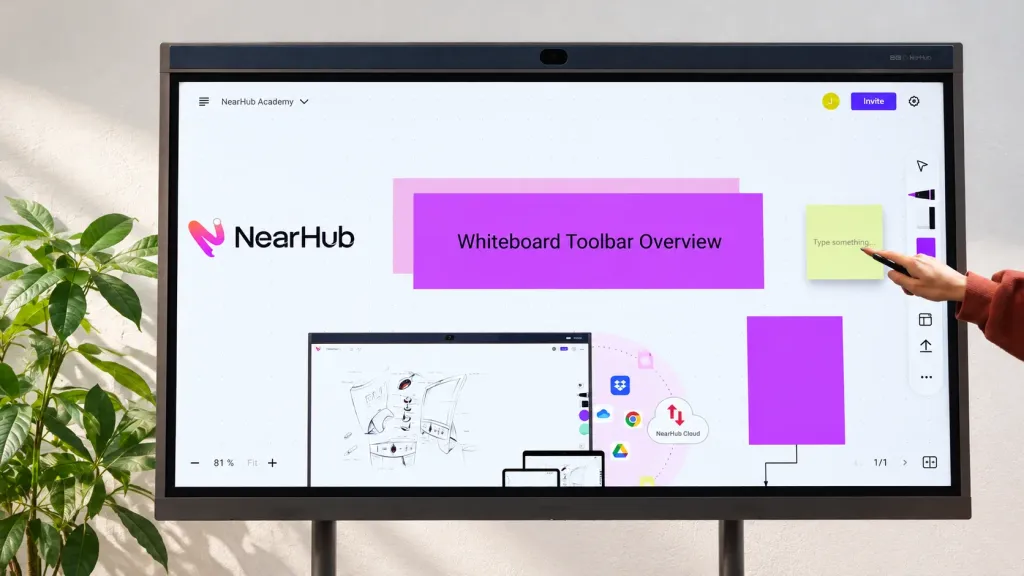
Beyond video meetings, its built-in NearHub Canvas provides a free, unlimited digital whiteboard with no subscription required. Teams can brainstorm, upload images and PDFs, and collaborate with remote colleagues in real time. Users can also save their work and share the canvas via email with one click.
Collaboration extends beyond the whiteboard. Users can annotate directly on webpages, capture screenshots, and share feedback. Meanwhile, Webcast enables browser-based wireless screen sharing, allowing participants to cast content from their devices without installing additional software.
NearHub Canvas and Microsoft Whiteboard are separate applications, so their content does not automatically synchronize. Remote collaboration and annotation visibility depend on the sharing method and software being used.
NearHub Board Max supports Microsoft Teams desktop meetings, but it is not a Microsoft Teams Rooms system. Organizations requiring certified Microsoft Teams Rooms hardware should consider officially supported solutions.
Frequently Asked Questions
Do I need a touchscreen for Microsoft Teams meetings?
No. A regular display is sufficient for video calls and presentations when nobody needs to interact at the screen. A touchscreen adds value for frequent whiteboarding, annotation, design reviews, and brainstorming. Choose it for those workflows, not as a requirement for joining Teams.
Can I use Microsoft Whiteboard on an interactive display?
Yes, when the display’s operating system, Teams or Whiteboard application, and configuration support it. Test touch input, sign-in, sharing, and participant permissions before deployment. A touchscreen alone does not guarantee the same Whiteboard experience on every device.
Can remote participants see what I write on a touchscreen?
They can when the whiteboard or annotated screen output is shared through a supported workflow. Local writing is not automatically visible or editable remotely. Check whether you are sharing a collaborative Microsoft Whiteboard, a Teams annotation session, or a view of a separate local application.
Is a Windows interactive board the same as Microsoft Teams Rooms?
No. A Windows board can run Teams desktop and support video meetings, presentations, and whiteboarding. Microsoft Teams Rooms is a dedicated room solution with specific software, hardware, licensing, and deployment requirements. Installing Teams desktop does not provide Teams Rooms certification.
Should I choose a single display, dual displays, or an all-in-one board?
Choose a single display for simpler rooms, dual displays when a supported system needs separate space for people and content, and an all-in-one board when integrated touch and AV equipment fit your workflow. Also compare certification, management, installation, and support requirements.
Choose a Display That Fits the Way Your Team Meets
Start with the work that happens in the room. Consider your meeting software, whiteboarding needs, annotation tools, and remote participation requirements. Test touch with the actual applications, check screen visibility and audio coverage, and compare integrated equipment with the separate devices it would replace. The right interactive display depends on how your team meets, presents, and collaborates—not simply on screen size or specifications.