How Sketch Design Craft Uses NearHub Board Max to Bring Design Reviews Into Focus
Explore how Sketch Design Craft uses NearHub Board Max for architectural model reviews, handwritten annotations, collaborative sketches, and design discussions.
architectural design reviews
NearHub Board Max
Sketch Design Craft
Updated: Nov 20, 2026 · 8 minutes read
Global Business, Brought Near.
No Installer, No Hassle, Just Works.
Before and After NearHub
Before NearHub
Keep the Conversation Connected to the Design.
Architectural reviews move between drawings, models, reference images, and sketches. Explaining a proposed change requires everyone to understand the same detail, while emerging ideas need more than a verbal description.
After NearHub Board Max
Review the Design. Draw the Next Idea.
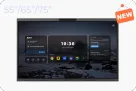
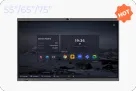
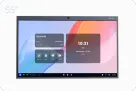
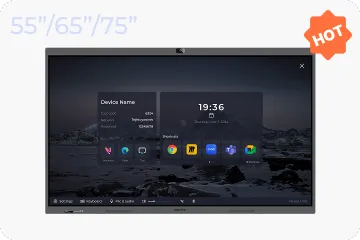
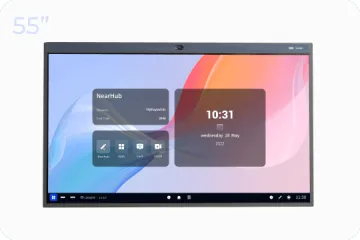
With NearHub Board Max 55, Sketch Design Craft can bring architectural models, sketches, and project discussions onto a shared interactive screen.
Review directly: Stand beside the model, navigate the screen, and point out specific design details.
Explain visually: Add handwritten notes, arrows, and sketches during the discussion.
Share flexibly: Bring relevant content onto the board from participants' own devices.
Decide together: Give stakeholders a shared visual reference for reviewing proposals and discussing changes.
A design review rarely stays on one drawing. A question about a room layout can lead to a closer look at the model, then a quick sketch of another possibility. At Sketch Design Craft, NearHub Board Max gives those conversations a shared workspace, with the design and the ideas taking shape around it visible on the same touchscreen.
Design Conversations Need a Shared Reference
Sketch Design Craft creates architectural and renovation projects for clients worldwide. Alongside its design work, it provides drawing courses, tutorials, and resources for architects, designers, and enthusiasts.
Whether reviewing a renovation proposal or explaining a drawing technique, the work depends on helping someone else see an idea clearly. A floor plan establishes the layout; a three-dimensional model helps explain the space; a sketch gives a new suggestion a form people can respond to.
As Managing Director Rahme Nur San puts it:
Our meetings are not only about talking and taking notes. We keep showing things. We keep presenting. We keep sketching. The visual parts are always so important.
For Rahme, the tools need to keep up with that back-and-forth. When a question comes up, the relevant detail needs to be easy to find, explain, and work through together.
The Challenge: Make Design Details Easier to Discuss
It is one thing to describe moving a cabinet or changing a room layout. It is another to show exactly where the change would sit and how it relates to the rest of the space. Those details are easier to discuss when everyone is looking at the same part of the design.
Presenting from behind a computer can make that exchange less direct. The presenter controls the drawing from one place while explaining something on a screen elsewhere. If a new idea comes up, the conversation may need a sketch or a note before others can see what is being proposed.
Sketch Design Craft wanted to bring those actions closer together: stand beside the design, move to the area in question, and add an explanation right there on the screen.
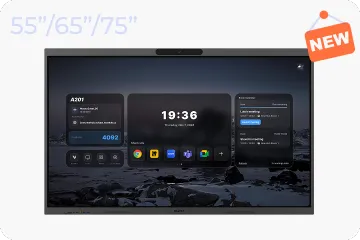
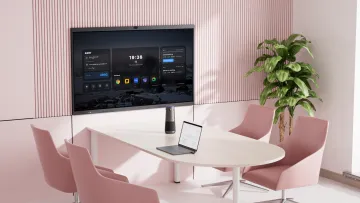
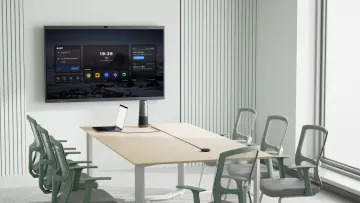
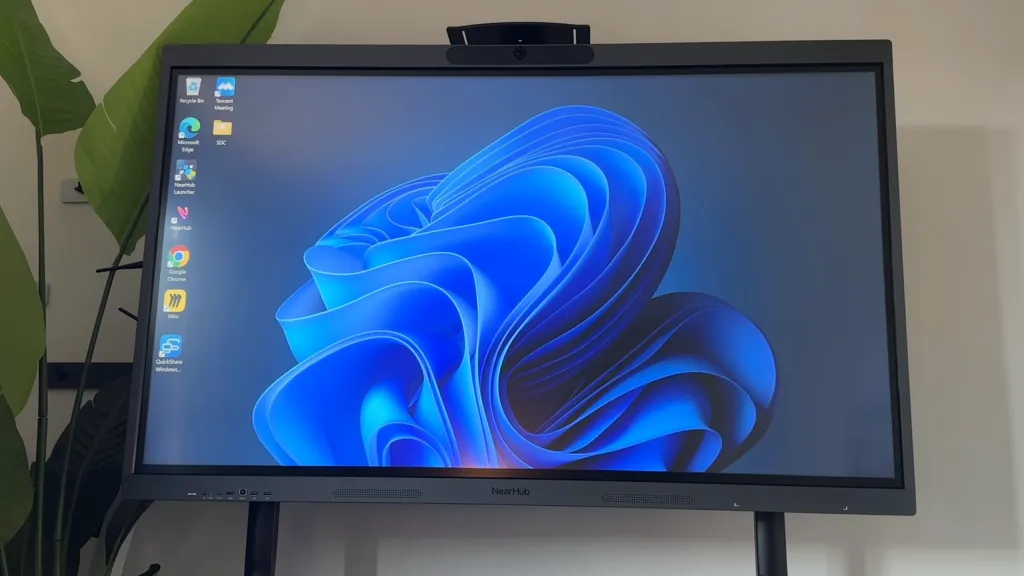
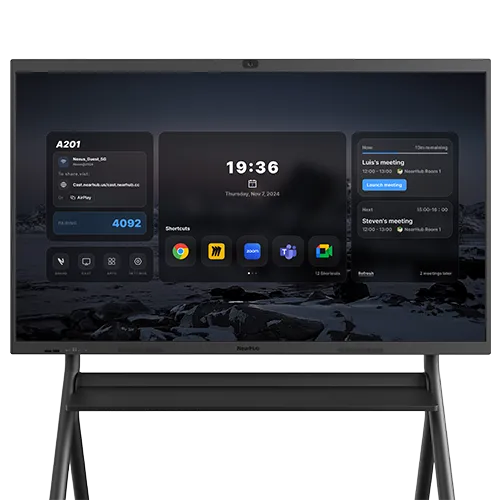
The team uses a 55-inch NearHub Board Max on a stand, positioned along one side of the room near the wall. Its built-in Windows 11 Pro environment allows compatible desktop applications to run on the board without requiring a separate computer.
Why Sketch Design Craft Chose a Windows-Based Board
That need helped shape the search for a board. Sketch Design Craft looked at several displays and interactive whiteboards, and presentation displays and Android-based options were initially appealing. As the team tried them in demos, the question became more practical: what happens when someone wants to work through a design, rather than simply look at it?
The presentation displays could show the work, but a separate computer still handled the applications. The Android boards the team evaluated offered interactive tools, yet could not directly run the full Windows desktop versions of the architectural software it needed. A screen might look right for a presentation and still leave the team reaching back to a laptop when the discussion turned to the model itself.
Board Max’s built-in Windows 11 Pro environment was the deciding factor. It brought familiar, compatible desktop tools onto the touchscreen, alongside annotation and whiteboarding. The team could work with the software it already knew and use the larger surface to explain what was on it.
From Model Review to a Working Sketch
Discuss the Model From Beside the Screen
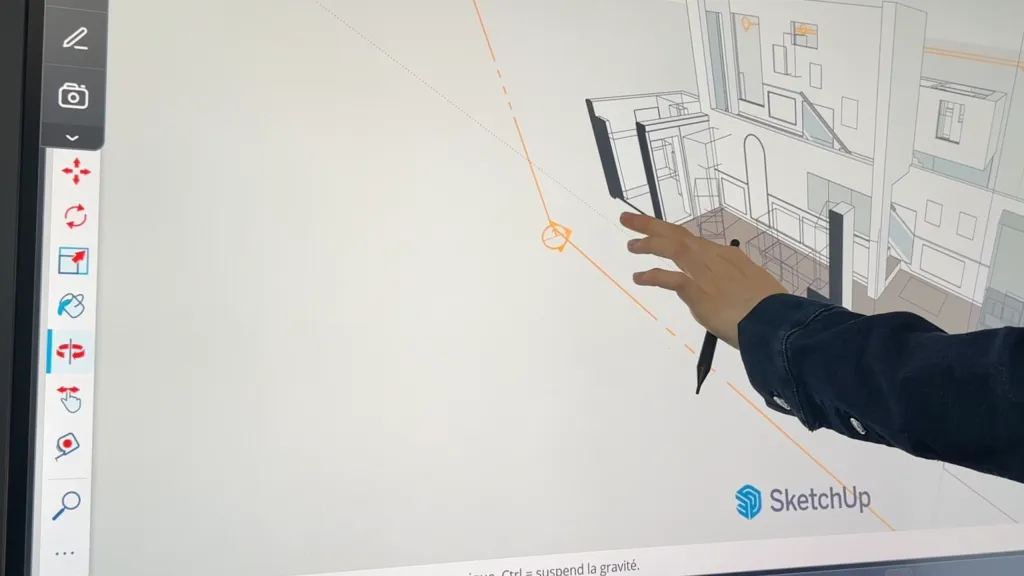
That choice carries through to the review itself. Sketch Design Craft works with SketchUp and Autodesk design tools, and the 55-inch touchscreen gives Rahme room to bring a model into view and focus the discussion on a particular area.
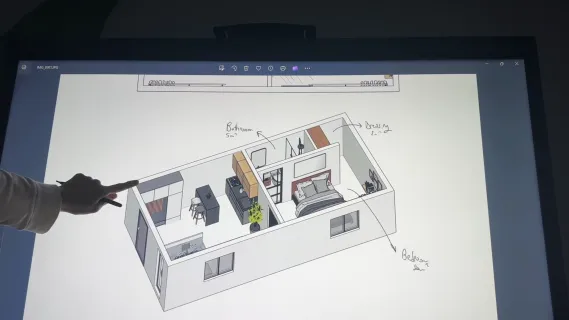
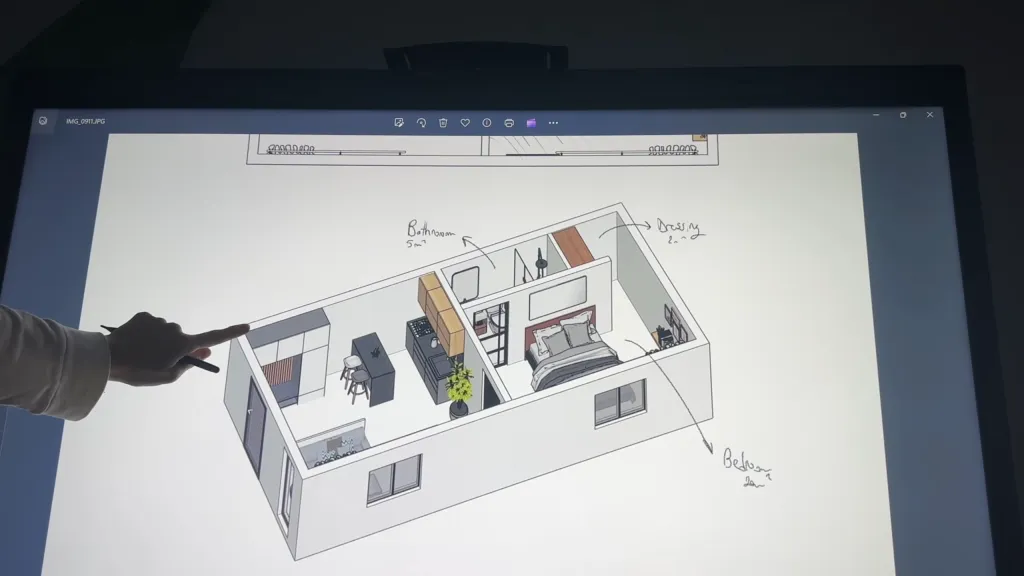
With a SketchUp interior model open, Rahme can stand alongside the screen, point to the part being discussed, and navigate using touch. The explanation follows the model, so others can see the detail as it is being described.
I don't have to sit behind my computer and explain everything from a distance. I can stand right next to the project, zoom in, navigate around, and show exactly what I'm talking about. — Rahme Nur San, Managing Director, Sketch Design Craft
Being beside the screen also makes the discussion easier to follow. Rahme can move from an overview to a closer look at a room or feature, keeping the explanation tied to what everyone can see.
Draw the Idea While It Is Being Discussed
Once the model has established the context, a quick sketch can help explore what might change.
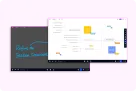
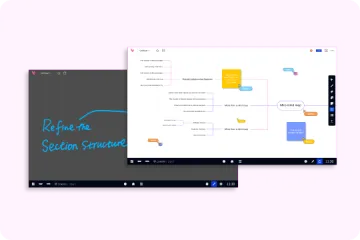
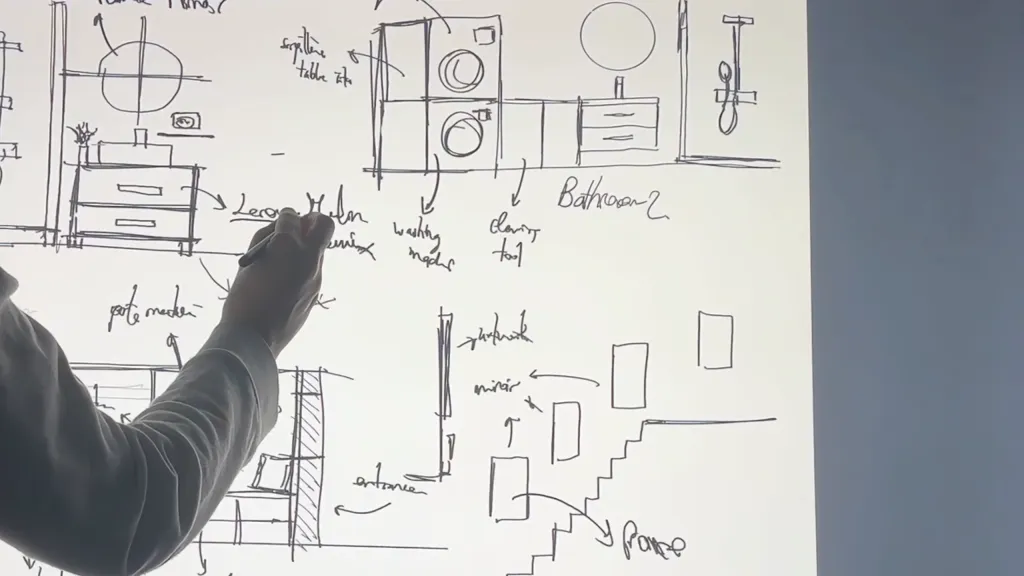
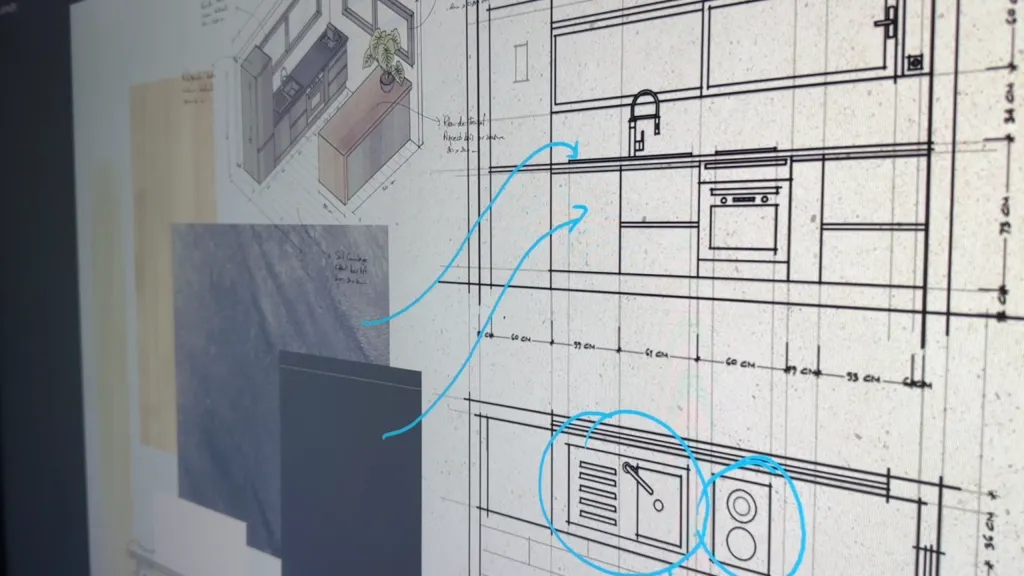
Rahme’s interior sketches show how this works in practice: cabinetry, laundry equipment, mirrors, and stairs are accompanied by handwritten notes and arrows. Using a stylus, Rahme can add a label or draw attention to a relationship without leaving the sketch.
On the digital whiteboard, the sketch can develop with the conversation. An idea can be drawn, adjusted, and saved, keeping the explanation in a form the team can return to.
When the starting point is an existing image, webpage, or presentation, annotation provides a quicker way in. A circle can identify the detail in question; an arrow or handwritten note can explain the suggestion without starting a separate drawing.
Sometimes when you are developing a concept, it's much easier to draw a quick diagram than to explain everything with words.
A suggestion becomes something others can examine while it is still being worked out. They can respond to the position, proportion, or relationship shown on screen, helping the discussion move from a general idea to a specific design choice.
Bring Other People’s Work Into View
The next useful reference may be on someone else’s laptop: another drawing, an image, or a presentation already open and ready to show.
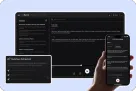
Board Max offers wireless sharing options, including AirPlay and Webcast, alongside wired connections. Participants can bring content from their own devices onto the shared screen without first moving every file to the board.
That flexibility helps the discussion follow the work. A model can run on the board itself, while a reference from another device can be brought into view when it becomes relevant.
The Result: A More Direct Path to Decisions
For Rahme, the change is most apparent when a plan is being reviewed together. Questions can be attached to a visible detail, and proposed changes can be marked up while the people involved are still discussing them.
NearHub transformed how our teams review plans. We can annotate details in real time, keep every stakeholder aligned, and make decisions in a single meeting.
The team leaves the discussion with more than a verbal description of an idea. The model, sketch, and notes provide a shared reference for what was discussed and the decisions made.
A Workspace for Visual Collaboration
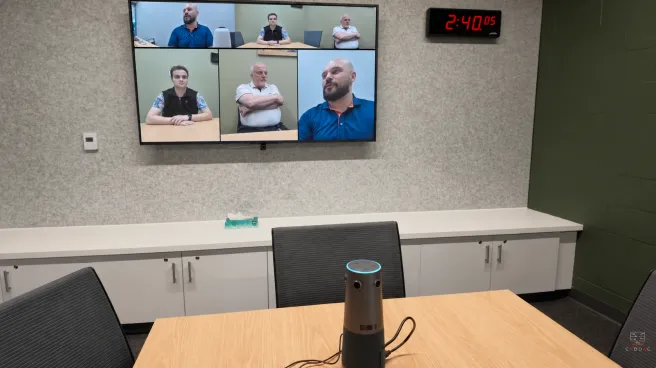
Sketch Design Craft’s experience shows where an interactive board fits into design work: the moment a drawing needs to become a discussion. Board Max brings Windows applications, touch interaction, whiteboarding, and conferencing hardware together for that exchange.
Demanding modeling and rendering still call for hardware matched to the application and project. For presentations and reviews, Board Max gives the team a place to gather around the work, explain a detail, and explore the next idea together.
Frequently Asked Questions
How does Sketch Design Craft use NearHub Board Max for design reviews?
The team uses the 55-inch touchscreen to present architectural material, review SketchUp models, and explain ideas through sketches and annotations. The shared display gives participants a visual reference for the discussion.
Does Board Max need a separate computer?
No. Board Max has a built-in Windows 11 Pro computer for running compatible applications. It can also display content from an external computer through supported sharing or connection methods.
Can architects use SketchUp and Autodesk software on Board Max?
Sketch Design Craft uses SketchUp and Autodesk design tools, and Rahme reviews a SketchUp model on the board. Compatibility and performance depend on the specific application, version, licensing, and project requirements.
Does annotating a drawing change the original CAD or BIM file?
On-screen annotation and editing a source file are different actions. Marks added through an overlay should not be assumed to update CAD or BIM geometry. Source-file changes need to be made and saved within the relevant design application.
Can several participants share work from their own devices?
Board Max offers wireless sharing methods such as AirPlay and Webcast, as well as wired connections. These allow participants to present content from their devices, subject to the selected method’s setup and network requirements.
Can Board Max replace a high-performance rendering workstation?
It should not be treated as a replacement for a workstation configured for demanding rendering or complex models. Its suitability depends on the software and workload; presenting, reviewing, and collaborating have different hardware demands from intensive production work.