How SAIT Instructor Makes Teaching More Interactive with NearHub Board
See how SAIT instructor Frank Bergdoll uses NearHub for shared activities, live annotation, and remote participation to bring more students into the lesson.
interactive teaching
hybrid classroom technology
Updated: Nov 13, 2026 · 8 minutes read
Global Business, Brought Near.
No Installer, No Hassle, Just Works.
Before and After NearHub
Before NearHub
Keeping Visual Lessons and Participation Connected
Frank's lessons involve videos, websites, software demonstrations, and collaborative exercises. Switching between these resources while keeping students involved—especially in remote and hybrid settings—requires a flexible teaching setup.
After NearHub
One Interactive Space for Different Teaching Activities
With NearHub, Frank can bring different teaching resources and student activities together on an interactive display.
Explain visually: Annotate videos, websites, and software interfaces in real time.
Collaborate actively: Use shared writing, brainstorming, and quizzes to involve students.
Share flexibly: Mirror iPad content and access familiar educational applications.
Connect remotely: Use conferencing tools and shared content to support remote participation.
For SAIT Lead Instructor Frank Bergdoll, effective teaching goes beyond presenting information—it means giving students opportunities to explore ideas, collaborate, and participate. Whether teaching in person, remotely, or in a hybrid setting, he uses NearHub interactive displays to make lessons more visual and engaging.
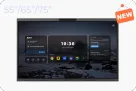
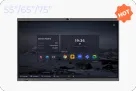
From the Android-based S55 to the Windows 11 Pro-powered Board Max 55, NearHub has become part of his teaching workflow, supporting live annotation, collaborative activities, and the use of familiar educational applications.
From S55 to Board Max: An Evolving Teaching Workflow
Frank’s teaching draws on more than one format. A lesson might involve a visual reference, a software interface, a video, or a collaborative exercise. He wants the freedom to work with each resource as the conversation develops.
It allows me to teach in a way that I really like to teach, whether in person, remote, or hybrid. — Frank Bergdoll MA, Lead Instructor, SAIT
NearHub has supported that approach for several years. Frank first used the Android-based S55 for multimedia lessons, collaborative activities, and live annotation. He later moved to the Windows 11 Pro Board Max 55, bringing familiar Microsoft tools into the same interactive teaching setup.
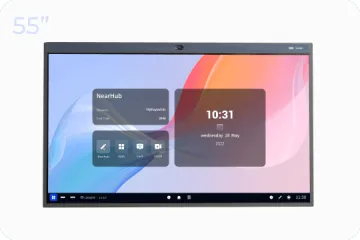
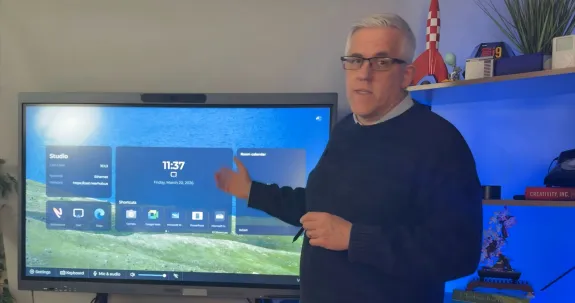
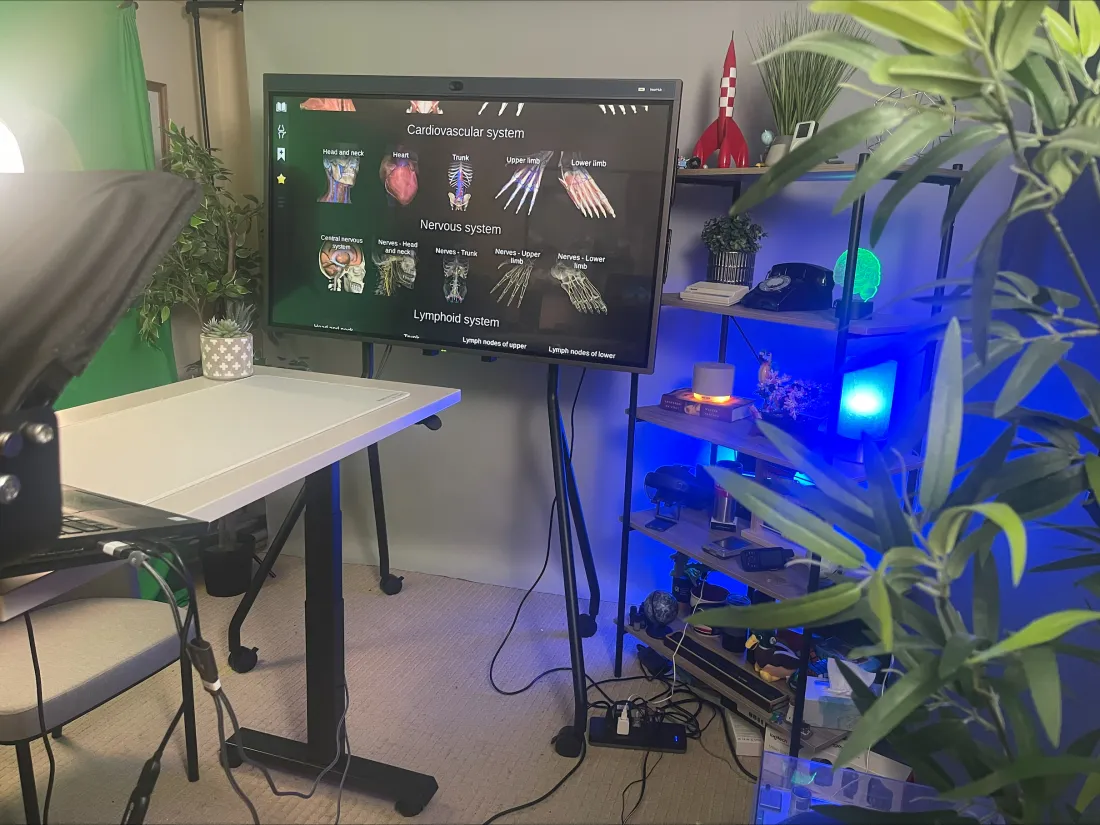
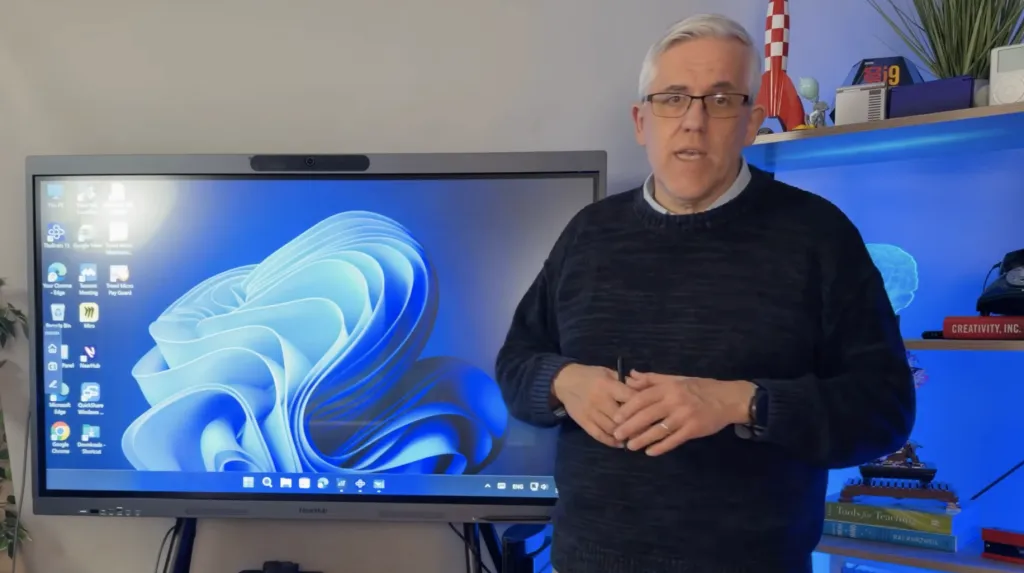
In his studio, Frank uses a 55-inch NearHub display mounted on a mobile stand beside his desk. The setup gives him flexibility to move between desk-based work and hands-on explanations at the screen.
The Challenge: Turn Shared Content Into Shared Learning
Making information visible is only one part of effective teaching. Students also need opportunities to ask questions, test ideas, and contribute to the learning process.
Frank's lessons often move between videos, websites, software demonstrations, and group activities. Each requires a different way to explain information and involve learners.
In remote and hybrid classes, the challenge extends beyond the classroom: everyone needs to follow the same material and participate in the discussion, regardless of where they join from.
Frank needed a flexible teaching environment that could bring these different activities together without interrupting the flow of a lesson.
How Frank Makes the Lesson Interactive
Explain Ideas Through Live Annotation
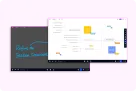
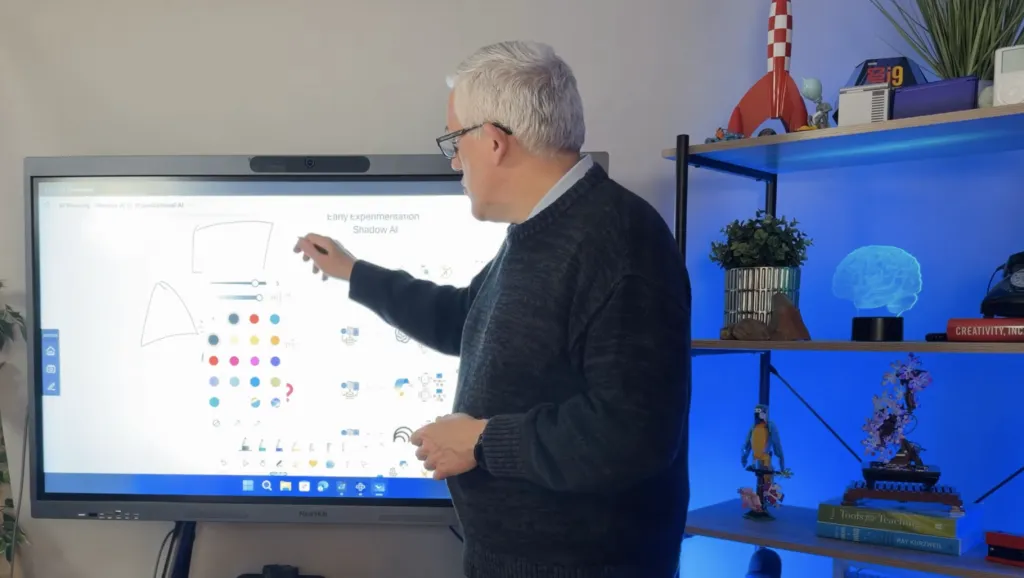
Frank uses on-screen annotation to make explanations more precise and easier to follow.
He can pause a video, highlight a detail on a webpage, or mark specific controls during a software demonstration.
For example, when demonstrating Google Meet, he opens the interface and annotates where students can start a meeting or enter a meeting code. Instead of describing each step verbally, he can point directly to the relevant controls.
This approach also works with visual learning materials. In his studio, Frank uses anatomical diagrams covering systems such as the cardiovascular, nervous, and lymphatic systems. Highlighting specific structures helps students focus on the details being discussed.
Give Students More Ways to Participate
Frank's teaching approach goes beyond instructor-led presentations. With the S55, he used collaborative activities such as brainstorming, group problem-solving, and shared writing, allowing multiple students to contribute directly on the display.
He also incorporated educational games and quizzes, including spinning-wheel activities and question challenges, to encourage students to respond and participate throughout a lesson.
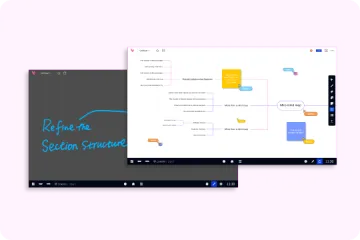
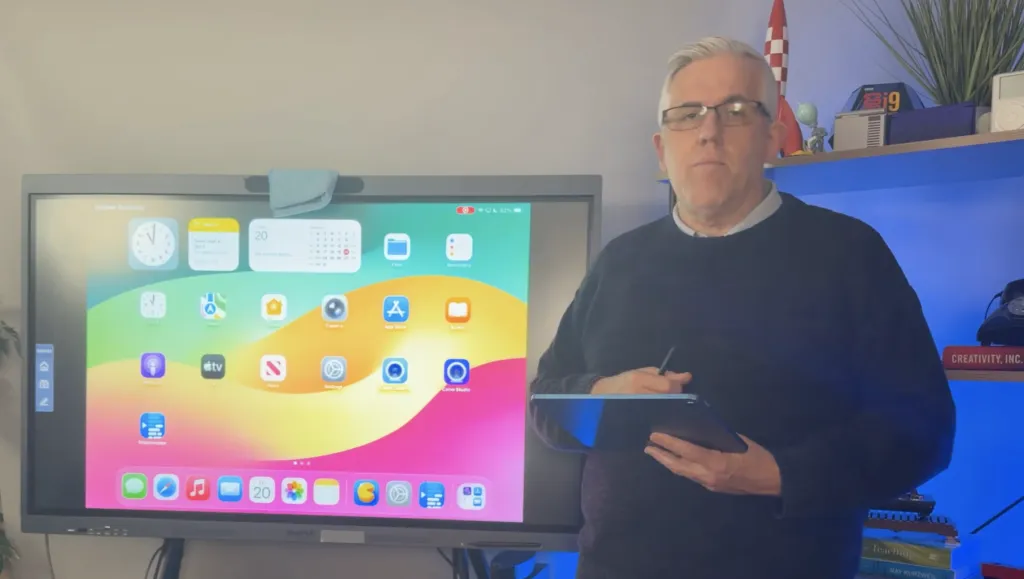
On NearHub Board Max, Frank continues this interactive approach with familiar tools such as Microsoft Whiteboard. He can open existing boards, move ideas around, and develop concepts together with students. When teaching resources are stored on his iPad, he can mirror the content to the larger display for everyone to view.
Whether using a shared canvas, an educational application, or a quiz, Frank can choose the activity that best supports the lesson.
Keep Remote Learners Part of the Discussion
Frank teaches across in-person, remote, and hybrid environments, regularly using Microsoft Teams and Zoom to connect with students outside the classroom.
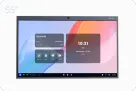
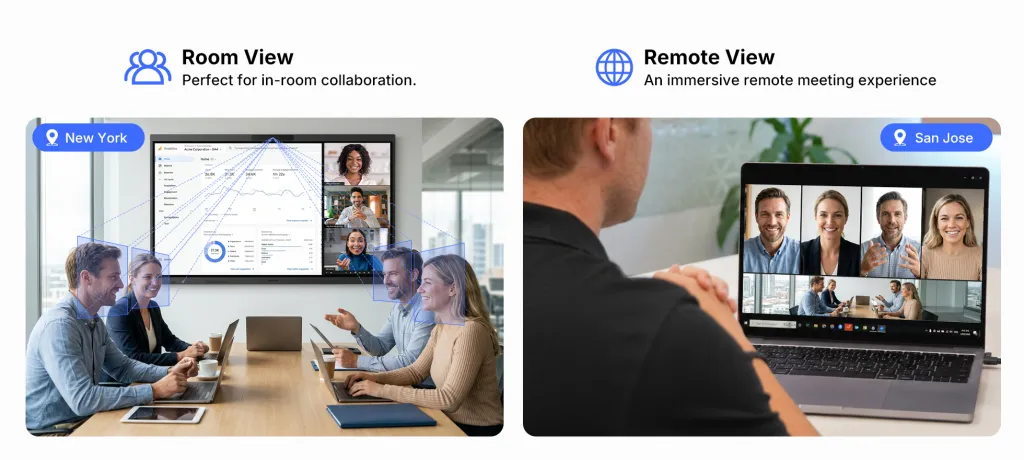
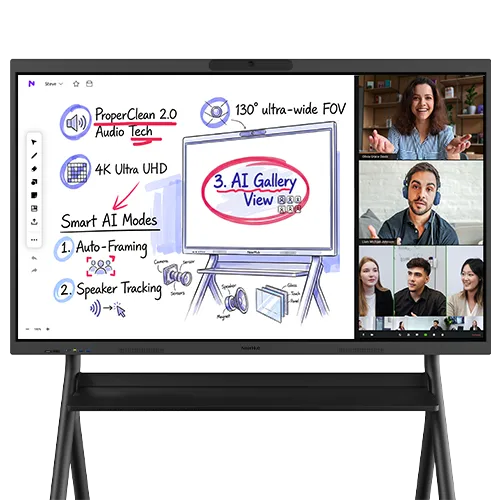
With conferencing applications available on Board Max, he can bring online discussions into the same teaching environment as his visual materials. The display's integrated audio and video hardware supports communication, while shared content gives remote learners a common reference point during explanations and discussions.
Frank also uses NearHub Canvas to export and share learning content after a session. This gives students an opportunity to revisit materials and review what was covered beyond the live discussion.
A Familiar Windows Workflow with Board Max
Moving from the Android-based S55 to Board Max introduced a Windows 11 Pro environment into Frank's established teaching setup.
Since Microsoft Whiteboard is already part of his workflow, he places a shortcut on the NearHub launcher for quick access. He can open existing whiteboards and use them directly during lessons without recreating his teaching materials.
Anytime I need to get into my whiteboard, I can get into it and I can start using that to present as well.
Frank also connects a portable Bluetooth keyboard and mouse when working from his desk. This allows him to switch between hands-on interaction at the display and more traditional desk-based control.
Rather than changing the way he teaches, Board Max gives him another way to work with the applications and resources he already knows.
The Result: More Natural Discussion and Greater Engagement
Across his teaching activities, Frank uses NearHub to make lessons more visual, encourage student contributions, and keep remote learners connected to classroom discussions.
From live annotation and collaborative whiteboarding to video conferencing and shared learning materials, the interactive display gives him flexibility to adapt his teaching approach to different activities and learning environments.
Reflecting on his experience, Frank highlights the impact on student engagement:
NearHub makes remote participants feel like they’re truly in the room. Discussions feel more natural, students stay focused, and overall engagement has tripled.
— Frank Bergdoll MA, Lead Instructor at Southern Alberta Institute of Technology
For Frank, the value of an interactive teaching space lies in making participation easier and more natural. Whether using the S55 or Board Max, the goal remains the same: helping students do more than simply watch a lesson—they can actively take part in it.
Bring More Interaction Into Your Classroom
Frank's experience shows how an interactive display can support different teaching styles—from live annotation and collaborative activities to hybrid discussions.
Whether you're introducing interactive learning activities or upgrading an existing teaching setup, NearHub Board Max brings familiar Windows applications and interactive tools together in one workspace.
How can an interactive whiteboard encourage student participation?
It can provide a shared space for students to write, solve problems, and contribute ideas. Frank’s NearHub use includes group activities, brainstorming, educational games, and quizzes.
Can teachers annotate videos and software interfaces?
Yes. Frank demonstrates adding arrows, highlights, and other marks over webpages, paused videos, and software interfaces to explain specific details.
Can educators use Microsoft Whiteboard on Board Max?
Yes. NearHub Board Max runs Windows 11 Pro, allowing educators to access familiar Windows applications such as Microsoft Whiteboard. Teachers can open existing boards and use them during lessons.
Can an iPad share educational content to the board?
Yes. Frank demonstrates AirPlay screen mirroring from an iPad on the same wireless network, allowing educational applications and other content to appear on the larger display.
Can Board Max support remote teaching and discussions?
Frank uses Board Max with conferencing applications, including Teams and Zoom. His setup combines teaching applications with camera and audio tools for conversations involving remote participants.