How Do Touchscreens Work—and Which Type Do You Need?
Understand how touchscreens detect input and compare technologies for daily navigation, classroom writing, public kiosks, and hybrid collaboration.
touchscreen technology
Updated: Nov 26, 2026 · 8 minutes read
Global Business, Brought Near.
No Installer, No Hassle, Just Works.
Touchscreens turn a detected position into a software action. Capacitive, infrared, and resistive systems suit different input methods and environments. Choose based on everyday operation, writing quality, protective construction, and overall system cost. NearHub Board Max combines infrared touch with Windows computing and integrated camera and audio for shared collaboration.
Key Takeaways
Capacitive, infrared, and resistive touchscreens detect input through different physical methods.
Choose touch technology based on input tools, environment, and the tasks people perform.
Compare installed cost, maintenance, and protective construction rather than sensor labels alone.
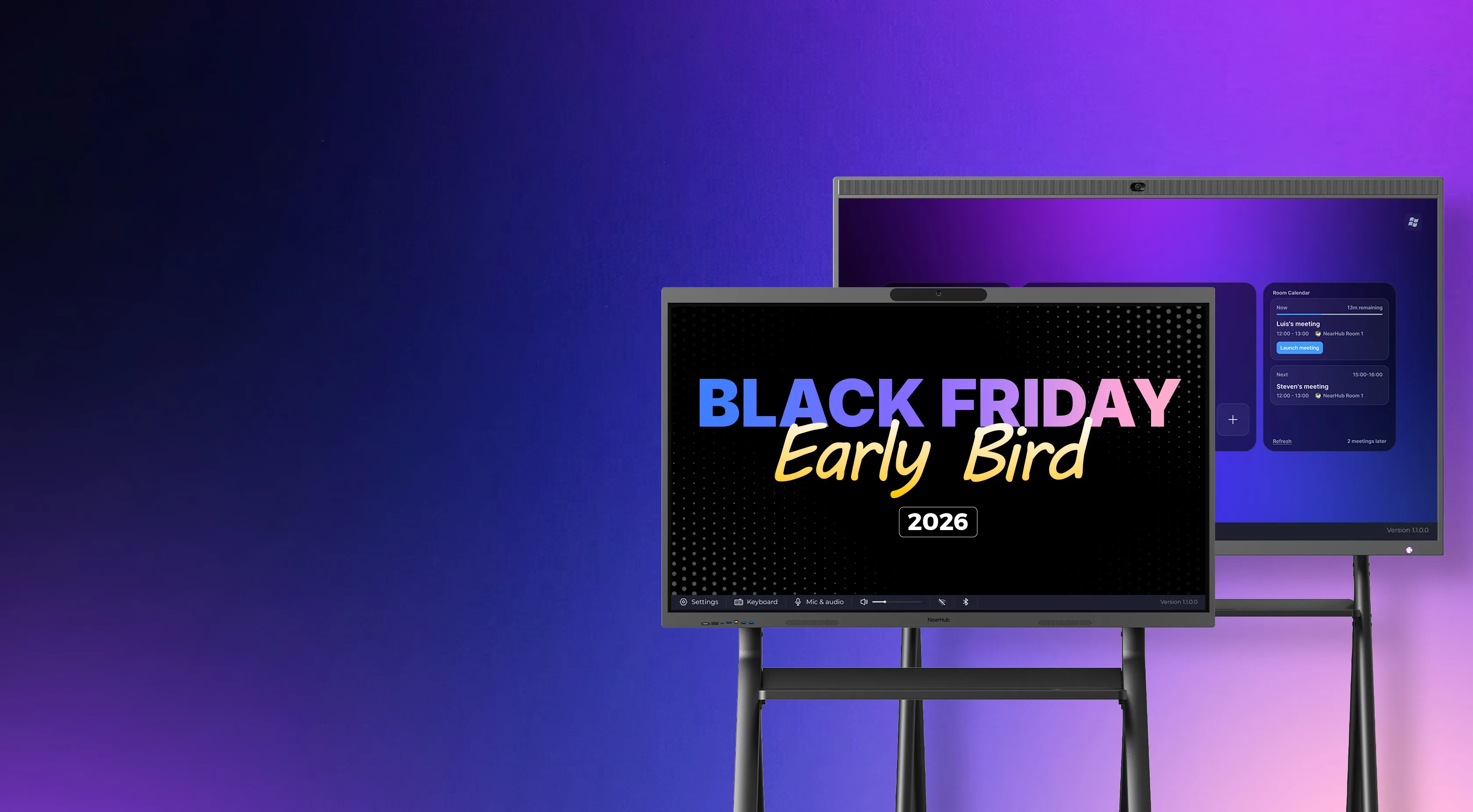
NearHub Board Max combines infrared touch, 40 simultaneous touch points, and Windows-based hybrid collaboration.
Tap your phone and an app opens. Write on a classroom board and a line follows your pen. Press a control panel with a gloved hand and a machine responds. All three are touchscreen interactions, but the screens may detect them in different ways.
A touchscreen works by detecting where you touch and passing that position to software, which turns it into a click, a swipe, or a line of writing. Understanding the main detection methods helps you choose a screen that feels right for the work you do.
How Does a Screen Know Where You Touch?
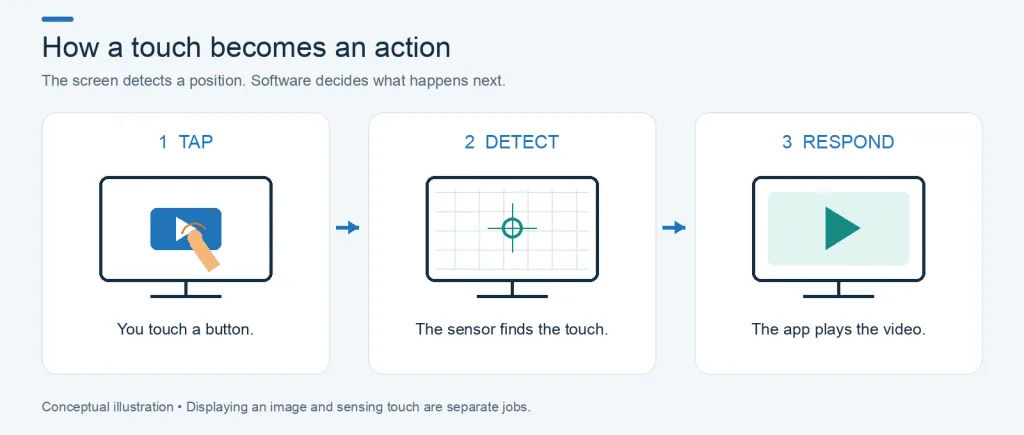
Imagine tapping a play button. The display shows the button, while a sensing system detects your touch. The device matches that location to the button, and the app starts the video. When you draw instead of tap, it follows a sequence of positions to produce a line.
The important distinction is that showing an image and detecting touch are separate jobs. A 4K display describes the picture; it does not tell you how the screen detects a finger or pen.
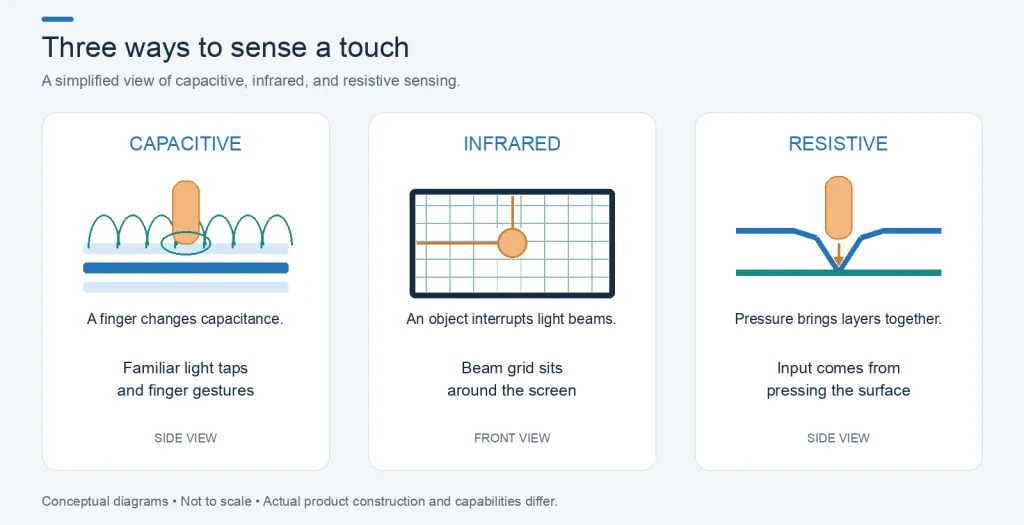
Some touchscreens sense changes in an electrical field. Others detect interrupted light beams or pressure between layers. The basic idea is the same, even though the input feels different. DMC’s touchscreen technology overview introduces these sensing approaches.
Three Common Ways Touchscreens Work
Capacitive: The Light Touch You Know from Your Phone
A capacitive touchscreen detects changes in capacitance—an electrical property—when a finger interacts with its sensing field. Projected capacitive touch, often shortened to PCAP, uses a pattern of electrodes to locate that interaction.
For the user, the appeal is familiar: a light tap, a swipe, or a pinch-to-zoom gesture. This makes PCAP a useful starting point for desktop monitors and devices where finger navigation is central to the experience.
The input tool matters. A finger, a compatible capacitive stylus, and an ordinary plastic pen are not electrically equivalent. Gloves can also change the interaction. Some systems support particular gloves or special operating modes, so glove use should be part of your buying decision rather than an assumption about every capacitive screen.
Infrared: A Frame of Invisible Light
An infrared touchscreen uses emitters and receivers around the screen’s edges to create a grid of invisible light beams. A finger or suitable pen interrupts those beams, allowing the system to locate the touch.
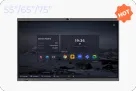
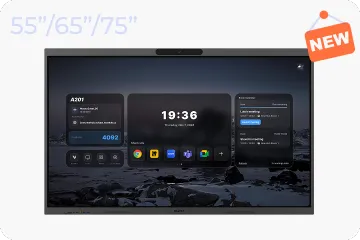
Because this approach detects an obstruction rather than relying on the electrical properties of a bare finger, it can support different input objects. This is the approach used by NearHub interactive smart board , where a large writing surface supports shared annotation in classrooms and meeting rooms.
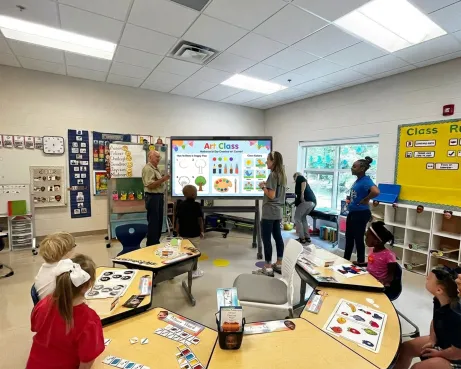
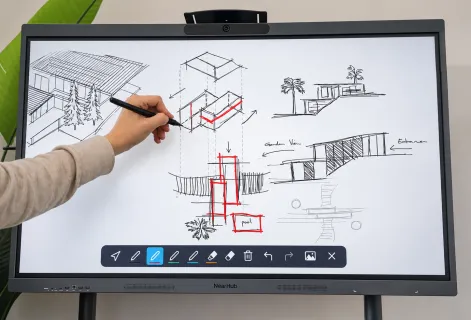
For a classroom, the useful questions are practical: does small handwriting look clear, can students move objects easily, and does erasing feel natural? The frame, sensing system, software, and pen all contribute to those results. An infrared label alone does not establish how well a particular board will handle a busy lesson.
Resistive: A Screen That Responds to Pressure
A resistive touchscreen detects pressure that brings conductive layers into contact. The system uses that contact to determine where you pressed. This creates a different interaction from the light finger touch familiar on a phone.
Its useful characteristic is the input method: pressure can come from a finger, a gloved hand, or a suitable ordinary stylus. That makes resistive touch relevant to some control terminals and work environments where those tools matter more than phone-like gestures.
For buyers, the trade-off is whether pressing the surface suits the task. Someone operating large controls may have different priorities from someone navigating small menus or making frequent multi-finger gestures. Resistive designs also differ; the technology name alone does not establish whether a product supports multiple simultaneous touches.
Surface acoustic wave (SAW) touchscreens detect changes in ultrasonic waves traveling across glass. You may encounter them in kiosk and public-information applications. They broaden the technology picture, but most readers comparing a work monitor or collaborative whiteboard can begin with capacitive, infrared, and resistive options.
Capacitive vs. Infrared vs. Resistive: A Quick Comparison
Technology
How it detects input
Where it can fit
Main trade-off
Projected capacitive
Changes in capacitance
Finger navigation, gestures, and interactive monitors
Gloves and pens need to work with the sensing system
Infrared
Objects interrupt a light-beam grid
Large interactive boards and shared writing
Objects or contamination near the sensing frame can interfere with detection
Resistive
Pressure brings conductive layers into contact
Gloved operation and some control terminals
The pressure-based interaction differs from light-touch gesture navigation
These are starting points for selection, not a performance ranking. A well-integrated screen and application matter more than choosing a technology by name alone.
What Do These Differences Mean When You Use the Screen?
Technology becomes useful when you connect it to an activity. A touchscreen that feels comfortable for short taps is not automatically the best choice for an hour of handwriting, and a screen designed for bare fingers may not suit a job that requires gloves.
What you want to do
What matters in your choice
Tap, swipe, and zoom at a desk
Accurate small targets, comfortable finger input, and useful gestures
Write or teach at a large display
Clear handwriting, usable pens, natural erasing, and space for group work
Work with gloves or a stylus
Support for the input tool you actually use
Use a screen in a demanding environment
Suitable operation around light, moisture, dirt, and cleaning
Use the sensing method to narrow your options, then judge the complete experience. Software, screen construction, input tools, and processing all influence how a product behaves. There is no need to choose a winner for every technology before deciding what your own work requires.
Why Touch Matters More on a Large Shared Display
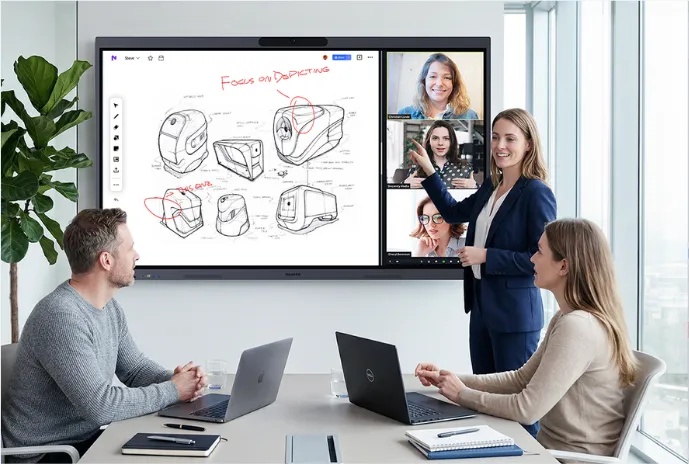
On a phone, one person usually taps or swipes for a few seconds. At a classroom board, a teacher may write continuously while students add answers. In a meeting, several people may annotate the same diagram. The challenge shifts from detecting a tap to keeping shared work comfortable and readable.
Three details become especially useful. Response affects how closely a line follows your hand. Input recognition affects whether the board detects the pen tip or object you use. Simultaneous touch gives software more input contacts to work with during group activities. Screen space and application support still determine how many people can write productively together.
That is the practical value of a large touchscreen: people can point, move, explain, and write directly on the same content. Teachers can work through a problem at the board, and a team can discuss a document while annotating it. The benefit comes from making those activities easier, rather than simply adding touch to a large picture.
Which Touchscreen Should You Choose?
Start with the way people will use the screen, then weigh the purchase cost against maintenance and daily convenience. The lowest-priced touch panel is not necessarily the least expensive complete system. Size, protective construction, computing, software, and support can outweigh the sensor's cost.
In a Reddit r/sysadmin discussion, a construction-company buyer looking to annotate PDF plans and maps put the priority plainly:
Most important trait is probably the ease of use. This is for non Tech savvy individuals.
This is a buyer’s requirement, not a product review. It highlights a useful distinction: detecting a touch is only the beginning. People also need to open their documents, find the right tools, and save their work without a complicated setup.
Phones, Tablets, and Everyday Navigation: Choose Projected Capacitive
For light taps, swipes, and pinch-to-zoom gestures, projected capacitive is the natural starting point. Its familiar interaction makes it easy for people to pick up a device and begin using it without learning a pressure-based input method.
It also suits desktop monitors used for browsing, presentations, and interactive applications. Choose a comfortable screen position and a suitable glass surface for repeated use. If gloves are part of the job, select a PCAP implementation designed for them rather than assuming a consumer-style screen will respond.
Buying trade-off: prioritize effortless navigation and useful gestures. Compare the complete monitor price; “capacitive” alone does not establish a premium price or a particular durability rating.
Classrooms and Shared Whiteboards: Start with Infrared
For a large board where teachers and students write, point, and move content together, infrared is a practical first option to evaluate. It detects interrupted light beams, so input does not depend on a bare finger’s electrical properties. Suitable pens and fingers can share the same working surface.
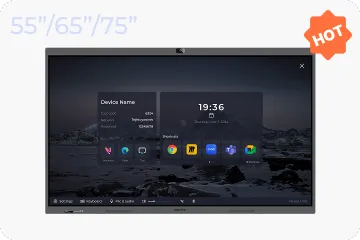
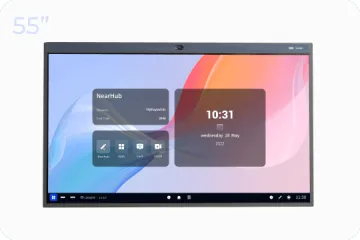
This makes IR worth considering when equipping a large teaching space, especially when flexible input and group annotation matter. NearHub Board Max, for example, combines infrared sensing with 40 simultaneous touch points and a specified minimum touch object of 2.5 mm.
Buying trade-off: compare writing feel and the installed classroom cost. Compare the IR board’s complete package with an equivalent PCAP setup, including computing, mounting, and software. Keep its sensing frame clear of objects and accumulated debris. A protected PCAP display remains an alternative when its writing experience and total cost fit the classroom better.
Gloved Work and Simple Control Panels: Consider Resistive
For a task built around pressing large controls with gloves or using a simple stylus, resistive touch can be a sensible choice. Pressure activates the input, so the workflow does not depend on the conductivity of a bare finger.
It is particularly relevant when familiar button-style operation matters more than smooth multi-finger gestures. For a budget-limited control terminal, compare the initial panel cost with the cost of maintaining its outer surface: repeated abrasion or damage to that layer can become a maintenance concern.
Buying trade-off: choose for input-tool flexibility and straightforward controls. For frequent swiping, delicate taps, or collaborative writing, compare PCAP or IR instead of choosing resistive solely for its purchase price.
Public Kiosks and Frequent Unattended Use: Prioritize Protective Construction
For a kiosk used by many visitors, a suitably protected PCAP screen is a useful starting point when intuitive finger navigation is the goal. A simple interface and well-sized buttons can make the device easy to use without instructions.
Durability here comes from more than the sensor. Cover glass, enclosure design, sealing, mounting, and service access determine whether the installation can withstand its environment. For outdoor or wet locations, shortlist products specifically designed for those conditions; a technology label is not a weatherproofing rating. SAW may also appear in controlled indoor kiosk applications, where its acoustic sensing surface needs to stay suitable for operation.
Buying trade-off: budget for protective construction and serviceability. A higher initial system cost can be justified when it reduces repair disruption, but it should be supported by the product’s actual protection and service terms.
Construction Planning and Map Review: Start with Large-Format Infrared
For teams gathering around PDF plans and maps, start with a large IR display and software that makes annotation easy to access. The same construction buyer described the intended interaction:
Our guys want to stand around a large screen together 55" or up, and collaborate in person.
The buyer also described using SharePoint and OneDrive for document storage. That makes file access part of the purchase: a responsive screen is useful only if the team can open the current plan and keep the resulting notes.
Buying trade-off: weigh direct on-screen operation, clear plan details, and the cost of the complete computing setup. NearHub Board Max’s infrared surface and built-in Windows 11 Pro make it worth considering for this workflow. Use your own PDF and mapping applications in a demonstration to assess annotation and saving.
Frequent Handwriting and Detailed Annotation: Compare PCAP and Infrared
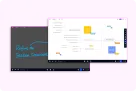
For teaching equations, reviewing drawings, or writing through a long session, shortlist both PCAP and IR, then choose based on the writing experience. Pen behavior, line tracking, erasing, and the application matter more than a universal technology ranking.
Board Max lists a touch response time of ≤6 ms and a 60 Hz refresh rate. The former describes the published touch-response specification; the latter describes picture updates. Neither alone establishes the full delay between moving a pen and seeing a line. Its tempered glass and anti-fingerprint writing surface also address repeated use and visible touch marks, without making the board scratch-proof.
Buying trade-off: pay for the writing quality and surface construction your work needs. If pressure-sensitive drawing is essential, choose a compatible pen-and-display system that explicitly supports it; ordinary finger touch does not establish that capability.
Hybrid Classrooms and Meeting Rooms: Pair Large-Screen Touch with the Right Computing
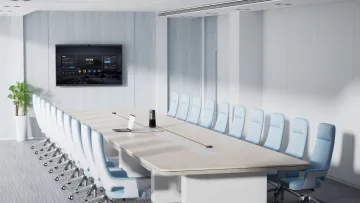
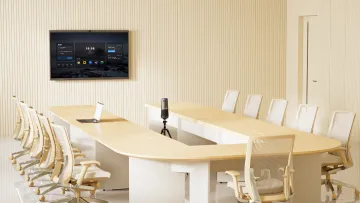
For a shared board used by both in-room and remote participants, IR is a strong candidate for the touch surface, while computing, camera coverage, and audio complete the system. A lower display-only price becomes less useful if you must separately add all the equipment needed for the session.
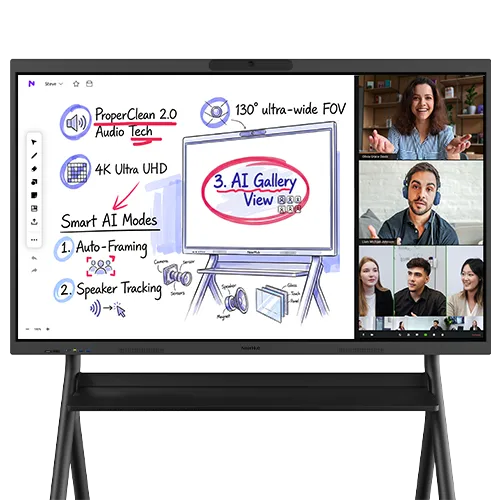
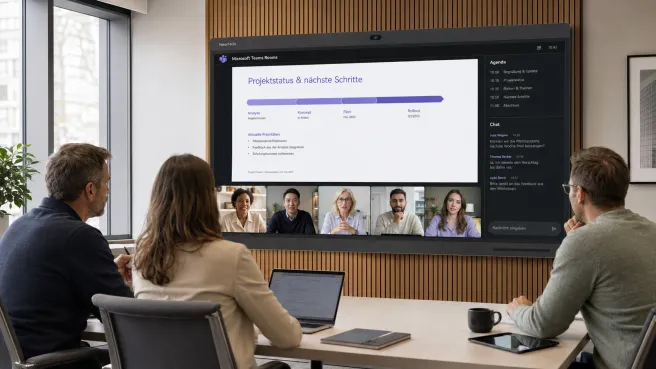
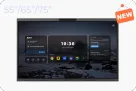
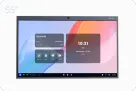
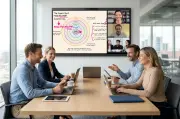
NearHub Board Max brings its infrared writing surface together with Windows 11 Pro, a built-in 4K AI camera, an eight-element microphone array, and AI Gallery View. Teachers and teams can use compatible desktop applications while remote participants see the room through the integrated camera system. Gallery View presents in-room participants in individual frames.
Buying trade-off: compare the complete collaboration setup and the software you use. A PCAP board can also suit a hybrid room; IR is not a requirement for video collaboration. For a classroom-focused shortlist, explore the smart board buying guide.
Try These Three Things Before You Buy
First, do something you repeat every day. Tap a small control, write a sentence, or move items around a worksheet. Use familiar content so you can notice friction.
Second, use your actual input method. Bring the intended pen or gloves, or have two people work together if that is part of the lesson.
Third, connect your own computer and finish a task. Open, interact with, and save your work. HDMI normally carries the picture and sound, while touch input needs a separate USB connection; a suitably equipped USB-C port and cable can combine those jobs. Completing the task exposes issues that a standalone display demonstration can miss.
Frequently Asked Questions
Why do some touchscreens work with gloves and others do not?
Different screens detect different things. Resistive systems respond to pressure, while infrared systems detect interrupted light. Capacitive systems respond to electrical changes, so glove material and the screen’s design affect operation. Choose a product that supports the gloves required for your task.
Can you use any pen on a touchscreen?
No. A plain plastic stylus, a capacitive stylus, and an active digital pen work differently. A pen that produces a line may still lack pressure sensitivity, palm rejection, or button support. Choose the pen and screen as a compatible pair, especially for handwriting or drawing.
Is infrared or capacitive touch better for a classroom whiteboard?
Neither is automatically better for every classroom. Compare handwriting, erasing, student interaction, and the lesson software on the products you are considering. The better choice is the complete board that supports those activities comfortably within your budget.
Does a touchscreen monitor need a special computer?
It needs a computer and operating system that support the monitor’s touch input, along with the appropriate connection. Touch gestures and software features can differ across systems. An all-in-one interactive board includes computing for supported tasks, while a standalone touchscreen monitor relies on a connected device.
Start with what you want to do on screen. For a shared classroom or meeting room, pair comfortable writing with the computing and audio-video tools your sessions need. Explore NearHub Board Max for a Windows-based board built around in-room and remote collaboration.







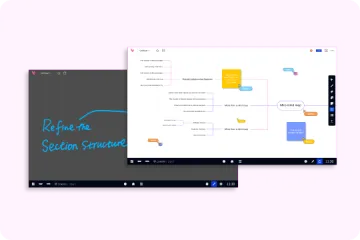



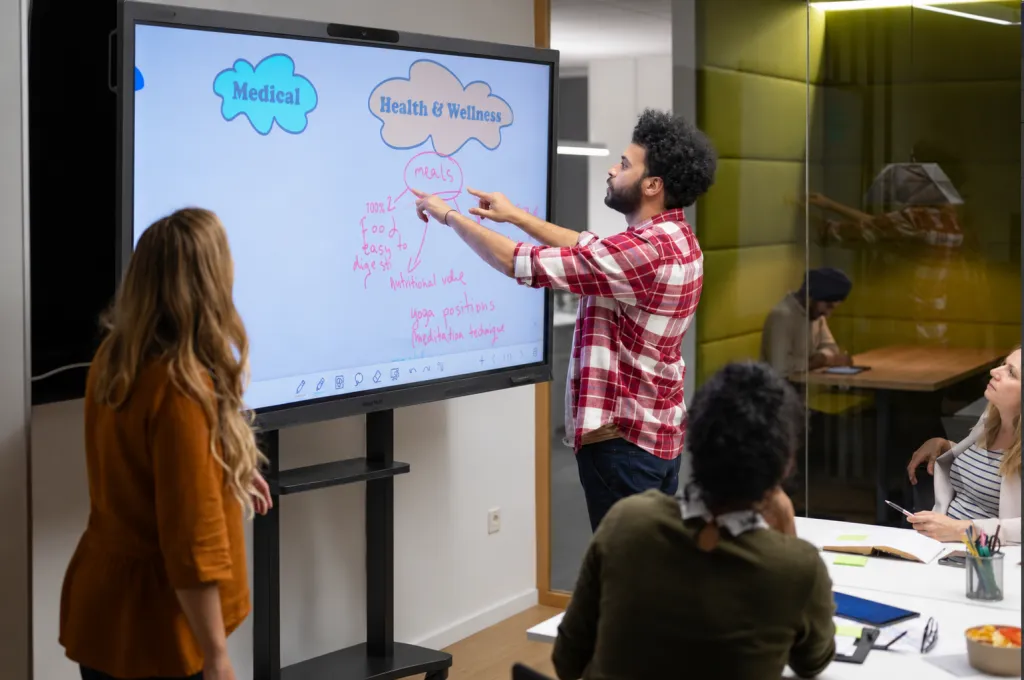 For a classroom, the useful questions are practical: does small handwriting look clear, can students move objects easily, and does erasing feel natural? The frame, sensing system, software, and pen all contribute to those results. An infrared label alone does not establish how well a particular board will handle a busy lesson.