A pre-purchase checklist for IT and AV buyers evaluating a Zoom video bar — compute architecture, included hardware, platform flexibility, expansion, certification, and total room cost.
zoom video bar
zoom rooms video bar
usb video bar
Updated: Sep 14, 2026 · 9 minutes read
Global Business, Brought Near.
No Installer, No Hassle, Just Works.
Two products both labeled 'video bar' can create completely different meeting-room workflows. Before ordering a Zoom video bar, decide how Zoom will run in the room, confirm what hardware and licensing are actually included, verify expansion and certification status, and compare the cost of the complete deployed room — not just the bar's sticker price.
Key Takeaways
Define the meeting workflow first: appliance, dedicated room PC, or BYOD laptop each produce a different daily experience, and the right bar depends on that choice.
A video bar is rarely the whole room — displays, controllers, mounts, expansion mics, and Zoom Rooms licensing are often separate line items.
'Works with Zoom' is not the same as Zoom Rooms Certified; verify the exact model in Zoom's official certified hardware directory before purchase.
Compare total deployed room cost across all nine components (bar, display, compute, controller, mounts, accessories, licensing, installation, support), not MSRP alone.
Here is a scenario that plays out in IT departments every quarter: the team approves a "video bar" for a new Zoom room, the box arrives, and only then does everyone realize the room still needs a display, a controller, a licensing decision, and possibly a computer nobody budgeted for.
The problem is that two products both described as a Zoom video bar can create completely different room workflows. One runs Zoom Rooms natively and lets anyone walk in and tap Join. Another is a sophisticated USB peripheral that does nothing until someone connects a laptop. They look similar in a product photo — they are not similar on a Tuesday morning when eight people are waiting for a call to start.
This guide is a pre-purchase checklist for 2026 buyers: how Zoom will run in the room, what is in the box, workflow fit, expansion headroom, certification and IT management, and the cost of the complete room — not just the bar.
What Is a Zoom Video Bar?
A video bar is a hardware form factor: a single unit that combines a camera, microphone array, and speakers, typically mounted above or below a meeting-room display. That is all the term guarantees.
What it does not guarantee is a compute architecture. In practice, video bars come in two fundamentally different types:
USB video bar: a peripheral. It connects to a computer — a dedicated room PC or an employee's laptop — and that computer runs Zoom.
Appliance video bar (Zoom Rooms appliance): a self-contained device with embedded compute that runs Zoom Rooms natively, with no external computer required.
This distinction drives almost every other question in this guide. If you have not yet settled on an architecture at all, our Zoom Room solutions comparison covers the four main approaches before you narrow down to a bar.
Decide How Zoom Will Run in the Room
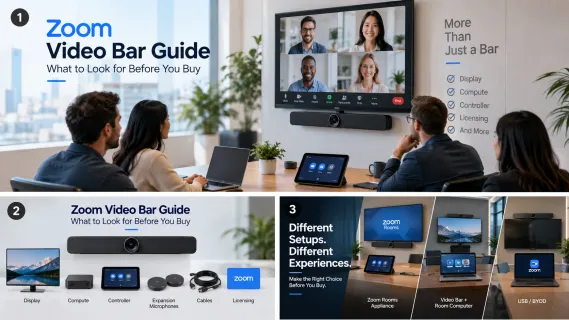
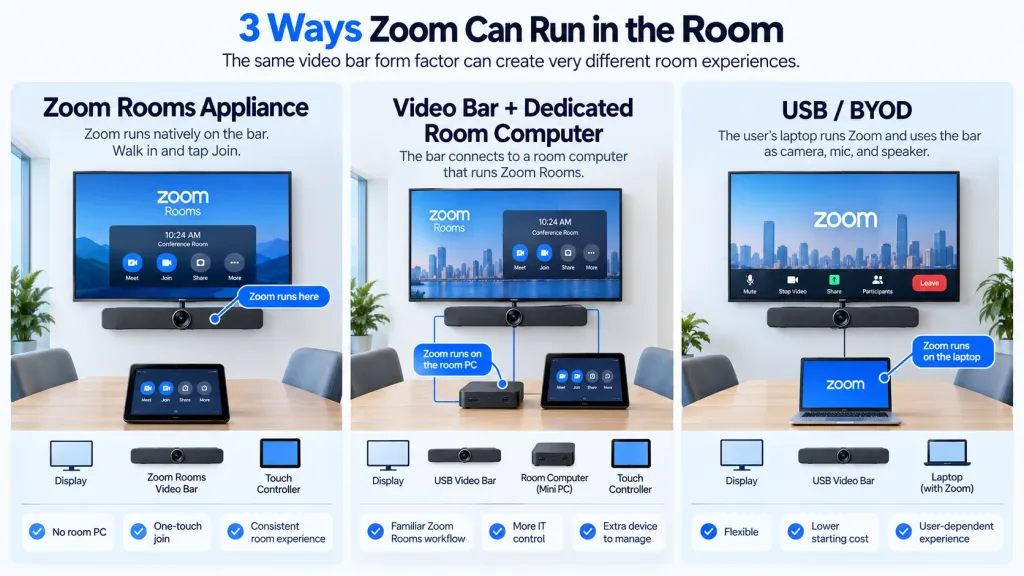
This is the most important decision in the entire purchase, and it should happen before you compare a single spec sheet. There are three practical ways a video bar can run Zoom, and each produces a different daily experience.
Dedicated Zoom Rooms appliance. The bar itself runs Zoom Rooms. Users walk in, see their meeting on the room calendar, and tap Join on a touch controller. No one signs in, no one connects anything. This is the most consistent experience and the easiest for IT to standardize — but it commits the room to a licensed Zoom Rooms workflow.
Video bar + dedicated room computer. The bar connects to a Windows or Mac computer (a NUC, Mac mini, or similar) that runs Zoom Rooms. The user experience mirrors an appliance — walk in, tap Join — but IT now owns an extra device: OS updates, application updates, and one more endpoint to secure.
USB / BYOD. The bar connects to an employee laptop, which runs the Zoom desktop client while the user manually selects the bar as the room's camera, microphone, and speaker. This is the most flexible and cheapest to start with, but the "room experience" depends entirely on whoever brings the laptop.
None of these is universally right. A huddle room used for ad-hoc internal calls can thrive on BYOD; a customer-facing room should probably not depend on someone's laptop battery. Define the meeting workflow you want first, then find the bar that delivers it.
Check What Is Actually Included With the Video Bar
Buying a video bar does not mean you have bought a Zoom Room. Before comparing prices, confirm which of the following are in the box and which are separate purchases:
Display — almost never included with a bar
Compute device — included only in appliance models
Touch controller — required for one-touch join in a Zoom Rooms setup; sometimes bundled, often not
Mounting hardware — wall mount, display mount, or tabletop stand
Cables — longer or in-wall-rated cabling is frequently an accessory
Expansion microphones — needed when the table outgrows the built-in mic array
Room accessories — scheduling panels, content-sharing modules, spare power supplies
Zoom Rooms licensing — a recurring software cost, entirely separate from hardware
Some vendors sell complete room bundles that include the bar, controller, compute, and cabling in one SKU. Others sell the bar alone and leave the rest to you. Two quotes that look $800 apart can end up thousands of dollars apart once both rooms are actually deployable. For a component-by-component breakdown, see our Zoom Rooms hardware guide.
Match the Video Bar to Your Actual Meeting Workflow
Specs describe what a bar can do. Workflow determines what it will do. Before purchase, answer these questions about how the room is really used:
Zoom-only, or multi-platform? If your organization lives in Zoom but regularly hosts calls on Microsoft Teams, Google Meet, or Webex — because that is what your customers and partners use — platform flexibility stops being a nice-to-have. A USB bar paired with a laptop joins anything the laptop runs. An appliance bar is typically Zoom-first, though many certified appliances from major OEMs can be re-imaged between platforms with a firmware change. Even in a Zoom-first organization, guest meetings from other platforms are one of the most common sources of room friction.
Internal meetings, or frequent external calls? Rooms that host customers and partners need the lowest possible failure rate and the least setup ritual — an argument for a dedicated room experience over BYOD.
One-touch join, or bring your own laptop? One-touch join requires the full Zoom Rooms stack: licensed room software, calendar integration, and a controller. BYOD requires none of that but puts the setup burden on the user every single time.
Permanent installation, or flexible space? A wall-mounted bar suits a dedicated room. Shared or reconfigurable spaces may be better served by something movable — or by consolidating more functionality into fewer devices.
Content sharing requirements. Wired HDMI ingest, wireless sharing, and whiteboard capture vary significantly between models and often require separate accessories. Verify the sharing path explicitly rather than assuming it.
Check Expansion Before You Need It
Rooms change. The team grows, the table gets longer, a second display gets added — and suddenly the bar that fit perfectly at purchase is the bottleneck. Ask these questions now:
Can you add microphones? Many bars support expansion mic pods; some support none. This is the most common expansion need.
Can it drive a second display? Dual-screen rooms (people on one screen, content on the other) are a frequent upgrade path.
Can you attach external cameras or USB peripherals? Some appliance bars are closed systems; others accept third-party USB devices.
Is BYOD still available? Some appliance bars also offer a USB or HDMI fallback mode for laptop users — useful insurance for guests.
Can the room grow without replacing the bar? If not, factor a shorter useful life into your cost comparison.
This is lifecycle planning, not spec-sheet reading. A bar that accepts expansion can serve a room through years of growth; a closed bar may need full replacement the first time the room changes.
Verify Zoom Certification and IT Management Requirements
Marketing language around Zoom compatibility is loosely regulated. "Works with Zoom," "Zoom recommended," "Zoom compatible," and "Zoom Rooms Certified" are not interchangeable claims. Zoom's hardware certification program lab-tests specific models and configurations, and certification is granted for a defined period — currently two years for Zoom Spaces certified hardware — with firmware validated against Zoom Rooms releases.
Before purchase, verify the exact model and configuration in Zoom's official certified hardware directory. Certification lists change, so check current status rather than relying on a datasheet printed last year. And note: being able to run the Zoom desktop app says nothing about Zoom Rooms certification — the two are entirely different claims.
Then ask the IT management questions that determine life after installation:
How are firmware updates delivered — via Zoom Device Management, the vendor's console, or manually?
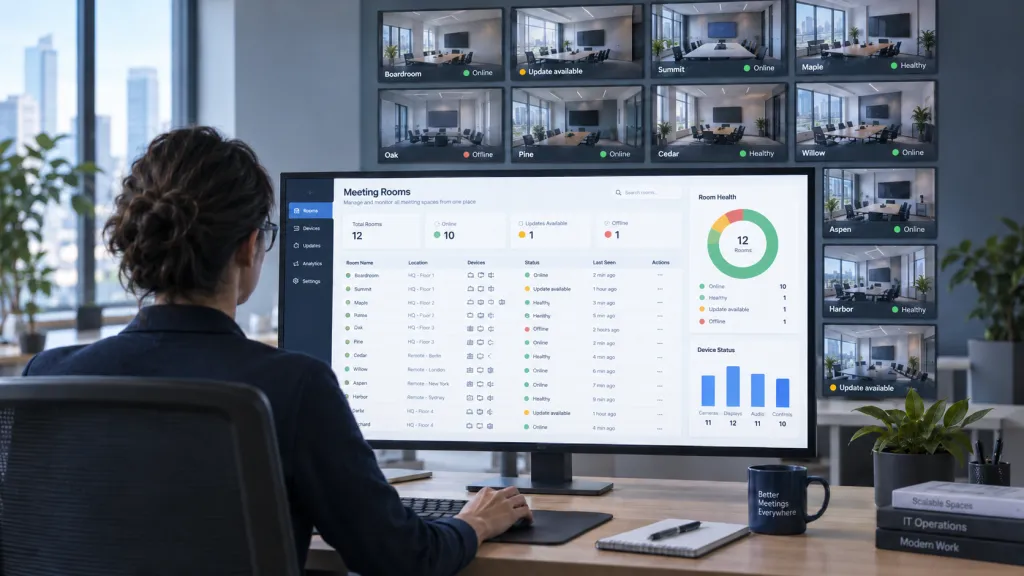
Can the device be remotely managed and monitored, or does every issue require a site visit?
How is the device provisioned to a Zoom Rooms account, and how painful is it at fleet scale?
Who owns support — Zoom, the hardware vendor, or your integrator — when something breaks mid-meeting?
For room-computer setups: who owns OS and application patching on that Windows or Mac machine?
A bar that is cheap to buy but invisible to your management tooling gets expensive the first time you have fifty of them. Once hardware is selected, our Zoom Room setup guide covers the planning and configuration side of deployment.
Calculate the Cost of the Complete Room, Not Just the Bar
The sticker price of the video bar is only one part of the total investment. To compare different options accurately, calculate the cost of the complete room setup—not just the bar itself.
Include all of the following in your room cost:
Video bar
Display (or two)
Compute device
Touch controller
Mounts and cables
Expansion accessories
Zoom Rooms licensing
Installation and deployment labor
Ongoing support and warranty coverage
Total room cost = hardware + licensing + installation + ongoing support
This is why comparing video bar MSRPs side by side is misleading. A bar with integrated compute may cost more than a USB bar but eliminate a dedicated room PC, its OS license, and its maintenance burden. A bundle that includes the controller and mounts may beat a "cheaper" bar once accessories are added. And licensing is a recurring cost that belongs in every multi-year comparison, not just year one.
When you request quotes, ask every vendor to price the complete deployed room against the same checklist — the only number that makes options genuinely comparable.
When a Zoom Video Bar May Not Be the Simplest Option
A video bar is a strong choice — but only in the right starting situation. The decision logic is straightforward:
If you already own a suitable display and mainly need better room audio and video, a video bar is a very logical purchase. It fills exactly the gap you have, keeps the hardware stack small, and adds little deployment complexity.
If you are building a room from scratch and also need a display, Windows compute, touch interaction, whiteboarding, a camera, microphones, speakers, and screen sharing, the math changes. Sourcing those as separate components means more devices, more cabling, more vendors, and more points of failure. Consolidating them into one system can simplify both deployment and support.
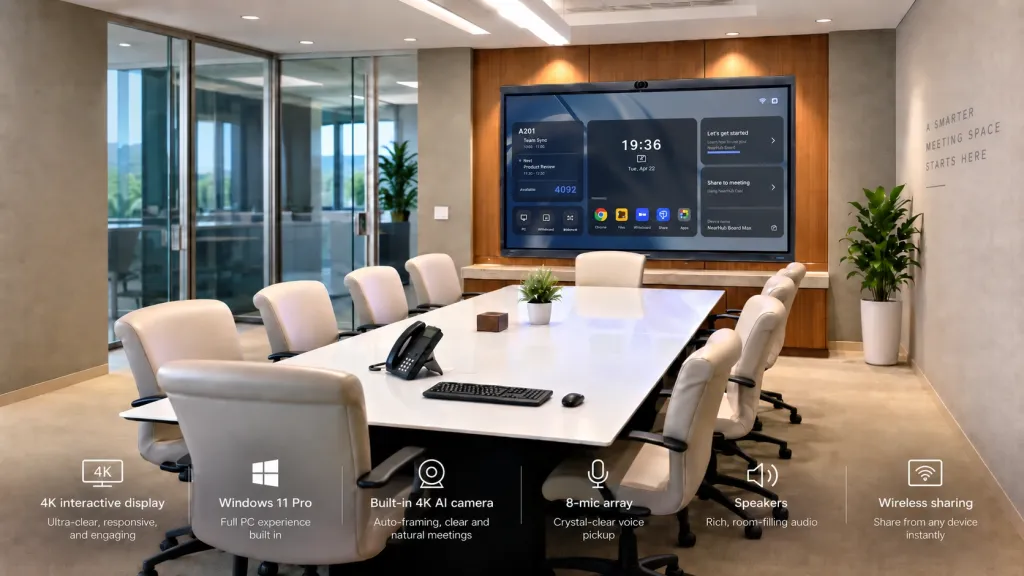
NearHub Board Max takes this consolidated approach: it combines a 4K interactive display, Windows 11 Pro, a built-in 4K AI camera, an 8-microphone array, speakers, whiteboarding, and wireless screen sharing in a single system, running desktop Zoom alongside Teams, Meet, Webex, and other Windows applications. It is not a video bar, and it is not the right answer for every room — but for from-scratch builds, it is worth comparing against a multi-component stack.
For a deeper architecture-level look at these trade-offs, see our breakdown of all-in-one conference systems and the Zoom Room solutions comparison linked above.
Zoom Video Bar Pre-Purchase Checklist
Save or share this list with your IT and procurement team before placing an order:
How will Zoom run in this room — appliance, dedicated room computer, or BYOD laptop?
Will users need to bring a laptop, or does the room work on its own?
Is the display included, or is it a separate purchase?
Is compute included in the bar, or do we need a room PC?
Is a touch controller required, and is it bundled?
Does it support the other meeting platforms we actually use (Teams, Meet, Webex), and how?
Can microphones, displays, or peripherals be expanded later without replacing the bar?
Does IT require Zoom Rooms Certified hardware, and is this exact model currently listed in Zoom's certified hardware directory?
How will firmware and devices be managed across our fleet, and who owns support?
What is the total deployed room cost — hardware, licensing, installation, and ongoing support — not just the bar?
If a vendor cannot answer all ten clearly, that is an answer too.
Frequently Asked Questions
Do I need a PC with a Zoom video bar?
It depends on the model. An appliance video bar has compute built in and runs Zoom Rooms natively — no PC required. A USB video bar is a peripheral and needs a computer: either a dedicated room PC running Zoom Rooms or an employee laptop for BYOD meetings.
Does a Zoom video bar need a separate display?
Almost always, yes. A video conferencing bar combines camera, microphones, and speakers but includes no screen. Budget for at least one display — two if you want participants and content on separate screens — unless you buy a bundle that explicitly includes one.
Can a Zoom video bar work with Microsoft Teams?
A USB video bar works with any platform the connected laptop runs, including Teams, Meet, and Webex. Appliance bars are typically Zoom-first, though many certified appliances from major OEMs can be re-imaged between Zoom Rooms and Teams Rooms with a firmware change. Verify the exact model's cross-platform path before assuming either way.
What is the difference between a USB video bar and a Zoom Rooms appliance?
A USB video bar depends on an external computer to run Zoom; unplug the laptop and the room has no meeting capability. A Zoom Rooms appliance runs Zoom Rooms on embedded compute, so the room is always ready with one-touch join. Similar form factor, completely different workflow.
Does a Zoom video bar need to be Zoom Rooms Certified?
Not legally, but practically it matters. Certification means Zoom has lab-tested the device, firmware updates are validated against Zoom Rooms releases, and there is a defined support path. If your IT team requires predictable, centrally managed rooms, treat certification as a requirement rather than a bonus — and verify the exact model in Zoom's official directory.
Is a video bar enough for a complete Zoom Room?
Usually not by itself. A complete room typically needs the bar plus a display, a touch controller, mounting and cabling, and a Zoom Rooms license — plus compute if the bar is not an appliance. Evaluate the full bill of materials, which is exactly what the checklist above is for.
Conclusion
The right way to buy a Zoom video bar is to stop shopping for a bar and start specifying a room. Define how Zoom will run in the space, confirm what is actually in the box, match the device to your real meeting mix, check expansion before you need it, verify certification and management requirements, and compare total deployed room cost — not MSRP.
Do that, and the specific model almost selects itself. Skip it, and you may end up with excellent hardware that creates a mediocre meeting experience. And if your from-scratch room needs extend well beyond audio and video — display, compute, touch, and whiteboarding included — it is worth comparing a consolidated all-in-one approach against the multi-component stack before you commit.