Best Smart Board for Homeschooling: Setup, Apps & Parental Controls (2026 Guide)
How to choose, set up, and lock down a whiteboard for homeschooling — decision criteria, apps, and parental controls.
homeschooling
smart board setup
parental controls
Updated: Aug 25, 2026 · 9 minutes read
Global Business, Brought Near.
No Installer, No Hassle, Just Works.
Choosing a whiteboard for homeschooling comes down to four decisions: operating system, size, touch quality, and content control. Families who pick the OS first — and set up kiosk mode before day one — avoid the two most common regrets.
Key Takeaways
Pick the operating system before the screen size: a Windows-based board runs full desktop browsers and desktop apps, while Android boards limit you to mobile apps.
Set up kiosk mode or app locking before the first lesson, not after the first distraction incident — retrofitting control is harder than starting with it.
A 55-inch board fits most homeschool rooms; go 65-inch only if two or more kids will work at the board at the same time.
If your child is under six and you only need videos and worksheets, a tablet is still the cheaper answer — a smart board earns its cost through touch-based, standing, collaborative learning.
The most expensive mistake homeschool parents make with a smart board isn't buying the wrong size — it's buying the right size on the wrong operating system, and discovering three weeks in that the curriculum portal their co-op uses only runs properly on a desktop browser. The short answer: the best whiteboard for homeschooling in 2026 is one that runs a full desktop OS, fits your wall at 55 to 65 inches, and lets you lock it into learning apps before your child discovers the browser. Everything else is refinement.
This guide walks through the four decisions that actually determine whether a smart board becomes the center of your homeschool day or an expensive wall decoration: the operating system, the size, the touch experience, and — the one most buying guides skip — who controls what the board can open. If you're still weighing whether a smart board belongs in your home at all, our complete guide to smart boards for home use covers the broader picture; this article goes deep on the homeschool scenario specifically.
Is a Smart Board Actually Worth It for Homeschooling?
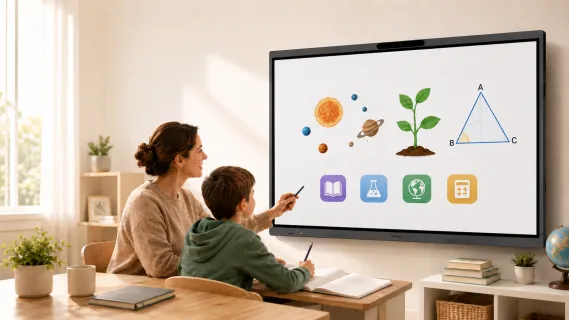
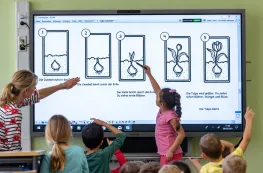
A smart board is worth it for homeschooling when your teaching style involves writing, drawing, and working through problems together — math on a shared surface, phonics tracing, diagramming, map work. It is not worth it if your child's screen time is mostly watching instructional videos and filling in digital worksheets alone, because a tablet does both of those things for a fraction of the price.
The reason comes down to what learning researchers call embodied learning: children retain concepts better when the body participates in producing them. Writing a fraction as a full-arm gesture on a 55-inch surface is a different cognitive event than tapping the same answer on a 10-inch screen. Homeschool parents who get the most value from a board tend to share three traits:
They teach at the board, not just assign at it — the parent works problems alongside the child.
They have one or more kids in the 5–14 range, where touch interaction and movement still drive engagement.
They already spend money on the things a board consolidates: a whiteboard, a projector or second monitor, printed worksheets, and a tangle of dry-erase markers.
Here's the counter-scenario where the honest answer is "don't buy one yet": your child is four, your homeschool day is twenty minutes of phonics videos and a workbook, and your budget is tight. In that situation a smart board is a solution looking for a problem. Revisit the idea when lessons start lasting an hour and involve real writing and problem-solving.
The Four Decisions That Matter (in the Right Order)
Most buying guides start with screen size because it's the easiest spec to compare. That's backwards. The decision order that prevents regret is: operating system → content control → touch quality → size. Size is last because it's the only one you can usually get right by measuring a wall.
Decision 1: Operating system — the choice that limits everything else
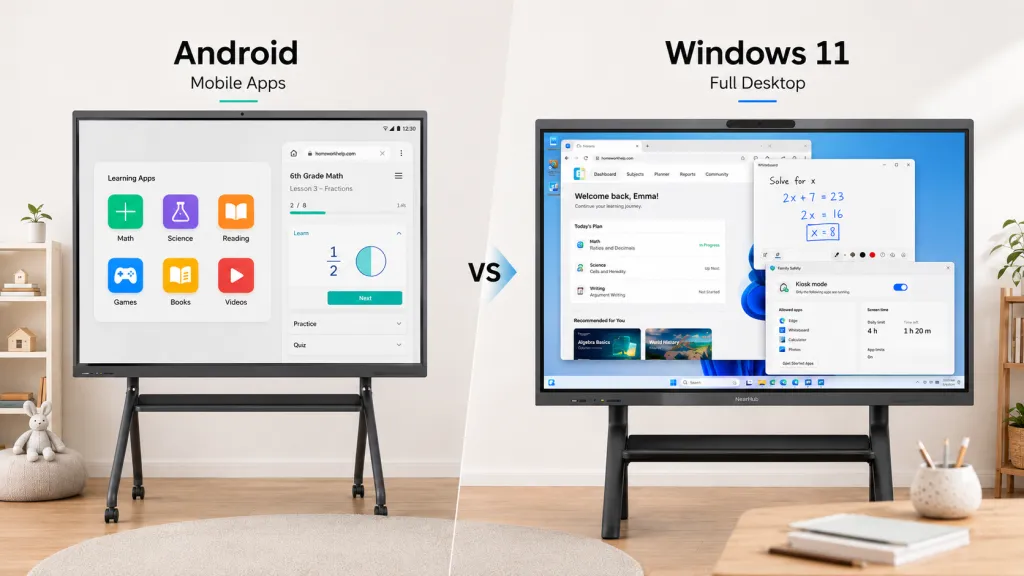
Smart boards split into two camps: Android-based boards and Windows-based boards. This single choice determines which apps you can run, how well curriculum websites render, and what parental control tools are available to you.
Android boards run mobile apps. That's fine for purpose-built whiteboard apps, but many homeschool curriculum portals, typing programs, and assessment tools were built for desktop browsers and either break or lose features in a mobile browser. Windows-based boards behave like a giant touchscreen PC: full desktop Chrome, desktop versions of everything, and the same parental control infrastructure you'd use on a family computer.
The trade-off is real in both directions:
Dimension
Android-based board
Windows-based board
App library
Mobile apps only
Desktop + web apps, no compatibility ceiling
Curriculum websites
May render in mobile layout or lose features
Render exactly as on a laptop
Parental controls
Varies by vendor, often thin
Mature OS-level tools (Family Safety, kiosk mode)
Boot-up simplicity
Appliance-like, instant
A real PC — updates and logins to manage
Long-term flexibility
What the vendor ships is what you get
Install anything, repurpose anytime
The non-obvious dimension in that table is the last one: flexibility over a five-year horizon. A homeschool board bought for a first-grader will still be on your wall when that child is in sixth grade. The device whose software can't grow with the curriculum is the one that gets resold.
Decision 2: Content control — decide before day one
Ask the question most parents ask too late: when my child is alone with this board, what can they open? The answer depends entirely on the operating system you chose in Decision 1, which is why these two decisions are really one.
On a Windows-based board, you get two layered tools. Microsoft Family Safety gives you app limits, web content filtering, and activity reports — the same system many parents already use on family laptops. Windows kiosk mode (assigned access) goes further: it locks the board to a single app, so during math hour the board is the math app and nothing else exists. That combination is what people mean when they search for smart board kiosk mode, and it's an OS feature, not a vendor add-on.
Decision 3: Touch quality — the spec you feel, not read
Touch quality is where cheap boards quietly fail. What matters in daily homeschool use is latency (does the line follow the finger or trail behind it?), palm rejection (can a child rest their hand on the screen while writing, the way they would on paper?), and multi-touch (can two kids work at once?). None of these show up in a spec sheet comparison — they show up in the first week of handwriting practice. If you can, test writing the alphabet quickly; lag and jitter reveal themselves in cursive, not in product photos.
Decision 4: Size — 55 or 65 inches for most homes
Now measure the wall. For one child, 55 inches is the sweet spot: big enough for full-arm writing and split-screen lessons, small enough for a normal room and a rolling stand. Go to 65 inches when two or more children will stand at the board together regularly — sibling math races need elbow room. Bigger than that is classroom territory, with classroom prices and classroom power draw to match.
Setting Up a Homeschool Smart Board: Room, Height, and Network
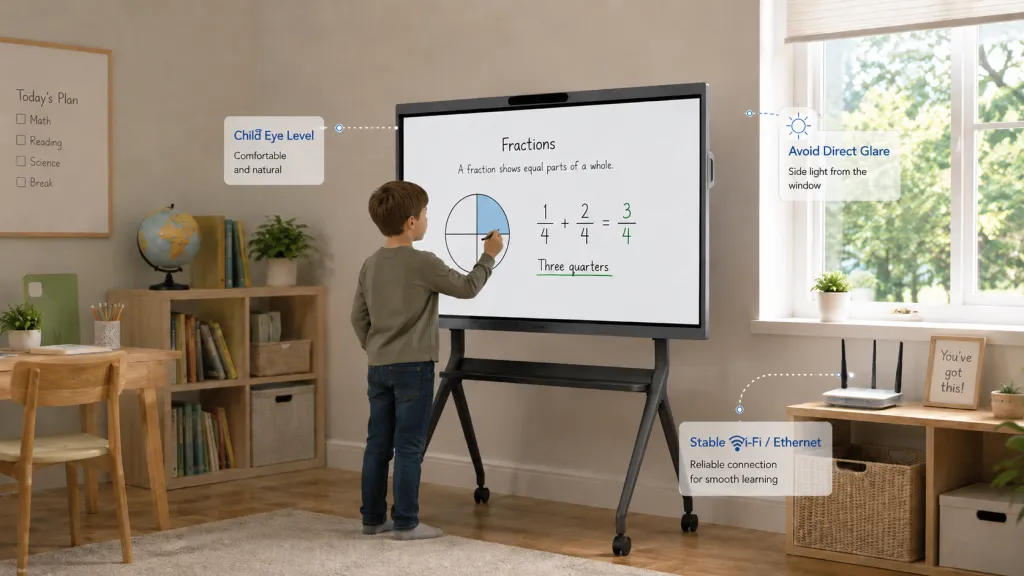
Set up a homeschool smart board by choosing a wall with no direct window glare, mounting the board so its center sits at your child's eye level (not yours), and putting it on your most reliable Wi-Fi band — or better, running an Ethernet cable if the board has a port. Those three choices prevent most of the friction parents report in the first month.
Placement. The instinct is to put the board where the TV would go. Resist it. A learning board wants a spot where a child can stand close, move side to side, and not block a walkway. Watch for windows: direct sunlight on any large screen washes it out, and anti-glare glass helps but doesn't perform miracles.
Height. This is the setup mistake almost everyone makes once. Adults mount the board at adult eye level, and then a seven-year-old spends every lesson reaching up, which fatigues the shoulder and produces sloppy handwriting. Mount for the child's eye level, with the understanding that a rolling stand buys you adjustability as they grow — and lets you wheel the board between a school corner and the living room.
Network. Curriculum portals, cloud whiteboards, and app updates all assume stable bandwidth. If your board supports casting from a laptop or tablet, that also rides on your Wi-Fi. A board that stutters during a live online class teaches your child that the board is the boring option.
The day-one ritual. Before the first lesson, do three things in order: create your child's own user account (not yours), configure Family Safety or the equivalent, and set up kiosk mode for the one or two apps that anchor your school day. Parents who skip this sequence and "add controls later" report the same story: the child finds YouTube in week one, and clawing attention back is far harder than never losing it.
The App Strategy: Fewer, Deeper, Web-First
The right app strategy for a homeschool smart board is a short list of web-based resources your child touches, not a crowded launcher of apps they tap. Aim for three anchors: one for math, one for reading, and one open canvas for everything else.
The reason web-first matters is maintenance. Installed apps age, break after OS updates, and multiply into a home screen your child treats as a buffet. Web-based learning resources — think of the style of ABCya for math and logic games or Starfall for early phonics and reading — run in the browser, stay current without your involvement, and work identically on the board and on a laptop when you're traveling. A board with a full desktop browser runs all of them without the mobile-layout compromises that frustrate kids on Android-based boards.
For the open canvas, the board's built-in whiteboard software does more curriculum work than most parents expect: worked math problems you can save and revisit, diagramming sentences, timeline building, map labeling. The underrated feature is saving. A physical whiteboard erases the evidence; a digital one lets you reopen Tuesday's fraction lesson on Thursday when the concept clearly didn't stick.
A practical weekly rhythm many homeschool families converge on:
Board time for new concepts — anything that needs writing, drawing, or working through together.
Tablet or book time for practice — repetition doesn't need a 55-inch screen.
Board time for review — reopen saved lessons, let the child teach the concept back to you on the board.
That last step is the one with outsized returns: having a child explain a concept at the board, marker in hand, is one of the oldest and most reliable comprehension checks in teaching.
Smart Board vs Tablet for Homeschool: the Honest Comparison
A smart board beats a tablet for anything involving writing, collaboration, posture, and focus; a tablet beats a smart board for portability, independent reading, and price. They are complements, not substitutes — the question is which one should anchor your school day.
Dimension
Tablet
Smart board
Posture & movement
Hunched, seated, still
Standing, reaching, full-arm motion
Focus environment
Notifications one swipe away
Dedicated, single-purpose surface
Collaboration
One child, one screen
Parent and child (or siblings) side by side
Viewing distance
Roughly 10 inches from the eyes
Several feet — meaningfully easier on developing eyes
Handwriting transfer
Small gestures, stylus-optional
Paper-like arm movements that carry over to real writing
Portability
Couch, car, co-op
A wall or a stand
Cost
Low
A considered investment
Two rows in that table deserve a second look. Viewing distance is the eye-health argument parents rarely quantify: the difference between a screen held ten inches away and one stood several feet from is the difference between sustained near-focus strain and something much closer to looking at a classroom whiteboard. (We break down the eye-safety evidence in detail in our guide to whether smart boards are safe for kids.) And handwriting transfer is the one that surprises parents: occupational therapists have long noted that the large-muscle movements of vertical-surface writing support the fine-motor control that paper writing later requires.
The devil's-advocate case: if your homeschool approach is highly mobile — roadschooling, co-op days three times a week, lessons at the library — the board stays home and the tablet does the traveling. In that life, the board is a nice-to-have hub, not the anchor.
Where the NearHub Board Max Fits
If the framework above pointed you toward a Windows-based board, the NearHub Board Max is built on exactly that foundation: it runs Windows 11 Pro on an Intel Core i5, which means full desktop Chrome for curriculum portals, Microsoft Family Safety and kiosk mode for content control, and no mobile-app ceiling as your child moves from phonics games to middle-school science simulations.
Two capabilities map directly onto homeschool pain points. The 4K UHD touchscreen with low-latency writing is what makes daily handwriting and math practice feel like paper rather than like fighting a gadget — the palm-rejection and multi-touch questions from Decision 3 are where a board like this earns its keep. And because it's a real Windows PC with 16GB of RAM, the same board that runs morning lessons can run Zoom or Teams natively for afternoon co-op classes and online tutoring, with an AI Gallery View camera that keeps a wiggly kid in frame during live lessons.
It's available in 55, 65, and 75 inches — for most homeschool rooms, the 55 covers one child comfortably and the 65 handles siblings side by side. One honest limitation: this is a premium device, and if your budget points at a tablet-plus-workbook year, that's a legitimate choice — the board makes sense when teaching at the board is a daily event, not an occasional one. NearHub backs it with a 30-day risk-free trial and a 12-month warranty, and current pricing and bundle options are on the product page.
Frequently Asked Questions
Is a smart board worth it for homeschooling?
It depends on how you teach, and the dividing line is interaction. If your school day involves working through math on a shared surface, practicing handwriting, diagramming, and reviewing saved lessons together, a smart board consolidates a whiteboard, a second monitor, and a stack of printed worksheets into one device that children genuinely engage with. If your child's screen use is mostly watching lessons and completing digital worksheets independently, a tablet or laptop covers that for far less money. The families who regret the purchase are almost always the ones who bought the board as a screen rather than as a teaching surface.
What size smart board do I need for homeschooling?
For one child in a typical home, 55 inches is the practical sweet spot — large enough for full-arm writing and split-screen lessons, small enough for a spare-room wall or a rolling stand. Move up to 65 inches when two or more children regularly work at the board simultaneously, because collaborative activities need physical elbow room. Beyond 65 inches you're paying classroom prices for space a home rarely uses. Whatever size you choose, mount it at your child's eye level rather than an adult's.
How do I stop my child from opening games or YouTube during lessons?
Solve it at the operating-system level, not the willpower level. On a Windows-based board, Microsoft Family Safety provides app limits, web filtering, and activity reporting, and Windows kiosk mode (assigned access) can lock the board to a single app — during math hour, the board simply is the math app. The critical move is setting this up before the first lesson. Parents who add controls after a distraction habit forms describe a much harder battle than parents who started with a locked-down board and loosened restrictions as trust was earned.
Can a smart board replace a tablet for homeschool?
For structured, parent-led lessons, largely yes — writing, math, phonics tracing, and shared problem-solving are all better on a large touch surface where kids stand and move. For independent reading, travel days, co-op classes away from home, and one-on-one video lessons, a tablet remains the more practical tool. Most homeschool families that own both settle into a natural split: the board anchors new-concept teaching and review, the tablet handles practice and portability.
Do smart boards work with homeschool curriculum apps?
The vast majority of popular homeschool resources are web-based, so the real question is whether the board has a full desktop browser. Windows-based boards run desktop Chrome, which renders curriculum portals, typing programs, and assessment tools exactly as a laptop would. Android-based boards can struggle with sites designed for desktop, showing mobile layouts or missing features. If your curriculum is app-based rather than web-based, check whether it offers a Windows or web version before choosing a board.
The best smart board for homeschooling isn't the biggest or the cheapest — it's the one whose operating system runs your curriculum, whose controls you set up before day one, and whose size matches how many kids will stand at it. Decide the OS first, lock down content second, test the touch third, and measure the wall last. If those decisions point you toward a Windows-based board built for daily interactive teaching, the NearHub Board Max is worth a close look — and its 30-day trial means your child can vote with their handwriting before you fully commit. For activity ideas once the board is on the wall, head to our guide to interactive learning activities for kids on a smart board.