Best Smart Boards for Home in 2026: Are They Worth It?
This comprehensive guide examines how smart boards address common issues like remote collaboration disconnect, desk clutter, and passive learning, making them a valuable home investment.
smart board for home
home office
homeschooling
Updated: Aug 19, 2026 · 10 minutes read
Global Business, Brought Near.
No Installer, No Hassle, Just Works.
Introduction: The Evolution of the Home Space
As remote work, homeschooling, and digital collaboration become more common, many families are looking for better ways to learn, work, and stay organized at home.
A smart board combines a touchscreen display, digital whiteboard, computer, and collaboration hub into a single device. Once limited to classrooms and meeting rooms, smart boards are now becoming a practical solution for home offices, family learning spaces, and creative projects.
But are they actually worth the investment?
In this guide, we'll explore the benefits of a smart board for home use, compare it with traditional whiteboards, and highlight some of the best options available in 2026.
Why Buy a Smart Board for Home Use?
Smart boards are more than just a digital version of a whiteboard. They combine writing, collaboration, video conferencing, and content sharing into one workspace.
1. Perfect for Home Offices & Remote Work
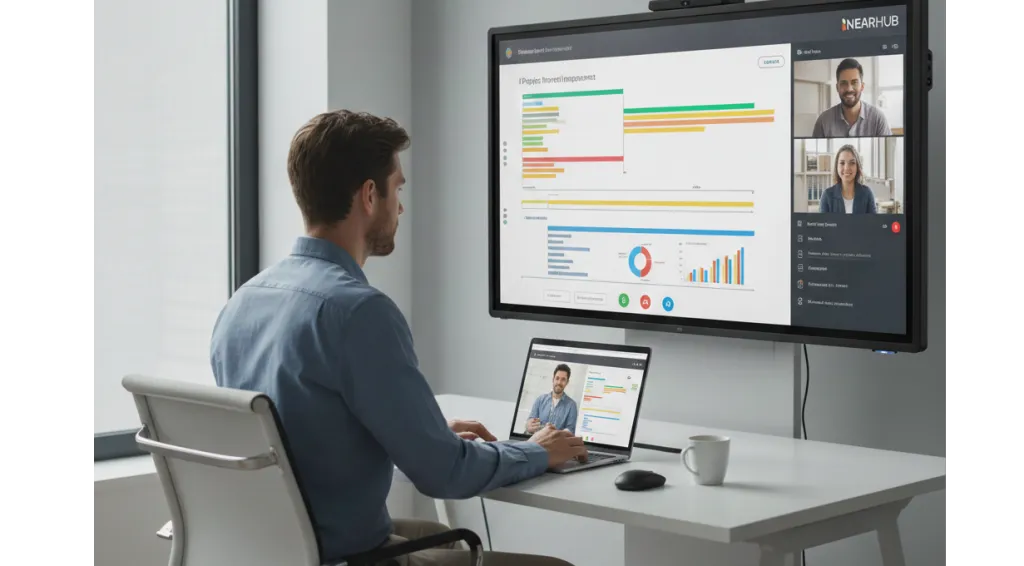
If you work remotely, a smart board can help turn your home office into a more productive collaboration space.
With a smart board, you can:
Annotate documents during virtual meetings
Share your screen from a laptop or tablet
Collaborate with remote teammates in real time
Save and share meeting notes instantly
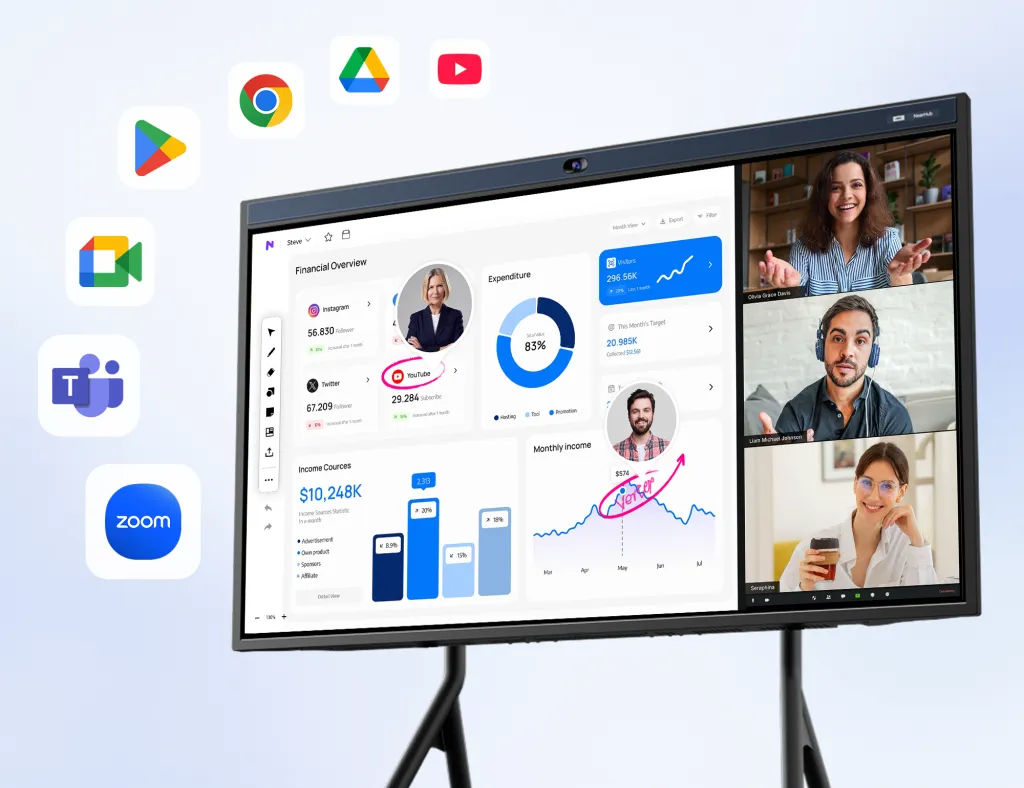
Integrate with Zoom, Microsoft Teams, and Google Workspace
Instead of juggling multiple devices, everything happens on one large interactive display.
Key Benefits for Specific Remote Roles
To understand the value, let’s look at how specific roles benefit:
Project Managers: visualize timelines and Gantt charts on a large scale, moving tasks with a finger swipe.
Creatives/Designers: Sketch concepts at full scale rather than squinting at a tablet.
Developers: Conduct code reviews where the team can physically circle bugs or logic errors on the screen.
2. Ideal for Homeschooling & Kids' Learning
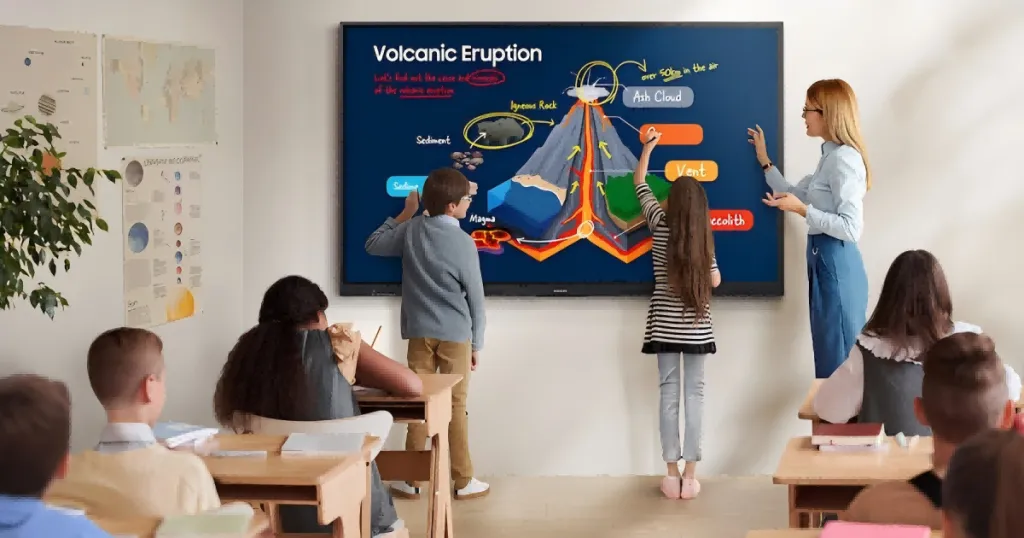
Parents engaging in homeschooling or supplemental tutoring often face the "Engagement Gap." It is difficult to compete with video games and smartphones for a child's attention. A whiteboard for homeschooling isn't just a luxury; it's a pedagogical tool that aligns with how modern students learn.
A smart board helps create a more interactive learning environment by allowing kids to:
Write and draw directly on the screen
Solve math problems collaboratively
Access educational apps
Participate in touch-based learning activities
Save lessons and notes for later review
Compared with a laptop or tablet, the larger display encourages movement, participation, and hands-on learning.
3. Great for Brainstorming & Project Planning
Whether you're planning a project, organizing ideas, or mapping out goals, a smart board offers much more flexibility than a traditional whiteboard.
Benefits include:
Unlimited digital canvas space
Cloud-based note storage
Real-time collaboration tools
Visual planning and mind mapping
Handwriting-to-text conversion
Unlike a traditional whiteboard, your work doesn't disappear when you erase the screen.
What Features Should You Look for in a Smart Board for Home?
Not every smart board is designed for home users. Before buying, focus on these key features.
Screen Size
For most homes, a 55-inch to 65-inch display provides the best balance between visibility and space requirements. If you are looking for the best whiteboard size for different scenes, please read this guide.
Touch Performance
A responsive touchscreen makes writing feel natural and improves the overall user experience.
Built-In Camera and Microphones
If you frequently use Zoom or Teams, built-in conferencing hardware can eliminate the need for additional devices.
Wireless Screen Sharing
Look for support for:
AirPlay
Miracast
Google Cast
This makes it easy to share content from phones, tablets, and laptops.
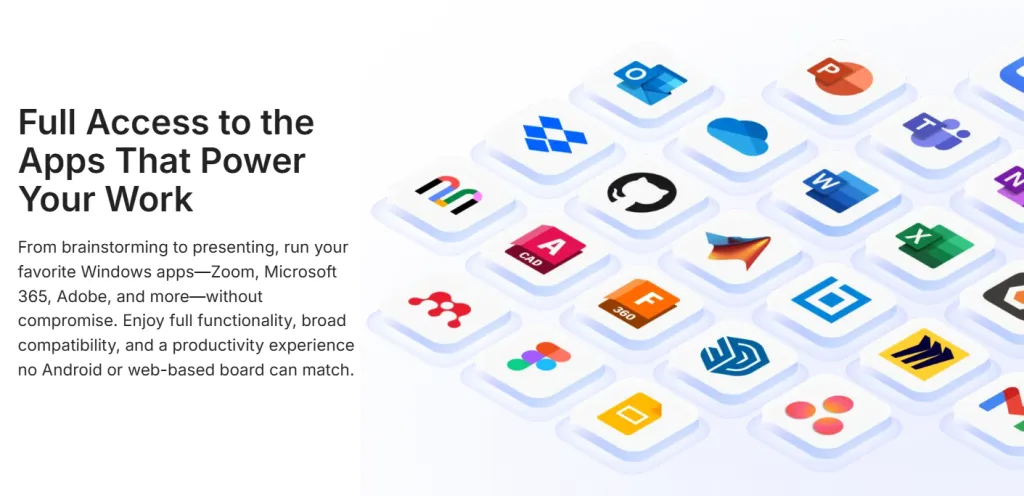
Software Compatibility
Choose a board that works with the tools you already use, including:
Zoom
Microsoft Teams
Google Meet
Microsoft 365
Google Workspace
Best Smart Boards for Home in 2026
Selecting the right hardware is crucial. You don't need a $10,000 enterprise unit for a home office, but buying a cheap, laggy monitor will only lead to frustration. Here is the landscape for 2026.
Criteria for Selection
Before we list the models, here is what you should look for:
Latency (Response Time): It must feel like writing on paper. Anything above 8ms lag is noticeable.
Ecosystem: Does it run Android (like a giant tablet) or Windows?
Size: For home, 55-inch to 65-inch is the "Goldilocks" zone.
Camera/Mic: Essential for video calls.
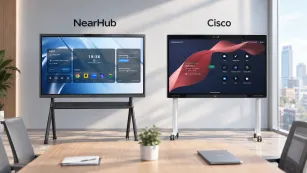
1. The Best All-Rounder: NearHub Board S55
For most home users, the NearHub Board represents the perfect balance of price, performance, and aesthetics.
Why it wins: It combines a 4K display with zero-bonding technology (which reduces the gap between glass and display for better accuracy).
Key Feature: It includes a built-in 48MP camera and microphone array, eliminating the need to buy external webcams for Zoom calls.
Software: It runs a dual system (Android built-in, with slots for Windows OPS), making it incredibly versatile.
2. The Premium Enterprise Choice: Microsoft Surface Hub 3
Why it wins: If you live entirely in the Microsoft ecosystem and money is no object, this is the Rolls-Royce.
Pros: Native Teams integration is flawless. The design is stunning.
Cons: Extremely expensive. Overkill for simple homeschooling tasks.
3. The Budget-Friendly Option: Vibe Board S1
Why it wins: Good for entry-level digital whiteboarding.
Pros: Lightweight and portable. Good app store.
Cons: The screen quality is not as high-end as competitors'; requires an external camera for video calls.
4. The "DIY" Setup
Some users opt to connect a touch-overlay frame to an existing TV.
Pros: Cheapest option.
Cons: High latency, poor touch accuracy, lack of dedicated software. We generally do not recommend this for serious work or study.
Smart Board vs Traditional Whiteboard: Which Is Better for Home?
While smart boards offer many advantages, traditional whiteboards still make sense for some users.
Choose a Smart Board If You Want:
Digital note saving
Video conferencing
Wireless screen sharing
Interactive learning
Real-time collaboration
Cloud integration
Choose a Traditional Whiteboard If:
You're on a tight budget
You only need simple note-taking
You prefer low-tech solutions
You need something lightweight and portable
Feature
Laptop/Tablet Learning
Smart Board Learning
posture
Encourages hunching, sedentary behavior
Encourages standing, moving, and reaching
Interaction
Mouse clicks or small taps
Full-arm movement, multi-touch gestures
Focus
High distraction (notifications, tabs)
Immersive, full-screen dedicated environment
Collaboration
Isolated (one person per screen)
Social (multiple people at the board)
Eye Health
Small text causes strain
Large 4K visuals reduce squinting
For occasional reminders and grocery lists, a traditional whiteboard may be enough.
For remote work, homeschooling, and collaborative projects, a smart board provides significantly more functionality.
Are Smart Boards for Home Worth the Price?
Entry-level smart boards typically start around $1,000, while premium models can cost several thousand dollars.
Although the upfront investment is higher than a traditional whiteboard, many users find value in replacing multiple devices, including:
Projectors
Presentation displays
Whiteboards
External webcams
Collaboration tools
If you're comparing options and trying to estimate the total investment, check our detailed guide on how much a smart board costs before making a decision.
For households that regularly work remotely, homeschool children, or rely on visual collaboration, the productivity gains and hardware consolidation can often justify the higher initial cost.
Are Smart Boards Suitable for Kids and Teens in a Home Setting?
Safety and durability are paramount when bringing hardware into a house with children. Parents often worry: "Will they break it?" or "Is it bad for their eyes?"
Durability: Built for the Classroom, Ready for the Living Room
Unlike a standard consumer TV, which is fragile, an interactive electronic whiteboard is built to withstand the rigors of a classroom.
Tempered Glass: Most smart boards feature 7H or 9H hardness tempered glass. This resists scratches from styluses, fingernails, and the occasional toy impact.
Anti-Glare: Etched glass surfaces prevent reflection from windows, allowing the board to be placed in sunlit rooms without becoming unreadable.
Eye Safety Features
Screen time is a major concern. However, smart boards are generally safer than tablets or phones for two reasons:
Distance: The viewing distance for a smart board is typically 3-5 feet, compared to 10 inches for a tablet. This reduces convergence strain on the eyes.
Low Blue Light: Top-tier brands incorporate TÜV Rheinland-certified low blue light technology directly into the hardware, protecting young retinas during long study sessions.
Flicker-Free Technology: Reduces the imperceptible screen flicker that causes headaches.
Parental Controls and App Management
For a whiteboard for homeschooling, control is key.
App Locking: You can restrict access to browsers or entertainment apps during school hours.
Timer Functions: Built-in timers help manage study blocks (e.g., the Pomodoro technique).
Kiosk Mode: Lock the board to a single application to ensure focus.
The Fun Factor
Let’s not forget entertainment. When school is out, the smart board becomes:
A giant movie screen for Friday night films.
A massive canvas for digital painting apps.
A gaming monitor for family trivia nights.
Is Investing in a Smart Board Worth the Price for Home Use?
This is the big question. A smart board for home is a significant purchase compared to a $20 whiteboard. However, value is determined by utility, not just initial cost.
Breaking Down the ROI (Return on Investment)
1. The Cost of Disorganization How much time do you lose searching for notes, deciphering handwriting, or re-explaining concepts that weren't understood over a Zoom call? If a smart board saves a freelancer 2 hours a week, and their rate is $50/hour, the board pays for itself in roughly 4-6 months. 2. Educational Value For homeschooling families, the cost of tutors and supplementary materials adds up. If a homeschool whiteboard increases a child's engagement and reduces the need for external tutoring, the value is immense. 3. Hardware Consolidation A good smart board replaces:
A projector ($300-$800)
A pull-down screen ($100)
A high-end external monitor ($400-$800)
A speaker system ($100)
A high-quality webcam ($150)
A traditional whiteboard ($200)
When you aggregate these costs, the smart board price becomes highly competitive. For a detailed breakdown of budget-friendly options, consult our guide on the smart board price spectrum.
Energy Efficiency
Modern boards are Energy Star rated. While they consume electricity, they eliminate the recurring cost of paper, toner, and dry-erase markers, contributing to a lower carbon footprint.
Conclusion
A smart board isn't necessary for every home. However, for remote professionals, homeschooling families, and creative thinkers, it can become one of the most useful tools in the house.
Compared with a traditional whiteboard, a smart board offers better collaboration, easier content sharing, and a more engaging learning experience.
If you're looking for a balance between functionality, ease of use, and value, the NearHub S55 is one of the strongest options available for home use in 2026.
Frequently Asked Questions (FAQ)
1. Can I use a smart board as a TV or monitor?
Absolutely. Most smart boards for home use come with HDMI inputs, allowing you to connect cable boxes, gaming consoles (PlayStation/Xbox), or streaming sticks (Roku/Fire TV). With 4K resolution, they function perfectly as a high-end television when you aren't working.
2. Do I need a monthly subscription to use a smart board?
Generally, no. The hardware and basic whiteboarding software are usually one-time purchases. However, some enterprise-level software (like advanced Zoom Room features or specialized educational curriculum apps) may require separate subscriptions. NearHub boards come with robust free software out of the box.
3. Is an electronic smartboard for the home difficult to install for one person?
Yes, due to the size and weight (a 55-inch board can weigh 40-60 lbs). While the technical setup is easy, physically lifting the board onto a wall mount or trolley cart is a two-person job to ensure safety.
4. Can I use Zoom and Microsoft Teams on the same smart board?
Yes. Open-system smart boards (often running on Android or Windows) allow you to download and use any video conferencing app you prefer. You are not locked into one platform.
5. What is the difference between an interactive whiteboard and a smart TV?
A smart TV is designed for consumption (watching). It has no touch capabilities or writing software. An interactive whiteboard is designed for creation. It has touch sensors, low latency for writing, and powerful processors to run productivity apps, while still being able to play video.
6. How do I clean and maintain the screen?
Use a soft microfiber cloth. If there are smudges, use a standard screen cleaner or a mixture of 50% water and 50% isopropyl alcohol. Never spray liquid directly on the screen; spray the cloth first. Avoid using paper towels, which can scratch the coating.