













Key Takeaways
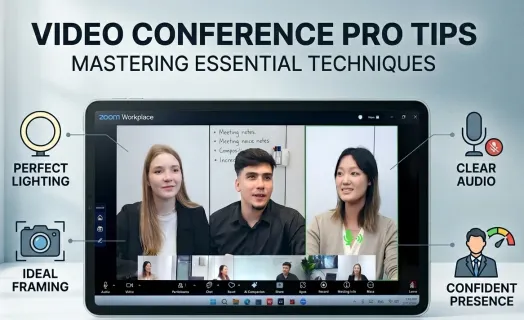
- Strong video meeting etiquette helps your team stay focused, present, and connected.
- A polished setup — lighting, framing, and audio — boosts confidence and clarity before you speak.
- Clear agendas, assigned roles, and balanced participation keep conversations productive.
- Hybrid-friendly tools and intentional facilitation give remote and in-room attendees equal presence.
- Small improvements compound quickly, and people notice professional video conferencing habits.
Why Video Conferencing Skills Matter More Than Ever
Video calls are no longer a temporary substitute for in-person meetings. They are the default. According to the U.S. Bureau of Labor Statistics, 35% of employed people worked from home at least part of the day in 2024, and that number continues to climb. The professionals who thrive in 2026 will not be the ones who tolerate video meetings. They will be the ones who have mastered them.
Here is the challenge: most people treat video calls as a lesser version of face-to-face meetings. They show up late, cameras off, multitasking in the background. The result? Wasted time, disengaged teams, and missed opportunities. Research from Stanford University found that "Zoom fatigue" is real and measurable, caused by excessive close-up eye contact, constantly seeing yourself, and reduced mobility during calls.
The right video conferencing tips and habits do more than prevent fatigue. They keep discussions focused, strengthen collaboration across time zones, and support inclusive participation, giving remote teammates the same visibility and voice as those in the room. This guide covers 15 actionable video conference best practices for 2026, plus strategies for handling common challenges, acing video interviews, and upgrading your hybrid meeting setup.
Pre-Meeting Setup: Build Your Foundation
Before you join any video call, your environment and equipment need to be ready. These foundational video conference tips prevent the avoidable problems that derail meetings before they begin.
Test Your Tech 15 Minutes Early
Technical failures in the first two minutes of a meeting kill momentum. Test your camera, microphone, and internet connection at least 15 minutes before the call. Join the meeting early using the link to confirm the platform works on your device. Update your video conferencing software regularly to avoid last-minute compatibility issues.
Secure Your Environment
Close unnecessary browser tabs and applications to free up bandwidth and prevent notification pop-ups during the call. Put your phone on silent. If you are in a shared space, put a sign on the door. Inform household members or colleagues about your meeting time. These small steps eliminate the most common sources of interruptions in video meetings.
15 Video Conference Tips for Professional Results
These 15 video conferencing best practices cover everything from technical setup to meeting etiquette. Implement them one at a time, starting with the tips that address your biggest current challenge.
Optimize Your Camera, Lighting & Background
Tip 1: Position Your Camera at Eye Level
Your camera angle shapes how people perceive your confidence and engagement. Place your camera so your eyes align with the top third of the frame, leaving a small amount of headroom (about two finger-widths) above your head. Avoid low angles that look up your nose or high angles that diminish your presence. Once set, do not adjust the camera mid-meeting. Consistency keeps everyone focused on the conversation, not your changing frame.
Tip 2: Light Your Face, Not Your Background
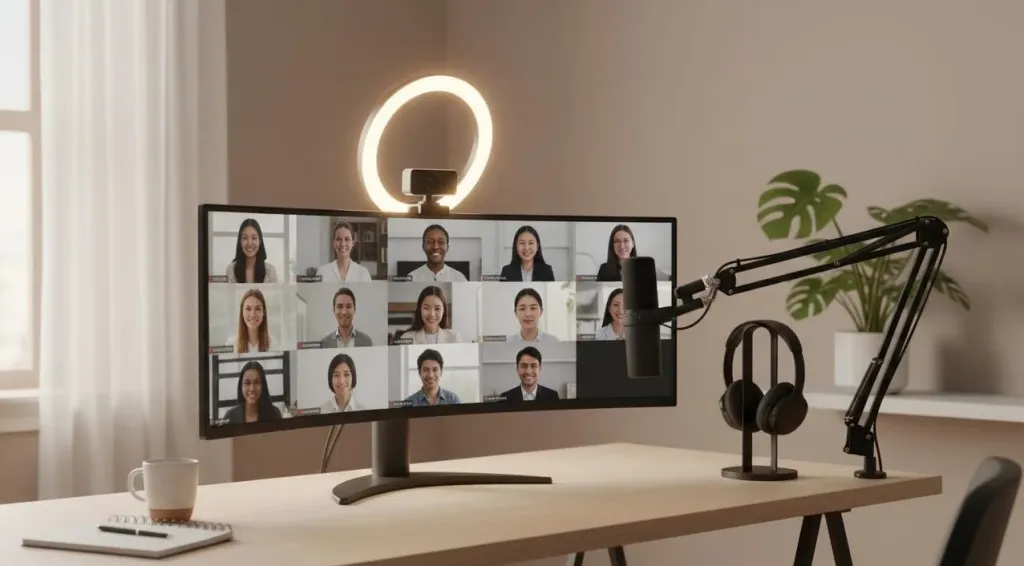
Place your primary light source in front of you so your face is evenly lit. Natural window light positioned slightly off-center creates the most flattering effect. If natural light is unavailable, a quality ring light or desk lamp with a diffuser works well. Avoid sitting with a bright window behind you, which leaves you silhouetted and hard to see. For evening calls, add a secondary light source to eliminate harsh shadows.
Tip 3: Curate a Clean, Professional Background
Your background communicates professionalism before you speak. A neutral wall with minimal decoration works best. If your space is not camera-ready, use a subtle blur effect (available in Zoom, Teams, and Meet) rather than a virtual background, which can glitch and distract. Avoid backgrounds with busy patterns, moving elements, or personal items you would not display in a professional office.
Master Audio Quality
Tip 4: Prioritize Audio Above Everything Else
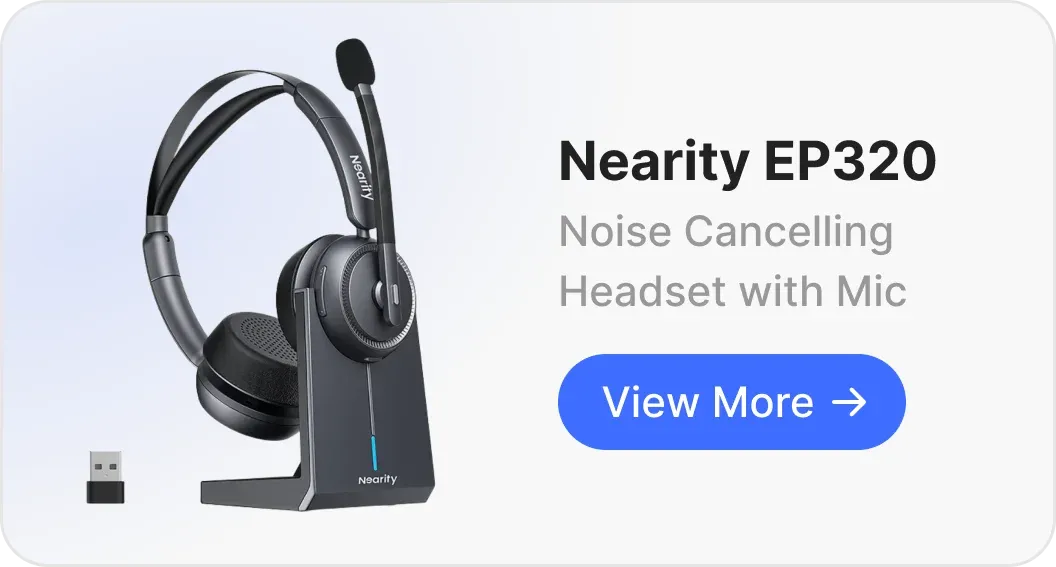
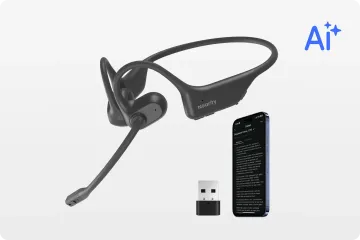
Viewers forgive mediocre video. They do not forgive bad audio. Crackling microphones, room echo, and background keyboard noise break focus faster than a blurry image. Your laptop microphone picks up coughs, typing, and HVAC hum that you do not even notice. A dedicated USB microphone or quality headset eliminates these problems and makes your voice clearer and more authoritative. If you are not ready to buy new equipment, close doors to reduce echo, turn off fans during calls, and keep your microphone about six inches from your mouth.
Tip 5: Mute Yourself When Not Speaking
Even if you think you are being quiet, most microphones pick up minor background noises. Muting when not speaking is more than good etiquette; it is essential for keeping the meeting focused. In meetings with more than five participants, stay muted unless you are speaking. This gives the active speaker a cleaner audio channel and helps the whole team follow along. Unmute to laugh, affirm, or jump in quickly. If you are leading the meeting, model this behavior so others follow your cue.
Tip 6: Use Headphones to Prevent Echo
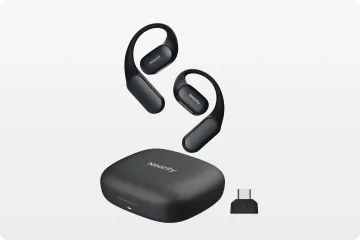
When audio plays through your speakers and feeds back into your microphone, everyone on the call hears an echo. Simple wired earbuds solve this problem completely. They also help you hear more clearly, which improves your responses and reduces the need to ask people to repeat themselves. For frequent video conference users, noise-canceling headphones provide the best experience by blocking ambient sound and keeping your audio clean.
Professional On-Camera Presence
Tip 7: Dress for the Meeting, Not for Your Couch
What you wear on camera sets the tone before you speak. Choose clothing that matches the professionalism you would bring to an in-person meeting with the same audience. Solid, medium-tone colors look clean on camera and avoid the flicker that fine patterns create. Pick something that contrasts with your background so you do not visually blend in. And dress completely, not just from the waist up. You never know when you might need to stand or adjust your setup.

Tip 8: Look Into the Camera When You Speak
A common mistake is looking at the video feed instead of the camera when speaking. While it feels natural, it makes you appear as if you are looking off to the side, not paying attention. Looking into the camera lens is the equivalent of making eye contact in person. Position your camera at eye level so your gaze feels natural. When speaking, glance at the lens during key points to create a sense of direct engagement. Keep your notes close to the camera so you can reference them without breaking the connection.
Tip 9: Minimize Distractions and Stay Present
Stop checking emails or scrolling during video conferences. Research from the University of California suggests that only 3% of people can multitask effectively without losing comprehension. The other 97% are splitting their attention and missing information. Close all non-essential applications. Put your phone face down. If you are tempted to multitask, ask yourself whether you actually need to be in this meeting. If not, decline the invite and read the recap later.
Meeting Facilitation & Etiquette
Tip 10: Share a Clear Agenda Before the Meeting
Every effective video conference starts with a clear agenda shared at least 24 hours in advance. Your agenda should include the meeting objective, a timed list of topics, required pre-reading, and assigned roles (facilitator, note-taker, timekeeper). Send materials ahead of time so participants know what to expect and can prepare thoughtful contributions. This single practice transforms unfocused calls into productive working sessions.
Tip 11: Assign Roles and Manage Time
Designate a facilitator to guide discussion, a note-taker to capture decisions, and a timekeeper to keep topics on schedule. In video calls, the natural rhythm of in-person conversation is harder to maintain. Explicit facilitation prevents awkward silences and stops any single person from dominating. Set a visible timer. When five minutes remain, announce what you can cover and move everything else to a follow-up. Running over creates calendar chaos and erodes trust.
Tip 12: Use Turn-Taking Tools for Large Meetings
In meetings with more than eight participants, audio delay makes it harder to find natural breaking points. Use explicit turn-taking: raised-hand features in Zoom, Teams, or Meet; chat prompts for questions; or direct invitations like "Thanks, Alex. Let us hear from someone who has not shared yet." The facilitator should actively invite quieter participants into the conversation, especially remote attendees who may struggle to jump in when in-room colleagues dominate.
Engage & Connect with Participants
Tip 13: Start with a Human Connection
Start team meetings with a quick check-in, a recent win, or a light icebreaker. Keep it under two minutes. This is especially important for hybrid teams, where in-room participants may have already chatted before the call. Remote attendees need that same social warmup. These small exchanges build rapport without derailing the agenda. Keep it brief and steer clear of personal or polarizing topics.
Tip 14: Use Visual Aids and Screen Sharing Effectively
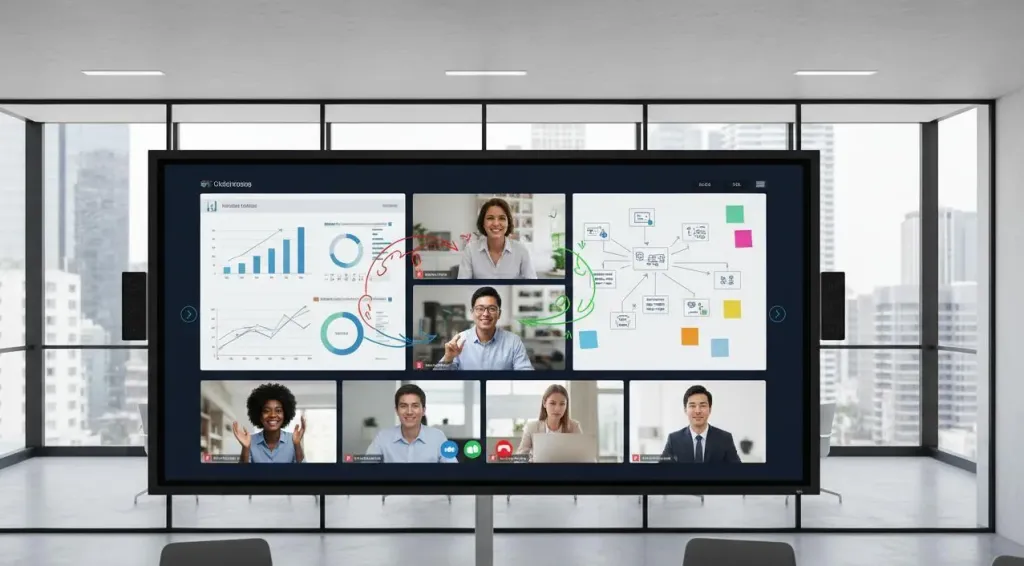
Visual aids improve comprehension and keep remote participants engaged. Share your screen when reviewing documents, data, or presentations. Follow these screen-sharing best practices: close unrelated tabs and applications before sharing; use your cursor to highlight key points; pause periodically to ask for questions; and stop sharing when you are done to free up bandwidth. If you are presenting slides, use presenter view so you can see your notes without sharing them.
End Meetings with Clarity
Tip 15: End with Clear Action Items and Follow-Up
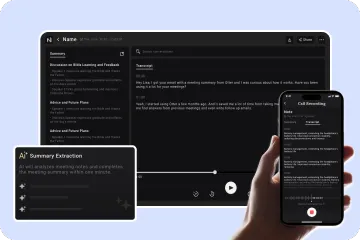
A strong meeting ends with everyone knowing what happens next. Before closing, recap decisions made, confirm who owns each action item, and call out any follow-up the group should expect. Send a summary with action items, owners, and deadlines within one hour while the conversation is still fresh. Share the meeting recording if appropriate. This simple practice transforms meetings from time-consuming events into productive drivers of work.
Common Video Conference Challenges(Solved)
Even with the best preparation, problems happen. Here is how to handle the most common ones.
When Technology Fails Mid-Meeting
Acknowledge the issue quickly. Lean on a co-host to keep the conversation moving while you troubleshoot. Have a backup plan ready: an alternate dial-in number or a shared document where the team can continue. Once resolved, offer a brief recap.
When One Person Dominates the Conversation
Audio delay makes it harder to find natural breaking points in video calls. Use explicit turn-taking techniques: "Thank you for that perspective. Let us hear from someone who has not shared yet." Use raised-hand features in larger meetings. Privately message the dominant participant during the meeting to ask them to invite others in. If the pattern persists, address it one-on-one after the meeting.
When Remote Participants Go Quiet
In hybrid meetings, in-room side conversations cause remote attendees to disengage. Counter this by directing questions to remote participants early and by name. Share all content digitally. Consider having everyone join individually from their desks for certain discussions.
When the Meeting Runs Long
Set a visible timer. When five minutes remain, announce what you can cover and move everything else to a follow-up. Running over creates calendar chaos and erodes trust.
Video Interview Best Practices for 2026
Video interviews have unique demands beyond standard video conference tips. Whether you are the interviewer or the candidate, these practices ensure a professional, fair, and effective evaluation process.
For Candidates: Make a Strong Impression
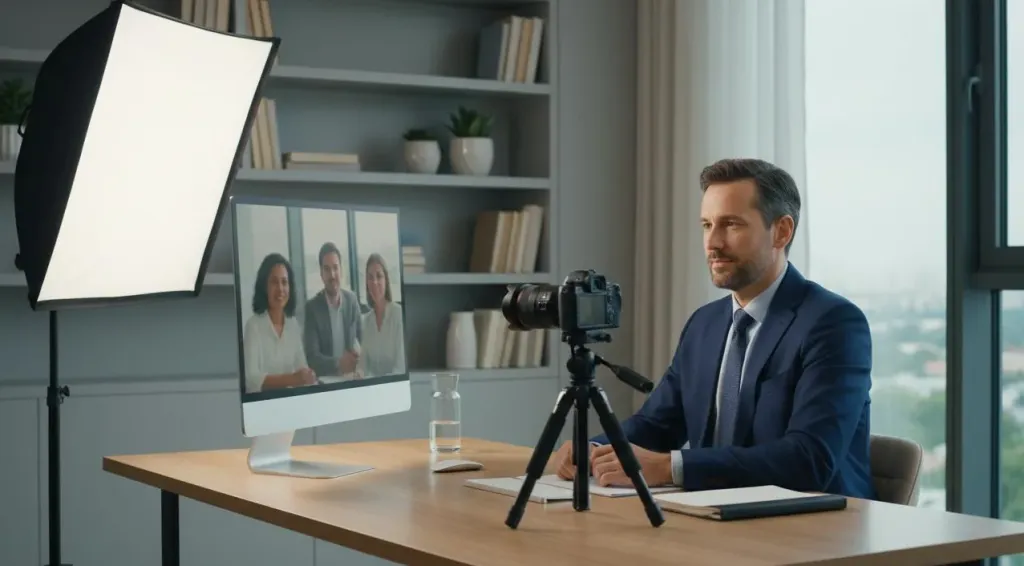
• Test your setup 30 minutes before the interview, not 5 minutes before.
• Dress as you would for an in-person interview at that company. When in doubt, dress one level up.
• Position your camera at eye level and ensure your face is well-lit from the front.
• Research your interviewers and have their LinkedIn profiles open for reference.
• Prepare specific examples using the STAR method (Situation, Task, Action, Result).
• Have a notebook and pen ready for notes, plus a glass of water within reach.
• Look into the camera when answering questions to simulate eye contact.
For Hiring Managers: Run Fair, Effective Interviews
• Send the interview structure and topics in advance so candidates can prepare.
• Use the same questions and format for every candidate to ensure fair comparison.
• Record the interview (with permission) to review later and share with the hiring team.
• Start with a brief personal connection to help the candidate relax before evaluation.
• Be explicit about next steps and timeline at the end of the call.
FAQs
How do I look more professional on video calls?
Position your camera at eye level. Use natural light from a window in front of you, or add a ring light. Wear solid, medium-tone colors that contrast with your background.
What is the most common video conferencing mistake?
Poor audio. Laptop microphones pick up echo, keyboard clicks, and background noise. A dedicated USB microphone or quality headset eliminates these distractions and makes your voice clearer.
How do I keep hybrid meetings fair for remote participants?
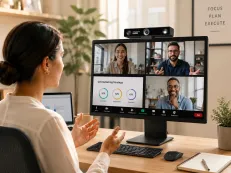
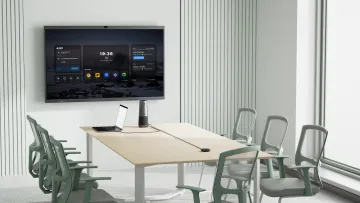
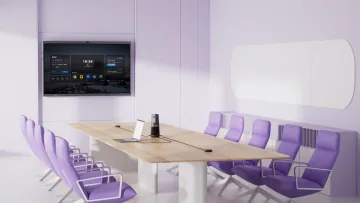
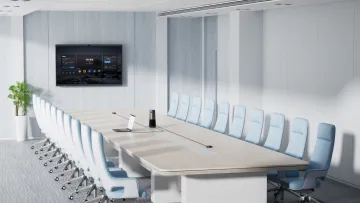
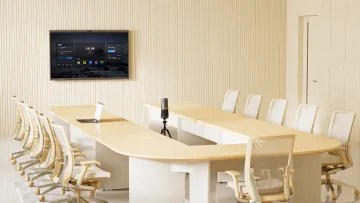
Run the meeting as if everyone is remote. Use individual mics and cameras for in-room attendees rather than one camera at the end of the table. Assign a facilitator to invite remote voices into the discussion. Share all content digitally.
What should I wear for a video interview in 2026?
Dress as you would for an in-person interview. Solid, medium-tone colors work best on camera. Avoid fine patterns that create a flickering moiré effect. Dress completely — not just from the waist up.
How can I reduce video meeting fatigue?
Build buffers between calls. Default to 25 or 50-minute meetings instead of 30 or 60. Turn your camera off during large presentations when you are not speaking. Replace unnecessary meetings with async videos or shared documents.
Your Next Step
Mastering video conferencing is not about expensive equipment or rigid rules. It is about showing up prepared, respecting other people's time, and refining your approach based on what actually works.
Start with one change from this guide. Upgrade your lighting this week. Write an agenda for every meeting you lead. Test your setup before your next video interview. Small improvements compound quickly — and people notice.
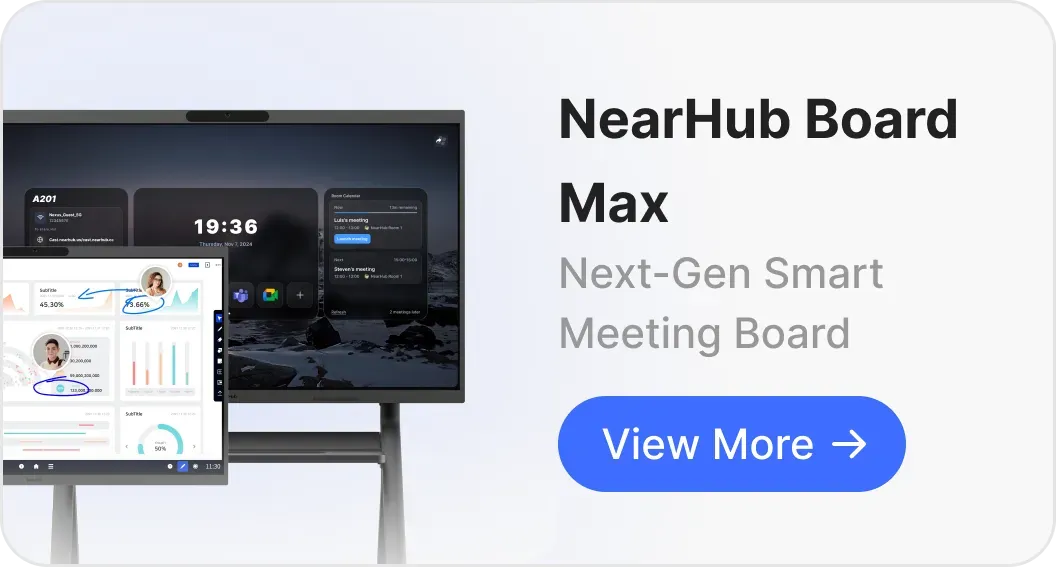
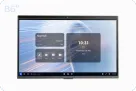
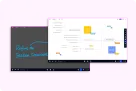
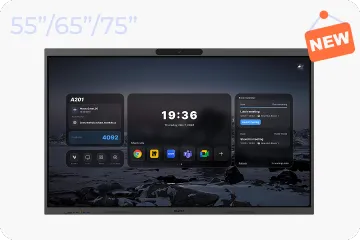
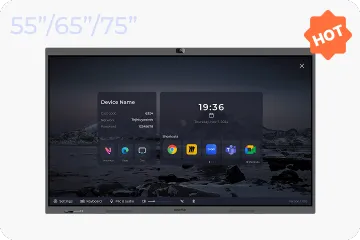
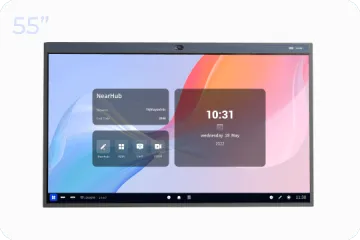
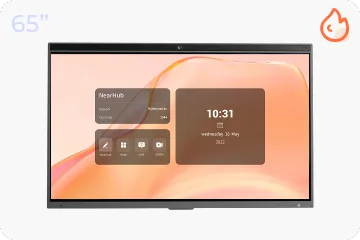
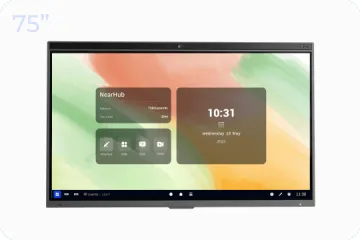
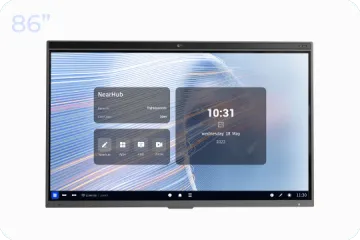
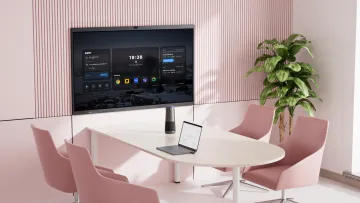
If you are equipping a hybrid or remote team, consider whether your meeting room technology is helping or hindering collaboration. Building a more effective collaborative workspace requires not only better meeting habits, but also tools that support seamless interaction across in-person and remote participants. Solutions like the NearHub Max Interactive Whiteboard can transform hybrid meetings from frustrating two-tier experiences into genuinely collaborative sessions where every participant contributes equally.
The professionals who thrive in 2026 will not be the ones who tolerate video meetings. They will be the ones who have mastered them.