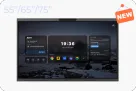
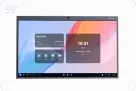







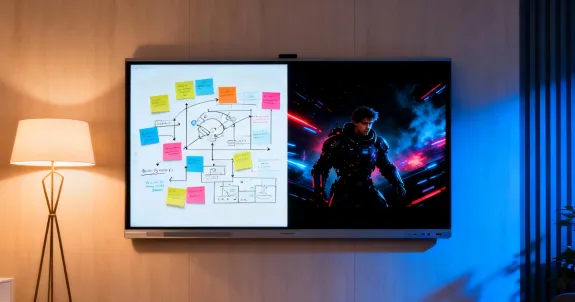
The question" Can a smart board be used as a TV?" comes up constantly in 2026. Whether you are equipping a conference room, upgrading a classroom, or building a hybrid home office, you want one display that handles work presentations and weekend streaming without compromise.
The short answer: yes. A modern smart board TV—also called an interactive flat panel (IFP) or digital whiteboard—functions as a fully capable 4K television. But that is only half the story. These devices also offer touch interaction, digital whiteboarding, video conferencing, and wireless screen sharing that no consumer Smart TV can match.
This guide breaks down what a smart board TV is, how it compares to a standard Smart TV, how much it costs, and whether it fits your classroom, office, or home setup.
What Is a Smart Board TV? Understanding the Interactive Display
When most people hear "SMART Board," they picture the original, pioneering technology that entered classrooms in the 90s and 2000s. "SMART Board" is actually a brand name (like Kleenex or Band-Aid) for a product that defined an entire category: the interactive whiteboard (IWB).
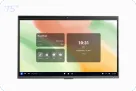
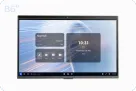
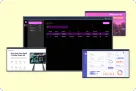
A smart board TV is an all-in-one interactive display that combines a 4K screen with a built-in computer, touch sensors, and collaboration software. Unlike the old projector-based interactive whiteboards from the 2000s, modern units are self-contained. You turn them on, and they work—no external projector, no calibration, no shadow interference.
The "Old" Smartboard (The Projector System)
For a long time, an "interactive whiteboard" was a system of three separate components:
- A "Dumb" Whiteboard: A large, touch-sensitive (but not glowing) white surface.
- A Projector: Usually mounted on the ceiling, this projector would beam a computer's screen image onto the whiteboard.
- A Computer: A separate desktop or laptop that ran the software, processed the touch inputs, and fed the video signal to the projector.
In this setup, the board itself was just a giant mouse. You could touch it to control the computer, but it had no "screen" of its own. This is the technology that came with a tangle of wires, calibration issues, and the constant annoyance of casting a shadow every time you walked in front of the projector.
The "New" smartboard TV (The All-in-One Display)
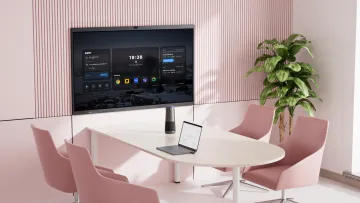
In 2026, that technology will be obsolete. The "smartboard" you see today is a completely different beast, more accurately called an Interactive Flat Panel (IFP) or, as you called it, a touch screen smart TV.
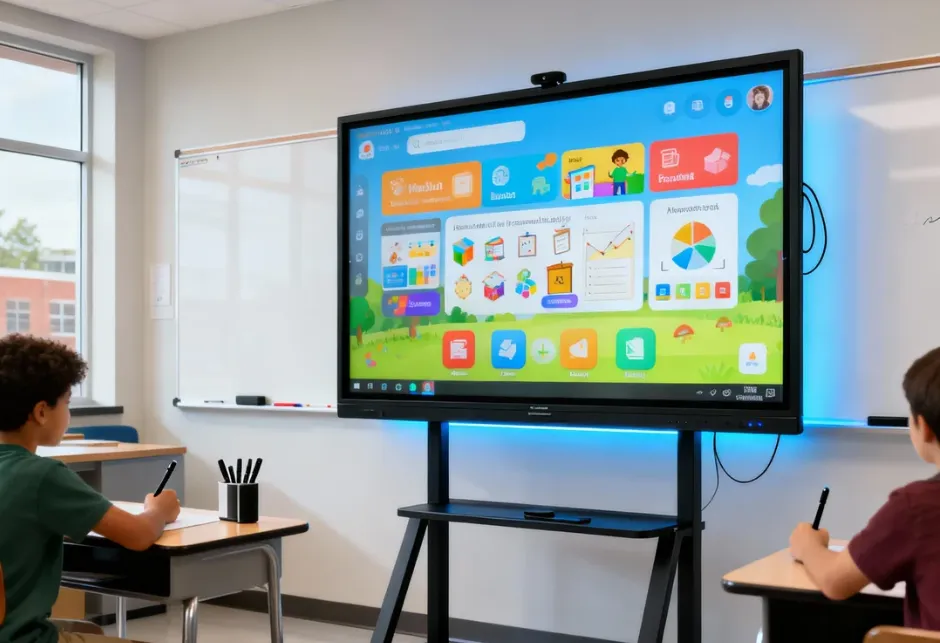
This is a single, all-in-one, self-contained unit. It is:
- A Stunning 4K Display: It’s a brilliant, glowing 4K Ultra HD screen, just like a high-end TV. It generates its own light and image.
- A Powerful Built-in Computer: It has its own processor, RAM, and operating system (usually Android, with the option to slot in a full Windows 11 PC in the back).
- An Advanced Touch System: It has high-precision, multi-point touch (often 20 or 40 points) built directly into the screen.
- A Collaboration Hub: It has built-in speakers, microphone arrays, Wi-Fi, Bluetooth, and often a 4K camera.
So, when we ask "Can you use a smartboard as a TV?", we are not talking about the old, clunky projector system. We are talking about this new, sleek, all-in-one interactive TV. And the answer is a resounding "yes."
Smart Board vs Smart TV: Key Differences
These two devices look similar on the outside but serve entirely different purposes. The table below makes the distinction clear.
| Feature | Smart TV | Smart Board TV |
| Primary Purpose | Media consumption | Collaboration + creation |
| Interactivity | Remote/voice only | Multi-touch, stylus, annotation |
| Operating System | WebOS, Tizen, Android TV | Full Android / Windows 11 |
| Built-in Camera | Rare | 4K camera + mic array |
| Whiteboarding | Not available | Native digital whiteboard |
| Screen Sharing | Limited casting | Multi-device wireless sharing |
| Video Conferencing | Requires an external webcam | Built-in, ready out of the box |
| Streaming Apps | Native | Native via app store |
| Price (65“) | $500–$1,200 | $2,000–$5,000 |
A Smart TV optimizes for one-way content consumption. A smart board is built for two-way interaction—creating, annotating, collaborating, and presenting. The ability to stream Netflix or YouTube is a bonus, not the core function.
Let's break that down with a story.
The "Lean-Back" Experience (Smart TV)
Imagine it's Friday night. You sink into your sofa. You grab a remote, press the Netflix button, and for the next two hours, you are a passive viewer. The TV's job is to deliver a stunning, cinematic picture (OLED, QLED) and immersive sound (Dolby Atmos) to you. Its "smart" features—the simple operating system (WebOS, Tizen, Google TV) and apps—are all designed to help you find something to watch as quickly as possible. Your only interaction is with the remote. This is a "lean-back" experience.
The "Lean-In" Experience (Smartboard)
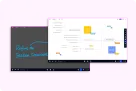
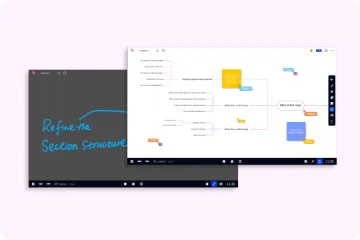
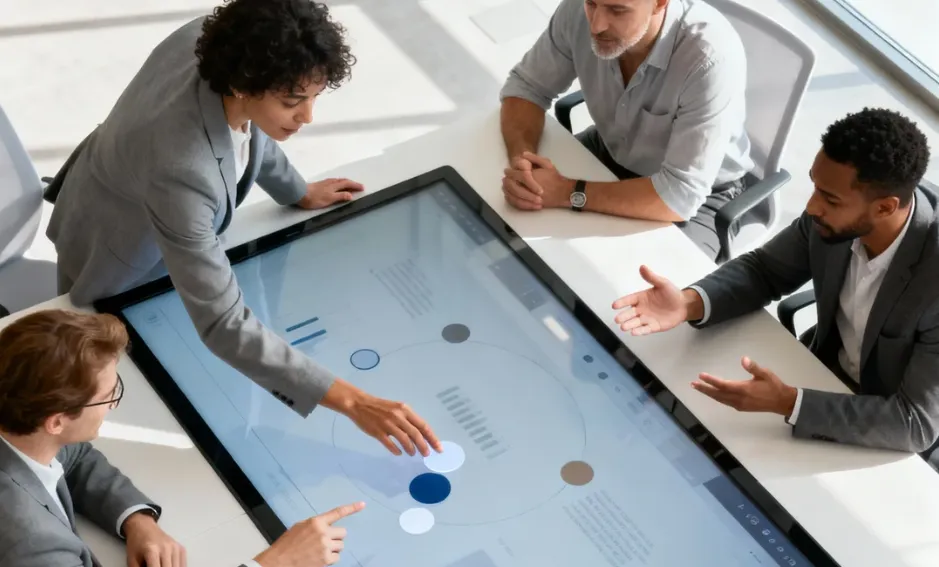
Now, imagine it's Monday morning. Your team, with three people in the room and two remote, gathers for a brainstorming session. You turn on your conference room tv, which is actually a smartboard. You open an infinite digital whiteboard. As you talk, you're dragging in images from the built-in browser, annotating a PDF, and drawing flowcharts with your fingers. Your remote colleagues can see your screen and add their own notes in real-time. This is an active, "lean-in" experience. The device isn't just a display; it's a shared workspace. As publications like Wired have noted, this shift from passive consumption to interactive collaboration is redefining our relationship with screens.
Can a Smart Board Be Used as a TV?
Absolutely. Any modern smart board TV can stream content exactly like a Smart TV. Here are the three ways to do it.
Method 1: Native Apps
Most smart boards run Android or support Google Play. You can install Netflix, YouTube, Hulu, Amazon Prime Video, and other streaming apps directly. Log in with your existing account and stream in 4K—no extra hardware needed.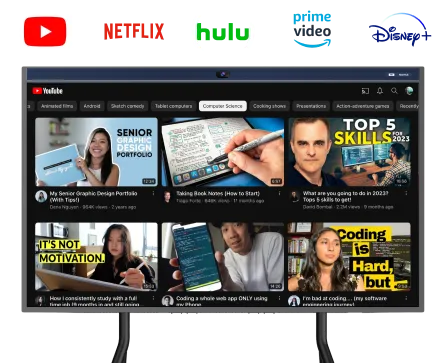
Method 2: HDMI Input
Plug in an Amazon Fire TV Stick, Roku, Apple TV, or game console via HDMI. Switch the input source on the smart board and use the external device’s remote as usual. This works identically to a standard TV.
Method 3: Wireless Casting
Use built-in Chromecast, Miracast, or AirPlay to cast video from your phone, tablet, or laptop. This is convenient for quick sharing but may introduce slight latency compared to a wired connection.
How to Connect a SMART Board: Projectors, Computers, and Cables
This is an excellent question that really gets to the heart of the "old vs. new" confusion. The complete connection method has been radically simplified.
The Old Way: A Rat's Nest of Cables
In the traditional projector-based system, this was a major headache. To get a single "smart" image on the wall, you needed:
- A VGA or HDMI cable from the computer to the projector (for the video).
- A USB cable from the computer to the whiteboard (for the touch-back).
- A Power cable for the computer.
- A Power cable for the projector.
- A Power cable for the whiteboard itself.
- An Audio cable from the computer to a separate soundbar (projector speakers were famously terrible).
It was a mess, a tripping hazard, and a constant point of failure.
The New Way: Clean, Simple, and Wireless
Modern all-in-one interactive displays, or the smartboard TV, have simplified this to three clean methods.
1. The "No Connection" Method (All-in-One)
This is the most common use case. You don't connect anything. The smartboard TV has a powerful computer built in. You just turn it on. You have immediate access to:
- A digital whiteboard app.
- A web browser.
- Built-in apps (or an app store like Google Play) for Netflix, YouTube, etc.
- File viewers for PDFs, PowerPoints, and Word docs.
2. The "Single Cable" Method (External Devices)
Look at the back of any high-quality smartboard. You'll see a row of modern ports.
- HDMI: This is for your "entertainment" devices. You can plug in a Roku, Amazon Fire TV Stick, Apple TV, PlayStation 5, or your cable box. The smartboard acts as a massive, 4K touch-screen monitor.
- USB-C: This is the magic port for modern laptops. A single USB-C cable can (on compatible devices) transmit 4K video to the screen, send touch data back to your laptop, and charge your laptop, all at the same time.
3. The "Wireless" Method (Casting & Mirroring)
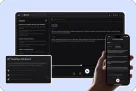
This is where smartboards truly outshine smart TVs. They are built for wireless collaboration. You can instantly and securely share your screen from any laptop, tablet, or smartphone.
- You don't need a special app or dongle.
- You can show a quick YouTube video, a photo slideshow, or a presentation.
- It’s as simple as learning how to mirror an iPhone to a TV, but with a much more powerful and stable connection designed for a business environment.
So, to answer the question: you don't need a projector at all. A modern smartboard tv is the display. And you only need a computer if you want to use your own external laptop instead of the powerful one already built in.
Can You Use a SMART Board by Itself? The Role of a Computer
Let's dive deeper into this, because it's the single biggest change in the technology.
In the Past: Absolutely Not.
For 20 years, the answer to this was a definitive no. The original SMART Board was a "dumb terminal." Without a computer, it was just a large, inert piece of white plastic. The computer did 100% of the work. The projector created the image, and the computer processed the touch.
Today: Absolutely Yes.
This is the revolution. The modern interactive tv is the computer.
When you buy an all-in-one smartboard tv, you are buying a complete system. The built-in Android OS is more than powerful enough for the core tasks:
- Digital Whiteboarding
- Web Browsing
- Video Conferencing (via apps like Zoom or Teams)
- Opening/Annotating Files
- Streaming 4K video from Netflix, Hulu, or Amazon Prime Video
So, How Do I Watch Netflix on It?
It's Friday night. You want to dim the lights and watch a movie. Here's how you do it on a modern smartboard, no external computer needed.
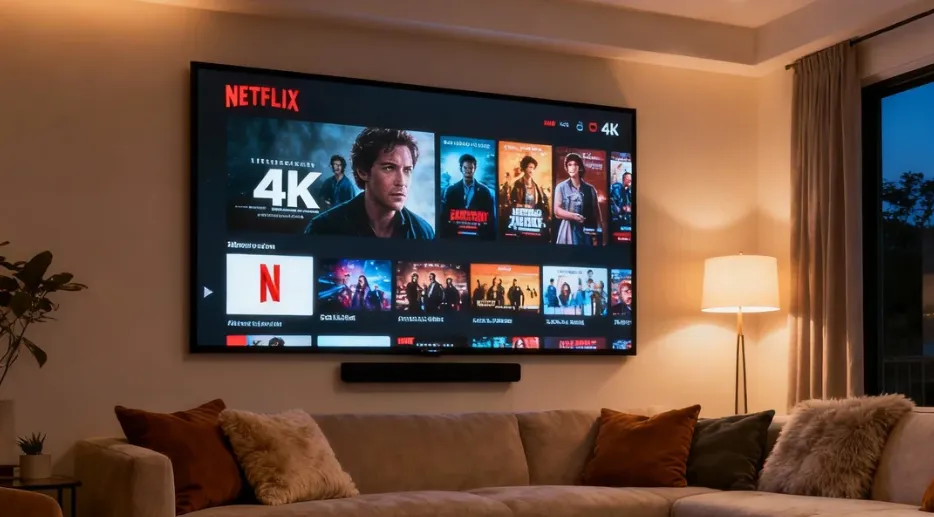
- Method 1: The Native App (30 seconds)
- Turn on your smartboard.
- Navigate to the built-in App Store (e.g., Google Play).
- Search for "Netflix."
- Click "Install."
- Open the app, log in. You are now ready to stream 4K content.
- Method 2: The HDMI Stick (15 seconds)
- Take your Amazon Fire Stick, Roku, or Apple TV.
- Plug it into one of the available HDMI ports on the side of the smartboard.
- On the smartboard's home screen, select "Input" and choose "HDMI 1."
- You are now looking at your familiar Fire Stick home screen. Use your Fire Stick remote as you always do.
The "optional" computer (the Windows OPS module) is for power users who need to run specific, heavy-duty Windows software, like AutoCAD, the full Adobe Creative Suite, or advanced data modeling. For 90% of tasks, including streaming TV, the built-in computer is all you'll ever need
How to Set Up a Smart Board TV
Setup is straightforward compared to old projector systems. Follow these steps.
- Mount the panel on the wall or attach it to a mobile stand. Ensure the mount can support the unit’s weight—larger panels exceed 100 lbs.
- Connect power and your network via Wi-Fi or Ethernet. A wired connection delivers more stable video conferencing performance.
- Complete the initial OS setup—similar to configuring a new smartphone or tablet.
- Install the apps you need: Zoom, Microsoft Teams, Google Meet, Netflix, YouTube, and any whiteboarding or teaching software.
- Test touch input, camera angle, microphone pickup range, and wireless screen sharing from your primary devices.
Most users are up and running within 30 minutes. No IT specialist required.
The Verdict: Is a touch panel TV worth the Investment?
This is the final, bottom-line question. A smartboard tv is a powerful tool, but it's not the perfect choice for everyone. So let's look at the real-world trade-offs.
The Price Factor: Is It Worth It?
This is the big one. You'll see a 65-inch Smart TV for $800 and a 65-inch interactive tv for $2,500+. This can cause sticker shock.
But this is an "apples to oranges" comparison. It's not a cost; it's an investment.
- The $800 Smart TV is just a display.
- The $3,000 smartboard is a 4K display + a 4K video conferencing system + a powerful computer + a professional digital whiteboard + a high-end sound system.
Let's do the math for a conference room. To get the functionality of a smartboard, you would have to buy:
- A high-end 75" Smart TV: $1,200
- A dedicated conference room PC (NUC): $500
- A high-end 4K webcam (e.g., Logitech Brio): $200
- A conference microphone/speaker system: $400
- A physical whiteboard: $150
- Software for screen sharing: $100/year
You're already at $2,550, and you're left with a mess of wires, multiple remotes, and a system that will require IT support to get working. The smart electronic whiteboard is often the cheaper, more elegant, and more reliable solution. It's the best smartboard for conference rooms because it replaces all the other tech. As Forbes notes in its analysis of hybrid work, investing in seamless collaboration technology is no longer a luxury but a core driver of productivity and team cohesion.
Size, Weight, and Installation
These are professional-grade pieces of equipment. A 75-inch smartboard can weigh over 100 pounds. It's not a "toss it on a cheap media console" kind of device. It needs to be securely and professionally mounted to a wall (with a heavy-duty VESA mount) or placed on a specialized, robust rolling stand. This is a one-time consideration, but it's a testament to its quality and durability.
Durability and Lifespan
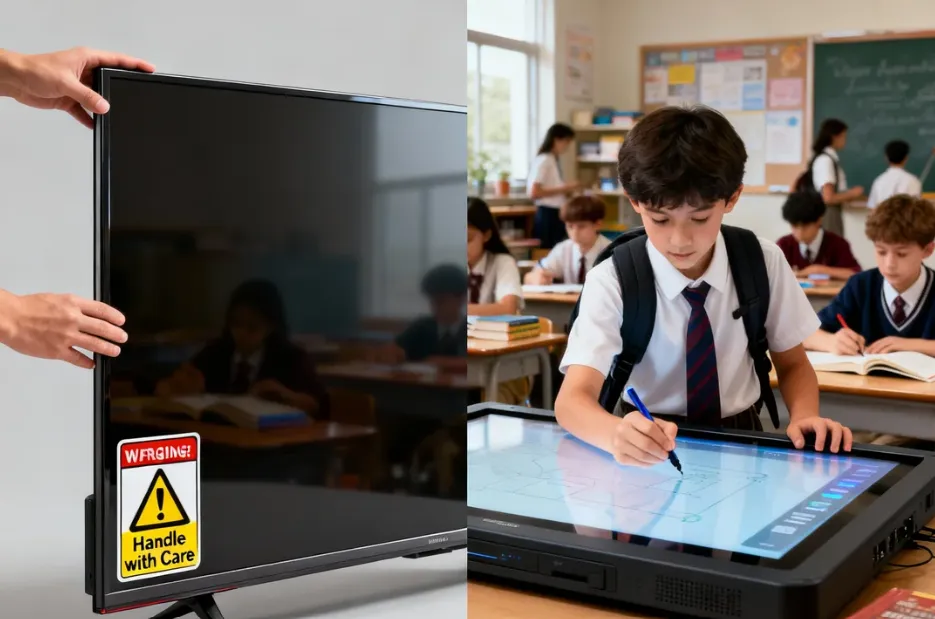
This is often listed as a concern, but it's actually one of the technology's biggest advantages. Consumer TVs are fragile. A touch panel tv is designed for a chaotic classroom or a high-use office. Its screen is made of 4mm-thick, anti-glare tempered glass. It's scratch-resistant, reduces reflections, and is built to withstand constant touching and writing for years. Its enterprise-grade components are rated for a much longer lifespan, often 50,000 hours, which is double or triple that of many consumer TVs.
Bottom Line
A smart board TV can absolutely replace your regular TV for streaming. But that is the least interesting thing it does. The real value lies in transforming how you collaborate, present, teach, and learn.
Choose a smart board TV if you need an interactive display for work or education and want the convenience of built-in streaming as a secondary feature. Stick with a standard Smart TV if your primary goal is passive entertainment and budget is your top concern.
Smartboard for classrooms, hybrid offices, and home workspaces where creation matters as much as consumption, the smart board TV is now the standard—not the exception.
Frequently Asked Questions (FAQ)
1. Do I need a subscription to use a smartboard?
No. The core features of the smartboard—the digital whiteboard, the web browser, the built-in OS, and the ability to connect devices via HDMI—do not require any subscription. You would only need subscriptions for the specific streaming services you want to use, just as you would on a regular Smart TV (e.g., your personal Netflix or Hulu account).
2. Can I use a smartboard without a computer?
Yes! This is one of their biggest advantages. Modern smartboards have a computer and operating system (like Android) built in. You can turn it on and immediately use the whiteboard, browse the web, or open apps, all without ever connecting an external computer.
3. What's the difference between a SMART Board and a digital whiteboard?
"SMART Board" is a specific brand name (like "Kleenex" for tissues) that became famous for its early interactive whiteboards. "Digital whiteboard" or "interactive flat panel" is the generic, modern term for the all-in-one touch screen display we've discussed in this article. Essentially, they refer to the same type of product today.
4. Can I connect a smartboard to the internet?
Absolutely. They connect to the internet just like a Smart TV or laptop, using either a Wi-Fi connection or a physical Ethernet (LAN) cable.
5. What size smartboard is best?
This depends on your room.
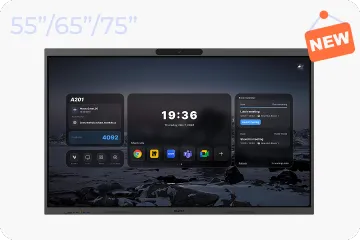
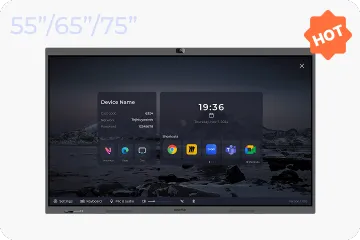
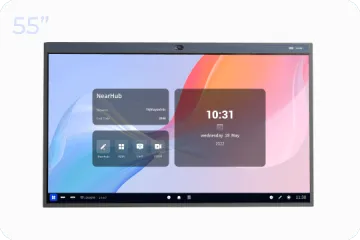
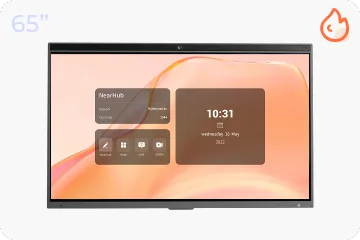
- For small huddle rooms or home offices: 55" or 65" is ideal.
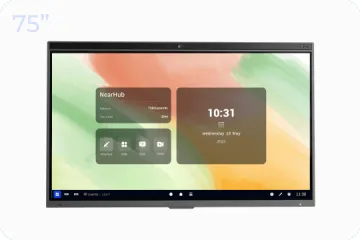
- For average conference rooms or classrooms: 75" is the most popular and versatile size.
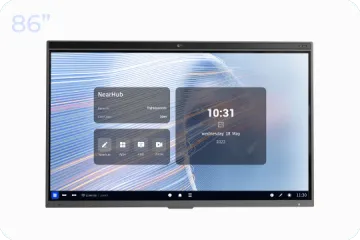
- For large auditoriums or lecture halls: 86" or even 98" ensures everyone in the back can see clearly.
6. Do smartboards need special pens?
Most modern smartboards, including the NearHub, are "pen-agnostic." They come with a simple stylus (which has no electronics), but you can also just use your finger. You don't need to worry about batteries, charging, or expensive, proprietary pens.