Why Smart Boards Fail And How to Prevent It in 2026
Discover the 5 root causes of smart board failure and how to prevent them.
why smart boards fail
how to prevent smart board failure
smart board adoption problems
Updated: Aug 19, 2026 · 5 minutes read
Global Business, Brought Near.
No Installer, No Hassle, Just Works.
You have seen it before — maybe in your own building. An expensive interactive whiteboard mounted on the wall, dark and untouched, while everyone huddles around a laptop or goes back to dry-erase markers. That thousand-dollar display has become the most costly piece of wall art your organization owns.
Understanding why smart boards fail is the first step toward fixing it. Whether you are a K-12 educator, school IT administrator, corporate trainer, or business owner, the pattern is consistent: smart board adoption problems stem from hardware that creates friction instead of removing it.
Key Takeaways
Smart boards fail due to 5 root causes: complicated setup, fragmented software, training gaps, connectivity issues, and lack of ongoing support.
Prevent failure by choosing all-in-one simplicity, familiar interfaces, seamless wireless/cloud integration, and vendor commitment to updates and support.
NearHub S Pro solves each failure point with Windows 11 Pro, built-in 4K camera & mic array, instant-on, zero-learning-curve UI, and remote management.
ROI tip: Measure utilization, time saved, and IT tickets avoided — not just purchase price.
Why Smart Boards Fail And How to Prevent It in 2026
Why Smart Boards Fail — The 5 Root Causes
After speaking with technology directors and facility managers, the same five failure points emerge. Each one drives down collaboration technology ROI and leaves stakeholders frustrated.
1. Overly Complicated Setup and Calibration
Many interactive whiteboards require multi-step installation: mounting the display, connecting an external PC, calibrating touch points, configuring audio and video peripherals, and testing device compatibility. One misstep renders the system unreliable.
IT departments cannot afford half a day per room. When recalibration follows every update, teachers give up.
2. Fragmented, Unintuitive Software
Android and Chromium boards often run mobile apps lacking full functionality. Zoom Android may not support breakout rooms. Teams on limited OSes feels like a stripped-down shadow of the desktop.
When software does not match what users know, they abandon it. An interactive whiteboard not being used is a software problem disguised as hardware.
3. The Training Gap and User Resistance
Every minute spent learning a proprietary interface is a minute not spent teaching. If your board requires dedicated training sessions and help-desk calls to start a lesson, adoption plummets.
User resistance is not stubbornness — it is a rational response to tools that add work. The best technology is the kind people can use without thinking.
4. Connectivity, Latency, and Compatibility Nightmares
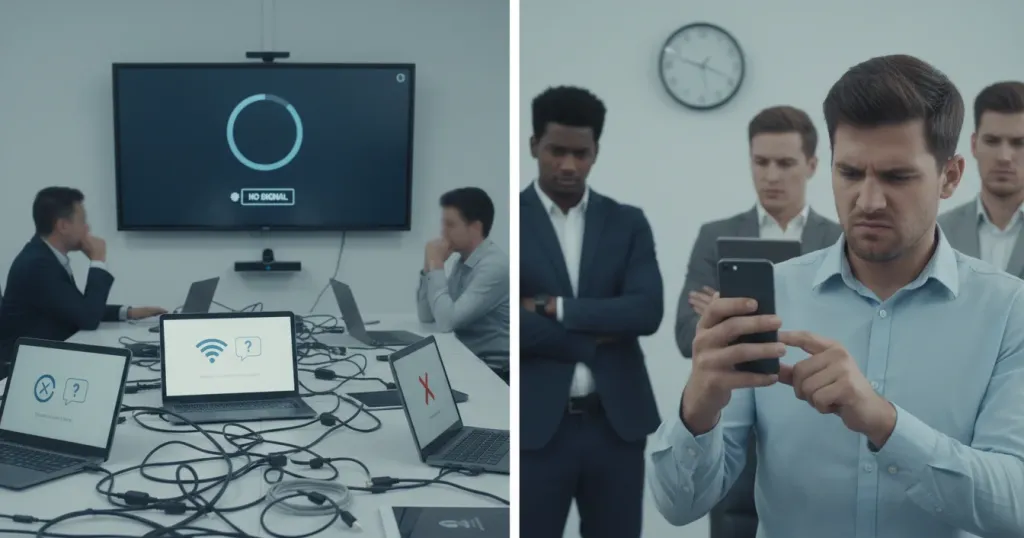
Wireless casting that drops every third presentation. HDMI adapters that disappear from drawers. Bluetooth pairing that fails when the superintendent visits. Audio echo that makes remote participants wince.
These are daily realities for organizations with cobbled-together A/V systems. Latency above a few milliseconds makes writing feel unnatural, and compatibility gaps turn every meeting into a technical rehearsal.
5. Lack of Ongoing Updates and Support
Smart boards are not one-time purchases. They require security patches, software updates, and hardware maintenance. Yet many vendors treat support as an afterthought, leaving organizations with outdated systems that cannot run modern applications.
Without remote management, every update requires a physical visit. Without dedicated support, every problem becomes an IT project.
How to Prevent Smart Board Failure — A 2026 Playbook
Here is how to prevent smart board failure before your next purchase. Treat this as your smart board buying guide for 2026.
Choose All-in-One Simplicity Over Jumbled Components
Stop buying displays, cameras, microphones, and compute modules separately. Every additional component is another point of failure. An all-in-one solution with built-in camera, mic array, and operating system eliminates guesswork and reduces setup from hours to minutes.
Demand Zero-Learning-Curve Interfaces
If your board does not run the software your team already uses, you are paying for a parallel ecosystem nobody wants. Prioritize devices that run full desktop operating systems like Windows 11 Pro with familiar PowerPoint, browser tabs, and conferencing apps.
Prioritize Seamless Wireless and Cloud Integration
Wireless casting should work from any device without dongles. Cloud integration should let users open and save files directly to Google Drive, OneDrive, or Dropbox. The best boards make the transition from personal device to shared display invisible.
Insist on Continuous Improvement and Dedicated Support
Look for vendors that ship regular updates and offer remote management through Microsoft Intune. Ask about support response times before you buy. A true partner invests in your long-term success, not just the initial sale.
NearHub S Pro — Built to Succeed Where Others Stop
The NearHub S Pro benefits map directly to each failure point:
Failure Point
NearHub S Pro Solution
Complicated setup
All-in-one Windows 11 Pro — no external PC, camera, or mic
Fragmented software
Full desktop apps: Zoom Rooms, Teams, Office 365, Adobe
Training gap
Familiar Windows interface with purpose-built launcher
Connectivity issues
Wireless screencast via AirPlay, Bozee, NearHub Tail, HDMI
Poor support
Microsoft Intune remote management, 30-day risk-free trial
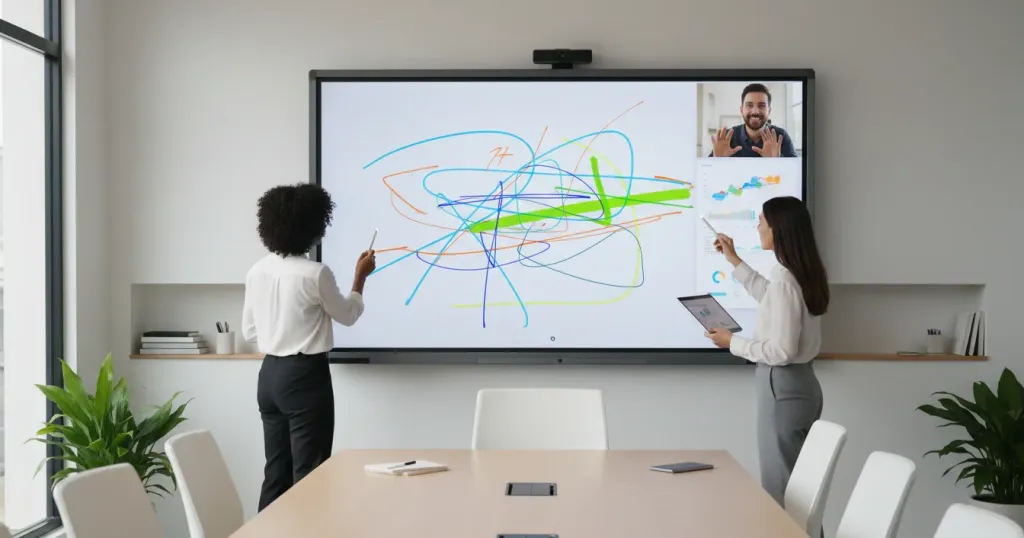
Powered by a 12th Gen Intel Core i5 processor with 16GB RAM and 128GB storage, the NearHub S Pro delivers desktop-grade performance on a 4K UHD infrared touchscreen. The 20-point multi-touch display supports up to four people writing simultaneously with 6ms latency — every stroke feels immediate.
The built-in 4K camera with AI auto-framing and eight-microphone array with noise cancellation ensure everyone is seen and heard clearly. No external webcams. No USB mic pods. No cable clutter.
Frequently Asked Questions
1. Should I choose an Android-based or Windows-based interactive whiteboard?
For organizations using full-featured desktop apps, Windows-based boards are the safer choice. Android whiteboards often run mobile app versions lacking key features like Zoom breakout rooms. The NearHub S Pro runs Windows 11 Pro with the same software your team uses daily, eliminating compatibility surprises.
2. Do I still need external cameras or microphones with an all-in-one smart board?
No. The NearHub S Pro includes a built-in 4K camera with AI auto-framing and an eight-microphone array with noise cancellation. This eliminates the cost, clutter, and compatibility issues of external peripherals.
3. Can multiple people write on the NearHub S Pro at the same time?
Yes. The NearHub S Pro features 20-point multi-touch infrared technology, supporting up to four people writing simultaneously with 6ms latency. This makes it ideal for collaborative brainstorming and classroom activities where multiple participants interact at once.
4. What is the advantage of Microsoft Intune remote management for smart boards?
Microsoft Intune lets IT administrators deploy updates, enforce security policies, and troubleshoot remotely — no physical visits required. For organizations managing dozens of boards across multiple locations, this reduces support tickets and keeps every device secure.
5. Is there a way to try the NearHub S Pro before committing to a purchase?
Yes. NearHub offers a 30-day risk-free trial, allowing you to test the S Pro in your actual classroom or meeting room before making a final decision. This eliminates the uncertainty of buying collaboration technology based on spec sheets alone.
Prevent Smart Board Failure: Make Your Next Board an Asset
The difference between a smart board that transforms your space and one that collects dust comes down to a single question: does this device remove friction or add it?
Boards that require complicated setup, fragmented software, and constant troubleshooting are anchors. They drag down productivity, strain IT resources, and waste budget.
Boards that turn on instantly, run familiar software, and connect wirelessly are assets. They amplify collaboration and deliver measurable returns.
Next Steps — Consider the NearHub S Pro
You don't have to repeat the same issues that turned a previous interactive whiteboard into an underused device. The NearHub S Pro addresses the five common failure points described above: complicated setup, fragmented software, connectivity problems, training barriers, and limited support.
Key features include instant-on startup, a familiar Windows interface, built-in 4K camera and eight-microphone array, wireless screen sharing, and Microsoft Intune remote management.